Fixed – The method ‘GroupJoin’ cannot follow the method ‘SelectMany’ or is not supported while using LINQ query (Dataverse / Dynamics 365)


We might get the below error while using LINQ to query Dataverse –

System.NotSupportedException: ‘The method ‘GroupJoin’ cannot follow the method ‘SelectMany’ or is not supported. Try writing the query in terms of supported methods or call the ‘AsEnumerable’ or ‘ToList’ method before calling unsupported methods.’

A screenshot of a computer

Description automatically generated

This error occurs because the GroupJoin method, which is essentially what happens during the into … syntax in LINQ, is not supported in the Dataverse/LINQ provider for Dynamics CRM. The issue is related to how the LINQ provider translates queries into FetchXML or SQL that the Dataverse understands. Specifically, nested joins or SelectMany (used by DefaultIfEmpty() in left joins) are not fully supported by the LINQ provider for Dataverse.

The GroupJoin and DefaultIfEmpty methods (used for left joins) result in queries that cannot be translated directly into FetchXML. The LINQ provider for Dataverse does not support all LINQ-to-Entities features, such as nested joins or advanced grouping logic. When you perform nested joins with DefaultIfEmpty() for left joins, the LINQ provider struggles to translate it into the underlying Dataverse query format, which is why the exception is thrown.

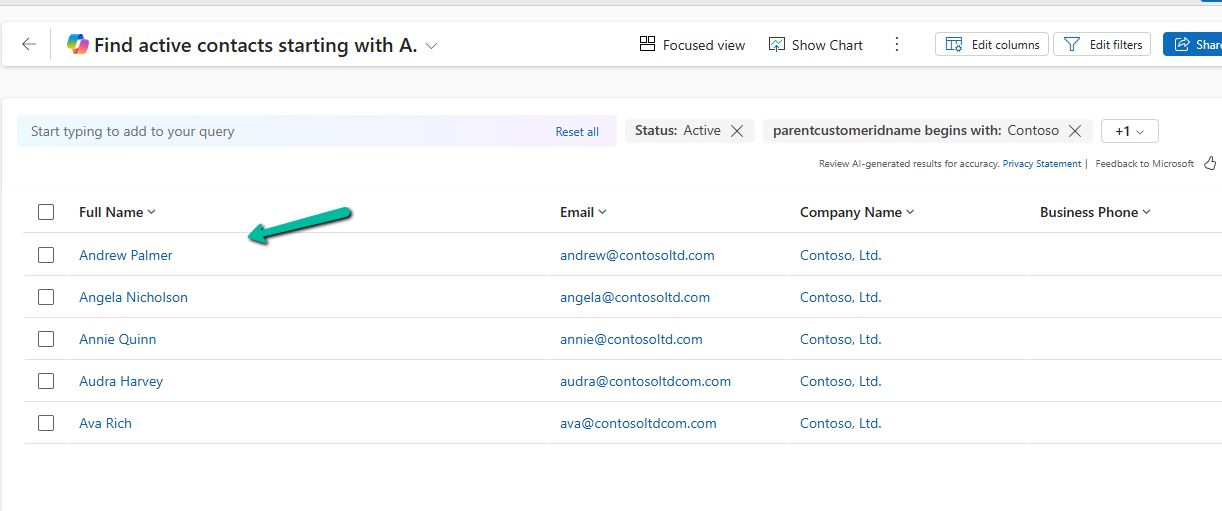
To fix it we can break the query into multiple steps as shown below.
A screenshot of a computer

Description automatically generated

However, here as we are fetching partial data into memory and combining it, it increases transfer and processing overhead and can take a long time to process based on the number of records.

The better alternative from a performance perspective would be to use FetchXML or QueryExpression here.

Also check writing complex LINQ queries

Hope it helps..

Advertisements

Fixed – ‘Invalid ‘where’ condition. An entity member is invoking an invalid property or method’ while using LINQ query (Dataverse / Dynamics 365)


We might get the below error while using LINQ to query Dataverse – “System.NotSupportedException: ‘Invalid ‘where’ condition. An entity member is invoking an invalid property or method.’” Here we got the below error because we used the HasValue property.

A screenshot of a computer

Description automatically generated

Here the issue with HasValue arises because FetchXML doesn’t have a direct equivalent for nullable checks like HasValue in LINQ. In FetchXML, null checks are handled explicitly through conditions like neq (not equal) or eq (equal) with the null value. Therefore, instead of using HasValue, we need to manually check for null using != null or GetValueOrDefault().

A computer screen shot of a code

Description automatically generated

We will also get the same error on below query.

A screenshot of a computer

Description automatically generated

Here we get this error because OriginatingLeadId is a LookUp referencing Lead table, and we are trying to access the Name property of it in the where clause, which cannot be directly translated into FetchXML. To fix it we can perform a join between the Contact and Lead table.

A computer screen shot of a program

Description automatically generated

Let us see one more example.

A green arrow pointing to a green object

Description automatically generated

The query, c.Attributes[“firstname”].ToString() is trying to access the firstname attribute and convert it to a string. However, the LINQ provider doesn’t know how to translate.ToString() into a valid FetchXML query.

To fix it we can use GetAttributeValue method.

A green arrow pointing to a computer code

Description automatically generated

Or doing the casting

A computer screen shot of a computer code

Description automatically generated

However, we will get the same not supported error if we try to use Attributes Collection.

A computer screen shot of a computer code

Description automatically generated

The error occurs because of the syntax c.Attributes[“firstname”] directly accesses the internal Attributes dictionary of the Entity object. The LINQ provider in Dataverse (Dynamics 365) cannot translate this access pattern into a FetchXML

Check more about the LINQ limitations

Hope it helps..

Advertisements

Fixed – Real-time marketing form’s Standalone page submitting to a different environment – (Dynamics 365 Customer Insights – Journeys)


Recently we migrated the Real-time marketing forms from our Dev environment to UAT environment using the Configuration Migration Tool. Here what we noticed was on submitting the form using the standalone page in UAT, the submissions were going back to the Dev environment instead of UAT.

A screenshot of a computer

Description automatically generated

This was because the data-form-api-url and data-cached-form-url property of msdynmkt_standalonehtml field of msdynmkt_marketingform record was still referencing the organization id of the Dev environment instead of UAT.

A computer screen shot of a computer screen

Description automatically generated
<div data-form-id='167fce01-b674-ef11-a671-002248e36298'
data-form-api-url='https://public-oce.mkt.dynamics.com/api/v1.0/orgs/f69f1cea-23d9-446f-9130-ed45ce666b28/landingpageforms'
data-cached-form-url='https://assets-oce.mkt.dynamics.com/f69f1cea-23d9-446f-9130-ed45ce666b28/digitalassets/forms/xxxfce01-b674-ef11-a671-002248e36298' ></div>

The f69f1cea-23d9-446f-9130-ed45ce666b28 is the development environment’s organization ID.

This information is stored in the msdynmkt_standalonehtml field of msdynmkt_marketingform record.

select msdynmkt_marketingformid,msdynmkt_standalonehtml,* from msdynmkt_marketingform where msdynmkt_marketingformid = ‘formGUID’

A screen shot of a computer

Description automatically generated

A screenshot of a computer
Description automatically generated

To fix we replaced the Dev’s Organization ID = f69f1cea-23d9-446f-9130-ed45ce666b28 with UAT’s Organization ID = dd628e4e-ffd7-ed11-aecf-002248932ace

<div data-form-id='167fce01-b674-ef11-a671-002248e36298'
data-form-api-url='https://public-oce.mkt.dynamics.com/api/v1.0/orgs/dd628e4e-ffd7-ed11-aecf-002248932ace/landingpageforms'
data-cached-form-url='https://assets-oce.mkt.dynamics.com/dd628e4e-ffd7-ed11-aecf-002248932ace/digitalassets/forms/xxxfce01-b674-ef11-a671-002248e36298' >

And updated the marketing form record.

Red text on a white background

Description automatically generated
update msdynmkt_marketingform
set msdynmkt_standalonehtml = '<div data-form-id=''067fce01-b674-ef11-a671-002248e36298''
 data-form-api-url=''https://public-oce.mkt.dynamics.com/api/v1.0/orgs/dd628e4e-ffd7-ed11-aecf-002248932ace/landingpageforms'' 
 data-cached-form-url=''https://assets-oce.mkt.dynamics.com/dd628e4e-ffd7-ed11-aecf-002248932ace/digitalassets/forms/067fce01-b674-ef11-a671-002248e36298'' >
 </div><script src = ''https://cxppusa1formui01cdnsa01-endpoint.azureedge.net/oce/FormLoader/FormLoader.bundle.js''></script>'
where msdynmkt_marketingformid = '067fce01-b674-ef11-a671-002248e36298'

After the update we can see submission reflecting back to the correct UAT environment.

A screenshot of a computer

Description automatically generated

The query we used to update all the forms with UAT’s Id

-- replace Dev Org ID with UAT Org ID in all the marketing forms 
UPDATE msdynmkt_marketingform
SET msdynmkt_standalonehtml = REPLACE(msdynmkt_standalonehtml, 'f69f1cea-23d9-446f-9130-ed45ce666b28', 'dd628e4e-ffd7-ed11-aecf-002248932ace')
where msdynmkt_standalonehtml is not null 

Hope it helps..

Advertisements

How to use the setIsValid Method in Dataverse / Dynamics 365


We can use the setIsValid method for validating field values in Model-driven apps. This method helps ensure that the data entered by users meets the required criteria before it’s processed or saved.

The setIsValid method is used to set the validity of a column’s value. It can mark a field as valid or invalid based on custom validation logic.

formContext.getAttribute(arg).setIsValid(bool, message);

bool: A Boolean value. Set to false to mark the column value as invalid, and true to mark it as valid.

message: (Optional) A string containing the message to display when the value is invalid.

Below we are using the setIsValid method in the function that ensures that the “End Date” is earlier than or equal to the “Start Date”, else it will mark the “End Date” as invalid.

function validateDates(executionContext) {
    var formContext = executionContext.getFormContext();
    var startDate = formContext.getAttribute("custom_startdate");
    var endDate = formContext.getAttribute("custom_enddate");
  
    if (startDate && endDate && endDate.getValue() <= startDate.getValue()) {
        endDate.setIsValid(false, "End Date must be after Start Date.");
    } else {
        endDate.setIsValid(true);
    }
}

We have it registered in the On Change of the ‘Start Date’ and ‘End Date’ fields.

Here if we try saving the record, if the End Date is smaller than the Start Date, we will get the message specified.

Hope it helps..

Advertisements

Using Xrm.Utility.getPageContext().input to identity or get parent record details for the Quick Create form – Dataverse / Dynamics 365


Recently we had a requirement to make different sets of fields mandatory and non-mandatory on the Quick Create form for Contact, based on the parent record type it is opened from.

Quick Create Form

As we cannot have multiple Quick Create Form specified for different forms, we had to use JavaScript to identify the parent record type.

We can use the below properties for that.

Xrm.Utility.getPageContext

  • Xrm.Utility.getPageContext().input.data.parentrecordtype
  • Xrm.Utility.getPageContext().input.createFromEntity.entityType

Below we have the contact’s quick create form opened from a custom table – custom_contract’s contact lookup.

A screen shot of a computer

Description automatically generated

On using the above properties in our form load script for the quick create form, we can see different sets of fields set as required and recommended on the Quick Create Contact form based on the parent record it is opened from.

Parent A :

A screenshot of a computer

Description automatically generated

Parent B :

A screenshot of a phone
Description automatically generated

The helpful post – https://butenko.pro/2020/09/15/js-how-to-get-the-originating-record-reference-in-the-form-script-of-the-quick-create-form/

Hope it helps..

Advertisements

Manage solution dependencies easily through the refreshed look – Dataverse


In Dataverse, solution dependencies are a vital aspect of managing and deploying applications. Dependencies ensure that required components are present for a solution to work seamlessly across environments. However, with complex solutions, understanding and managing these dependencies can become overwhelming.

The updated dependencies page is designed to simplify dependency management by offering a more intuitive, action-driven experience.

Select a particular component in the solution, right-click>> Advanced >> Show dependencies.

We can see 3 different tabs.

Delete Blocked By (tab): Displays any dependencies preventing deletion of a component. Below we can see that for the Age column, it shows Contact’s System Form as the dependency.

A screenshot of a computer

Description automatically generated

Clicking on the Open option takes us to the component page, where we can see all the forms for the contact table.

A screenshot of a computer

Description automatically generated

Used By (tab): Lists other components dependent on the selected component.

Uses (tab): Shows dependencies that the selected component relies upon.

A screenshot of a computer

Description automatically generated

On clicking Open, it opens the Columns page for that table.

A screenshot of a computer

Description automatically generated

The different actions that we can take are Open and inspect the object, Delete the object, Remove dependency, and open the relevant documentation.

Below we have selected the option Remove dependency. As we saw the dependency here refers to the Contact System form in which we have the age field used.

A screenshot of a computer

Description automatically generated
A screenshot of a computer

Description automatically generated

Select Remove.

A screenshot of a computer

Description automatically generated

We get the success message after the successful removal of the dependency.

i.e. we can see the field removed from the blocking Contact’s System form.

Now if we want we can easily delete that particular field with no object blocking the delete.

Lastly, the Delete option for the solution allows the delete (uninstall) the solution that has dependencies on the solution component.

Get all the details here.

Hope it helps..

Advertisements