

Sharing a sample code, we can use to upload a file to the File Column
Also read –
https://nishantrana.me/2021/10/01/using-file-and-image-data-type-in-dataverse-dynamics-365/
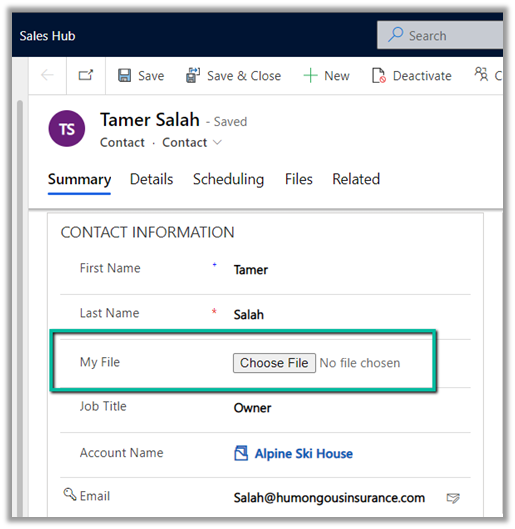
Here we would upload the below file to one of the contact records.

For file size more than 4 MB we need to implement chunking and combine the data before committing.
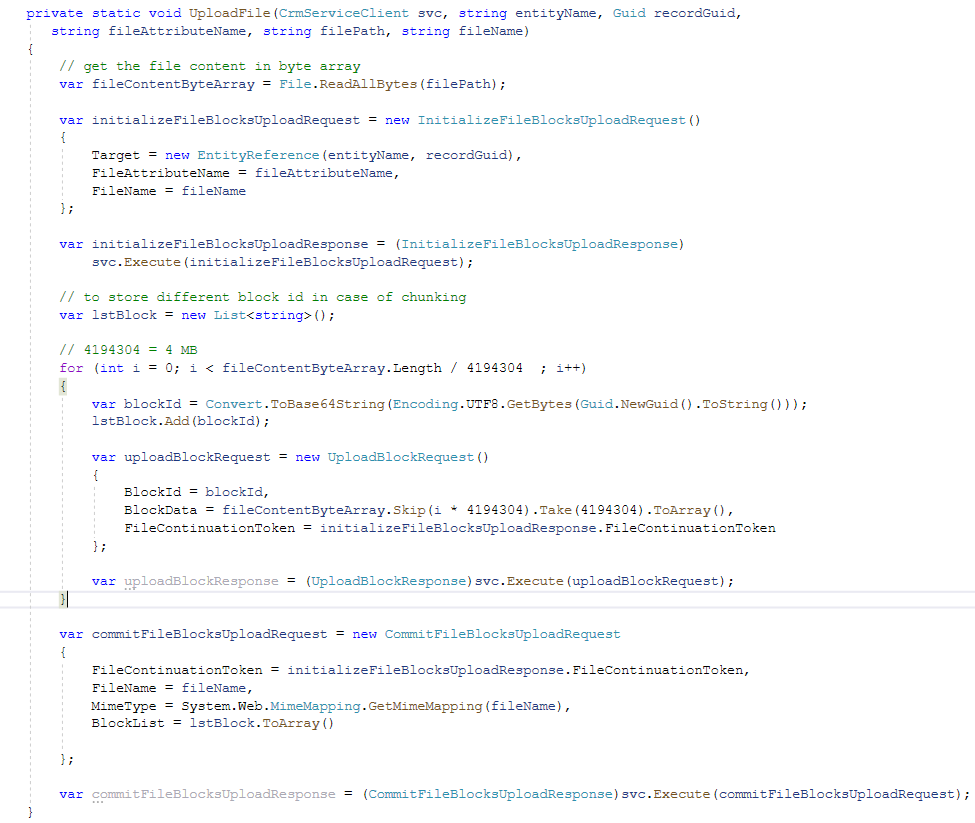
On calling the method –

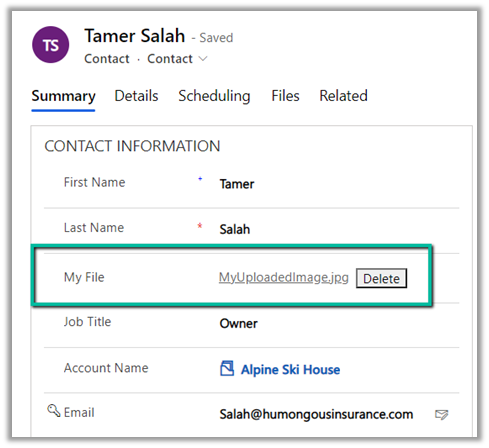
We can see the file uploaded to the contact record.
The restriction of using chunked upload for files greater than 16 MB has been removed, see the below code for full file upload. The chunking APIs are still kept for backward compatibility.
Example – .NET C# code for full file upload. (recommended way of uploading)
Hope it helps..
  private static void UploadFile(CrmServiceClient svc, string entityName, Guid recordGuid,
           string fileAttributeName, string filePath, string fileName)
        {
            // get the file content in byte array
            var fileContentByteArray = File.ReadAllBytes(filePath);

            var initializeFileBlocksUploadRequest = new InitializeFileBlocksUploadRequest()
            {
                Target = new EntityReference(entityName, recordGuid),
                FileAttributeName = fileAttributeName,
                FileName = fileName
            };

            var initializeFileBlocksUploadResponse = (InitializeFileBlocksUploadResponse)
                svc.Execute(initializeFileBlocksUploadRequest);

            // to store different block id in case of chunking
            var lstBlock = new List<string>();

            // 4194304 = 4 MB
            for (int i = 0; i < fileContentByteArray.Length / 4194304  ; i++)
            {
                var blockId = Convert.ToBase64String(Encoding.UTF8.GetBytes(Guid.NewGuid().ToString()));
                lstBlock.Add(blockId);

                var uploadBlockRequest = new UploadBlockRequest()
                {
                    BlockId = blockId,
                    BlockData = fileContentByteArray.Skip(i * 4194304).Take(4194304).ToArray(),
                    FileContinuationToken = initializeFileBlocksUploadResponse.FileContinuationToken
                };

                var uploadBlockResponse = (UploadBlockResponse)svc.Execute(uploadBlockRequest);
            }

            var commitFileBlocksUploadRequest = new CommitFileBlocksUploadRequest
            {
                FileContinuationToken = initializeFileBlocksUploadResponse.FileContinuationToken,
                FileName = fileName,
                MimeType = System.Web.MimeMapping.GetMimeMapping(fileName),
                BlockList = lstBlock.ToArray()

            };

            var commitFileBlocksUploadResponse = (CommitFileBlocksUploadResponse)svc.Execute(commitFileBlocksUploadRequest);
        }
Advertisements
Discover more from Nishant Rana's Weblog
Subscribe to get the latest posts sent to your email.
Share It -


 Nishant Rana's Weblog
Hi Nishant – I’m not sure if this was you intention but the code sample will never upload the contents of a file smaller than 4mb as the loop to generate upload block request will never be entered. Just an FYI for other readers.
LikeLike
ignore this – I read the code wrong
LikeLike
That is correct actually,
If your fileContentByteArray.Length is less then 4194304 (4 MB), the result of that would be o.012345 something. Given the for-loop condition (for (int i = 0; i < fileContentByteArray.Length / 4194304 ; i++)), for-loop would not enter because result is 0 (zero) since devided result is an integer (I is an integer and result of fileContentByteArray.Length is integer as well).. unless you convert it to double:
– for (int i = 0; i < (double)fileContentByteArray.Length / 4194304 ; i++)
This way code will enter the for-loop and everything works fine after that.
LikeLike
Thansk Marko for your comments and trying that out, validating and confirming it.
LikeLike
In the original sample code, the loop that uploads file chunks was written like this:
for (int i = 0; i < fileContentByteArray.Length / 4194304; i++) { ... }The problem is that this condition only iterates over full 4 MB blocks. If the file is smaller than 4 MB, or if the file size is not an exact multiple of 4 MB, the loop never runs for the remaining bytes. As a result, no data (or only a partial set of chunks) is uploaded, and the file stored in Dataverse ends up being empty (0 bytes).
The fix is to loop until all bytes have been processed, including the last partial block. The corrected version looks like this:
int blockSize = 4 * 1024 * 1024; // 4 MB int offset = 0; while (offset < fileContentByteArray.Length) { int chunkSize = Math.Min(blockSize, fileContentByteArray.Length - offset); var blockId = Convert.ToBase64String(Encoding.UTF8.GetBytes(Guid.NewGuid().ToString())); lstBlock.Add(blockId); var uploadBlockRequest = new UploadBlockRequest { BlockId = blockId, BlockData = fileContentByteArray.Skip(offset).Take(chunkSize).ToArray(), FileContinuationToken = initializeFileBlocksUploadResponse.FileContinuationToken }; svc.Execute(uploadBlockRequest); offset += chunkSize; }LikeLike