How to – assign a personal phone number to agents in Voice Channel (Omnichannel)– Dynamics 365 Customer Service


The reason we would assign a personal phone number to the agents is that they can use that number to make an outbound call to the customers or in some scenarios, the customer wants to directly call the specific agent for direct follow-up on a particular case.

Let us first add a new phone number.

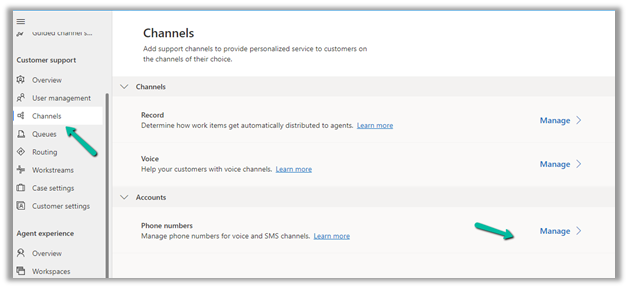
Navigate to Customer Service Admin Center >> Customer Support (Channels) >> Phone numbers (Manage)

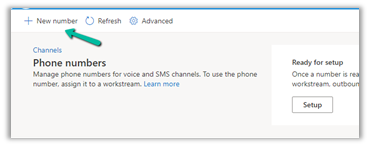
Select + New number (in case we have purchased a number from Microsoft)

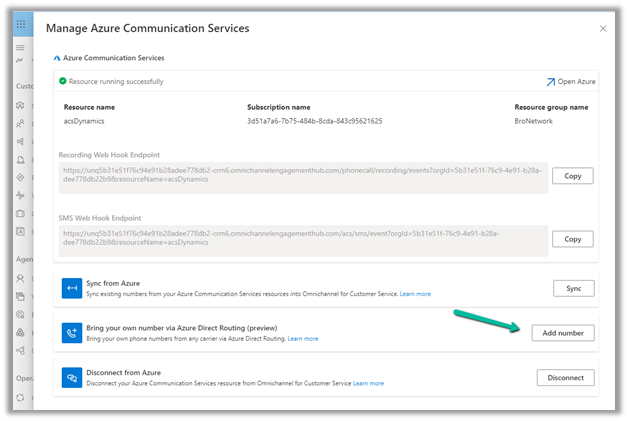
In case of Direct Routing, click on Advanced
>> Bring your own number via Azure Direct Routing

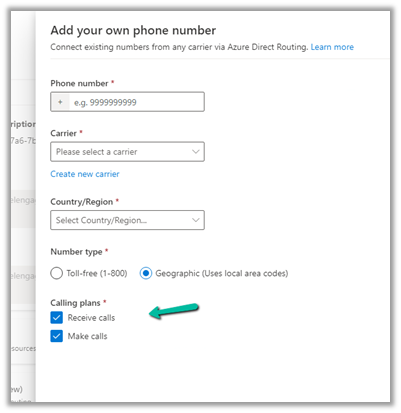
Specify the Phone Number, Carrier, Country / Region, and Number type, and select Receive calls and Make calls.

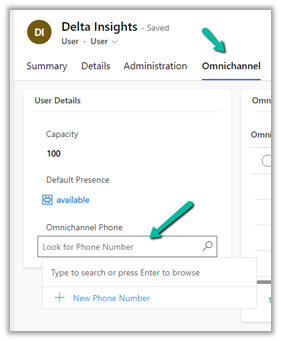
Open the system user’s record, and specify the phone number added in the Omnichannel Phone field in the Omnichannel tab.

Now login to Customer Service Workspace with the agent’s account.

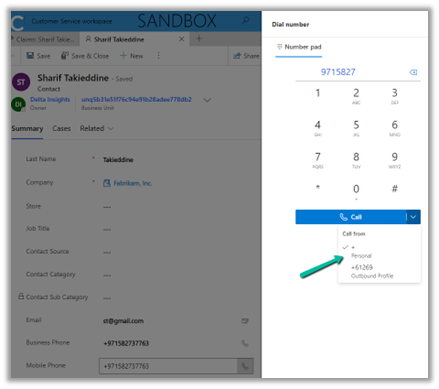
The agent will now have the option to make an outbound call using the personal number assigned.

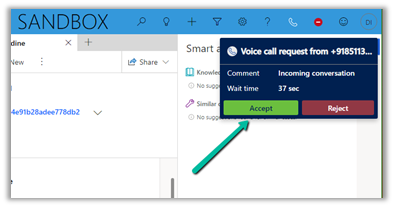
Also, we can see the agent receiving a call on that number directly.

Get more details – https://learn.microsoft.com/en-us/dynamics365/customer-service/voice-channel-outbound-calling?tabs=customerserviceadmincenter#assign-personal-phone-numbers-to-agents

Hope it helps..

Advertisements

Connect Voice Channel to using an existing Azure Communication Services (ACS) Resource – Dynamics 365 Customer Service


We had earlier configured Voice Channel in our Dev environment using ACS Direct Routing.

Please refer to this blog post on how to set up a voice channel using a new ACS. https://nishantrana.me/2022/10/17/how-to-set-up-omnichannel-voice-using-azure-communication-service-acs/

Recently while configuring the UAT environment, we thought of reusing the same ACS resource configured earlier.

Highlighting the key steps required for it –

The first step is to install the Voice Channel in the new environment

https://nishantrana.me/2023/02/08/install-voice-channel-in-omnichannel-dynamics-365-customer-service/

Followed by registering a new App in Azure Active Directory.

This will be required while connecting to the Azure Communication Services.

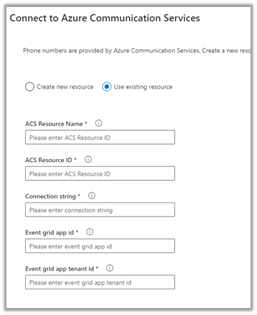
Enter the details of existing ACS, like name, ID, and Connection String.

And the App ID and App Tenant Id while connecting to ACS in the new environment.

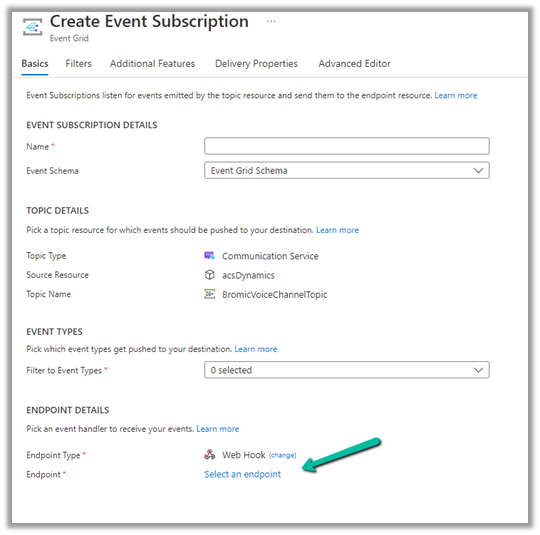
Now if we want to use the feature of Call recording, we can reuse the existing Event Grid System Topics created for the Dev environment, by simply creating a new Event Subscription for it.

Copy and specify the webhook endpoint from the UAT / New environment

Select Manage for Channels >> Phone numbers

Select Advanced

Copy the Webhook endpoint for the new event subscription from the UAT / New env.

For the exact steps refer – https://nishantrana.me/2022/12/20/configure-azure-event-grid-system-topic-and-subscription-to-enable-call-recording-and-sms-in-dynamics-365-omnichannel-voice/

The next step would be to configure a new phone number, voice channel, workstream, etc.

So basically we can have multiple environments using the same ACS Resource using different numbers and with call recording for this we need to

  • Create / Register a new Azure AD app for each environment.
  • New Event Subscription for the existing Event Grid System Topics.

Get all the details here – Connect to ACS

Hope it helps..


Advertisements

Omnichannel Real-time analytics reports (Preview) – Dynamics 365 Customer Service


The Real-time dashboard consists Summary, Ongoing conversation, Agent, and Voice report.

To enable it – Login into Customer Service Admin Center >> Operations >> Insights >> Report Settings >> Real-time Analytics (preview)


Enable it –


After a couple of minutes, we can see the Dashboard added to the Customer Service Workspace app.

Within the Summary, we can get the details of any ongoing conversation, KPIs, etc.

The ongoing conversation report shows the details of all the ongoing conversations

The agent shows all the real-time details about the agents

We can select an agent from Agent List and click on Details to show additional details about the agent.

Finally, the Voice report shows details specific to Voice Channel / Queues.

Get all the details here – Real-time analytics dashboards (preview)

Hope it helps..

Advertisements

How duplicate phone numbers for customers (contact/account) are handled in Voice Channel (Dynamics 365 Omnichannel for Customer Service)


Before we delve into different scenarios, few key points, we need to be aware of about Phone Numbers in Voice Channels.

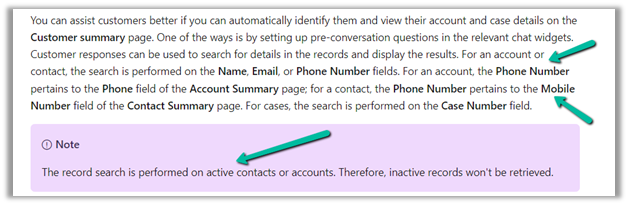
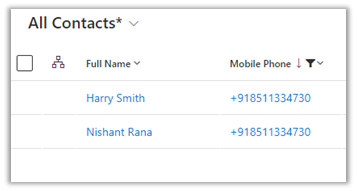
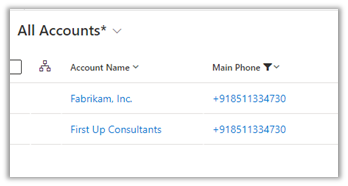
  • Voice Channel considers Contact’s Mobile Phone (mobilephone) and Account’s Phone (telephone1) fields.

https://learn.microsoft.com/en-us/dynamics365/customer-service/record-identification-rule

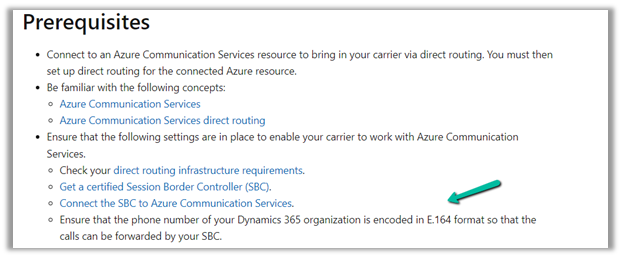
  • The phone number should be in E.164 format inside Dynamics 365.

https://learn.microsoft.com/en-us/dynamics365/customer-service/voice-channel-bring-your-own-number?tabs=customerserviceadmincenter#prerequisites

https://developers.omnisend.com/guides/e164-phone-number-formatting

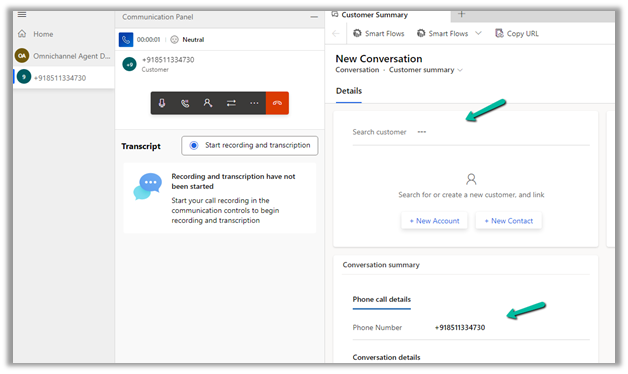
  • If no matching customer (contact or account) is found, the conversation record will not have any customer prepopulated.

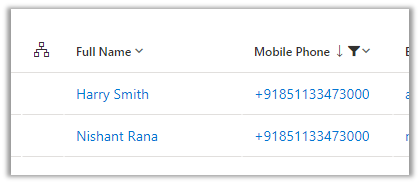
  • If 2 contacts are having the same Phone Number (E.164) format, i.e. multiple matches found

In that case, also, no customer is tagged in the conversation record, the agent would have to search for the customer.

  • If 2 contacts and 1 account have the same Phone Number

The Conversation records get associated with the Account record.

  • If 1 contact and 1 account have the same Phone Number

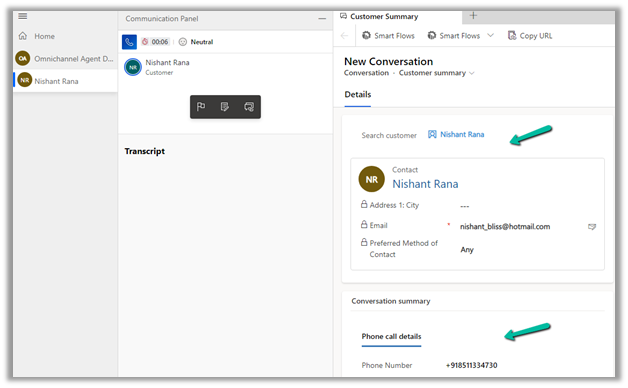
The conversation record gets tagged against the Contact

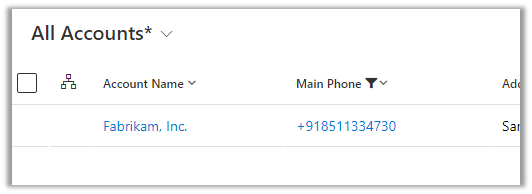
  • If there is only 1 account record with that phone number and no contact records

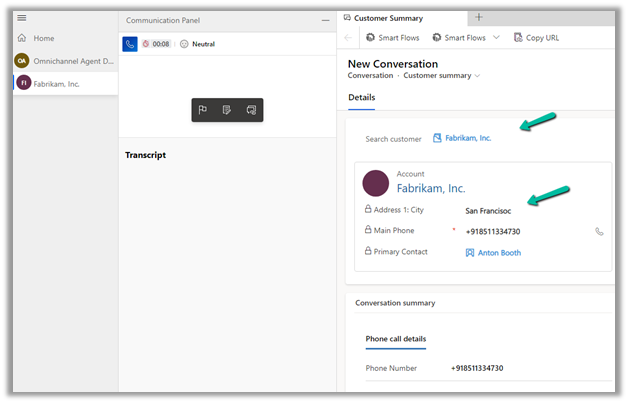
The conversation record has an Account tagged to it.

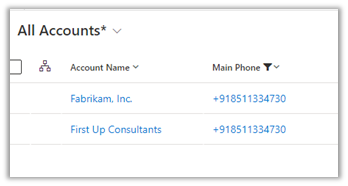
  • In case multiple accounts are found with the same phone number and no matching contact

No customer is tagged in the conversation record

  • If there are multiple contacts and multiple accounts with the same phone number

No customer is tagged in the conversation record.

In short –

Matching Contact

Matching Account

Result

0

0

NA

1

0

Contact

1

1

Contact

2

0

NA

0

1

Account

0

2

NA

2

2

1

2

Account

NA

Hope it helps..


Advertisements

Fixed – Omnichannel authentication failed. Contact your administrator in Omnichannel Ongoing Conversations Dashboard


Recently we were getting the below error on the Omnichannel Ongoing Conversations Dashboard.

As the user was having an Omnichannel Administrator role, we expected it to work for the user. We raised a support ticket for the same and got to know that we need to assign the Omnichannel supervisor role for it to work for the user.

After assigning the Omnichannel supervisor role, the report started working for the user. Try it in incognito mode or clear the cache after assigning the role.

Get more details –  Omnichannel Ongoing Conversations dashboard

Hope it helps..


Advertisements

How to – Configure Azure Event Grid System Topic and Subscription to enable Call recording and SMS in Dynamics 365 Omnichannel Voice


Azure Communication Services uses Azure Event Grid to send real-time event notifications for chat, telephony, video, SMS, and voice calling events.

Azure Event Grid will then route the event messages to the subscribers, one of them being the Azure Application we registered while configuring the Voice channel.

https://nishantrana.me/2022/10/17/how-to-set-up-omnichannel-voice-using-azure-communication-service-acs/

We had specified the Azure App id and tenant id while connecting to ACS from Dynamics 365 as the Event grid app id and Event grid app tenant id.
  • So first we need to register Azure Event Grid System Topic for our app to listen to Azure Communication Service Events.
  • Next, we need to subscribe to specific events for call recording, sms, etc by creating Azure Event Grid Subscriptions.

Login to Azure Portal, create a new Event Grid System
Topic as shown below

Specify Azure Communication Services as Topic Types and for Resource select the Azure Communication Service resource created earlier.

Create the Event System Grid Topic.

Navigate to the topic created, and next create an Event Subscription there.
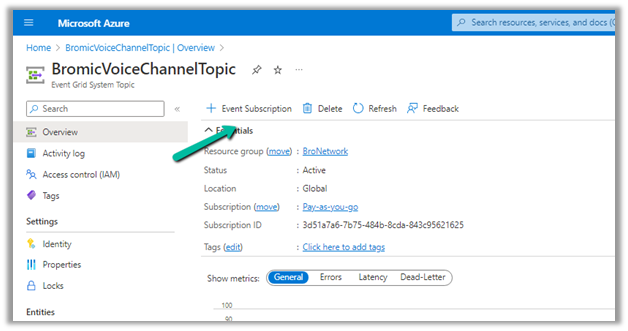
Provide the below details

File to Event Types = Recording File Status Updated
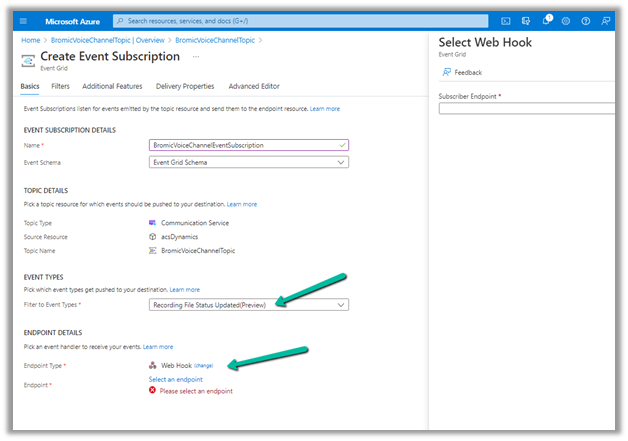
The other event types available are –

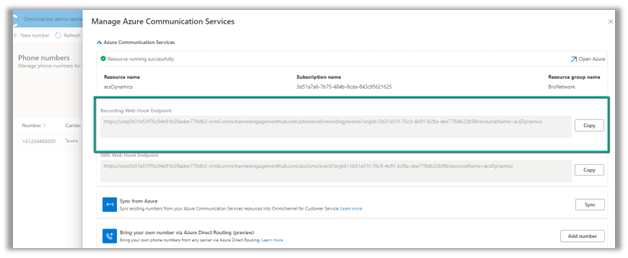
For the webhook’s endpoint, navigate back to the Omnichannel Admin Center,
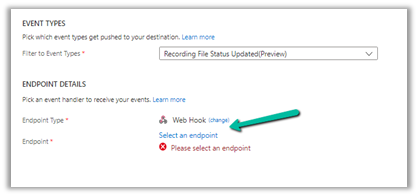
From the Phone Number >> Advanced Settings copy the WebHook Endpoint URL.
Paste it there and navigate to the Additional features tab.
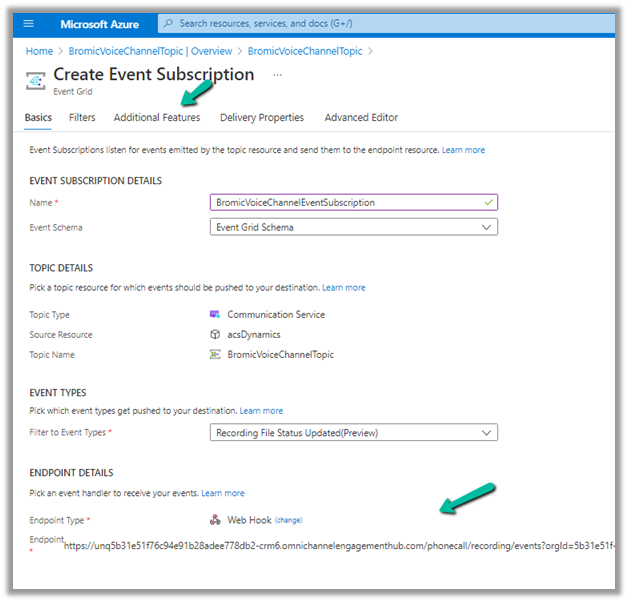
Check AAD Authentication and specify Tenant ID and AAD Application ID or URI, the same details that were specified while connecting ACS from Dynamics 365 as event grid app id and event grid app tenant id.

additionaltab

Click on Create and we are now done with the required setup.

We got the below error while creating the Azure Event Subscription https://nishantrana.me/2022/12/15/fixed-deployment-has-failed-with-the-following-error-codewebhookaadappaccesscheckcategorymessageaccess-check-failed-for-webhook-aad-app-with-error-subscribers-client-user/

Back inside Dynamics 365 Customer Service Workspace, we can see both the inbound and the outbound call getting recorded.

Thanks to this wonderful post that helped us in configuring it – https://triciasinclair.com/2022/04/25/setting-up-omnichannel-voice-using-azure-communication-service/

Also, check – https://learn.microsoft.com/en-us/dynamics365/customer-service/voice-channel-connect-existing-resource?tabs=customerserviceadmincenter#enable-call-recording-and-sms-services

https://triciasinclair.com/2021/01/27/d365-customer-service-voice-channel/

https://neilparkhurst.com/2022/08/11/omnichannel-for-customer-service-collection-2/

Hope it helps..

Advertisements