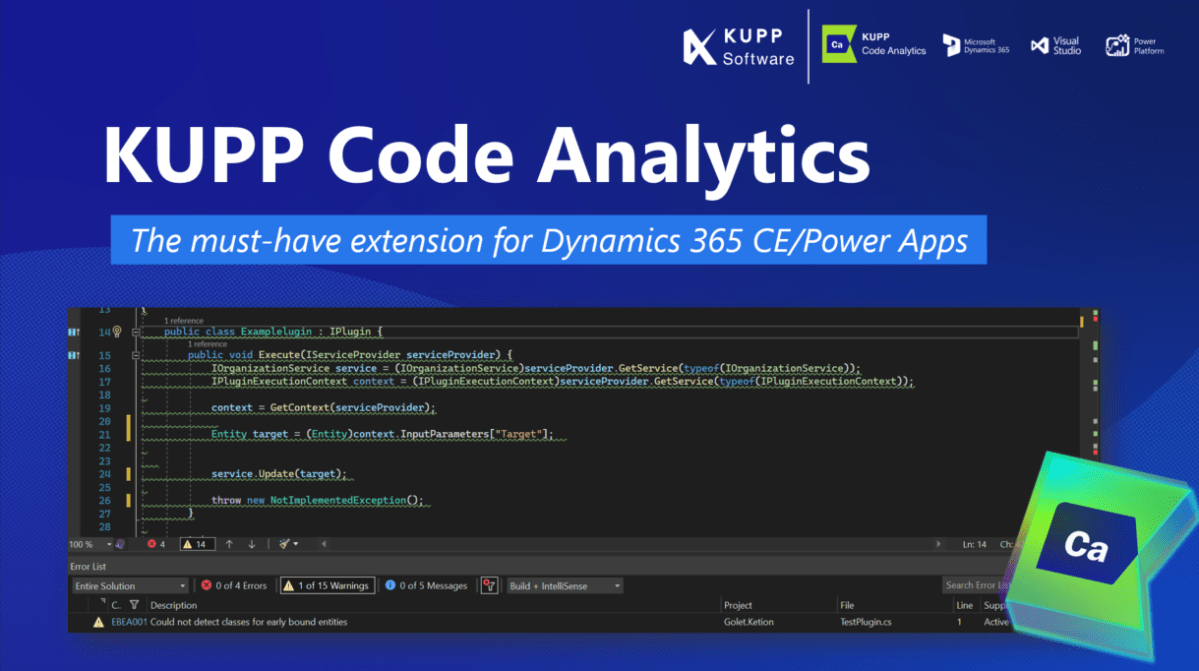
In this blog post, we will cover deploying Web Resources and Plugin directly from Visual Studio using the Kupp Code Analytics extension, which makes the process more efficient and less error-prone compared to doing it manually.
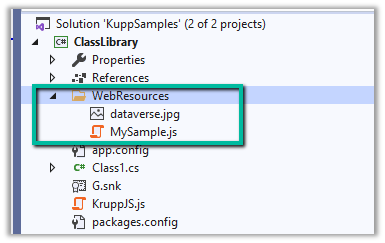
Suppose we have the following JavaScript and Image file that we want to deploy to our Dataverse / Dynamics 365.
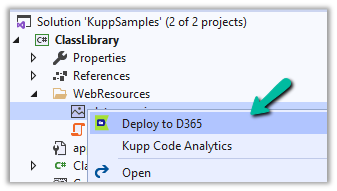
We can right-click the file and select the option “Deploy to D365“
In the Output window, we can see both the Web Resources created.
Now let us make changes to our JavaScript file – MySample.cs and click on Deploy to D365.
This time in the output window we can see the file getting updated instead of getting created.
We can see the Web Resources files created and updated for the connected environment inside the Maker Portal.
Similarly, we can deploy or update our Plugins from within Visual Studio. Here we need to make sure our Plugin Assembly is already registered.
Below we have the following assembly already registered.
Let us update our Plugin Class and select the “Deploy to D365” option for the plugin project. We have added a new plugin class called MySamplePlugin.
As expected we can see our plugin updated from the Output window.
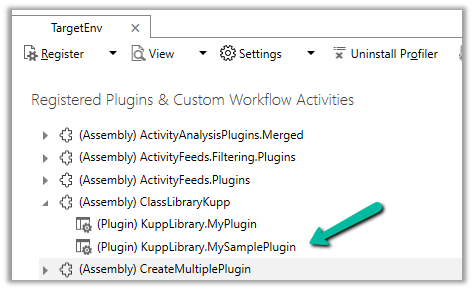
From Plugin Registration Tool we can see our plugin assembly updated.
Recently we updated the Site Details like the Site Name and Site URL of a particular Website (Power Platform Admin Center >> Resources >> Dynamics 365 apps, Select the Website and choose Manage)
After which we started getting the below error message –
“Error: This portal has multiple website bindings. which will cause issues with the portal. Delete extra website binding records for this portal in the attached Dynamics 365 Organization.”
This was caused because of multiple active website binding records.
To fix it, open the corresponding Portal Management app of the corresponding Dataverse / CRM environment.
Navigate to Website >> Website Bindings
Delete or deactivate the extra binding records leaving just one Active record to fix this issue.
With the preferred solution (preview), now we can specify a solution to which all our changes, that are made outside of the context of the unmanaged solution, should get automatically added.
To enable it, navigate to Settings >> Features >> Preferred solution (Preview)
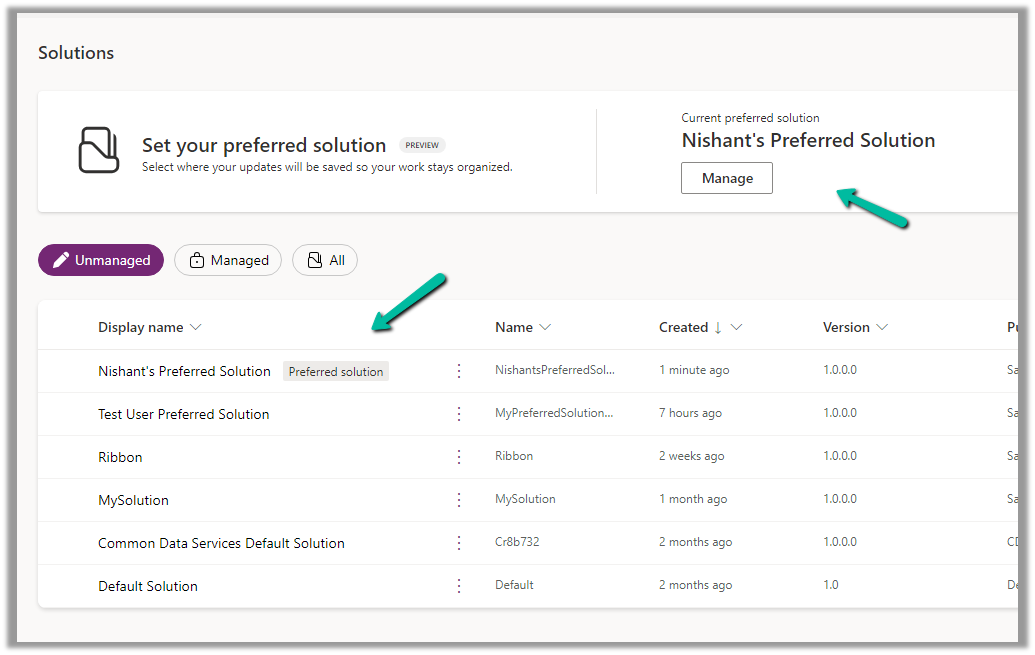
Inside the Maker Portal, now we can see a new section added, asking us to specify the preferred solution, and we can see Common Data Services Default solution set as the preferred solution as default.
We can click on Manage to specify any of the existing unmanaged solutions as the preferred solution or to create a new solution.
Here we have set one of the solutions as the preferred solution.
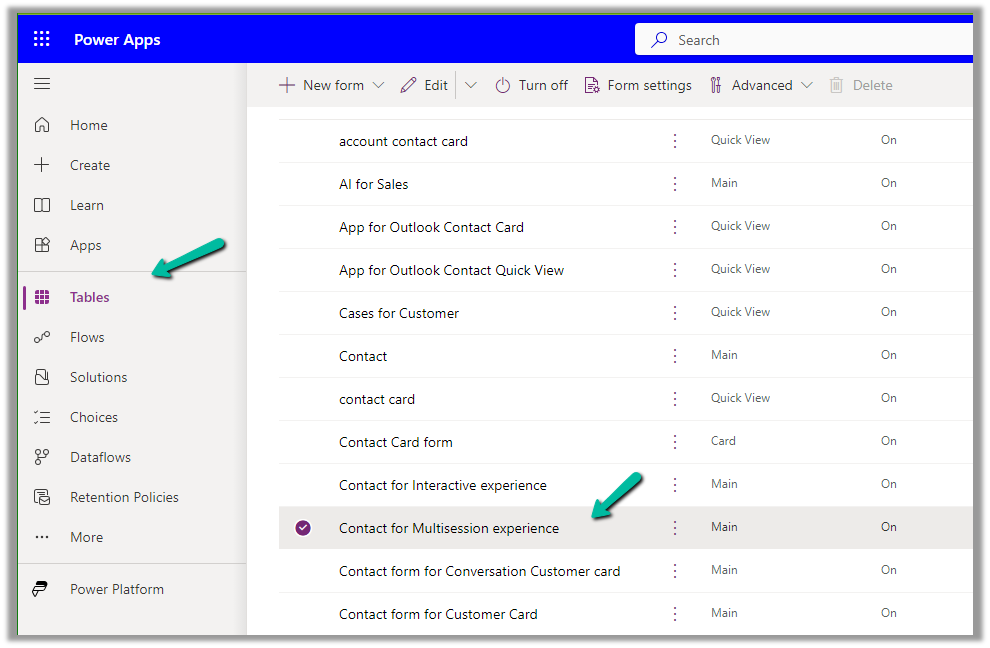
Now let us add an update existing table outside the context of the solution. Here we are updating its form by rearranging some of the fields in it.
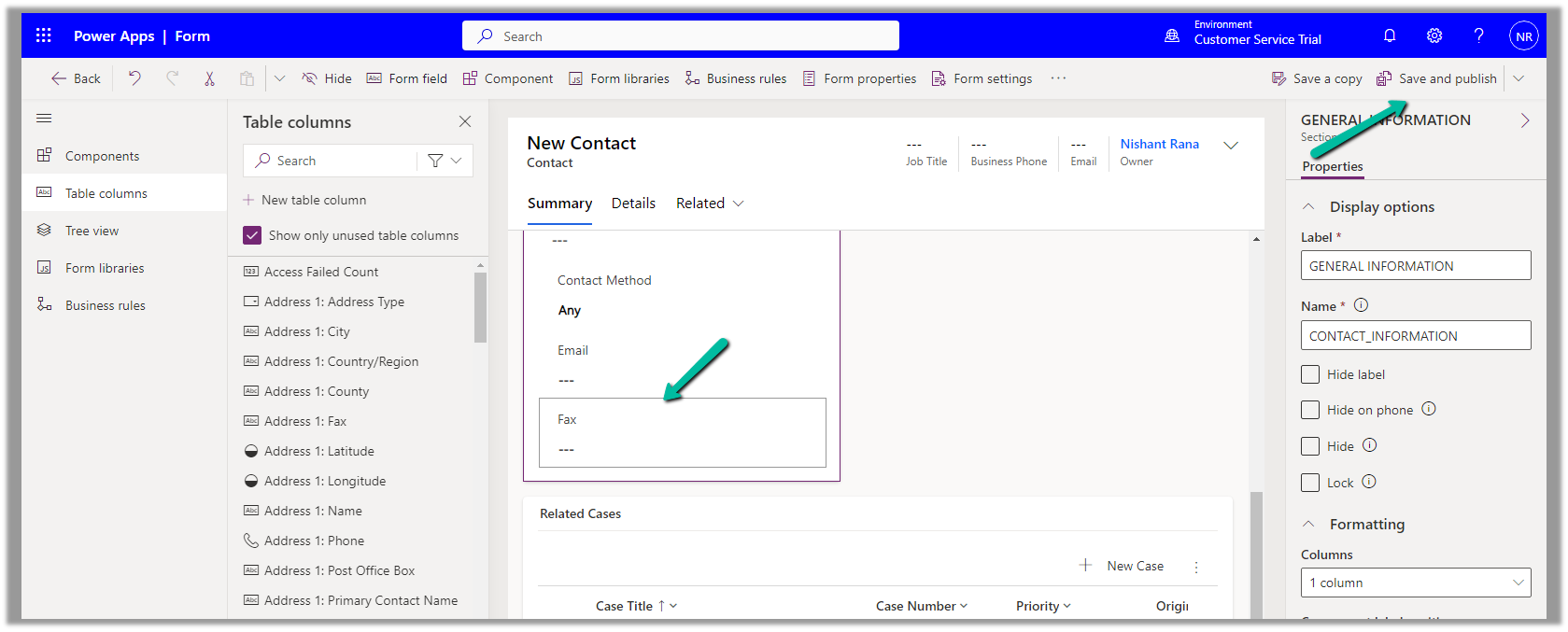
We have moved the Fax field to be the last field in that General Information section and have published the changes.
Back in our preferred solution, we can see the form we updated, automatically added.
Similarly, any other changes, i.e. any solution components added or updated, outside the context of the unmanaged solution, will be added to the preferred solution. (apart from changing the Default Solution where all the solution components reside).
Also, other users/makers can specify their preferred solution.
To add the cloud flows or canvas apps, created outside the context of the solution, in the preferred solution, we can enable the below features.
Here we have created this sample flow from outside the solution and also a canvas app.
From the notes in the timeline, now we can link an existing note to an existing case, contact, or account record (this will unlink it from the current record) and also create either a new case, contact, or account record.
To configure it, open the Notes property of the Timeline section in the form.
Below we can see the different properties we can configure.
Enable the Link to Table Command
Enable the Tables to be connected.
Here we are enabling the Contact table, and then specfiying the Quick Create Form to be used while creating the new contact record, and also the mapping of the title and description field of the Notes. We have the same configuration for Case and Account.
Save and publish the changes.
We can now see the option to Link to record for the notes.
We get the option to search for an existing record (it will show results from tables connected).
Clicking on Advanced opens the lookup dialog.
On Associating to an existing record, the notes get linked to the new record and unlinked to the current record.
We can see the notes record associated with the contact record and removed from the existing case record.
We can also use the plus + sign to create new records of the tables connected from the notes.
Account, Case, and Contact in this case.
This opens the Quick Create form, with the title and description field of the notes mapped.
After the new record gets created, we are again presented with the option to Unlink that existing note from the current record.
Below we can see the new record with the note associated with it.