Thanks Microsoft for the MVP (Business Applications) award once again!


Thanks Microsoft for this recognition and thanks to all the wonderful and passionate Dynamics 365 (CRM) professionals who have inspired and motivated me and others for several years, to keep learning and contributing in the community and to grow in the process!

How to – Add Style to Custom Component in PowerApps Component Framework


Kindly refer the previous post, here we will be adding style to the component created in the post.

https://nishantrana.me/2019/06/06/step-by-step-create-a-very-simple-powerapps-custom-component-to-show-the-guid-of-the-record/

Let us continue with our previous sample component and try adding style to it.

  • Open ControlManfiest.Input.xml and specify the CSS file to be referred.

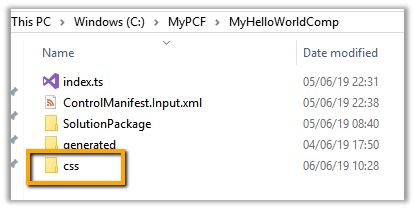
  • Uncomment the CSS tag in the manifest and create a new folder named CSS and place the CSS file there.

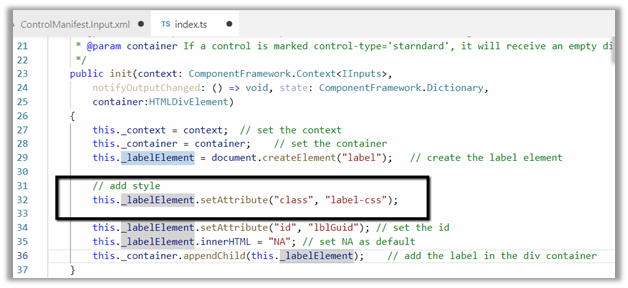
  • Edit the index.ts file and add the class to the label

  • Edit the CSS file

  • Edit the version number in case of updating the existing control in ControlManifest.Input.xml

  • Followed by the build command
  • npm run build


  • After the successful build, we can see the CSS added in the out folder for the component


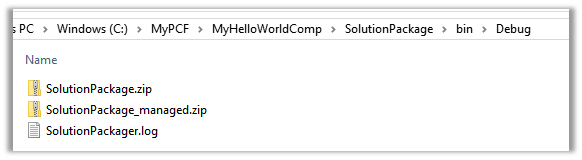
  • Run the MSBuild command to generate the new solution zip files


  • Import the managed solution.
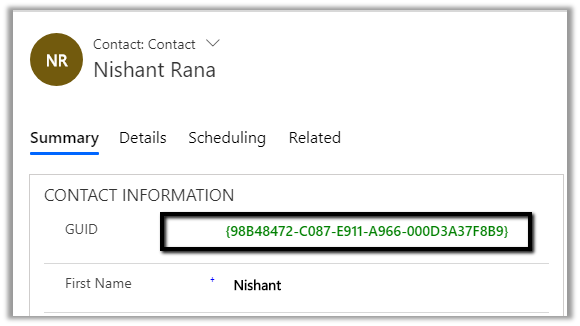
  • Open any of the existing contact records, we can see the style is applied to the control.

Hope it helps..

Advertisements

Step by Step – Create a very simple PowerApps Custom Component to show the GUID of the record


Update – use context instead of Xrm.Page

https://nishantrana.me/2019/10/22/using-pcf-custom-control-builder-xrmtoolbox-plugin-to-update-existing-control-in-dynamics-365-powerapps/

Also,

https://nishantrana.me/2020/01/20/best-resources-to-start-with-power-apps-code-component-pcf/

Go through below articles to get a better understanding

Below is the quick step by step guide to get started (sort of Hello World example) 

  • Install NPM (that comes with Node.js)

https://nodejs.org/en/

http://download.microsoft.com/download/D/B/E/DBE69906-B4DA-471C-8960-092AB955C681/powerapps-cli-0.1.51.msi

  • Install Visual Studio 2017 or later or Download .NET Core 2.2 along with Visual Studio Code.
  • Create the new folder for the project, and in Developer Command Prompt for VS 2017 navigate to the folder and run the below command to create a new component project

pac pcf init

– -namespace <namespace for the component>

– -name <name of the component>

– -template <component type>


It adds the following files in the folder.


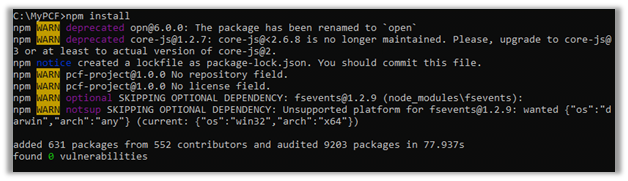
  • Next run npm install command to install the project dependencies.
  • Open the ControlManifest.Input.xml file created inside the folder created with the control’s name.
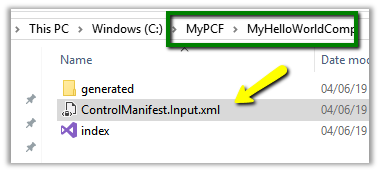
  • Here we have opened it in Visual Studio Code, for this simple example purpose let us not change the default values.
  • Open the index.ts which wherein we’d be writing code for our custom control

  • Add the following line of code to add a label control that will display that GUID of the record.

  • Run npm run build command to build the control

  • To test the control run npm start command

*Use ctrl + c è to terminate the job.

  • Create a new folder to hold the solution

  • Run the below command to define the publisher name and prefix and initialize the solution files creation

pac solution init – -publisherName [publisher name] – -customizationPrefix [publisher prefix]

  • Run the below command to add reference to our custom control in the solution

pac solution add-reference – -path [path to pcfproj file]

i.e. reference of the below path.

  • This creates the file with extension cdsproj

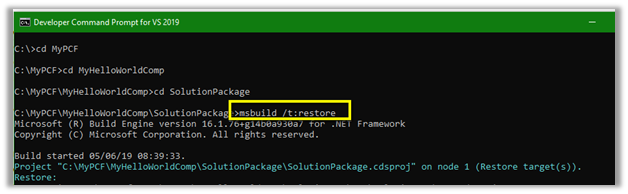
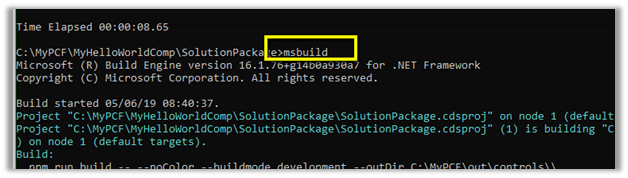
  • To generate Zip File run the below command in the Developer Command Prompt for Visual Studio 2017
    • MSBUILD /t:restore
    • MSBUILD

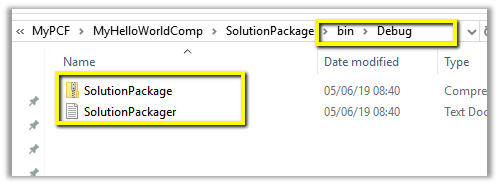
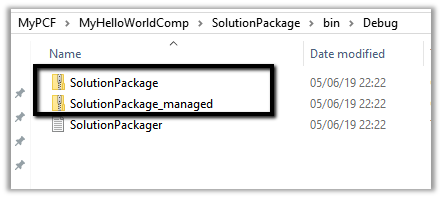
  • This adds the Solution zip in the bin Debug folder.

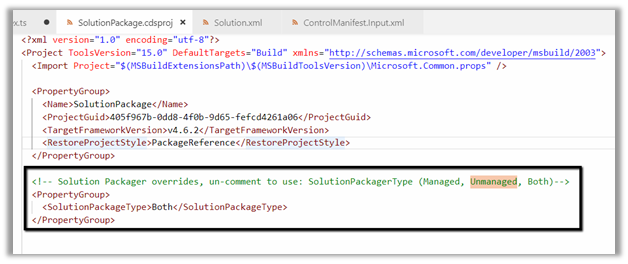
  • To get both managed and unmanaged solution, update the cdsproj file

  • We can see both managed and unmanaged solution created.

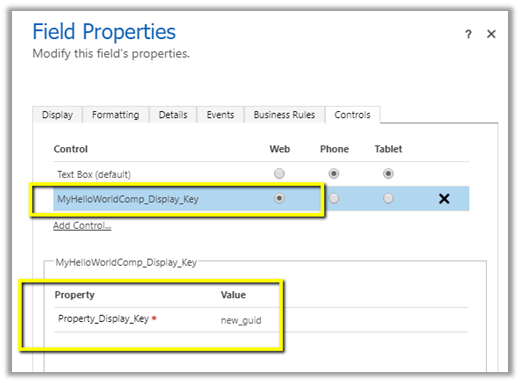
  • Import the solution in Dynamics 365 CE and open any of the entity’s form. Here we have created a new text field named GUID in the Contact form and have set our custom control for that field.

For reference à

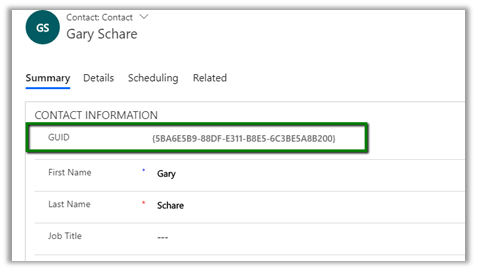
  • After publishing the changes, we can see the GUID being displayed in the form.

  • To update the control, change the version for it in the ControlManifest.Input.xml

Followed by

  • npm run build
  • msbuild
  • Importing the new solution file generated

In a nutshell below are the high-level steps à

1. Install npm

2. Install PowerApps CLI

3. Install Visual Studio 2017 or later

4. Create a new folder for the project.

5. Navigate to the folder in Developer Command Prompt and run the following command to create the component project

pac pcf init –namespace <component namespace> –name <component name> –template <component type>

1

6. Install the project dependencies using below command

npm -install

7. Update ControlManifest.Input.xml

8. Update index.ts

9. Build the project

npm run build

10. Use the below command to test the component

npm start

11. Create a folder for holding the solution zip and related files. Navigate to that folder and run the below command.

pac solution init – -publisherName [publisher name] – -customizationPrefix [publisher prefix]

2

12. Add reference of the custom component in the solution

pac solution add-reference – -path [path to pcfproj file]

3

13. To create the Solution Zip File

MSBUILD /t:restore

MSBUILD

4

14. Import the solution file and use it inside Dynamics 365 CE.

lastly – Don’t forget to check the wonderful PCF Gallery

https://pcf.gallery/

Hope it helps..
Few improvements in new model-driven form designer WYSISYG Preview in PowerApps


Few months back I wrote about the features of the new model drive form designer in PowerApps.

https://nishantrana.me/2018/12/24/the-new-model-driven-form-designer-wysisyg-in-powerapps-for-model-driven-apps-dynamics-365-ce-preview/

There are few improvements done in it since then

For e.g.

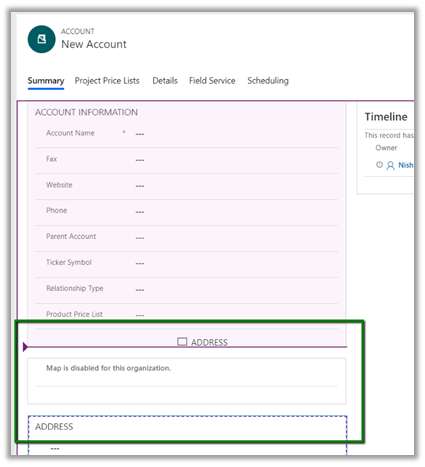
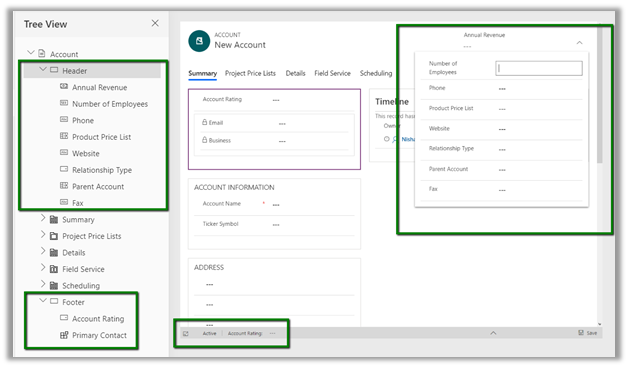
  • Fields and Sections can now be selected and positioned.

Phone field:

Address Section:

  • Header and Footer are available now for customization.

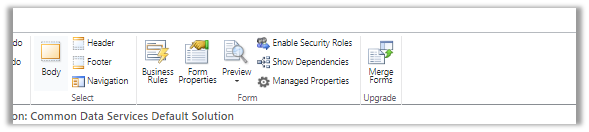
However still there are few important features missing when compared to our classic form designer like

  • Sub Grid control are not available on the form for configuration.
  • No Business Rules or Form Properties dialog box.
  • No Enable Security Roles option
  • No field explorer or Relationship explorer so cannot create new fields or relationships.

The new model driven form designer looks promising, however we’d have to wait a bit more, before it can have all the expected (or some new) features added to it.

Hope it helps..
Fixed – Workflows not firing “Waiting For Resources” in Dynamics 365 On-Premise


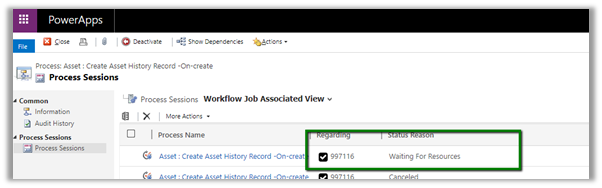
Recently in one of our environments, we started getting the issue that all our workflows were getting stuck at “Waiting for resources”.

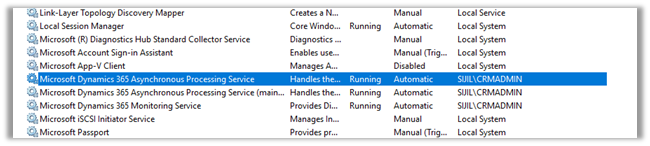
As usual first step was to check if Microsoft Dynamics 365 Asynchronous Processing Service is running it or not.

The service was disabled, so we enabled it. But still, it didn’t fix the issue.

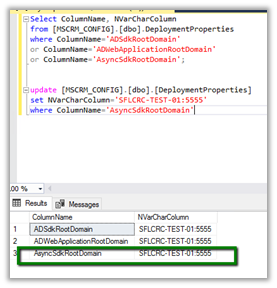
Next thing we tried was as suggested in the below article

https://www.powerobjects.com/blog/2013/03/28/how-to-fix-a-crm-workflow-stuck-in-progress/

The value for AsyncSdkRootDomain was blank which we updated followed by a restart of the service. Still no luck.

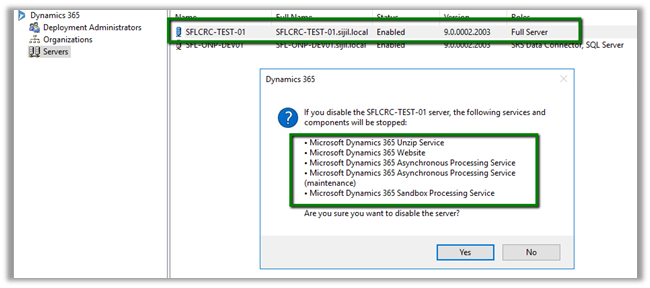
Eventually, we came to know that Servers setting for the roles Full Server were in the disabled state inside the Deployment Manager for the organization.

The reason CRM was still working because these services (including IIS Web Site) were already manually started earlier, however, the status was still disabled for this setting within Deployment Manager. (These settings were done by the network team who were planning to create the replica of these machines, and they wanted to disable the applications and our CRM technical team was unaware of it.)

Enabling it fixed the issue for it.

Hope it helps..
Fixed – DTS_E_PROCESSINPUTFAILED. The Process input method on component “Script Component” failed with error code 0x80131501 in SSIS


Recently I had written an article for Nigel Frank that list down step by step process of using XML Source Component of KingswaySoft for integration with Dynamics 365 CE

https://www.nigelfrank.com/blog/integrate-dynamics-365-for-customer-engagement-with-xml/

We have used XML Source Component to read the XML files.

The packages that we developed were running fine from Visual Studio SSDT but on deployment for one of our package that was using Script Component we were getting the below error while running from within SQL.

After a lot of debugging and spending a good amount of time to figure out the issue, we realized that the value of one of the input columns was not being passed to Script Component from XML Source component i.e. _ParentKeyField

This is a special column which XML Source Component adds for the child records through which we can associate it to the parent record.

This happens when we are running it from SQL and only for the Script Component. This worked fine while running it from within SSDT and in other packages even from SQL when we weren’t using Script Component.

As a quick fix, we applied XLST Transformation to put the same tag for the child records also and to refer that instead of _ParentKeyField

In parallel, we also asked the same question to the KingswaySoft Support team (info@kingswaysoft.com)

One thing I would like to explicitly mention is that KingswaySoft support team is one of the best out there, not only you will get the response immediately, but also their team is very knowledgeable.

Below is the response we got

As suggested after setting the RunInOptimizedMode property to False for the Data Flow components the issue got fixed.

This property indicates whether the Data Flow task runs in optimized mode (RunInOptimizedMode property). Optimized mode improves performance by removing unused columns, outputs, and components from the data flow.

Hope it helps..

Advertisements