JavaScript Gotcha: Why [x == (a || b)] Fails


Recently we observed that our JavaScript code was not working as expected.

Now when we write conditions in JavaScript, it’s natural to want to check if a variable equals one of multiple values. A common mistake is to write the condition like this:

if (loanType == (CareFeeDeferralFeesShort || CareFeeDeferralFeesLong)) {
    // do something
}

At first glance, it seems like this would check if ‘loanType’ is equal to either ‘CareFeeDeferralFeesShort’ or ‘CareFeeDeferralFeesLong’`’. Unfortunately, that’s not what JavaScript actually does.

The ‘||’ operator in JavaScript doesn’t return a boolean. Instead, it returns the first truthy value it encounters.

For example:

console.log(1 || 2); // 1

console.log(0 || 2); // 2

So in our case:

If ‘CareFeeDeferralFeesShort’ is ‘1’, then ‘(CareFeeDeferralFeesShort || CareFeeDeferralFeesLong)’ becomes ‘1’.

If it’s ‘0’ (falsy), then the expression becomes ‘CareFeeDeferralFeesLong’.

This means the condition effectively reduces to checking only one value, not both.

The right way is to compare the variable separately against both values:

if (loanType == CareFeeDeferralFeesShort ||
    loanType == CareFeeDeferralFeesLong) {
    // do something
}

Here, JavaScript evaluates each equality independently:

‘loanType == CareFeeDeferralFeesShort’

‘loanType == CareFeeDeferralFeesLong’

If either is true, the whole condition passes.

Takeaway

(x == (a || b)) is not the same as `x == a || x == b`.

Hope it helps..

Advertisements

Using addNotification to Simulate Dynamic Tooltips (Dataverse / Dynamics 365)


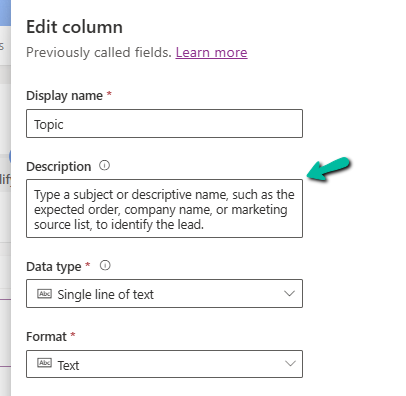
When working with forms in Dynamics 365 / Power Apps model-driven apps, we often customize field labels based on context, using the setLabel method. At times, we would also like to change the tool tip to go with the changed label of the field. The tooltip is defined as a Description of the field.

Below is the Topic (subject) field of the lead.

A screenshot of a computer

AI-generated content may be incorrect.

However, we cannot set the tool tip (description) of the field dynamically in the form using the Client API. So, what do we do when the meaning of a field changes depending on another value on the form? That’s where addNotification comes in as a handy workaround.

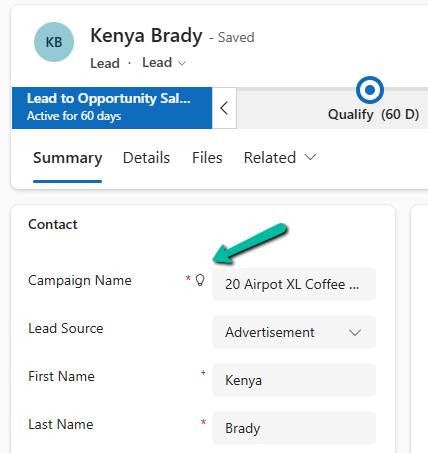
Let us take a simple example to see how we can use it. On the Lead form, the Topic(subject) field means different things depending on the Lead Source. So here we will be changing the label of the Topic (subject) field, along with setting a different notification message.

For e.g., if Lead Source – Advertisement, we are changing the label to Campaign Name. We can also notice the bulb icon next to the field.

A screenshot of a computer

AI-generated content may be incorrect.

Clicking on it, we can see our message –

A screenshot of a web page

AI-generated content may be incorrect.

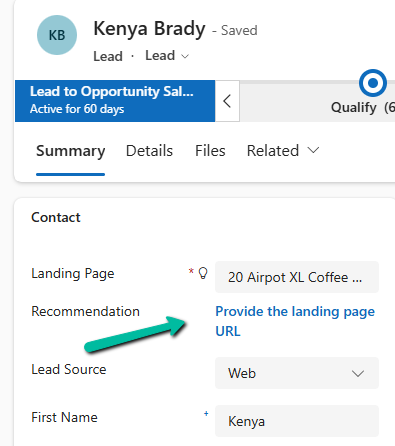
Similarly, on changing the Lead Source to Web, we are changing the label to Landing Page, and clicking on the icon, we can see a different message.

A screenshot of a web page

AI-generated content may be incorrect.

Sample Code –

function updateSubjectField(executionContext) {
	
    var formContext = executionContext.getFormContext();
    var leadSourceAttr = formContext.getAttribute("leadsourcecode");
    var subjectControl = formContext.getControl("subject");
   
    subjectControl.clearNotification("subjectTooltip");

    var leadSource = leadSourceAttr ? leadSourceAttr.getValue() : null;

    if (leadSource === 1) { 
        // 1 = Advertisement
        subjectControl.setLabel("Campaign Name");
        subjectControl.addNotification({
            messages: ["Enter the name of the ad campaign"],
            notificationLevel: "RECOMMENDATION",
            uniqueId: "subjectTooltip"
        });
    }
    else if (leadSource === 2) { 
        // 2 = Referral
        subjectControl.setLabel("Referrer Notes");
        subjectControl.addNotification({
            messages: ["Mention details about the referrer"],
            notificationLevel: "RECOMMENDATION",
            uniqueId: "subjectTooltip"
        });
    }
    else if (leadSource === 8) { 
        // 3 = Web
        subjectControl.setLabel("Landing Page");
        subjectControl.addNotification({
            messages: ["Provide the landing page URL"],
            notificationLevel: "RECOMMENDATION",
            uniqueId: "subjectTooltip"
        });
    }
    else {
        // Default
        subjectControl.setLabel("Subject");
    }
}

While addNotification isn’t a perfect replacement for a native tooltip, it’s a practical workaround when we need dynamic, context-aware user guidance.

Hope it helps..

Advertisements

Clearing Dirty Fields in Forms to Avoid Unnecessary Save Prompts (Dynamics 365 / Dataverse)


In Dynamics 365 forms, we often run into situations where a record looks unsaved even though the user hasn’t made any manual changes. This usually happens when fields are updated in the background by scripts. When that happens, those attributes are flagged as dirty and the form behaves as if the user made edits. The result is that whenever users try to navigate away, they are interrupted by the familiar “You have unsaved changes” popup.

Also Check – https://nishantrana.me/2025/09/09/finding-dirty-unsaved-fields-on-the-form-using-javascript-browser-console-dynamics-365-dataverse/

In our case, we were getting this issue for fields which were already hidden from the form. Also here as the record was on a particular stage, where we were setting all the fields in the form read-only, and also cancelling the save event. Because of which user was also not able to save the form.

A computer screen shot of a computer program

AI-generated content may be incorrect.

The way we fixed this issue was to scan all the attributes on the form in onload, detect which ones are dirty and reset their submit behaviours. By setting their submit mode to “never“, these fields were not included in the save operation, and the form was now showing the saved state, thus no unsaved changes prompts.

clearAllDirtyFields: function (executionContext) {
    var formContext = executionContext.getFormContext();

    // Delay to allow system updates (rollups/calculated fields) to complete
    setTimeout(function () {
        formContext.data.entity.attributes.forEach(function (attr) {
            if (attr.getIsDirty()) {
                attr.setSubmitMode("never");
                console.log("Dirty flag cleared for: " + attr.getName());
            }
        });
        console.log("All dirty fields cleared from the form.");
    }, 3000); // adjust delay as needed
}

This approach should still be used with some caution. The best practice is to first understand why certain fields are showing as dirty and, if possible, fix the underlying cause. The script should only be used in specific situations where we are confident that the dirty fields are not needed for saving the record. It’s also important to add the right checks or conditions so that it doesn’t run everywhere unnecessarily.

For example, in our case we only applied it when the form was in a particular status where it was expected to be read-only for the user. The fields were already hidden, so letting them stay dirty served no purpose.

Hope it helps..

Advertisements

Easily Identify Control Names When a Field Appears Multiple Times in Forms (Dynamics 365/ Dataverse)


Sometimes when we are writing JavaScript in Dynamics 365, we need the exact schema name of a field’s control so that we can hide, show, or manipulate it properly. While the attribute’s schema name is straightforward, controls may have numbered names like gendercode1, gendercode2, etc., depending on how many times the field is placed on the form.

To quickly figure this out, we can run a small helper script directly in the browser console. This script highlights all instances of the field on the form, expands tabs/sections if they are collapsed, and shows the schema names against each control.

Here’s the script for the field gendercode: – specify the schema name and run it in console.

(function () {
    // configurable schema name
    var schemaName = "gendercode"; // change this as needed

    var formContext = Xrm.Page; 
    var attr = formContext.getAttribute(schemaName);
    if (!attr) { alert(schemaName + " not found"); return; }

    // clear old highlights/badges
    document.querySelectorAll('.schema-badge-' + schemaName).forEach(function(b){ b.remove(); });
    document.querySelectorAll('.schema-highlight-' + schemaName).forEach(function(e){
        e.style.outline = '';
        e.style.backgroundColor = '';
        e.classList.remove('schema-highlight-' + schemaName);
    });

    var names = [];
    var tabsExpanded = {};

    // expand tabs/sections containing the control
    attr.controls.forEach(function (ctrl) {
        var name = ctrl.getName();
        names.push(name);

        try {
            var section = ctrl.getParent && ctrl.getParent();
            var tab = section && section.getParent && section.getParent();
            if (tab && typeof tab.setDisplayState === 'function') {
                var tabName = tab.getName ? tab.getName() : null;
                if (!tabsExpanded[tabName]) {
                    try { tab.setDisplayState('expanded'); } catch (e) {}
                    tabsExpanded[tabName] = true;
                }
            }
            if (section && typeof section.setVisible === 'function') {
                try { section.setVisible(true); } catch (e) {}
            }
        } catch (e) {}
    });

    // highlight after expansion
    setTimeout(function () {
        attr.controls.forEach(function (ctrl, index) {
            var name = ctrl.getName();
            var el = findElementForControl(name);

            if (el) {
                el.classList.add('schema-highlight-' + schemaName);
                el.style.outline = "2px solid orange";
                el.style.backgroundColor = "#fff8e1";

                var badge = document.createElement("div");
                badge.className = "schema-badge-" + schemaName;
                badge.textContent = schemaName + " " + (index + 1);
                badge.style.cssText = "font-size:11px;color:white;background:orange;padding:1px 6px;margin-top:4px;border-radius:3px;display:inline-block";
                (el.parentElement || el).appendChild(badge);
            } else {
                console.warn("Could not find DOM element for control:", name);
            }
        });

        alert("Controls for " + schemaName + ":\n" + names.map(function(n,i){ return (i+1)+". "+n; }).join("\n"));
    }, 500);

    // helper to find DOM element for a control
    function findElementForControl(name) {
        var selectors = [
            '[data-id="' + name + '"]',
            '[id="' + name + '"]',
            '[id*="' + name + '"]',
            '[name="' + name + '"]',
            '[name*="' + name + '"]',
            '[aria-label*="' + name + '"]',
            '[data-id*="' + name + '"]'
        ];
        for (var i = 0; i < selectors.length; i++) {
            var node = document.querySelector(selectors[i]);
            if (node) return node;
        }
        var lab = document.querySelector('label[for="' + name + '"], label[for*="' + name + '"]');
        if (lab) return lab.closest('div.field-wrapper, .control, .ms-crm-Form-Field-Container') || lab.parentElement;
        return null;
    }

    // clear function
    window.clearHighlights = function () {
        document.querySelectorAll('.schema-badge-' + schemaName).forEach(function(b){ b.remove(); });
        document.querySelectorAll('.schema-highlight-' + schemaName).forEach(function(e){
            e.style.outline = '';
            e.style.backgroundColor = '';
            e.classList.remove('schema-highlight-' + schemaName);
        });
        try {
            var a = Xrm.Page.getAttribute(schemaName);
            if (a && a.controls) a.controls.forEach(function(c){ try{ c.clearNotification && c.clearNotification(); }catch(e){} });
        } catch (e) {}
        console.log(schemaName + ' highlights cleared');
    };
})();
A screenshot of a computer

AI-generated content may be incorrect.

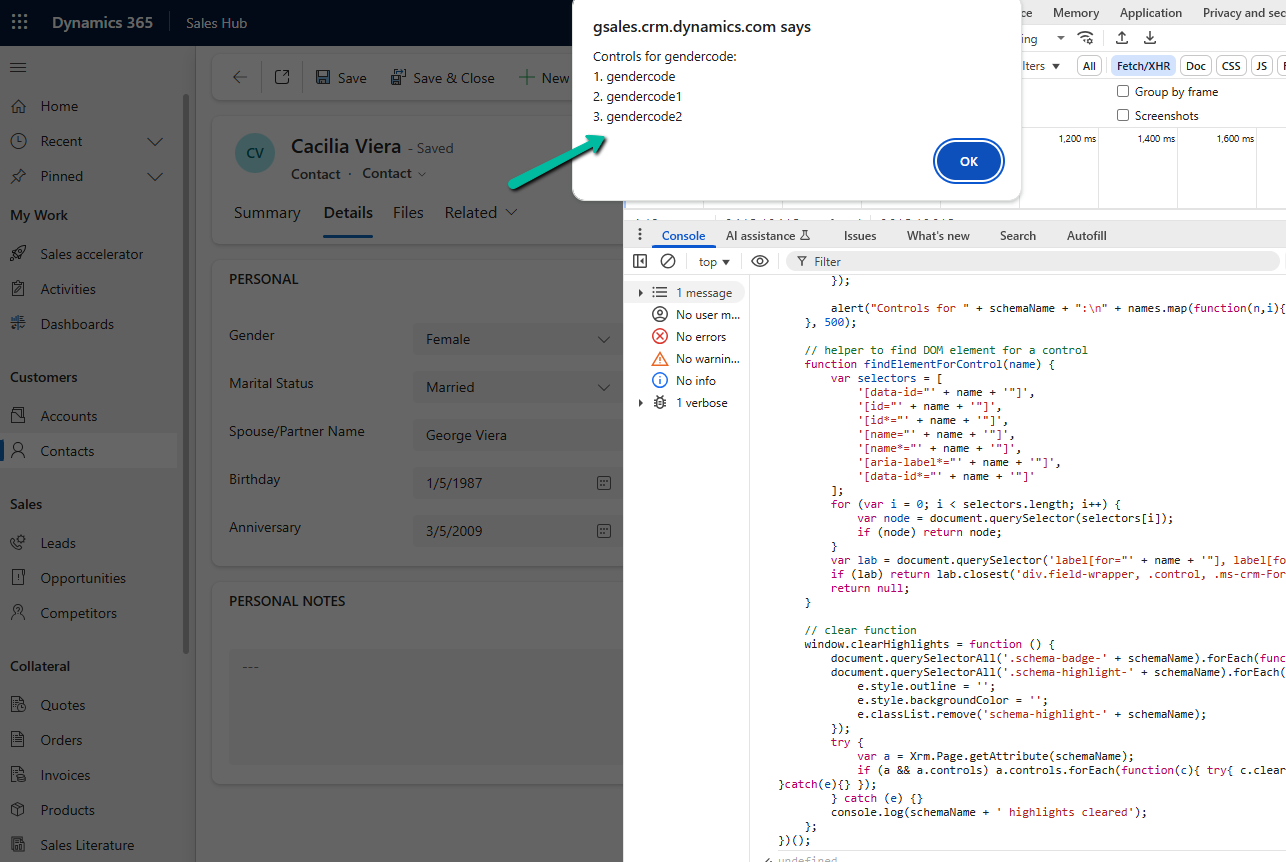
When we run this in the console, it: Highlights all instances of the field with an orange outline and light background. Adds a small badge like gendercode 1, gendercode 2 next to each control. Alerts and logs the schema names so we can directly use them in our scripts.

This makes it very easy for us to identify which control name we should be using in our JavaScript.

Hope it helps..

Advertisements

Finding Dirty / Unsaved Fields on the Form Using JavaScript / Browser Console (Dynamics 365 / Dataverse)


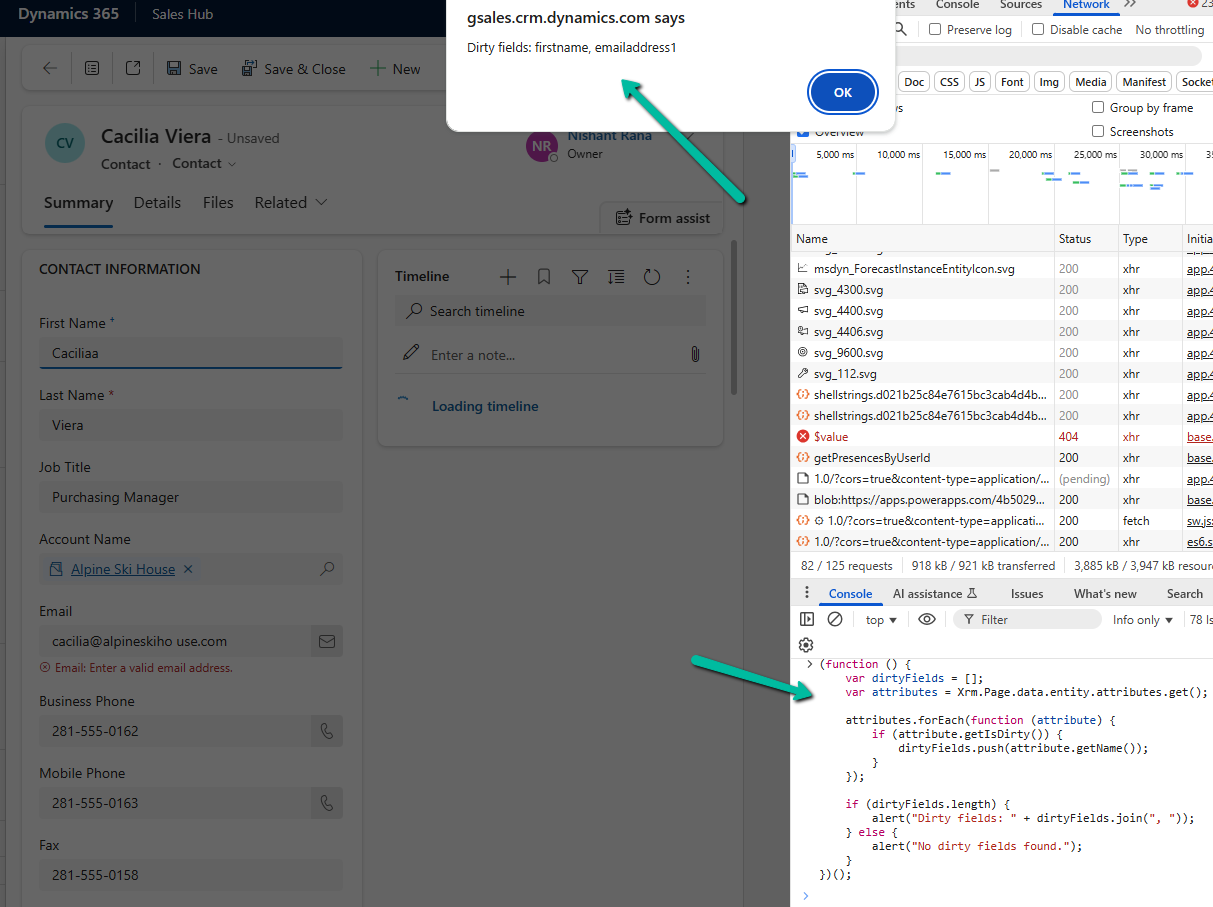
Sometimes while debugging forms in Dynamics 365, we need to know which fields have been modified but not yet saved. These are called dirty fields, and they can be quickly identified by running a small JavaScript snippet directly from the browser console.

We can open the form, press F12 to bring up the developer tools, go to the Console tab, and paste the following code

(function () {
    var dirtyFields = [];
    var attributes = Xrm.Page.data.entity.attributes.get();

    attributes.forEach(function (attribute) {
        if (attribute.getIsDirty()) {
            dirtyFields.push(attribute.getName());
        }
    });

    if (dirtyFields.length) {
        alert("Dirty fields: " + dirtyFields.join(", "));
    } else {
        alert("No dirty fields found.");
    }
})();

This script loops through all the attributes on the form and checks if they are dirty using getIsDirty(). If it finds any, it shows their names in an alert, otherwise it shows a message saying no dirty fields are found.

For example, if we modify First Name and Email on the Contact form without saving, it will pop up an alert showing:

A screenshot of a computer

AI-generated content may be incorrect.

Here we are using Xrm.Page even though it is deprecated, because it is still the quickest way to test such snippets directly from the console for debugging purposes. In actual form scripts, we should always use formContext.

Hope it helps..

Advertisements

Using gridContext.refreshRibbon() to Dynamically Show/Hide a Subgrid Ribbon Button – Dynamics 365 / Dataverse


In Dynamics 365 / Dataverse, sometimes we want to show or hide a ribbon button based on a form field value. But when the button is on a subgrid, it does not refresh automatically when a field changes on the form. We can handle this requirement using gridContext.refreshRibbon(). It is a small but very useful method that helps to refresh the subgrid ribbon without saving or reloading the form.

Here we are taking a simple scenario to understand the usage.

We will only show the New Case button on the Case Subgrid if the Preferred Method of Contact = Any else we will hide it.

A screenshot of a computer

AI-generated content may be incorrect.

Below is our JavaScript function to check the field value and return true or false. This function will be used as CustomRule for our Add New button command’s EnableRule on the subgrid. This function checks if the Preferred Method of Contact is ‘Any’. If yes, it returns true. Otherwise, it returns false.

A screen shot of a computer code

AI-generated content may be incorrect.

We are passing CRM Parameter = PrimaryControl here.

Depending on where the button lives (Form ribbon or Subgrid ribbon), the correct context is passed.

  • On a form: PrimaryControl is the formContext.
  • On a Subgrid: PrimaryControl gives the context of the parent form hosting the subgrid.

Below we have customized the Add New Subgrid button for Case and added a new Enable Rule for its command.

A screenshot of a computer

AI-generated content may be incorrect.

Now on the form load, the Add New button on the subgrid will be hidden on the form load event.

But when we change the value for the Preferred Method of Contact we will not see any effect on the Add New button. For it to work we need to use the refershRibbon method of the grid’s context as shown below.

We added it on the onChange event for the Preferred Method of Contact field so that when a user changes it, the subgrid ribbon refreshes.

A screen shot of a computer code

AI-generated content may be incorrect.

Now, when a user changes the Preferred Method of Contact, the subgrid ribbon will refresh and check again if the button should be visible.

As a result, now the Add New button appears on the Case subgrid when the Preferred Method of Contact is ‘Any’.

A screenshot of a computer

AI-generated content may be incorrect.

The ribbon refreshes immediately when the field changes to Email or any other value except Any.No need to save or reload the form.

A screenshot of a computer

AI-generated content may be incorrect.

JavaScript –

function showAddNewButtonOnCaseSubgrid(primaryControl) {
    var formContext = primaryControl;
    var preferredMethod = formContext.getAttribute("preferredcontactmethodcode");    
    var preferredMethodValue = preferredMethod.getValue();
    // Check if Preferred Method is 'Any' 
    if (preferredMethodValue === 1) {
        return true;
    }
    else {
        return false;
    }
}
function refreshCaseSubgridRibbon(executionContext) {
    var formContext = executionContext.getFormContext();
    var gridContext = formContext.getControl("Subgrid_Cases");  
    if (gridContext) {
        gridContext.refreshRibbon();  
    }
}

The helpful post – https://butenko.pro/2019/04/16/refreshing-the-ribbon-form-vs-grid/

Hope it helps..

Advertisements