How to – “Register a New WebHook” through Plugin Registration Tool in Dynamics 365


With July 2017 Update, now we have the option to register a new Webhook through Plugin Registration tool.

Download the latest Plugin Registration Tool from NuGet using the PowerShell script à

https://docs.microsoft.com/en-us/dynamics365/customer-engagement/developer/download-tools-nuget

Through registering a Webhook, we can send data (execution context) about any operation performed on Dynamics 365 to the external services or application. The execution context information is passed in JSON format here.

More details here

https://docs.microsoft.com/en-us/dynamics365/customer-engagement/developer/use-webhooks

Let us take a simple scenario to see it in action.

First will create an Azure Webhook which passes the Execution Context to the Azure Service Bus Queue. We will also create a sample Queue Listener application that parses and reads the information from the queue.

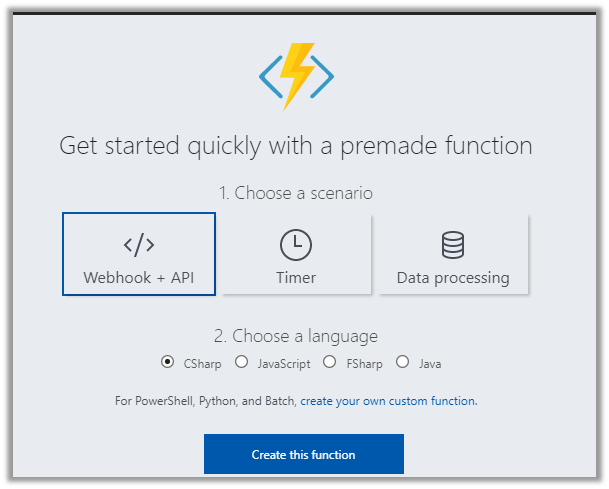
  • Create a new Function of type Webhook + API (CSharp).

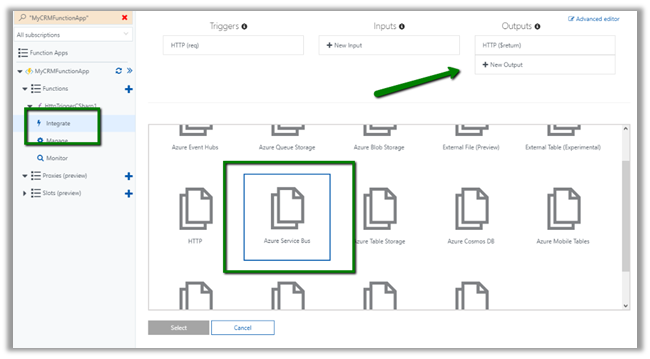
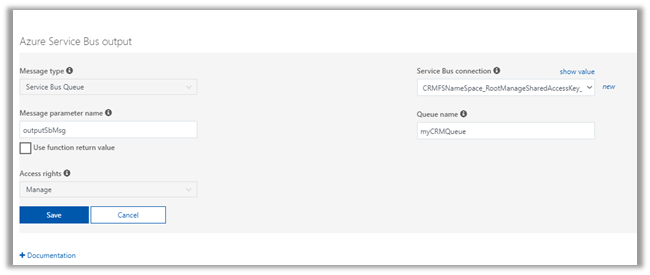
  • Select Integrate in the newly created function and click on New Output button and add Azure Service Bus as an output.

  • Specify Message type as Service Bus Queue and other required values like Service Bus Connection, Queue Name and the parameter name and click on Save.
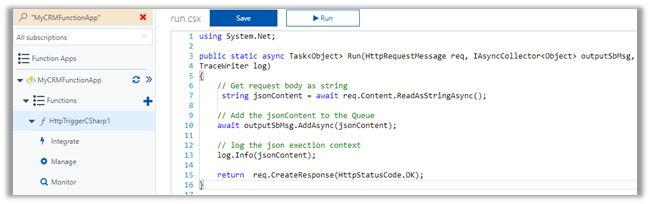
  • Update the code for our function to pass the execution context information to the queue
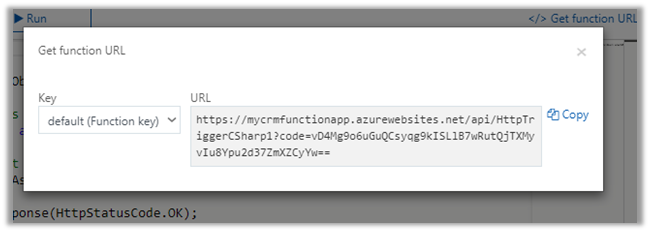
  • Now let us register our Webhook inside Dynamics 365. For this copy the function URL using Get function URL button.


  • Click on Copy.

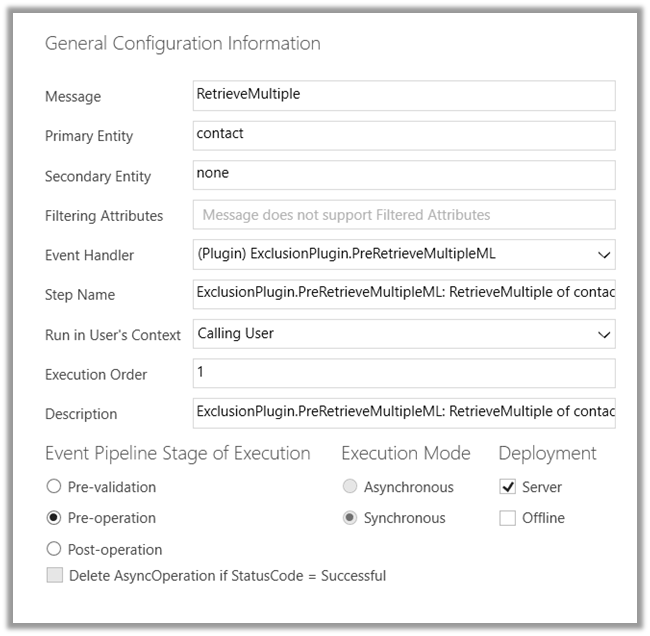
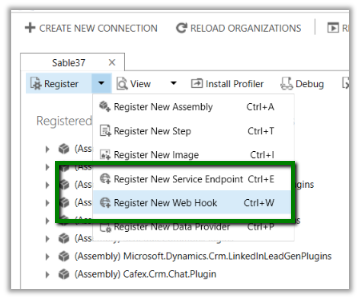
  • Inside Plugin Registration tool, click on Register à Register New Web Hook.

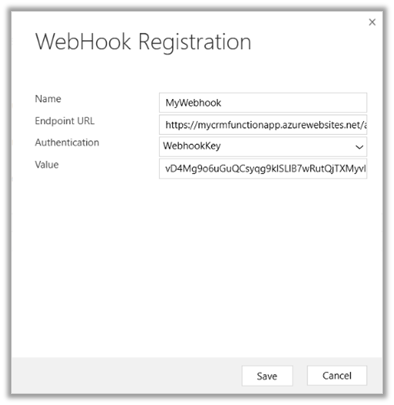
  • Specify any Name for the Webhook. In the Endpoint URL, paste the URL copied without any query string part. For Authentication select WebhookKey and paste the “code” query string value to register the Webhook.

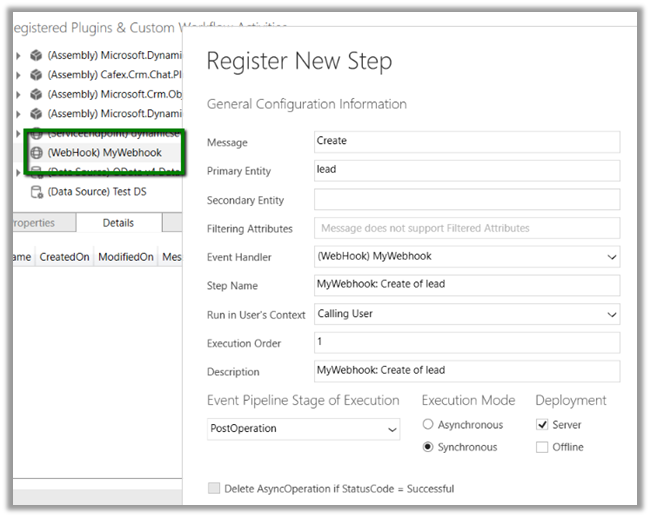
  • Register a new step of Lead Create to it.

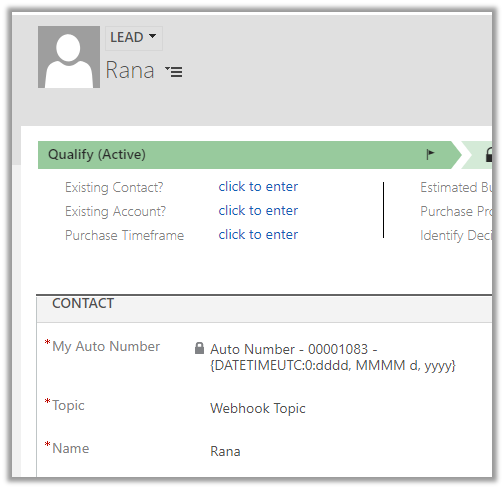
  • After registering the step, to test our Webhook Function, let us create a new lead record inside Dynamics 365.

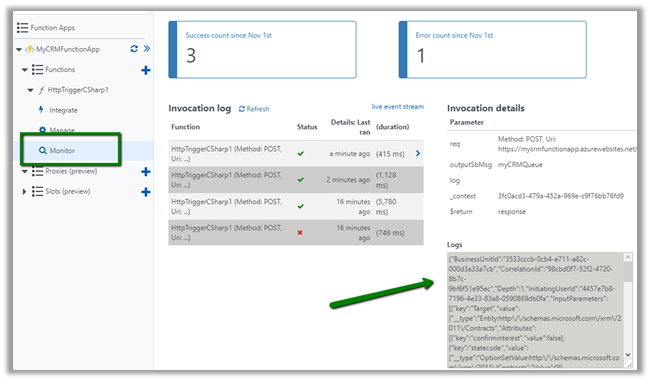
  • Back in our function, click on Monitor to check the log. There we can see the execution context information passed to our function.

  • Inside the Queue specified as Output of the function, we can see the new messages added.

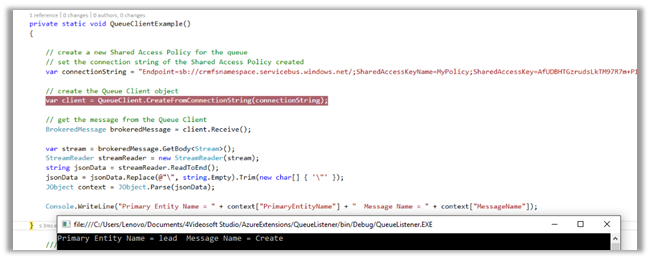
  • Below is the sample code to read the message from the queue.

</p>
<p>private static void QueueClientExample()<br />
{<br />
// create a new Shared Access Policy for the queue<br />
// set the connection string of the Shared Access Policy created<br />
var connectionString = "Endpoint=sb://[namespace].servicebus.windows.net/;SharedAccessKeyName=MyPolicy;SharedAccessKey=[KeyValue];EntityPath=mycrmqueue";</p>
<p>// create the Queue Client object<br />
var client = QueueClient.CreateFromConnectionString(connectionString);</p>
<p>// get the message from the Queue Client<br />
BrokeredMessage brokeredMessage = client.Receive();</p>
<p>var stream = brokeredMessage.GetBody&lt;Stream&gt;();<br />
StreamReader streamReader = new StreamReader(stream);<br />
string jsonData = streamReader.ReadToEnd();<br />
jsonData = jsonData.Replace(@"\", string.Empty).Trim(new char[] { '\"' });<br />
JObject context = JObject.Parse(jsonData);</p>
<p>Console.WriteLine("Primary Entity Name = " + context["PrimaryEntityName"] + " Message Name = " + context["MessageName"]);</p>
<p>}</p>
<p>

  • The output

More on Azure Functions à

https://nishantrana.me/category/azure-functions/

Similar example using Azure Service Bus Integration à

https://nishantrana.me/2017/03/22/configure-dynamics-365-and-azure-service-bus-integration-through-queue-and-queueclient/

Hope it helps..
Advertisements

Sample Code for Autonumbering in Dynamics 365 July 2017 Update


As a first step, add references to the latest version 9 assemblies

https://www.nuget.org/packages/Microsoft.CrmSdk.CoreAssemblies/

In the below sample code, we are creating an Auto number attribute in Contact Entity.

This is how the fields shows up inside contact form.

Using UpdateAttribute Request we can update the format for the AutoNumber field.

And also, we can have multiple auto number fields for an entity as shown below.

Sample Code


CreateAttributeRequest createAttributeRequest = new CreateAttributeRequest();
createAttributeRequest.EntityName = "contact";

var autoNumberAttributeMetadata = new StringAttributeMetadata()
{
AutoNumberFormat = "Auto Number - {SEQNUM:4} - {RANDSTRING:4} - {DATETIMEUTC:yyyyMMddhhmmss}",
SchemaName = "new_autonumber1",
MaxLength = 100,
RequiredLevel = new AttributeRequiredLevelManagedProperty(AttributeRequiredLevel.ApplicationRequired),
DisplayName = new Microsoft.Xrm.Sdk.Label("My Auto Number", 1033),
Description = new Microsoft.Xrm.Sdk.Label("This is my first auto number field through SDK", 1033)
};

createAttributeRequest.Attribute = autoNumberAttributeMetadata;
var response = organizationService.Execute(createAttributeRequest);

And now the simplest and best way to create these Auto Number fields à

Using Auto Number Manager developed by Jonas Rapp, Microsoft MVP.

https://www.linkedin.com/pulse/auto-number-attributes-microsoft-dynamics-365-jonas-rapp/

https://www.xrmtoolbox.com/

https://github.com/MscrmTools/XrmToolBox

Hope it helps..
Microsoft.CrmSdk.CoreAssemblies Version 9.0.0.5 available now


Finally, we have the new assemblies available 🙂

https://www.nuget.org/packages/Microsoft.CrmSdk.CoreAssemblies/9.0.0.5

new_sdk

Dynamics 365 Relationship Insights-An error has occurred. Error ID :: InvalidTenantProductId in Dynamics 365 July 2017 Update


While trying to configure Relationship Insights in Dynamics 365 July 2017 Update

I am getting the below issue.

Is anyone else facing the same ?

Members Count field not getting updated on converting Dynamic Marketing List to Static Marketing List – issue in Dynamics 365 July 2017 Update


While trying out few things in July 2017 update of Dynamics 365, we encountered a strange issue.

The members count field was properly in case of Static Marketing List, however, while converting the Dynamic Marketing List to Static (using Copy To Static), this field was not getting populated.

And also, the field was getting unlocked in case of Update Form for both Static and Dynamic Marketing list, unlike earlier version where this field was always locked on Form.

The field properly calculating count and locked in case of earlier versions.

Hope it helps..

A validation error occurred. The value of ‘membercount’ on record of type ‘list’ is outside the valid range exception in Dynamics 365 (CRM)


We were getting the below error while trying to delete one of the marketing list members from a static marketing list.

This occurs if the Members Count field has value 0 in it, even if there are members associated to it. (due to some exception)

Updating that field to correct value fixes this issue (customize the form to add the field on form). and we can then delete the members from it.

Hope it helps..