Attachments in Approval – Power Automate and Dynamics 365


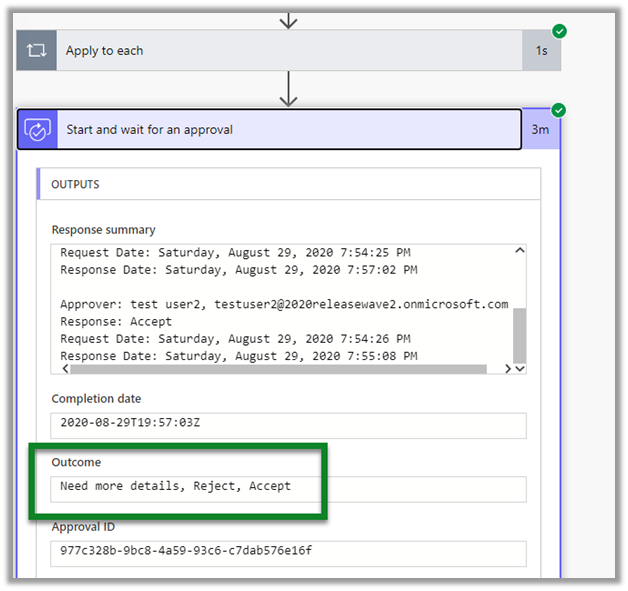
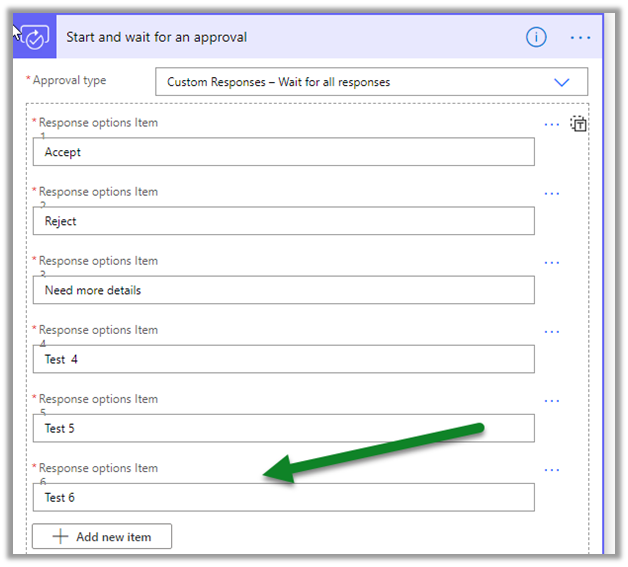
Let us update our previous sequential flow, to include file attachments to notes of the case record, as part of the approval.

Check other posts on Approvals – https://nishantrana.me/2020/08/31/approvals-power-automate-dynamics-365/

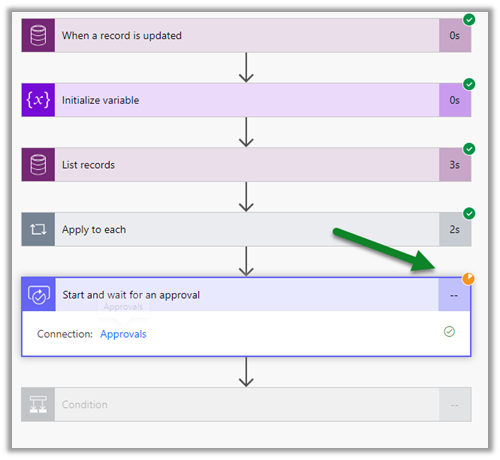
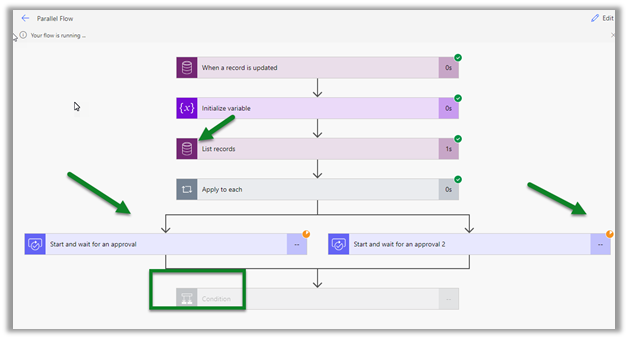
First, we need to add Initialize variable action and define an Array variable to store all the attachments details.

Next, we will use List records action, to fetch all the notes records associated with that particular case record.

Next, we will use Apply to each action to loop through all the attachments and use it to populate our attachments array variable defined in the previous step.

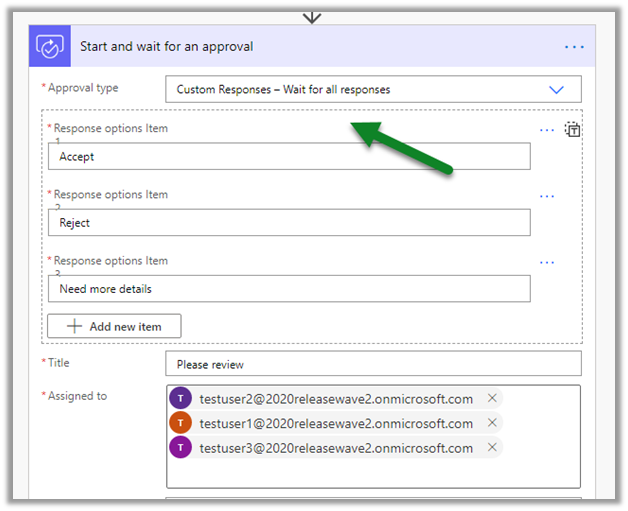
Now as the last step, we’d specify the attachment array variable for the attachment field inside the Start and wait for an approval action.

Now we are ready to save and test our flow.

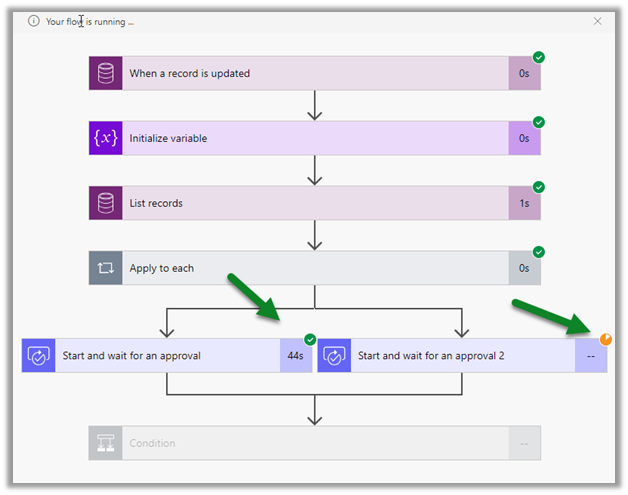
Here our flow is waiting for approval from the user.

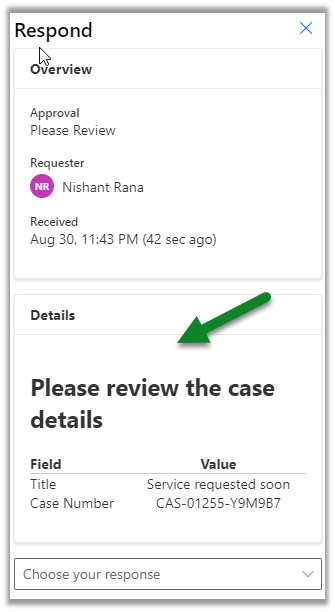
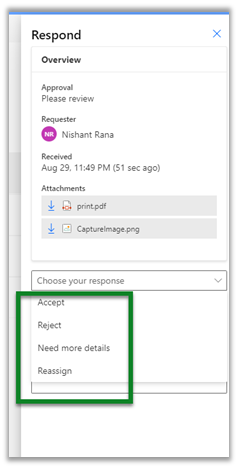
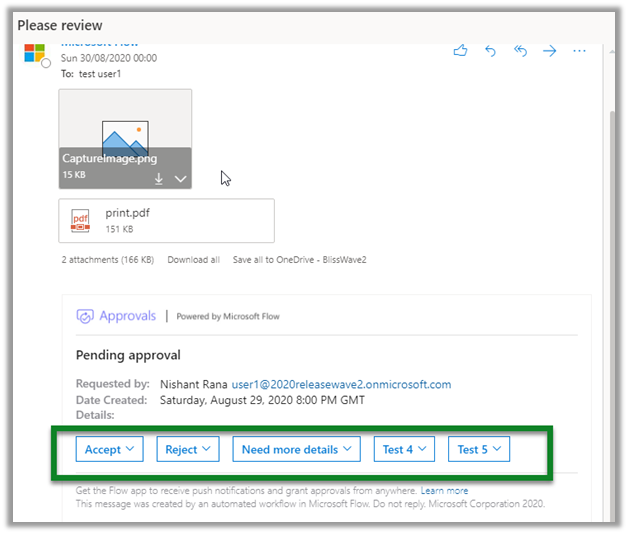
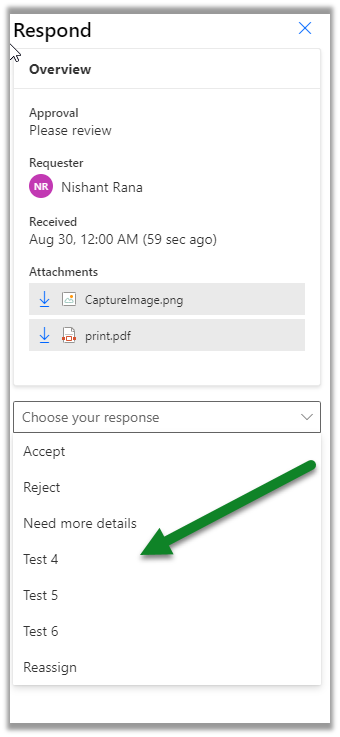
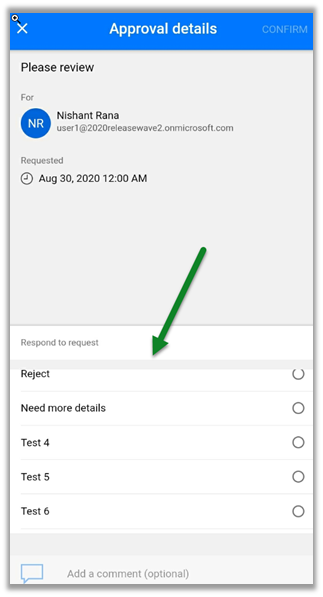
The approver receives the notification and can now review the attachments before responding.

Hope it helps..

Advertisements

Manager approval – Power Automate and Dynamics 365


Continuing our previous basic  approval flow, here we’d update it to send an approval request to the manager of the user.

Check other posts on Approvals – https://nishantrana.me/2020/08/31/approvals-power-automate-dynamics-365/

First, we’d use the Get manager V2 action to get the user’s manager.

Let us first update the profiles of the users to add their manager.

Sign in to the Azure portal as an administrator and select Users inside Azure Active Directory.

Here we have specified test user 2 as manager of user 1.

Let us now update our flow, add a Get a record action to get the email of the owner of the case record which will be used later to get the user’s manager.

Here in Item Id, we are passing Owner, it could well be created by or modified by as well.

In the select query, we are specifying the internal email address i.e. primary email address of the user.

Now for the If Yes step, we have used the Get manager action, and have specified the primary email address fetched earlier.

The Mail returned by the Get manager action is used for Assigned to field inside Start and wait for an approval action.

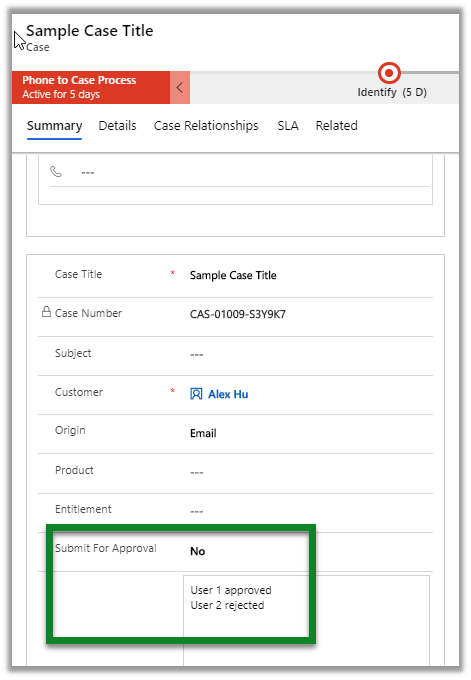
Based on the outcome of approval we are then updating the case record.

This is how the flow looks like

On running the flow, we can see the user’s manager email address in the output for the Get manager V2 action.

We can see the manager of the user 1 getting the approval request.

Now instead of the manager specified in User’s profile in Office 365 (Azure AD), let us update the flow to send an approval request to the User’s manager (system user) inside Dynamics 365.

Let us update the flow,

in the Get a record action instead of fetching the primary email address (internal email address) of the owner, we’d use Expand Query to fetch the primary email address of the Manager specified in the Owner (system user) record.

Create the query with link entity in our favorite FetchXML Builder and click on Power Automate Parameters

Copy the Expand query.

Paste it in the Expand Query of the Get a record action.

Remove Get manager (V2) 2 action from If Yes step, as we already have the email address of the manager now and specify the same in the Start and wait for an approval action’s Assigned to field.

Save and Test the flow.

Here we can see the test user 2 who is the manager of user 1 receiving the approval request.

We can the manager’s email in the output for Start and wait for an
approval action.

Thus, we see a couple of ways to implement Manger’s approval, we’d look at a few more scenarios in the next posts.

Do check out the wonderful training on Approvals in Power Automate

https://www.linkedin.com/learning/microsoft-flow-approval-flows/

Hope it helps..

Advertisements

Rich text editor control in Dynamics 365 – 2020 Release Wave 2


2020 Release wave 2 bring the configurable PCF Control, which we can now use for our multiline text input field.

Enable early access to 2020 release wave 2

Check other posts on Release 2020 Wave 2

Below we have added the Rich Text Editor Control for the Description field in the Case Form.

The field properties

The control within the form with all the options.

We didn’t had the rich text editor control in 2020 Release wave 1.

Dynamics 365 2020 release wave 2 –https://docs.microsoft.com/en-us/dynamics365-release-plan/2020wave2/

Hope it helps..

Advertisements

Insert knowledge article in email – 2020 Release wave 2


Agents while working on email can now search for Knowledge articles and insert its content in 2020 release wave 2.

Enable early access to 2020 release wave 2

Check other posts on Release 2020 Wave 2

The new Insert Knowledge Article button in the command bar for email.

Agents can now search for the article without losing the context

Agents can preview and insert the article content.

The same experience for email within the timeline control

timeline

This feature was not available in 2020 Release wave 1.

Missing Insert Knowledge Article button there –

Dynamics 365 2020 release wave 2 –https://docs.microsoft.com/en-us/dynamics365-release-plan/2020wave2/

Hope it helps..
Timeline control enhancements in Dynamics 365 – 2020 release wave 2


Check all the enhancements that were added in 2020 Release wave 1 in Timeline control https://nishantrana.me/2020/02/25/rich-notes-and-filter-enhancements-in-dynamics-365-timeline-control-2020-release-wave-1/

Below are some of the new features added in 2020 Release wave 2

Enable early access to 2020 release wave 2

Check other posts on Release 2020 Wave 2

  • Expand and collapse records in timeline

All records expanded inside timeline control shows its content and the icons to perform action on them.

In 2020 Release wave 1, the option is not available

  • Enhancements related to Email within timeline control

https://nishantrana.me/2020/08/05/enhanced-email-for-timeline-in-dynamics-365-2020-release-wave-2/

  • Highlight of matching text for the search

Dynamics 365 2020 release wave 2 –https://docs.microsoft.com/en-us/dynamics365-release-plan/2020wave2/

Hope it helps..

Enhanced knowledge articles in Dynamics 365 – 2020 release wave 2


With 2020 release wave 1, we had new features added in Knowledge management for increased productivity

https://nishantrana.me/2020/02/19/enhancements-in-knowledge-capabilities-in-dynamics-365-customer-service-2020-release-wave-1/

Opt-in for release 2020 wave 2

https://nishantrana.me/2020/08/05/enable-early-access-2020-release-wave-2-dynamics-365/

Check other posts on Release 2020 Wave 2

Now with release 2020 wave 2, we have a few more changes added to editing and view experience related to Knowledge articles.
  • The authors can create a collapsible section

The same experience for the end-users within the case form à

  • The collapsible section option was not available in 2020 release wave 1

  • Warning message in the Preview tab, if an anchor is used, has been removed now.

With 2020 Release wave 1

  • Icons have been updated within the Knowledge search control.

In 2020 Release wave 1 ->

In 2020 Release wave 2 ->

Dynamics 365 2020 release wave 2 –https://docs.microsoft.com/en-us/dynamics365-release-plan/2020wave2/

Hope it helps..