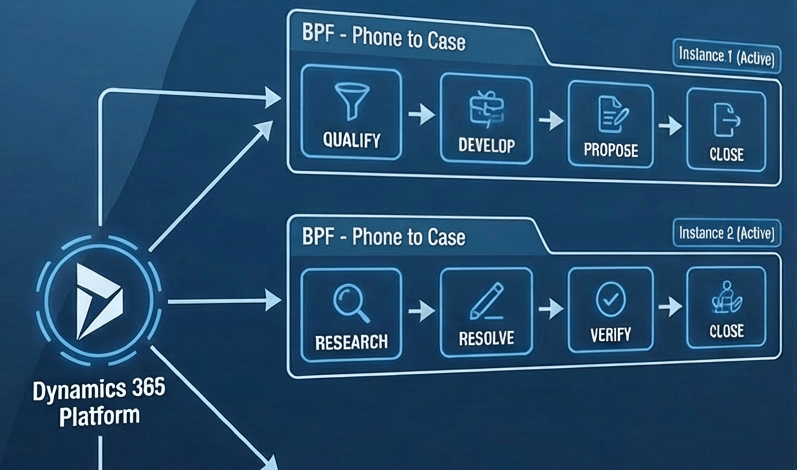
Advancing a Business Process Flow Stage Using a C# Console App (Dataverse / Dynamics 365)


In Dynamics 365, Business Process Flows are usually progressed by users through the UI. However, in scenarios like data migration, bulk remediation, or backend automation, we may need to move a BPF stage programmatically. Here we will cover one of the ways we can advance the Business Process Flow to the next stage using a C# console application, with a Case example used only as a reference.

Every Business Process Flow in Dataverse is backed by its own table, created when the process is published. The table name is derived from the process schema name and stores one record per entity instance participating in the flow.

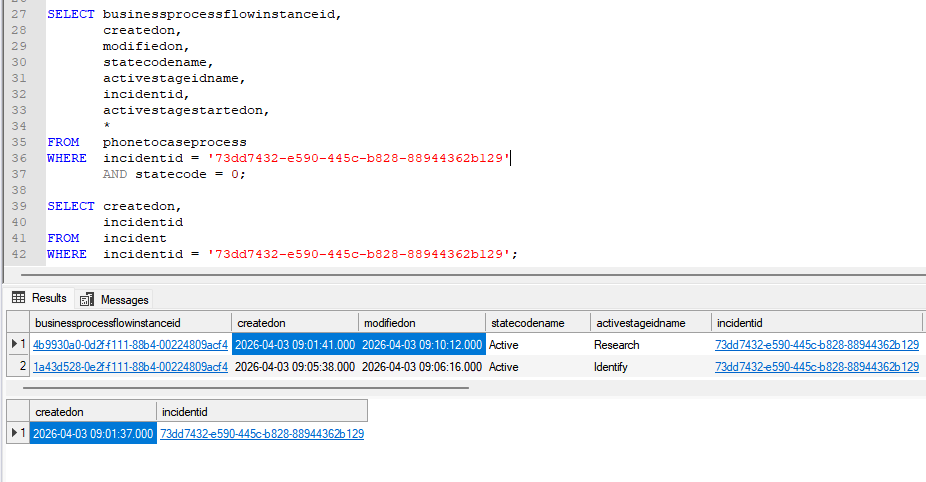
Below is the table for the Phone To Case Process with schema name – phonetocaseprocess

We can get the stagename and the processstageid for the business process flow from the processstage table, passing the GUID of the business process flow.

SELECT processid,
       processidname,
       stagename,
       processstageid,
       stagecategoryname,
       *
FROM   processstage
WHERE  processid = '0FFBCDE4-61C1-4355-AA89-AA1D7B2B8792';

Regardless of the entity, two columns control stage movement: activestageid, which represents the current stage, and traversedpath, which stores a comma-separated list of all stage IDs the record has passed through. When moving a BPF programmatically, both values must be updated together to ensure the UI reflects the change correctly. The table will also include the column referring to the record it is associated with; in our example, it is incidentid.

The traversedpath value must be constructed as a comma-separated list of processstageid values, preserving the exact order in which stages are completed, with each newly reached stage appended to the end of the existing path.

SELECT businessprocessflowinstanceid,      
       activestageid,
       activestageidname,
       traversedpath,
       incidentid,
       processid,
       processidname,
       *
FROM   phonetocaseprocess
where incidentid = '98c26cb0-ff9f-f011-b41c-7c1e52fd16bb'

At a high level, the process is always the same. We first identify the correct BPF table, then retrieve the BPF instance associated with the primary record. Next, we update the activestageid to point to the next stage and append that stage ID to the existing traversedpath. Finally, we persist the update back to Dataverse. Because this logic runs outside the UI, it bypasses stage validations and required-field enforcement, making it ideal for backend utilities but something that should be used carefully.

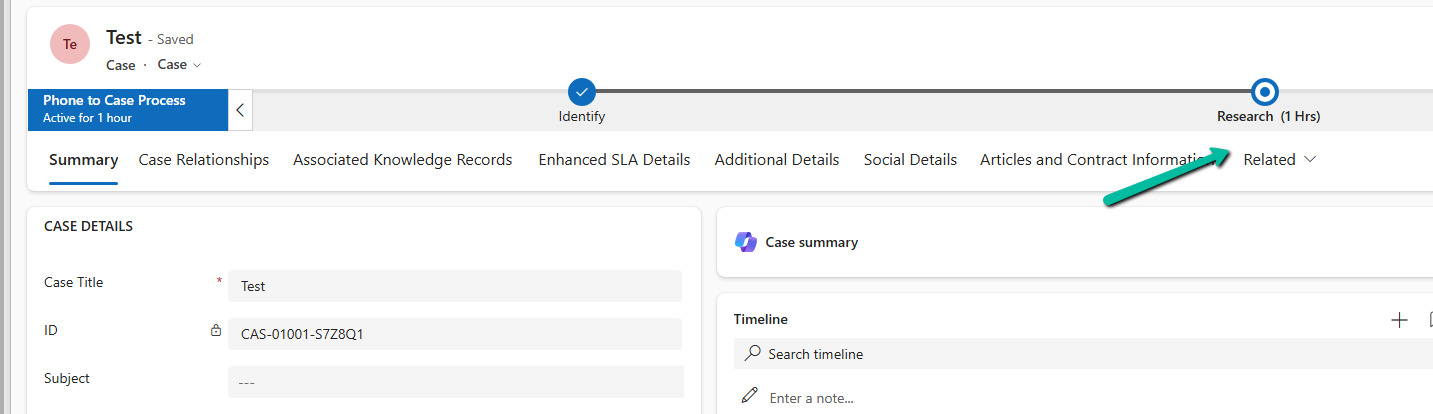
Below is our sample code that moves the case record from the Research stage to the Resolve stage.

Sample Code

 static void Main(string[] args)
        {
            Console.WriteLine("MoveCaseBpfToResolve started.");
            // CRM connection
            string connString = @"AuthType=OAuth;
            Username=abc.onmicrosoft.com;
            Password=xyz;
            Url=https://abc.crm.dynamics.com/;
            AppId=51f81489-12ee-4a9e-aaae-a2591f45987d;
            RedirectUri=app://58145b91-0c36-4500-8554-080854f2ac97/";

            var service = new CrmServiceClient(connString);

            var bpfSchemaName = "phonetocaseprocess";

            var caseId = "98c26cb0-ff9f-f011-b41c-7c1e52fd16bb";
            var resolveStageId = new Guid("356ecd08-43c3-4585-ae94-6053984bc0a9");

            // Query the BPF instance for the Case
            var query = new QueryExpression(bpfSchemaName)
            {
                ColumnSet = new ColumnSet("activestageid", "traversedpath")
            };
            query.Criteria.AddCondition("incidentid", ConditionOperator.Equal, caseId);

            var instances = service.RetrieveMultiple(query);

            if (!instances.Entities.Any())
            {
                Console.WriteLine("No BPF instance found for the Case. Exiting.");
                return;
            }

            var bpfInstance = instances.Entities.First();        
         

            var updateBpf = new Entity(bpfSchemaName)
            {
                Id = bpfInstance.Id
            };
            // Set active stage to Resolve
            updateBpf["activestageid"] = new EntityReference("processstage", resolveStageId);
            // Update traversed path
            var traversedPath = bpfInstance.GetAttributeValue<string>("traversedpath");
            updateBpf["traversedpath"] = $"{traversedPath},{resolveStageId}";
            service.Update(updateBpf);

            Console.WriteLine("BPF successfully moved to Resolve stage.");
            Console.WriteLine("MoveCaseBpfToResolve completed.");
        }

Result –

Hope it helps.

Advertisements

Using Parent Context in Dynamics 365 Plugins — Detecting System-Triggered Operations (Dataverse / Dynamics 365)


In this post, we’ll look at how we used the ParentContext property in Dynamics 365 plugins to determine if a plugin execution was triggered by another plugin and perform logic conditionally. This came up in two real-world cases — one where we needed to prevent duplicate Sales Leads created automatically through Event Management, and another where we wanted to match the correct Campaign when a Lead was updated through a Marketing Form submission.

In the first scenario, we had a plugin registered on the Pre-Create of Lead. We wanted to block duplicate Sales Leads only when they were created via CRM’s Event Plugin, not during manual Lead creation. To achieve this, we checked if the plugin execution had a ParentContext. When present, it meant the Lead creation was triggered by another process, not a user. We confirmed it was the system’s Event Plugin by checking the msevtmgt_originatingeventid field (this field will be auto-populated for a lead created by event) and depth. If the Lead was of Enquiry Type “Sales” and had an email address, we checked for duplicates and stopped the creation if one existed. This ensured duplicates were blocked only for system-triggered Leads.

The second case involved the plugin, registered on the Update of Lead. Here, we needed to identify if a Lead update was triggered by a Marketing Form submission (from the msdynmkt_marketingformsubmission table) and only then run our Campaign mapping logic. We used ParentContext to walk up the plugin chain and confirm the origin. Once verified, we called our logic to assign the correct Campaign based on the Region or Village. This made sure the Campaign logic only ran for Leads updated by Marketing automation, not for regular user edits.

In both cases, using ParentContext gave us precise control over when the plugin logic should run. It allowed us to differentiate between user actions and system-triggered updates, avoiding redundant execution and maintaining a cleaner automation flow.

Hope it helps..

Advertisements

Fixed – “Action cannot be performed. This quote is not owned by Dynamics 365 Sales” in Dataverse / Dynamics 365


Recently, while working with Quotes in Dynamics 365 Sales integrated with Supply Chain Management (SCM) through Dual-write, we encountered an interesting error while trying to activate an existing quote.

When attempting to activate Quote, the system threw the following error message:

Checking the Plugin Trace Log, we found the following details:

Entered Microsoft.Dynamics.SCMExtended.Plugins.QuotePreUpdate.Execute(), Correlation Id: 97636eb7-a10c-4503-918f-6dd7b8c1a671, Initiating User: 2953f4a9-ffca-ea11-a812-000d3a6aa8ae

QuoteService: PreUpdate.

Validate calling user $2953f4a9-ffca-ea11-a812-000d3a6aa8ae.

Calling user not DataIntegrator

Feature: Dynamics. AX.Application.SalesQuotationD365SalesFeature; Enabled: True

QuoteService: update from CE.

Validate calling user $2953f4a9-ffca-ea11-a812-000d3a6aa8ae.

Calling user not Dual-write.

SCM plugin exception: Action cannot be performed. This quote is not owned by Dynamics 365 Sales., at Microsoft.Dynamics.SCMExtended.Plugins.Services.QuoteService.ValidateIntegrationOwnerOnStateCodeChange(LocalPluginContext localContext, Guid quoteId)

Interestingly, this issue occurred only for old quote records — the ones created before Dual-write was enabled.

All newly created quotes after enabling Dual-write worked perfectly fine and could be activated without any error.

When comparing both sets of records, we noticed one key difference:

The msdyn_quotationownership (Ownership) field was blank for old quotes, while it was populated for the new ones.

This field plays an important role once Dual-write is enabled. The Microsoft.Dynamics.SCMExtended.Plugins.QuotePreUpdate plugin checks the Ownership field during operations like quote activation to validate the integration source.

If this field is empty, the plugin assumes the quote doesn’t belong to Dynamics 365 Sales and blocks the action, resulting in the error we saw.

Here we simply needed to set the missing ownership field.

A screenshot of a computer

AI-generated content may be incorrect.

To resolve the issue, we bulk updated all old quotes to set the missing Ownership (msdyn_quotationownership) field to Dynamics 365 Sales.

Once updated, the system immediately allowed us to activate quotes successfully — no more errors.

Hope it helps..

Advertisements

What are Partial Merges in Business Process Flow (BPF), and what can we do about it – Dataverse / Dynamics 365


Let’s take an example.

Suppose we have the following Business Process Flow (BPF) for Leads:

If the Lead Type = Grade A, we want the Grade A Details stage to appear. For other grades (B, C, D), we skip that stage and continue. So far, this is simple.

A screenshot of a computer

AI-generated content may be incorrect.

Now, say we have a new business requirement :

For Grade D, the process should only have the Initial Review and its own Closed stage. For Grades B and C, the process should follow Other Details + Closed.

To handle this, we added a condition:

If Lead Type = B or C → go to Other Details

Else (Grade D) → go directly to Grade D (Closed)

A computer screen shot of a computer

AI-generated content may be incorrect.

However, when we try to connect the B/C path to Other Details, the D path (Closed) also gets merged into it.

A screenshot of a computer
AI-generated content may be incorrect.
This is because of the way branching works in BPF.

Dataverse does not support “partial merges.” That means we can’t end one branch early and merge another branch later. If we merge one branch, Dataverse forces all branches to merge into the same stage.

A screenshot of a computer

AI-generated content may be incorrect.

One Branch Ends, One Branch Merges (Not Supported) – If we try to design a BPF where one branch terminates in its own last stage while the other continues and merges into a later stage, the platform will not allow it.

There are two ways to solve this:

Option 1: Repeat the stages : Instead of trying to merge one path and end another, duplicate the stages where needed.

For example, create a separate Other Details and Closed stage for Grades B and C.

A computer screen shot of a computer

AI-generated content may be incorrect.

Option 2: Simplify with fields / scripts

If we don’t want to repeat too many stages, we can:

Move the Lead Type field and Grade A Details fields into the Initial Review stage. Use business rules or form logic to show/hide those fields based on Lead Type. Delete the extra Grade A Details stage.

Update the condition so that the flow only needs one condition (A/B/C vs D).

A computer screen shot of a computer screen

AI-generated content may be incorrect.

Key Takeaway –

In Dataverse BPF:

One branch ending while another merges is not supported.

Either all branches merge or each branch must have its own end stage.

The solution is to repeat stages where needed, or simplify the design using fields and conditions.

Hope it helps..
Advertisements

Troubleshoot “Something happened, and we couldn’t copy to this environment” error – Dataverse /Dynamics 365 


Recently, while trying to copy an environment, we got the following issue –

Something happened, and we couldn’t copy to this environment. Please retry. If the issue continues, go to the Help + support tab. Include this correlation ID: 5e294f10-a784-4cda-881f-37799a37ddbc

At first glance, this seemed serious, especially because it mentioned a correlation ID and hinted at contacting Microsoft support.

In History also we can see it showing the status as failed.

A screenshot of a computer

AI-generated content may be incorrect.

We simply retried the copy operation — and this time, it worked flawlessly.

This indicates that the issue was likely transient, possibly caused by temporary backend resource availability or network hiccups.

Takeaway: Not every red error banner means a deep technical issue. Sometimes, it’s just the system asking for another try.

Hope it helps..
Advertisements

Fixed –Lookup value plugintypeexportkey [Guid] is not resolvable – Solution Import error (Dynamics 365 / Dataverse)


Recently, we faced an interesting import failure while moving a solution containing a Custom API.

Solution “Temp Plugin Step Custom API Transfer” failed to import: Lookup value 8f3269b7-a24d-43e4-9319-0c5e7ddf2b53 is not resolvable.

A screen shot of a computer

AI-generated content may be incorrect.

This clearly pointed to a lookup resolution issue — the solution import process was trying to bind the Custom API to a Plugin Type (class), but couldn’t find the referenced plugin in the target environment.

Each Custom API will have its own folder inside the Solution.

A screenshot of a computer

AI-generated content may be incorrect.

Looking into the solution files (specifically the customapi.xml) of that particular Custom API, we found this section:

A screenshot of a computer
AI-generated content may be incorrect.

Notice the <plugintypeexportkey> tag. This is where the Custom API references the Plugin Type (the actual C# class implementing the logic).

A computer screen with text and arrows pointing to it

AI-generated content may be incorrect.

When a Plugin class is created in Dynamics 365, it gets assigned a unique Plugin Type Id (GUID).

In the source environment, the Custom API was tied to a plugin with ID 420c7261-7461-4b37-87f0-1afcec427a46. However, in the destination environment, which was another development environment, a different plugin class was already created for that custom api. So during solution import, Dataverse tried to match the GUID 420c7261… but couldn’t find it in the target environment. Hence, the lookup resolution failed, and the solution import was blocked.

To resolve this, we manually updated the GUID in the customapi.xml to match the Plugin Type Id of the destination environment. Below, we are getting the ID from the Plugin Registration tool. The other option to fix would have been to remove the Plugin reference from the source, export, and then import.

A screenshot of a computer

AI-generated content may be incorrect.

After making this change, we re-imported the solution, and it worked successfully.

Also check – https://technicalcoe.com/2024/07/04/troubleshooting-power-platform-solution-import-errors/

Hope it helps..
Advertisements