Custom API Request Parameter entity in Dynamics 365 / Microsoft Dataverse


Continuing our previous posts on Custom API

Here we will look at the CustomAPIRequestParameter entity.

  • This entity can be used to define input parameters to the Custom API.
  • It is not a mandatory entity for Custom API i.e. we can define a custom API without any input/request or output/response parameter.
  • In the case of multiple parameters, ordering is not important as they are identified using the name.
  • One parameter can be associated with only one Custom API.
  • We can have multiple parameters with the same Unique Name as long as they are associated with different Custom API.

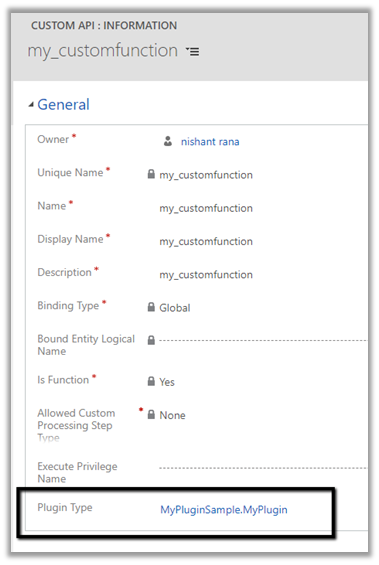
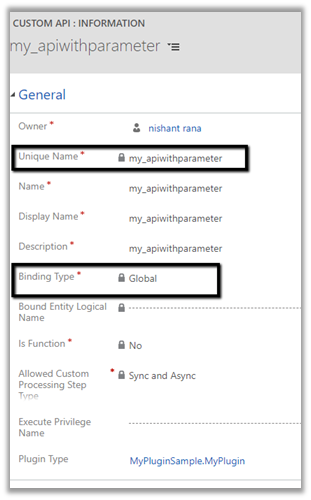
Say e.g. below is our Custom API

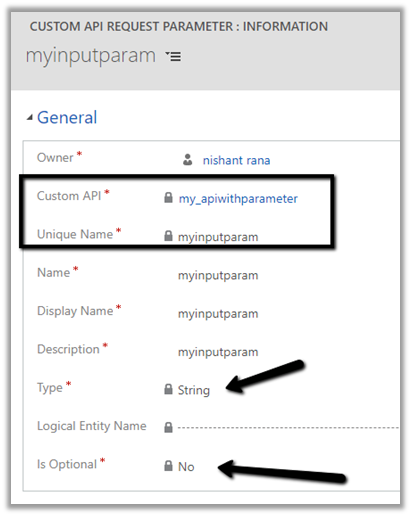
And this is our Custom API Request Parameter associated with the above API of type String

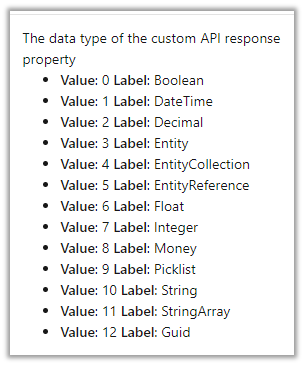
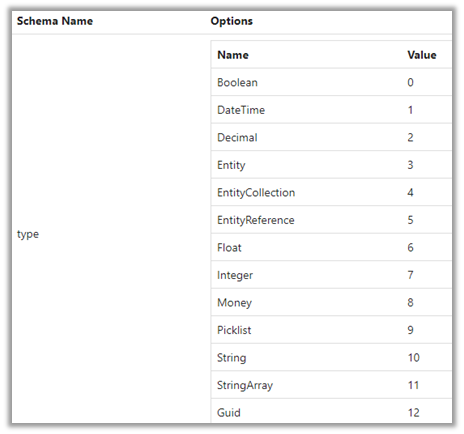
The different data type for the request parameter

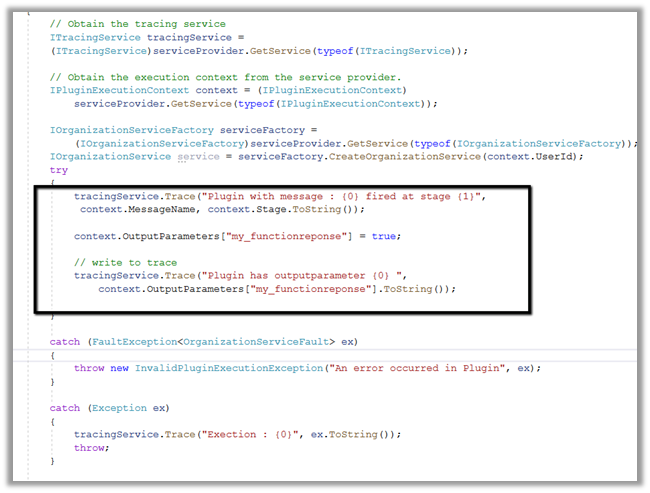
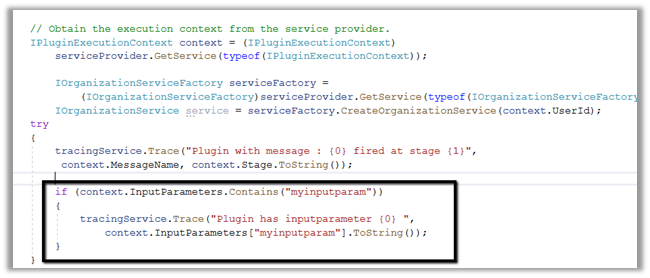
Below is our plugin registered for the custom message.

We are checking for the input parameter and writing it in the trace log.

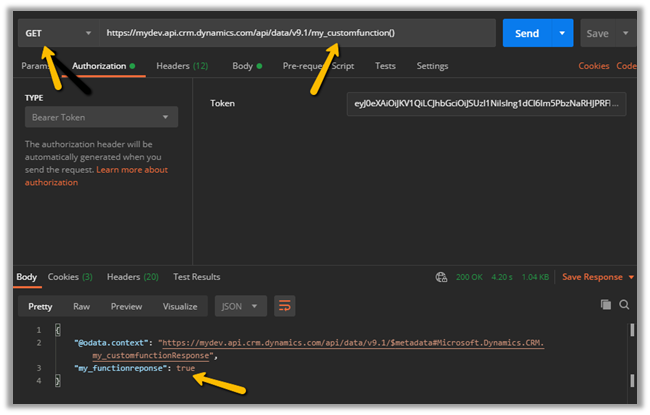
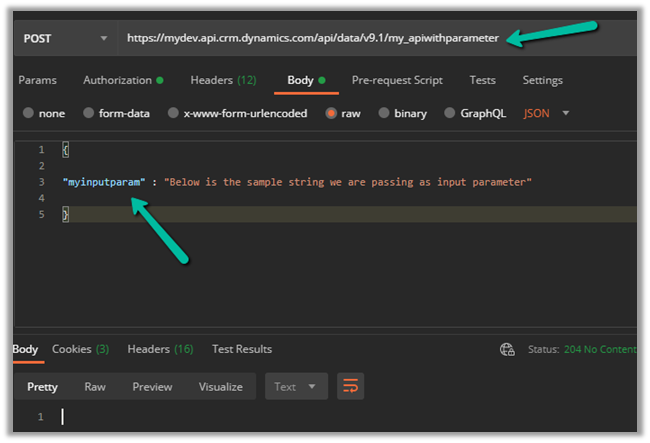
Let us call our custom API

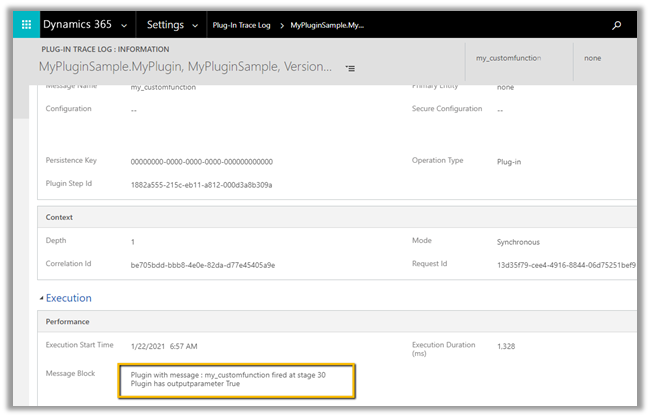
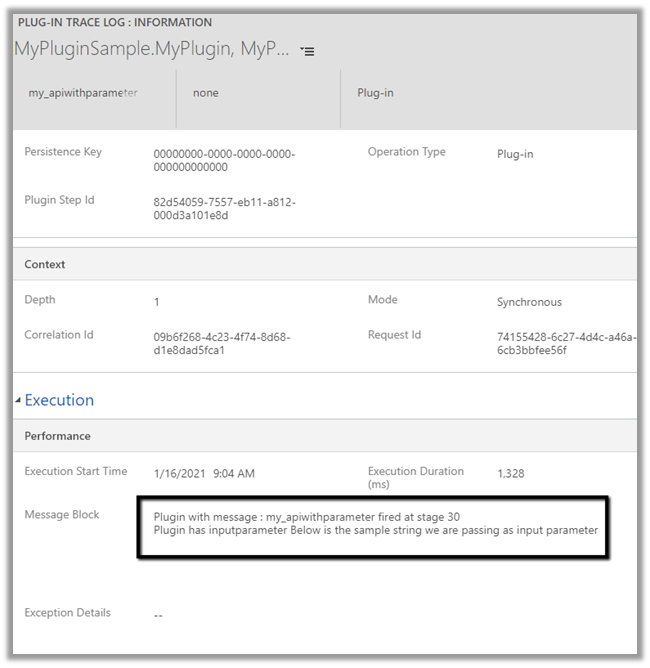
And let us check the plugin trace logs.

We can see the message being called successfully.

Get more details –

Create and use Custom APIs

Hope it helps..

Export key attribute uniquename for component CustomAPI must start with a valid customization prefix exception while creating Custom Action in Dynamics 365


We might get below error while creating a custom action from the maker portal without specifying the prefix.

Unhandled exception:

Exception type: System.ServiceModel.FaultException`1[Microsoft.Xrm.Sdk.OrganizationServiceFault]

Message: Export key attribute uniquename for component CustomAPI must start with a valid customization prefix

As the message suggests, we need to add prefix to the Unique Name of the custom API.

Check the prefix of the solution publisher and specify the same.

Adding the prefix allows us to save and create the Custom action record.

Microsoft docs suggest that is should match the prefix specified for the solution publisher

but it seems we can specify any prefix there and it allows us to save the record.

More on Custom API –

Create Custom API Message –
https://nishantrana.me/2021/01/13/use-custom-api-to-create-custom-messages-in-dynamics-365/

Execute Privilege Name Property –

https://nishantrana.me/2021/01/14/execute-privilege-name-executeprivilegename-property-of-custom-api-in-dynamics-365-microsoft-dataverse/

Allowed Custom Processing Step Type Property –

https://nishantrana.me/2021/01/20/allowed-custom-processing-step-type-allowedcustomprocessingsteptype-property-of-custom-api-in-dynamics-365-microsoft-dataverse/

Hope it helps..

Allowed Custom Processing Step Type (AllowedCustomProcessingStepType) property of Custom API in Dynamics 365 / Microsoft Dataverse


Continuing our previous posts, let us check the AllowedCustomProcessingStepType attribute in this blog post

https://nishantrana.me/2021/01/13/use-custom-api-to-create-custom-messages-in-dynamics-365/

https://nishantrana.me/2021/01/14/execute-privilege-name-executeprivilegename-property-of-custom-api-in-dynamics-365-microsoft-dataverse/

Allowed Custom Processing Step Type attribute of custom API allows us to control whether other plugins can be registered or not against the custom message

  • 0 – None – No custom processing steps are allowed.
  • 1 – Async Only– Only Async processing steps are allowed.
  • 2 – Both Async and Sync custom processing steps are allowed

Let us create a custom API with the value of “Allowed Custom Processing Step Type” as None.

If we check inside the Plugin Registration tool, we will not find the above message that we registered i.e. my_sampleAPI there.

Let us create another custom API and specify “Allowed Custom Processing Step Type” as Async Only.

As expected we can find the message available there.

As it is Async Only, if we try to register the step with Synchronous mode, we will get the below error.

Custom SdkMessageProcessingStep is not allowed on the specified message and entity.

As expected it allows us to register the step in asynchronous mode.

Get more details –

Create and use Custom APIs

Hope it helps..

Unable to retrieve attribute=businessunitid for entityLogicalName=systemuser exception while creating Application User in Dynamics 365


Recently while trying to add a new application user we got the below error message

More on Application User

https://nishantrana.me/2020/12/24/application-user-form-missing-in-dynamics-365/

https://nishantrana.me/2020/12/23/d365-the-user-is-not-a-member-of-the-organization-error-while-connecting-to-ce/

Adding the missing Business Unit field in the form fixed it.

Hope it helps..

How to – Manage Dynamics 365 Web API with Azure API Management


Azure API Management is an Azure service to create consistent API gateways for secure, scalable access for back-end applications and services.

Azure API Management consists of 3 main components

  • API Gateway

  • Azure Portal for administration

  • Developer Portal for API documentation

Each API inside Azure API Management contains a reference to the back-end service that implements the API and its operations.

Let us start by creating the Azure API Management resource –

Login to Azure Portal

https://portal.azure.com/

Search for API Management

Provide the appropriate details. (Here we have selected the – Developer tier)

After validation is passed, review and click on Create.

It will take around 30 minutes for the deployment to be finished

After the deployment is successful, we can navigate to it and can find the Gateway URL and Developer portal URL as shown below.

Here we will start with a Blank API.

Specify the display name, name and for Web service URL the URL of Dynamics 365 Web API

Click on +Add operation to add a new operation to the API.

Specify the URL as shown below to fetch all the contacts from Dynamics 365.

The URL of the operation

Right now we will get the 401 error as expected as we have not passed the token expected by the Web API.

Now for the token part for calling the Dynamics 365 API, register the Application in Azure AD, create a new Application User, and assign appropriate security roles to it.

https://docs.microsoft.com/en-us/powerapps/developer/data-platform/authenticate-oauth#connect-as-an-app

Here we would be defining send-request policy, to generate the Token and pass it in the Authorization header to the Dynamis 365 Web API request.

Select the GET operation, navigate to the Design tab and open the policy code editor for inbound processing

Add the send-request and set-header policy to generate and set the bearerToken

Specify the endpoint URL of OAuth token, client id, client secret of the application registered.

"copy code from the end of the post"

Save the change and let us test the API.

We can see the results as expected.

The other things that can be done are to associate the API with Products, specify Subscription, Security, enable Application Insights, Azure Monitor etc.

Specify policies –

https://docs.microsoft.com/en-us/azure/api-management/api-management-policies

References

https://transform365.blog/2020/03/29/azure-api-management-and-dynamics-365-web-api/

https://app.pluralsight.com/library/courses/microsoft-azure-developer-implement-api-management/table-of-contents

Hope it helps..

<policies>
  <inbound>
    <base />
    <send-request mode="new" response-variable-name="bearerToken" timeout="20" ignore-error="true">
      <set-url>https://login.microsoftonline.com/89a735bf-2d85-4a5b-a74a-59656af50f2e/oauth2/token</set-url>
      <set-method>POST</set-method>
      <set-header name="Content-Type" exists-action="override">
        <value>application/x-www-form-urlencoded</value>
      </set-header>
      <set-body>@{ return "client_id=510b66c9-4841-4d3d-8e95-150779adcb3e&resource=https://gcrm.crm.dynamics.com&client_secret=t~6DU7Ma4GZjh.M0Xf7eCizy.E~ME4zy_3&grant_type=client_credentials"; }</set-body>
    </send-request>
    <set-header name="Authorization" exists-action="override">
      <value>
        @("Bearer " + (String)((IResponse)context.Variables["bearerToken"]).Body.As<JObject>()["access_token"])</value>
    </set-header>
  </inbound>
  <backend>
    <base />
  </backend>
  <outbound>
    <base />
  </outbound>
  <on-error>
    <base />
  </on-error>
</policies>
Advertisements

Execute Privilege Name (ExecutePrivilegeName) property of Custom API in Dynamics 365 / Microsoft Dataverse


In the previous post, we created a simple custom API  https://nishantrana.me/2021/01/13/use-custom-api-to-create-custom-messages-in-dynamics-365/

Let us look at its different properties starting with ExecutePrivilegeName

Execute Privilege Name attribute of custom API allows us to specify the name of the privilege that allows execution of the custom API.

Let us update the custom API and specify the privilege name.

For simplification, we have used prvCreateIncident here i.e. Create Case / Incident Privilege.

To get the Privilege name

https://%5Borgname%5D.api.crm.dynamics.com/api/data/v9.1/privileges?$select=name


To test, we updated the security of the Application User to Sales Manager role which doesn’t have the create incident privilege.

Calling the custom API this time as expected gave us the below error

{“error”:{“code”:”0x80040220″,”message”:”Principal user (Id=0f377e29-5545-eb11-a813-000d3a9bf733, type=8, roleCount=1, privilegeCount=727, accessMode=4), is missing prvCreateIncident privilege (Id=6cf9442b-e690-4cad-8b0a-e60464960b93) on OTC=112 for entity ‘incident’. context.Caller=0f377e29-5545-eb11-a813-000d3a9bf733″}}


If we specify an incorrect privilege name we would get the below error and will not be able to save the record.


Hope it helps..


Advertisements