Use JavaScript to enable / disable a field only if the Stage is Active in Business Process Flow – Dynamics 365 / Dataverse


Recently we had a requirement to set some of the fields in our business process flow to be enabled only if that stage is active.

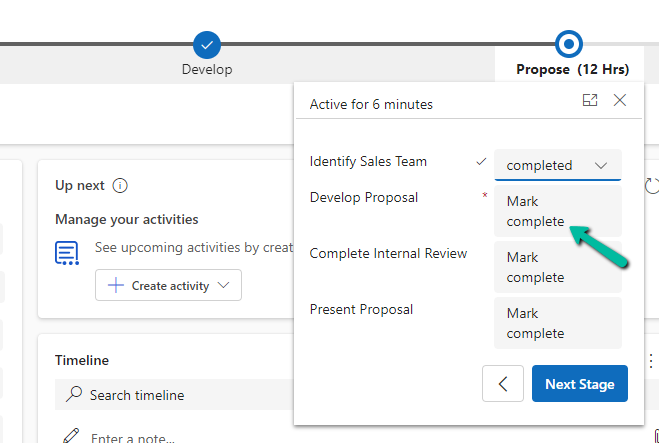
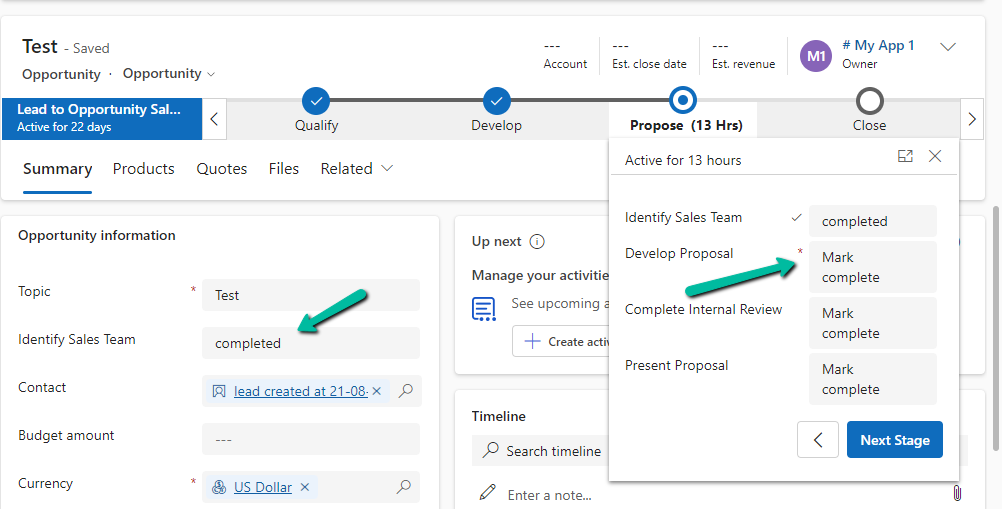
E.g. We want to Identify Sales Team field to be Enabled only if the Propose stage is active, else we want to set it as read-only.

A screenshot of a computer

Description automatically generated

We can use the below JScript to achieve the same.

A screen shot of a computer program

Description automatically generated

Because the Propose stage is Inactive we have Identify Sales Team as read only.

A screenshot of a computer

Description automatically generated

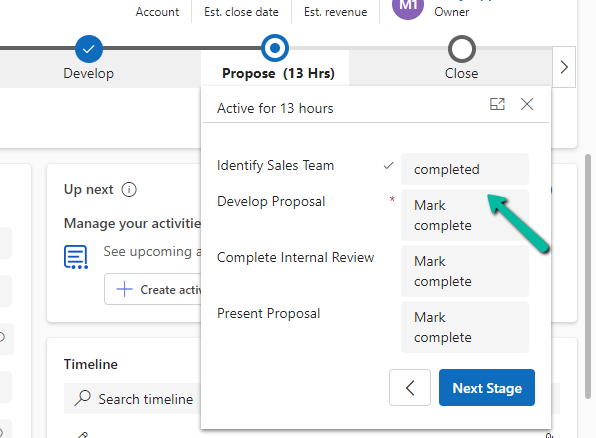
On moving to the Propose stage, we can see the field being enabled back.

A screenshot of a computer

Description automatically generated

The key steps are –

In the onload of the form associate your function/logic to the OnStage change method of the Process object.

formContext.data.process.addOnStageChange(CheckStageAndToggleFieldBPF);

Next, check for the active stage ID.

Here to get the active stage ID, open the business process flow and get its Guid.

A computer screen with a green arrow pointing to a black box

Description automatically generated

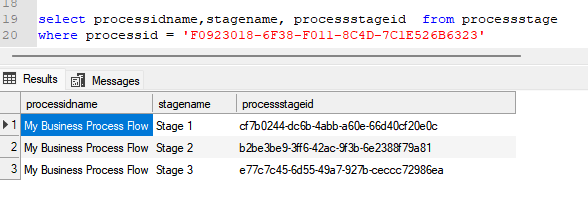
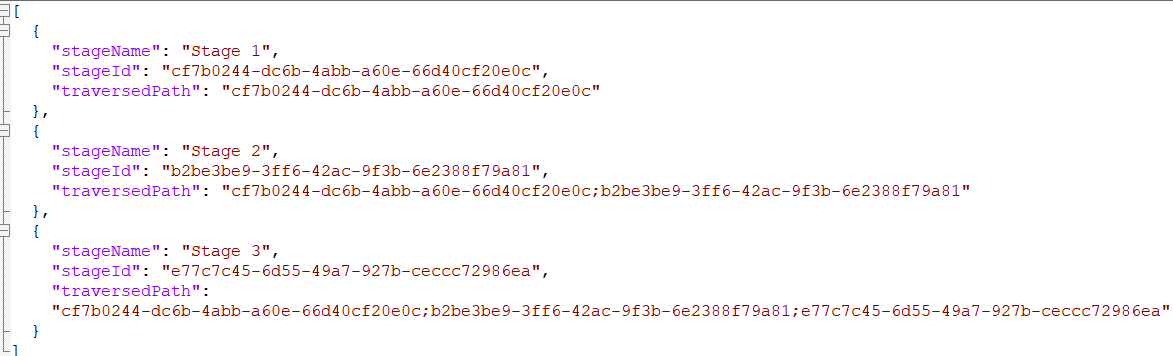
Then using the awesome SQL4CDS XrmToolBox plugin get the Guid of the particular stage.

A screenshot of a computer

Description automatically generated
function OnLoad(executionContext)
{
	 var formContext = executionContext.getFormContext();
	 formContext.data.process.addOnStageChange(CheckStageAndToggleFieldBPF);
	 CheckStageAndToggleFieldBPF(executionContext);
}

 function CheckStageAndToggleFieldBPF(executionContext) {

        var formContext = executionContext.getFormContext();     
        var activeStage = formContext.data.process.getActiveStage();
        var activeStageId = activeStage.getId();		
        var stagePropose = "3a275c22-fc45-4e89-97fc-41e5ec578743";
     
        if (activeStageId.toLowerCase() === stagePropose) {          
                formContext.getControl("header_process_identifypursuitteam").setDisabled(false);                 
        }
        else {
            formContext.getControl("header_process_identifypursuitteam").setDisabled(true);
        }       
  }
select processidname,stagename, processstageid  from processstage 
where processid = '919E14D1-6489-4852-ABD0-A63A6ECAAC5D'

Also if we have the same fields used in multiple places / stages in the Business Process Flow, we will have the suffix added to the fields, so we need to refer the field appropriately in our script.

  • header_process_identifypursuitteam
  • header_process_identifypursuitteam_1
  • header_process_identifypursuitteam_2

Also check – https://www.c-sharpcorner.com/blogs/options-for-locking-field-on-business-process-flow

Hope it helps..

Advertisements

Business Process Flow UI Improvement in Dynamics 365 / CRM


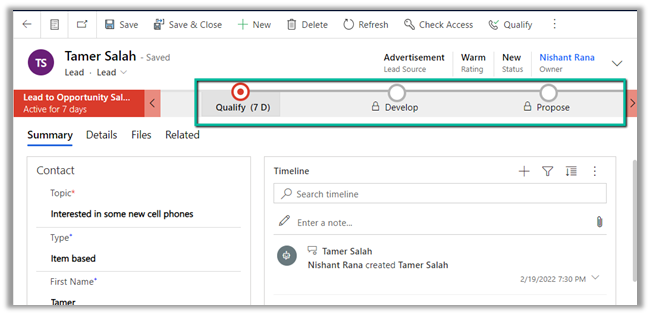
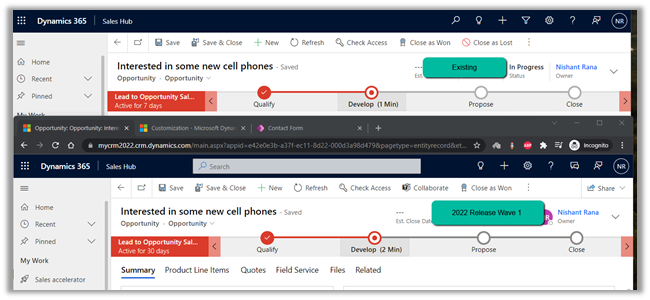
With 2022 Release Wave 1, we have a small enhancement in the user interface inside the BPF path line’s color contrast.

With 2022 Release Wave 1 turned off

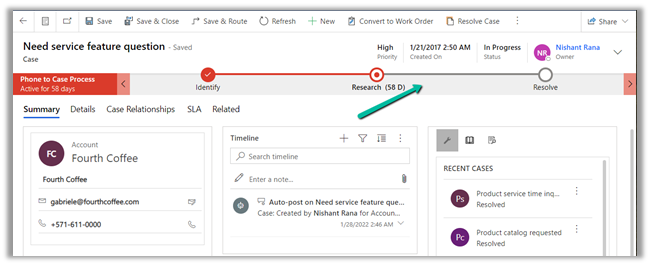
With 2022 Release Wave 1 – the path that needs to be followed is shown now in a slightly darker shade,

making it easy for an agent to understand the stages to be followed in the business process flow.

Hope it helps..

Advertisements

New addOnStageSelected and addOnStageChange method for process in CRM 2015.


Using addOnStageSelected and addOnStageChange method of Xrm.Page.data.process we can add function to trigger when a Stage in selected in the form or when the stage changes.


Clicking on a different stage


Clicking on a Next Stage


We can also use movePrevious() and moveNext() to move within the Process.

Business Process Flow Client Side Script Reference in CRM 2015


Sharing a mind map for quick and easy reference of new methods added for Business Process Flow in CRM 2015

(click for full screen)

ProcessClientReference


http://goo.gl/ukjhkn

My Notes on Business Process Flow in CRM 2015


  • In CRM 2013 we were restricted to only those Entities that were 1: n related.
  • In CRM 2015 we can select any entity on which Business Process Flow is enabled.
  • Here test is an entity which has business process flow enabled, however it is not related to Contact record i.e. our primary entity

  • The same restriction of having only 5 entities applies to CRM 2015 also.


  • The entity relationships supported are of type 1: n only and it is optional.
  • Each process can have maximum 30 stages.
  • And each stage can have maximum 30 steps.
  • There can only be one active process at a time.
  • No closed entity loop, the entity used earlier can be referenced again.


Branching in Business Process Flows in CRM 2015


CRM 2015 now provides rule based branching support for Business Process Flow.

In CRM 2013

In CRM 2015

Using Add branch we can add conditions (rules)

Rule can govern the next stage in the business process flow.

For. e.g.

Based on the value specified for Address 1: Country field we can change the next Stage dynamically in the Business Process Flow.

Here if Country specified is India or China we change the Stage to “Stage Asia” and specify the Address1: Street 2 field to be mandatory.

If not then next Stage is set to “Stage ROW”, which expects value for Address 1: Street 3.

Inside the form, the next Stage changes dynamically based on value specified for country field.


We can combine multiple if and else conditions, however each branch cannot be more than 5 level deep i.e. cannot add more than 5 conditions for a particular  branch.

Hope it helps..