
Let us take a simple example of showing Contact entity views in the Portal. Entity List can be used to show existing CRM View to the portal.
Go to Portal – Entity List and create a new entity list record. Select contact for Entity Name and Active Contacts and Inactive Contacts as the views to be displayed in the portal. (leave all other value as default).
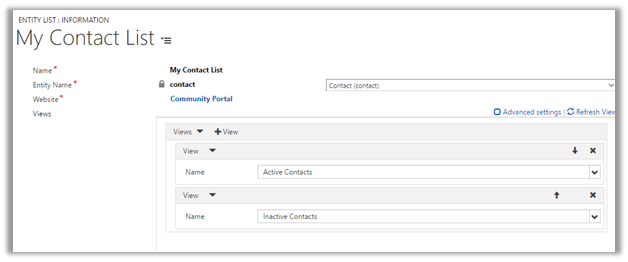
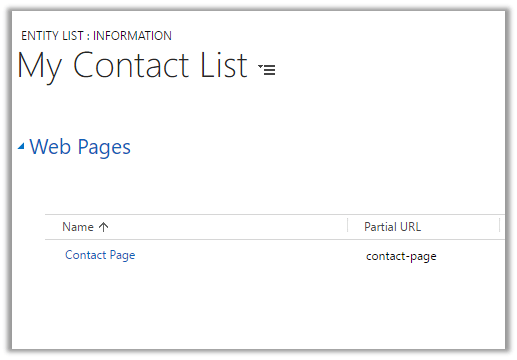
After saving the record go to Web Pages tab to specify the web page where the page should be displayed.
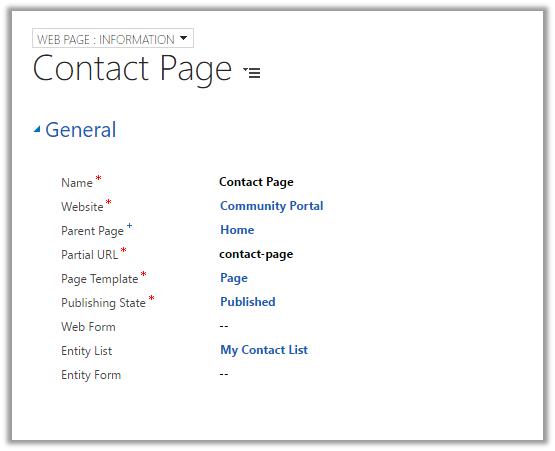
Before this let us quickly create Web Page in the portal. We can also create the page in CRM as well.
CRM – Portal – Web Pages –
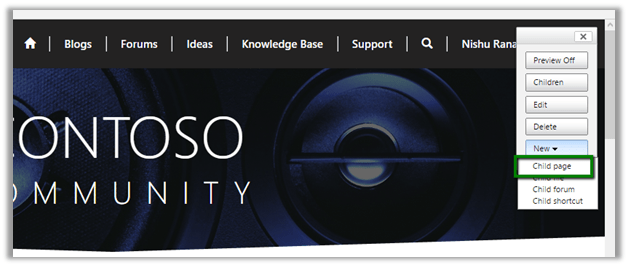
From Portal – Log in to Portal with Admin rights and click on New – Child Page to create a new Page
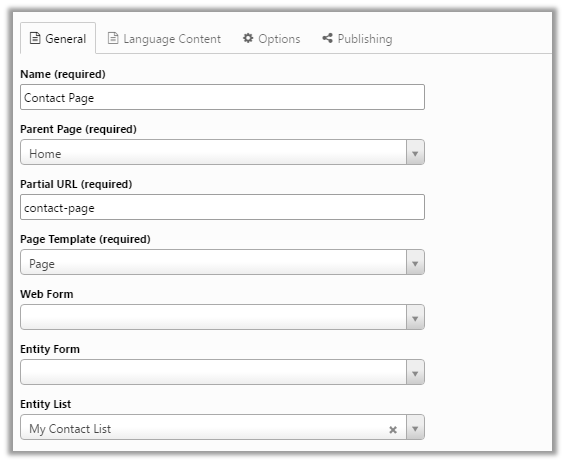
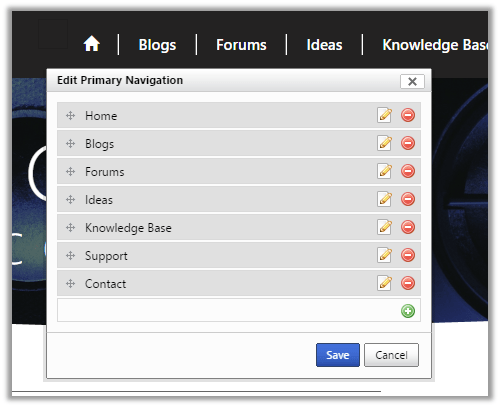
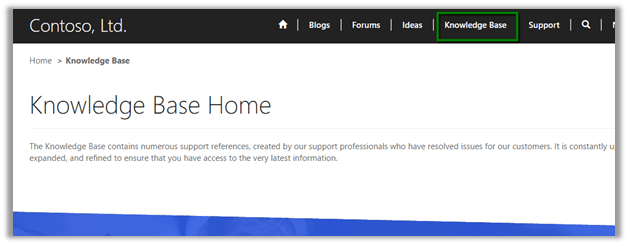
Add the page to the primary navigation
Associate the Contact Page to the Entity List record inside CRM
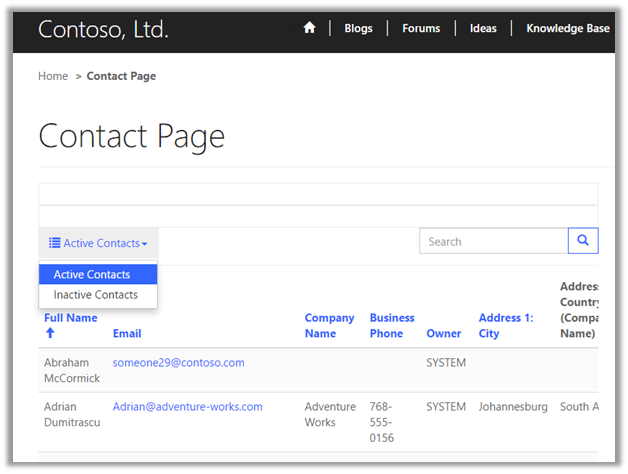
Open the Contact page in the Portal.
Hope it helps.













 Nishant Rana's Weblog