Using Conditional Branching in Web Form in Portal (Dynamics 365)


Let us continue with our previous example of Employee Exit Survey and add conditional branching step to it.

https://nishantrana.me/2017/03/05/using-web-form-to-create-a-simple-survey-in-portal-dynamics-365/
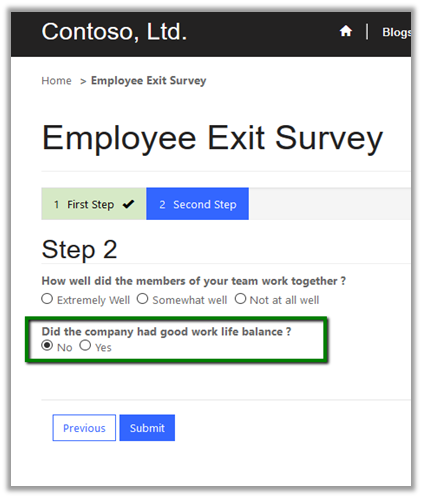
Here we’d add a conditional web form step which will check the response of the user for Work Life Balance question and in case if it false, it shows one more step to the user and asks for the comments.

So, let us first create a web form of type Condition with below details

Type Condition
Target Entity Logical Name Our custom survey entity
Next Step Web Form Step when condition is true
Condition If new_thirdquestion is true

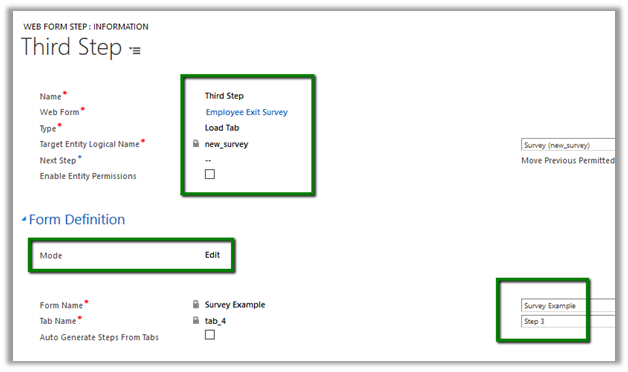
Now let us see the details of web form step – third step which we have defined as Next Step for the condition Web Step above.
We have also created associated Web Form Metadata record of the type attribute for defining the label and other properties for the new field named fourth question in our survey form.

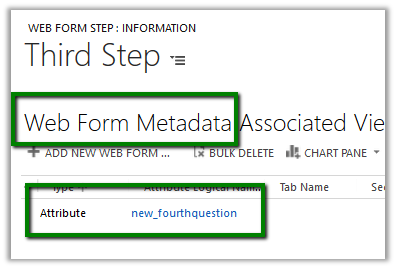
Adding label –

Adding Description –

Making field required –

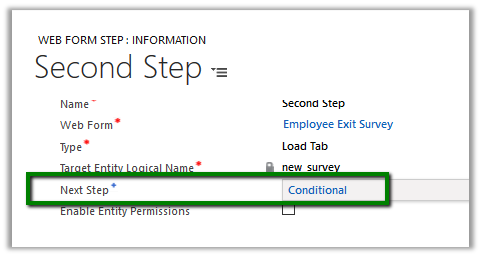
Finally update the Second Web Form Step to point to the Condition Step
We are done with our configuration, now going back to our web page shows the Web Form with all the 3 steps.
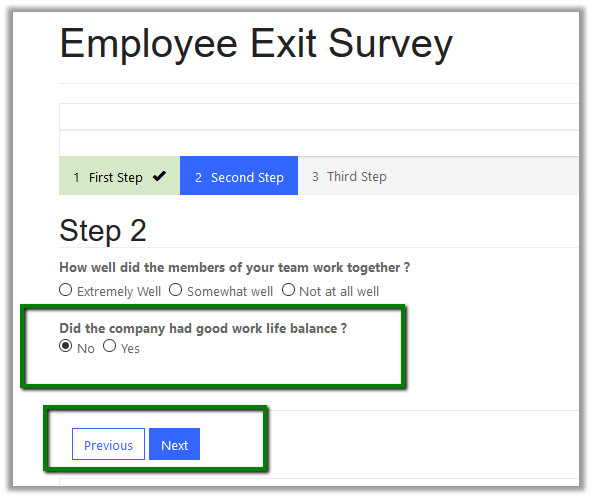
Clicking on next with No as the answer for the Work Life balance Question shows the third web form step. Note here we can see the label defined, description defined and also the field is mandatory which we did using Webform Metadata.
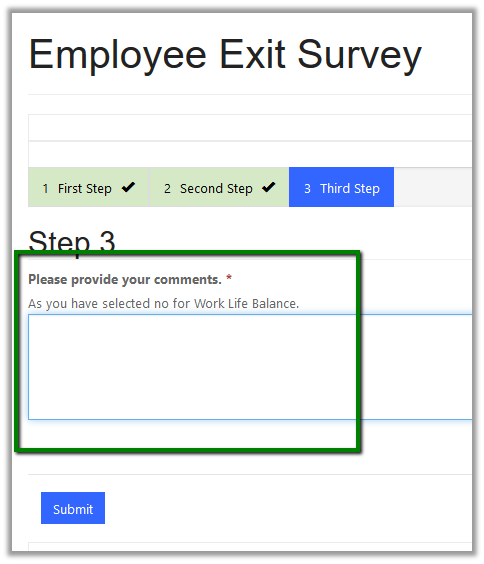
Clicking on submit without specifying comments shows the required field message

All the details here

https://community.adxstudio.com/products/adxstudio-portals/documentation/configuration-guide/web-forms/web-form-steps/conditional-step/

Hope it helps..

Advertisements

Using Web Form to create a simple survey in Portal (Dynamics 365)


Web Form are an extension of Entity Form, which can be used for Surveys, Registration or any wizard sort of interfaces etc. which could involve conditions and span across multiple entities.

To understand Web Form, let us create a simple Employee Exit Survey having 3 questions and 2 web form steps.

Basically, we have one Web Form which can have one or more than one Web Form Steps. Here we will use tabs within a single form for web form step (we can also use multiple forms as steps)

Let us first create a custom entity named Survey which we will use in Web Form having 2 Tabs Step 1 and Step 2, which we will use to define our Web Form Steps respectively.

Here each field/ attribute defined is one question in our Survey.

Using Web Form Metadata we can specify the label for the fields above and can do some formatting as well.

Below is our Web Form record –

Start Step is where we define the Web Form Step, which are similar to Entity Form.

Below is our First Step Web Form Step.

Type Load Tab – as we are loading the tab here
Target Entity Logical Name new_survery
Next Step Second Step – the next web form step.
Mode Insert – as we are creating the record
Form Name Name of the form
Tab Name Tab inside it

Also here we will create a related Web Form Step Metadata of type attribute to define the label for the field named new_firstquestion.

Let see the definition of the next Web Form Step i.e. Second Step

Mode Edit – Here the mode is edit as the record will already be created in the first step and will be updated in this next step.
Move Previous Permitted Allowing user to move back to the first step.
Next Step Blank – so this will be the last step.
Source Type Result From Previous Step
Entity Source Step First Step – the previous step.

Below is the Web Form Metadata for the below 2 fields of the Step 2 Tab. One of the fields is Option Set and the other is Boolean.

Metadata for second question field –

Metadata for third question field –

Finally, the web page that displays the Web Form

This is how the Web Form renders in the portal

On Submitting the Survey

This creates the Survey record in CRM

Hope it helps..

Clear Cache in Portal in Dynamics 365


Update – Append “/_services/about” to the portal URL ==> OCache


Or

Restart the portal from Portal Admin Page

Cache1

Recently while working on web form configuration we made few changes to the form that was being used in web form step. However, the changes we made were not getting reflected back in the portal.

We had added the 2 controls in Step 2 tab in the form, however the change was not getting reflected back in the portal.

In the portal,

To refresh the website with the latest CRM changes, we can go to the Dynamics 365 Administration Center

And change the portal state to off – update and back on – update.

This updates the portal page with the latest changes

Also refer this document

https://community.adxstudio.com/products/adxstudio-portals/documentation/developers-guide/cache/cache-invalidation-utility/

Hope it helps..

1000 posts on my blog


Hope they have been helpful 🙂

1000

Understanding Parental Scope in Entity Permission in Portal (Dynamics 365)


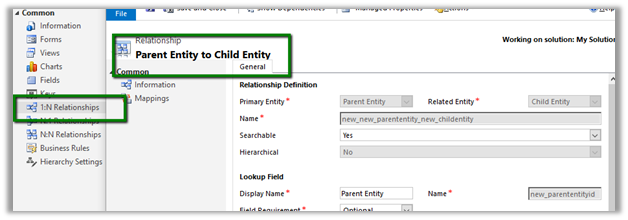
Let us create 2 entities Parent Entity and Child
Entity having 1 – n relationship.

Here we will be creating Entity List for Child Entity that displays all the child entity records associated to Parent Entity to which user has access to.

This we can achieve using Child Entity Permission record for the Child Entity.

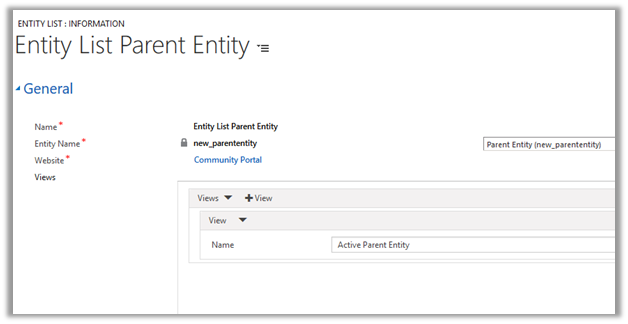
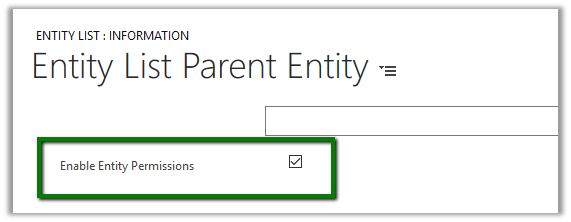
First let us define an Entity List for Parent Entity to which we will enable Entity Permission with Global Scope.

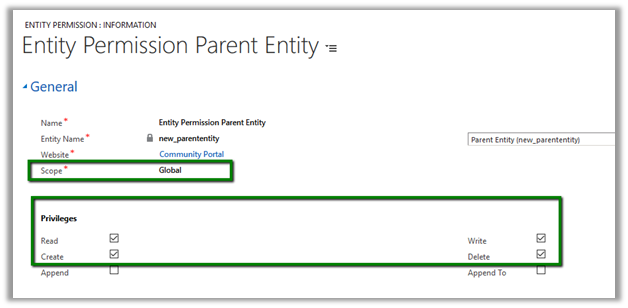
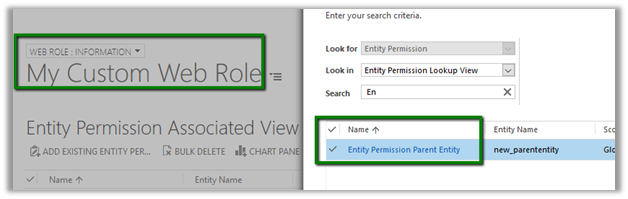
Next let us create Entity Permission for Parent Entity and assign it to one of the web role associated to the current Portal Contact user.

For simplicity, we are keeping the Scope as Global. We can also use Contact and Account scope here for filtering the access to the records if that Entity is associated with the Contact Entity. Based on which the Child entity records will further get filtered.

https://nishantrana.me/2017/02/28/understanding-scope-global-contact-and-account-in-entity-permission-in-portal-dynamics-365/

The above Entity Permission gives access to all the records (Global – Read) of Parent Entity to the portal user.

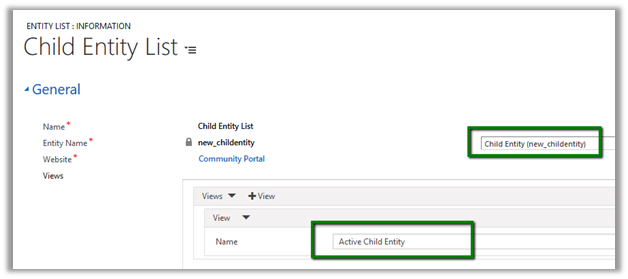
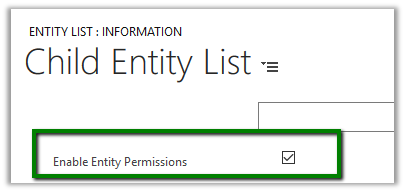
Now let us create an Entity List for Child Entity and enable Entity Permissions.

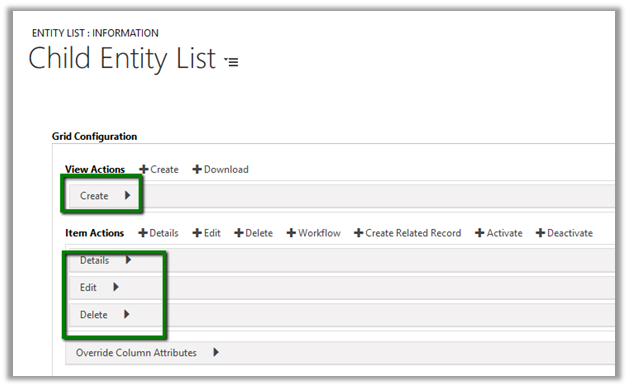
Configure the below Actions Create, Details, Edit and Delete.

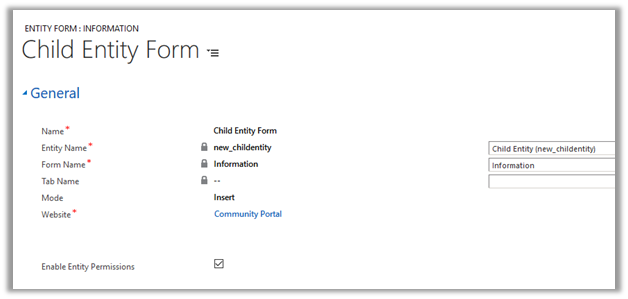
To configure the above Actions we would need an Entity Form, so before we do that we need to create an Entity Form for Child Entity.

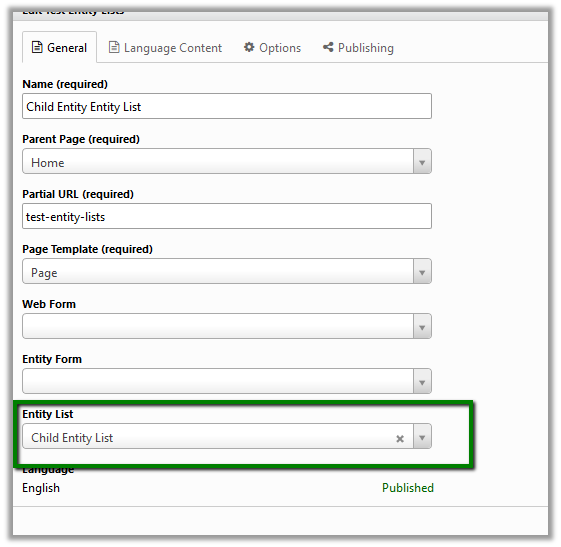
Next configure a web page to display the Child Entity Entity List.

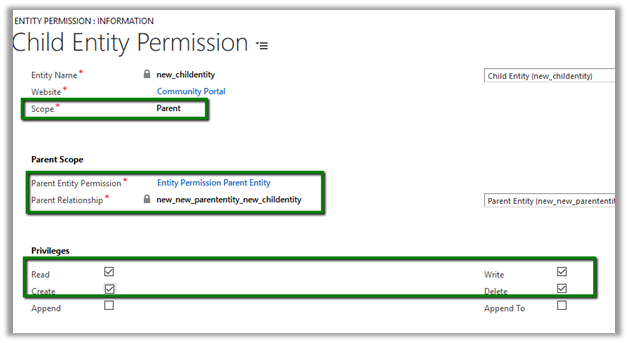
Now comes the important part i.e. creating child entity permission for Child Entity.

Create an Entity Permission Record with the below details :

Scope – Parent

Parent Entity Permission – Entity Permission created for Parent Entity i.e. Entity Permission Parent Entity.

Parent Relationship – the 1 – n relationship we created between Parent Entity and Child Entity.

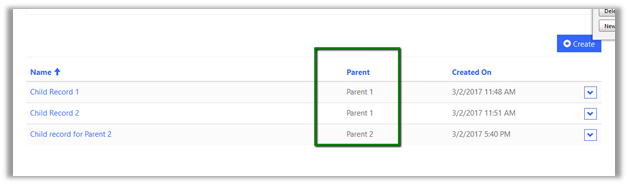
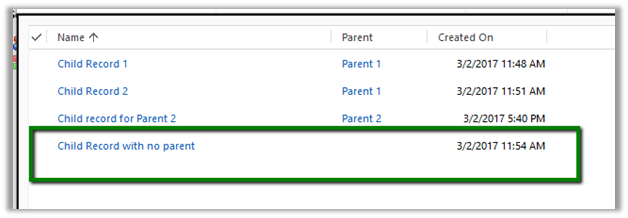
Now opening the page which has the Entity List defined for Child Entity, we can see the below 3 records associated to the parent records to which user has the Read access.

We do not see the all the records as not all the child entity records are associated to the parent entity’s record.

Hope it helps..

Understanding Scope (Global, Contact and Account) in Entity Permission in Portal (Dynamics 365)


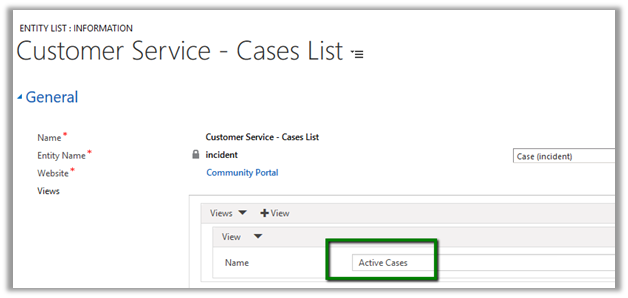
Let us take an example of the below Entity List configured for Case entity configured for Active Cases view.

For Entity Permission to work we need to check Enable Entity Permissions.

Let us first create an Entity Permission record with Global Scope and Read Privileges and assign it to a custom web role to which in turn is assigned to the Portal User.

Below we have Case Entity Permission record associated to our My Custom Web Role.

My Custom Web Role is then associated with the portal contact record.

Scope – Global with Read Privelges à

This shows all the Active Case records in the portal.

Now let us change the Scope to Contact, and specify Conact_As_Primary_Contact as the relationship to be considered i.e. Contact Lookup in Case entity form.

Scope – Contact

This shows all the case records that has current portal user as Contact as well as those records which has Customer specified as the account which is the Parent Account of the current contact portal user.

i.e.

The portal view is filtered based on the Contact Scope Entity Permission.

Now let us change the Scope to Account, and specify Incident_customer_accounts as the relationship to be considered i.e. Customer Lookup in Case form.

Scope – Account

This shows only those case records that has Customer specified as the Parent Customer of the current logged in Portal Contact User.

Hope it helps..

Advertisements