Sharing the sample code that we can use for checking if a particular folder exists and if not then create it in SharePoint Online. It uses PnP Framework and Azure Ad App only permissions.
We will be checking for and creating the folder at the below location.
On a successful run, we can see the folder named “MyFolder” created the document library.
Below is the sample code
static void Main(string[] args)
{
var siteUrl = "https://w72tk.sharepoint.com/sites/MyTeamSite";
var applicationId = "d7eaeeb7-ef0a-474d-9b94-567013576c14";
var password = "xyz";
var domain = "w72tk.onmicrosoft.com";
var certPath = @"C:\SharePointApp\MyTestCertificate.pfx";
var authManager = new AuthenticationManager(applicationId, certPath, password, domain);
var foldertoCheck = "MyFolder";
using (var clientContext = authManager.GetContext(siteUrl))
{
var currentWeb = clientContext.Web;
var folderExists = currentWeb.DoesFolderExists(foldertoCheck);
if (!folderExists)
{
var list = clientContext.Web.Lists.GetByTitle("Documents");
list.RootFolder.Folders.Add(foldertoCheck);
clientContext.ExecuteQuery();
}
}
}
#Requires -RunAsAdministrator
<#
.SYNOPSIS
Creates a Self Signed Certificate for use in server to server authentication
.DESCRIPTION
.EXAMPLE
.\Create-SelfSignedCertificate.ps1 -CommonName "MyCert" -StartDate 2015-11-21 -EndDate 2017-11-21
This will create a new self signed certificate with the common name "CN=MyCert". During creation you will be asked to provide a password to protect the private key.
.EXAMPLE
.\Create-SelfSignedCertificate.ps1 -CommonName "MyCert" -StartDate 2015-11-21 -EndDate 2017-11-21 -Password (ConvertTo-SecureString -String "MyPassword" -AsPlainText -Force)
This will create a new self signed certificate with the common name "CN=MyCert". The password as specified in the Password parameter will be used to protect the private key
.EXAMPLE
.\Create-SelfSignedCertificate.ps1 -CommonName "MyCert" -StartDate 2015-11-21 -EndDate 2017-11-21 -Force
This will create a new self signed certificate with the common name "CN=MyCert". During creation you will be asked to provide a password to protect the private key. If there is already a certificate with the common name you specified, it will be removed first.
#>
Param(
[Parameter(Mandatory=$true)]
[string]$CommonName,
[Parameter(Mandatory=$true)]
[DateTime]$StartDate,
[Parameter(Mandatory=$true)]
[DateTime]$EndDate,
[Parameter(Mandatory=$false, HelpMessage="Will overwrite existing certificates")]
[Switch]$Force,
[Parameter(Mandatory=$false)]
[SecureString]$Password
)
# DO NOT MODIFY BELOW
function CreateSelfSignedCertificate(){
#Remove and existing certificates with the same common name from personal and root stores
#Need to be very wary of this as could break something
if($CommonName.ToLower().StartsWith("cn="))
{
# Remove CN from common name
$CommonName = $CommonName.Substring(3)
}
$certs = Get-ChildItem -Path Cert:\LocalMachine\my | Where-Object{$_.Subject -eq "CN=$CommonName"}
if($certs -ne $null -and $certs.Length -gt 0)
{
if($Force)
{
foreach($c in $certs)
{
remove-item $c.PSPath
}
} else {
Write-Host -ForegroundColor Red "One or more certificates with the same common name (CN=$CommonName) are already located in the local certificate store. Use -Force to remove them";
return $false
}
}
$name = new-object -com "X509Enrollment.CX500DistinguishedName.1"
$name.Encode("CN=$CommonName", 0)
$key = new-object -com "X509Enrollment.CX509PrivateKey.1"
$key.ProviderName = "Microsoft RSA SChannel Cryptographic Provider"
$key.KeySpec = 1
$key.Length = 2048
$key.SecurityDescriptor = "D:PAI(A;;0xd01f01ff;;;SY)(A;;0xd01f01ff;;;BA)(A;;0x80120089;;;NS)"
$key.MachineContext = 1
$key.ExportPolicy = 1 # This is required to allow the private key to be exported
$key.Create()
$serverauthoid = new-object -com "X509Enrollment.CObjectId.1"
$serverauthoid.InitializeFromValue("1.3.6.1.5.5.7.3.1") # Server Authentication
$ekuoids = new-object -com "X509Enrollment.CObjectIds.1"
$ekuoids.add($serverauthoid)
$ekuext = new-object -com "X509Enrollment.CX509ExtensionEnhancedKeyUsage.1"
$ekuext.InitializeEncode($ekuoids)
$cert = new-object -com "X509Enrollment.CX509CertificateRequestCertificate.1"
$cert.InitializeFromPrivateKey(2, $key, "")
$cert.Subject = $name
$cert.Issuer = $cert.Subject
$cert.NotBefore = $StartDate
$cert.NotAfter = $EndDate
$cert.X509Extensions.Add($ekuext)
$cert.Encode()
$enrollment = new-object -com "X509Enrollment.CX509Enrollment.1"
$enrollment.InitializeFromRequest($cert)
$certdata = $enrollment.CreateRequest(0)
$enrollment.InstallResponse(2, $certdata, 0, "")
return $true
}
function ExportPFXFile()
{
if($CommonName.ToLower().StartsWith("cn="))
{
# Remove CN from common name
$CommonName = $CommonName.Substring(3)
}
if($Password -eq $null)
{
$Password = Read-Host -Prompt "Enter Password to protect private key" -AsSecureString
}
$cert = Get-ChildItem -Path Cert:\LocalMachine\my | where-object{$_.Subject -eq "CN=$CommonName"}
Export-PfxCertificate -Cert $cert -Password $Password -FilePath "$($CommonName).pfx"
Export-Certificate -Cert $cert -Type CERT -FilePath "$CommonName.cer"
}
function RemoveCertsFromStore()
{
# Once the certificates have been been exported we can safely remove them from the store
if($CommonName.ToLower().StartsWith("cn="))
{
# Remove CN from common name
$CommonName = $CommonName.Substring(3)
}
$certs = Get-ChildItem -Path Cert:\LocalMachine\my | Where-Object{$_.Subject -eq "CN=$CommonName"}
foreach($c in $certs)
{
remove-item $c.PSPath
}
}
if(CreateSelfSignedCertificate)
{
ExportPFXFile
RemoveCertsFromStore
}
Specify the password and note it down as it will be used for connection.
Upload the certificate to the Azure AD App registered.
For the console app, we installed the PnP.Framework Nuget Package
The sample code –
try
{
var authManager = new AuthenticationManager(applicationId, certPath, password, domain);
using (ClientContext clientContext = authManager.GetContext(siteUrl))
{
var folder = clientContext.Web.GetFolderByServerRelativeUrl(folderRelativeUrl);
clientContext.Load(folder);
clientContext.Load(folder.Files);
clientContext.ExecuteQuery();
foreach (var file in folder.Files)
{
if (countFilesToImport < maxFilesPerCycle)
{
_filesToImport.Add(file);
}
countFilesToImport++;
}
}
}
catch (Exception ex)
{
System.Console.WriteLine("Error: " + ex.Message);
if (ex.InnerException != null)
{
System.Console.WriteLine("Inner Exception: " + ex.InnerException.Message);
}
}
}
We can see our app is successfully connected.
The other option is to use the SharePoint app-only, which is not recommended by Microsoft.
We can see the following message for it.
Starting April 2, 2026, Azure Access Control service (ACS) usage will be retired for SharePoint in Microsoft 365 and users will no longer be able to create or use Azure ACS principals to access SharePoint. Learn more about the Access Control retirement
Microsoft has introduced a new feature, through which we can now specify a particular app as a start-up app, that will open up when we launch the Power Apps mobile, instead of waiting for the home page / or selecting it from favorites.
Below we can select the option Open at Startup to specify the Customer Service Hub app as the startup app as an example.
Or we can swipe left to mark an app as “Startup App”
We can see an icon next to the app.
Now launching the Power Apps mobile app will directly open the Customer Service Hub app.
Using the Remove from startup option we can remove it as the startup app
We can only have one app set as a startup app, if we try setting up another app as a startup we get the notification that it will replace the existing app.
With this new feature (preview) now we can specify the columns to be downloaded on mobile devices for offline use.
Select edit for the Model-driven app.
Select Settings and select an existing offline profile or create a new profile.
Select a new table or an existing table for the profile, we can see the Manage Columns option for it.
We can see key columns already selected as part of Required Columns.
We can select columns from the other columns section for our offline profile. The fewer the columns the faster the app will download the data for offline usage.
One point to note is that we get this option only from the Maker Portal not from the Power Platform Admin Center.
Let us first use the data spawner component to generate sample data for a custom table for which we just have 2 new custom first name and last name fields created as well as mapped with 100 K records.
Let us first run the Package with batch size = 1000, threads as 20, multiplexing user = 5, and homogeneous batch operation disabled.
Below is the User Multiplexing option in the Connection Manger.
Here we have defined 5 different application users.
Now let us run the same with the Homogenous Batch Operation option checked.
Below are the findings with different variations of Batch Size, Threads, Multiplexing Users, Homogenous Batch Operation for the – 100K records – Custom table
Batch Size
Threads
Multiplexing Users
Homogenous Batch Operation
Duration (minutes)
1000
20
5
N
5:48
1000
20
5
Y
1:54
500
20
5
N
4:16
500
20
5
Y
1:29
250
20
5
N
3:58
250
20
5
Y
1:38
100
20
5
N
4:47
100
20
5
Y
1:58
500
50
5
N
4:00
500
50
5
Y
1:24
We can see huge performance improvements while using Bulk Operations (Homogenous batch option) for our custom table, with threads around 20 and multiplexing users as 5. Increasing the number of multiplexing users will provide further performance improvement here.
Now let us run it against the Contact table and this time we take 10K as a sample instead of 100K as a sample.
10K records Contact table
Batch Size
Threads
Multiplexing Users
Homogenous Batch Operation
Duration (minutes)
500
1
1
N
25:26
500
1
1
Y
42:14
100
1
1
N
24:34
100
1
1
Y
36:06
100
5
1
N
21:56
100
5
1
Y
16:45
100
10
1
N
6:59
100
10
1
Y
12:54
100
10
2
N
6:14
100
10
2
Y
11:28
100
10
5
N
3:26
100
10
5
Y
9:36
100
15
5
N
2:56
100
15
5
Y
9:57
100
20
5
N
2:34
100
20
5
Y
10:17(Ran into a server-side throttling error.)
1000
20
5
N
5:30 (Ran into a server-side throttling error.)
1000
20
5
Y
5:02 (Ran into a server-side throttling error.)
500
20
5
N
4:20(Ran into a server-side throttling error.)
500
20
5
Y
2:36 (Ran into a server-side throttling error.)
100
20
1
N
18:00
(Ran into a server-side throttling error.)
100
20
1
Y
11:20
(Ran into a server-side throttling error.)
With the higher Batch size along Threads + Multiplexing users + Homogenous Batch Operation message option, we could get a good performance improvement, however, we can see that we ran into server-side throttling errors on increasing the batch size. So with tables having a higher number of fields/relationships, we need to be more careful than a custom/table with fewer relationships and fields
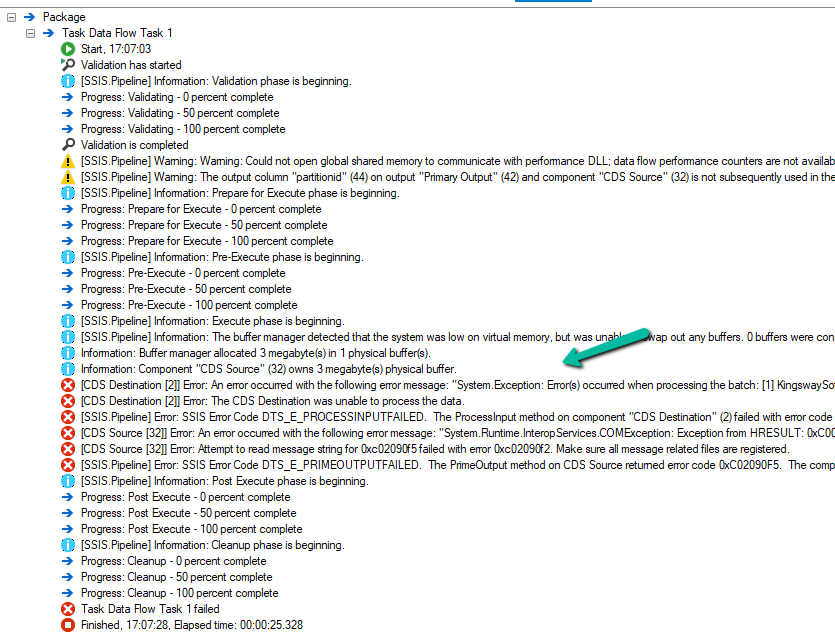
[CDS Destination] Warning: An exception has occurred while processing the service request, the same request will be attempted again immediately. KingswaySoft.IntegrationToolkit.DynamicsCrm.WebAPI.WebApiServiceException: The underlying connection was closed: A connection that was expected to be kept alive was closed by the server. (Error Type / Reason: KeepAliveFailure, Detailed Message: The underlying connection was closed: A connection that was expected to be kept alive was closed by the server.)
[CDS Destination] Warning: A server side throttling is encountered, the same request will be retried after 5 minutes (as instructed by the returned throttling error message from the server). KingswaySoft.IntegrationToolkit.DynamicsCrm.WebAPI.WebApiServiceException: The remote server returned an error: (429) . (Error Type / Reason: 429, Detailed Message: {“error”:{“code”:”0x80072321″,”message”:”Combined execution time of incoming requests exceeded limit of 1200000 milliseconds over time window of 300 seconds. Decrease number of concurrent requests or reduce the duration of requests and try again later.”}})