How to – Deploy and run SSIS package in Azure Data Factory


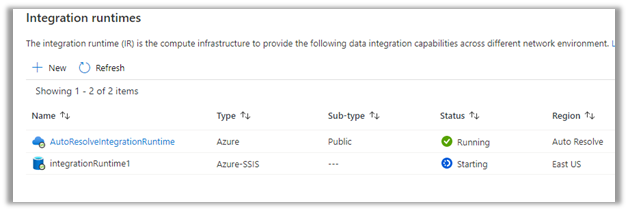
Before the SSIS package can be deployed to Azure Data Factory we need to provision Azure-SQL Server Integration Service (SSIS) runtime (IR) in Azure Data Factory.

In the previous posts, we had created an Azure data factory instance had used Azure SQL Database as the source.

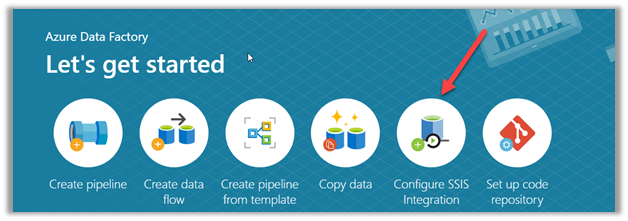
Within Azure Data Factory in the Let’s get started page, select Configure SSIS Integration.
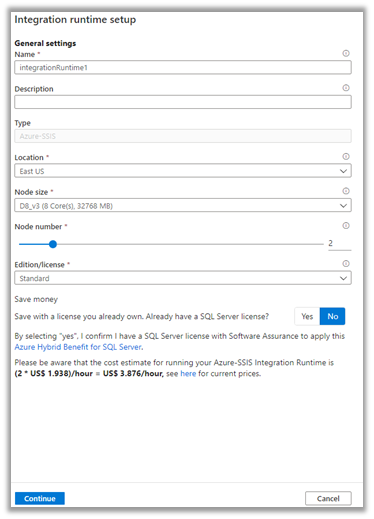
Specify the appropriate values to integration runtime.
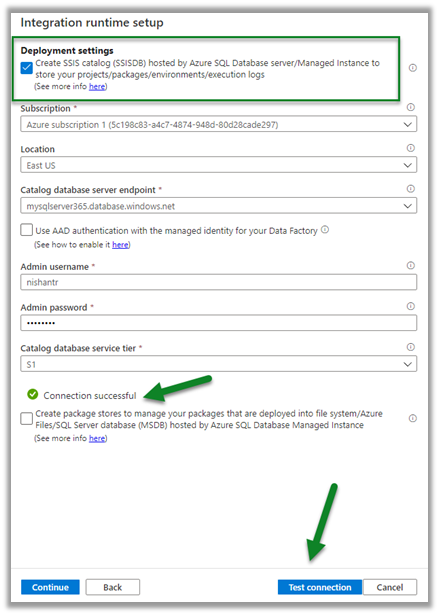
Select Create SSIS Catalog option to deploy packages in SSISDB, provide Azure SQL Database server endpoint, and the admin credentials to connect.

Test the connection.
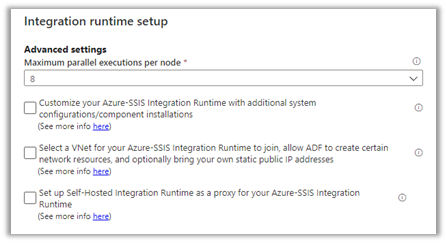
Specify advanced settings as appropriate.
This starts the creation of Azure-SSIS Integration Runtime.
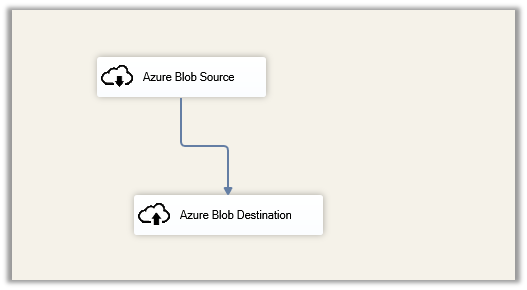
Meanwhile below is our SSIS package that we would be deploying to Azure Data Factory.

It extracts a text file named contacts.txt from the blob source and loads it into destination blog storage.
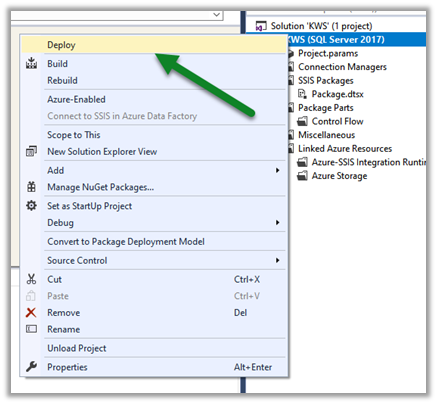
Right-click the project  and select Deploy.

(Deploying individual package is not supported right now)
Select SSIS in Azure Data Factory.
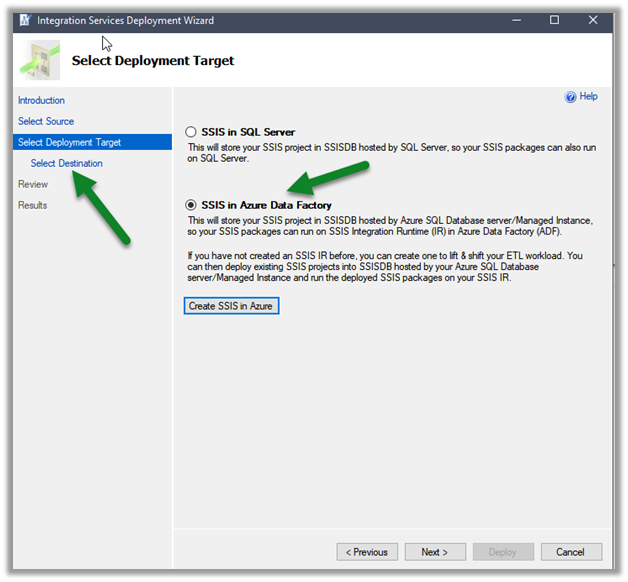
Specify Server name and credentials and connect.

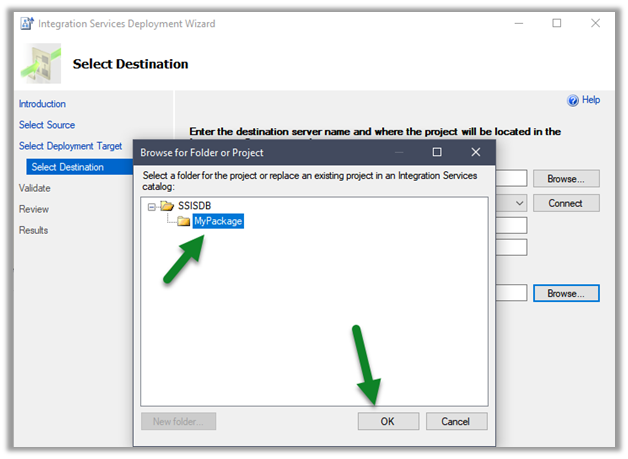
Click on Browse.

Create a new folder or select an existing folder and click on Ok
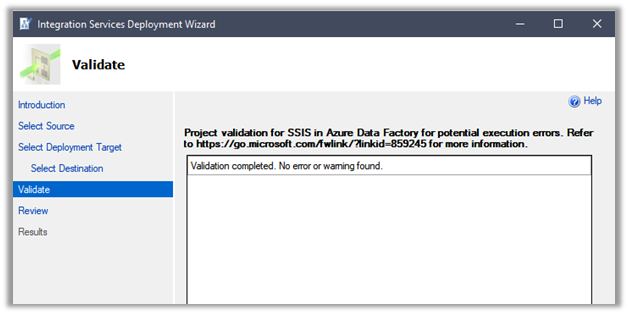
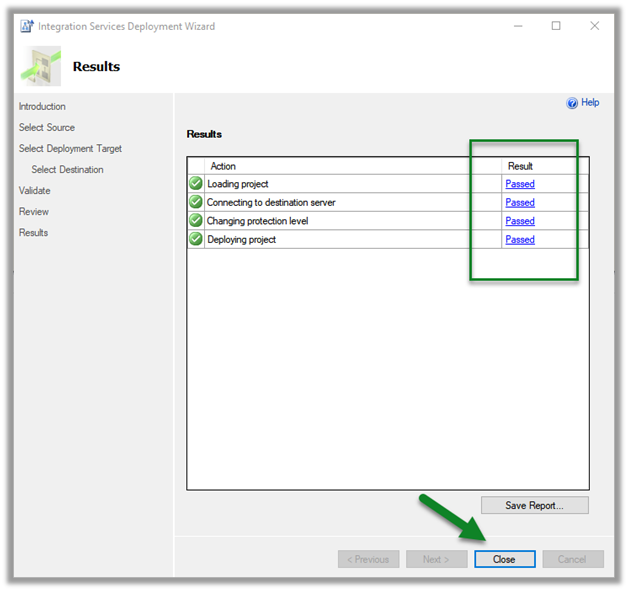
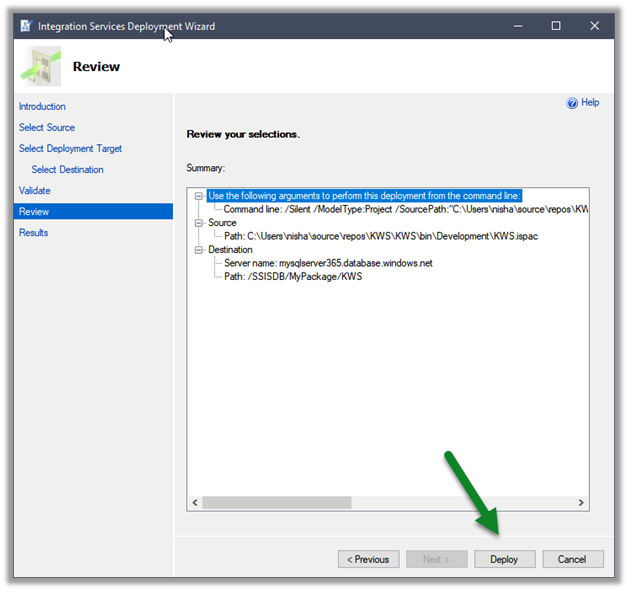
Once the validation is successful, click on Deploy and start the deployment.
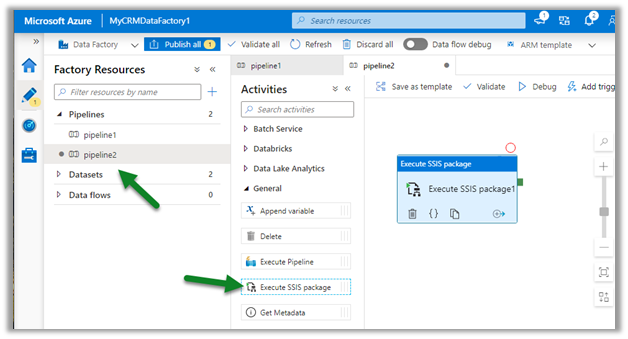
After successful deployment, create a new pipeline in the Azure Data Factory, and drag the Execute SSIS Package activity
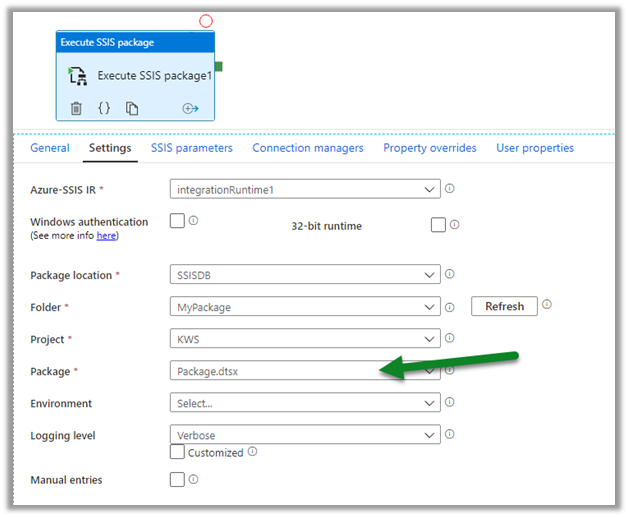
Connect to the package deployed.
Click on debug to trigger and test the pipeline.


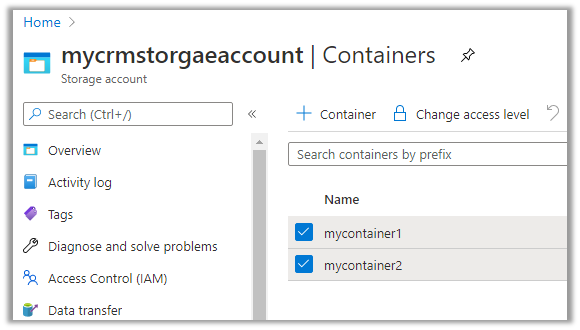
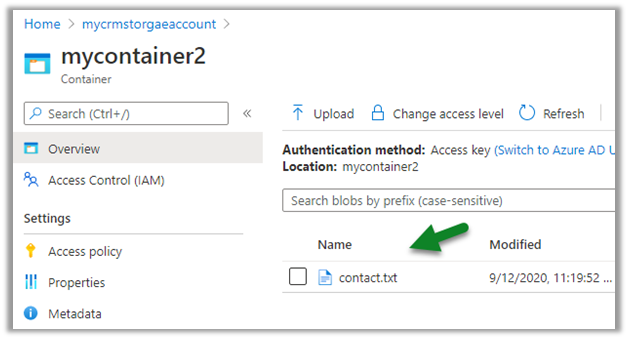
On the successful run, we can see the contact.txt file extracted from mycontainer1 and loaded to mycontainer2.
Hope it helps..

Advertisements

Using Data Spawner component (SSIS) to generate sample data in Dynamics 365


At times we need to generate sample data for our entities in Dynamics 365 for various reasons, performance testing is one of them.

Data Spawner component which is part of KingswaySoft’s
SSIS Productivity Pack provides us the most efficient way of doing so.

Download the component here –

https://www.kingswaysoft.com/solutions/ssis-data-generation-anonymization-components/data-spawner-component

Let us generate the sample data for Contact Entity.

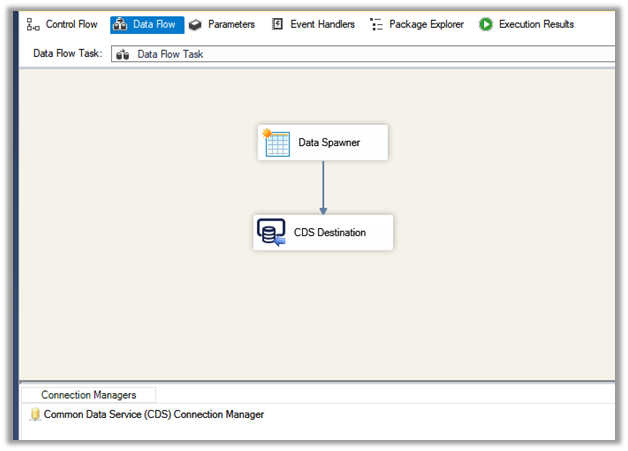
Add the Data Spawner component to the Data Flow along with the CDS Destination component in the integration service project.

Double click the Data Spawner to open the editor.

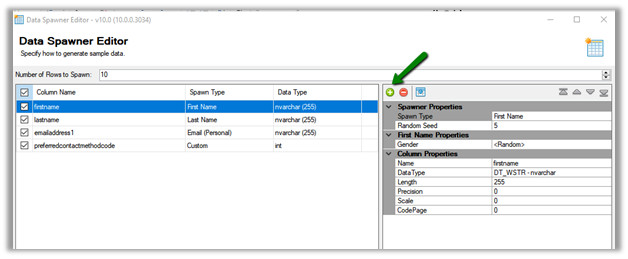
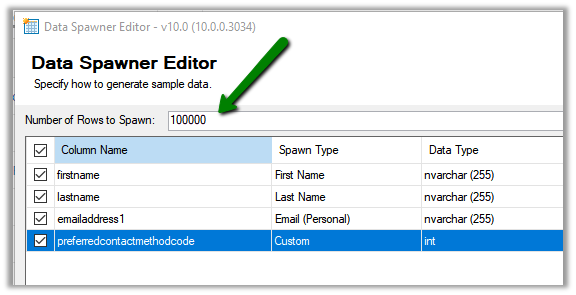
Click on Add + button to specify the columns, here we have specified four different columns.

We have kept the name for each of the columns, same as the schema name so that it is easy to map them in CDS Destination.

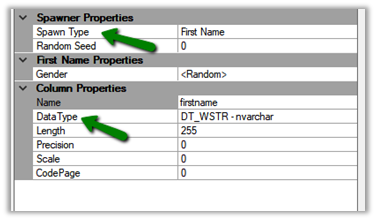
For the First Name column, we have specified Data Type as nvarchar and Spawn Type as the First Name, which will generate the string similar to first name value.

In Gender property for the First Name column, we can specify either to generate Male or Female first name.

Random will generate both Male and Female first name.

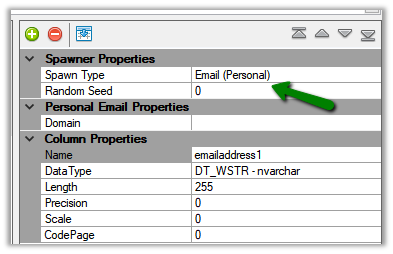
For the email address field, we have selected Spawn Type as email (personal), the other option is email (business).

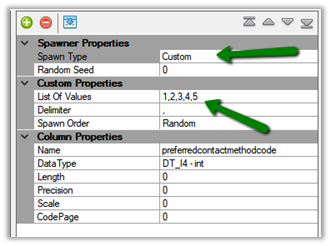
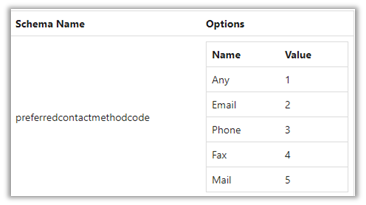
For our option set field preferred contact method, we have selected data type as an integer and Spawn Type as Custom, which will allow us to specify the list of available values, which is 1 to 5 in our case.

We have specified the total number of records to be generated as 100000.

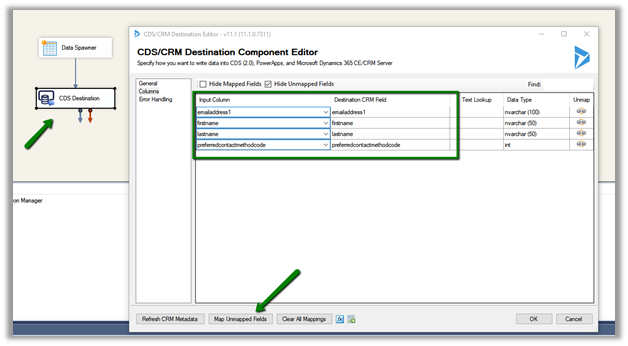
Lastly, we have set the output of Data Spawner to the CDS Destination component. (use the Map Unmapped fields to auto map the fields as we have set the column name same as the schema name of the attributes)

Execute the package

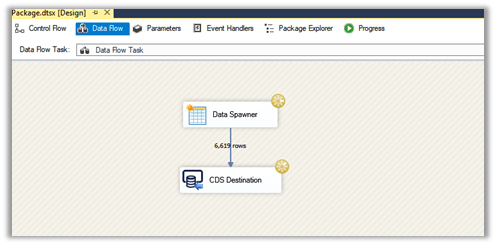
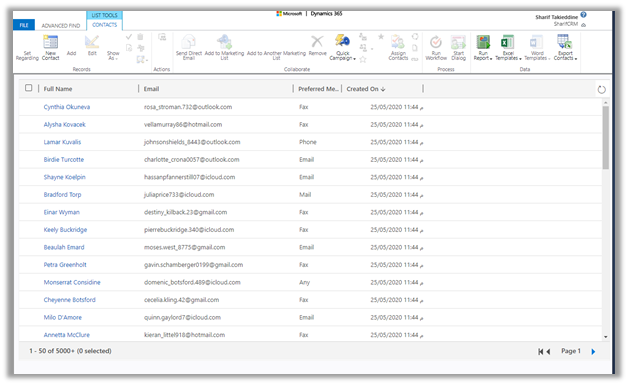
We can see our sample contact records start getting created.

Read more about Data
Spawner

https://www.kingswaysoft.com/products/ssis-productivity-pack/help-manual/data-generation-and-anonymization/data-spawner

Here are few other articles on SSIS (KingswaySoft)

https://nishantrana.me/2018/11/26/ssis-and-microsoft-dynamics-365/

Hope it helps..

How to – Migrate multi-select option sets in Dynamics 365 – SSIS (KingswaySoft)


Let us take a very simple example to understand how to migrate the multi-select option set in Dynamics 365.

Few points to consider before we use Multi-select option set

https://nishantrana.me/2018/04/27/limitations-of-multi-select-option-sets-in-dynamics-365-ce/

Here we will take excel as our source.

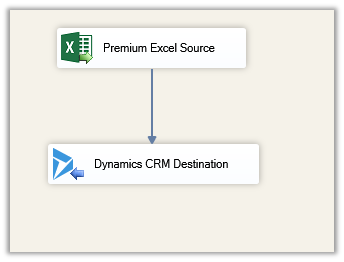
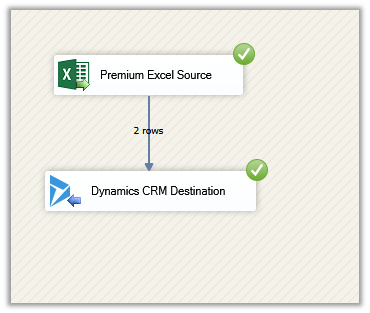
Create a new SSIS package, add the Excel Source component and Dynamics CRM Destination component in the Data Flow.

https://www.kingswaysoft.com/products/ssis-productivity-pack

https://www.kingswaysoft.com/products/ssis-integration-toolkit-for-microsoft-dynamics-365

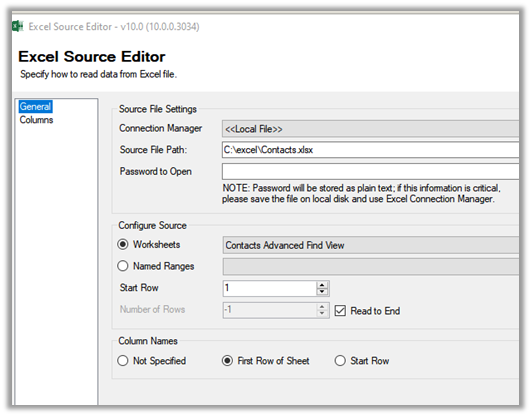
Specify the source file path.

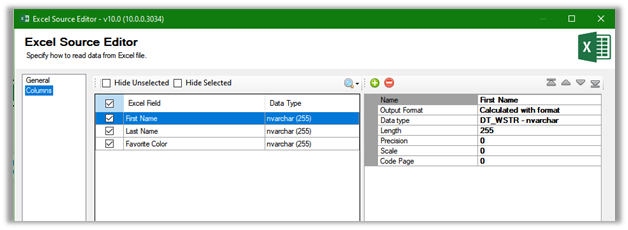
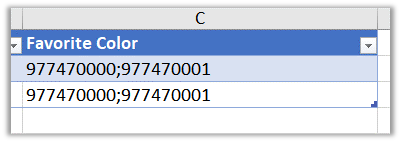
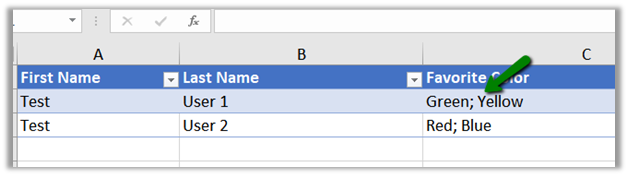
Here Favourite Color column will be mapped to multi-select option set field

Source excel file

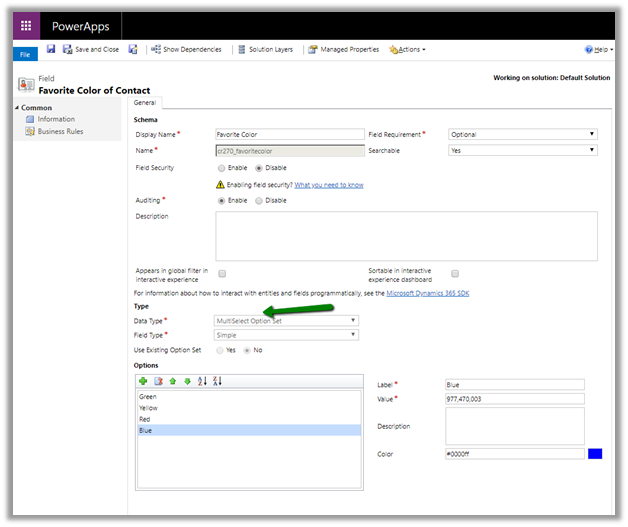
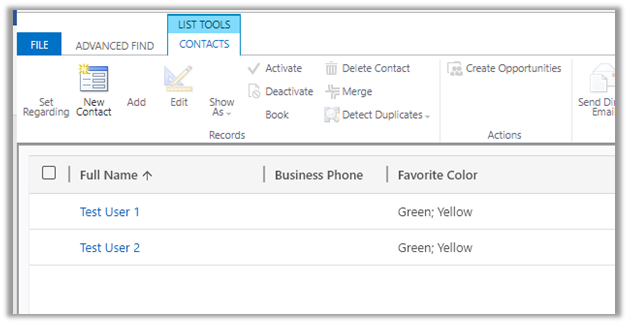
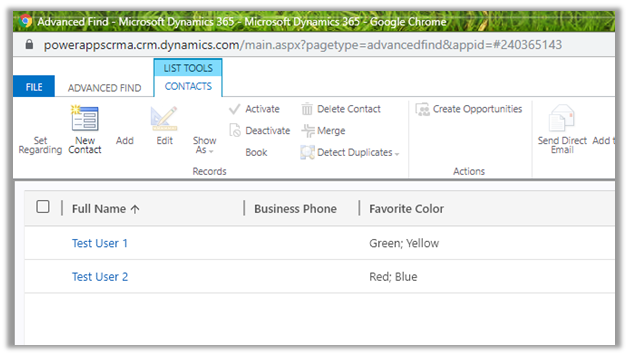
The field in CRM

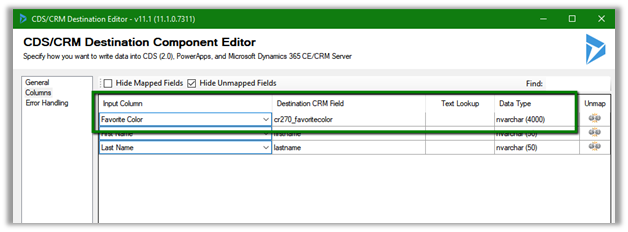
Within the Dynamics CRM Destination, specify the mapping. As the field is of nvarchar type in CRM we need to make sure that we are passing multiple values to it separated by a semicolon.

The way we map the normal option-set field is quite different than the multi-select

https://nishantrana.me/2018/09/20/easily-map-optionset-using-crm-optionset-mapping-editor-in-ssis/

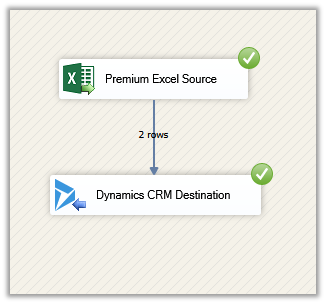
Let us run the package.

After successful execution, we can the records created with the options specified.

Now let us take another scenario, where we have text or label specified instead of values in the source

On successful execution

We can see the records created.

Thus, we can specify either values or labels separated by a semicolon (if multiple) for migration to work seamlessly with the multi-select option set.

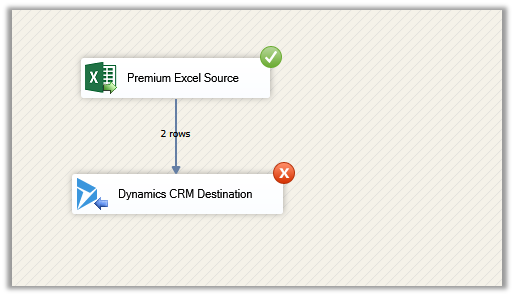
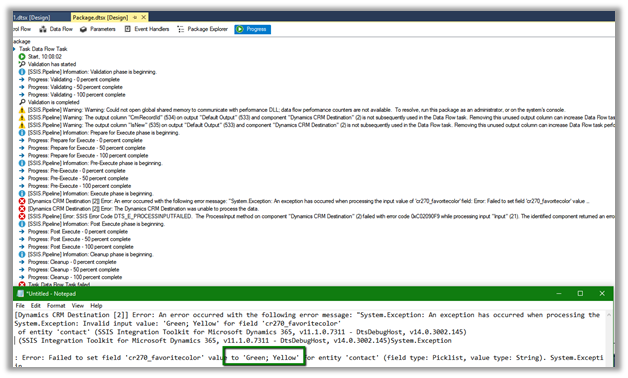
We need to make sure there are no spaces after the semicolon else we would get the exception

Error message

To get started with SSIS with Dynamics 365

https://nishantrana.me/2018/11/26/ssis-and-microsoft-dynamics-365/

Hope it helps..

Advertisements

Fixed – Error: The “Derived Column” failed because truncation occurred, and the truncation row disposition on “Derived Column.Outputs[Derived Column Output].Columns[FilePath]” specifies failure on truncation. A truncation error occurred on the specified object of the specified component.


We might get the error while using Derived Column in our SSIS Package

To fix it right click the Derived Column component and select Show Advanced Editor ..

Go to Input and Output Properties tab, expand Derived Column Output and select the field and update the length in the properties window.

Hope this helps..

Advertisements

Fixed – DTS_E_PROCESSINPUTFAILED. The Process input method on component “Script Component” failed with error code 0x80131501 in SSIS


Recently I had written an article for Nigel Frank that list down step by step process of using XML Source Component of KingswaySoft for integration with Dynamics 365 CE

https://www.nigelfrank.com/blog/integrate-dynamics-365-for-customer-engagement-with-xml/

We have used XML Source Component to read the XML files.

The packages that we developed were running fine from Visual Studio SSDT but on deployment for one of our package that was using Script Component we were getting the below error while running from within SQL.

After a lot of debugging and spending a good amount of time to figure out the issue, we realized that the value of one of the input columns was not being passed to Script Component from XML Source component i.e. _ParentKeyField

This is a special column which XML Source Component adds for the child records through which we can associate it to the parent record.

This happens when we are running it from SQL and only for the Script Component. This worked fine while running it from within SSDT and in other packages even from SQL when we weren’t using Script Component.

As a quick fix, we applied XLST Transformation to put the same tag for the child records also and to refer that instead of _ParentKeyField

In parallel, we also asked the same question to the KingswaySoft Support team (info@kingswaysoft.com)

One thing I would like to explicitly mention is that KingswaySoft support team is one of the best out there, not only you will get the response immediately, but also their team is very knowledgeable.

Below is the response we got

As suggested after setting the RunInOptimizedMode property to False for the Data Flow components the issue got fixed.

This property indicates whether the Data Flow task runs in optimized mode (RunInOptimizedMode property). Optimized mode improves performance by removing unused columns, outputs, and components from the data flow.

Hope it helps..
Advertisements

Fixed – The Script Task uses version 15.0 script that is not supported in this release of Integration Services


Recently after deploying the SSIS packages, on one of the packages that uses Script Component, we started getting below error message

This happened because SSIS packages had target version SQL 2017 and the SQL Server version was 2016 (select @@VERSION)

The fix is to update the target version that matches the SQL Server Version.

Right click and go to project properties and update the Target Version to match and redeploy the project.

Hope this helps..

Advertisements