We can get the ‘get_code’ error if we are using Assign Step in Action/Workflow and the value is null for the field selected.
Here we need to use If condition to check if the value exist for that particular field before using Assign Step.

We can get the ‘get_code’ error if we are using Assign Step in Action/Workflow and the value is null for the field selected.
Here we need to use If condition to check if the value exist for that particular field before using Assign Step.




Sample code: Using jqGrid in ASP.NET page to show CRM data
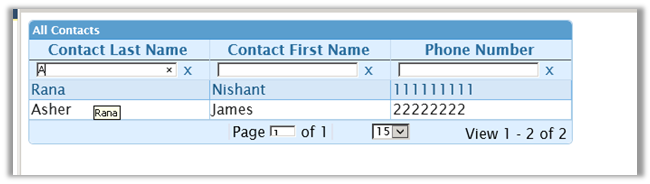
Just sharing a simple ASP.NET page that uses jqGrid to show contact records in CRM and allows user to search.

Here is the code SampleJQGrid.zip (remove .doc)
Hope it helps ..

There are two types of SLA available now.
Standard which was introduced in Leo and other is Enhanced.

Pause and resume features has been added to Enhanced SLA.
To enable this we need to go to Settings à Service Management à Service Configuration Settings
The pause feature is based on Status value.
In System Settings we can specify the status values on which the SLA should pause.
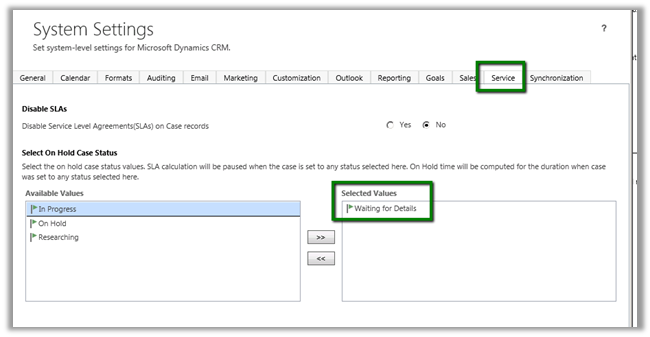
Let use create a new SLA

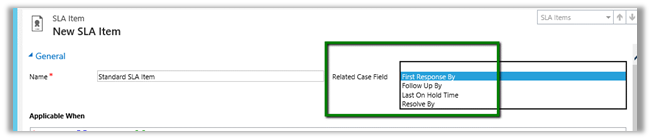
And the following SLA Item in it
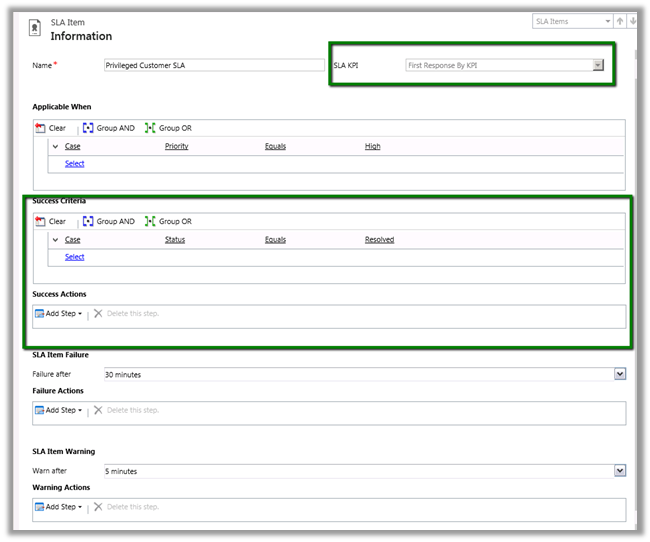
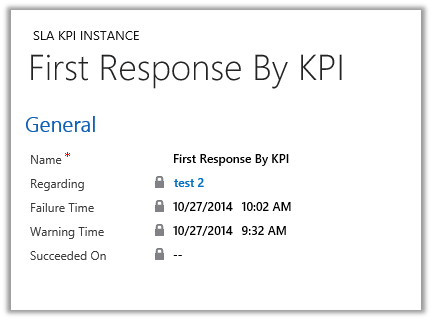
SLA Item is based on First Response by KPI.
Here we can also see new Success Criteria and Success Action added to SLA.
The SLA would run if the Case Priority equals High and will wait for 5 minutes before warning and will fail after 30 minutes.
Now I go and create a new case and set its Priority as High.
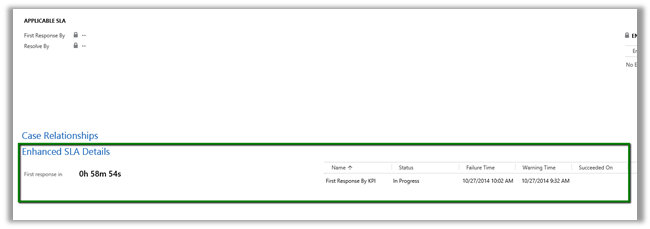
The following Timer control would start running in the Case Form.
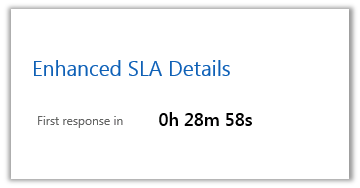
And now if I go and set the Status of Case as “Waiting for details” i.e. our pause condition.
The timer will be paused.

Now as soon as I change the Status of Case to something else

The time control will resume
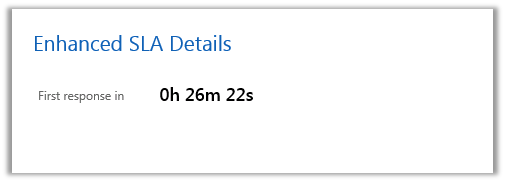
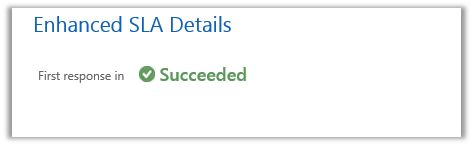
Now I go and mark the case as Resolved which is our success criteria. The First response in will show Succeeded.

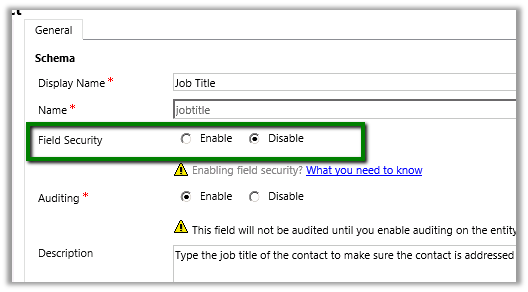
Now supported for System (OOB) Attributes.
Contact’s “Job Title” attribute in CRM 2011
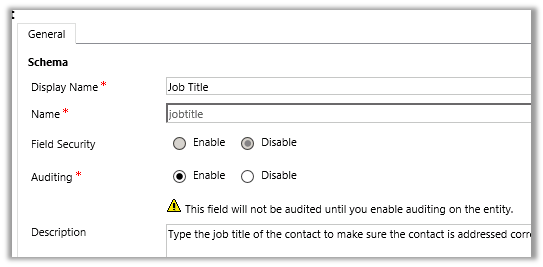
Contact’s “Job Title” attribute in CRM 2015
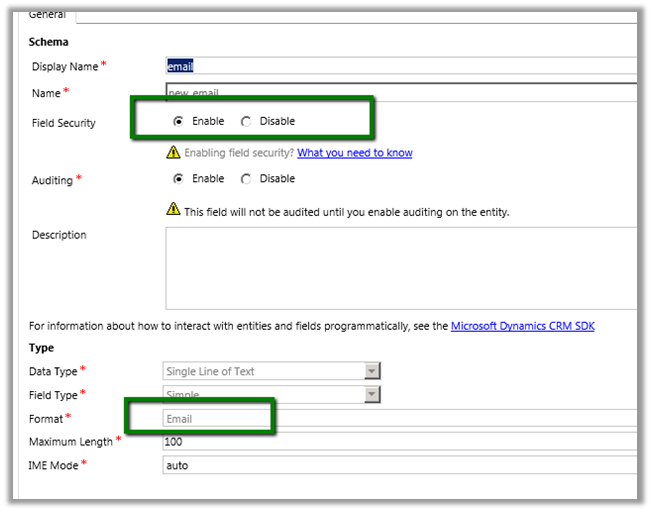
Can be enabled for email data type attribute
In CRM 2011
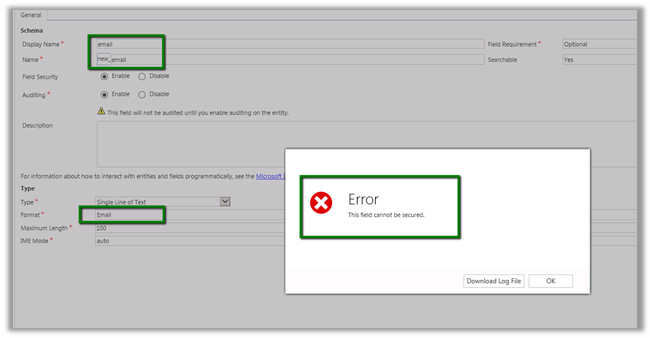
In CRM 2015
Address field are also supported.
https://www.youtube.com/watch?v=Czc9sKvWd9k


 Nishant Rana's Weblog