How to – Connect to Dynamics 365 Web API using OAuth 2.0 – Client Credentials


For quick reference – https://nishantrana.me/2021/01/06/sample-code-dynamics-365-web-api-organization-service/

In the last post we learned about connecting to Dynamics 365 Web API using Resource Owner Password Credential (ROPC), here we’d be covering the Client Credentials grant.

Check other posts on OAuth 2.0 and Dynamics 365 Web API

OAuth 2.0 with Dynamics 365 CE Web API

Client Credentials grant is designed for the client applications who are the resource owner and when basically there are no users involved, a batch (cron) job or a service using Web API, running in the background, on the server is one such example.

Sample console app to connect to CDS using AuthType – OAuth https://nishantrana.me/2020/11/09/sample-code-to-connect-to-cds-dynamics-365-ce-using-oauth/

Here we will not be using the authorization endpoint, and the client application will be sending its own credential, instead of impersonating a user, directly to the token endpoint. The benefit compared to basic authentication or API keys is that credentials are not being sent with every request, it is only sent while requesting the access tokens along with all the other benefits of using access token – stateless, fine-grained access control, access token lifetime etc.

Let us see an example of using the Client Credentials grant in our console application. Along with the Client Id that we got when we registered our client application in the Azure Active Directory, we would need the Client Secret.

Follow the below steps to generate the Client Secret

Login to Azure Admin Portal

https://portal.azure.com

Select the application registered and click on Certificates & secrets option
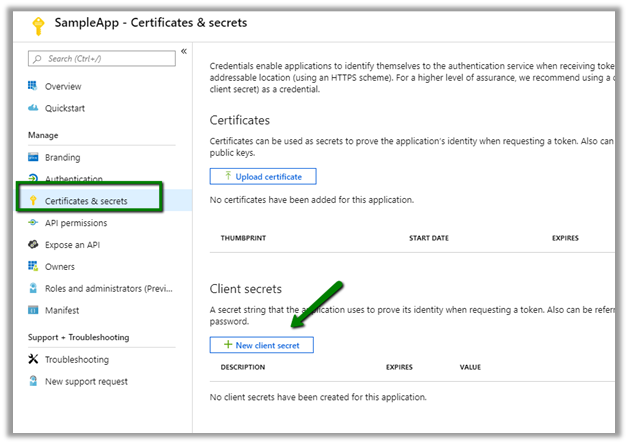

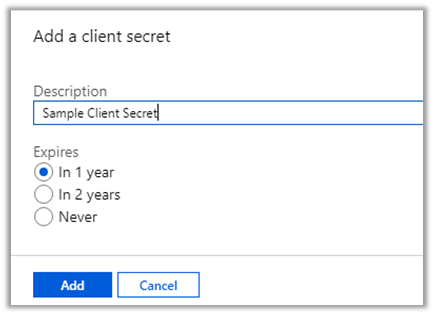
Click on New client secret button to generate the client secret. Copy the generated client secret. Select the expiry as per the need.
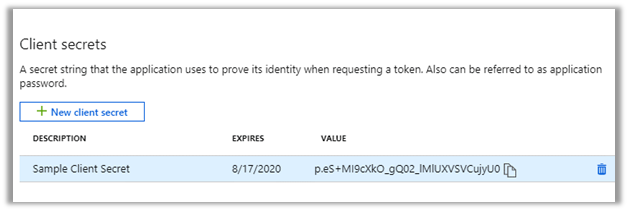
Copy the secret generated and save it, as it won’t be available later when we are navigating here.
Also, we can get the Authentication Token Endpoint, for that navigate to Overview à Endpoints
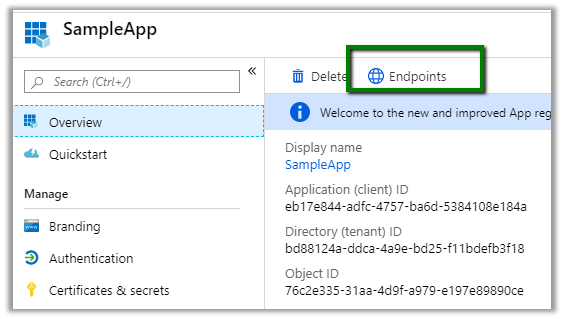
And copy the OAuth 2.0 token endpoint.
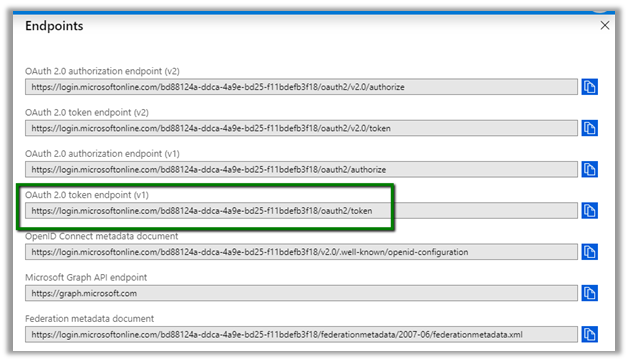
Next step is to create the Application User within Dynamics 365 CE corresponding to the client application.

Login to Dynamics 365 CE, Settings à Security à Users àset View as Application Users and click on New button
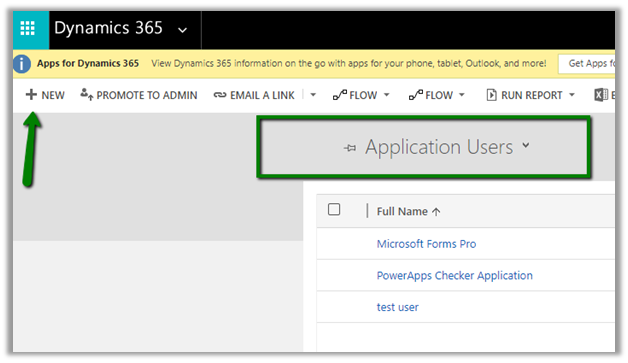
Set Application Id as the Client Id of the Application registered and specify other mandatory values and save the record.
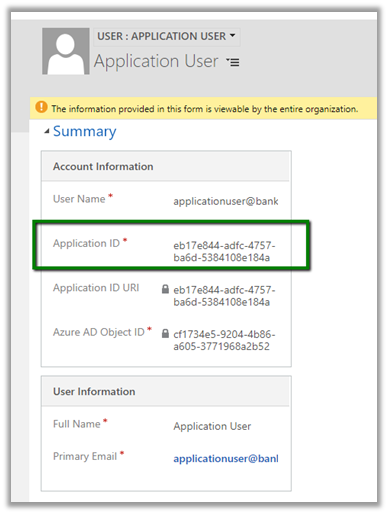
Assign appropriate security role to the new application user added.

Other Sample Code –https://nishantrana.me/2021/01/06/sample-code-dynamics-365-web-api-organization-service/

Sample C# Code à


static void Main(string[] args)
{
// Dynamics CRM Online Instance URL
string resource = "https://bankfabdemo.crm.dynamics.com";

// client id and client secret of the application
ClientCredential clientCrendential = new ClientCredential("eb17e844-adfc-4757-ba6d-5384108e184a",
"p.eS+MI9cXkO_gQ02_lMlUXVSVCujyU0");

// Authenticate the registered application with Azure Active Directory.
AuthenticationContext authContext =
new AuthenticationContext("https://login.microsoftonline.com/bd88124a-ddca-4a9e-bd25-f11bdefb3f18/oauth2/v2.0/token");

AuthenticationResult authResult = authContext.AcquireToken(resource, clientCrendential);
var accessToken = authResult.AccessToken;

// use HttpClient to call the Web API
HttpClient httpClient = new HttpClient();
httpClient.DefaultRequestHeaders.Add("OData-MaxVersion", "4.0");
httpClient.DefaultRequestHeaders.Add("OData-Version", "4.0");
httpClient.DefaultRequestHeaders.Accept.Add(new MediaTypeWithQualityHeaderValue("application/json"));
httpClient.DefaultRequestHeaders.Authorization = new AuthenticationHeaderValue("Bearer", authResult.AccessToken);

httpClient.BaseAddress = new Uri("https://bankfabdemo.crm.dynamics.com/api/data/v9.0/");

var response = httpClient.GetAsync("WhoAmI").Result;
if (response.IsSuccessStatusCode)
{
var userDetails = response.Content.ReadAsStringAsync().Result;
}

}

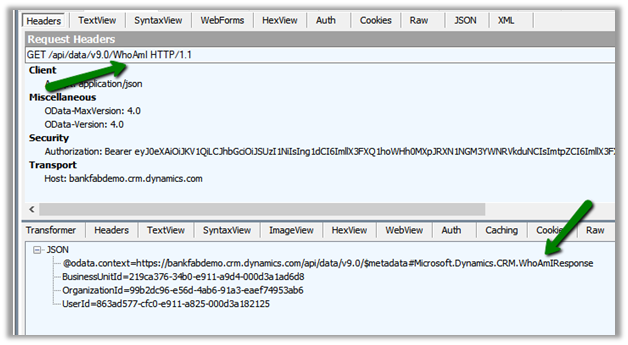
Within Fiddler à
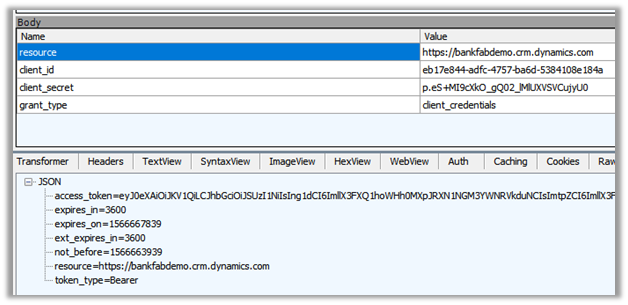
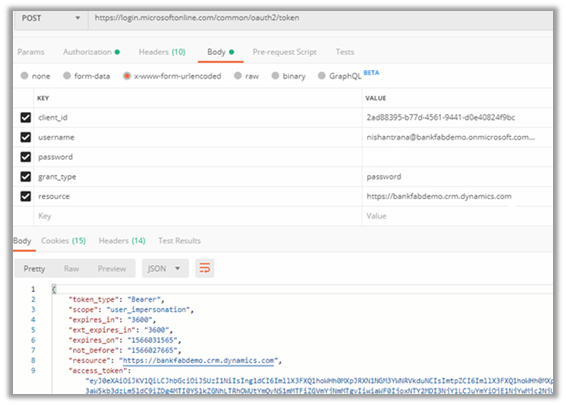
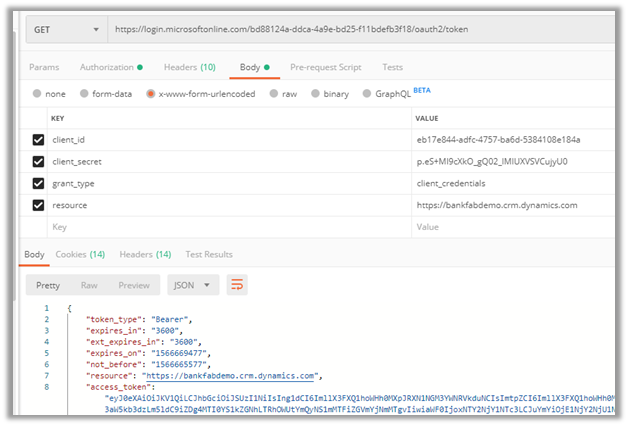
Within Postman à
Sample Code – Dynamics 365 Web API / Organization Service

Hope it helps..

https://docs.microsoft.com/en-us/powerapps/developer/data-platform/xrm-tooling/use-connection-strings-xrm-tooling-connect#connection-string-examples

Below is the example using CrmServiceClient – replace client id, client secret and the URL – 

 string ConnectionString = "AuthType = ClientSecret; " +
                   "ClientId=ad7a1cc4-838b-4270-9c11-29eb1686e203; " +
                   "ClientSecret=m7.H2Di~vizo.jZ0odh-C-85qg70QPfnsI; " +
                   "Url = https://[org].crm.dynamics.com/;";


            CrmServiceClient svc = new CrmServiceClient(ConnectionString);
            
            if (svc.IsReady)
            {
               // perform the logic 
                   
            }
Advertisements
Advertisements

Upload multiple attachments in CRM Notes/ annotations with metadata for each attachment- Introducing Notes Manager from XrmForYou.com


Another outstanding tool by XrmForYou !

Debajit's avatarDebajit's Dynamic CRM Blog

It gives me great pleasure to announce the new CRM add-on from XrmForYou stable – Notes Metadata Manager utility from XrmForYou stable.

Well Notes (Annotations) have existed in CRM since pre-historic times. And perhaps one of the most widely used feature in Dynamics till date since its inception. After all it gives a nice way to store your documents along with some notes and description which can be read by CRM users.

However with my many years in consulting, I realized the pain points of customers using Notes as well.

  • Can I upload multiple attachments at one go with Title and description?
  • Can I add new fields in my notes entity (Annotation) to capture some extra information along with Note Title and Note Description?
  • Can I put notes are separate from my timeline control? May be in a separate tab?
  • Can I drag and drop multiple documents in Notes section…

View original post 483 more words

How to – Connect to Dynamics 365 Web API using OAuth 2.0 – Resource Owner Password Credential (ROPC)


The ROPC grant type should only be used in scenario when the Client application is absolutely trusted with user credentials and when redirect based flow are not possible. It was introduced for the Legacy Application for quick migration and is now more or less considered obsolete by OAuth Working group, and ideally should not be used.

In this flow, User enters his credentials (username and password) in the client application, when is then sent to Token Endpoint of the Authorization Server for Access Token request. The client application then gets the access token and call/request the protected resources (Web API) and get response. Here we remove the user from the authorization process and are not using the Authorization endpoint at all. The apps using this flow will lose the benefits of multi-factor authentication MFA and Single Sign-On.

Request à

client_id Client id of the app registered in Azure Active Directory.

We can also use the default client id –

2ad88395-b77d-4561-9441-d0e40824f9bc” –

which is setup against Dynamics 365 Online instances.

https://www.crmviking.com/2017/08/piggybacking-on-msdyn365.html

username User’s username
password User’s password
grant_type password
resource Dynamics 365 URL

Sample C# Code à

Create the console application and add the following Nuget Package

https://docs.microsoft.com/en-in/azure/active-directory/develop/active-directory-authentication-libraries


static void Main(string[] args)
{
// Dynamics CRM Online Instance URL
string resource = "https://bankfabdemo.crm.dynamics.com";

// ID of the Application Registered
// "2ad88395-b77d-4561-9441-d0e40824f9bc" - Default Client Id which is setup against Dynamics 365 Online instances.
string clientId = "2ad88395-b77d-4561-9441-d0e40824f9bc";

// username and password of the user
UserCredential userCrendential = new UserCredential("nishantrana@bankfabdemo.onmicrosoft.com", "*******");

// Authenticate the registered application with Azure Active Directory.
// Token URL - https://login.microsoftonline.com/common/oauth2/token

AuthenticationContext authContext =
new AuthenticationContext("https://login.windows.net/common");

AuthenticationResult authResult = authContext.AcquireToken(resource, clientId, userCrendential);
var accessToken = authResult.AccessToken;

// use HttpClient to call the Web API
HttpClient httpClient = new HttpClient();
httpClient.DefaultRequestHeaders.Add("OData-MaxVersion", "4.0");
httpClient.DefaultRequestHeaders.Add("OData-Version", "4.0");
httpClient.DefaultRequestHeaders.Accept.Add(new MediaTypeWithQualityHeaderValue("application/json"));
httpClient.DefaultRequestHeaders.Authorization = new AuthenticationHeaderValue("Bearer", authResult.AccessToken);

httpClient.BaseAddress = new Uri("https://bankfabdemo.crm.dynamics.com/api/data/v9.0/");

var response = httpClient.GetAsync("WhoAmI").Result;
if (response.IsSuccessStatusCode)
{
var userDetails = response.Content.ReadAsStringAsync().Result;
}

}

The result: –

Inside Fiddler à

Sample Code – Dynamics 365 Web API / Organization Service

Hope it helps..

Advertisements

Subgrid, QuickView, Linear Gauge, Arc Knob, Linear Slider controls added in new model-driven form designer (WYSIWYG) in PowerApps


Recently we were trying out the model-driven form designer and noticed the option of adding new input control to the form in it.


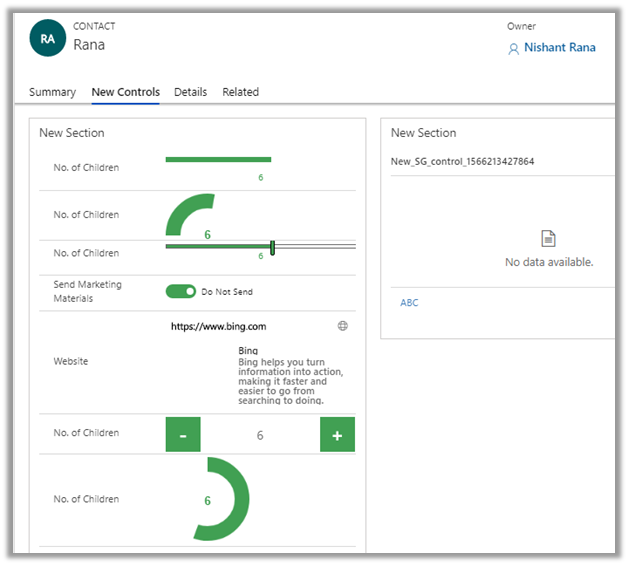
Few days back only I wrote about the addition of Subgrid control, however the limitation was that we couldn’t add new subgrid control. But with the new updates, we can now add new subgrid control along with Quick View and other controls also as shown below.

The other option to configure these controls is from the Controls tab of the field properties dialog box.

https://docs.microsoft.com/en-us/dynamics365/customer-engagement/customize/use-custom-controls-data-visualizations

Hope it helps..

PCF Control – Address Finder for New Zealand region


Sankalp's avatarSankalp's Dynamics Logs

Recently Microsoft released preview version of PowerApp Component Framework which enable developers working on Dynamics 365 to create cool custom controls and enhancing the capability.

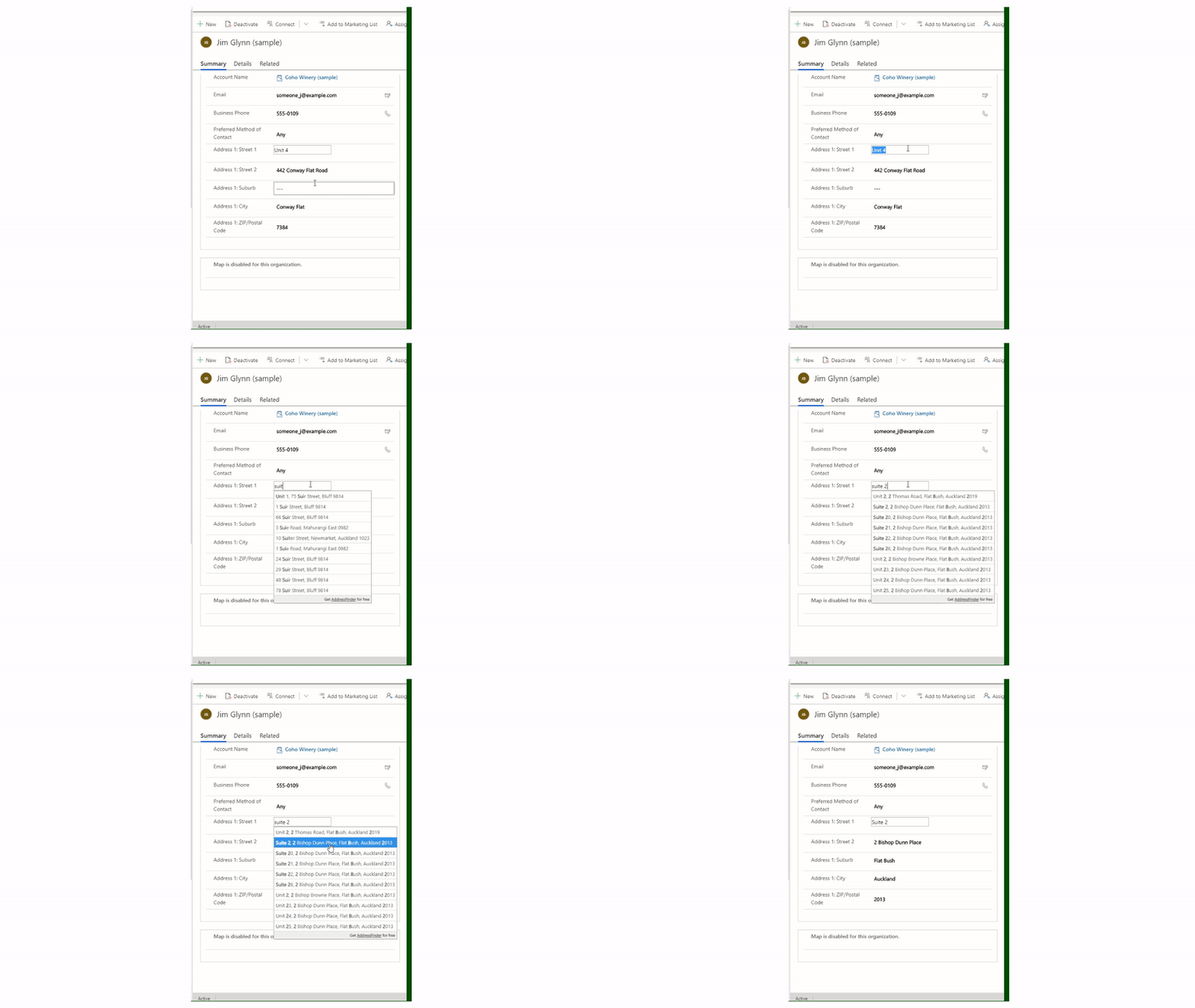
I have Utilized it to create Address Finder control which should work for New Zealand region.

View original post 145 more words

Sub-Grid added to the new model-driven form designer (WYSISYG) in PowerApps


Hi,

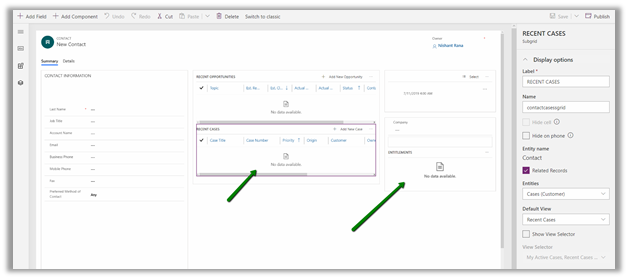
Microsoft is steadily adding all the essential features to the new model-driven form designer (preview) making it more and more usable and intuitive.

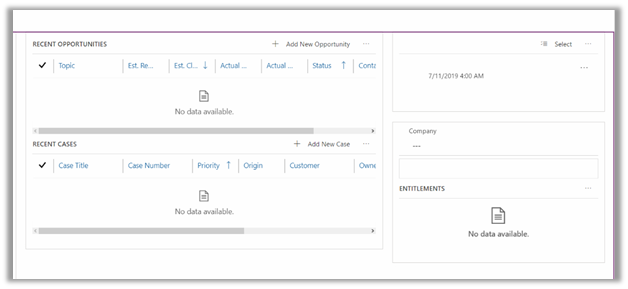
Latest addition is the support for sub-grid as shown below

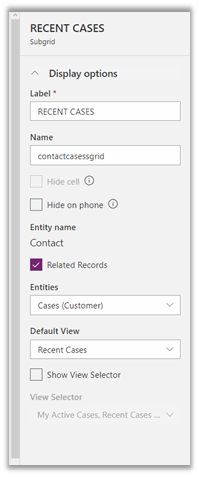
The properties window for the sub-grid

`

We can select the view from either the related entities or view from any of the un-related entity (uncheck Related Records check box).

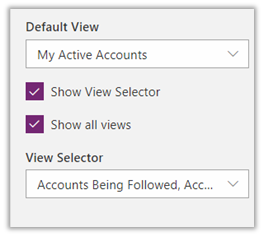
Similarly, we can enable view selectors and can show all the views or selected view as shown below.

We still can’t add new sub-grid to the form in the new form designer, for that we still need to go back to our classic form designer.

Check out below articles for more details –

https://docs.microsoft.com/en-us/powerapps/maker/model-driven-apps/form-designer-overview

The new model-driven form designer WYSISYG Editor

Few improvements in the new model-driven form designer.

Hope it helps..