Using External Value property of Choice / Option Set Field for Integration – Dynamics 365 / Dataverse


When working with Choice fields (Option Sets) in Dataverse, we mostly use the label and internal numeric value. But there’s also a lesser-known property — External Value — which can be quite handy, especially in integration scenarios.

Below is the Priority column of the case table.

A screenshot of a computer

AI-generated content may be incorrect.

We have Severe, Moderate, and Minor external values specified for High, Normal, and Low choices respectively. These external values could be how the external third-party system is tracking the priority values to which we are integrating.

The external system sends us “priority”:” high” and we map that to the internal value 1 in Dataverse.

While sending data to the external system we convert the internal value to the external code i.e. 1 to. High

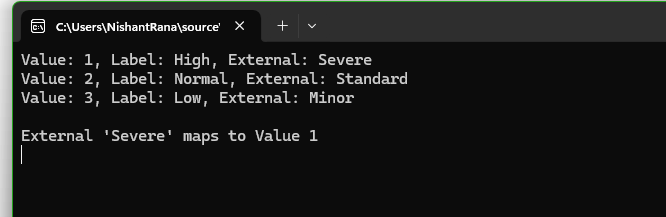
Below is how we can read the external values.

     var myServiceClient = new CrmServiceClient(connectionString);     

        if (myServiceClient.IsReady)
        {
            var request = new RetrieveAttributeRequest
            {
                EntityLogicalName = "incident",
                LogicalName = "prioritycode",
                RetrieveAsIfPublished = true
            };

            var response = (RetrieveAttributeResponse)myServiceClient.Execute(request);
            var picklistMetadata = (PicklistAttributeMetadata)response.AttributeMetadata;

            foreach (var option in picklistMetadata.OptionSet.Options)
            {
                Console.WriteLine($"Value: {option.Value}, Label: {option.Label?.UserLocalizedLabel?.Label}, External: {option.ExternalValue}");
            }

            string ext = "Severe";
            var match = picklistMetadata.OptionSet.Options.FirstOrDefault(o => o.ExternalValue == ext);
            if (match != null)
            {
                Console.WriteLine($"\nExternal '{ext}' maps to Value {match.Value}");
            }

        }
A screenshot of a computer

AI-generated content may be incorrect.

Using External values, we can decouple integrations from the internal values that we use for our choice column. By using them, we can speak the language of the external system while still maintaining proper structure and metadata within Dataverse.

Hope it helps..

Advertisements

Fixed – Could not find an implementation of the query pattern for source type. ‘Where’ not found (LINQ, Dataverse)


While working on a LINQ query using early-bound classes in a Dynamics 365 plugin, we encountered a familiar error.

“Could not find an implementation of the query pattern for source type. ‘Where’ not found”

At a glance, everything looked fine. The query was syntactically correct, and the early-bound class was generated properly.

After spending some time, we realized that the error message wasn’t due to the query or the early-bound class itself. It was because we forgot to include the following directive:

using System.Linq;

Without this, C# doesn’t recognize LINQ query methods like Where, Select, or ToList.

Adding this single line at the top of the file resolved the issue immediately, the LINQ query compiled and executed as expected.

Hope it helps..

Advertisements

Updating Records Without Triggering Plugins – Bypassing Plugin Execution in Dynamics 365 / Dataverse using C#


Recently, we had to write a small utility—a console application—that would go and update a bunch of existing records in our Dynamics 365 environment. However, we didn’t want any of my custom plugins to trigger during this update. Because the updates were internal, more like data correction / cleanup, and had nothing to do with business rules or processes enforced via plugins. Triggering them would’ve not only been unnecessary but could also lead to unwanted side effects like auto-assignments, email sends, or data syncing. Thankfully, the Dataverse platform provides us with two powerful properties that allow us to selectively bypass plugin execution logic.

BypassCustomPluginExecution – This allows us to bypass all the plugin steps for an operation – create, update, delete, etc.

BypassBusinessLogicExecutionStepIds – If we do not want to skip all the plugin steps, but just a few specific ones, we can use this property.

We have the below sample plugin registered that throws InvalidPluginExecutionException on the update of the lead record.

A screenshot of a computer

AI-generated content may be incorrect.

On updating the record through the console app, we will get the same exception.

To bypass all the plugins that are registered on Update, we can use the BypassCustomPluginExecution property as shown below.

A screenshot of a computer program

AI-generated content may be incorrect.

To bypass only the specific plugin steps that are registered on Update, we can use the BypassBusinessLogicExecutionStepIds property as shown below.

A computer screen shot of a computer code

AI-generated content may be incorrect.
A screenshot of a computer

AI-generated content may be incorrect.

One point to remember is these flags do not bypass system plugins or platform logic—only custom plugin steps we’ve registered.

This was a really handy trick in our recent utility and helped us to safely update the records without triggering the plugin. The other options could have been to either temporarily deactivate the plugin step, add certain conditions to the plugin based on calling user, flag/fields on the record etc.

Also check – https://nishantrana.me/2023/11/08/use-tag-parameter-to-add-a-shared-variable-to-the-plugin-dataverse-dynamics-365/comment-page-1/

Hope it helps..

Understanding the Hidden Property for Choice Datatype in Dataverse / Dynamics 365


Dataverse provides a flexible way to manage data through choice (option set) fields. One of the newer enhancements is the Hidden property, which allows administrators to hide specific choice values from selection while retaining them in the system.

To see it in action,

Navigate to Dataverse Table Designer in the Power Apps Maker Portal, and select the Choice (Option Set) field.

Here we have selected the Origin choice field of the Case table.

We have selected the Twitter choice value.

A screenshot of a computer

AI-generated content may be incorrect.

Click on a particular choice value and open Additional Properties, check the Hidden checkbox, and save and publish the changes.

A screenshot of a computer

AI-generated content may be incorrect.

After applying these settings,

  • Hidden choice values will not appear in dropdown lists when users create or update records.
A screenshot of a computer

AI-generated content may be incorrect.

Existing records with hidden values will still display them in forms and views.

A screenshot of a computer

AI-generated content may be incorrect.

We can see the option greyed out for the record having that existing hidden value.

A screenshot of a computer

AI-generated content may be incorrect.
  • Business rules and workflows can still reference hidden values.
  • The hidden choice remains in the metadata and can be retrieved using FetchXML, OData, or SDK queries.
  • Power Automate flows triggered on record updates will still recognize hidden values.

We can use this new feature for the deprecating values that should no longer be used but still need to exist in historical data. Also, we need to communicate changes to users to prevent confusion when certain values disappear from selection lists. And finally, we should consider data migration and cleanup if a value should never be used again.

Thus, the Hidden property for choice fields in Dataverse provides a powerful way for us to manage choice options dynamically without affecting existing records. By leveraging this feature, we can ensure a smoother transition when phasing out obsolete values while maintaining data integrity.

Hope it helps..

Advertisements

Fixed – “Input String Was Not in a Correct Format / The specified domain does not exist or cannot be contacted” in Dataverse Plugin (Dynamics 365)


In one of our plugins, we encountered “The specified domain does not exist or cannot be contactedSystem.FormatException: Input string was not in a correct format” error. Basically this issue can arise due to incorrect string formatting, unexpected data types, or missing values.

Our initial thought was that it could be because one of the GUID data type fields was null and being used in the Retrieve method.

However, it turned out to be because of the following trace statement.

Sample code –

A screen shot of a computer

AI-generated content may be incorrect.

Extra space inside { 1}. The correct syntax is {1} instead of { 1}. We removed the extra space.

A computer code with a green arrow pointing to it

AI-generated content may be incorrect.

This fixed the issue for us.

Hope it helps..
Advertisements

Visualize Data in a View with Copilot (Preview) – Dataverse / Dynamics 365


The copilot-powered data visualization in views feature, currently in preview, allows us to generate quick and insightful charts from Dataverse table views using natural language. We can select a table view and ask Copilot to generate visualizations, making data interpretation easier.

  • Natural Language Queries – Ask Copilot in simple terms to generate relevant charts.
  • Multiple Chart Types – Bar charts, pie charts, line graphs, and more.
  • Instant Insights – No need to build reports; visualize directly from your data view.
  • Interactive Refinements – Modify the chart type or tweak the data selection.

To enable it, for the environment, navigate to Settings >> Features and enable Natural Language Grid and View Search.

We can see the Visualize button added to the views.

A screenshot of a computer

AI-generated content may be incorrect.

It generates the Chart based on the data in the view.

A screenshot of a computer

AI-generated content may be incorrect.

Selecting a particular area filters the data in the view accordingly.

We also have the option to change the chart type, copy the chart, expand the view, etc.

A screenshot of a computer screen

AI-generated content may be incorrect.

We can also use natural language to specify the data or can select AI-generated suggestions for the views.

More on Natural Language Grid and View Search – https://nishantrana.me/2025/02/04/check-out-the-natural-language-grid-and-view-search/

A screenshot of a computer

AI-generated content may be incorrect.

Here we selected/specified the query “Cases where customer is Alpine Ski House” and the Chart and View updated accordingly.

A screenshot of a computer

AI-generated content may be incorrect.

This Copilot-driven data visualization feature is a game-changer for users who need quick insights from their data without setting up complex reports. With just a few clicks and simple queries, Power Apps can now deliver meaningful charts on the fly.

Get more information

Hope it helps..

Advertisements