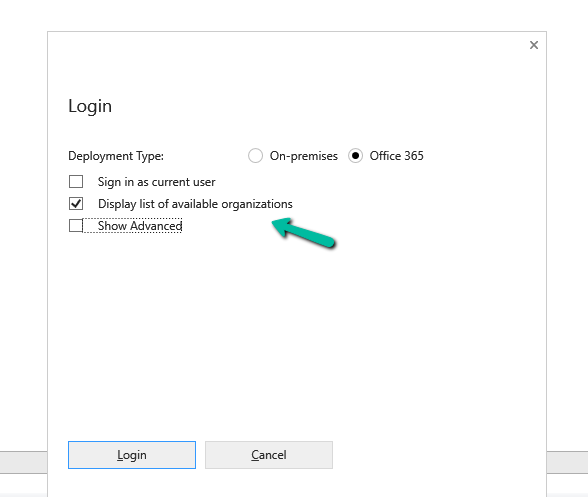
If we’re logging into the Plugin Registration Tool using an account protected with Multi-Factor Authentication (MFA), there’s one small setting that can cause login failures — Show Advanced.
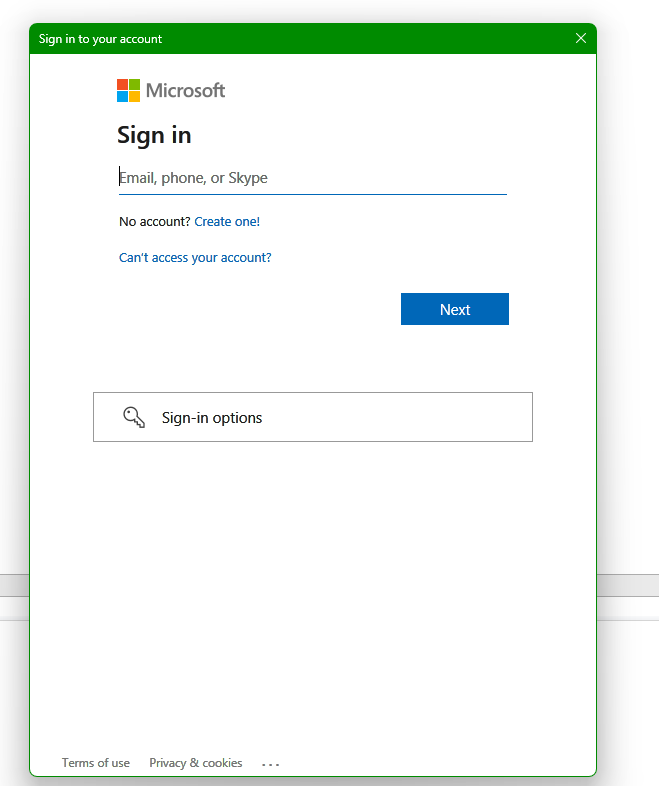
We need to make sure “Show Advanced” is unchecked before clicking Login. When this option is selected, the tool exposes legacy Username and Password fields, which do not support modern Azure AD MFA authentication. Leaving it unchecked forces the tool to open the modern Microsoft login prompt, where we can complete your MFA challenge successfully.
Clicking on Login.
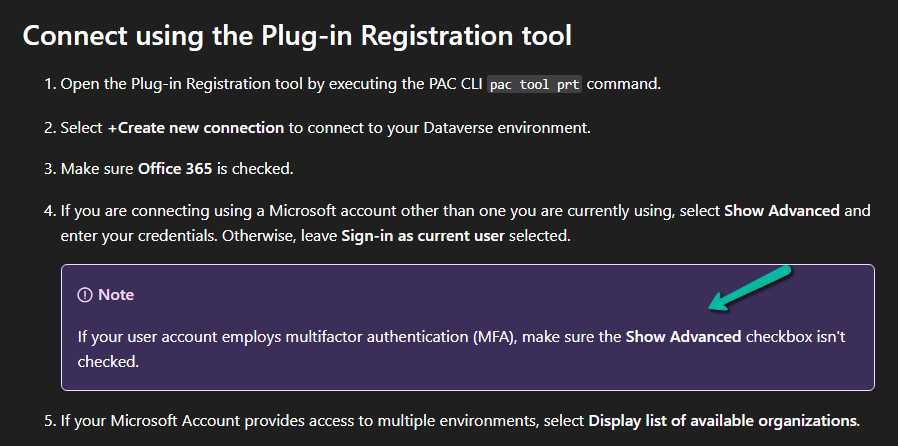
Microsoft also mentions this behavior in the official documentation under the plugin registration tutorial.
Recently, while performing cleanup in one of our environments, we were removing unused components to reduce clutter and technical debt. As part of this activity, we attempted to delete an old Business Process Flow (BPF) that was no longer required.
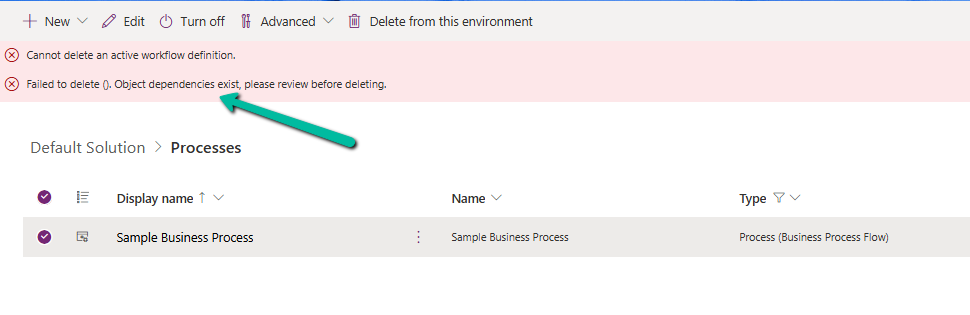
However, when trying to delete the Business Process Flow, we were greeted with the following error message:
Failed to delete (). Object dependencies exist; please review before deleting.
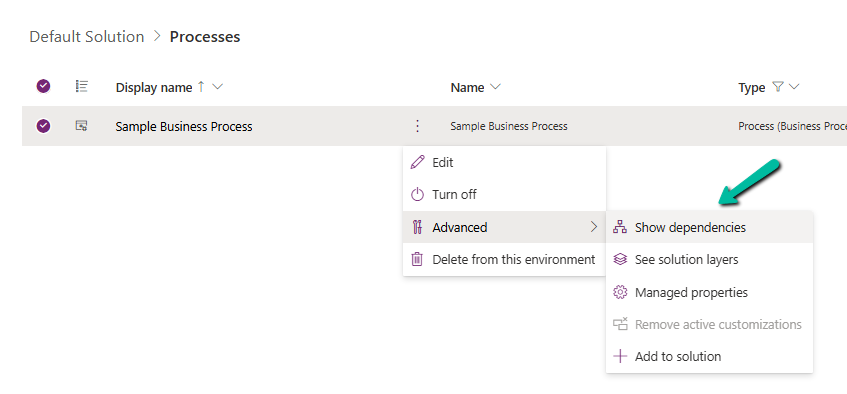
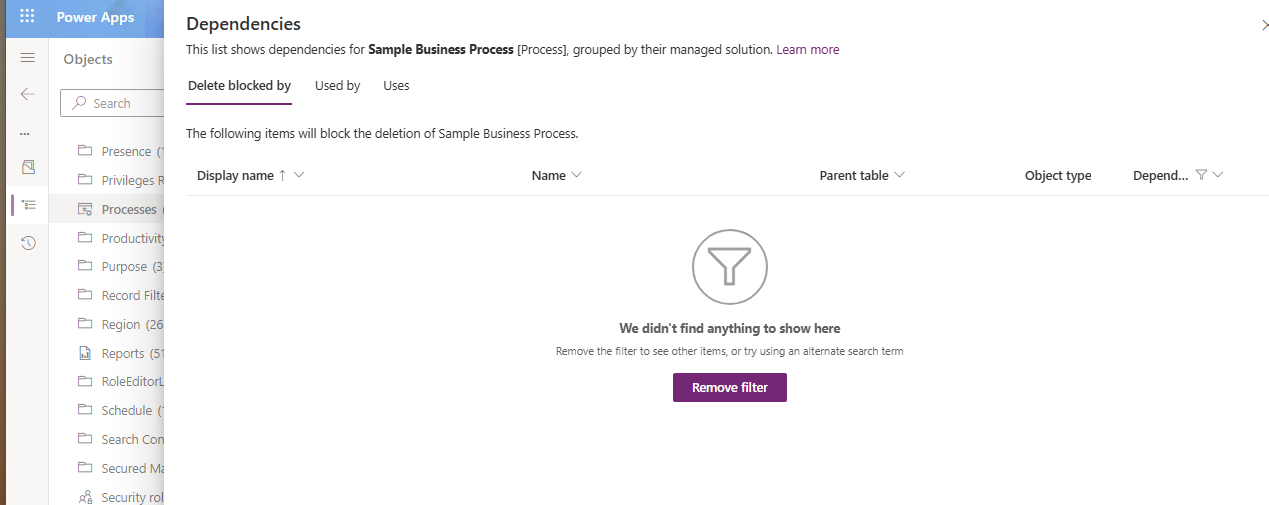
At first glance, this seemed straightforward — if dependencies exist, we just need to review and remove them. But here’s where things became confusing. When we opened the Show Dependencies option for the Business Process Flow, nothing was listed. No forms, no views, no plugins, no workflows — absolutely nothing.
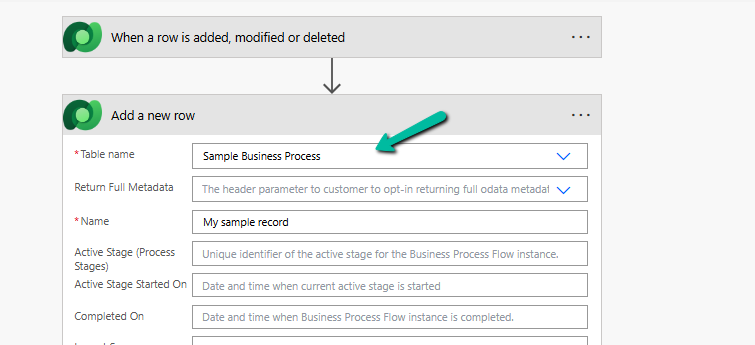
After searching for different components, we finally found one of the cloud flows referring to it. It was creating an instance of the BPF. That reference was enough for Dataverse to block deletion — even though it wasn’t being displayed in the dependency viewer for the component.
Once we identified the cloud flow, we removed the step that was creating the Business Process Flow instance. After saving and publishing the updated flow, we attempted deletion again.
This time — success.
The Business Process Flow was deleted without any issues.
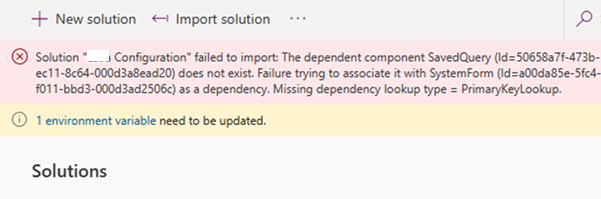
Recently, while trying to import a solution, we got the below dependencies error.
Solution ” Configuration” failed to import: The dependent component SavedQuery (Id=50658a7f-473b-ec11-8c64-000d3a8ead20) does not exist. Failure trying to associate it with SystemForm (Id=a00da85e-5fc4-f011-bbd3-000d3ad2506c) as a dependency. Missing dependency lookup type = PrimaryKeyLookup.
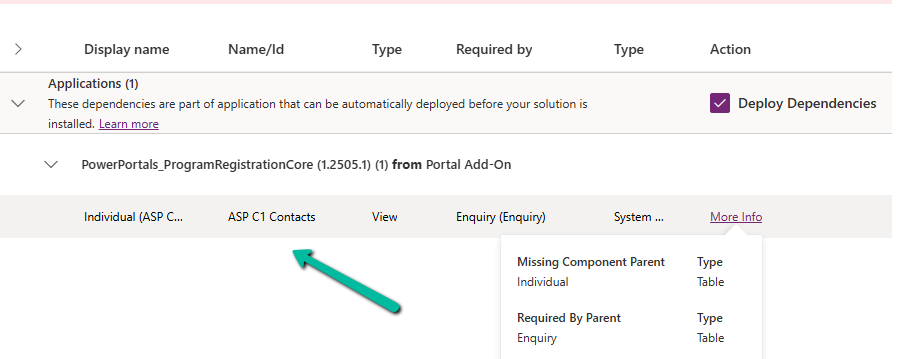
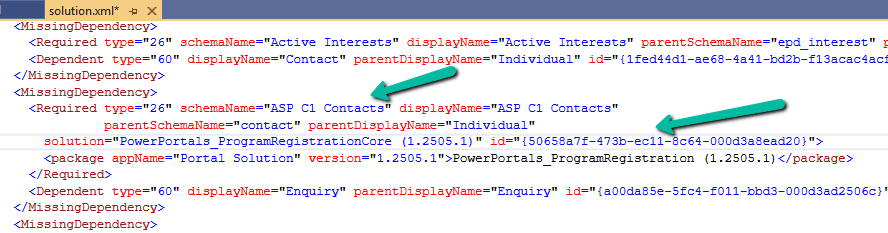
The error indicated that a specific Contact view (ASP C1 Contacts) was missing. When we checked the dependencies, it showed that this view had a dependency on the main form of a custom table.
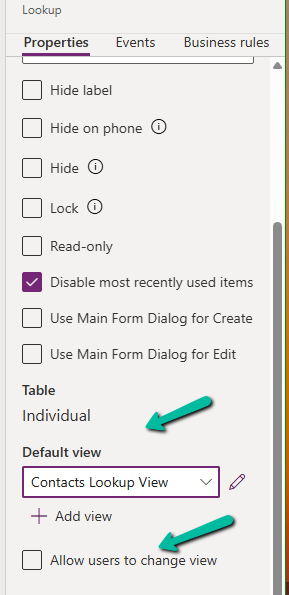
That form contained multiple Contact lookup fields. However, when we reviewed all the lookup configurations, none of them appeared to reference that particular view. Each lookup had its Default View set to “Contacts Lookup View,” and the “Allow users to change view” option was disabled. Everything looked correct in the UI.
Since the issue wasn’t visible from the form editor, we exported the solution and inspected the solution.xml file. There, we could clearly see the missing dependency details, including the GUID of the problematic view.
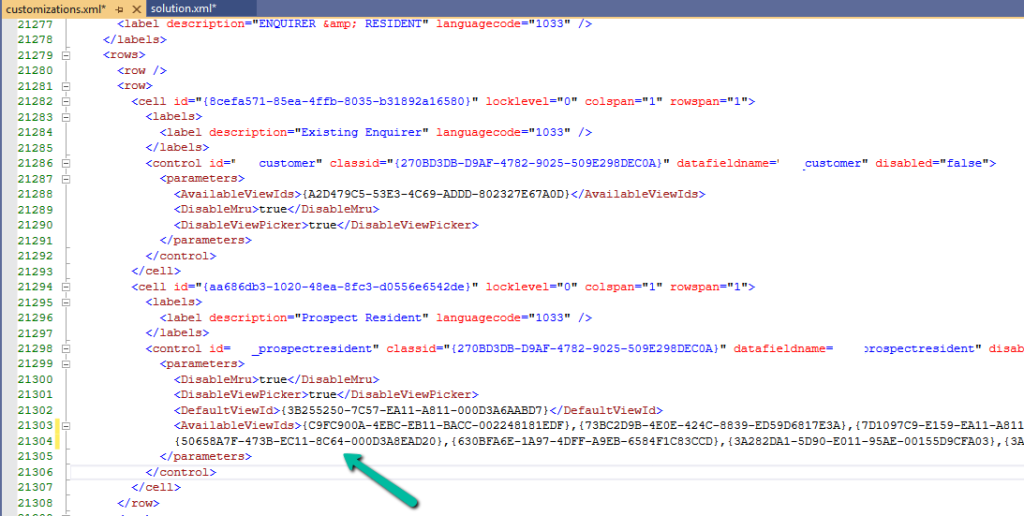
Using that view GUID ({50658a7f-473b-ec11-8c64-000d3a8ead20}), we searched inside the customizations.xml file. This revealed that the view was still being referenced by one of the lookup controls (display name “Prospect Resident”), even though the form configuration showed a different default view. Essentially, the form XML still contained an old reference to that view.
To resolve the issue, we removed the lookup from the form and added it again. After re-adding it, we temporarily enabled the “Allow users to change view” option, selected a few views, saved and published the form, and then disabled the option again and published once more. This process refreshed the lookup configuration and removed the hidden dependency.
After that, the solution was imported successfully.
This issue highlights how form XML can retain hidden view references even when the UI configuration appears correct. When facing similar “SavedQuery does not exist” errors, inspecting customizations.xml for the view GUID can help quickly identify the root cause.
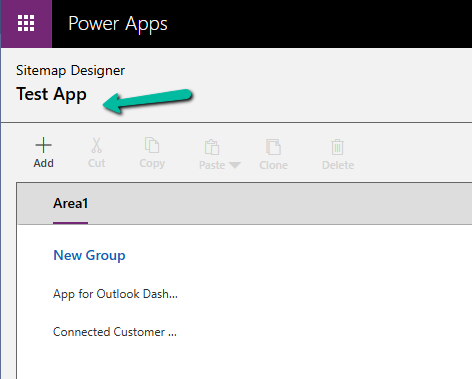
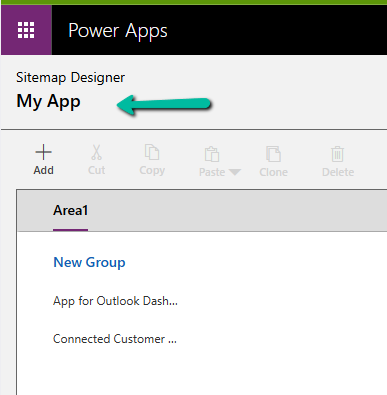
While working with a model-driven app in Dataverse, we needed to change the display name of the sitemap. What made this interesting was that there is no option in the UI to rename the sitemap display name directly.
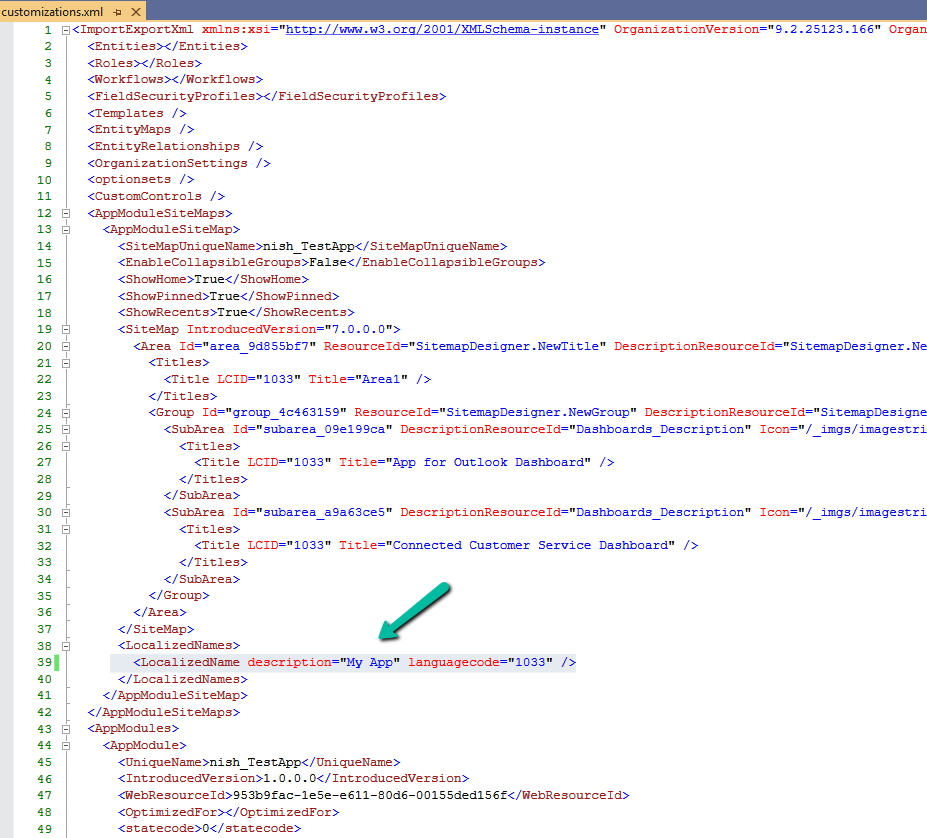
After exploring the UI options and confirming that the sitemap display name cannot be updated there, the only approach that worked was a solution-level change. The solution was to export the solution that contained the sitemap, update the sitemap display name in customizations.xml, and then import and publish the solution again. We exported the solution as unmanaged and extracted the ZIP file. Inside the extracted files, we opened customizations.xml. This file contains the full definition of the app’s sitemap, including its localized display name. Within the XML, the sitemap definition appears under the AppModuleSiteMaps section. A simplified version of the relevant structure looks like this:
The key part here is the LocalizedNames node. This is where the sitemap display name is defined. To rename the sitemap, we updated the value of the description attribute for the required language code.
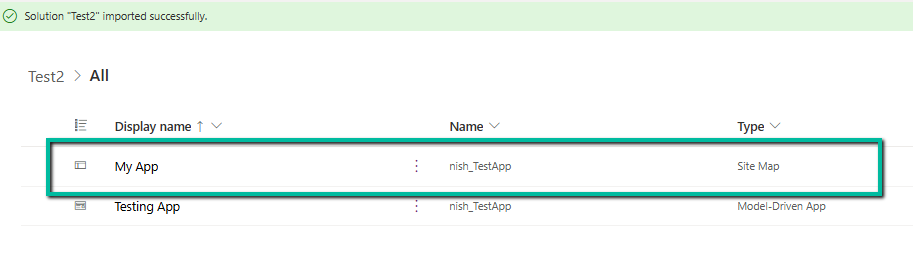
After making this change, we repackaged the solution, imported it back into the environment, and published the customizations. Once the import was completed / published, the sitemap display name reflected the new value everywhere and, importantly, the change persisted.
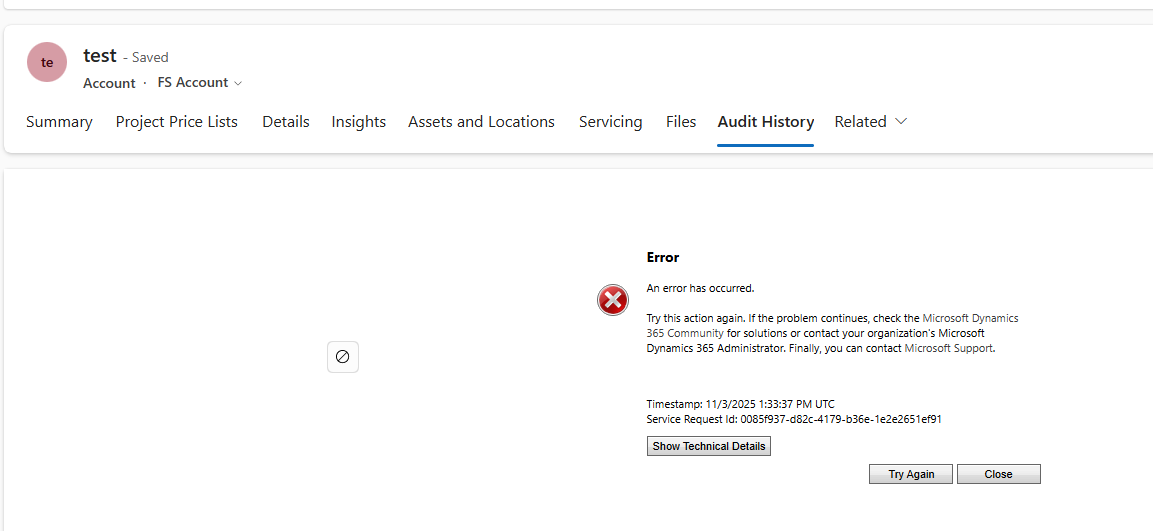
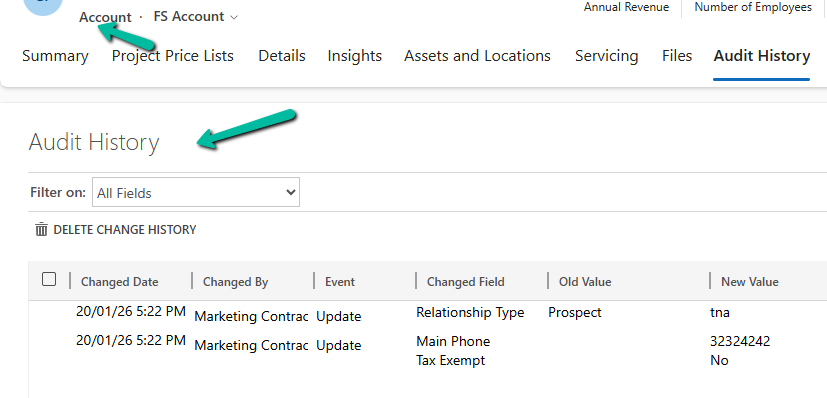
Recently, we ran into an issue where the Audit History page stopped loading on the form. Interestingly, the problem was limited only to the Account forms.
Whenever we tried to open Audit History, we received the generic error below:
An error has occurred.
Try this action again. If the problem continues, check the Microsoft Dynamics 365 Community for solutions or contact your organization’s Microsoft Dynamics 365 Administrator. Finally, you can contact Microsoft Support.
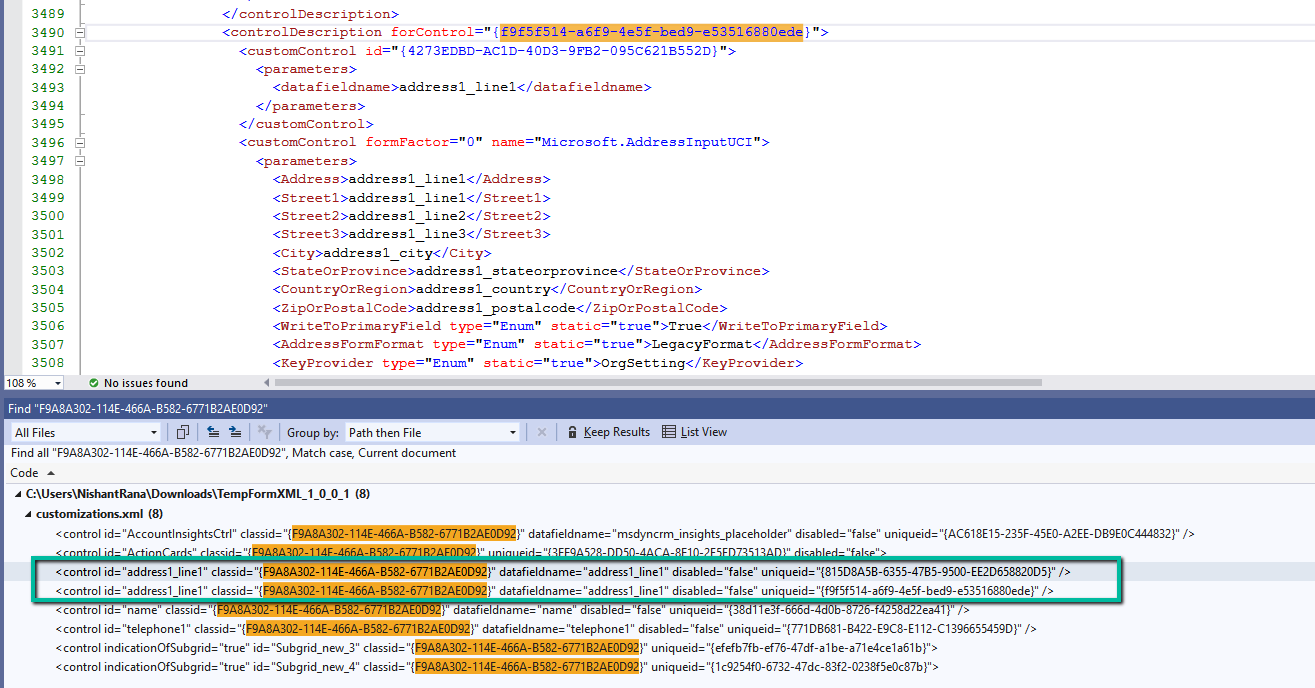
To investigate further, we raised a Microsoft Support ticket. After reviewing the issue, Microsoft informed us that the problem was likely related to a custom control used on the Account form. They shared the Form ID (GUID) along with the control classidF9A8A302-114E-466A-B582-6771B2AE0D92, which corresponds to that custom control.
Microsoft asked us to inspect the Form XML of the affected Account form. Specifically, they advised searching for all controls that use the given classid and carefully reviewing the uniqueid property of each control. We were also asked to verify that there were no case mismatches in the GUIDs and that every uniqueid had a matching entry in the controldescription section of the Form XML.
To identify the correct form, we used a SQL4CDS query to retrieve the Form Name and Form ID.
For easier analysis, we created a temporary solution, added the affected Account form to it, exported the solution, and opened the Form XML.
While reviewing the Form XML, we found six instances of the control using the specified classid. For five of these controls, the uniqueid had a corresponding entry in the controldescription section. However, one control was missing this mapping. The problematic uniqueid was 815D8A5B-6355-47B5-9500-EE2D658820D5.
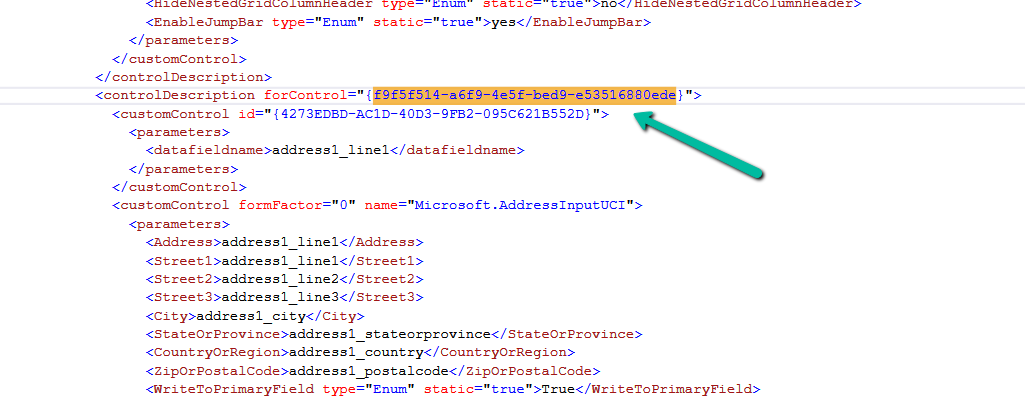
To resolve the issue, we updated this uniqueid to match an existing and valid one already present for the address1_line1 control, which was f9f5f514-a6f9-4e5f-bed9-e53516880ede. After making the change, we zipped the solution, imported it back into the environment, and published the updates.
We had a business requirement to block the closing of a Quote as Lost under certain conditions. Instead of leaving the quote in an Active state, we wanted the system to explicitly move it back to Draft and show a clear error message to the user explaining why the close action was not allowed.
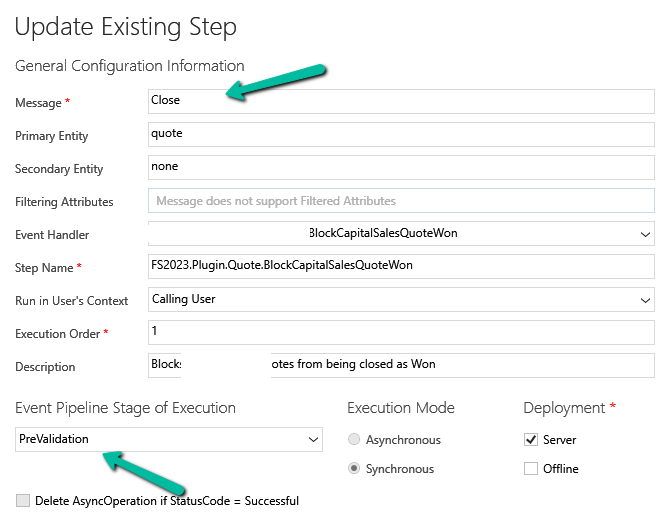
We initially registered our plugin on the Close message in the PreOperation stage. The logic was simple: detect the Lost status, set the quote back to Draft, and throw an exception to cancel the close operation.
The plugin executed exactly as expected. However, the result was not what we intended. Although the quote closure was blocked, the quote never moved to Draft. This happened because PreOperation runs inside the same transaction as the Close message. When we threw an InvalidPluginExecutionException, Dataverse rolled back everything in that transaction, including our SetStateRequest.
To fix this, we moved the same plugin logic to the PreValidation stage, and the behavior immediately changed. PreValidation runs outside the main transaction, before Dataverse starts processing the Close request. This allowed us to:
Update the quote state to Draft
Throw an exception to cancel the Close
Keep the quote in Draft without rollback
Sample Code for reference –
using Microsoft.Xrm.Sdk;
using Microsoft.Xrm.Sdk.Messages;

public class BlockQuoteCloseAndRevertToDraft : IPlugin
{
    public void Execute(IServiceProvider serviceProvider)
    {
        var context =
            (IPluginExecutionContext)serviceProvider.GetService(typeof(IPluginExecutionContext));

        if (!context.InputParameters.Contains("QuoteClose") ||
            !context.InputParameters.Contains("Status"))
            return;

        var status = (OptionSetValue)context.InputParameters["Status"];

        // Custom Lost status value
        const int LostStatusValue = 100000001;

        if (status.Value != LostStatusValue)
            return;

       // other business logic / check, return if not valid else continue and throw exception

        var quoteClose = (Entity)context.InputParameters["QuoteClose"];
        var quoteRef = quoteClose.GetAttributeValue<EntityReference>("quoteid");

        if (quoteRef == null)
            return;

        var serviceFactory =
            (IOrganizationServiceFactory)serviceProvider.GetService(typeof(IOrganizationServiceFactory));
        var service = serviceFactory.CreateOrganizationService(context.UserId);

        service.Execute(new SetStateRequest
        {
            EntityMoniker = new EntityReference("quote", quoteRef.Id),
            State = new OptionSetValue(0),   // Draft
            Status = new OptionSetValue(1)   // Draft status
        });

        throw new InvalidPluginExecutionException(
            "This quote cannot be closed at this stage and has been reverted to Draft."
        );
    }
}












 Nishant Rana's Weblog