
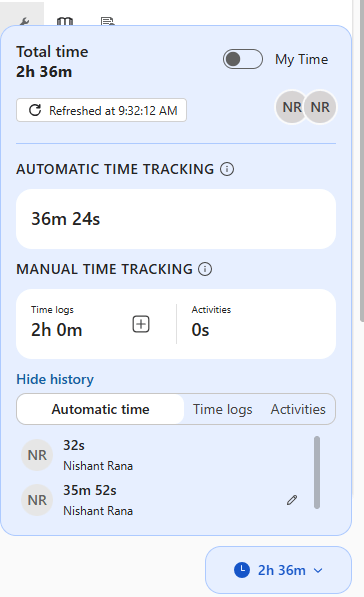
The Case Handling Time widget (preview) can be added to the Case Form, giving a focused way to track case resolution efficiency. By using this feature, we can identify patterns, make informed decisions, and continuously refine processes.
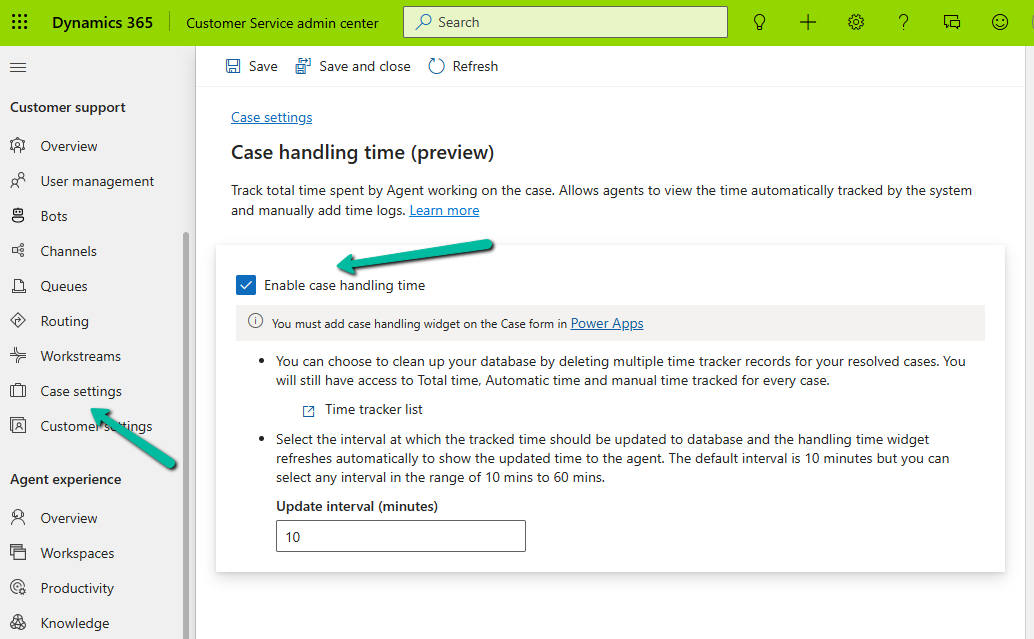
To enable it to navigate to
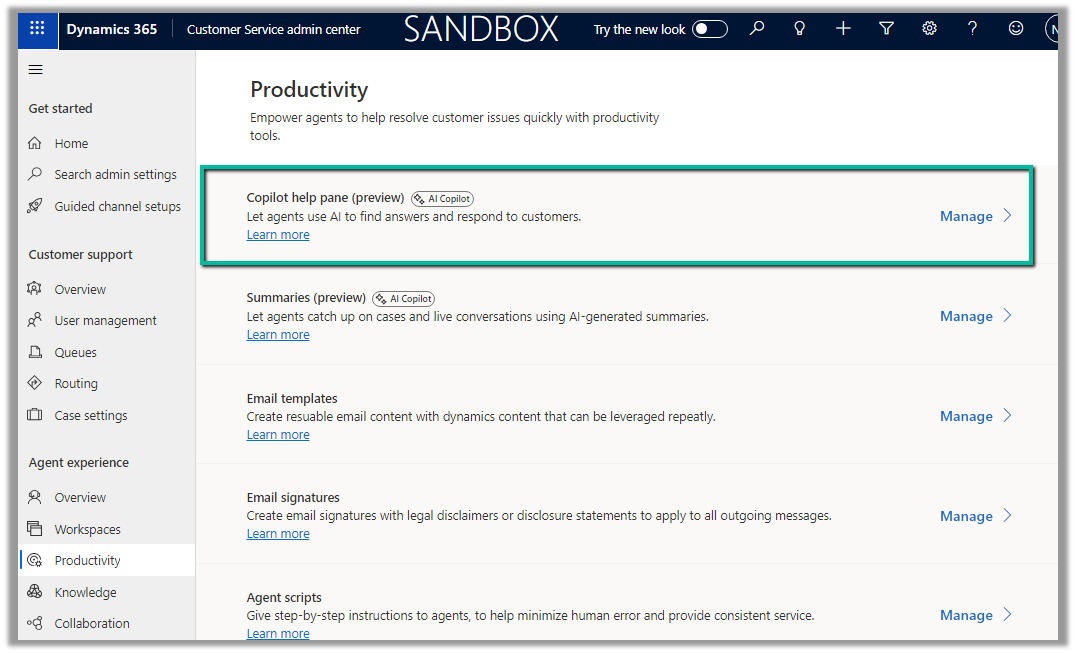
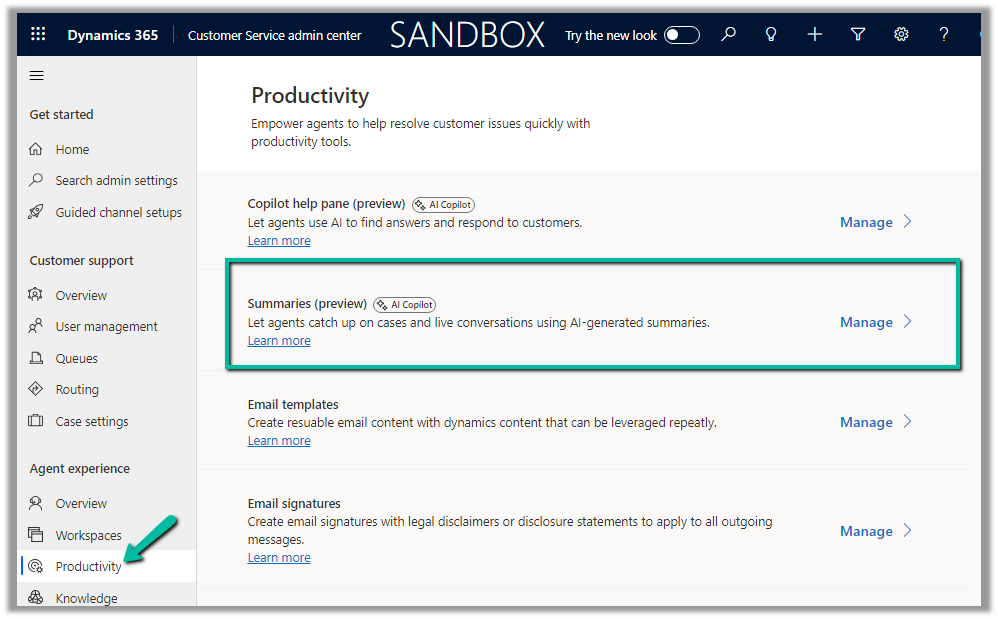
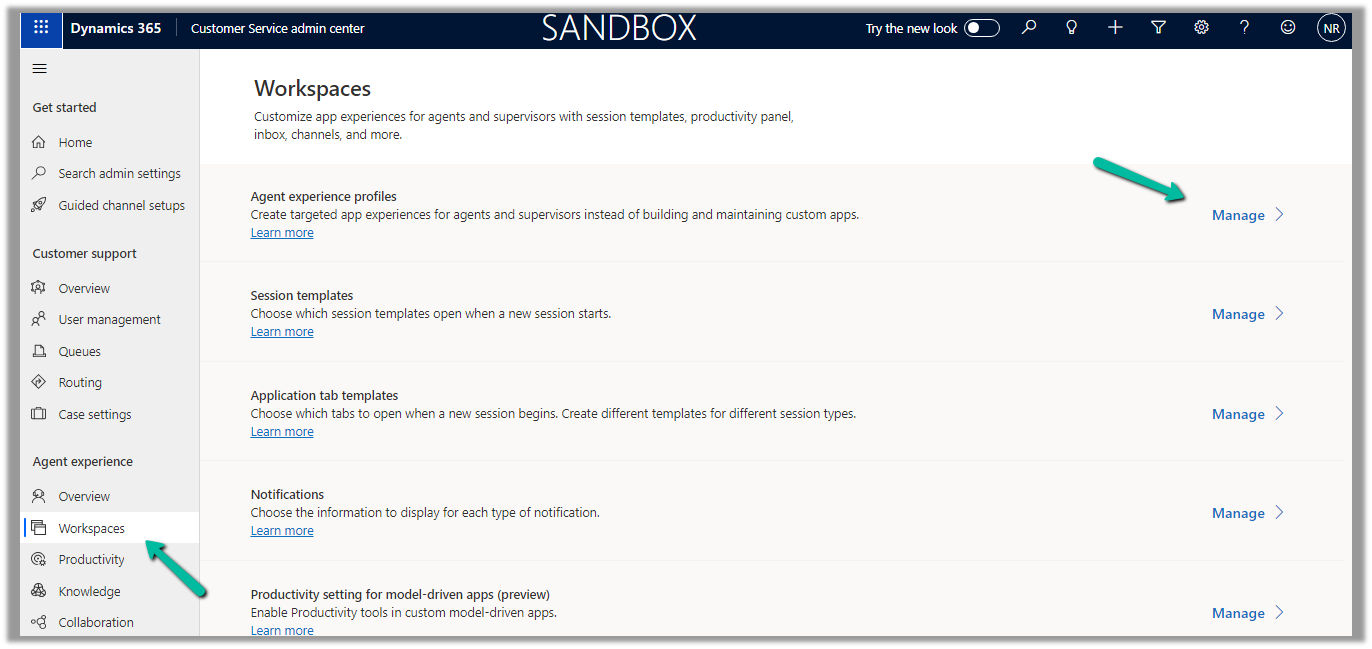
Customer Service Admin Center >> Customer Support >> Case Settings >> Case handling time (preview)
Update Interval specifies how frequently the handling time widget is refreshed (it also updates the database). Can be between 10 to 60 minutes. The interesting point here is if 2 agents open the same case at the same time, the widget will display 20 minutes, after 10 minutes.
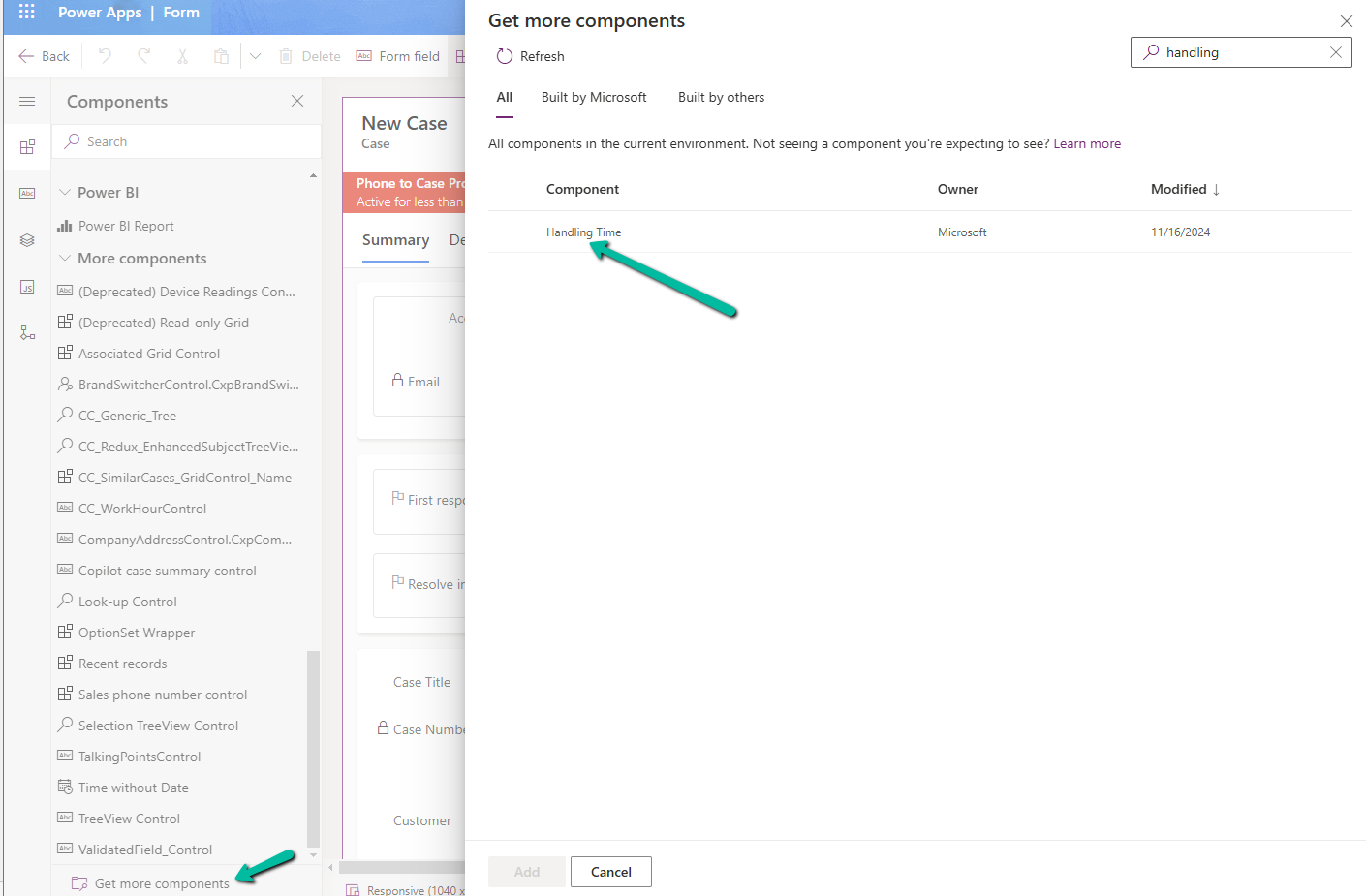
Next, open the form where we want to add the component, click on Get more components, and search for the Handling Time component to add it.
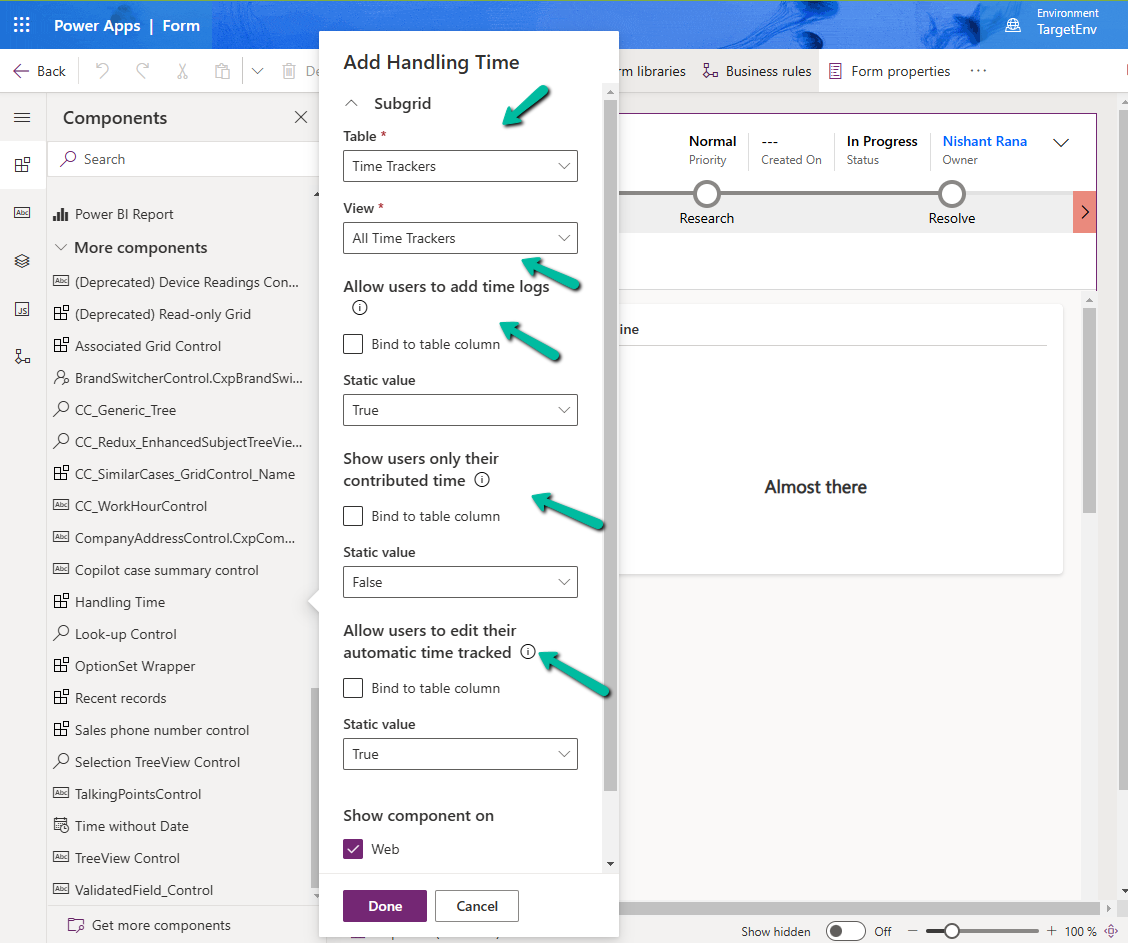
Configure the properties for the component –
Table – Time Trackers
View – All Time Trackers
Allow users to add time logs – True / False (enables agents to log time)
Show users only their contributed time – True / False (specifies whether an agent can only see their time or time entered by other agents also for that case)
Allow users to edit their automatic time tracked – True / False (specifies if an agent can edit automatic time tracked).
Save and publish the changes.
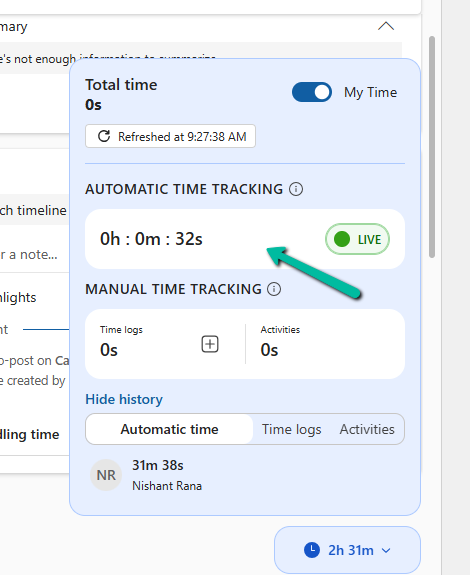
We can see the Handling Time widget at the bottom right corner in the minimized state on the form.
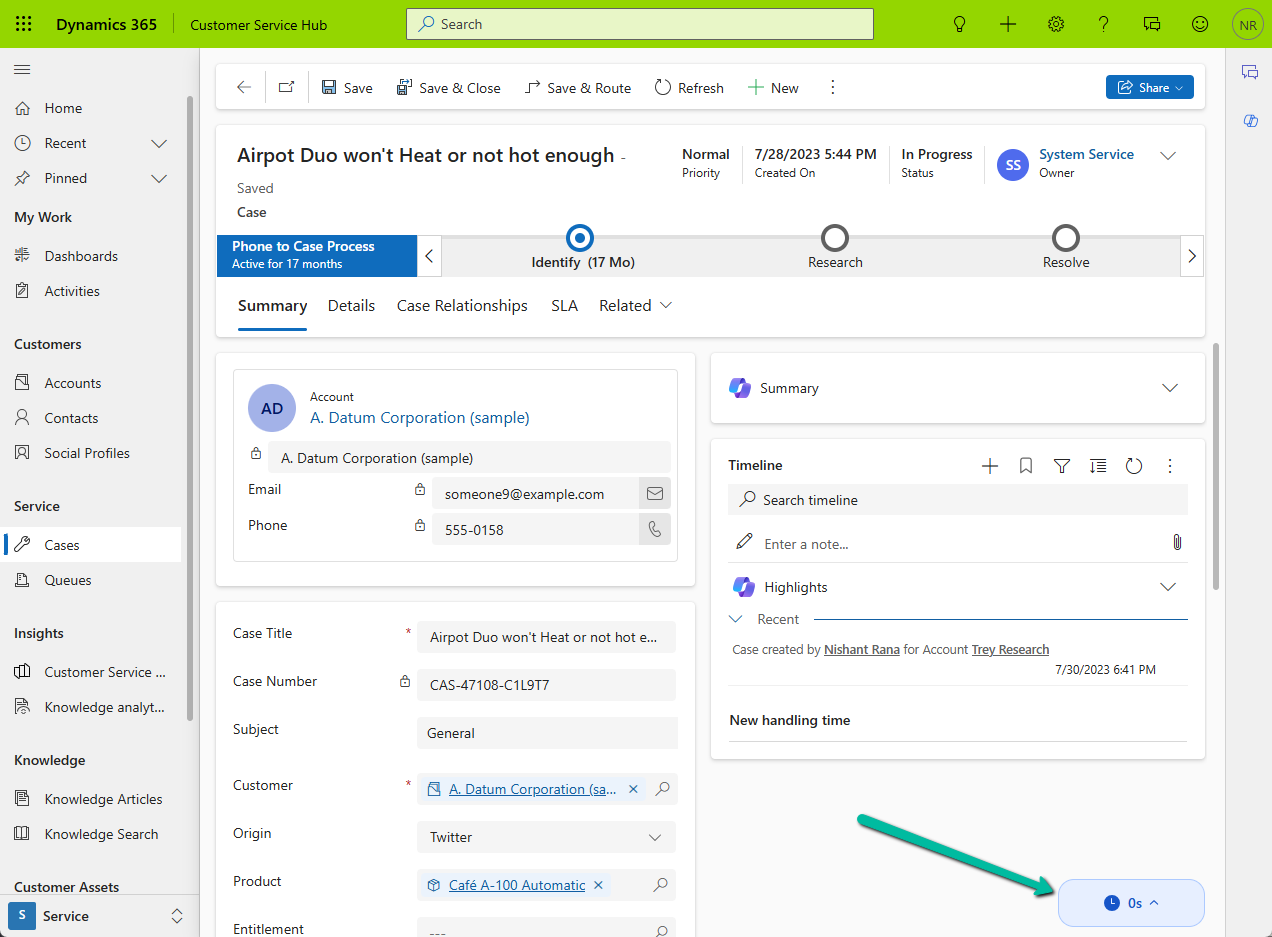
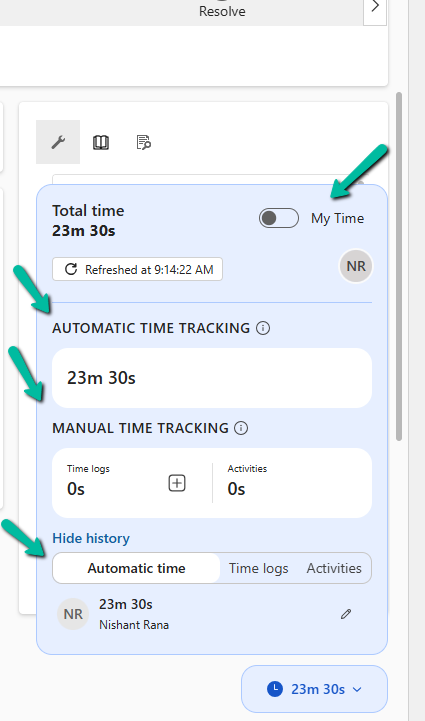
On maximizing it after some time, we can see the following details there.
Automatic Time Tracking, Manual Time Tracking, History section.
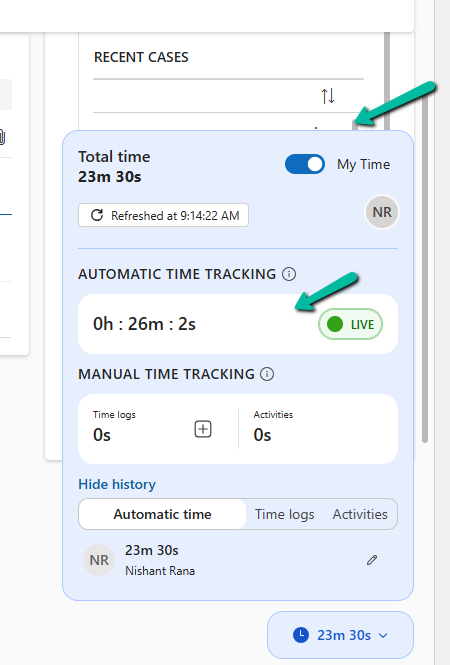
Checking My Time shows the Live time spent by that particular agent.
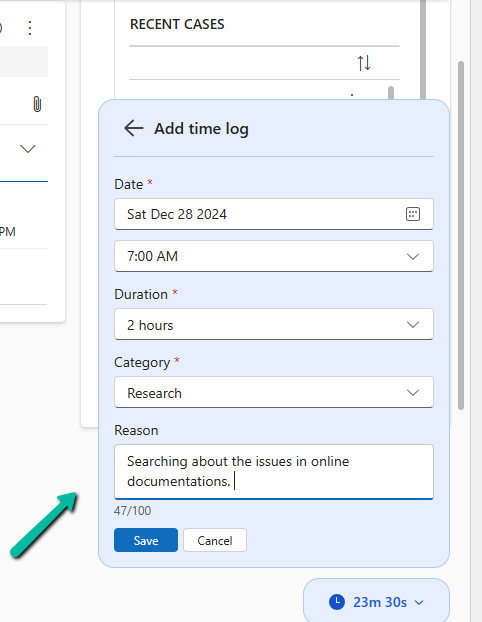
Clicking on the plus button allows us to add manual Time log records.
If there is a second user who opens the form, the automatic time tracking shows the values applied to that user.
Get more information
Hope it helps..






















 Nishant Rana's Weblog