New Lead Qualification Experience – Dynamics 365 Sales


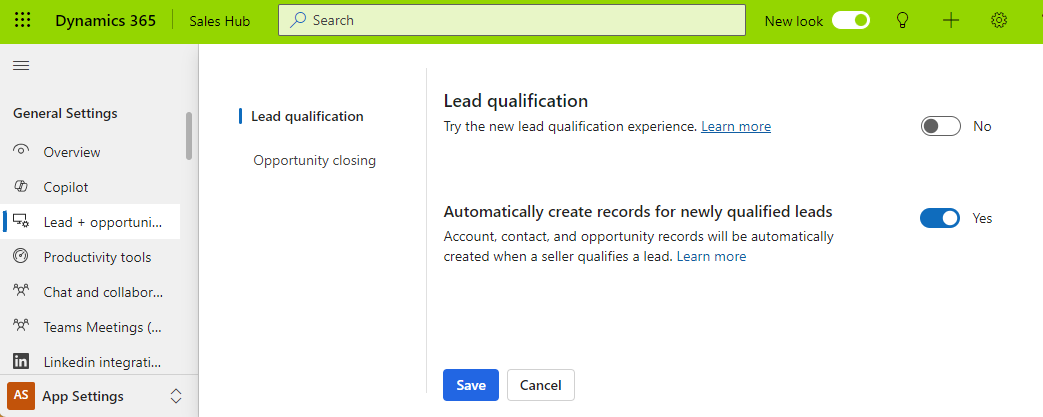
To enable the new lead experience, navigate to App Settings >> Lead + opportunity management in the Sales Hub App.
A screenshot of a computer

Description automatically generated

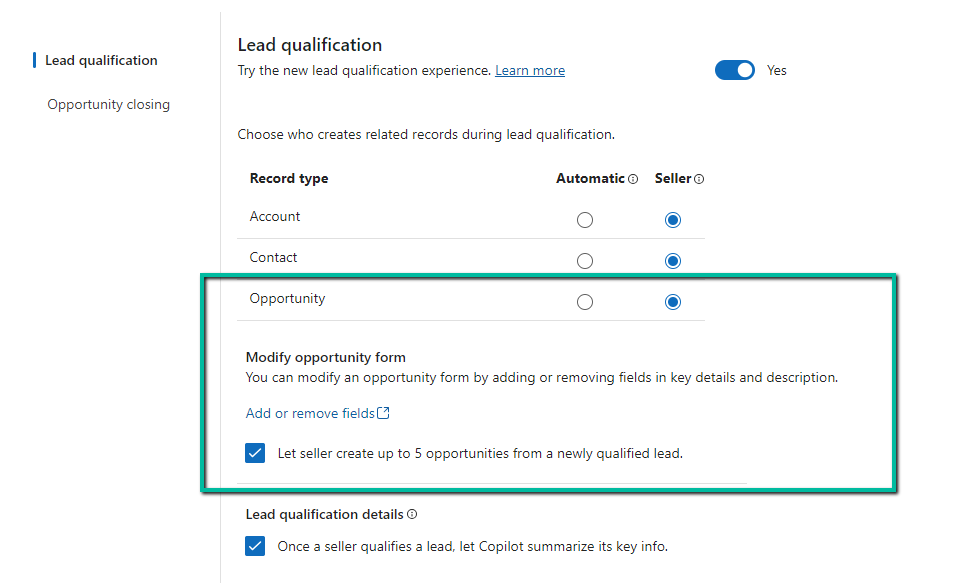
On enabling it, we get the option to specify whether the Account, Contact, and Opportunity records are created automatically or the user (seller) has the option to specify which record to create.

We also see the option to Copilot summarizing the case once a lead is qualified.

For opportunity, if we select Seller, we get an additional option to modify the Opportunity form by adding or removing fields and also the option to allow a maximum of 5 new opportunities during lead qualification.
A screenshot of a computer

Description automatically generated

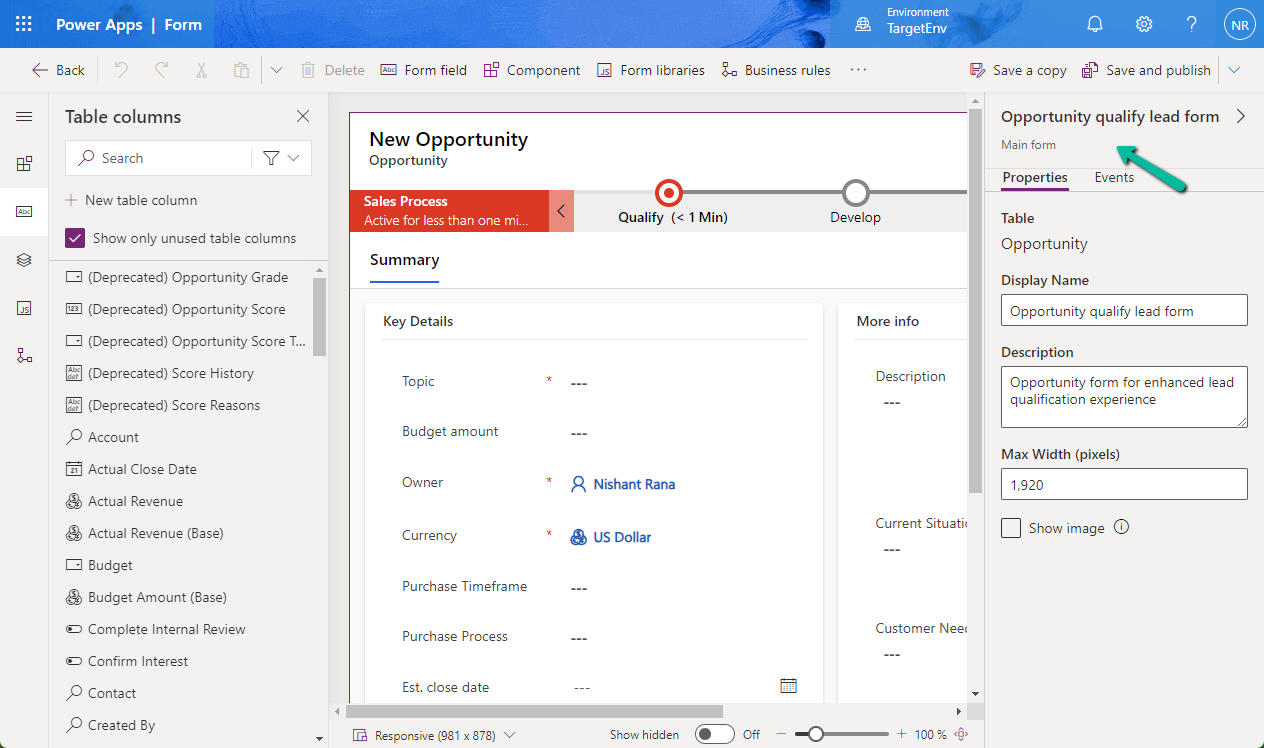
Clicking on the Add or remove fields link opens the Opportunity qualify lead form for customization.
A screenshot of a computer

Description automatically generated

Let us see it in action.

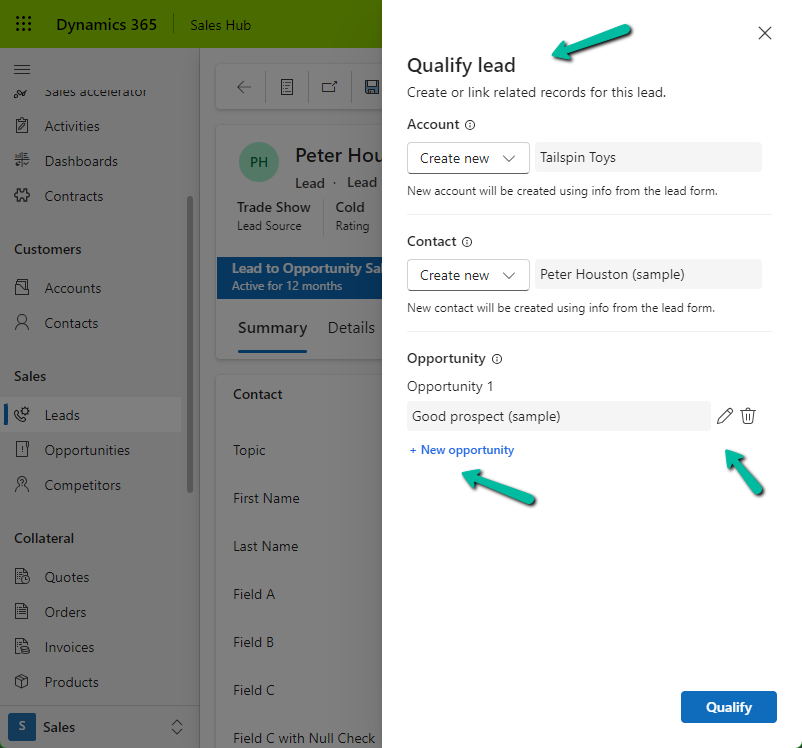
On clicking the Qualify command, we can see the new Qualify lead dialog opened in the side pane.

It gives us the option to create a new Account, Contact, and/or Opportunity record.
A screenshot of a computer

Description automatically generated

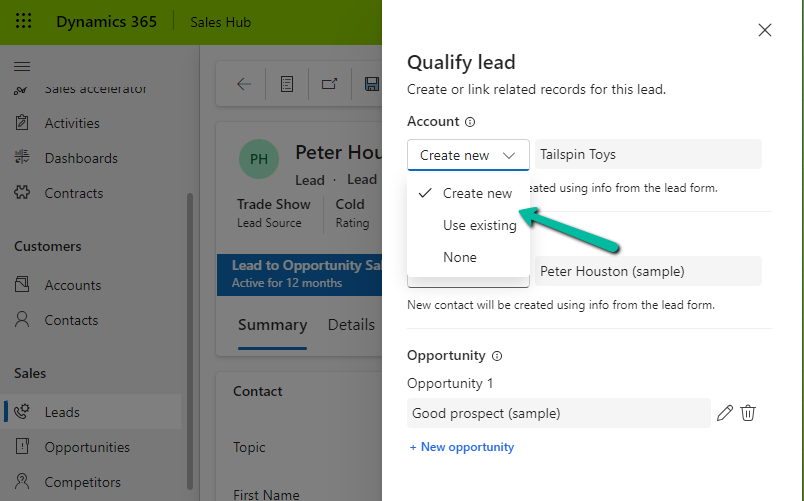
For Account and Contact, we can specify an existing record or select none if we do not want the Account and Contact record to be created.
A screenshot of a computer

Description automatically generated

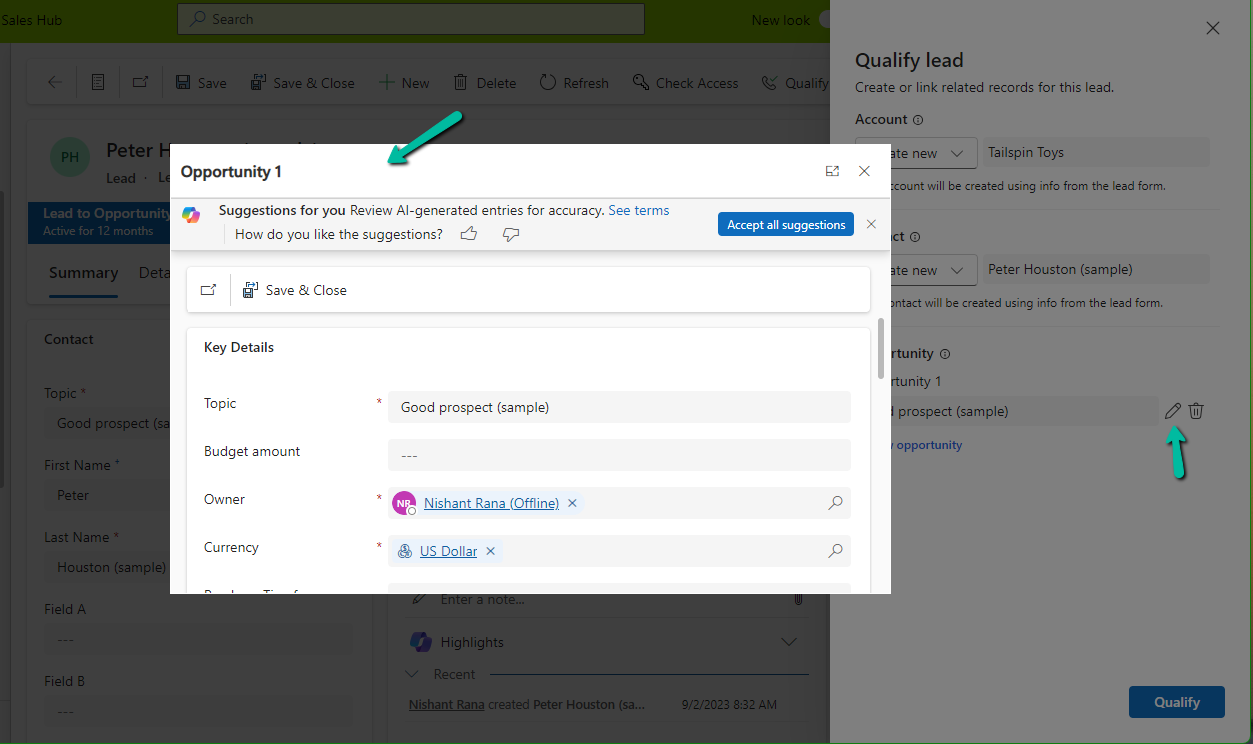
For opportunity, we can click on edit icon to update the details of the opportunity record to be created. It will open the Opportunity qualify lead form.
A screenshot of a computer

Description automatically generated

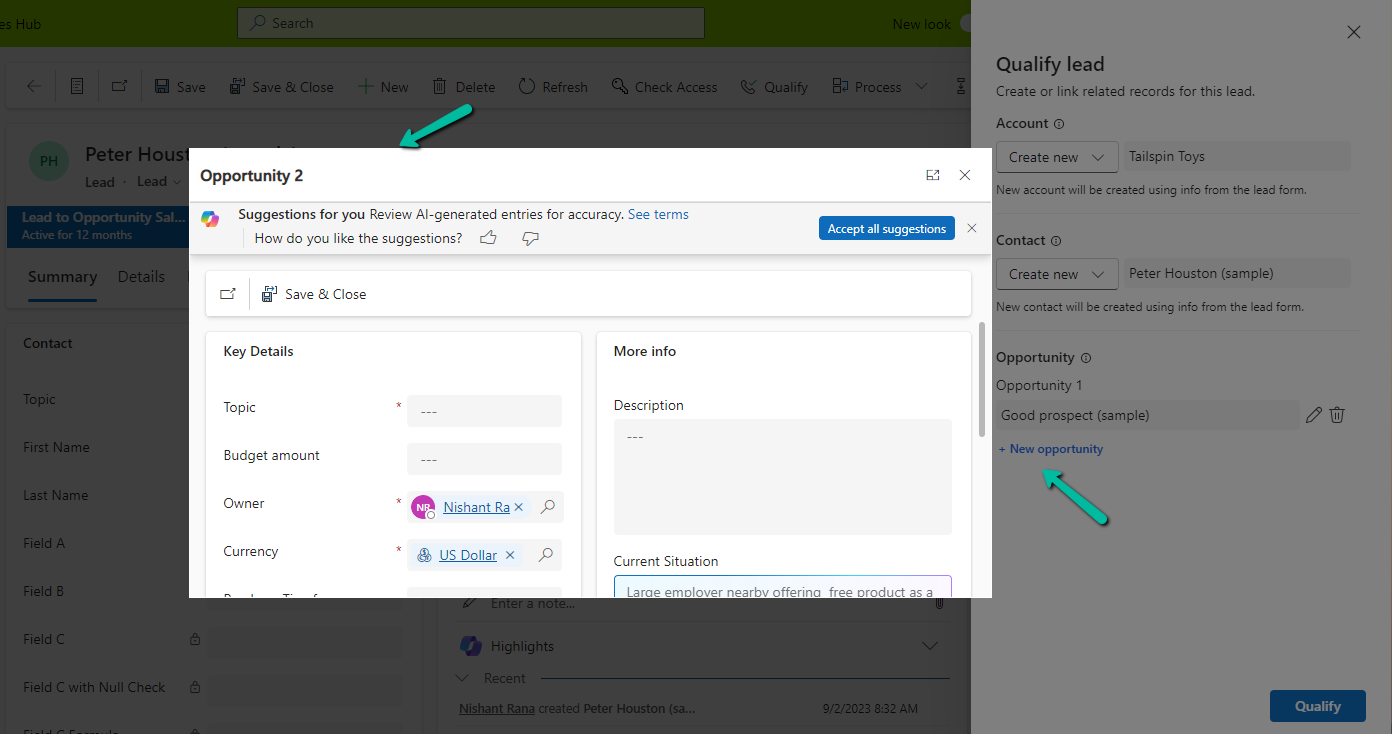
Similarly clicking on + New opportunity allows us to specify a value for the new opportunity record.
A screenshot of a computer

Description automatically generated

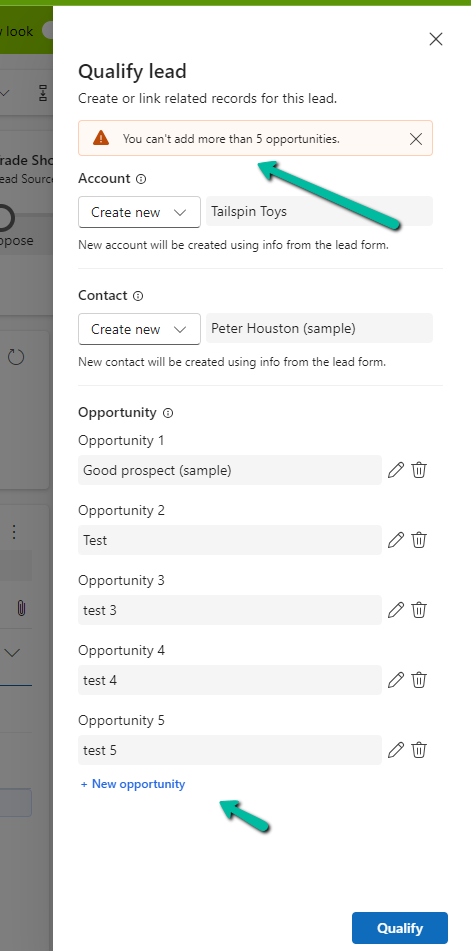
As we had selected the option of a maximum of 5 opportunities, we got the below message on trying to specify the 6th opportunity record.

“You can’t add more than 5 opportunities.”
A screenshot of a computer

Description automatically generated

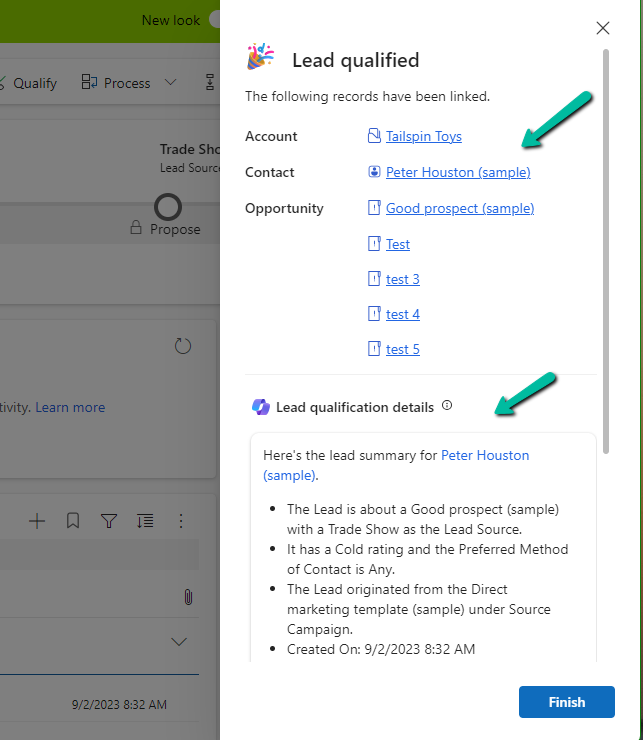
Let us click on Qualify.

We can see below details, the link to the records generated, and the summary.
A screenshot of a computer screen

Description automatically generated

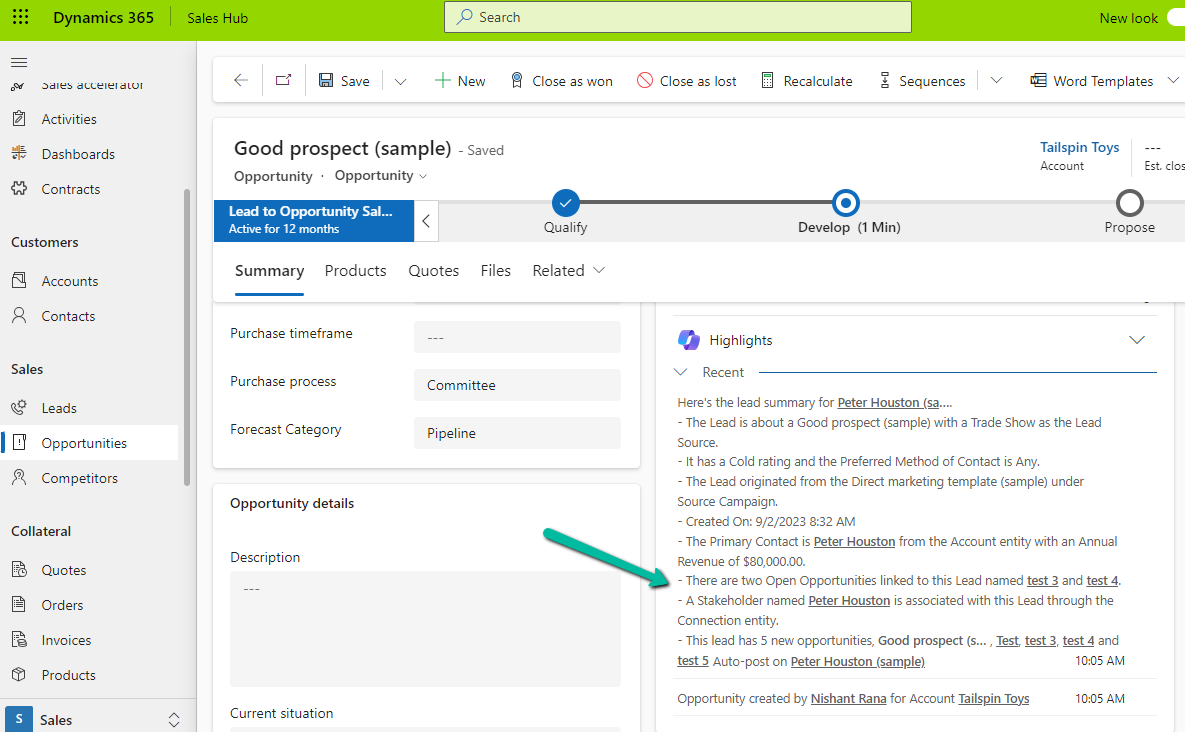
Clicking on Finish opens the 1st opportunity record. We can also see the summary added to it.
A screenshot of a computer

Description automatically generated

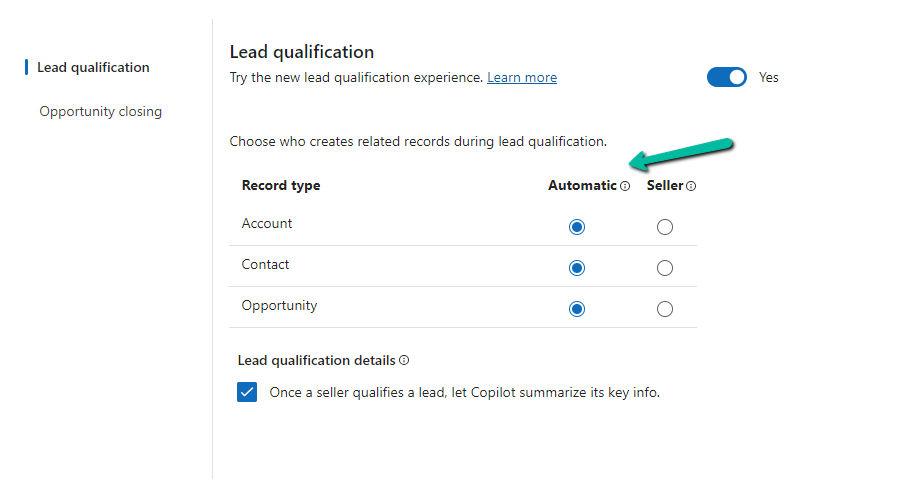
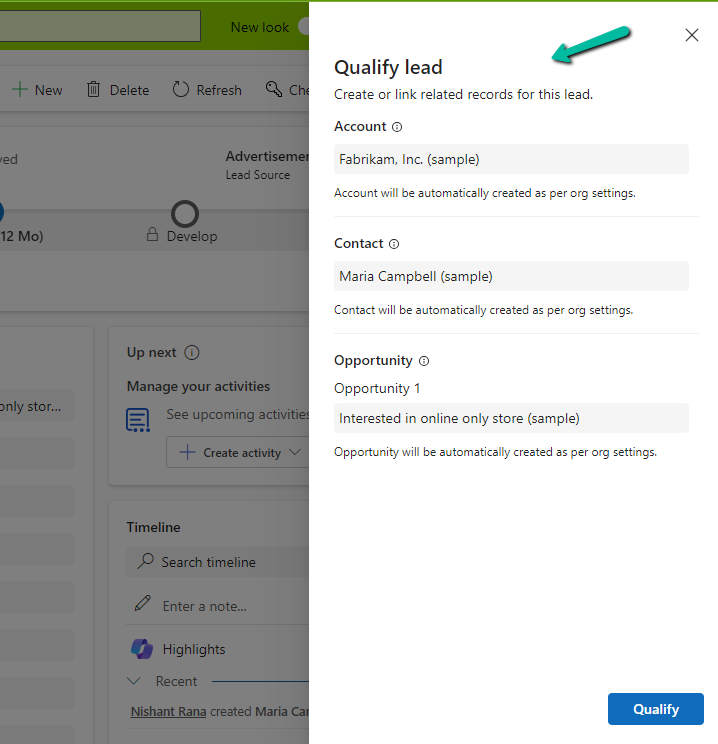
On setting all the options to Automatic,
A screenshot of a computer

Description automatically generated

we can see the below details in the Qualify lead dialog, all as read-only information.
Get all the details here

Hope it helps..

Advertisements

Turn on failed or You need a Microsoft Dynamics 365 license to continue error while trying to Activate a Workflow – Dynamics 365 / Dataverse


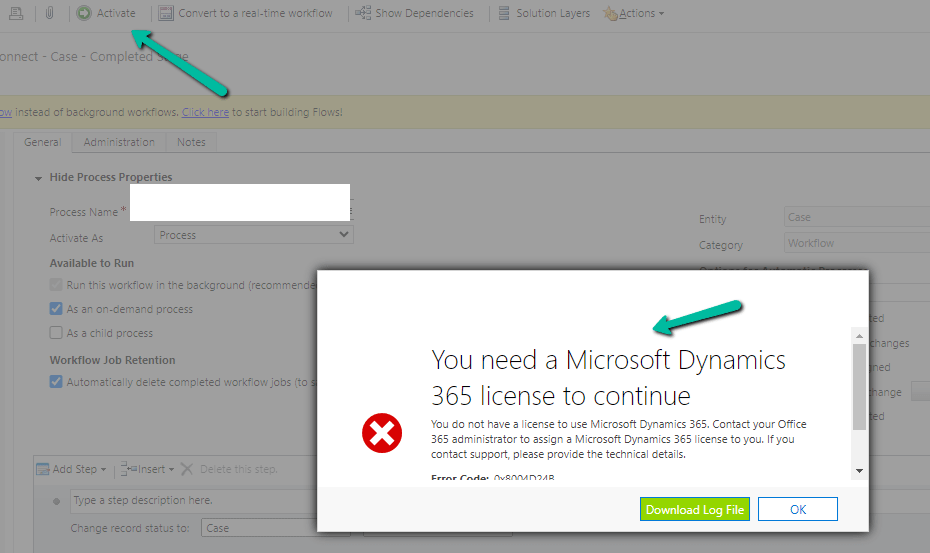
Recently while trying to Activate a Workflow we got the below error –

Turn on failed. The user with SystemUserId=xxxxxxxx-483e-eb11-bf70-000d3a795b83 in OrganizationContext=xxxxxxxx-a88f-4f40-b654-7bab4d5c1f95 is not licensed. Please contact your system administrator to add license to this user for the action to succeed. SystemUserAccessMode=0 is not either of (NonInteractive=4, SetupUser=1). User IsDisabled=True, IsLicensed=False. ImpersonatingSystemUserId=xxxxxxxx-9fe2-47b8-84a9-d87c65dc9dfd.

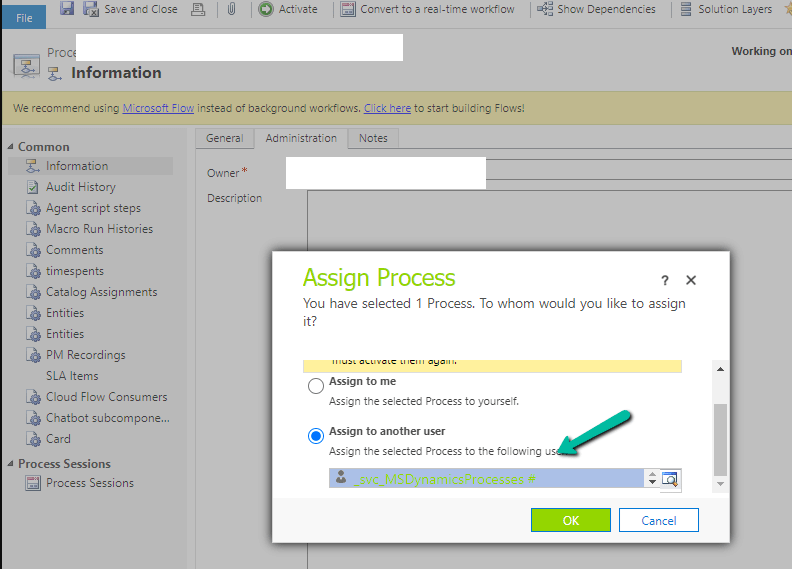
The user account through which we were trying to do so had a System Administrator role, however, it turned out that it was because of the Owner of the Workflow. The system user record set as Owner of the workflow was Inactive.

A screenshot of a computer

Description automatically generated

Assigning it to the other active user, fixed the issue for us.

We were able to activate the Workflow than.

Hope it helps..
Advertisements

The plug-in execution failed because the Sandbox Worker process crashed. This is typically due to an error in the plug-in code – Dataverse / Dynamics 365


Recently we got the below exception for one of our plugins.

Message: The plug-in execution failed because the Sandbox Worker process crashed. This is typically due to an error in the plug-in code. Please refer to this document: https://go.microsoft.com/fwlink/?linkid=2189390
Microsoft.Xrm.RemotePlugin.Grpc.ExceptionHandlers.SandboxFabricWorkerCommunicationException: Error communicating with SandboxFabric Worker —> Grpc.Core.RpcException: Status(StatusCode=”DeadlineExceeded”, Detail=”Deadline Exceeded”

If we refer to Microsoft Documentation below seems to be the cause of the issue in our case.

In our scenario, we had a Plugin that was Asynchronous and it was triggered on the Post Update of Work Order Service task. The plugin will fetch all the attachments (to notes associated with inspection attachments > inspection response > work order service task). There were many Service Tasks having more than 20 attachments exceeding 100 mb size total.

We were doing bulk updates which triggered the plugin creating too many requests eventually leading to that error.

Get more details – Error “Sandbox Worker Process Crashed”

Also, check – https://cloudblogs.microsoft.com/dynamics365/it/2017/02/20/microsoft-dynamics-365-online-asynchronous-service-quotas/

Hope it helps..
Advertisements

Fixed – System.InvalidOperationException: Message size exceeded when attempting to send response to sandbox. Message Size 123 Mb. Max Allowed 128974848 Mb (Dataverse / Dynamics 365 )


Recently we got the below exception for one of our plugins
Message: System.InvalidOperationException: Message size exceeded when attempting to send response to sandbox. Message Size 123 Mb. Max Allowed 128974848 Mb.

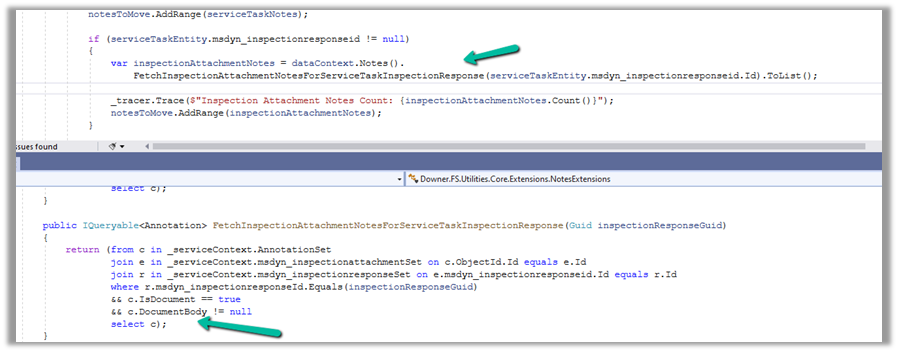
Below is the code where we were getting the error. We were retrieving the notes records associated with the inspection response/inspection attachments. (Dynamics 365 Field Service)

And if we had a total of all attachments to it more than 100 mb it was failing.

Below is the test Work Order Service Task record for which we were getting the error.

There were a couple of other attachments also to it making a total of more than 100 Mb.

Here to fix the error instead of fetching all the note details at once and then processing the notes attachments, we updated our logic to process the notes attachments one by one.

Hope it helps..

Advertisements

How to- Enable Microsoft Team chats in Dynamics 365 Apps


Enabling Microsoft Team chats inside Dynamics 365 allows the agents/sellers to start a new chat from a record or connect an existing chat to a record from within the application itself.

We can enable it from the Power Platform Admin Center or the corresponding Sales, Customer Service, Marketing, and Field Service applications.

Inside Power Platform Admin Center – Navigate to Environment >> Setting >> Team Integration Settings

We can either enable it for all the Dynamics 365 Apps or specify the apps.

Here we have specified the Customer Service Hub and Sales Hub.


We also have the option to specify the record types for Teams chats.

Let us open a contact record inside Sales Hub to see it in action.

We can see 2 sections on the Team chats pane, Chats connected to the record and Other chats.

As we have not connected chat currently, we see the option New connected chat to connect the record to the team chat.

The Other chats section lists the top 200 chat conversations on the Team, from where we can select any conversation to connect it to the record.

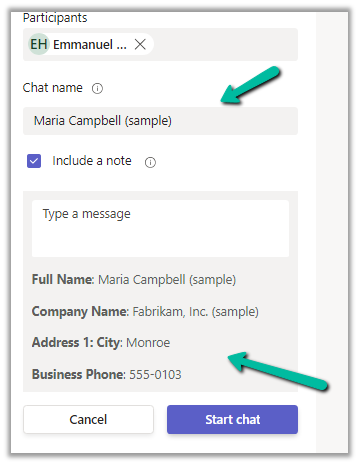
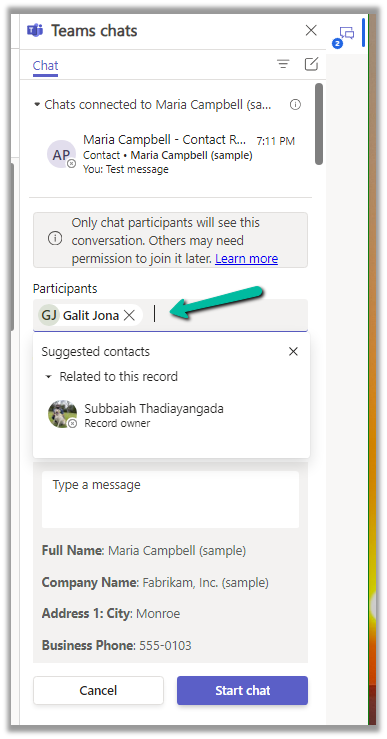
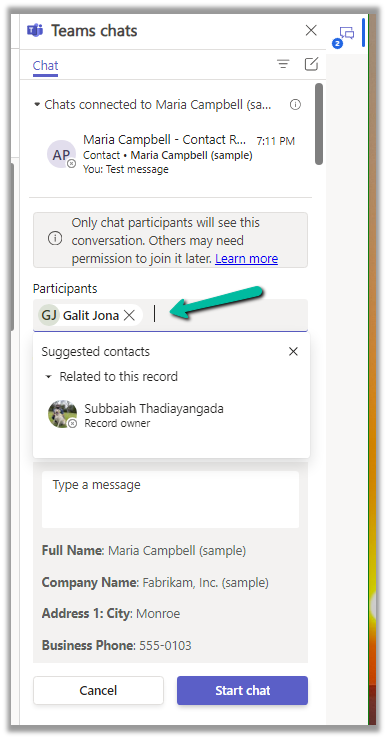
Clicking on the New connected chat allows us to search the Participants whom we want to chat with, update the chat name (suggested), and include a note as well.

It also suggests the participant (as the record is owned by a user, it will suggest the name of the record’s owner)

More on the record suggestions.

We can also select a user from the Other chat section, and select the Start a connected chat option, which populates the participant.

We can also have multiple participants added.

Add the required details and click on the Start chat

We can see the chat window opening with the participant selected and details / message added.

We can also connect other chats to that record using the Connect to this record option.

We can also disconnect the chat using the Disconnect form this record option.

Similarly, we can also start a regular chat (not associated with any record) using the compose icon in the Teams Chat panel.

This opens the New chat window as shown below.

As we saw earlier, we can use the + Add record types option to add more record types to connect to Teams Chats. (including custom table)

For each record type added, we get the following settings.

Here we can specify who can join and disconnect the chat.

We can also specify if the record’s title can be used for the Chat name, should the note be included or not, and which view fields to be considered for the Message.

Get all the details here.

Hope it helps..

Advertisements

Use tag parameter to add a shared variable to the plugin – Dataverse / Dynamics 365


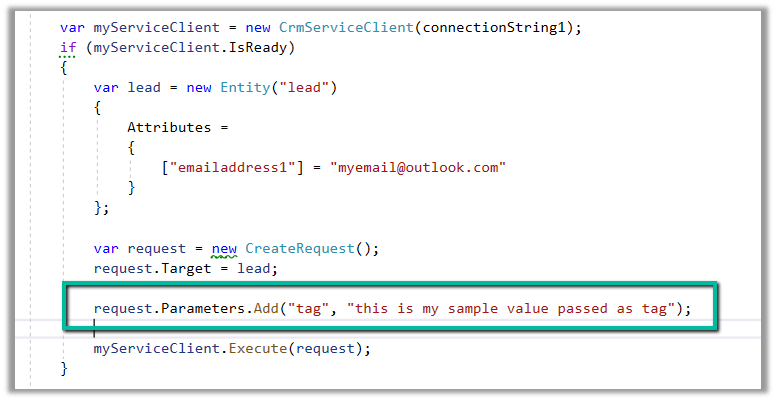
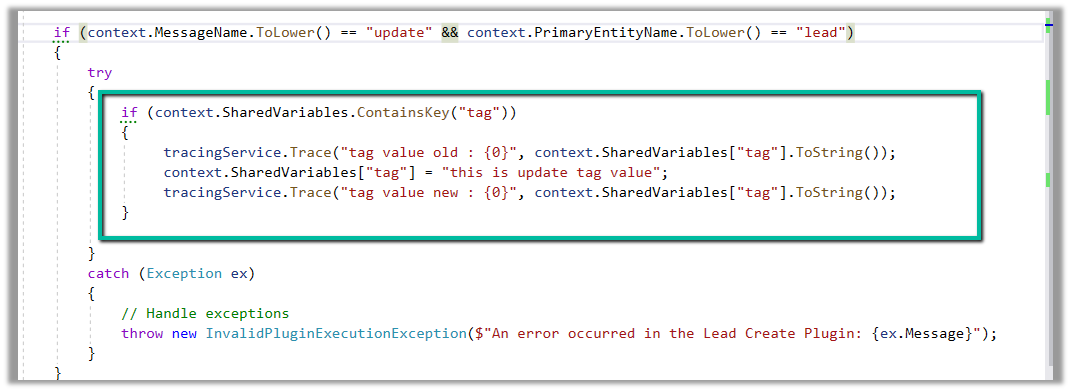
We can use the tag parameter in the request to pass any additional information to the plugin. This is added as a shared variable to the plugin execution context.

Below we are creating a lead record and passing the tag parameter in the CreateRequest

And below is our plugin, that gets the tag parameter passed from the shared variable collection.

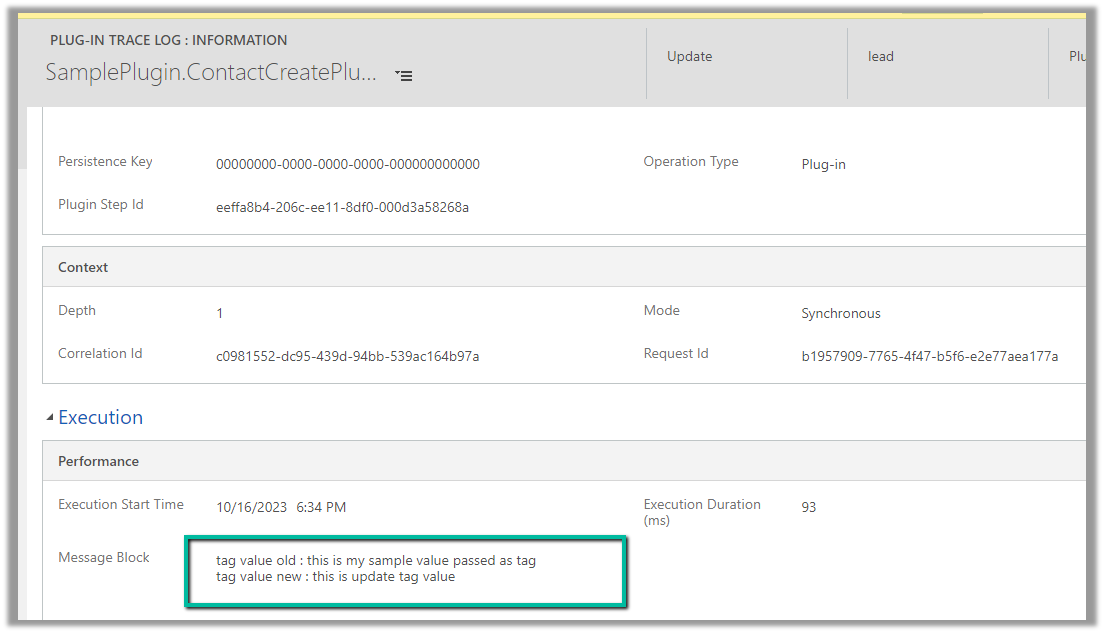
We can see the value of the tag parameter in the trace log.

Below is an example of where we are passing it in UpdateRequest

The trace log –

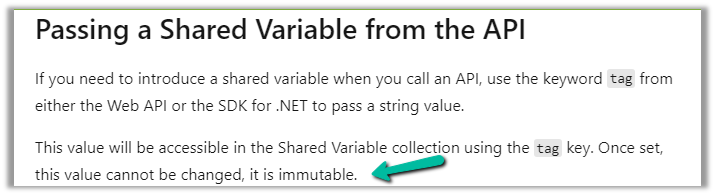
Also, the tag parameter is immutable, once set from the API, its value cannot be changed.

Below we had the same plugin registered in pre and post-operation, and we were getting the same value for the tag passed during the create request.

As per the Microsoft documentation, we can use this field to pass any additional details from the client application, that we can use to apply specific logic in the plugin.

Get more details here

Refer to for more details

Hope it helps..

Advertisements