Requesting the backup of Microsoft Dynamics 365 Online Database


In theory, requesting the backup of the online database seems very easy and straightforward. We basically need to raise a support ticket with Microsoft and provide the following details.

  • SQL Version – Standard or Enterprise
  • SQL Year of the version. In our case it was (Microsoft SQL Server 2016 (SP1) (KB3182545) – 13.0.4001.0 (X64) Oct 28 2016 18:17:30 Copyright (c) Microsoft Corporation Standard Edition (64-bit) on Windows Server 2016 Datacenter 6.3 <X64> (Build 14393)
  • Global Admin E-mail Address – to who the backup will be shared.

We had requested the same, some 3 weeks back. In our case, the Database size of our production was around 600 GB out of which 200 GB were occupied by Audit Data. For some business-specific reason, we wanted to have the backup of Audit Data with us before we delete it. Now, this Audit has a separate story with it, when we tried deleting it from UI we got the SQL Time Out issue and on raising the support ticket when Support Team tried the same through back end it, resulted in our Production Server being down briefly for few minutes. We also tried to take the back up through 3rd party tools using SSIS, however again we ran into some issue where the tool was not able to pull the Audit Data for few of the entities.

Well to cut the story short, it is around 21 days after we raised the request, and we are yet to receive the backup of our production database, we have been told that support team is actively working on it and it is because of the large size of the organization.

Will keep posting the update on the backup and the Audit deletion.

The purpose of this blog post was to share that certain things might seem straightforward and would have taken maximum few hours, could still run into issues and challenges causing delays. So, when we plan for it we need to aware of these factors as well.

Hope it helps..

HideCustomAction and Display \ Enable rule in Dynamics 365


Imagine a scenario where we have both the disable rule and HideCustomAction implemented for a ribbon button. Let us see with an example what will happen in this scenario.

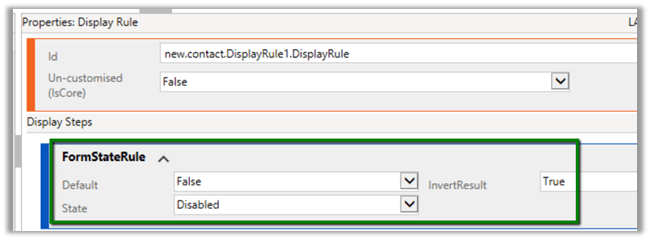
First, let us implement the display rule to hide the Delete button from Contact form when it is in a disabled state.

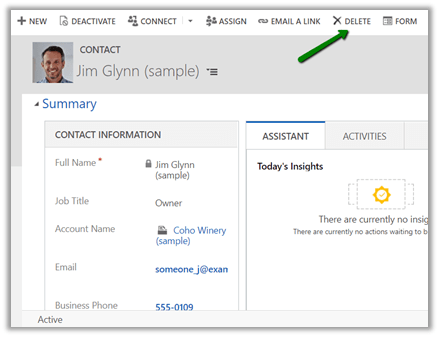
For active record à

We can see the delete button in the command bar.

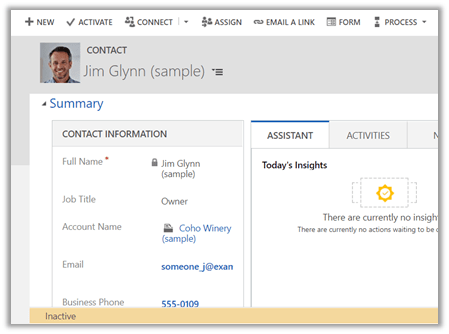
For disabled record à The delete button is not visible.

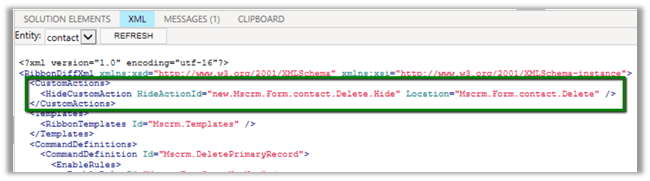
Now let us hide the button using HideCustomAction

Interestingly the Delete button is not available in case of the active contact record this time.

The reason for this is because the HideCustomAction button removes the specified node from the ribbon so that it is not rendered instead of hiding it. Therefore any other enable or display rules are not applied to that button.

https://docs.microsoft.com/en-us/dynamics365/customer-engagement/developer/customize-dev/define-custom-actions-modify-ribbon#hide-custom-actions

Hope it helps..
Different Updating Instance status during Dynamics 365 Upgrade


The day has come when we had scheduled the upgrade of our Dynamics 365 instance Test Instance(from 8.2 to 9.0).

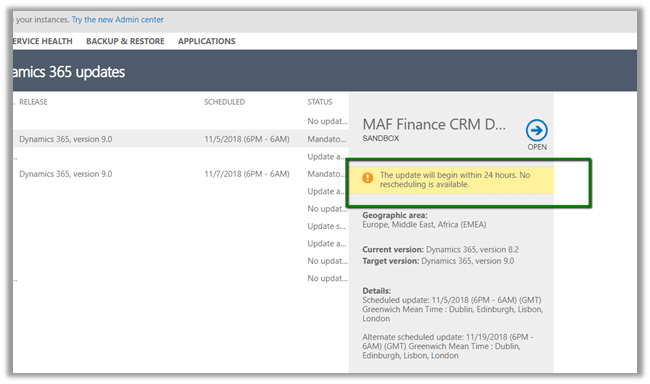
We can see the below message during the scheduled time à “The update will being within 24 hours. No rescheduling is available”.

The following Reschedule Update option will go missing during the scheduled time.

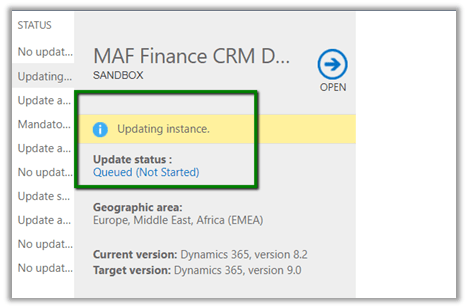
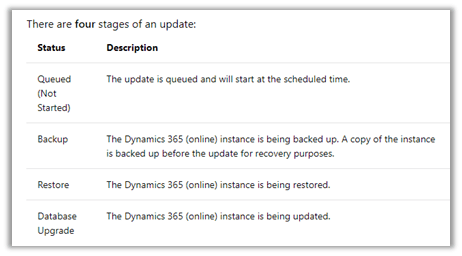
After waiting for few minutes, we see the Update Status as Queue (Not Started)

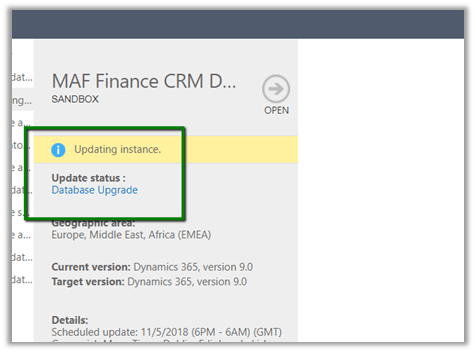
Followed by the status as “Database Upgrade”

In between the Status message will be Backup and Restore.

https://docs.microsoft.com/en-in/dynamics365/customer-engagement/admin/manage-updates#update-status

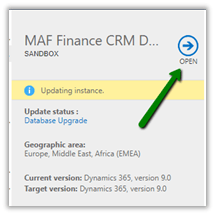
Then it kept interchanging the status from Updating Instance (with no status) to Updating Instance – Database Upgrade for close to 2.5 hours.

Then although the status was Updating Instance the Open link got enabled after 2.5 hours.

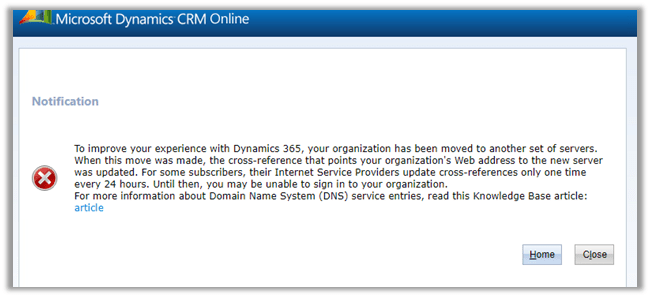
Which opened the following notification

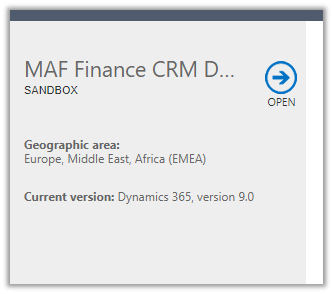
And finally, after 10 minutes or so à

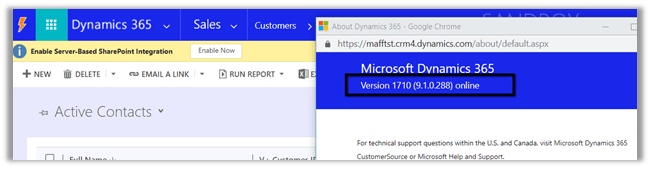
We were all set with version 9.1

In total it took around 3 hours approximately.

Time to enjoy the successful upgrade and explore the new features ..


How to – Use Plugin on Pre-Validation Stage in Dynamics 365 CE


Recently we had a requirement to delete the Account record without deleting the associated Contact records.

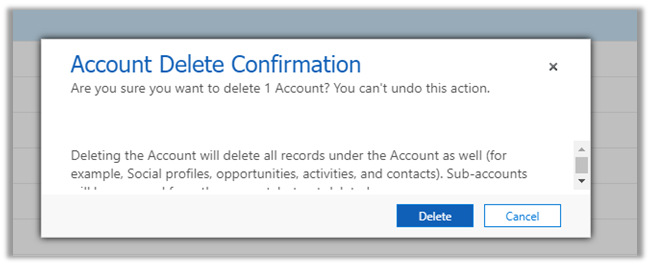
If we try deleting the account record we’d get the following message box

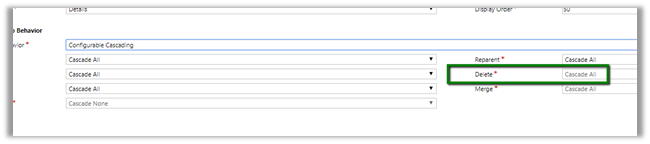
The relationship definition can’t be updated as well to achieve this

So, we wrote a plugin on the pre-validation stage of pre-delete event of Account, which will retrieve and loop through all the child contact records and set its parent customer field as null.

In case of pre-operation the child records were not available.

</p>
<p>public void Execute(IServiceProvider serviceProvider)<br />
{<br />
ITracingService tracingService = (ITracingService)serviceProvider.GetService(typeof(ITracingService));<br />
IPluginExecutionContext pluginContext = (IPluginExecutionContext)serviceProvider.GetService(typeof(IPluginExecutionContext));<br />
IOrganizationServiceFactory serviceFactory = (IOrganizationServiceFactory)serviceProvider.GetService(typeof(IOrganizationServiceFactory));<br />
IOrganizationService organizationService = serviceFactory.CreateOrganizationService(pluginContext.UserId);<br />
EntityReference targetEntity = (EntityReference)pluginContext.InputParameters["Target"];<br />
QueryExpression getContacts = new QueryExpression("contact");<br />
getContacts.Criteria.AddCondition(new ConditionExpression("parentcustomerid", ConditionOperator.Equal, targetEntity.Id));EntityCollection allContacts = organizationService.RetrieveMultiple(getContacts);foreach (Entity contact in allContacts.Entities)<br />
{<br />
Entity contactToBeUpdated = new Entity("contact");<br />
contactToBeUpdated.Id = contact.Id;<br />
contactToBeUpdated.Attributes["parentcustomerid"] = null;<br />
organizationService.Update(contactToBeUpdated);<br />
}}<br />

Another practical scenario

https://www.inogic.com/blog/2017/03/plugin-pre-validation-operation-to-show-an-error-message-as-well-as-log-the-error/

Hope it helps..
Advertisements

Solved – Alternate Key not getting created on solution import in Dynamics 365


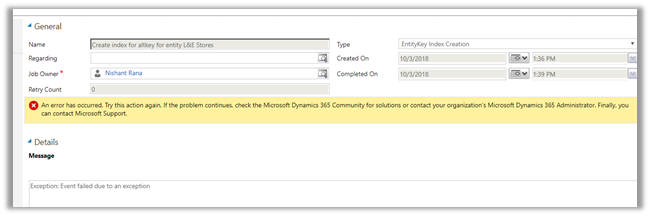
Recently, we moved our Solution from Development to Test. Then on running one of the SSIS Packages we got the below error

The specified key attributes are not a defined key for the entity [4] CRM service call returned an error:

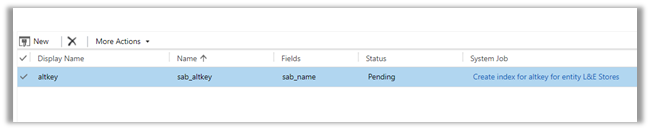
On opening the Entity for customization, and checking for the key, we saw that it was in the Status Pending.

On opening the system job, there was no detail for the error.

We normally get this error, if there are records already available that have duplicate values for that alternate key field. However, in this case, there we no record as this entity was being moved first time in the Test.

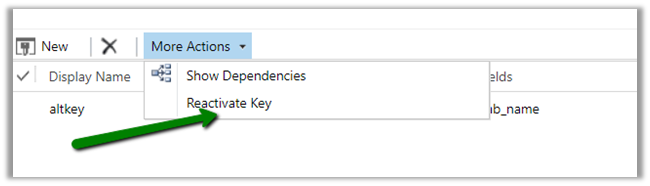
Well to just fix this we thought of manually reactivating the key

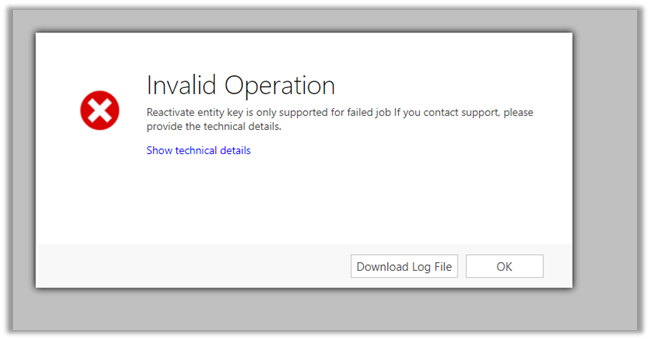
However, that threw a new error that “Reactivate entity key is only supported for failed job.”

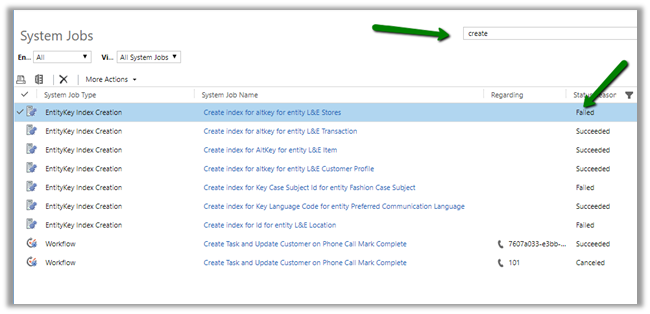
To fix this go to Settings à System Jobs à search for the failed system job and delete them

Now we will see the status as Failed

This time it will allow running the reactivation.

Finally,

Hope it helps..
Advertisements

How to – Upgrade from Dynamics CRM 2016 On-Premise to Dynamics 365


First – check if you are eligible for the Fast Track program

https://nishantrana.me/2020/05/15/dynamics-crm-on-premise-to-online-migration-program-microsoft-fasttrack/

Be aware of Version Compatibility –

https://docs.microsoft.com/en-us/previous-versions/dynamicscrm-2016/developers-guide/gg328109%28v%3dcrm.8%29#version-compatibility

https://docs.microsoft.com/en-us/dynamics365/customerengagement/on-premises/developer/introduction-solutions

Upgrade the existing CRM 2016 On-Premise Server to CRM 2016 (8.1) for its solution to be compatible with Dynamics 365 Online using cumulative updates.

https://support.microsoft.com/en-gb/help/3142345/microsoft-dynamics-365-onpremise-cumulative-updates

If upgrading from previous version i.e. prior to CRM 2016, use “Migrate by using a new instance of Microsoft SQL Server” approach

https://technet.microsoft.com/en-us/library/hh699669.aspx

https://technet.microsoft.com/en-us/library/hh699747.aspx

Once updated to compatible CRM 2016 On Premise (8.1), go to settings à customizations and export the existing solutions or create a new solution, add all the required solution components to it as unmanaged which will be imported to the new Dynamics 365 online environment.

Create a new Dynamics 365 Online Environment and synchronize it with your existing Active Directory

https://blogs.msdn.microsoft.com/crm/2013/07/18/how-to-synchronize-crm-online-with-your-active-directory/

With solution ready and imported to new Dynamics 365 Online, next step is migration of data.

Consider using a data migration tool like KingswaySoft.

Check out their Migration Starter Pack.

https://www.kingswaysoft.com/blog/2016/09/16/Announcing-Migration-Starter-Pack-for-CRM-Online-and-CRM-On-Premise

or Scribe

https://www.scribesoft.com/solutions/dynamics-365/

Use following tools to update the JavaScript to Version 9.0 of XrmToolBox.

https://www.xrmtoolbox.com/plugins/XrmToolBox.Dynamics365V9JavascriptValidator/

  • Script Finder (to update the form and fields for passing the executionContext)

https://www.xrmtoolbox.com/plugins/MsCrmTools.ScriptsFinder/

https://community.dynamics.com/crm/b/develop1/archive/2017/11/11/executioncontext-hits-the-big-time

Update JavaScript to use Web API.

https://github.com/jlattimer/CRMRESTBuilder

SQL Based report, if possible, needs to be converted to use Fetch XML. Use the following tool to speed up the process.

http://www.sql2fetchxml.com/

If the reports are too complex, plan to use Power BI reports.

https://technet.microsoft.com/en-us/library/dn708055.aspx

Plugin and Custom workflow needs to be updated to run in an isolated environment i.e. sandbox along with references to the latest SDK assemblies.

https://docs.microsoft.com/en-us/dynamics365/customer-engagement/developer/plugin-isolation-trusts-statistics#web-access

https://www.nuget.org/packages/Microsoft.CrmSdk.CoreAssemblies/

If the existing On-Premise is integrated to other applications, make sure they can still talk with new Dynamics 365 Online.

Recurring jobs if needed, can be deployed to Azure as Azure WebJobs.

https://docs.microsoft.com/en-us/azure/app-service/websites-dotnet-deploy-webjobs

Use Hybrid Connection to talk with On-Prem resources.

https://docs.microsoft.com/en-us/azure/app-service/app-service-hybrid-connections

These were some of the points I could quickly think of. Please share your thoughts and experiences in comments. I’d update this list.

Do check out :

Microsoft Dynamics CRM (on-premises) to Microsoft Dynamics
Online Migration Guide

https://download.microsoft.com/download/6/D/6/6D67BDEA-1D67-42B4-A52A-CF13CD547CB5/OPtoCRMOnlineMigration.pdf

Hope it helps..
Advertisements