Notes on MB2-710 Microsoft Dynamics CRM 2016 Online Deployment Certification Exam


Today i took MB2-710 CRM 2016 Exam. Below are my notes that helped me in clearing the exam.

  • Web Browser requirements:
Internet Explorer 10, 11
Mozilla Firefox, Google Chrome, Safari Latest Version
  • CRM for Outlook 2016 requirements:
Windows 7 with SP1, 8, 8.1 and 10, Server 2012, 2012 R2 Remote Desktop Services.
Office 2010, 2013, 2016
Internet Explorer 10, 11
  • Phone requirements:
iOS 7, 8, 9
Android 4.4, 5
Windows Phone 8.1, 10
  • CRM for Tablet:
Windows 8.1, 10
iOS 6,7, 8, 9
Android 4.2, 4.3, 4.4, 5.0
  • User Subscription License types
Employee Self Service
Essential
Basic
Professional
Enterprise
  • Different Office 365 Admin roles.

https://support.office.com/en-us/article/About-Office-365-admin-roles-da585eea-f576-4f55-a1e0-87090b6aaa9d

  • One production instance is included at no cost with minimum of 25 Professional Licenses.
  • 5 GB of storage for all subscriptions.
  • No option of backup and restore of CRM on premise to CRM Online.
  • Data Loader Service – cloud based service to move data from files to CRM Online.
  • Office 365 is not required to purchase CRM Online.
  • During cancellation of subscription, cancellation fees might be charged and data will be deleted after 30 day. We can contact technical support to arrange for the backup.
  • Call support and provide billing administrator user name and password and other details for cancellation.
  • To disable a user in Online, simply remove the license of the user.
  • “Non-Interactive” user can be created for Programmatic access to CRM, the user doesn’t consume a license and for each instance 5 non-interactive users can be created.
  • We can synchronize Active Directory with Office 365 or can use ADFS for account administration.
  • Different Administrative roles à Billing Admin, Global Admin (System Administrator in CRM), Password Admin, Service Admin (System Administrator in CRM), User Management Admin.
  • Instances action à Switch, Reset, Delete, Copy.
  • Production instance cannot be Reset.
  • Sandbox instance can be put in Administration Mode and System Administrator and System Customizer role can sign in to the instance.
  • Full copy copies with Data and Minimal copy includes users and customizations only.
  • A tenant can have 50 Production and 75 non-production instance.
  • A tenant can only be federated with only one on premise AD and licenses and subscriptions are not shared among tenants.
  • Notifications are sent to administrators or any additional recipients configured when 80 % for storage limit is reached. If storage limit is reached no new records can be created. Here then data needs to be removed and\ or additional storage needs to be purchased.
  • New features\updates are delivered for CRM Online twice a year and needs approval from Customer.
  • Updates are approved/rescheduled at instance level.
  • OneNote notebooks are stored in SharePoint site so server based integration must be enabled and also at Entity Level Document Management and One Note integration should be enabled.
  • Skype integration includes both Skype and Skype for Business.
  • Office 365 Groups are for collaboration purpose between CRM Users and non-CRM Users.
  • OneDrive for business allows 1TB of storage space. Security role “One Drive for Business”.
  • CRM for Outlook for tracking email, appointments, contacts and tasks.
  • CRM 2015 for Outlook will work with CRM 2016 but only in Online Mode.
  • Only one organization can be used for synchronization, for non-synchronizing organization offline is not supported.
  • Fields that needs to be synchronized can be configured now. Works with outlook and server side synchronization but not with Email Router.
  • Existing record cannot be deleted or linked. New records can be created as drafts while working with CRM for tablets and phone app.
  • Privilege – “CRM for mobile” for CRM for tablets and phones and “CRM for phone express” for CRM for phone express.
  • Entities can be made read only for CRM for tablets and phones. All custom entities can be enabled for mobile apps.
  • Tabs, Section and fields can be hidden for CRM for Phone not for Tablet.
  • Multiple User and System dashboard can be enabled.
  • Server Side – Email router or server side synchronization and client side – Outlook Client can be used for Email Processing.
  • Email router cannot synchronize App, Contacts, Tasks created in CRM Outlook client.
  • Server side synchronization can be managed through web, provides error reporting and sync appointment, contacts and task.
  • Folder Level Tracking needs server side synchronization and folders to be under inbox. 25 folders per user account can be used for folder level tracing.
  • Emails are removed from the Forward mail box after processing unlike individual mail box monitoring.
  • Email address change to a user or queue needs to be approved. It can be disabled separately.

Please refer these articles for preparation

https://neilparkhurst.com/category/crm/crm-certifications/mb2-710-crm-2016-online-deployment/

Hope it helps..

Plug-in and Custom Workflow activity tracing in CRM 2015\CRM 2016.


To configure it,

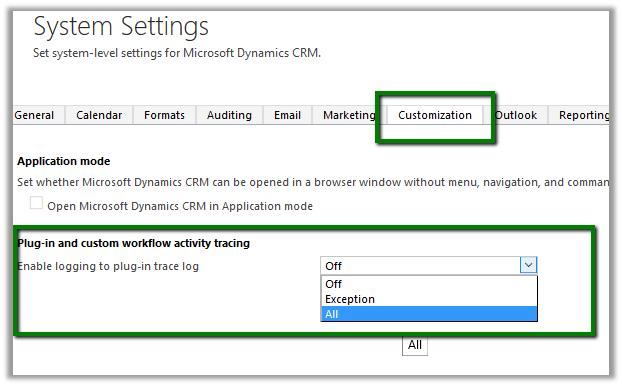
Go to Settings – Administration – System Settings

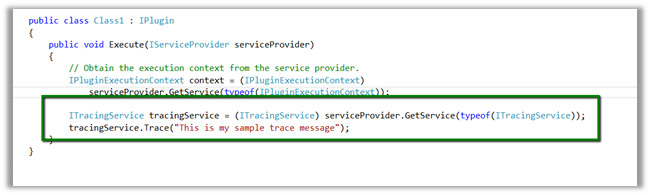
Here we have selected “All” for enable tracing and registered a sample plugin which only writes trace.

Now perform the event that will trigger the plugin.

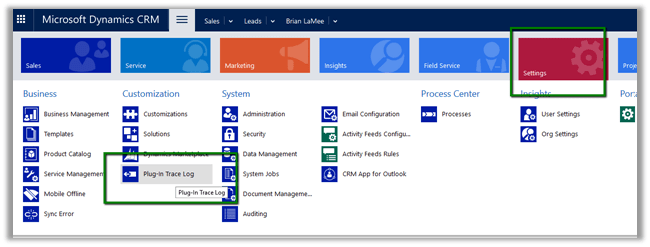
Go to Settings – Plugin Trace Logs

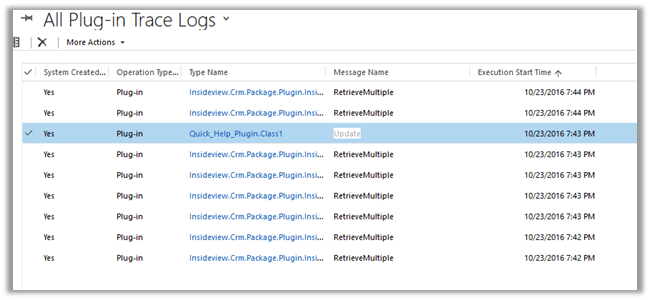
Open the Trace Log record

Trace message

In case of enable logging set as Off no trace log records will be created and in case of Exception only when exception occurs trace log record is created.

“Trace logs older than 24 hours are deleted by Bulk Deletion background job”

Hope it helps..

How to – Use RetrieveEntityChangeRequest to track changes in CRM 2015 / 2016.


As a first step,

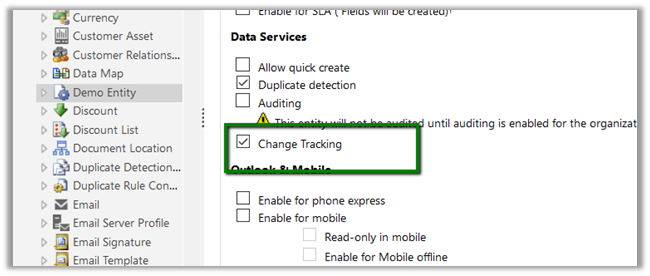
Enable Change Tracking for the entity, custom Demo Entity in our case here.
Suppose we have 5 records created for Demo Entity.
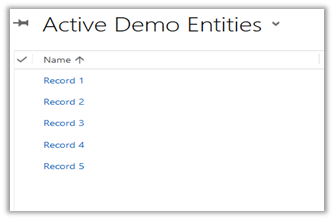
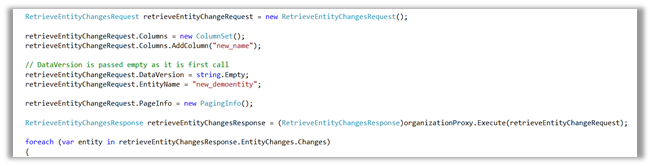
As we are calling it for the first time DataVersion is set as empty.
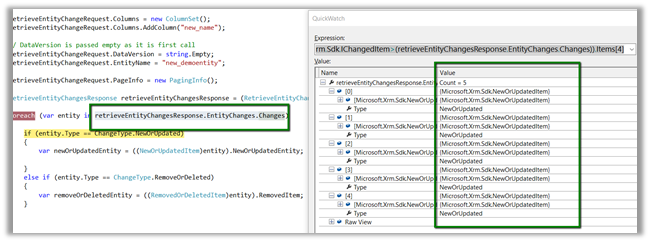
We got all the 5 records as new or updated item.
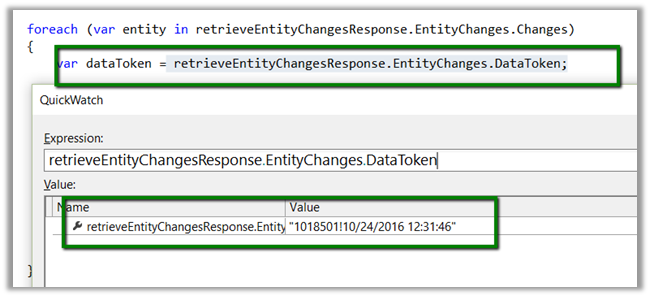
Save the DataToken to be used while determining the changes and to be passed next time.
Now let us delete Record 1 and Record 2 and update Record 5 and run the code again this time passing the DataToken saved
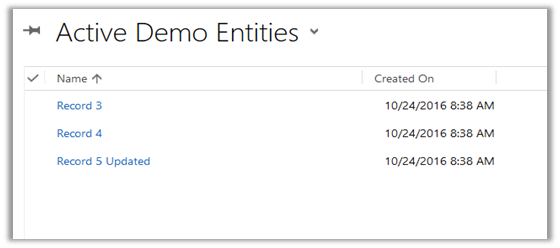
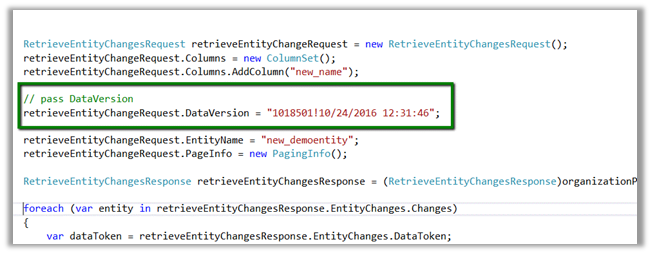
As expected we get 3 changes.
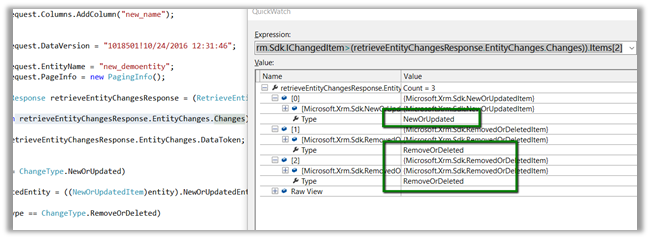
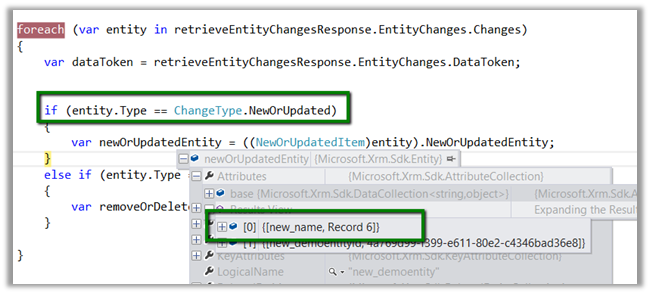
Now suppose we create a new record name Record 6 and still use the old Data Token

As expected we got 4 changes here, which includes the new record 6 as new or update.
Point to remember here is if no version is passed the system will return all the records as new, and system will consider records that are within 90 days, if it is older than 90 days all the records will be returned.

If we have a new record created and deleted before we retrieved for the changes and the record didn’t exist at the time of retrieval, we will still get the record as deleted.

Sample Code

</p>
<p>EntityCollection newOrUpdatedEntityCollection = new EntityCollection();<br />
EntityReferenceCollection removeOrDeletedEntityRefCollection = new EntityReferenceCollection();</p>
<p>RetrieveEntityChangesRequest retrieveEntityChangeRequest = new RetrieveEntityChangesRequest();<br />
retrieveEntityChangeRequest.Columns = new ColumnSet();<br />
retrieveEntityChangeRequest.Columns.AddColumn("new_name");</p>
<p>// pass DataVersion<br />
retrieveEntityChangeRequest.DataVersion = "1018501!10/24/2016 12:31:46";</p>
<p>retrieveEntityChangeRequest.EntityName = "new_demoentity";<br />
retrieveEntityChangeRequest.PageInfo = new PagingInfo();</p>
<p>RetrieveEntityChangesResponse retrieveEntityChangesResponse = (RetrieveEntityChangesResponse)organizationProxy.Execute(retrieveEntityChangeRequest);</p>
<p>foreach (var entity in retrieveEntityChangesResponse.EntityChanges.Changes)<br />
{<br />
var dataToken = retrieveEntityChangesResponse.EntityChanges.DataToken;</p>
<p>if (entity.Type == ChangeType.NewOrUpdated)<br />
{<br />
newOrUpdatedEntityCollection.Entities.Add(((NewOrUpdatedItem)entity).NewOrUpdatedEntity);<br />
}<br />
else if (entity.Type == ChangeType.RemoveOrDeleted)<br />
{<br />
removeOrDeletedEntityRefCollection.Add(((RemovedOrDeletedItem)entity).RemovedItem);<br />
}<br />
}</p>
<p>

Hope it helps ..

Advertisements

“Insights for Microsoft Dyanmics CRM Online” Solution for CRM 2016 – Quick Overview.


To configure it –

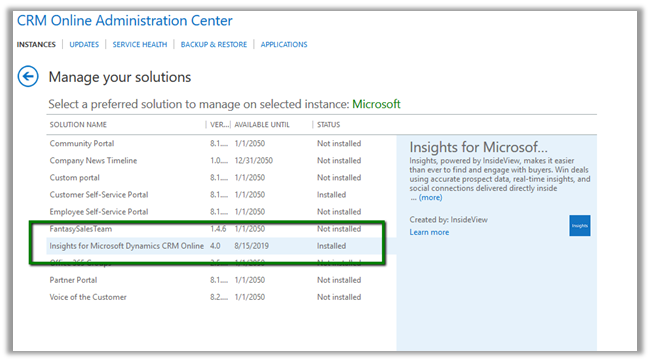
Go to CRM Admin – Manage your Solutions and Install “Insights for Microsoft Dynamics CRM Online”

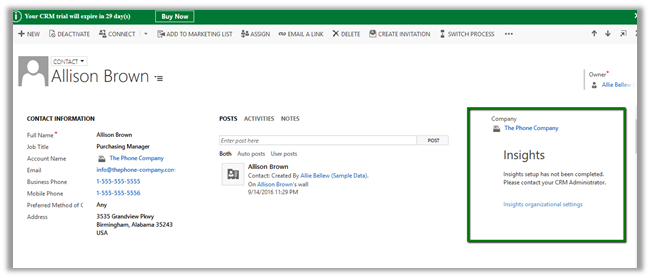
Once installed it will add a Web Resource to the forms for Lead, Contact, Account and Opportunity entity.

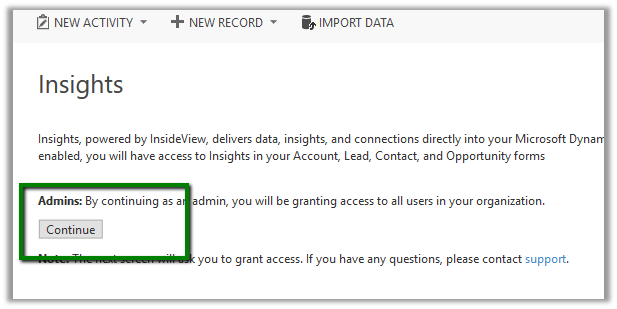
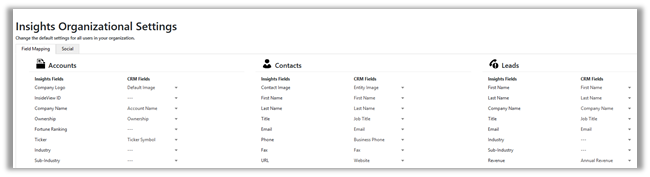
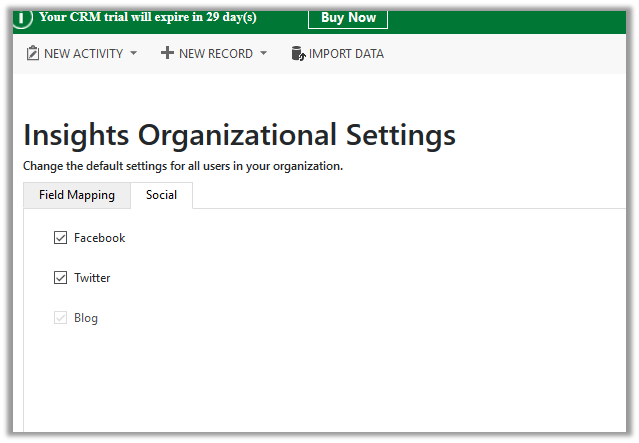
Click on Insights Organizational Settings in Insights Pane.

Configure the field mapping which can be used to update the CRM records.

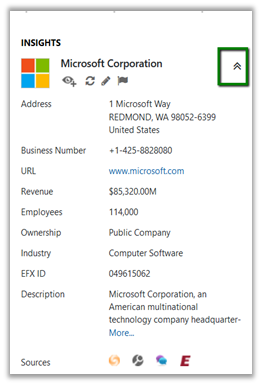
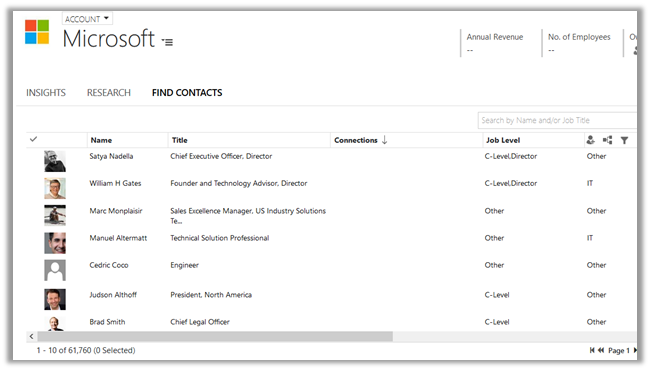
Once done with Organization Settings, on opening an Account Record for e.g. Microsoft

Clicking on Show Firmographics brings company details.

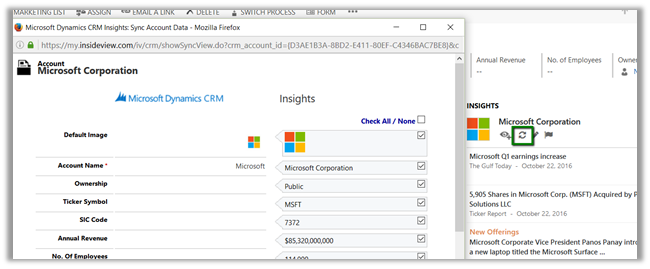
Sync or Update allows to update the CRM record.

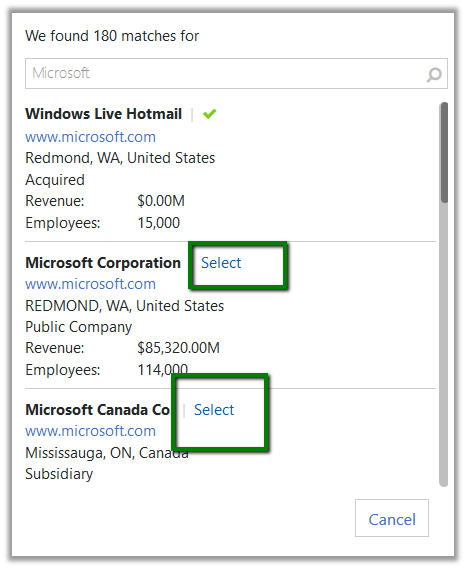
Edit button lets to select the correct contact\account etc. if incorrect

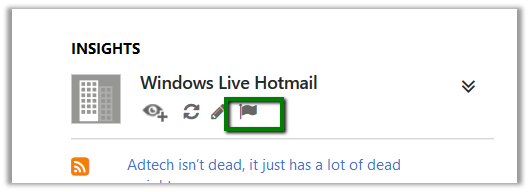
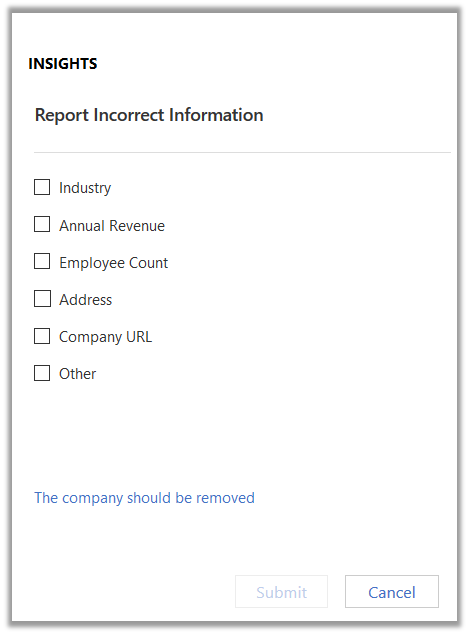
Flag can be used to report any incorrect information

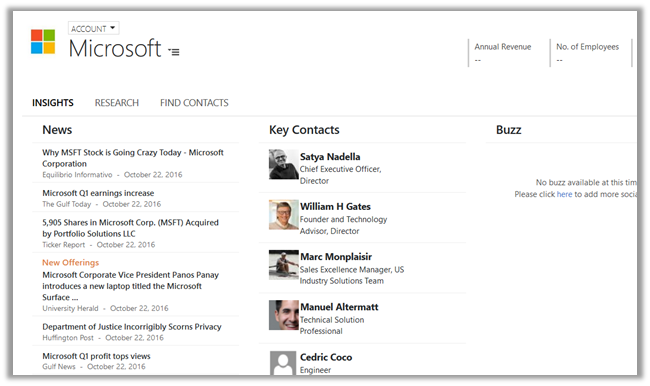
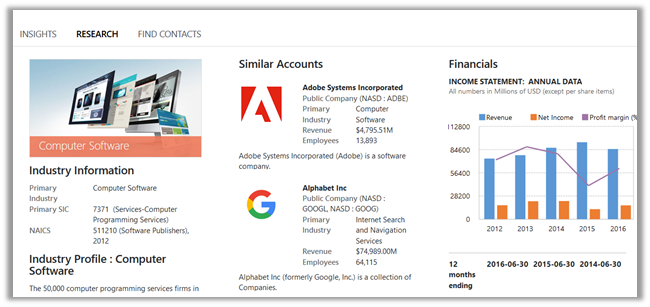
Clicking on Insights or any other options opens up a new page.

Insights: –

Research:-

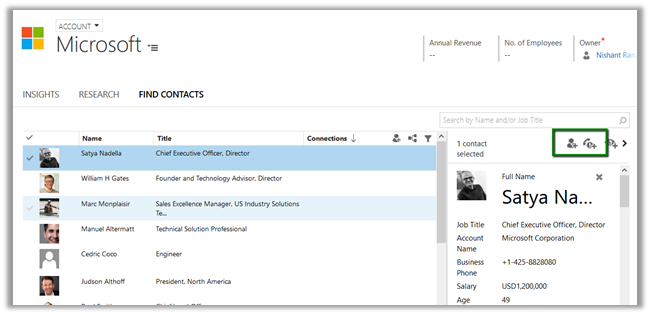
Find Contacts:-

Selecting a contact, gives an option to add the selected contact as either contact or lead inside CRM.

In next blog posts, would try covering all the other aspects \ features of Insights solution.

Hope it helps..
How to – Delete Components from Managed Solution in Dynamics CRM 2016 without using Holding Solution.

Before the updates that we have received for solution in CRM 2016 the only way to delete components from managed solution was to use Holding Solution.

The following post nicely explains this.

https://blogs.msdn.microsoft.com/devkeydet/2012/05/29/deleting-things-from-a-deployed-crm-2011-managed-solution-package/

Now let us see how we can do this in CRM 2016 without using Holding Solution.

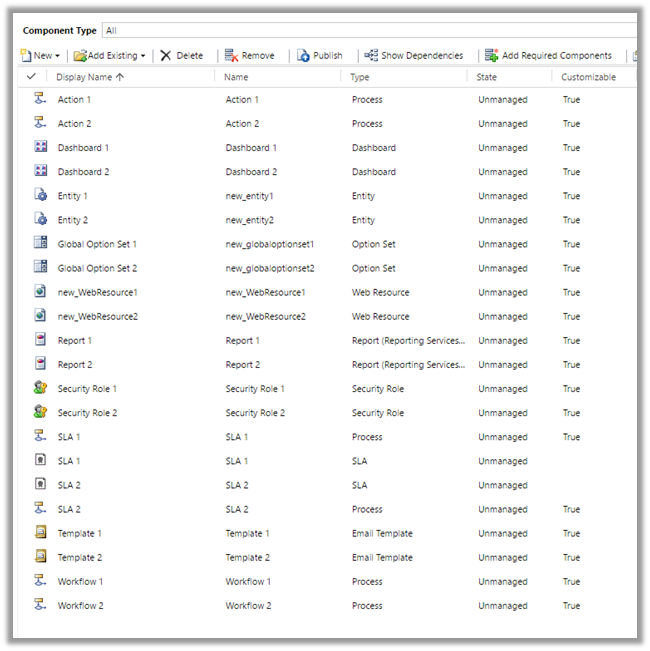
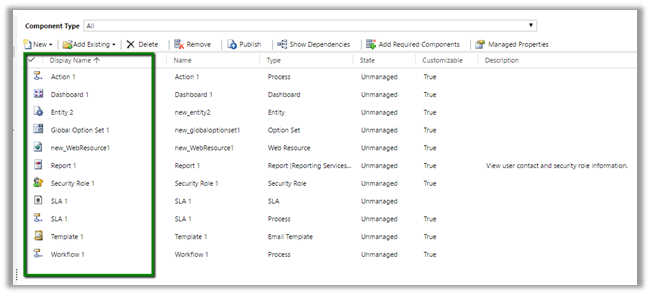
Suppose below is our managed solution that includes 2 Action, 2 Entity, 2 SLA, 2 Workflow.

Entity 2 with two forms.

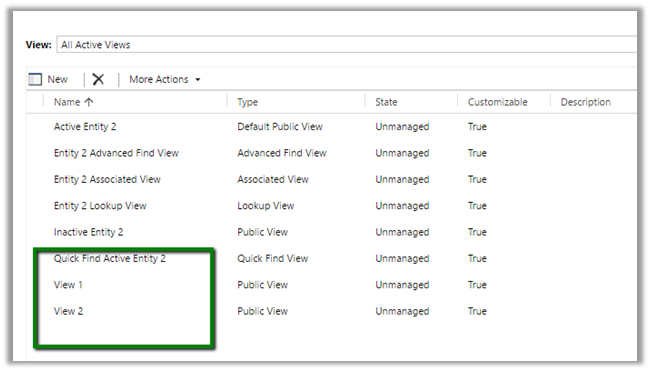
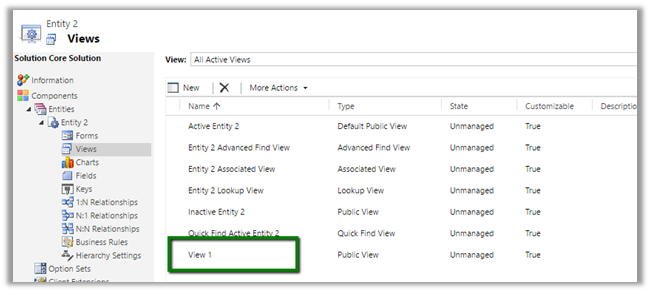
Entity 2 with 2 Views.

Entity 2 with two Fields.

Now import this solution as managed in destination org.

Now suppose we do not want following components in our Destination org – action 2, dashboard 2, Report 2, Security Role 2, Workflow 2 etc. along with View 2, Field 2 and Form 2 for Entity 2.

We remove some of the components and delete (field, form etc.) from our unmanaged solution (named Core Solution) which we had imported as Managed in our Destination Org.

Deleted View 2

Deleted Field 2

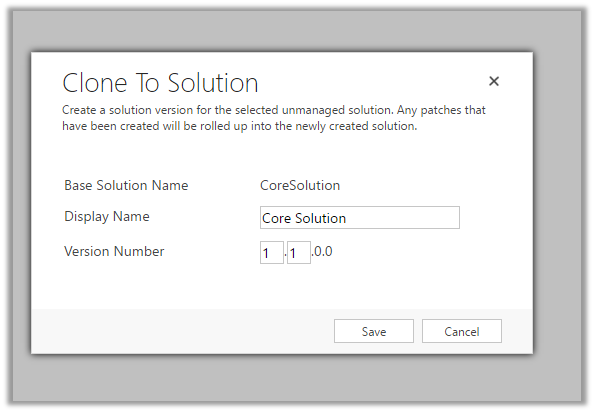
Now click on “Clone to Solution“. (This will increment the version number.)

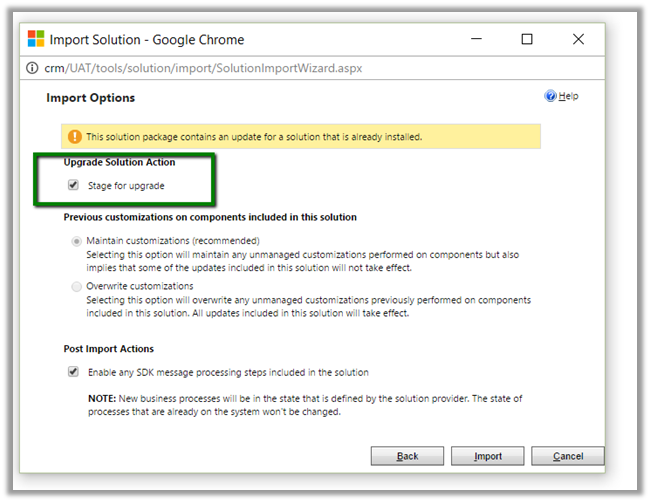
Now import this updated solution to our destination organization, and select “Stage for Upgrade

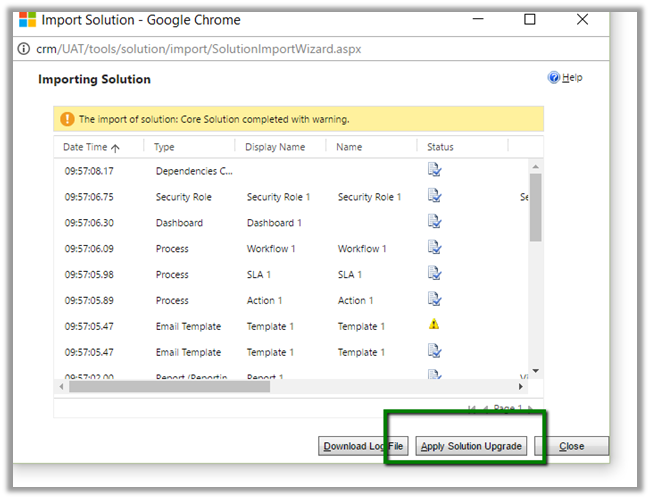
Click on “Apply Solution Upgrade

This will remove the components from our destination org.

The helpful post

http://www.inogic.com/blog/2016/08/how-to-delete-component-from-managed-solution-in-dynamics-crm-2016/

Hope it helps..

Nice Videos on understanding “Package Deployer Tool” and “Configuration Migration Tool” in CRM.


While going through various videos on Microsoft Dynamics CRM, found these 2 nice videos on Package Deployer Tool and Configuration Tool.

Do check it out

Hope it helps..