Alternate Keys in CRM 2015\CRM 2016


Let us look at a simple example to understand.

  • Suppose we have a custom entity name Demo Entity.
  • Create a new single line of text field named Alternate Key Field.
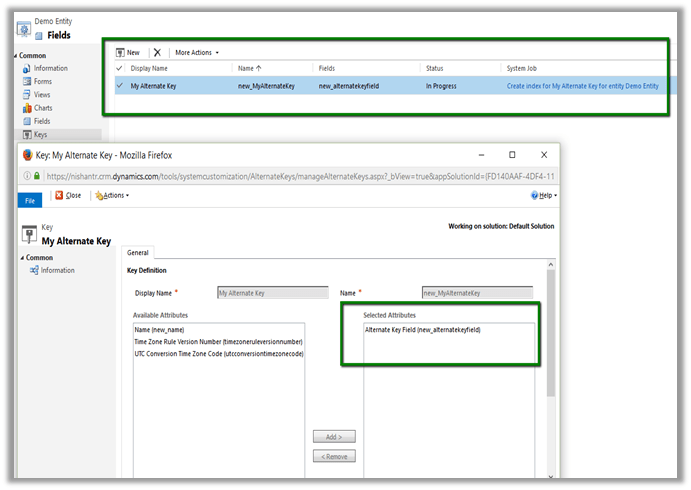
  • Create a new Alternate Key Field and specify the above field for it.

  • Click on “Create index for My Alternate Keys for entity Demo Entity” which will create an Index in CRM’s Database.
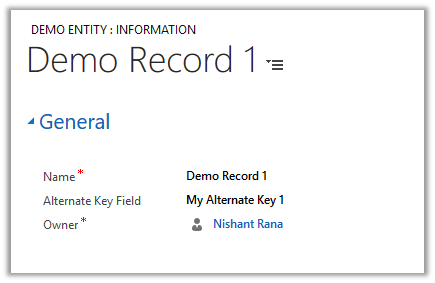
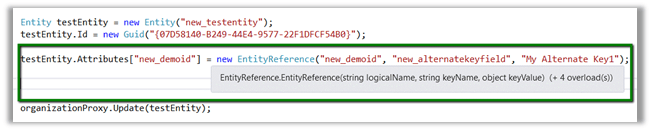
  • Let us update the following record using Alternate Key

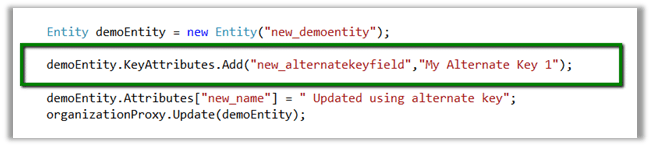
  • Sample code

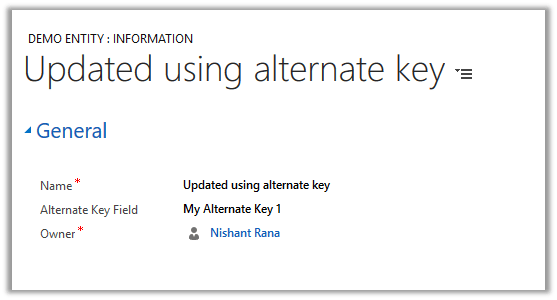
  • Updated record

  • Currently alternate key can only be defined on field type – string, integer and decimal.
  • The alternate key can be used for Entity Reference as well, wherein instead of specifying GUID we can now use alternate key.

Hope it helps..

Plug-in and Custom Workflow activity tracing in CRM 2015\CRM 2016.


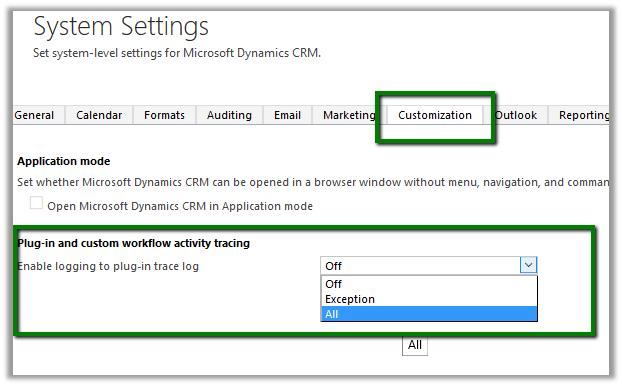
To configure it,

Go to Settings – Administration – System Settings

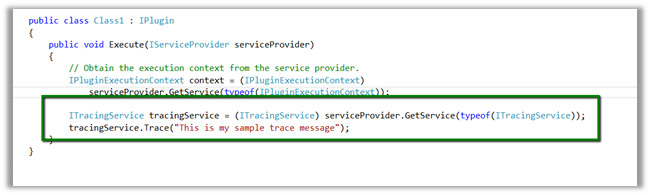
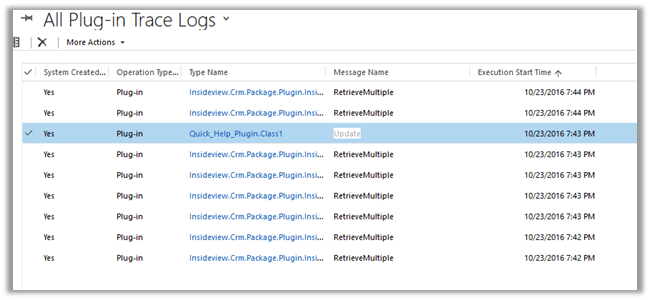
Here we have selected “All” for enable tracing and registered a sample plugin which only writes trace.

Now perform the event that will trigger the plugin.

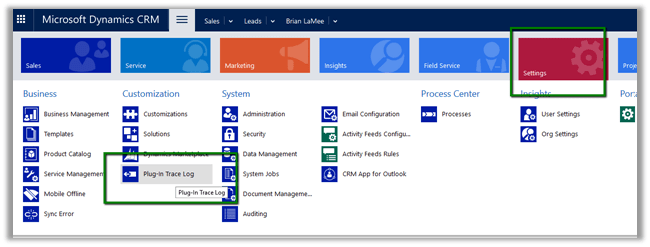
Go to Settings – Plugin Trace Logs

Open the Trace Log record

Trace message

In case of enable logging set as Off no trace log records will be created and in case of Exception only when exception occurs trace log record is created.

“Trace logs older than 24 hours are deleted by Bulk Deletion background job”

Hope it helps..

How to – Use RetrieveEntityChangeRequest to track changes in CRM 2015 / 2016.


As a first step,

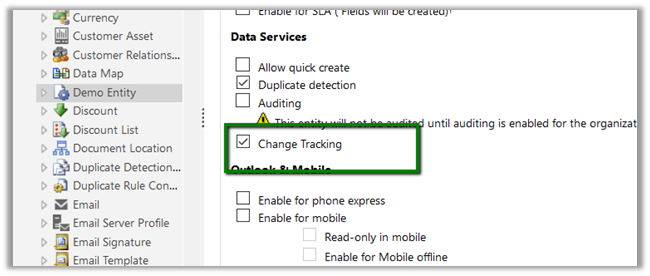
Enable Change Tracking for the entity, custom Demo Entity in our case here.
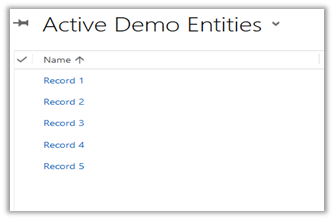
Suppose we have 5 records created for Demo Entity.
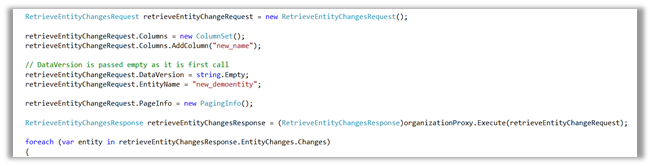
As we are calling it for the first time DataVersion is set as empty.
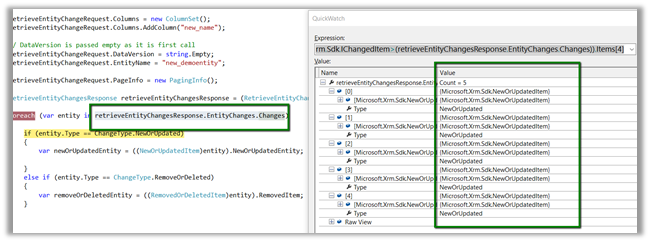
We got all the 5 records as new or updated item.
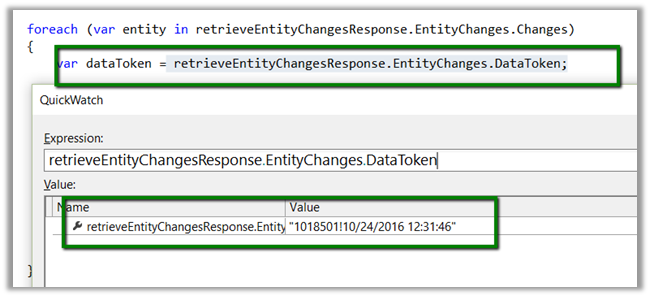
Save the DataToken to be used while determining the changes and to be passed next time.
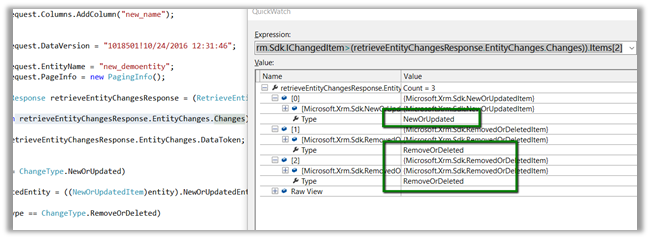
Now let us delete Record 1 and Record 2 and update Record 5 and run the code again this time passing the DataToken saved
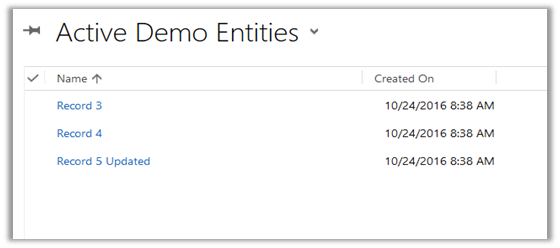
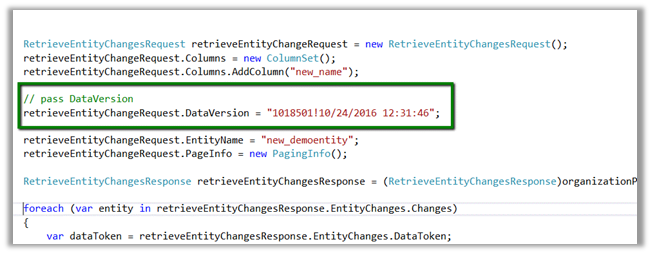
As expected we get 3 changes.
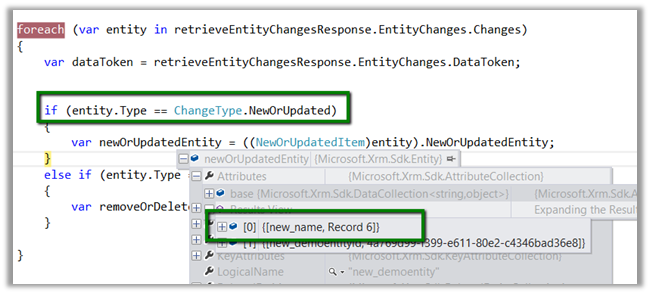
Now suppose we create a new record name Record 6 and still use the old Data Token

As expected we got 4 changes here, which includes the new record 6 as new or update.
Point to remember here is if no version is passed the system will return all the records as new, and system will consider records that are within 90 days, if it is older than 90 days all the records will be returned.

If we have a new record created and deleted before we retrieved for the changes and the record didn’t exist at the time of retrieval, we will still get the record as deleted.

Sample Code

</p>
<p>EntityCollection newOrUpdatedEntityCollection = new EntityCollection();<br />
EntityReferenceCollection removeOrDeletedEntityRefCollection = new EntityReferenceCollection();</p>
<p>RetrieveEntityChangesRequest retrieveEntityChangeRequest = new RetrieveEntityChangesRequest();<br />
retrieveEntityChangeRequest.Columns = new ColumnSet();<br />
retrieveEntityChangeRequest.Columns.AddColumn("new_name");</p>
<p>// pass DataVersion<br />
retrieveEntityChangeRequest.DataVersion = "1018501!10/24/2016 12:31:46";</p>
<p>retrieveEntityChangeRequest.EntityName = "new_demoentity";<br />
retrieveEntityChangeRequest.PageInfo = new PagingInfo();</p>
<p>RetrieveEntityChangesResponse retrieveEntityChangesResponse = (RetrieveEntityChangesResponse)organizationProxy.Execute(retrieveEntityChangeRequest);</p>
<p>foreach (var entity in retrieveEntityChangesResponse.EntityChanges.Changes)<br />
{<br />
var dataToken = retrieveEntityChangesResponse.EntityChanges.DataToken;</p>
<p>if (entity.Type == ChangeType.NewOrUpdated)<br />
{<br />
newOrUpdatedEntityCollection.Entities.Add(((NewOrUpdatedItem)entity).NewOrUpdatedEntity);<br />
}<br />
else if (entity.Type == ChangeType.RemoveOrDeleted)<br />
{<br />
removeOrDeletedEntityRefCollection.Add(((RemovedOrDeletedItem)entity).RemovedItem);<br />
}<br />
}</p>
<p>

Hope it helps ..

Advertisements

Nice Videos on understanding “Package Deployer Tool” and “Configuration Migration Tool” in CRM.


While going through various videos on Microsoft Dynamics CRM, found these 2 nice videos on Package Deployer Tool and Configuration Tool.

Do check it out

Hope it helps..

“​SharePoint Attachment Extractor & Metadata Manager” tool for Microsoft Dynamics CRM


Two of the most common requirements of the users while using OOB CRM and SharePoint integration have been

  • To associate some sort of metadata with the  document being uploaded from CRM
  • Moving attachments from notes of a particular record to the corresponding folder in SharePoint.

Finally we have a tool than enhances the Out the box integration between CRM and SharePoint and provides these features (in a fully supported manner)

Get all the details here :

https://debajmecrm.com/2016/10/05/new-tool-dynamics-crm-sharepoint-metadata-manager-attachment-extractor/

The tool has been developed by one of my closest friends and now also a MVP for Microsoft Dynamics CRM – Debajit Dutta.

The ‘distinct’ attribute is not declared error while trying to import solution in CRM 2016 (and earlier)


Hi,

Got this error while trying to import a managed solution in CRM 2016 Online.

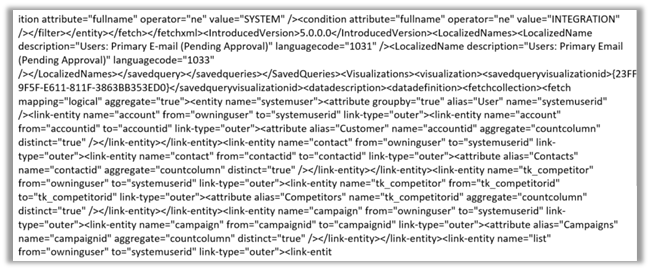
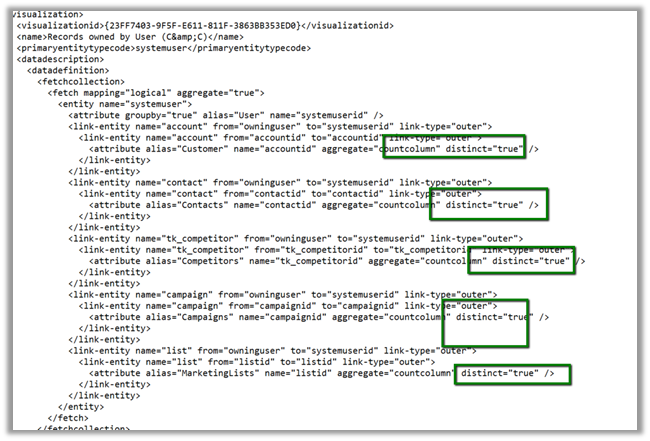
During analysis we figured out that it was pointing to one of the charts created for System User Entity. It seemed like chart’s xml was modified after export and then imported. The xml definition of the chart contained distinct keyword.

Removing the distinct keyword from the Chart definition and importing it back and then importing the managed solution with this updated chart got imported without any error.

Hope it helps..