Using addNotification to Simulate Dynamic Tooltips (Dataverse / Dynamics 365)


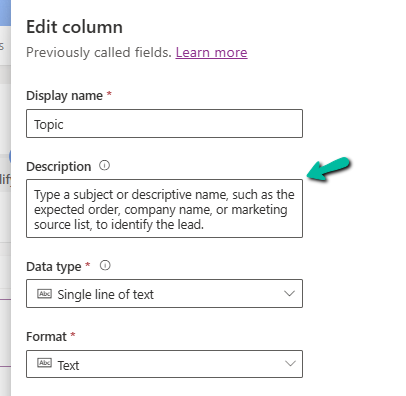
When working with forms in Dynamics 365 / Power Apps model-driven apps, we often customize field labels based on context, using the setLabel method. At times, we would also like to change the tool tip to go with the changed label of the field. The tooltip is defined as a Description of the field.

Below is the Topic (subject) field of the lead.
A screenshot of a computer

AI-generated content may be incorrect.

However, we cannot set the tool tip (description) of the field dynamically in the form using the Client API. So, what do we do when the meaning of a field changes depending on another value on the form? That’s where addNotification comes in as a handy workaround.

Let us take a simple example to see how we can use it. On the Lead form, the Topic(subject) field means different things depending on the Lead Source. So here we will be changing the label of the Topic (subject) field, along with setting a different notification message.

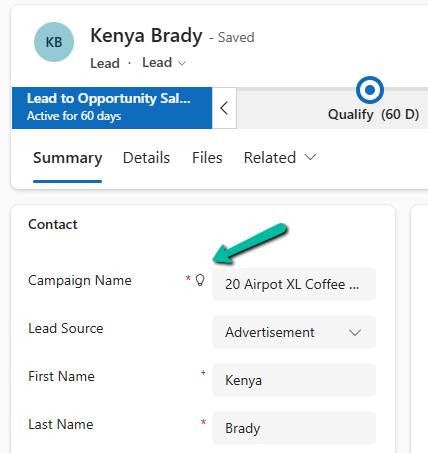
For e.g., if Lead Source – Advertisement, we are changing the label to Campaign Name. We can also notice the bulb icon next to the field.
A screenshot of a computer

AI-generated content may be incorrect.

Clicking on it, we can see our message –

A screenshot of a web page

AI-generated content may be incorrect.

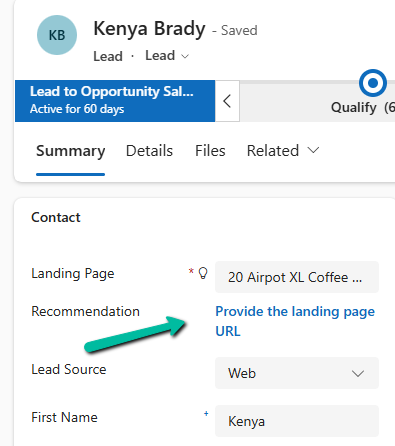
Similarly, on changing the Lead Source to Web, we are changing the label to Landing Page, and clicking on the icon, we can see a different message.
A screenshot of a web page

AI-generated content may be incorrect.

Sample Code –

function updateSubjectField(executionContext) {
	
    var formContext = executionContext.getFormContext();
    var leadSourceAttr = formContext.getAttribute("leadsourcecode");
    var subjectControl = formContext.getControl("subject");
   
    subjectControl.clearNotification("subjectTooltip");

    var leadSource = leadSourceAttr ? leadSourceAttr.getValue() : null;

    if (leadSource === 1) { 
        // 1 = Advertisement
        subjectControl.setLabel("Campaign Name");
        subjectControl.addNotification({
            messages: ["Enter the name of the ad campaign"],
            notificationLevel: "RECOMMENDATION",
            uniqueId: "subjectTooltip"
        });
    }
    else if (leadSource === 2) { 
        // 2 = Referral
        subjectControl.setLabel("Referrer Notes");
        subjectControl.addNotification({
            messages: ["Mention details about the referrer"],
            notificationLevel: "RECOMMENDATION",
            uniqueId: "subjectTooltip"
        });
    }
    else if (leadSource === 8) { 
        // 3 = Web
        subjectControl.setLabel("Landing Page");
        subjectControl.addNotification({
            messages: ["Provide the landing page URL"],
            notificationLevel: "RECOMMENDATION",
            uniqueId: "subjectTooltip"
        });
    }
    else {
        // Default
        subjectControl.setLabel("Subject");
    }
}

While addNotification isn’t a perfect replacement for a native tooltip, it’s a practical workaround when we need dynamic, context-aware user guidance.

Hope it helps..

Advertisements

Using gridContext.refreshRibbon() to Dynamically Show/Hide a Subgrid Ribbon Button – Dynamics 365 / Dataverse


In Dynamics 365 / Dataverse, sometimes we want to show or hide a ribbon button based on a form field value. But when the button is on a subgrid, it does not refresh automatically when a field changes on the form. We can handle this requirement using gridContext.refreshRibbon(). It is a small but very useful method that helps to refresh the subgrid ribbon without saving or reloading the form.

Here we are taking a simple scenario to understand the usage.

We will only show the New Case button on the Case Subgrid if the Preferred Method of Contact = Any else we will hide it.

A screenshot of a computer

AI-generated content may be incorrect.

Below is our JavaScript function to check the field value and return true or false. This function will be used as CustomRule for our Add New button command’s EnableRule on the subgrid. This function checks if the Preferred Method of Contact is ‘Any’. If yes, it returns true. Otherwise, it returns false.

A screen shot of a computer code

AI-generated content may be incorrect.

We are passing CRM Parameter = PrimaryControl here.

Depending on where the button lives (Form ribbon or Subgrid ribbon), the correct context is passed.

  • On a form: PrimaryControl is the formContext.
  • On a Subgrid: PrimaryControl gives the context of the parent form hosting the subgrid.

Below we have customized the Add New Subgrid button for Case and added a new Enable Rule for its command.

A screenshot of a computer

AI-generated content may be incorrect.

Now on the form load, the Add New button on the subgrid will be hidden on the form load event.

But when we change the value for the Preferred Method of Contact we will not see any effect on the Add New button. For it to work we need to use the refershRibbon method of the grid’s context as shown below.

We added it on the onChange event for the Preferred Method of Contact field so that when a user changes it, the subgrid ribbon refreshes.

A screen shot of a computer code

AI-generated content may be incorrect.

Now, when a user changes the Preferred Method of Contact, the subgrid ribbon will refresh and check again if the button should be visible.

As a result, now the Add New button appears on the Case subgrid when the Preferred Method of Contact is ‘Any’.

A screenshot of a computer

AI-generated content may be incorrect.

The ribbon refreshes immediately when the field changes to Email or any other value except Any.No need to save or reload the form.

A screenshot of a computer

AI-generated content may be incorrect.

JavaScript –

function showAddNewButtonOnCaseSubgrid(primaryControl) {
    var formContext = primaryControl;
    var preferredMethod = formContext.getAttribute("preferredcontactmethodcode");    
    var preferredMethodValue = preferredMethod.getValue();
    // Check if Preferred Method is 'Any' 
    if (preferredMethodValue === 1) {
        return true;
    }
    else {
        return false;
    }
}
function refreshCaseSubgridRibbon(executionContext) {
    var formContext = executionContext.getFormContext();
    var gridContext = formContext.getControl("Subgrid_Cases");  
    if (gridContext) {
        gridContext.refreshRibbon();  
    }
}

The helpful post – https://butenko.pro/2019/04/16/refreshing-the-ribbon-form-vs-grid/

Hope it helps..

Advertisements

Using External Value property of Choice / Option Set Field for Integration – Dynamics 365 / Dataverse


When working with Choice fields (Option Sets) in Dataverse, we mostly use the label and internal numeric value. But there’s also a lesser-known property — External Value — which can be quite handy, especially in integration scenarios.

Below is the Priority column of the case table.

A screenshot of a computer

AI-generated content may be incorrect.

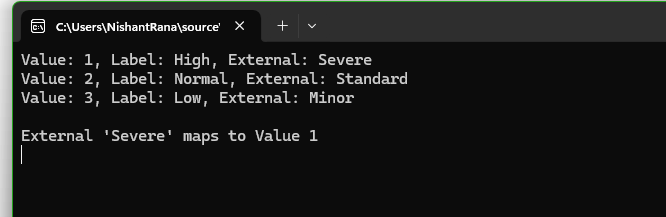
We have Severe, Moderate, and Minor external values specified for High, Normal, and Low choices respectively. These external values could be how the external third-party system is tracking the priority values to which we are integrating.

The external system sends us “priority”:” high” and we map that to the internal value 1 in Dataverse.

While sending data to the external system we convert the internal value to the external code i.e. 1 to. High

Below is how we can read the external values.

     var myServiceClient = new CrmServiceClient(connectionString);     

        if (myServiceClient.IsReady)
        {
            var request = new RetrieveAttributeRequest
            {
                EntityLogicalName = "incident",
                LogicalName = "prioritycode",
                RetrieveAsIfPublished = true
            };

            var response = (RetrieveAttributeResponse)myServiceClient.Execute(request);
            var picklistMetadata = (PicklistAttributeMetadata)response.AttributeMetadata;

            foreach (var option in picklistMetadata.OptionSet.Options)
            {
                Console.WriteLine($"Value: {option.Value}, Label: {option.Label?.UserLocalizedLabel?.Label}, External: {option.ExternalValue}");
            }

            string ext = "Severe";
            var match = picklistMetadata.OptionSet.Options.FirstOrDefault(o => o.ExternalValue == ext);
            if (match != null)
            {
                Console.WriteLine($"\nExternal '{ext}' maps to Value {match.Value}");
            }

        }
A screenshot of a computer

AI-generated content may be incorrect.

Using External values, we can decouple integrations from the internal values that we use for our choice column. By using them, we can speak the language of the external system while still maintaining proper structure and metadata within Dataverse.

Hope it helps..

Advertisements

Querying / Filtering MultiSelect Choice / OptionSet Fields in Dataverse / Dynamics 365


MultiSelect OptionSet (Choices) fields in Dataverse provide a flexible way to store multiple values within a single field. However, querying and filtering these fields require different techniques depending on the approach used.

In this blog post, we will explore various ways to filter records based on the Skills field (cr1a7_skills), which has the following values:

Name

Value

C#

255780000

Java

255780001

Python

255780002

We have the Skills (choices) field in our Contact table.

The query is to fetch all the contact records where skills includes C# or Java.

Filtering Using FetchXML

FetchXML allows filtering MultiSelect Option Set fields using the contain-values operator.

<fetch>
  <entity name="contact">
    <attribute name="fullname" />    
    <filter>
      <condition attribute="cr1a7_skills" operator="contain-values">
        <value>255780000</value>
        <value>255780001</value>
      </condition>
    </filter>
  </entity>
</fetch>

Filtering Using QueryExpression (C#)

Using QueryExpression, we can apply the ContainValues condition to filter Multi

var query = new QueryExpression("contact");
query.ColumnSet.AddColumns("fullname");
query.Criteria.AddCondition("cr1a7_skills", ConditionOperator.ContainValues, 255780000, 255780001);

Filtering Using OData (Web API)

OData allows filtering MultiSelect Option Set fields using the ContainValues function.

https://orgname.crm.dynamics.com/api/data/v9.2/contacts?$select=fullname,createdon,modifiedon,statecode&$filter=(Microsoft.Dynamics.CRM.ContainValues(PropertyName='cr1a7_skills',PropertyValues=['255780000','255780001']))

Filtering Using SQL4CDS (XrmToolBox)

If you’re using the SQL4CDS tool in XrmToolBox, you can filter MultiSelect Option Set fields using LIKE conditions.

SELECT contactid,
       fullname
FROM   contact
WHERE  statecode = 0
       AND (cr1a7_skills = '255780000'
            OR cr1a7_skills LIKE '255780000,%'
            OR cr1a7_skills LIKE '%,255780000,%'
            OR cr1a7_skills LIKE '%,255780000'
            OR cr1a7_skills = '255780001'
            OR cr1a7_skills LIKE '255780001,%'
            OR cr1a7_skills LIKE '%,255780001,%'
            OR cr1a7_skills LIKE '%,255780001'            
            );

Filtering Using LINQ (C#)

For LINQ queries, MultiSelect Option Sets must be processed as OptionSetValueCollection.


        if (myServiceClient.IsReady)
        {
            using (var context = new OrganizationServiceContext(myServiceClient))
            {

                var skillValues = new List<int> { 255780000, 255780001 };              
                              
                var allContacts = context.CreateQuery("contact")
                .Where(c => c["cr1a7_skills"] != null &&
                            (int)c["statecode"] == 0)
                .ToList();                
              
                var filteredContacts = allContacts
                    .Where(c => ((OptionSetValueCollection)c["cr1a7_skills"])
                                .Select(osv => osv.Value)
                                .Any(skill => skillValues.Contains(skill)))
                    .Select(c => new
                    {
                        ContactId = c["contactid"],
                        FullName = c.Contains("fullname") ? c["fullname"].ToString() : string.Empty
                    })
                    .ToList();

                var result = filteredContacts;

            }
        }

Get more detailed information

Hope it helps..
Customizing Business Process Flows: Stage Validation Using JavaScript (Dynamics 365 / Dataverse)


Business Process Flows (BPF) in Dynamics 365 offer a structured way to guide users through a defined process. However, there are scenarios where progression to the next stage must be validated against specific business rules. In this blog, we see how to implement custom validations on stage progression using JavaScript.

Let us take a simple scenario where a Lead can only progress to the next stage of a BPF if

Lead Quality = Hot and Lead Source = Web

If these conditions are not met, users will receive a notification, and the stage change will be prevented.

Below is the sample code


function OnLoad(executionContext)
{
 var formContext = executionContext.getFormContext();
 formContext.data.process.addOnPreStageChange(validateStageProgression);
}


function validateStageProgression(executionContext)
{
	    var bpfSampleStage = "6e2b5d9e-da30-4a47-8ca9-d75c24fd51f4";
        var formContext = executionContext.getFormContext();
		var rating = formContext.getControl('header_process_leadqualitycode').getAttribute().getValue();
		var leadSource = formContext.getControl('header_process_leadsourcecode').getAttribute().getValue();
		var stageObj = formContext.data.process.getActiveStage();
        var stageId = stageObj.getId();
		var requiredFieldErrorId = "contractValidationNotificationId";
        formContext.ui.clearFormNotification(requiredFieldErrorId);
		
		if(stageId)
		{
			 if (stageId.toLowerCase() === bpfSampleStage)
			 {
				  if (executionContext.getEventArgs().getDirection() === "Next") 				  
				{
                    executionContext.getEventArgs().preventDefault();
					if(rating == 1 && leadSource == 8) // rating = Hot and Source = Web
					{
						formContext.data.process.removeOnPreStageChange(validateStageProgression);
                        formContext.data.process.moveNext();
					}	
					else
					{
						notificationMessage = "Cannot move to the next stage until conditions are met !";
						formContext.ui.setFormNotification(notificationMessage, "ERROR", requiredFieldErrorId)
					}
				}
			 }
		}
}

The addOnPreStageChange method registers the validation function on the form’s load event to monitor stage changes.

The preventDefault() method stops the stage transition if the conditions are not met, ensuring data integrity.

If the validation fails, an error notification is displayed using the setFormNotification() method, guiding users to correct the data.

Upon satisfying the conditions, moveNext() is invoked programmatically to move the process to the next stage.

As shown below, clicking on Next as rating and lead source values do not satisfy the condition, we can see the notification on the form and the user is not able to move to the next stage.

Also check – https://nishantrana.me/2024/10/09/use-javascript-to-enable-a-field-only-if-the-stage-is-active-in-business-process-flow-dynamics-365-dataverse/

https://nishantrana.me/2024/10/10/use-javascript-to-add-onchange-event-to-a-field-in-the-business-process-flow/

https://nishantrana.me/2024/10/23/javascript-for-fields-in-business-process-flow-few-key-points-dataverse-dynamics-365/

Hope it helps..

Advertisements

Disable recent records (Disable most recently used items) for the Lookup field used in the Business Process Flow (Dataverse / Dynamics 365)


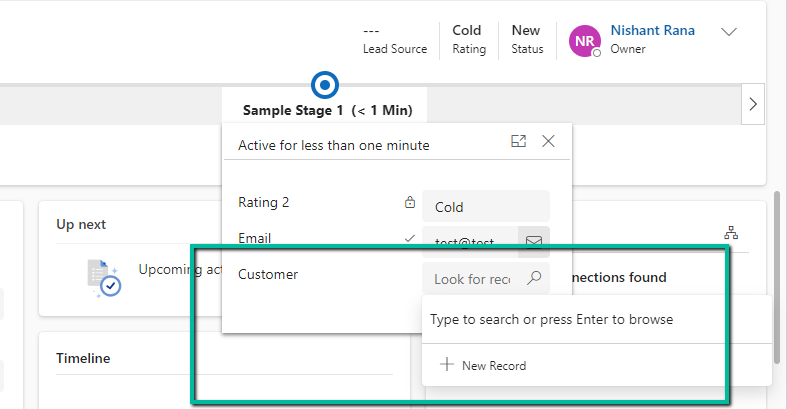
Suppose we have the below Customer Lookup in the Sample Stage of a Business Process Flow.

As we can see the lookup shows the Recent records there.

A screenshot of a computer

Description automatically generated

Now say we have applied filtering to the lookup using addPreSearch so we need to disable the recent records options in it.

To do so for the fields in BPF –

Open the corresponding table of the BPF (will have the same name as BPF)

A hand pointing to a computer screen

Description automatically generated

Open the form, select the Customer (lookup) field from the Tree View, and check the Disable most recently used items (save and publish the change)

A screenshot of a computer

Description automatically generated

As expected we can now see the recent records options not appearing for the Customer lookup in the BPF.

A screenshot of a computer

Description automatically generated

Hope it helps..

Advertisements