Recently in one of our custom pages, we had to set the default value (DefaultSelectedItems) of the combo box based on one of the lookup fields on the record. We were opening the custom page from the ribbon button on the form.
Below is our function to pass the record’s GUID to the custom page from the button.
    openSearchCustomPage: function (primaryControl, firstPrimaryItemId) {
        var pageInputCustom = {
            pageType: 'custom',
            name: 'custom_searchproduct_570ed',
            entityName: 'lead',
            recordId: firstPrimaryItemId
        };

        var navigationOptions = {
            target: 2,
            position: 1,
            width: 1350
        };

        Xrm.Navigation.navigateTo(pageInputCustom, navigationOptions).then(
            function success(result) {
                console.log(result);
            },
            function error(error) {
                console.log(error);
            }
        );
    }
Next in App’s OnStart, we are setting the GUID of the record to a variable first, and than setting another variable to store the GUID of the Region lookup field on that record.
// text variable passed by the form / webresource/ ribbon
Set(varEnquiryIdWithoutCurlyBraces,GUID(Substitute(Substitute(Param("recordId"),"{",""),"}","")));

// get the Region Of Interest from the Lead / Enquiry ID
// If value present use it for prefiltering the Gallery Items
Set(varRegionOfInterest,LookUp(Enquiries,Lead=varEnquiryIdWithoutCurlyBraces, 'Region of Interest'));
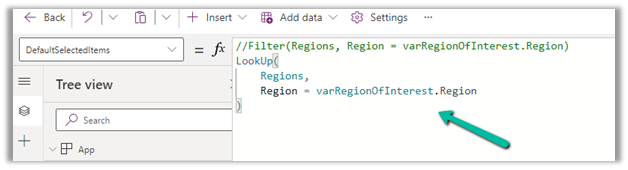
And lastly, for the combo box (Items = Region (custom table)), we are setting the DefaultSelectedItems as follows
LookUp(Regions,Region=varRegionOfInterest.Region)
We also tried using the Filter option, but it was giving incorrect values.
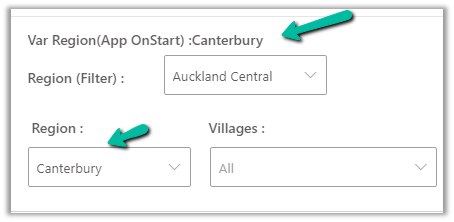
The value on the form –
The value in the Custom Page –
Correct value populated for combo box Region, and incorrect for the one using Filter formula
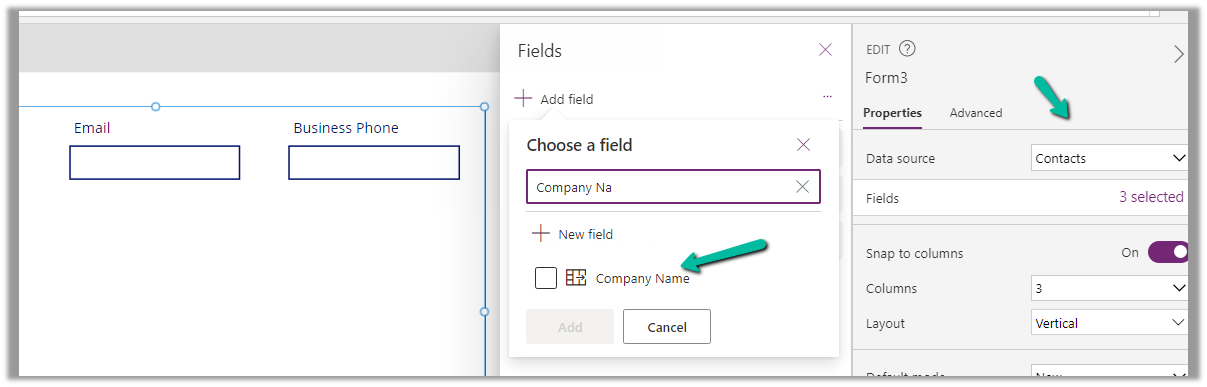
For this example, we are taking the Company Name customer lookup column of the contact table.
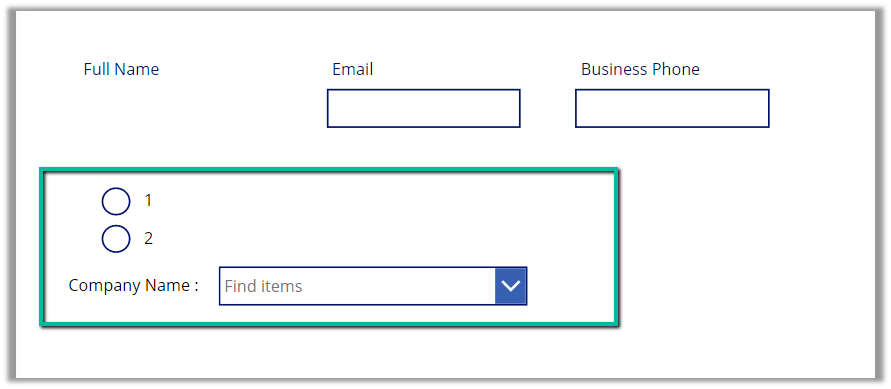
We start by adding the Customer Name field to the form.
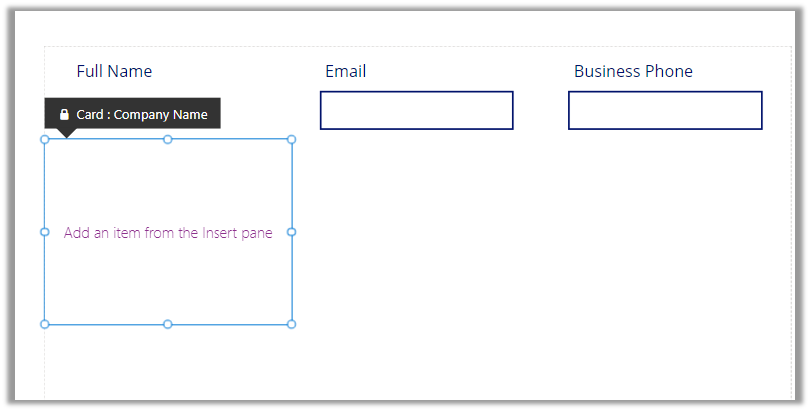
That adds a card to the form, let us add the required controls to get it working
Radio Button, Combo box, and Text Label for the combo box.
Change the Items property of the radio button to show the contact and account option.
Also, change the Layout to Horizontal and Default as Contact.
And set the Items property of the Combo box as below –
Based on the value selected in the radio button, we are setting the Data Source and also applying the Sort and Distinct function to it, along with StartsWith for delegation.
We have also set Allow searching as On for the combo box.
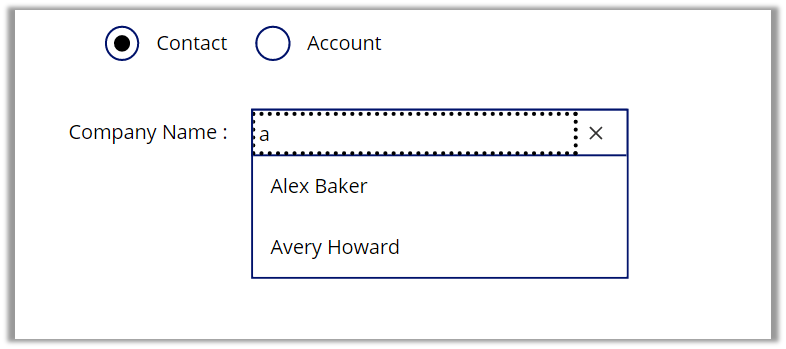
For the Contact option selected –
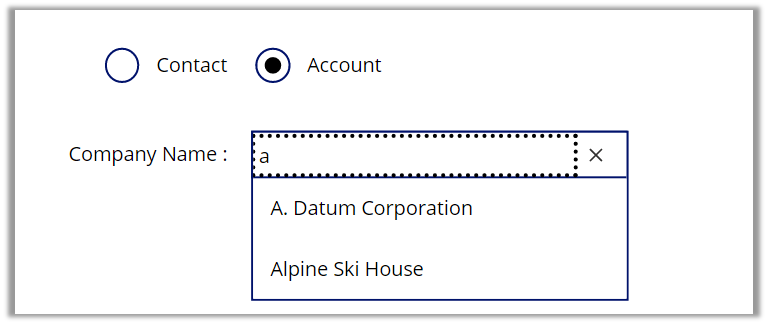
For the Account option selected –
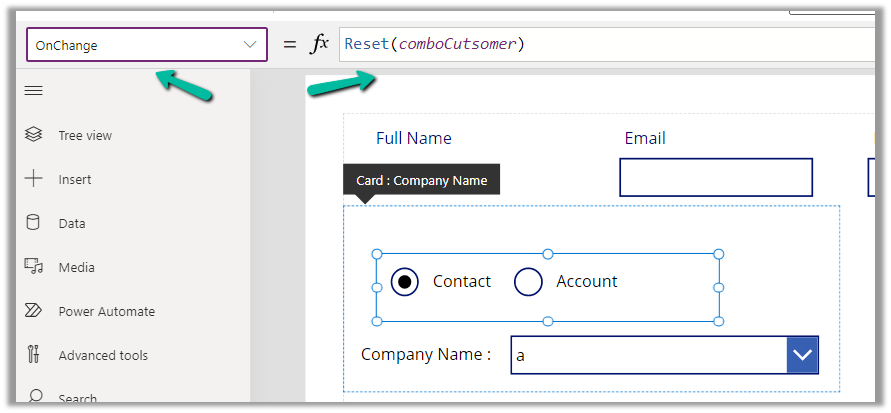
Also, we can set the OnChange property of the radio button to Reset(comboControl) to clear the selection when the user switches between Contact and Account options.
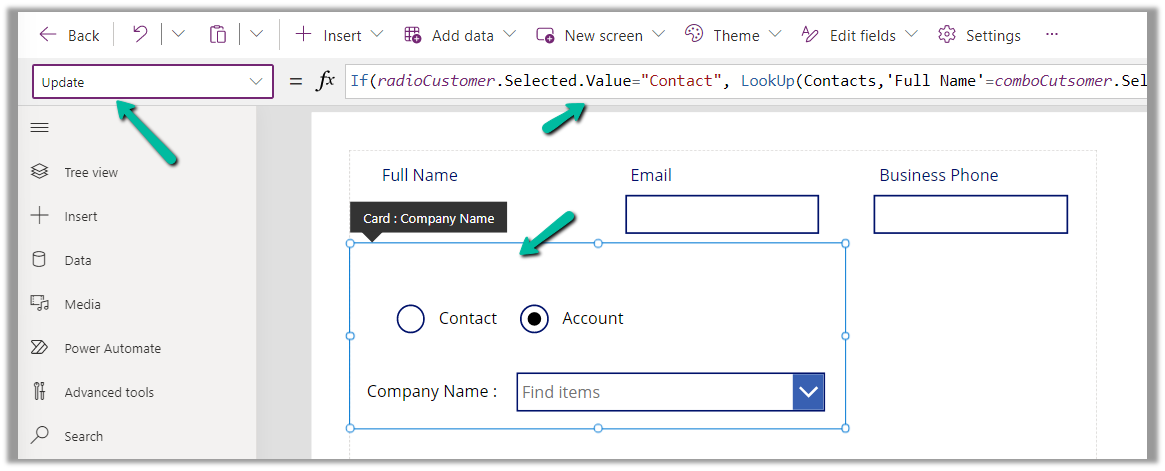
Now to have this value saved back we can specify the Update property of the custom data card in which we have placed these controls.
Recently we faced an issue wherein the custom page was not loading any data, however, it was working for users with the System Administrator role.
The gallery control shows the Product details.
There were no errors in the Developer Tools, we tried by giving all Organization level rights to the users on the tables involved etc. but that didn’t help.
Eventually, it all came down to this particular line in the formula used for the Items property of the Gallery Control i.e. Asset Status field (custom field).
We had a field security profile created which had Read set as No and the users were part of that security profile, which explained why it was only working for System Admin users.
Changing the Read access to Yes for that column fixed the issue for us.
Recently in one of the custom pages (canvas app), we started getting the below error “Error when trying to retrieve data from the network” and no data was being retrieved.
Decreasing the data row limit to 500 from 2000 seemed to fix this issue for us.
I assume it could be because of the number of records increasing in the environment over time causing this issue.
Interestingly after a few days when we tried to check the root cause of the issue, by increasing the row limit back to 2000, we weren’t getting that error anymore.









 And set the Items property of the Combo box as below –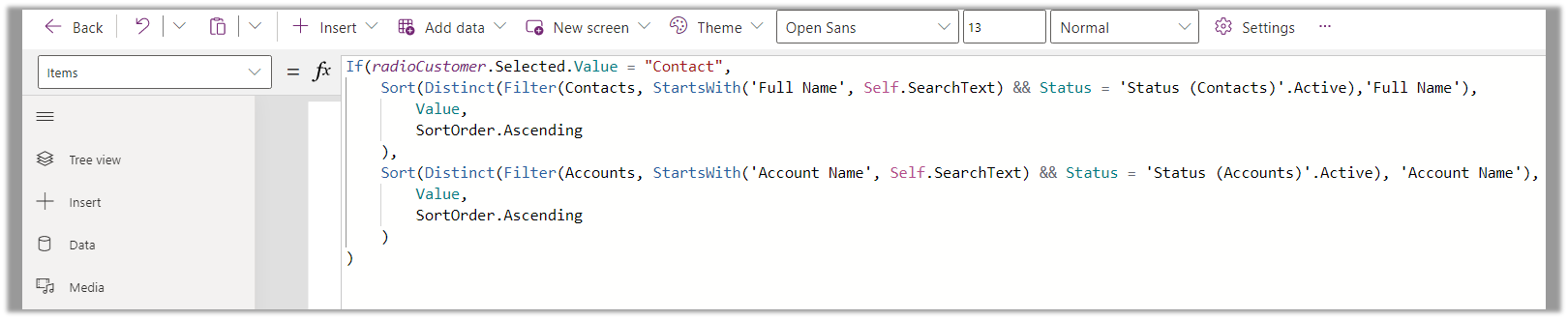











 Nishant Rana's Weblog