Fixed – Flow not getting triggered / incorrect callback registration record (Power Automate / Dataverse)


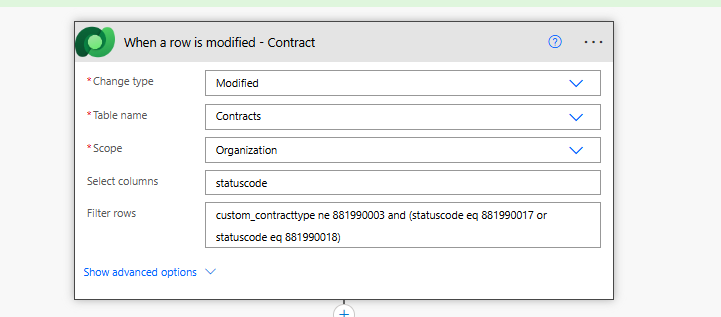
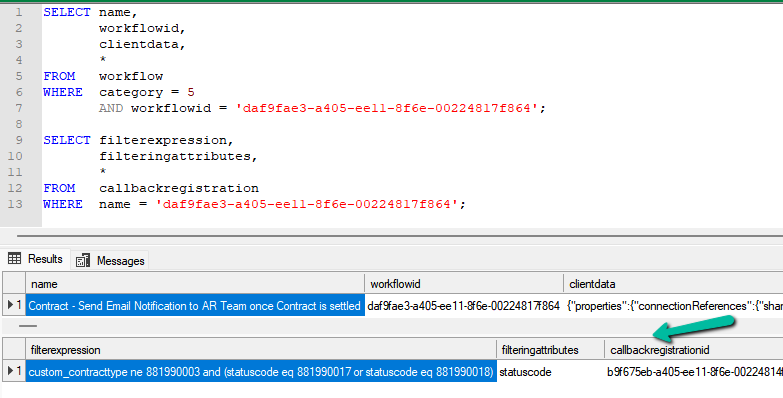
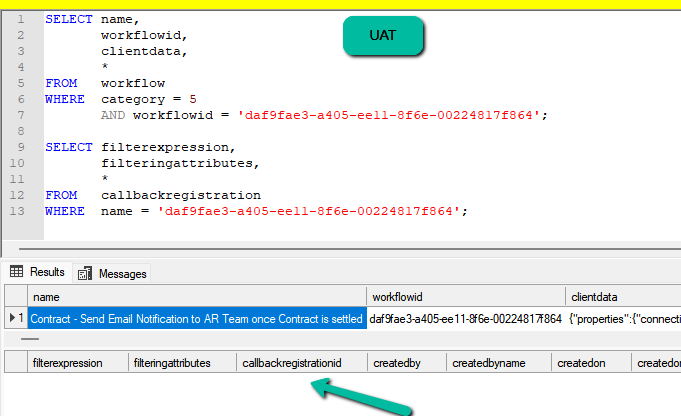
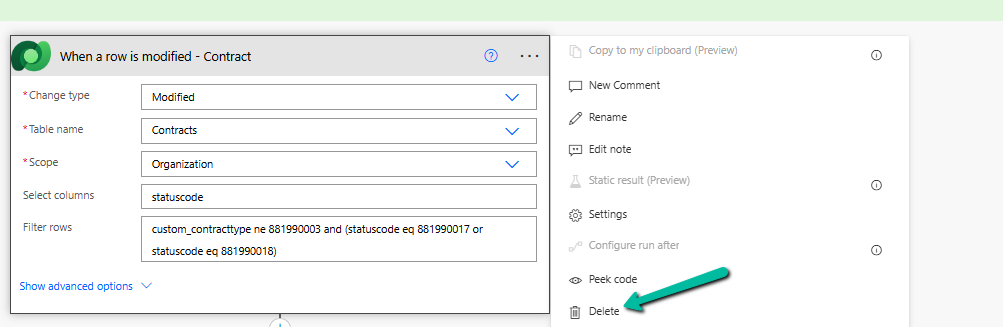
Recently, we faced an interesting issue, where we updated an existing flow in our Dev, basically we removed the Filter Rows condition and deployed it to UAT.

Before

Now

In our Dev, it was working fine, getting triggered on the update of the field specified in the Select Columns; however, after deployment to UAT, it was still getting triggered only on the old filter condition, which we had already removed.

Turning off and on the Cloud Flow didn’t help.

The client data did not have the Filter rows condition.

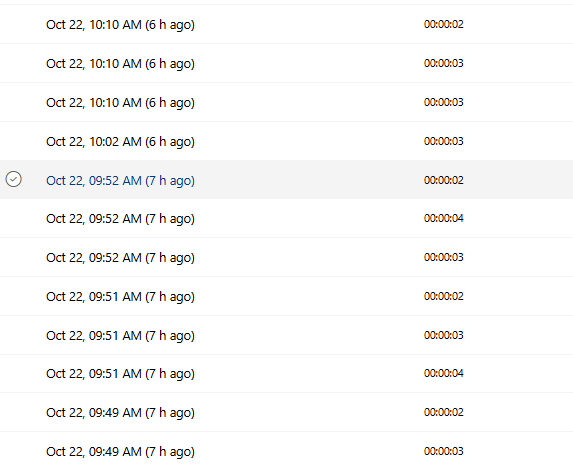
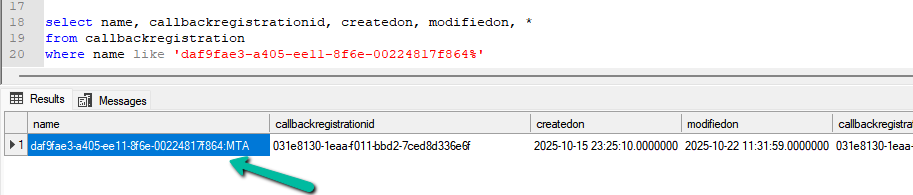
Interestingly, we can still see the filter expression existing for the callback registration record of that flow in our UAT.

A screenshot of a computer

AI-generated content may be incorrect.

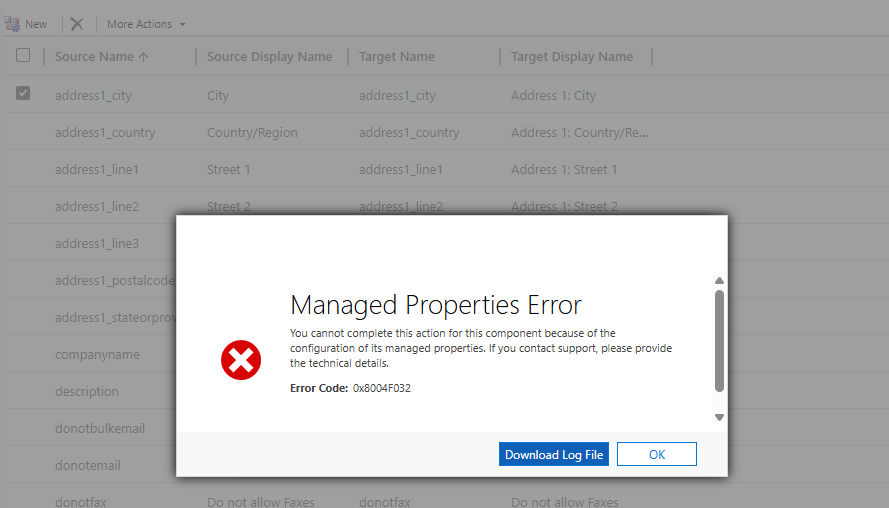
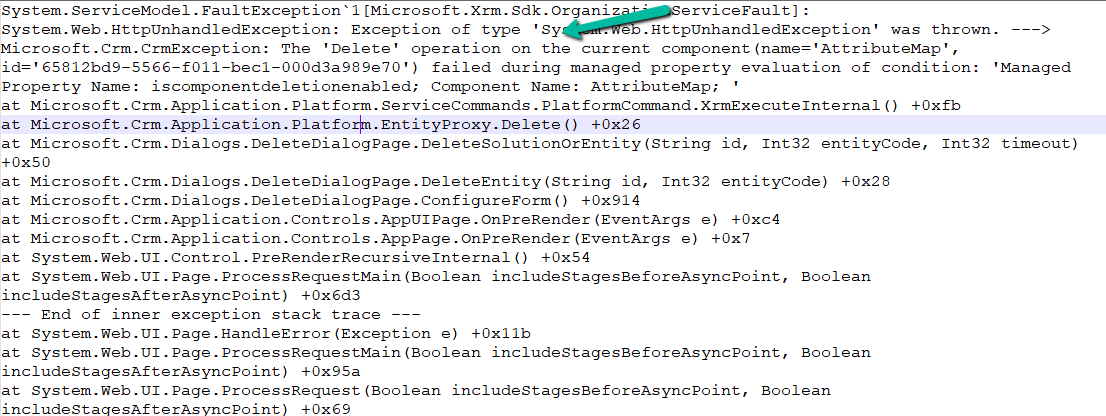
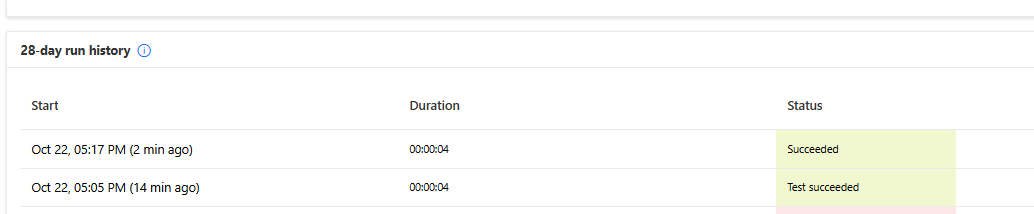
Eventually, we deleted the Callback registration record, turned the flow off and on, and it created the correct Callback Registration record with filter expression as null this time.

A computer screen shot of a computer

AI-generated content may be incorrect.

This fixed the issue, and our flow got triggered correctly.

More on Callback Registration

Fixed- Flow not getting triggered (Callback Registration)– Power Automate / Dataverse

Hope it helps.

Advertisements

Few handy SQL Queries (SQL4CDS) – Dataverse / Dynamics 365


Sharing some the queries we had used in our projects recently-

1) Get the list of table with audit enabled –

SELECT   logicalname,
         displayname,
         isauditenabled
FROM     metadata.entity
WHERE    isauditenabled = 1
ORDER BY logicalname;

2) Get the list of fields per table with audit enabled –

SELECT   entitylogicalname,
         logicalname AS columnname,
         displayname,
         isauditenabled
FROM     metadata.attribute
WHERE    isauditenabled = 1
         AND entitylogicalname IN (SELECT logicalname
                                   FROM   metadata.entity
                                   WHERE  isauditenabled = 1)
ORDER BY entitylogicalname, columnname;

3) Get the total number of activity records by different activity type

SELECT   activitytypecodename,
         activitytypecode,
         Count(activitytypecode) AS Total
FROM     activitypointer
GROUP BY activitytypecode, activitytypecodename
ORDER BY Total DESC;

4) Get the Time Zone information of all the users –

SELECT   su.fullname,
         su.domainname,
         us.timezonecode,
         tz.userinterfacename,
         tz.standardname
FROM     usersettings AS us
         INNER JOIN
         systemuser AS su
         ON us.systemuserid = su.systemuserid
         LEFT OUTER JOIN
         timezonedefinition AS tz
         ON us.timezonecode = tz.timezonecode
ORDER BY su.fullname;

5) Get the list of cloud flows where a specific field is referred / used –

SELECT wf.name,
       wf.workflowid,
       wf.clientdata
FROM   workflow AS wf
WHERE  wf.category = 5
       AND LOWER(wf.clientdata) LIKE '%custom_actualsettlementdate%';

6) Get the list of Business Rules in the environment –

SELECT   primaryentity,
         primaryentityname,
         workflowid,
         workflow.name AS BusinessRuleName,
         workflow.ismanaged,
         statecode,
         statecodename,
         categoryname
FROM     workflow
         INNER JOIN
         entity
         ON workflow.primaryentity = entity.objecttypecode
WHERE    category = 2
ORDER BY primaryentity;

7) Get the list of Plugin Registration Steps where a particular attribute is used in the Image

SELECT 
    spi.sdkmessageprocessingstepimageid,
     s.name AS StepName,
    spi.name AS ImageName,
    spi.imagetype,
    spi.attributes,
    s.name AS StepName,
    m.name AS MessageName,
    e.name AS EntityName
FROM 
    sdkmessageprocessingstepimage spi
INNER JOIN 
    sdkmessageprocessingstep s ON spi.sdkmessageprocessingstepid = s.sdkmessageprocessingstepid
INNER JOIN 
    sdkmessagefilter f ON s.sdkmessagefilterid = f.sdkmessagefilterid
INNER JOIN 
    sdkmessage m ON f.sdkmessageid = m.sdkmessageid
INNER JOIN 
    entity e ON f.primaryobjecttypecode = e.objecttypecode
WHERE 
    spi.attributes LIKE '%custom_myfield%'
ORDER BY 
    EntityName, MessageName

8) Get the list of Security Role and total number of users assigned that role –

SELECT   r.name AS RoleName,
         COUNT(DISTINCT sur.systemuserid) AS AssignedUsers
FROM     systemuserroles AS sur
         INNER JOIN
         role AS r
         ON sur.roleid = r.roleid
GROUP BY r.name
ORDER BY AssignedUsers DESC;

9) Get number of security roles assigned per user –

SELECT   u.systemuserid,
         u.fullname,
         COUNT(sur.roleid) AS RoleCount
FROM     systemuser AS u
         INNER JOIN
         systemuserroles AS sur
         ON u.systemuserid = sur.systemuserid
GROUP BY u.systemuserid, u.fullname
ORDER BY RoleCount DESC;

10 ) Get the list of security roles assigned to a particular user

SELECT 
    su.systemuserid,
    su.fullname AS UserName,
    r.roleid,
    r.name AS RoleName,
    r.businessunitidname AS BusinessUnit
FROM systemuser su
INNER JOIN systemuserroles sur 
    ON su.systemuserid = sur.systemuserid
INNER JOIN role r 
    ON sur.roleid = r.roleid
where sur.systemuserid = '415a2261-d9b4-ea11-a812-000d3a6aaf70'

11) Get the list of users and security roles assigned to them

SELECT 
    u.systemuserid,
    u.fullname AS UserName,
    u.domainname AS UserDomain,
    u.isdisabled AS IsDisabled,
    u.businessunitidname AS BusinessUnit,
    STRING_AGG(r.name, ', ') AS SecurityRoles       
FROM systemuser u
INNER JOIN systemuserroles ur 
    ON u.systemuserid = ur.systemuserid
INNER JOIN role r 
    ON ur.roleid = r.roleid
WHERE u.isdisabled = 0 
  AND u.accessmode = 0              -- Only interactive users
  AND u.domainname NOT LIKE '#%'    -- Exclude system/app users
GROUP BY 
    u.systemuserid, u.fullname, u.domainname, u.isdisabled, u.businessunitidname, u.accessmode
ORDER BY u.fullname;

12 ) List all custom plugins (non-Microsoft assemblies)

SELECT   pt.plugintypeid,
         pt.name AS className,
         pa.name AS assemblyName,
         pa.version,
         pa.culture,
         pa.publickeytoken
FROM     plugintype AS pt
         INNER JOIN
         pluginassembly AS pa
         ON pt.pluginassemblyid = pa.pluginassemblyid
WHERE    pa.ismanaged = 0 -- custom (not managed solution)
ORDER BY pa.name, pt.name;

13) List of all table, plugin name and steps registered for custom plugins (to be used to compare between different environment)

SELECT   COALESCE (e.name, 'Global') AS entity,
         pa.name AS assemblyName,
         pt.name AS pluginClass,
         COUNT(s.sdkmessageprocessingstepid) AS stepCount
FROM     sdkmessageprocessingstep AS s
         INNER JOIN
         plugintype AS pt
         ON s.eventhandler = pt.plugintypeid
         INNER JOIN
         pluginassembly AS pa
         ON pt.pluginassemblyid = pa.pluginassemblyid
         LEFT OUTER JOIN
         sdkmessagefilter AS f
         ON s.sdkmessagefilterid = f.sdkmessagefilterid
         LEFT OUTER JOIN
         entity AS e
         ON f.primaryobjecttypecode = e.objecttypecode
WHERE    pa.ismanaged = 0   -- only custom plugins
GROUP BY COALESCE (e.name, 'Global'), pa.name, pt.name
ORDER BY entity, pa.name, pt.name;

14) Plugins by Execution Mode (Sync vs Async)

SELECT   COALESCE (e.name, 'Global') AS entity,
         SUM(CASE WHEN s.mode = 0 THEN 1 ELSE 0 END) AS syncCount,
         SUM(CASE WHEN s.mode = 1 THEN 1 ELSE 0 END) AS asyncCount
FROM     sdkmessageprocessingstep AS s
         INNER JOIN
         plugintype AS pt
         ON s.eventhandler = pt.plugintypeid
         INNER JOIN
         pluginassembly AS pa
         ON pt.pluginassemblyid = pa.pluginassemblyid
         LEFT OUTER JOIN
         sdkmessagefilter AS f
         ON s.sdkmessagefilterid = f.sdkmessagefilterid
         LEFT OUTER JOIN
         entity AS e
         ON f.primaryobjecttypecode = e.objecttypecode
WHERE    pa.ismanaged = 0
GROUP BY COALESCE (e.name, 'Global')
ORDER BY syncCount DESC;
Advertisements
Advertisements

Fixed – Workflow must be in Published state (Dynamics 365 Field Service)


Recently, we got the following error while booking a resource in our schedule board. We earlier got the same error while trying to delete bookable resource booking records.

We could not figure out the workflow or SLA that could be responsible for the issue.

Eventually, turning on the Use Enhanced Background Processing (Preview) option in Field Service Settings >> Other fixed the issue for us.

Use Enhanced Background Processing (Preview)

In Field Service, a bunch of background jobs take care of things like managing Agreements. Normally, this uses the tried-and-tested workflows. However, we can flip on the new preview option that uses Power Automate Flows instead. This can help in tricky cases—like when the Agreement owner no longer has access to Dynamics 365. We could see this option enabled in our other environments, and this environment was a copy of one of them, so that could be the reason it worked in our case.

Also check –

https://community.dynamics.com/forums/thread/details/?threadid=65c9c51f-26e3-442c-bd87-4892a61b8ee4

https://community.dynamics.com/forums/thread/details/?threadid=8ceeb26f-bc7e-4a22-b2b6-672ef89c6401

Get more information

Hope it helps..
Advertisements

Using AI to Build Tables and Fields in Dynamics 365 with PowerMakerAI’s AI Entity Builder & Visualizer (Tool Showcase)


Recently, I came across a very interesting tool called PowerMakerAI, developed by a fellow community member. I felt it’s worth sharing here because it directly helps us in one of the most common and time-consuming tasks — creating tables and fields in Dynamics 365.

Creating custom entities and fields in Microsoft Dynamics 365 is essential — but let’s be honest, it’s often tedious and time-consuming. Navigating through multiple forms, selecting field types, defining metadata, and ensuring consistency takes significant effort, especially for complex data models.

That’s where PowerMakerAI’s AI Entity Builder with Visualizer comes in.

🎯 What is the AI Entity Builder?

The AI Entity Builder is a natural language-powered tool that lets you create complete entity definitions by simply describing what you need — just like talking to a junior developer.

Instead of clicking through menus or filling out field properties manually, you can say:

“Create an entity called ‘Customer Feedback’ with fields for Name, Email, Rating (1-5), Comments, and Submitted On.”

PowerMakerAI understands your intent and instantly generates a complete schema, including:

  • Logical names
  • Display names
  • Field data types
  • Required levels
  • Primary field selection
  • Relationship suggestions (coming soon)
A screenshot of a computer

AI-generated content may be incorrect.

👁️ Visualizer: See What You’re Building — Instantly

One of the most powerful additions is the interactive schema visualizer.

Once your entity is generated, the visualizer shows you:

  • All attributes in a structured format
  • Field types (text, number, option set, date, etc.)
  • Required vs optional fields
  • Entity-level metadata
  • [Coming Soon] Relationships with other entities

You can drag, zoom, and explore your schema visually — no need to switch back and forth between the Dynamics UI and your schema documentation.

A screenshot of a computer

AI-generated content may be incorrect.

🧠 How It Works (Under the Hood)

PowerMakerAI uses a combination of:

  • Natural Language Understanding (NLU): To detect intent, field names, data types, and relationships.
  • CRM Schema Intelligence: Built-in logic that maps certain keywords to CRM field types (e.g., “status” = OptionSet, “submitted on” = DateTime).
  • Dynamic Validations: Prevents common issues like duplicate logical names or unsupported characters.

It then presents the results in human-readable formats.


⚡ Benefits

  • 🕒 Save Hours: No more manual field creation
  • 💬 Speak Requirements: Great for functional consultants too
  • 📦 Deployment-Ready: Export and import with minimal edits
  • 🧩 Visual Confidence: Know what you’re building before you build it
  • 👥 Perfect for Teams: Let non-technical users define schema, and devs just approve and deploy

🧪 Example Use Case

A marketing team wants a “Campaign Response” entity. Instead of submitting a spec document and waiting for dev time, they use PowerMakerAI:

“Create a Campaign Response entity with Contact, Campaign Name, Response Type (dropdown), Notes, and Created On.”

💡 In under 30 seconds, the entire entity is ready, visualized, and exportable.


🚧 Coming Soon

We’re just getting started. Upcoming features include:

  • 🔁 Relationship suggestions (1:N, N:N)
  • ✅ Auto-validation for solution compatibility
  • 📤 One-click push to your CRM environment
  • 🔄 Integration with PowerMakerAI’s chatbot for conversational updates

💬 Try It Yourself

You can explore PowerMakerAI yourself here: https://powermakerai.com. The creators are currently offering it free during beta.

Advertisements

Understanding Date and Time Field Behavior in Dataverse


When working with Date and Time fields in Dataverse, one of the most confusing parts is how values are stored in the backend vs. how they are displayed to users in different time zones.

For data type – Date and Time, we can specify Format as Date Only and Date and Time, and Time zone adjustment as User Local, Time Zone Independent for (Date and Time), and Date only, User Local, Time Zone Independent for (Date Only).

A screenshot of a computer screen

AI-generated content may be incorrect.

If we have specified during creation or changed the Time zone adjustment of the field to Date Only and Time Zone Independent from the user local, we cannot change it back to user local. (unless we modify the customizations.xml – more on it https://nishantrana.me/2025/08/05/fixing-date-shift-issue-after-changing-dateonly-field-from-time-zone-independent-to-user-local-dataverse-dynamics-365/ )

Below, we have created a few sample fields in Dataverse and tested their behavior.

A screenshot of a computer

AI-generated content may be incorrect.

And here’s how they are stored in the dataverse

A screenshot of a computer

AI-generated content may be incorrect.

Date and Time – User Local

Stored value: 2025-08-17T02:30:00.000Z

Formatted value in UI: 8/17/2025 8:00 AM

The value is stored in UTC, but when displayed, Dataverse converts it to the current user’s time zone (in our case, IST). Suitable for Meetings, appointments, or events where the time matters and should be relative to the user’s location.

Date and Time – Time Zone Independent

Stored value: 2025-08-17T08:00:00.000Z

Formatted value in UI: 8/17/2025 8:00 AM

Even though the backend stores it as UTC, Dataverse does not adjust this value per user’s time zone. Everyone sees the same clock time. Suitable for Business deadlines, store opening/closing hours, or cutoff times that should be consistent across geographies.

Date Only – Date Only

Stored value: 2025-08-17

Formatted value in UI: 8/17/2025

Stored as a pure date, no UTC, no midnight timestamp. It’s just the calendar date. Suitable for Birthdays, anniversaries, or personal dates where time zones should never matter.

Date Only – Time Zone Independent

Stored value: 2025-08-17T00:00:00.000Z

Formatted value in UI: 8/17/202

This looks like a datetime in storage (midnight UTC), but Dataverse locks the display so all users see the same date. Contract signed dates, expiry dates, or compliance deadlines where everyone must agree on the calendar date. We might select this option if we need to add a time component in the future, want consistency for all users globally, or during integration, the external API is expecting a full date and time value.

In short –

A screenshot of a display

AI-generated content may be incorrect.

Get all the details

Hope it helps..

Advertisements

When Do We Use the ActivityParty.AddressUsed Property for Emails in Power Automate (Dataverse)


When we automate emails in Dataverse using Power Automate, we deal with something called Activity Party. It manages the participants of an email—whether they are To, CC, BCC, or the Sender. Normally, we use the partyid field to point to a Dataverse record like a Contact, Lead, User, or Queue.

Every participant in an email is stored as a row in the Activity Party table.

Key fields include:

partyid → Reference to the actual record (Contact, Account, User, Queue, etc.)

participationtypemask → Role (1 = Sender, 2 = To, 3 = CC, 4 = BCC)

addressused → The raw email address used

Normally, if a Contact or User is referenced in partyid, Dataverse automatically pulls their primary email.

But there are situations where this is not enough. That’s where addressused becomes important.

Multiple Email Addresses on a Record – A Contact, Lead, or User might have more than one email (work, personal, secondary). By default, Dataverse always uses the primary email field. But if we need to send an email to a specific alternate address, we can set it directly in addressused.

Unresolved Recipients – There are times when we need to send an email to someone who doesn’t exist in Dataverse at all—for example, an external consultant, new partner, or temporary vendor.

Recenlty we had to send email to particular email address not stored as actual record in CRM, below is how we specified the email address in the Add a new Row (Email) action of Power Automate.

"to": [
  { "partyid@odata.bind": "/contacts(11111111-2222-3333-4444-555555555555)" },
  { "addressused": "external.partner@example.com" }
],
"cc": [
  { "addressused": "manager@example.com" }
]

More on activity party

Also check – https://nishantrana.me/2021/02/02/sending-an-email-using-addressused-attribute-of-activityparty-entity-in-dynamics-365/

Hope it helps..

Advertisements