

Below are the steps we need to follow to call SharePoint Online API through a Console App (C#).
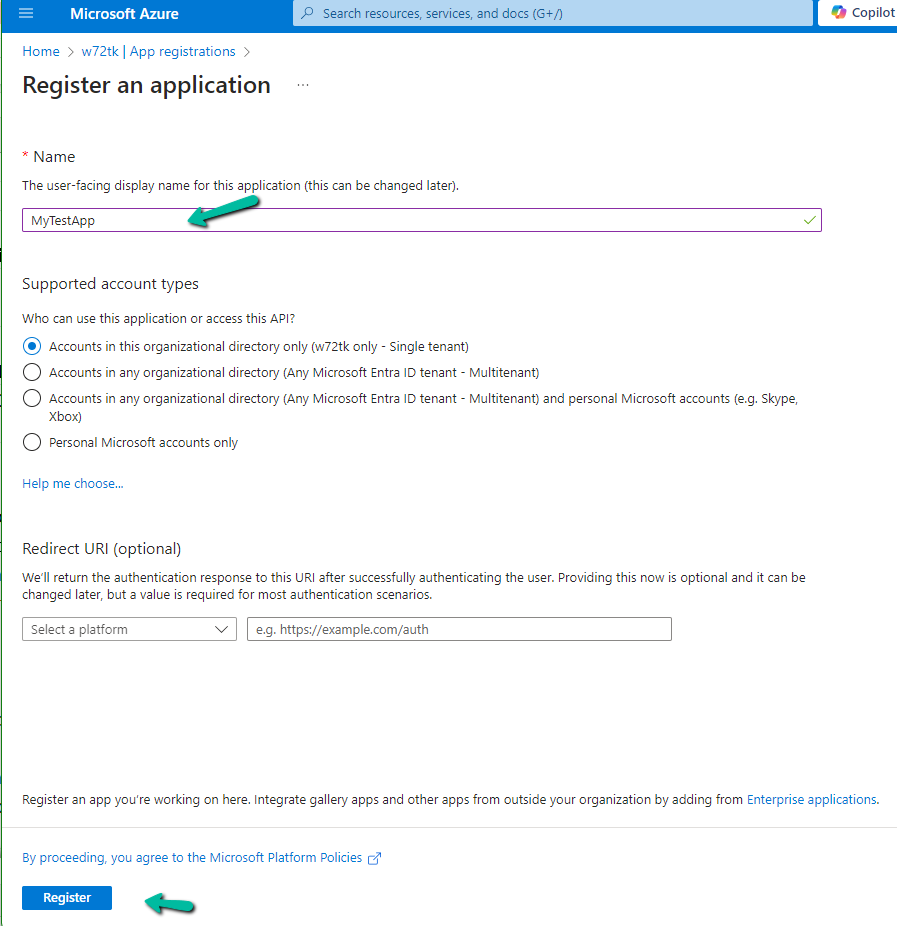
The first step is to register an Azure AD app.
Provide appropriate SharePoint API Permissions

As the console app would run in the background we opted for Application Permissions.
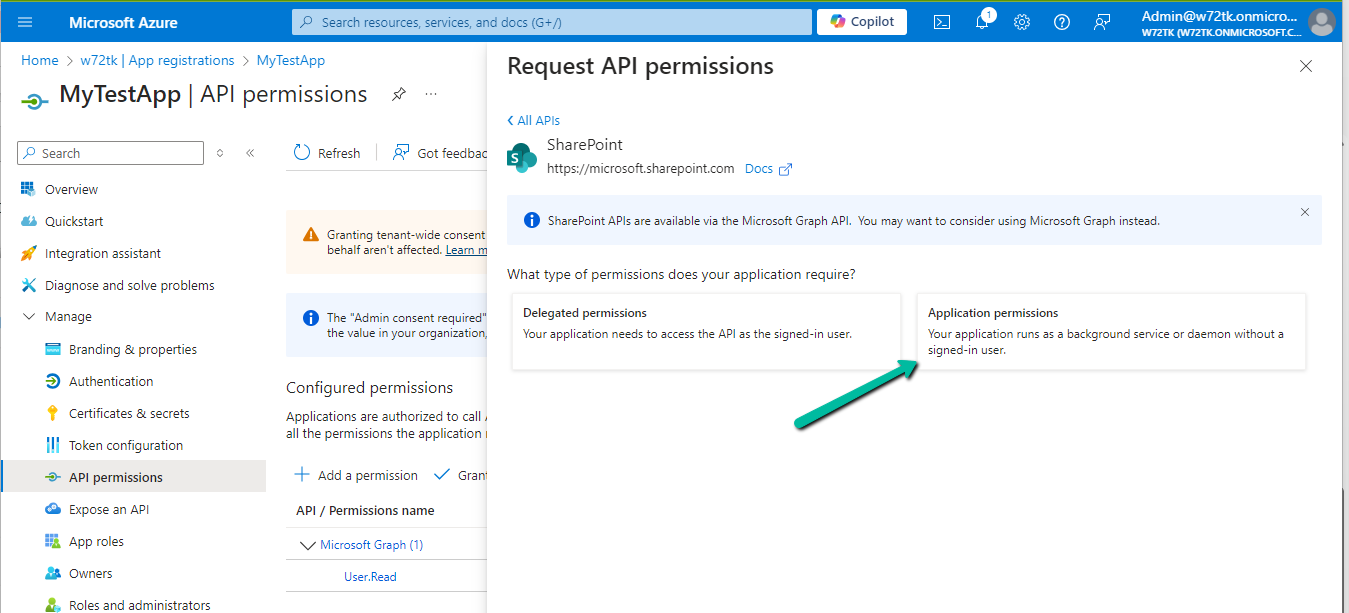
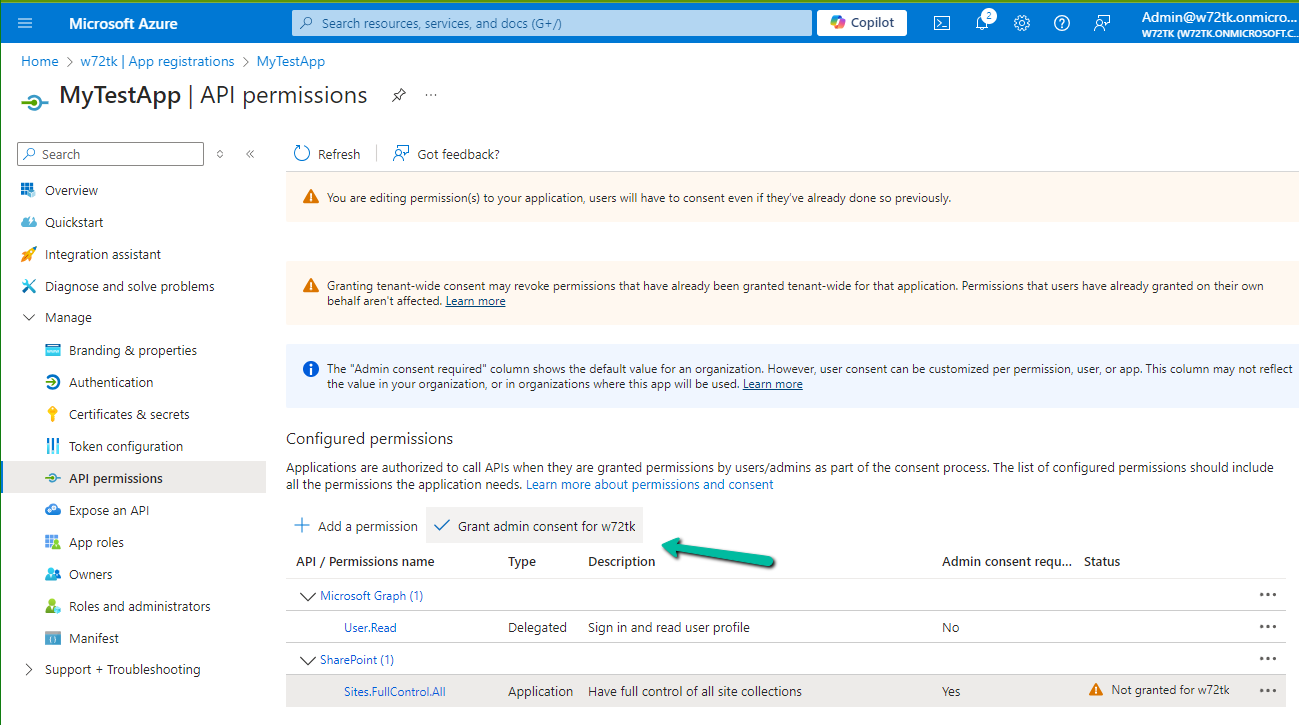
For testing, we opted for Sites.FullControl.All permission.
Also, Grant the admin consent
Next, we need to generate and upload the certificate
Run the below PowerShell script to generate the self-signed certificate
.\Create-SelfSignedCertificate.ps1 -CommonName “MySampleCertificate” -StartDate 2024-01-01 -EndDate 2026-10-01
#Requires -RunAsAdministrator
<#
.SYNOPSIS
Creates a Self Signed Certificate for use in server to server authentication
.DESCRIPTION
.EXAMPLE
.\Create-SelfSignedCertificate.ps1 -CommonName "MyCert" -StartDate 2015-11-21 -EndDate 2017-11-21
This will create a new self signed certificate with the common name "CN=MyCert". During creation you will be asked to provide a password to protect the private key.
.EXAMPLE
.\Create-SelfSignedCertificate.ps1 -CommonName "MyCert" -StartDate 2015-11-21 -EndDate 2017-11-21 -Password (ConvertTo-SecureString -String "MyPassword" -AsPlainText -Force)
This will create a new self signed certificate with the common name "CN=MyCert". The password as specified in the Password parameter will be used to protect the private key
.EXAMPLE
.\Create-SelfSignedCertificate.ps1 -CommonName "MyCert" -StartDate 2015-11-21 -EndDate 2017-11-21 -Force
This will create a new self signed certificate with the common name "CN=MyCert". During creation you will be asked to provide a password to protect the private key. If there is already a certificate with the common name you specified, it will be removed first.
#>
Param(

[Parameter(Mandatory=$true)]
   [string]$CommonName,

[Parameter(Mandatory=$true)]
   [DateTime]$StartDate,

[Parameter(Mandatory=$true)]
   [DateTime]$EndDate,

[Parameter(Mandatory=$false, HelpMessage="Will overwrite existing certificates")]
   [Switch]$Force,

[Parameter(Mandatory=$false)]
   [SecureString]$Password
)

# DO NOT MODIFY BELOW

function CreateSelfSignedCertificate(){

#Remove and existing certificates with the same common name from personal and root stores
    #Need to be very wary of this as could break something
    if($CommonName.ToLower().StartsWith("cn="))
    {
        # Remove CN from common name
        $CommonName = $CommonName.Substring(3)
    }
    $certs = Get-ChildItem -Path Cert:\LocalMachine\my | Where-Object{$_.Subject -eq "CN=$CommonName"}
    if($certs -ne $null -and $certs.Length -gt 0)
    {
        if($Force)
        {

foreach($c in $certs)
            {
                remove-item $c.PSPath
            }
        } else {
            Write-Host -ForegroundColor Red "One or more certificates with the same common name (CN=$CommonName) are already located in the local certificate store. Use -Force to remove them";
            return $false
        }
    }

$name = new-object -com "X509Enrollment.CX500DistinguishedName.1"
    $name.Encode("CN=$CommonName", 0)

$key = new-object -com "X509Enrollment.CX509PrivateKey.1"
    $key.ProviderName = "Microsoft RSA SChannel Cryptographic Provider"
    $key.KeySpec = 1
    $key.Length = 2048
    $key.SecurityDescriptor = "D:PAI(A;;0xd01f01ff;;;SY)(A;;0xd01f01ff;;;BA)(A;;0x80120089;;;NS)"
    $key.MachineContext = 1
    $key.ExportPolicy = 1 # This is required to allow the private key to be exported
    $key.Create()

$serverauthoid = new-object -com "X509Enrollment.CObjectId.1"
    $serverauthoid.InitializeFromValue("1.3.6.1.5.5.7.3.1") # Server Authentication
    $ekuoids = new-object -com "X509Enrollment.CObjectIds.1"
    $ekuoids.add($serverauthoid)
    $ekuext = new-object -com "X509Enrollment.CX509ExtensionEnhancedKeyUsage.1"
    $ekuext.InitializeEncode($ekuoids)

$cert = new-object -com "X509Enrollment.CX509CertificateRequestCertificate.1"
    $cert.InitializeFromPrivateKey(2, $key, "")
    $cert.Subject = $name
    $cert.Issuer = $cert.Subject
    $cert.NotBefore = $StartDate
    $cert.NotAfter = $EndDate
    $cert.X509Extensions.Add($ekuext)
    $cert.Encode()

$enrollment = new-object -com "X509Enrollment.CX509Enrollment.1"
    $enrollment.InitializeFromRequest($cert)
    $certdata = $enrollment.CreateRequest(0)
    $enrollment.InstallResponse(2, $certdata, 0, "")
    return $true
}

function ExportPFXFile()
{
    if($CommonName.ToLower().StartsWith("cn="))
    {
        # Remove CN from common name
        $CommonName = $CommonName.Substring(3)
    }
    if($Password -eq $null)
    {
        $Password = Read-Host -Prompt "Enter Password to protect private key" -AsSecureString
    }
    $cert = Get-ChildItem -Path Cert:\LocalMachine\my | where-object{$_.Subject -eq "CN=$CommonName"}

Export-PfxCertificate -Cert $cert -Password $Password -FilePath "$($CommonName).pfx"
    Export-Certificate -Cert $cert -Type CERT -FilePath "$CommonName.cer"
}

function RemoveCertsFromStore()
{
    # Once the certificates have been been exported we can safely remove them from the store
    if($CommonName.ToLower().StartsWith("cn="))
    {
        # Remove CN from common name
        $CommonName = $CommonName.Substring(3)
    }
    $certs = Get-ChildItem -Path Cert:\LocalMachine\my | Where-Object{$_.Subject -eq "CN=$CommonName"}
    foreach($c in $certs)
    {
        remove-item $c.PSPath
    }
}

if(CreateSelfSignedCertificate)
{
    ExportPFXFile
    RemoveCertsFromStore
}
Specify the password and note it down as it will be used for connection.

Upload the certificate to the Azure AD App registered.

For the console app, we installed the PnP.Framework Nuget Package


The sample code –
           try
            {
                var authManager = new AuthenticationManager(applicationId, certPath, password, domain);
                using (ClientContext clientContext = authManager.GetContext(siteUrl))
                {
                    var folder = clientContext.Web.GetFolderByServerRelativeUrl(folderRelativeUrl);
                    clientContext.Load(folder);
                    clientContext.Load(folder.Files);
                    clientContext.ExecuteQuery();

                    foreach (var file in folder.Files)
                    {
                        if (countFilesToImport < maxFilesPerCycle)
                        {
                            _filesToImport.Add(file);
                        }

                        countFilesToImport++;
                    }
                }
            }
            catch (Exception ex)
            {
                System.Console.WriteLine("Error: " + ex.Message);
                if (ex.InnerException != null)
                {
                    System.Console.WriteLine("Inner Exception: " + ex.InnerException.Message);
                }
            }
        }
We can see our app is successfully connected.

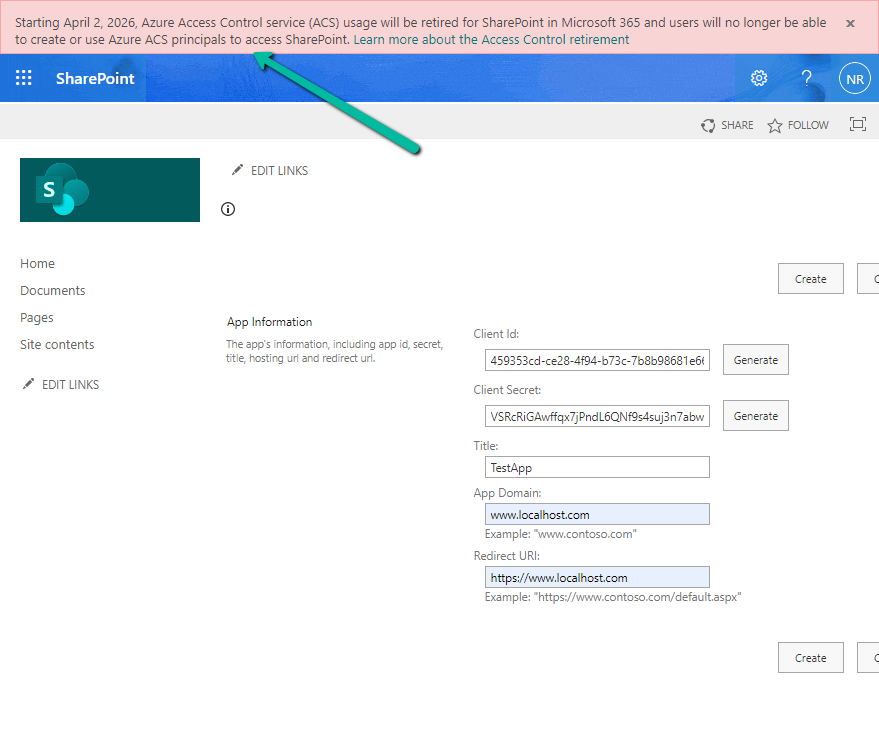
The other option is to use the SharePoint app-only, which is not recommended by Microsoft.
We can see the following message for it.
Starting April 2, 2026, Azure Access Control service (ACS) usage will be retired for SharePoint in Microsoft 365 and users will no longer be able to create or use Azure ACS principals to access SharePoint. Learn more about the Access Control retirement
Get all the details here
Hope it helps..

















 Nishant Rana's Weblog