Recently we had a requirement to update the modifiedon date of a few of the records of notes table.
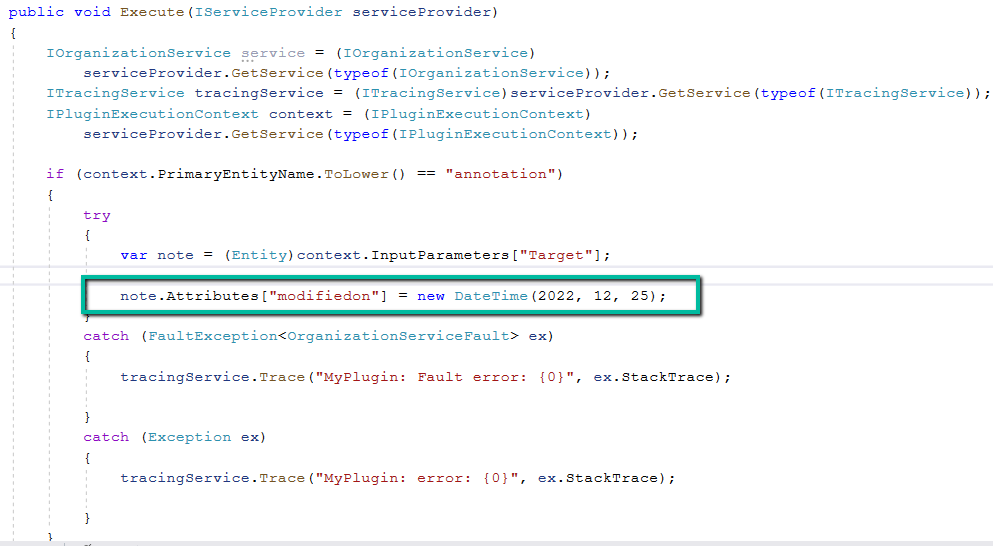
The we can achieve this is by implementing an update plugin on preoperation.
Below is our test record
Below is our plugin on the preoperation update to update the modifiedon date.
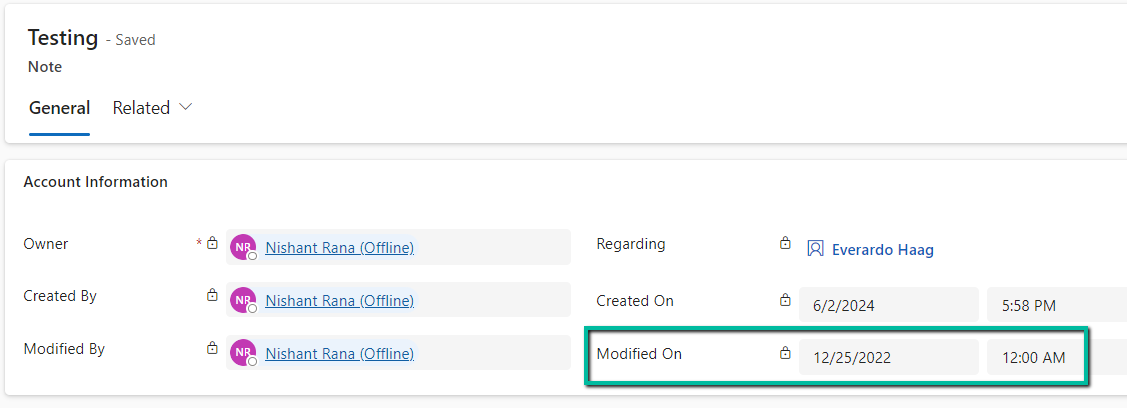
On updating the note record, we can see the modifiedon date updated as shown below.
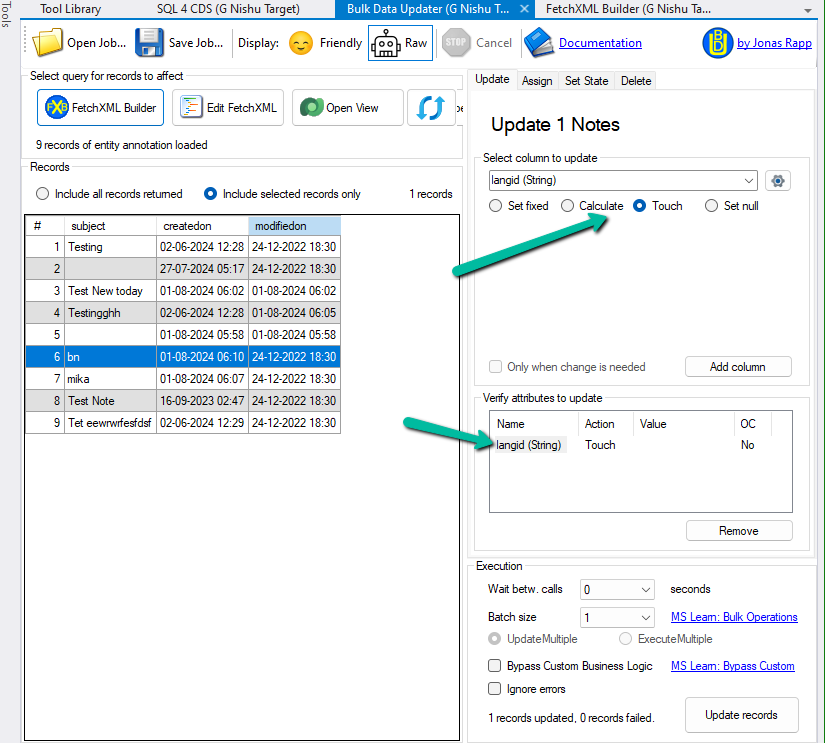
Below are some other records where we have modifiedon updated (test records)
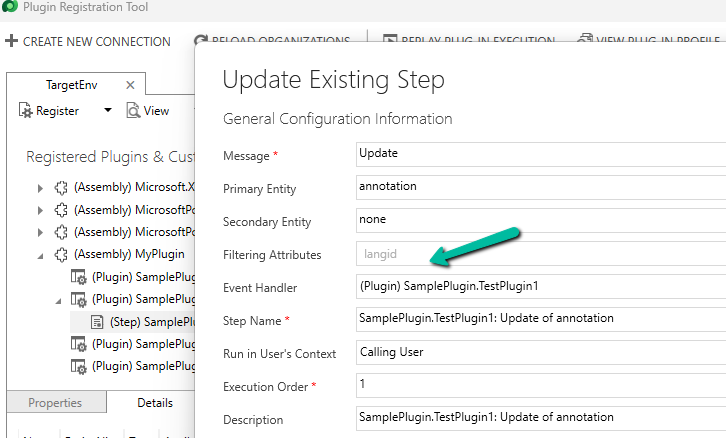
As we had multiple records to be updated on production, eventually we updated the plugin step to be triggered on the update of langid attribute (which won’t be updated by users) and used the awesome XrmToolBox Plugin – Bulk Data Updater to perform touch on langid field. This is to make sure it doesn’t get triggered on the creation or update of any existing records unless explicitly triggered from the Bulk Data Updater for that field and than disabled the plugin.
To enable Copilot for a specific instance of a Rich Text editor field, we first need to create a Web Resource where we need to specify the property we want to update/override as specified in the RTEGlobalConfiguration_Readonly.json, the base read-only configuration file for the Rich Text editor control.
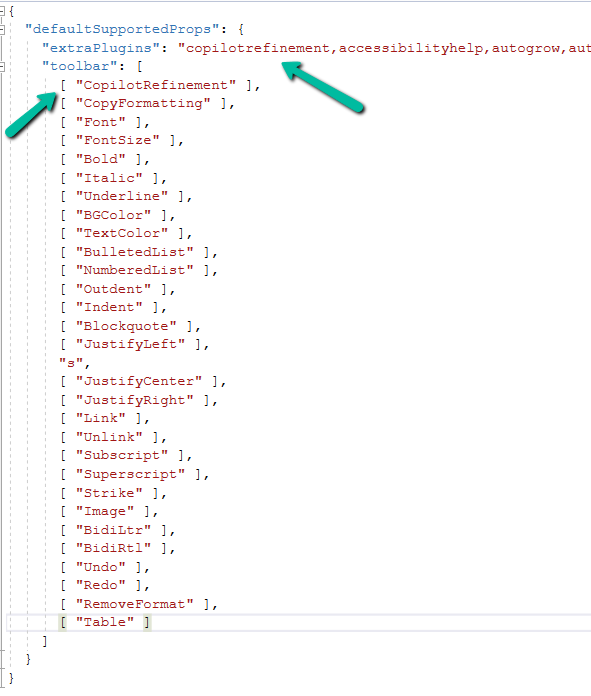
We have created a JavaScript Web Resource file named rtecustom.js.
Added the copilitrefinement and CopilotRefinement values to the extraPlugins and toolbar properties existing values as shown to enable copilot.
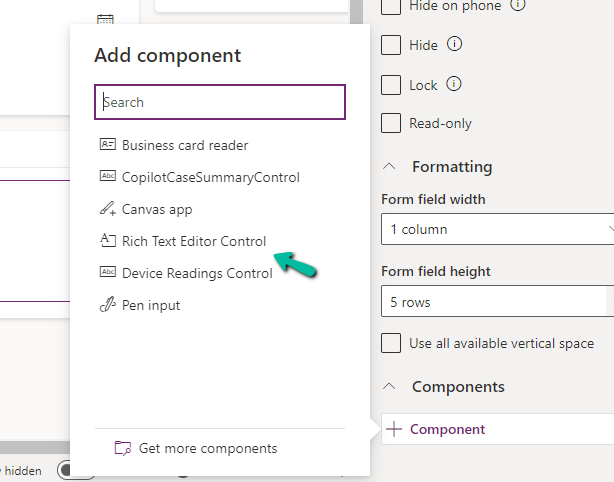
Next, we opened one of the Contact’s forms for Customization, selected the description field, and added the component – “Rich Text Editor Control” to it.
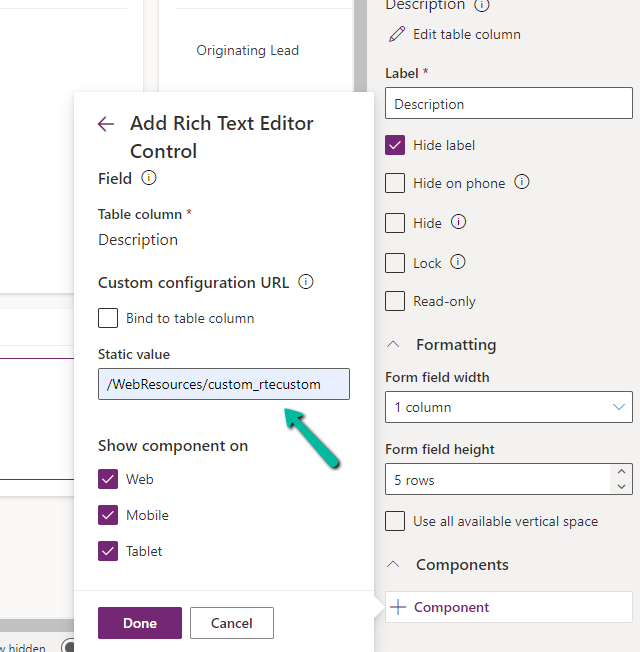
In the Static value property, we specified the relative URL of the Web Resource file. We can also specify the full path but then we would need to update it each time we move it to other environments.
Save and publish the changes.
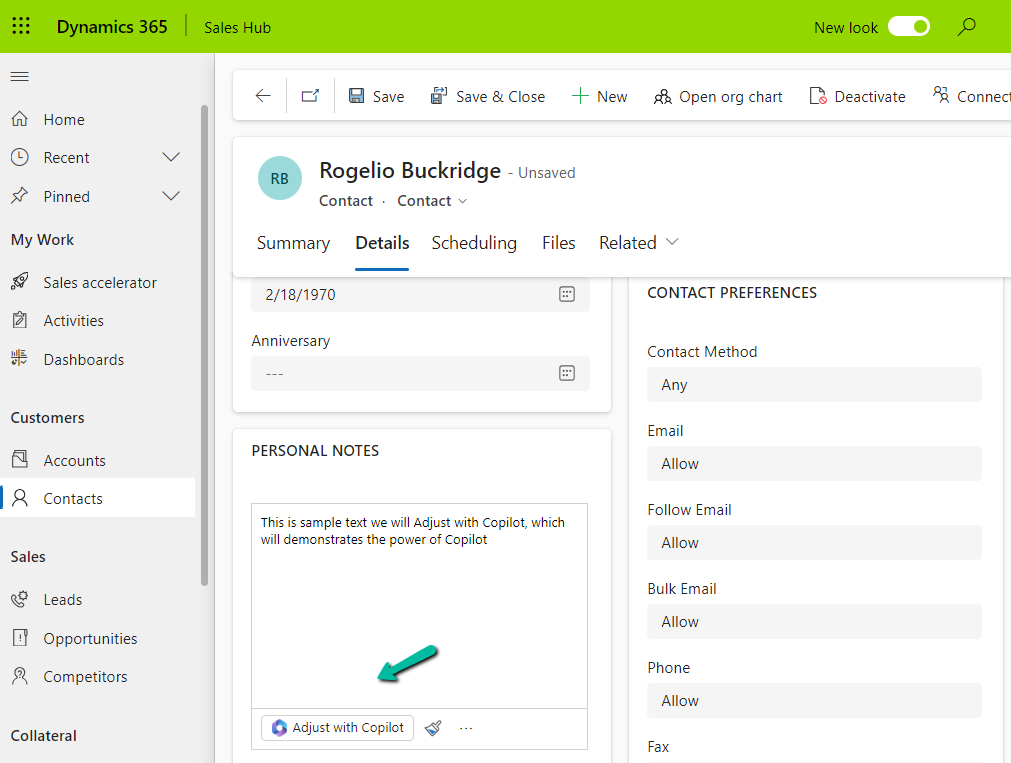
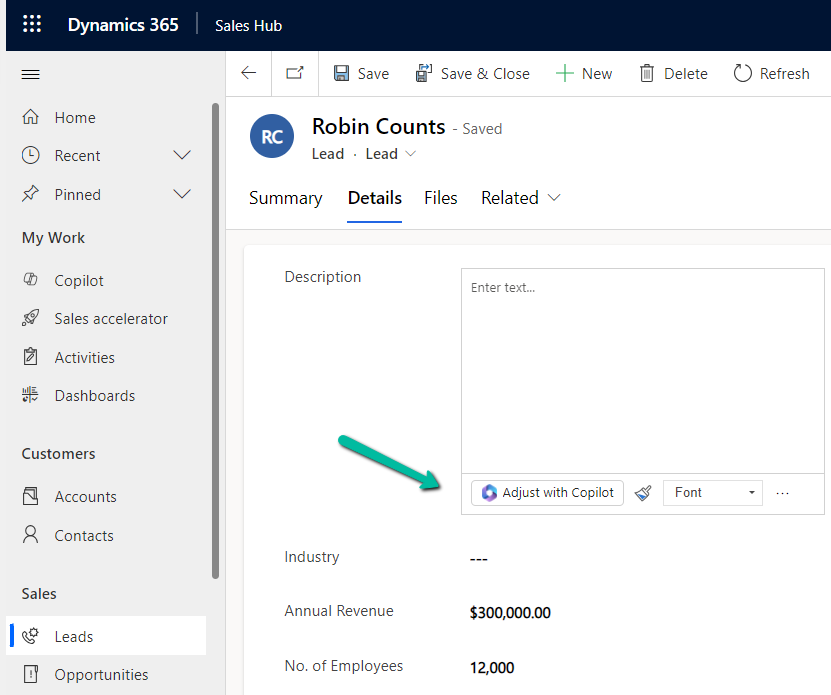
We can see the option Adjust with Copilot added to the toolbar for the control.
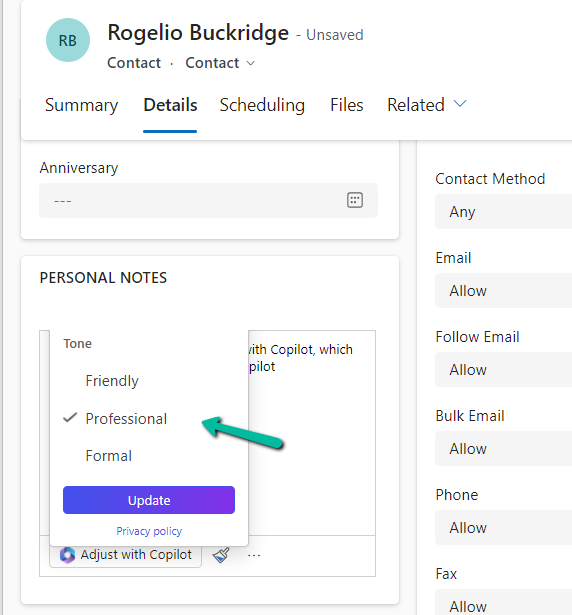
On selecting the text, and clicking on “Adjust with Copilot”, we get the option to update the Tone of the content.
On selecting a Professional tone, the text is updated in the control.
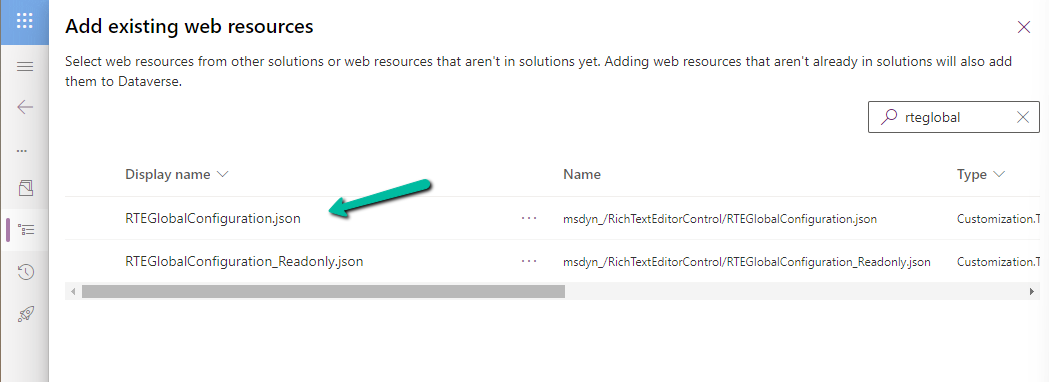
In case we want to apply to all the fields that are using Rich Text Editor Control instead of specifying it for individual fields, we need to update and add the same JSON to the existing RTEGlobalConfiguration.json file.
The file is blank by default, and we can specify properties to it that we want to override.
We updated the RTEGlobalConfiguration.json file, to use the same definition we used earlier for our custom web resource.
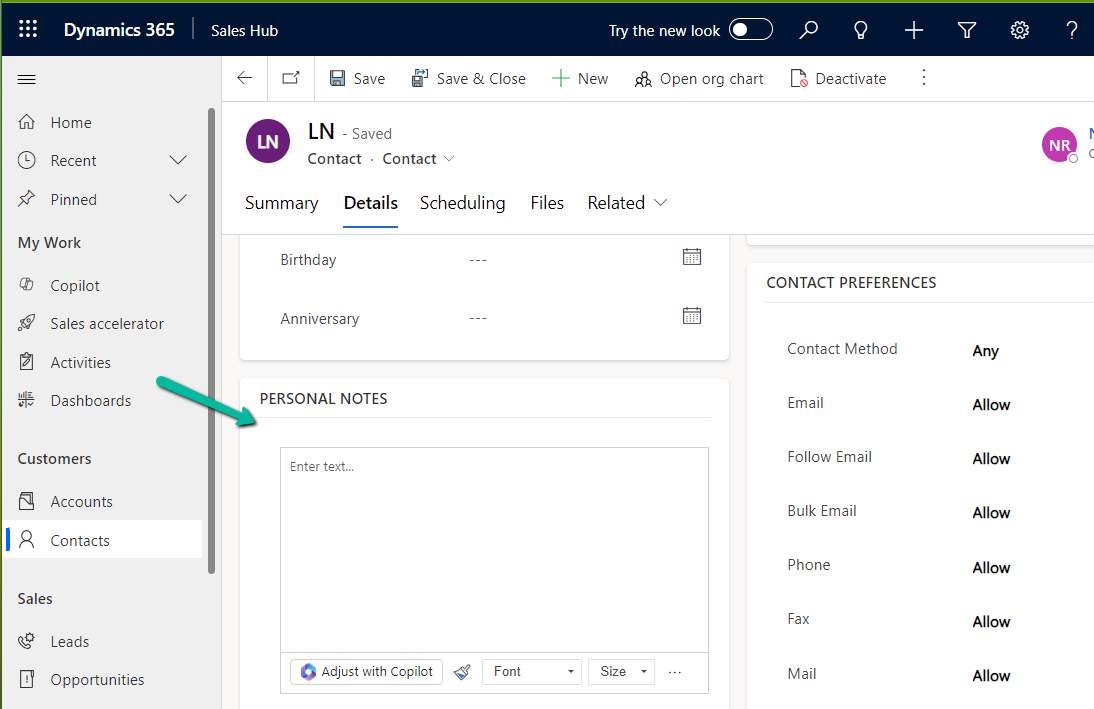
We can see the “Adjust with Copilot” added to the form even without specifying the URL in the static value while customizing the form.
On saving and publishing the changes, we can then see it rendered for all the Rich Text Editor fields.
Recently we wrote a flow that will run daily once and will pick all the tasks due in the last 24 hours i.e. schedule end date less than equal to utcNow() and greater than equal to addDays(UTCNow(),-1)
Interestingly we observed one of the task records not picked.
The scheduled end date on the task record was – 2024-07-22T20:00:00Z
And for the flow the filter condition was –
scheduledend le 2024-07-23T20:00:35.5173871Z and scheduledend ge 2024-07-22T20:00:35.5173943Z
If we look at the date for the greater than equal condition, we can see that the seconds part is 35, the exact time when the List rows step would have run, and in case of that particular task record is 00, so it was not picked.
Then we applied the below formatDateTime function, excluding the time part.
(scheduledend le ‘@{formatDateTime(utcNow(),’yyyy-MM-dd’)}’ and scheduledend ge ‘@{formatDateTime(addDays(utcNow(),-1),’yyyy-MM-dd’)}’ and _regardingobjectid_value ne null and statecode eq 0)
Again we saw few tasks not picked,
The records that were not picked had scheduledenddate as
2024-07-25 18:00:00.000
2024-07-25 19:00:00.000
And as per new condition
scheduledend = ‘2024-07-24’ which essentially was
scheduledend = ‘2024-07-24 00:00:00.0000’
Eventually we updated the flow’s Filter Rows condition to include only the hour and minutes, ignoring the seconds/milliseconds because of which we got the issue in the first place.
(scheduledend le ‘@{formatDateTime(utcNow(),’yyyy-MM-dd HH:mm’)}’ and scheduledend ge ‘@{formatDateTime(addDays(utcNow(),-1),’yyyy-MM-dd HH:mm’)}’ and _regardingobjectid_value ne null and statecode eq 0)
One more example for more clarity –
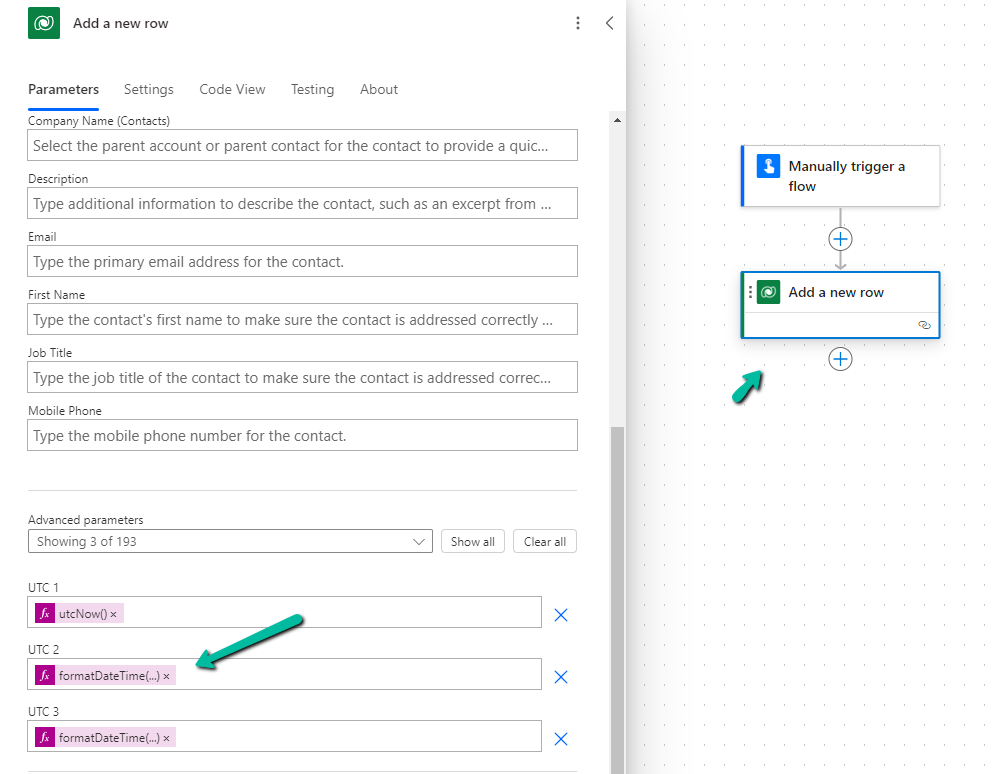
Below we are creating a contact record and setting values for 3 date time fields, UTC1, UTC2, UTC3.
Sharing the sample code that we can use for checking if a particular folder exists and if not then create it in SharePoint Online. It uses PnP Framework and Azure Ad App only permissions.
We will be checking for and creating the folder at the below location.
On a successful run, we can see the folder named “MyFolder” created the document library.
Below is the sample code
static void Main(string[] args)
        {
            var siteUrl = "https://w72tk.sharepoint.com/sites/MyTeamSite";
            var applicationId = "d7eaeeb7-ef0a-474d-9b94-567013576c14";
            var password = "xyz";
            var domain = "w72tk.onmicrosoft.com";
            var certPath = @"C:\SharePointApp\MyTestCertificate.pfx";

            var authManager = new AuthenticationManager(applicationId, certPath, password, domain);
            var foldertoCheck = "MyFolder";
            using (var clientContext = authManager.GetContext(siteUrl))
            {
                var currentWeb = clientContext.Web;
                var folderExists = currentWeb.DoesFolderExists(foldertoCheck);
                if (!folderExists)
                {
                    var list = clientContext.Web.Lists.GetByTitle("Documents");
                    list.RootFolder.Folders.Add(foldertoCheck);
                    clientContext.ExecuteQuery();
                }
            }
        }























 Nishant Rana's Weblog