Integrating Microsoft Dynamics CRM 2016 Online with Azure Service Bus Queue


CRM Azure Integration in CRM 2016 Update 1

Sushant Sarkar's avatarMicrosoft Dynamics CRM Mirror

Integrating Microsoft Dynamics CRM 2016 Online with Azure Service Bus Queue – Part 1

With the advent of Microsoft Dynamics CRM 2016 online many new features have been incorporated. One such feature that all have been waiting for long is seamless integration of MS CRM with Microsoft Cloud or popularly known as Microsoft Azure.

You can connect Microsoft Dynamics CRM Online 2016 Update and Microsoft Dynamics CRM 2016 (on-premises) with the Microsoft Azure platform by coupling the CRM event execution pipeline to the Microsoft Azure Service Bus. Once configured, this connection allows data that’s been processed as part of the current CRM operation to be posted onto the service bus. Microsoft Azure Service Bus solutions that are “CRM-aware” can listen for and read the Microsoft Dynamics CRM data from the service bus.

This connection between Microsoft Dynamics CRM and the Microsoft Azure platform provides a secure and reliable channel for communicating CRM…

View original post 1,515 more words

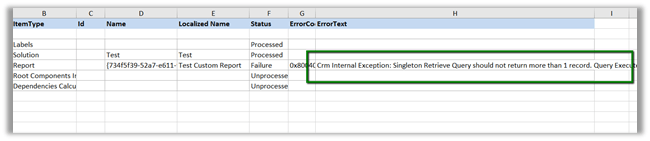
Crm Internal Exception: Singleton Retrieve Query should not return more than 1 record. Query: System.Data.SqlClient.SqlCommand while Importing Solution in Dynamics 365 \CRM 2016 or earlier.


Hi,

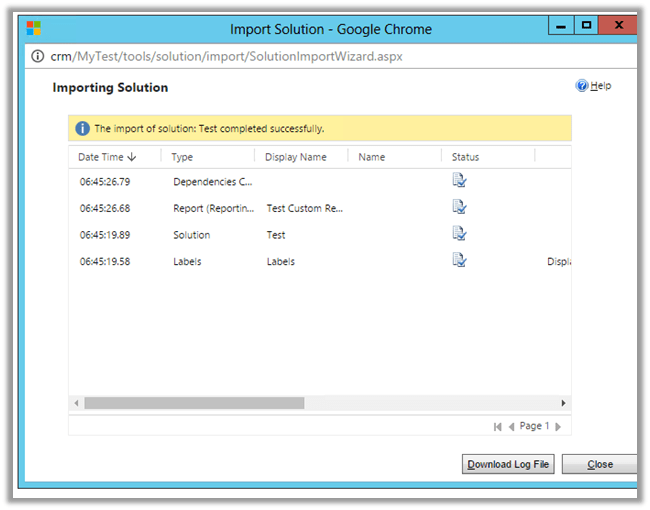
While using “Apply Solution Upgrade” or Import in our Test Instance having managed solution, we got the below error.

The Managed solution had the report set as Viewable By = Organization (we cannot have Individual report in Solution) when it was deployed first. And later the user had set the report to be as Individual manually.

Changing the report back to Organization in TEST and importing the solution again fixed the issue.

Hope it helps..

{Dynamics 365 Enhancements} Add Notification Recommendations to your Entity forms using script


Recommendation Action in Business Rules in Dynamics 365

deepeshsomani2013's avatarMSDYNAMICSBLOG BY DEEPESH

This blog is part of the series which I will use to cover all interesting enhancements coming in Dynamics 365.

Scenario: On Account form, if user fills in the Telephone field – suggest a recommendation to set Contact preference by Phone field. If user selects yes, set Contact by Phone option to allow.

Scenario by Graphics:

· On change of phone field, CRM shows a recommendation tooltip:

clip_image001

· When you click the information icon, CRM gives you a recommendation:

clip_image002

· If you pick Apply, CRM will do the updating to the field as required:

clip_image003

Great isn’t it?

Here is the link describing the new Client side scripting function: https://msdn.microsoft.com/en-us/library/gg334266.aspx#BKMK_addnotification

And here is the script for this one (Register it on change event of Phone field):

function addPhonePreferenceNotification() {

var myControl = Xrm.Page.getControl(‘telephone1’);

var telephone= Xrm.Page.data.entity.attributes.get(‘telephone1’);

var phonePreference = Xrm.Page.data.entity.attributes.get(‘donotphone’).getValue();

if (telephone.getValue() != null) {

var actionCollection = {

message:…

View original post 62 more words
{Dynamics 365} Preview Feature – Organization Insights Dashboard


Organization Insights Dashboard in Dynamics 365.

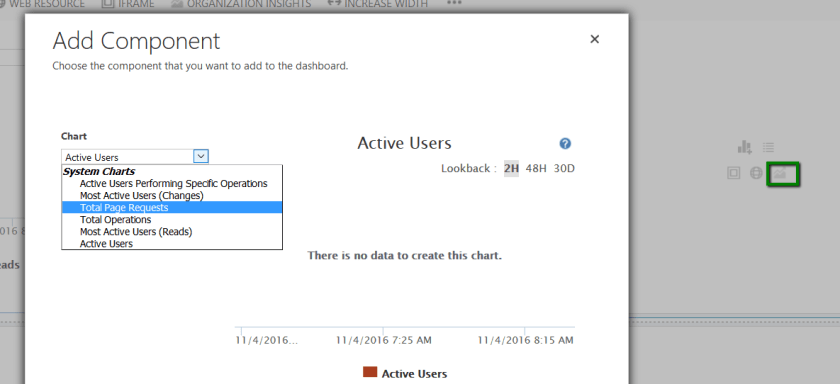
Create a new Dashboard and Add Organization Insight Components to it.

oi

oi1


jbhalla86's avatarcrmazurecomponents

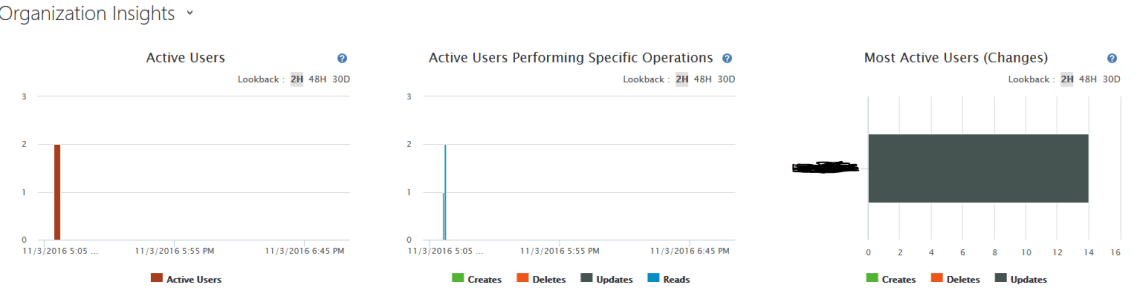
A new reporting component to provide organization insights has been added in Dynamics 365. These charts can be added to a dashboard and provide the mentioned below information

insights1

a) Active Users – Number of users that are logged at different times of the day.

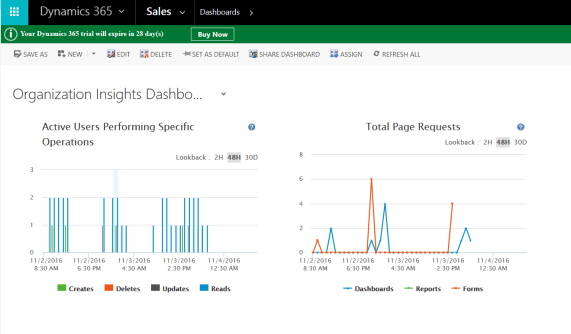
b) Active Users Performing Specific Operations – Number of Different operations(Create, Update, Delete and Read) performed by active users at different times of the day.

c) Most Active User (Changes) – Number of changes (Create, Delete, Update) performed by different users past 2hours, 48`hours or past 30 days.

insights2

d) Total Page Requests – Page requests in classification of Dashboards, Reports and forms at specific times.

e) Total Operations – Total number of operations Create, Delete Update and Read happening at specific times.

f) Most Active Users – Read operations performed by the most active users.

For using organization insights, we need to be firstly configure them…

View original post 16 more words
{Dynamics 365 New Features} Explore the new OOB Actions available with Dynamics 365


Another insightful post from Debajit on Dynamics 365

Debajit's avatarDebajit's Dynamic CRM Blog

Some more research and yet another blog post to highlight another excellent feature of Dynamics 365. I have been extoling Dynamics 365 and I am tired as the more I explore, the more I get amazed by it. So without wasting much time, let me straight get to the point here.

With Dynamics 365, a whole new set of actions has been provided to you OOB. As per MSDN documentation, the following are the new set of actions available with this release.

•Add (Case) to Queue

•Add user to Record Team

•Apply Routing Rule (to Case)

•Calculate Actual Value (of Opportunity)

•Close Opportunity

•Get Quote Products from Opportunity

•Get Sales Order Products from Opportunity

•Lock Invoice Pricing

•Lock Sales Order Pricing

•Qualify Lead

•Remove User from Record Team

•Resolve Incident

•Resolve Quote

•Revise Quote

•Unlock Invoice Pricing

•Unlock Sales Order Pricing

I know your hands might be itching now already…

View original post 270 more words

Create Apps in Dynamics 365 using new App Designer and Site Map Designer in Dynamics 365

Similar to the apps that we see in Menu Bar for Dynamics 365, we can create our own apps.

First we need to enable the Preview for it.

Go to Administration à System Settings

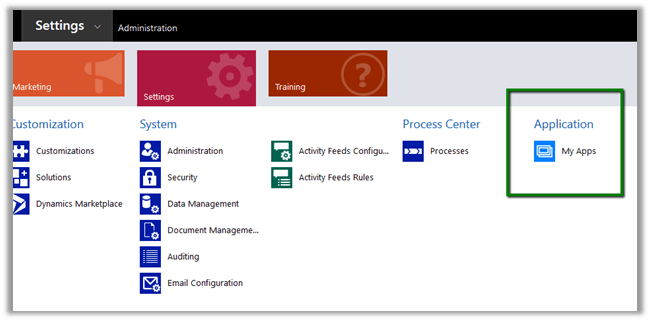
Go to Settings à My Apps

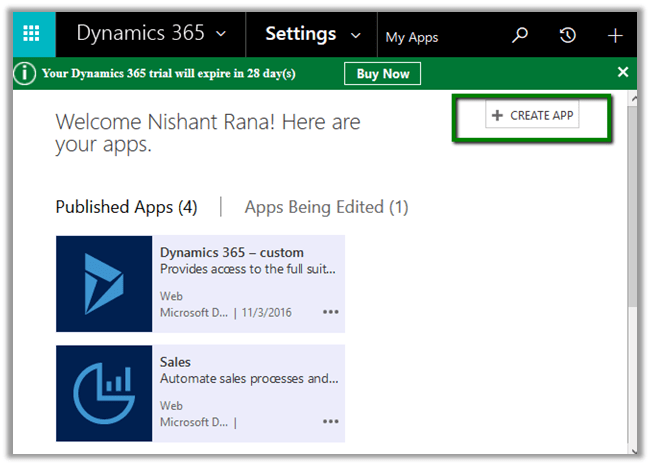
Click on Create App


It will take us to App Designer, provide details.

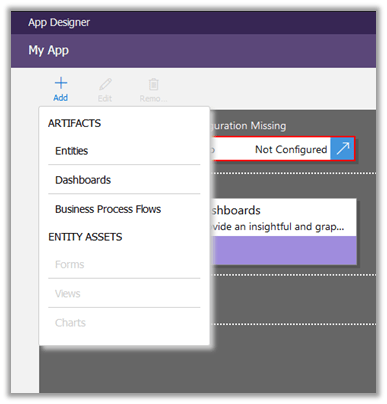
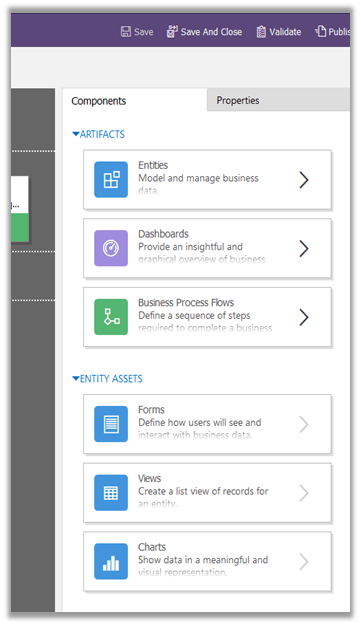
Different components that we can add

Or drag drop

First we need to configure the SiteMap for the app. Click on arrow inside Sitemap area to configure.

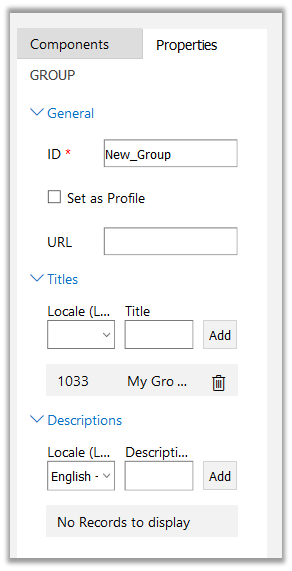
Inside Site map designer we can add Area, Group and Sub Area (the usual components of Site Map)

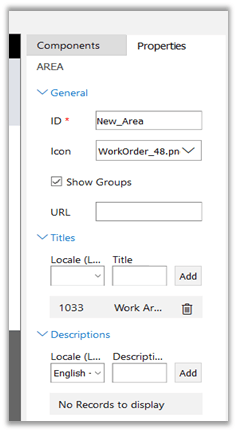
Update properties of Area, Group and Subarea and add new Sub Areas.

Area Properties.

For Group

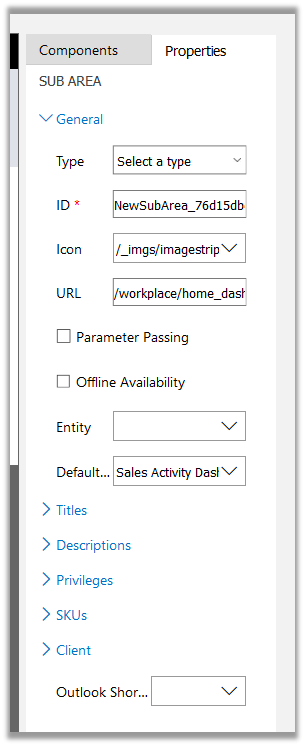
For SubArea

Different Types of Sub Area can be defined.

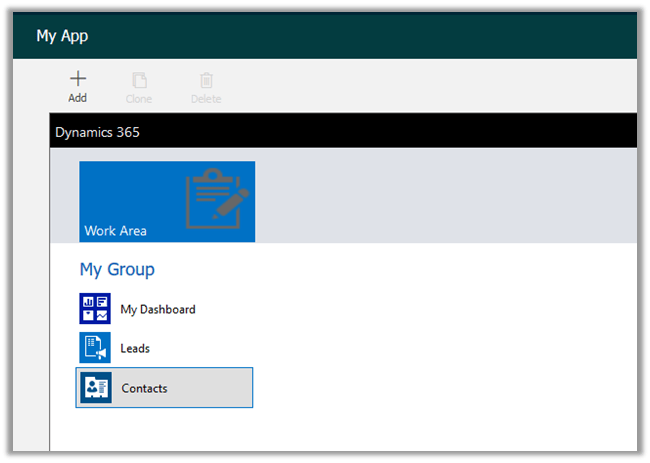
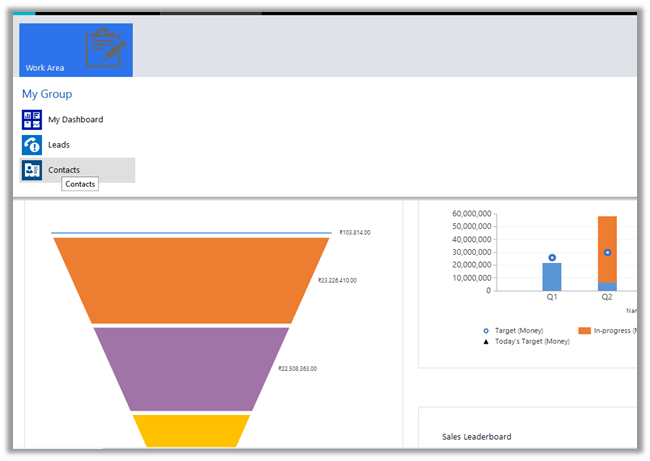
This is how the app looks inside Site Map Designer

Save and close to go back to App Designer

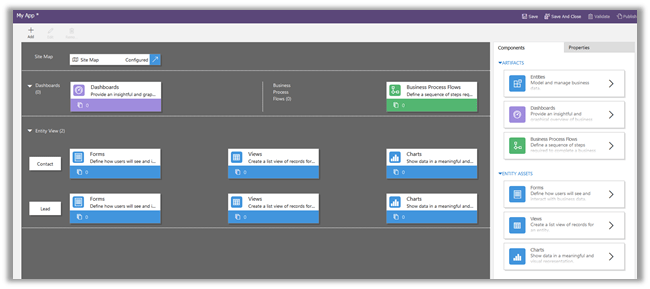
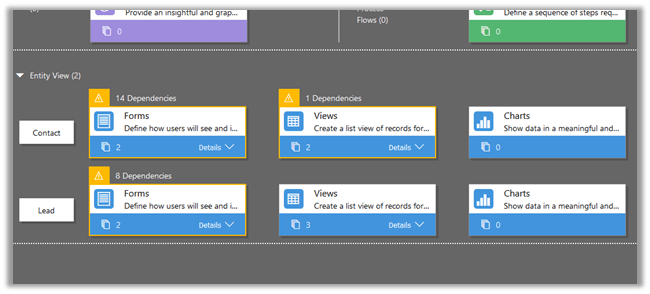
It has added Dashboard along with Contact and Lead Entity View.

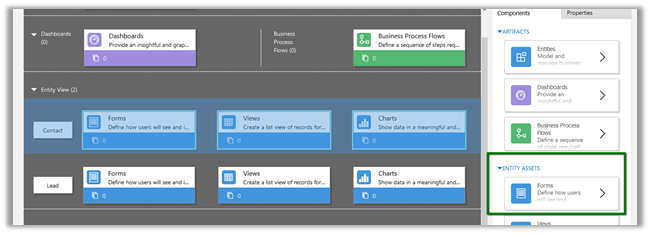
Now let us add Form and Views to Contact and Lead Entity View using Entity assets.

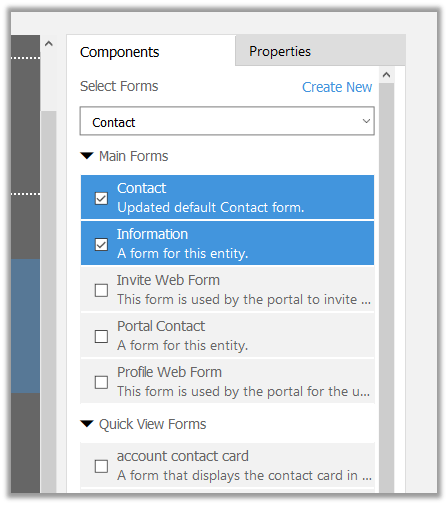
Select Contact in Entity View and select Forms in Entity Assets

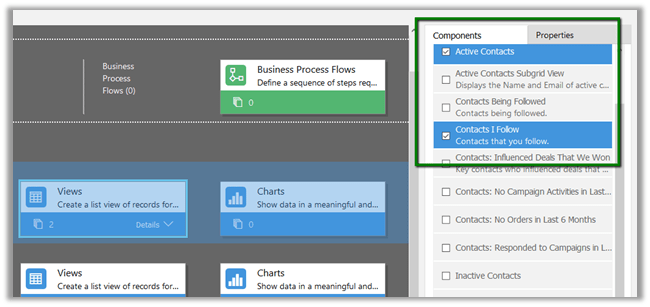
Similarly, for Views

Repeat the same steps for Lead entity.

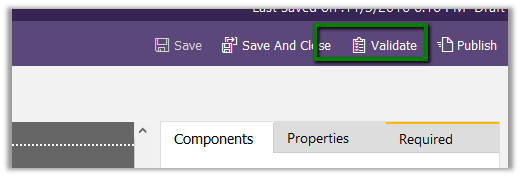
Click on Validate

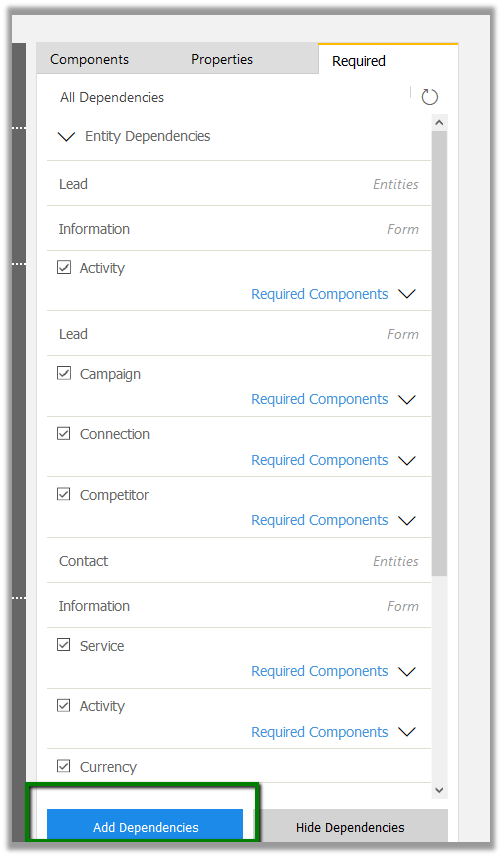
It will show up all the dependencies

Required tab will list all the dependencies. For time being let us add all the dependencies

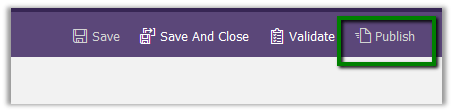
Publish the app.

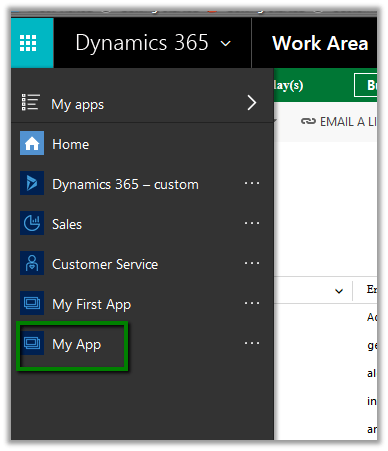
The apps would appear now in Dynamics 365 menu

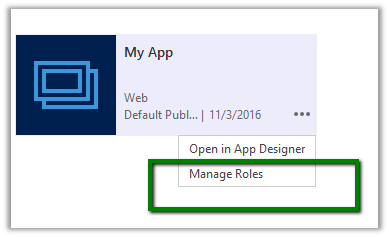
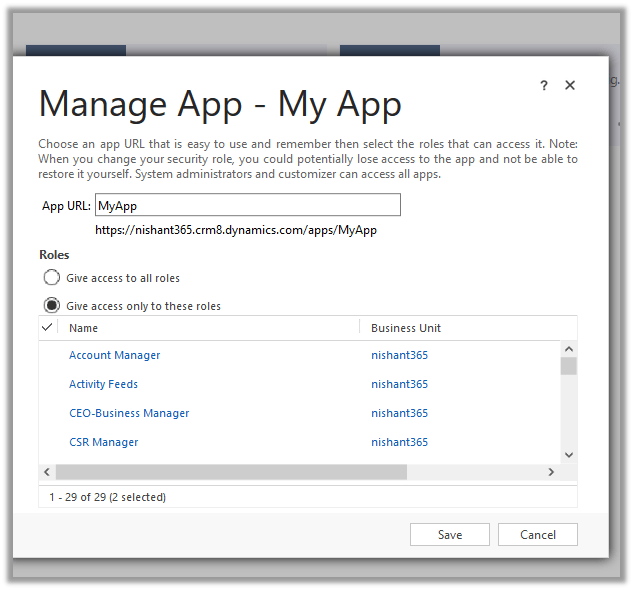
We can specify specific roles which could access the apps.

Hope this helps ..