Index (zero based) must be greater than or equal to zero and less than the size of the argument list


Nice solution 🙂

Prashant Maurya's avatarPrashant Kumar Maurya

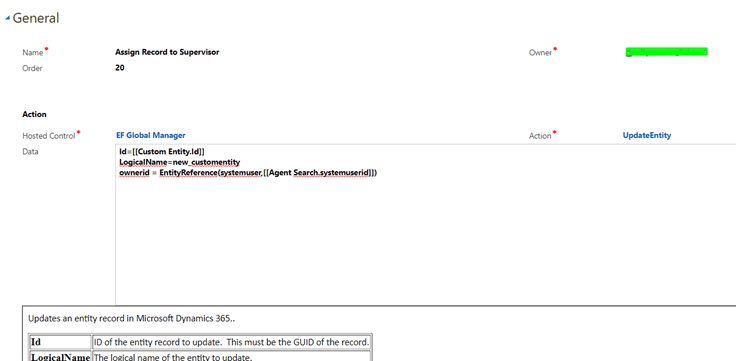
Hello friends, I found a weird issue during a USD configuration, I was getting error message “Index (zero based) must be greater than or equal to zero and less than the size of the argument list“, when I was trying to assign a custom entity record to a different agent (systemuser) using USD action call.

Scenario: A CRM custom entity record get created in Unified Service Desk when an agent receives a customer call. And if agent transfer customer call to their supervisor, same entity record should also get assigned to supervisor. Below are the details of the action call I created.

Issue: action call was failing with error message “Index (zero based) must be greater than or equal to zero and less than the size of the argument list“, complete error message was

======================================================================

Action Call# 20

Source:Window Route(CTI Window Navigation Rule – Transfer Call)

View original post 118 more words

Packt’s $5 sale is now on! Grab my @packtpub book Dynamics 365 Application Development for just $5 https://www.packtpub.com/application-development/dynamics-365-application-development


Packt’s $5 sale is now on! Grab my @packtpub book Dynamics 365 Application Development for just $5 https://www.packtpub.com/application-development/dynamics-365-application-development.

B08330_MockupCover-01


Unified Service Desk Issue #1: Save Event does not trigger for CRM Page hosted control.


Helpful article helped us fixed an issue on USD 3.0

Prashant Maurya's avatarPrashant Kumar Maurya

Hello friends, recently I migrated my configurations from USD 2 to USD3. After successful migration I added one action call to scan for data parameters on save event oh hosted control. I created few new hosted control of same type and there save even was working as expected.

Issue: save event was not triggering for CRM Page type hosted control.

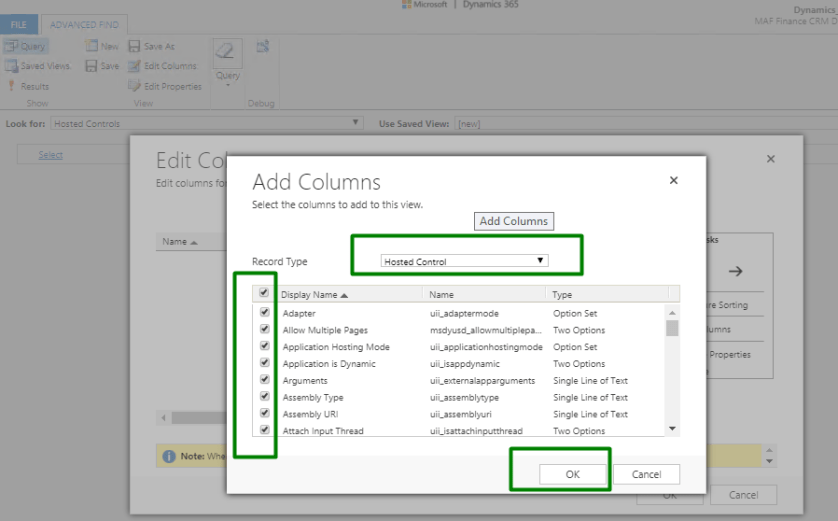
Reason: after scratching my head around this issue for i long i thought of comparing this hosted control with other hosted control when save even was working. I create a advance find and added all fields of hosted control entity and added filter to only display details of these 2 hosted controld

  1. One CRM hosted control for which save event was working fine.
  2. Other CEM hosted control for which save event was not triggering.

Advance Find

When i was comparing the fields values for both hosted control I found one difference in…

View original post 80 more words

Plugin on AddListMembers message. When does it fire?


In one of our recent implementations involving marketing list entity, we were analysing the AddListMembers message for it.

We registered a plugin on AddListMembers message and below were our findings.

  • Dynamics Marketing List – The plugin didn’t trigger.
  • Static Marketing List – The plugin didn’t trigger for “Add using Lookup“. It only triggered for “Add using Advanced Find” when “Add only the selected members to the marketing list” option was selected. It didn’t trigger for “Add all the members returned by the search to the marketing list


This slideshow requires JavaScript.

So basically, we need to be very careful while implementing a plugin on AddListMembers message.

Hope it helps..

Auto-Closure of Task considering Work Hours and Holidays in Dynamics 365


Auto-Closure of Task considering Work Hours and Holidays in Dynamics 365.

Recently we had a requirement to auto close the task after 2 days of due date passed. Here we had to consider work hours and holidays as well.

The good thing was that with SLA considering both work hours and holidays, we could implement this without writing a single piece of code.

Below are the steps to implement it –

Enable SLA for Task
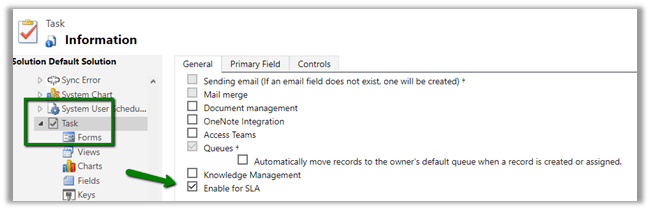
Navigate to Settings à Service Management à Click on Service Level Agreement and create a new SLA against Task.
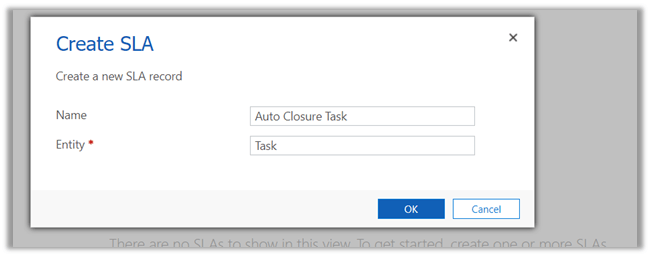
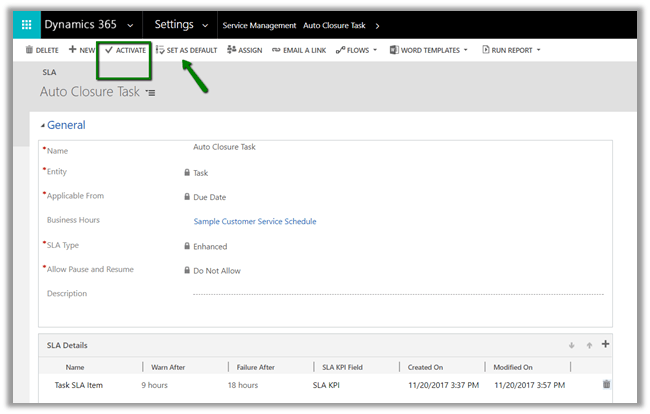
Create a new SLA record with following details.
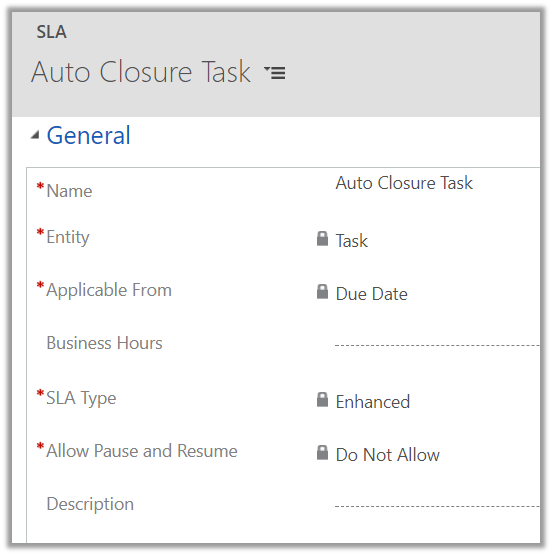
Here we need to specify Business Hours in our SLA. For this, we will be creating a Customer Service Schedule record which observes the holiday.

So let us first define a new Holiday Schedule.

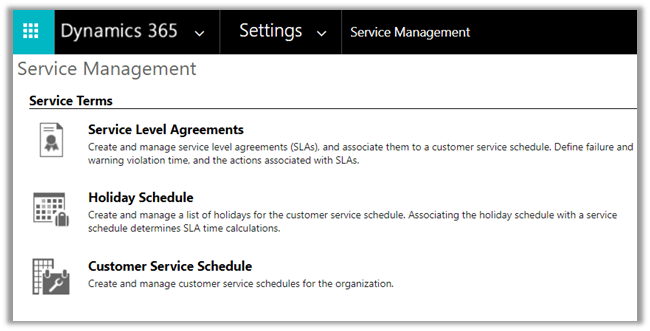
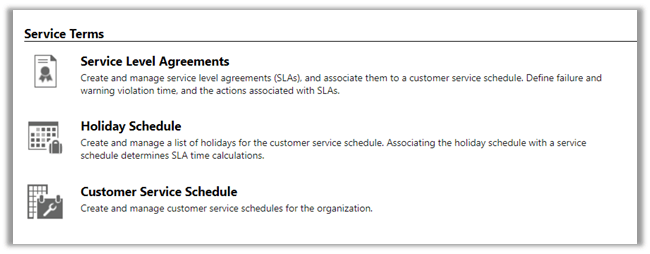
Navigate to Settings à Service Management and click on Holiday Schedule.

This holiday schedule will be used while defining Customer Service Schedule.
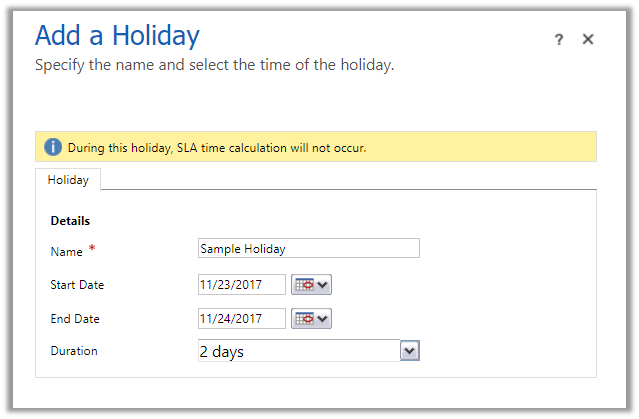
Create a holiday schedule record and add holiday records to it.
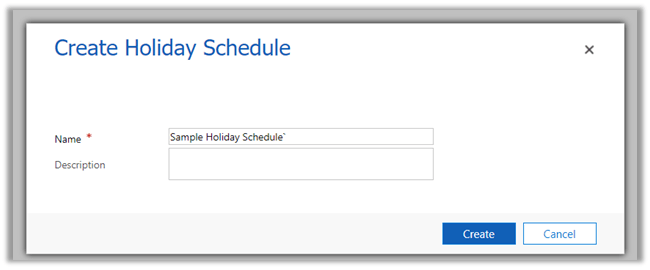
Here we have added a sample holiday of 2 days.
Now let us define the Business Hours.

Navigate to Settings à Service Management à Customer Service Schedule
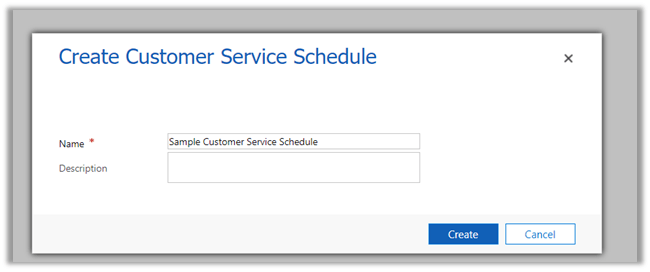
Create a new schedule
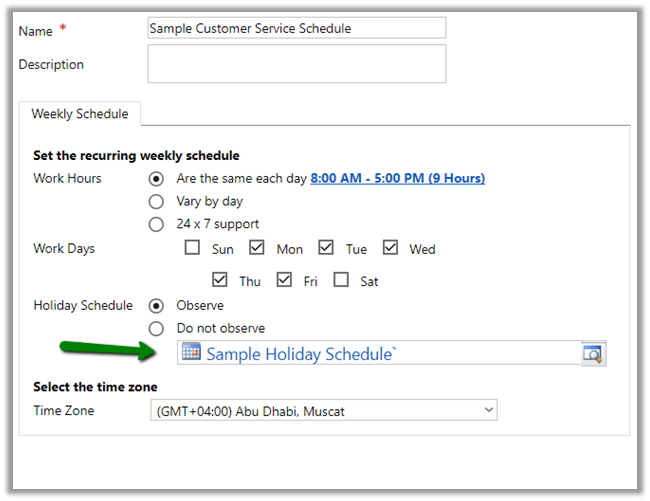
Set Workdays as Mon – Friday and work hours as 8 – 5 P.M. and select our Holiday Schedule record created earlier.
Let us update our SLA record with these new customer service schedule.

Let us try creating a new SLA Item record. Here we will find that there is no KPI’s defined i.e. SLA KPI drop down doesn’t have any value.
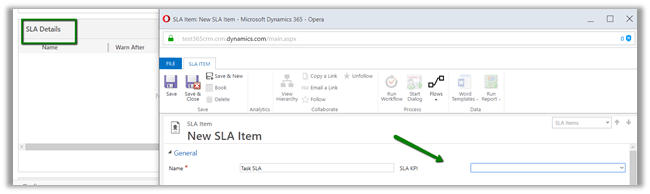
Let us define an SLA KPI here.

For defining KPI we need to create a new relationship between Task and SLA KPI Instance (n-1 i.e. Many to 1).
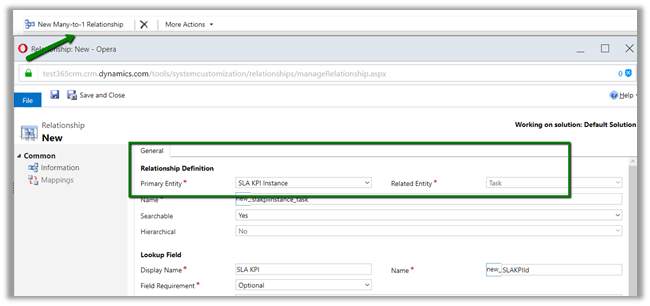
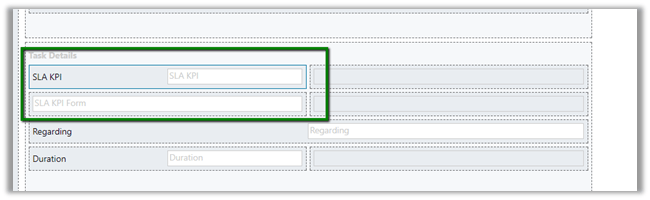
Open the Task form for customization and add this new lookup SLA KPI Instance on the form.

Next, add a Quick View Form of SLA KPI entity in it.
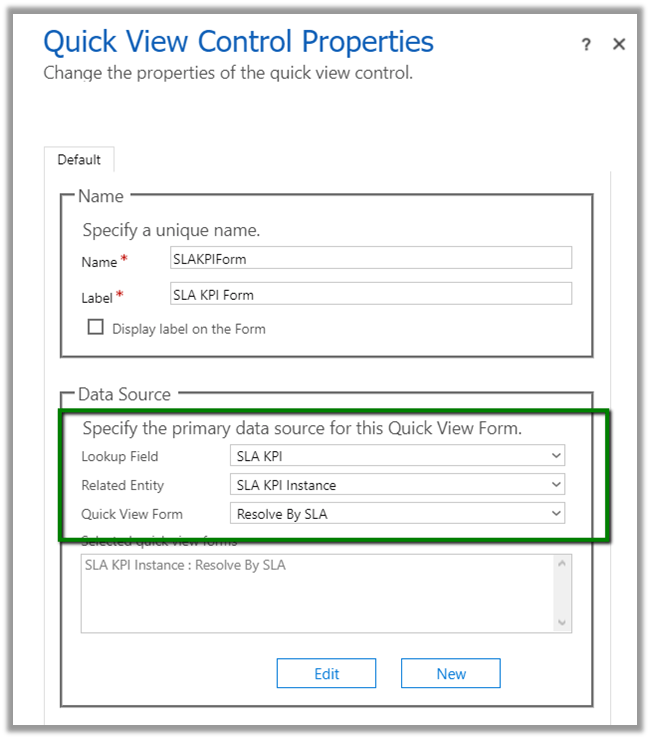
Click on Edit to update the Resolve By SLA quick view form to add a new field Failure Time in it.

Add the Quick View Form to the Task form.
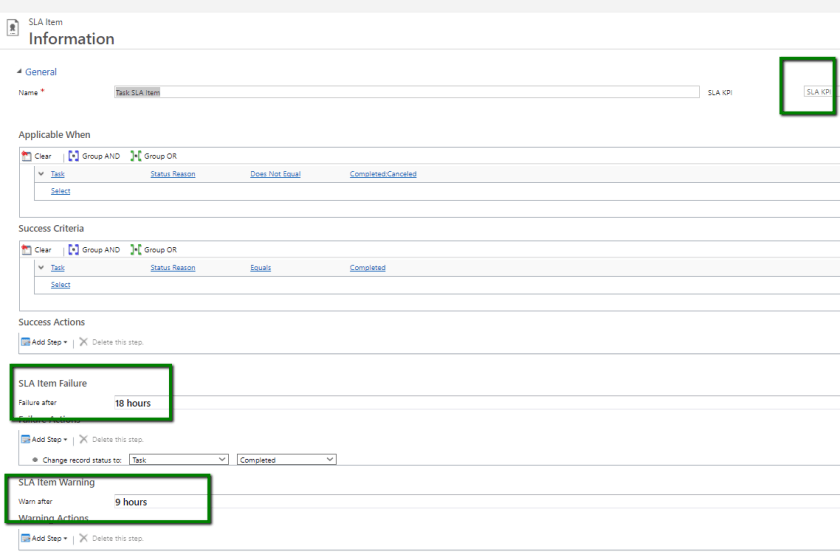
Back in our SLA item,

  • Select the new KPI created.
  • Specify Applicable as when status reason not equal to either completed or cancelled.
  • Failure after 18 hours i.e. 2 Days (as we specified 9 hours working in Customer Service Schedule)
  • Warning as 9 hours.

G

  • Activate and Set as Default.

Creating a task with Due Date will start the Timer for Resolve In.
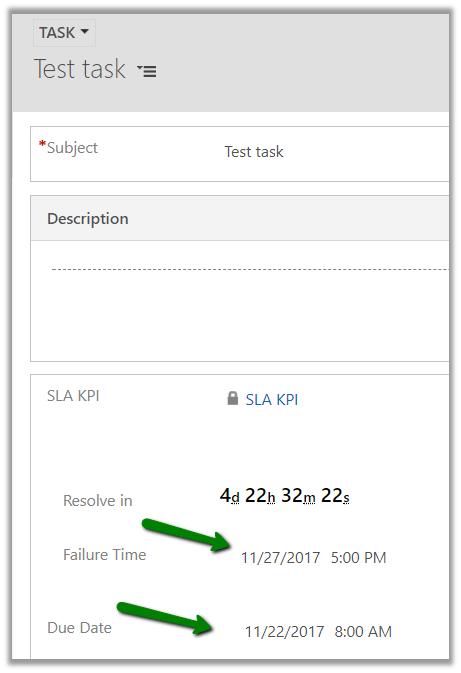
In the task record created we have set the Due Date to 22nd Nov 8 A.M. and we can see the resolve by date to be 27th.

In our SLA we had set the Failure After as 18 hours, and the holiday was set on 23rd and 24th. And also 25th and 26th being Sat-Sun the Failure Time comes as 27th Monday, which is exactly what we want.

Another interesting way of implementing the same without using SLA.

https://community.dynamics.com/crm/b/hayersdynamicscrm/archive/2014/06/20/dynamics-crm-how-to-add-working-days-by-calculating-business-closure-and-weekends

Hope it helps..

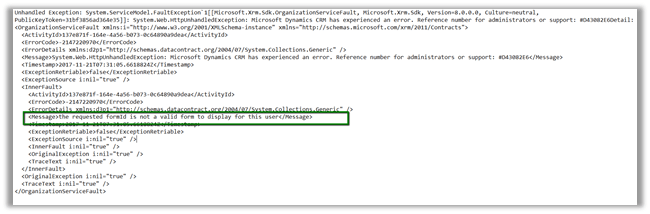
“the requested formId is not a valid form to display for this user” exception while opening a record inside Dynamics 365.


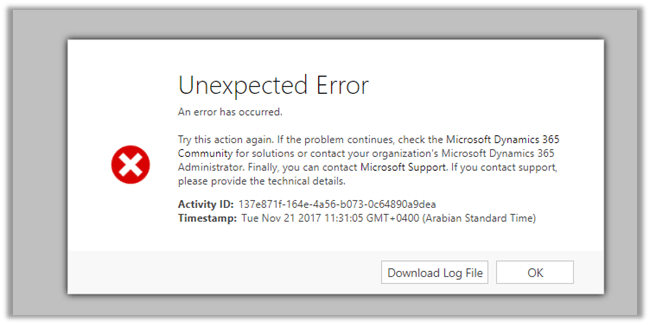
Recently while opening a marketing list record inside Dynamics 365, we got the below issue.

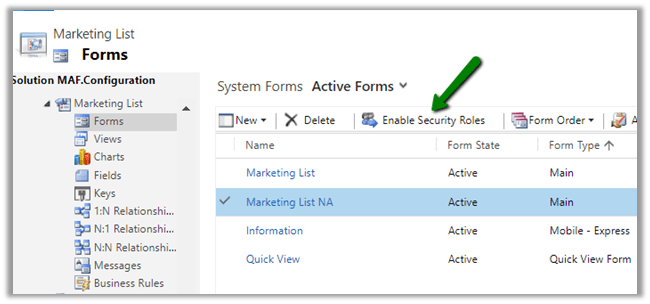
The issue was because we had multiple marketing list forms and the one the user had accessed last had all the security roles removed from it.

Enabling the security role that user had, for that particular form fixed the issue.

Hope it helps..