Azure’s Machine Learning Studio makes it easy to create machine leaning based solution.
To try it free, go to Machine Learning Studio’s home page and sign in with the existing Microsoft Account. (or we can make use of existing Azure Account and add Machine Learning to it)

Azure Machine Learning Studio is an IDE for Machine Learning, that allows us to design, develop, test, deploy the solution easily using drag and drop functionality.
Let us understand the interface of Machine Learning Studio

The project is a collection of Experiments, Web Services, Notebooks, DataSets and Trained Models grouped together. Experiments are where we get, process, transform, train, evaluate our data. WebServices are created from our experiment, which makes the predictive model usable from within the other application. Datasets refer to the data that we use for our experiment.
Let us start with our experiment.
Select Experiments and click on New button in the bottom. Let us start with a blank experiment.

It loads a blank experiment with greyed out workflow diagram.

The typical steps within an experiment include
- Getting the Data
- Applying the Algorithm
- Split and Train the model
- Score the model
- Evaluate the model
The first step involves specifying the DataSet, here we will be working with the sample dataset i.e. Restaurant Ratings already provided. Select and drag the Restaurant rating dataset in the experiment designer.

We can right click and can either download or visualize the data.

The dataset contains user id, place id, and rating column.

It basically shows different restaurant visited by the user and the rating given by them.
Suppose our dataset includes a large number of columns or duplicate rows and we might not need all of them for our experiment we can make use of “Select columns in Dataset” module or to remove duplicate rows “Remove Duplicate Rows” module etc. by specifying them as the next step in our flow. Or can use any of the modules that is part of Manipulation section based on our requirement and the dataset that we are dealing with.

Here as we have only three columns and no duplicate rows we won’t be using them.
Next let us apply the appropriate algorithm, based on User ID and Place we want the rating to be predicted, so let us select the Multiclass Decision Jungle algorithm here and drag it to the experiment area.

Now let us take a subset of our dataset for training the model, for which we’d use the Split Data module.

Here we have specified our dataset as input to the Split Data module and specified fraction of rows as 0.5 which means that 50 percent of the data will be used for training and the remaining 50 percent will be our test data.
Click on Run to generate the output till the Split Data module. After the successful run, we’d see the green check on the module.

Now to train the model, drag the Train Model module. Specify the algorithm and the split data as the input to that module and click on Launch column selector.

Select the Rating column which is the column we would like to predict.

Click on Run again.

Next, we’d add the Score Model module and Evaluate Model module to see the how the algorithm is performing.
Add the connection line from Train Model and Split Model (second part) as input to the Score Model.
For Evaluate Model specify the connection line from Score Model as input and click on Run.

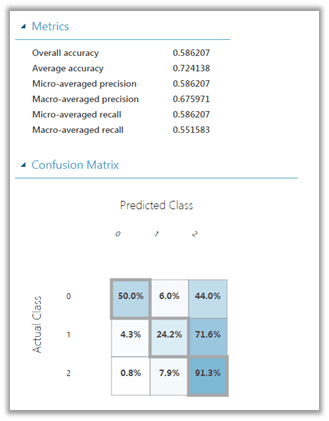
After the successful run, right-click the Evaluate Model and select Visualize to see the result.

Evaluation Results à
This completes our Prediction model.
Now we will create and deploy the web service for our prediction which will allow it to be used within the application.
Select Predictive Web Service for Set Up web service button.

This adds the Web Service Input and Output module to our experiment. Run the experiment again and click on Deploy Web Service to deploy the service to Azure.

The successful deployment will open up the Web Service group and will list down the details of the web service deployed. We can click on “Test Preview” to test our model.

Click on Enable for the sample data inside the Test page, which will generate the sample data to be used as input for the web service.

After generation of Sample Data, click on Test Request-Response button to see the output.

The Scored Labels displays the Predictive Rating based on the data that we have passed in.
Now to use this web service in our application, back in our Web Service dashboard, click on Request/Response to open the documentation page generated for our experiment.
Also note that we have API Key there, which would be required to be passed along with the request.

In the Request-Response API Documentation page, we can see all the details like Request URL, Request Headers, Request Body, Response and also the sample code for calling the web service


Similarly, we can click on Batch Execution link inside the web service Dashboard to access the documentation for Batch API Execution.

This we saw how easy it is to generate a machine learning solution using Azure Machine Learning Studio.
Hope it helps..










 Nishant Rana's Weblog