

We can make use of Copilot to create a journey for us, using everyday conversational language.
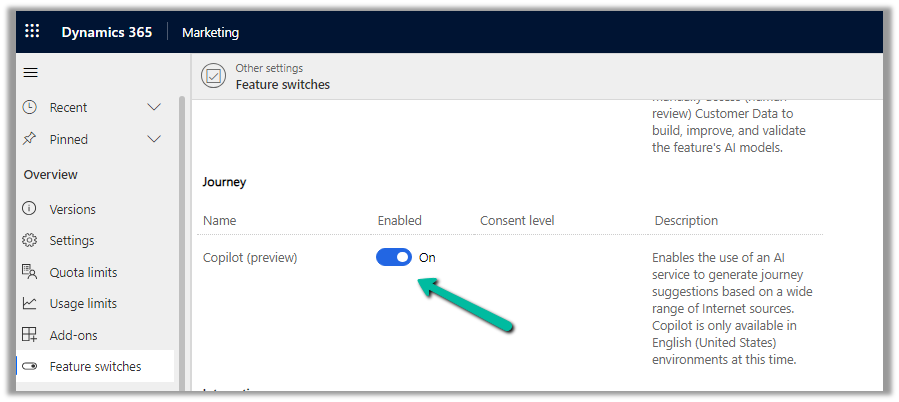
To enable it, navigate to
Settings >> Overview >> Feature Switches >> Journey (Copilot)
Let us see it in action, by creating a new journey record.
We get the option to select predefined
examples to start with.

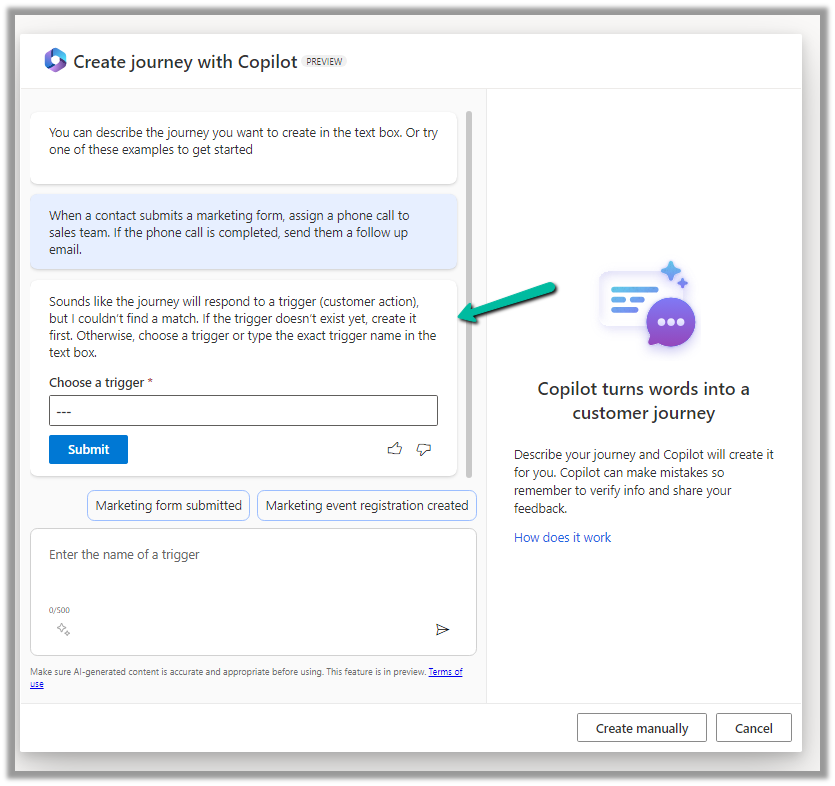
Here we have selected the last example “When a contact submits a marketing form, assign a phone call….”
On selecting it, we are presented with the option to specify the Trigger.
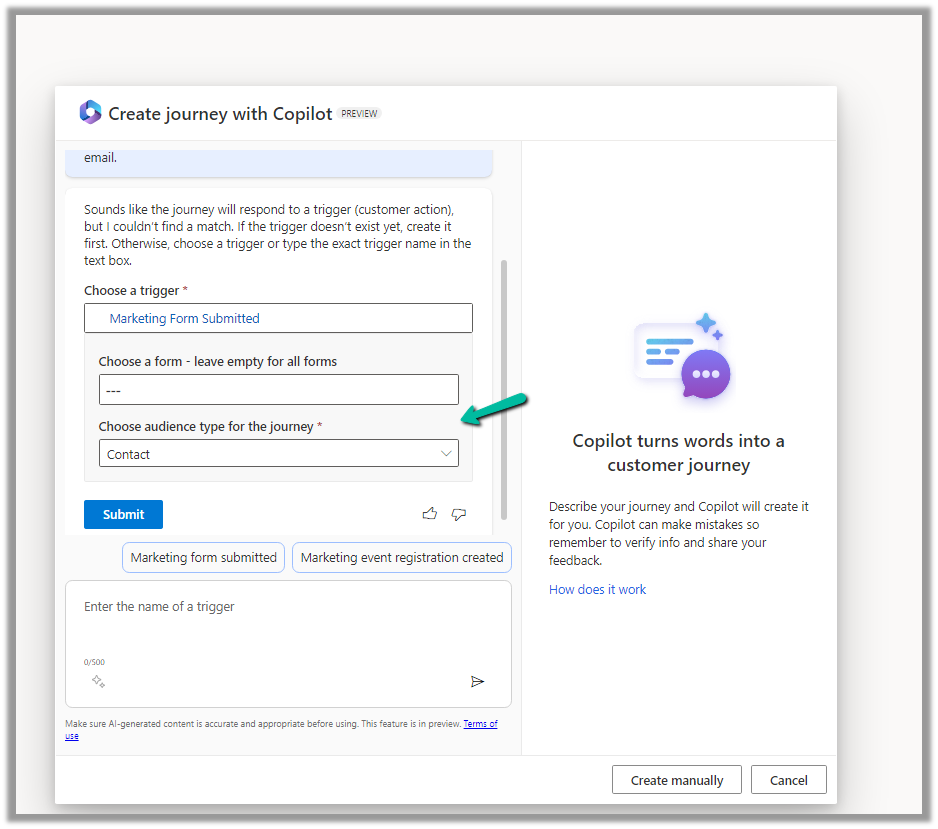
We have selected the existing Marketing Form Submitted trigger record here.

After specifying the trigger, we get the option to specify the marketing form or to leave it empty to run it for all the form submissions and also the audience type, which could be either Contact or Lead.
Clicking on Submit gives the option to review and then eventually Create Journey.

Clicking on Create Journey generates the journey for us.

We can review the journey, add any further content required, modify it, etc.
For example, we need to specify the follow-up email to be sent, before we can save and publish it.

Once we are done with defining the journey, we can publish it.
Get more details here.
Hope it helps..
Discover more from Nishant Rana's Weblog
Subscribe to get the latest posts sent to your email.
Share It -


 Nishant Rana's Weblog
One thought on “Use Copilot to create a journey – Dynamics 365 Marketing”