
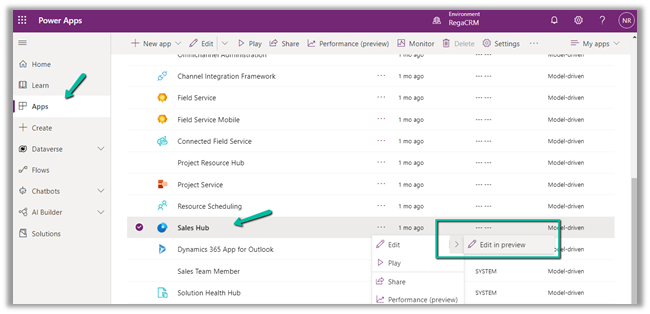
Using the modern app designer either open an existing model-driven app or create a new model-driven app in https://make.powerapps.com/
Select Edit >> Edit in preview
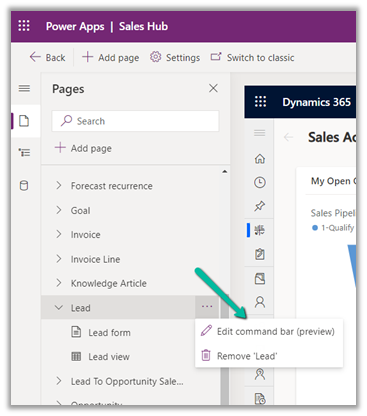
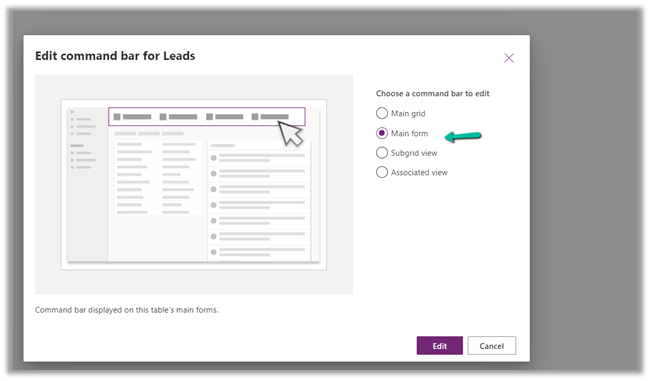
Select any entity/table and select the Edit command bar (preview)
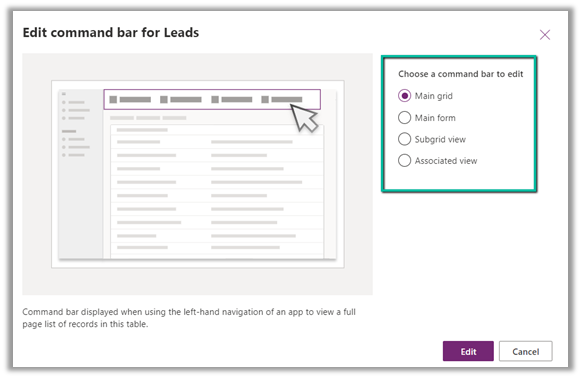
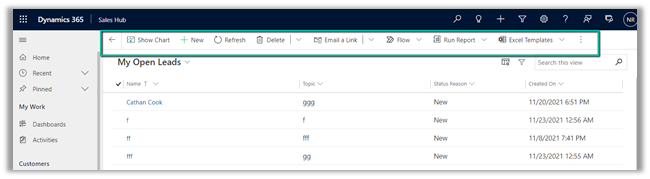
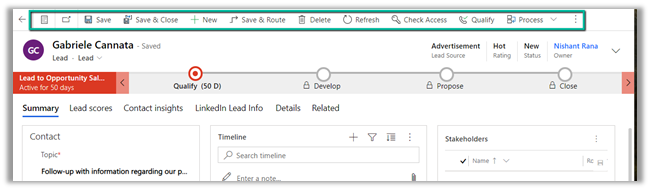
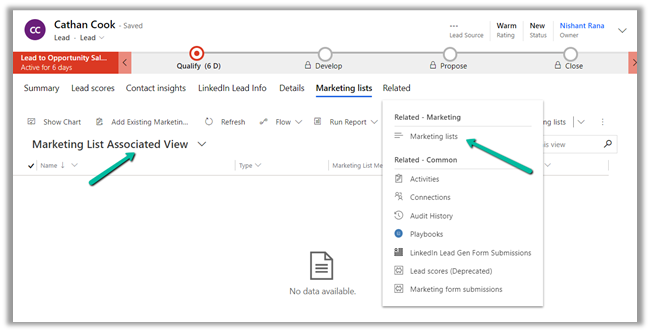
The different command bars that can be edited are the Main grid, main form, subgrid view, and the associated view.
- Main Grid view–
- Main Form view –
- Subgrid view–

- Associated view –
The legacy / classic button is not supported currently.
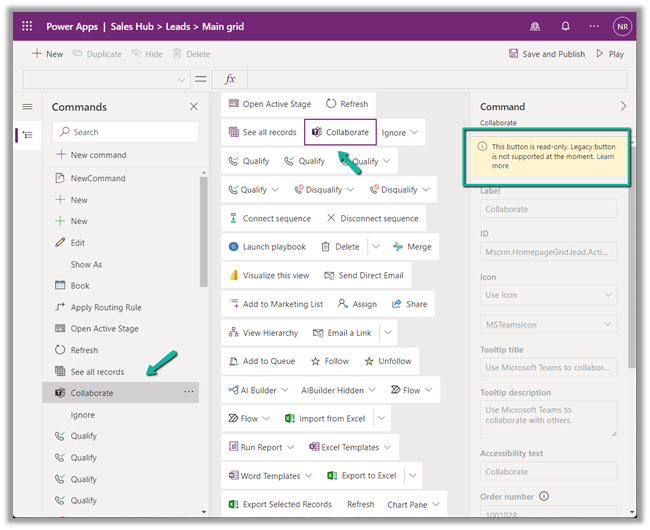
Check out all the known limitations
https://docs.microsoft.com/en-gb/powerapps/maker/model-driven-apps/command-designer-limitations

Let us try adding a new command/button in the Main Form, and see what options do we get there.
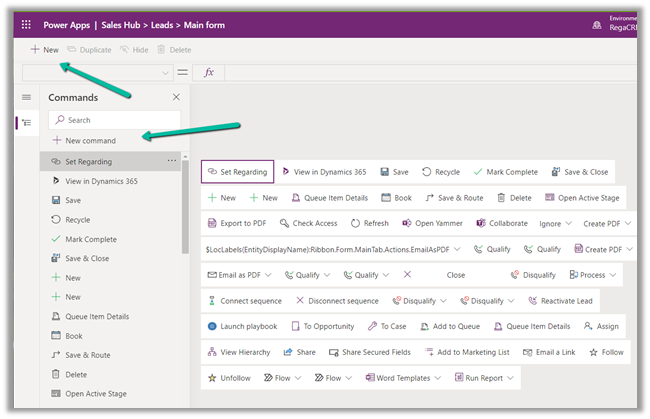
Select + New command or the + New option
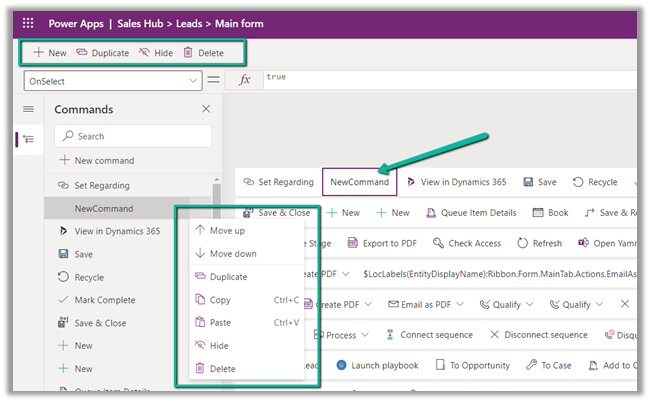
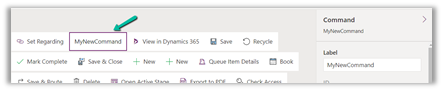
It adds a new button with the label NewCommand with options to duplicate, hide, move up and down, etc.
The different properties that can be configured for the new command –
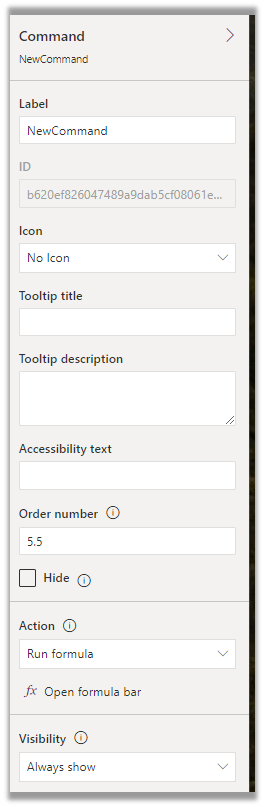
|
Property |
Description |
|
|
Label |
To set the label |
|
|
Icon |
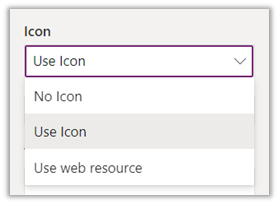
To set the icon either using icon or web resource |
|
|
Tooltip |
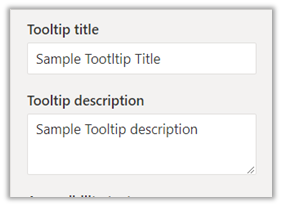
Set tooltip title and its description. |
|
|
Order Number |
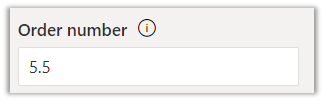
Customize the Order of the command |
|
|
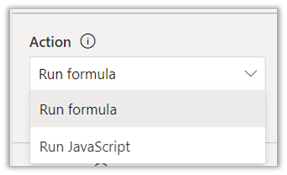
Action |
Either run formula or run javascript |
|
|
Open Formula Bar |
|
|
|
Library for Run JavaScript |
|
|
|
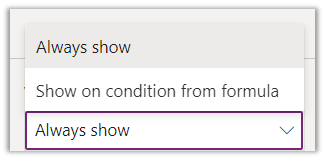
Visibility |
|
|
|
Open Formula Bar for Show on Condition |
|


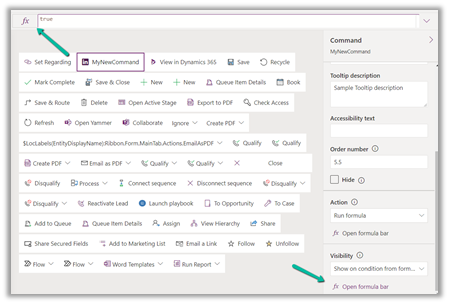
Let us Save and Publish
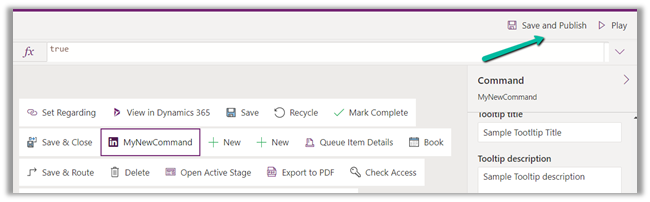
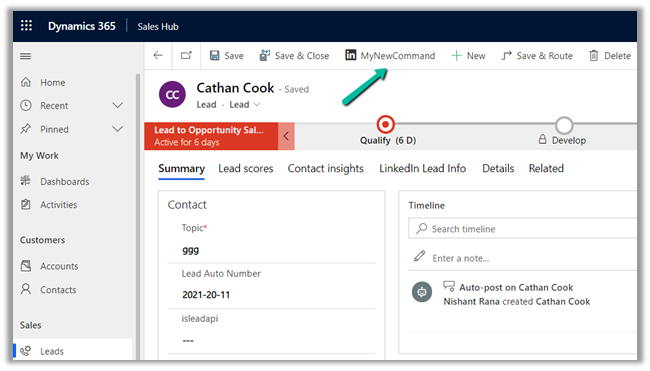
Click on Play and open a lead form.
We can see the new command added.
Get all the details here –
https://docs.microsoft.com/en-gb/powerapps/maker/model-driven-apps/command-designer-overview
Hope it helps..
Discover more from Nishant Rana's Weblog
Subscribe to get the latest posts sent to your email.
Share It -


 Nishant Rana's Weblog
Hello ! Thanks for this post. It would be very interesting if you could try to add this button to a solution and try to import it into a brand new environment.
LikeLike