
Similar to the apps that we see in Menu Bar for Dynamics 365, we can create our own apps.

First we need to enable the Preview for it.
Go to Administration à System Settings

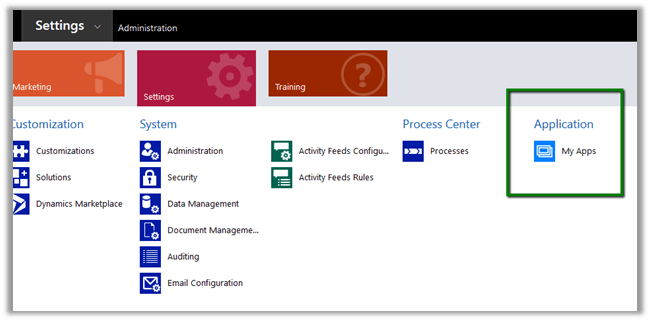
Go to Settings à My Apps
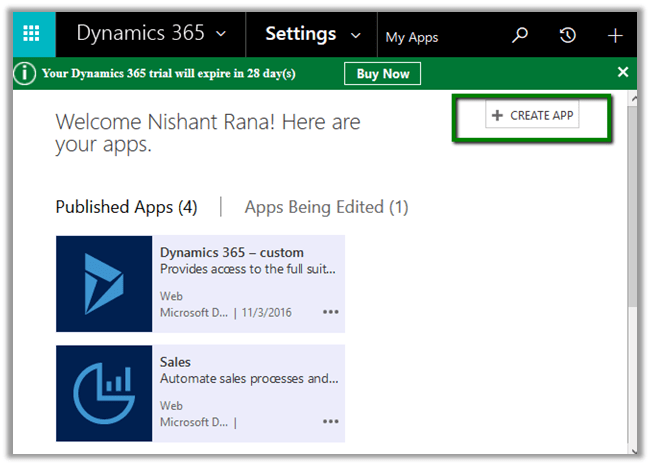
Click on Create App
It will take us to App Designer, provide details.

Different components that we can add
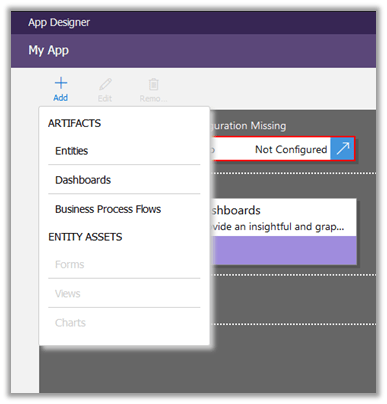
Or drag drop
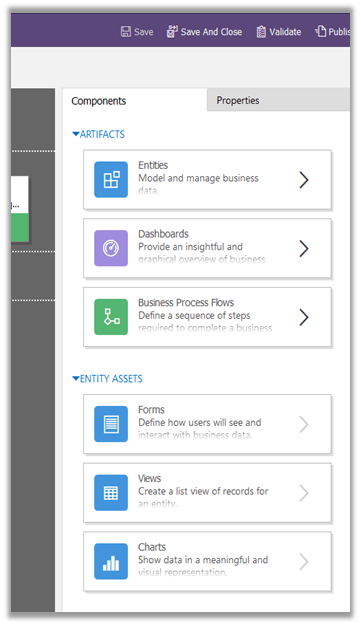
First we need to configure the SiteMap for the app. Click on arrow inside Sitemap area to configure.

Inside Site map designer we can add Area, Group and Sub Area (the usual components of Site Map)

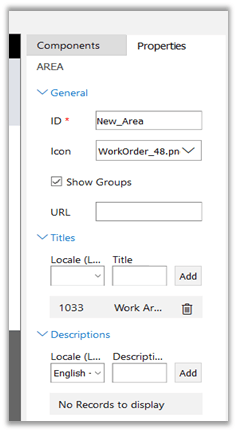
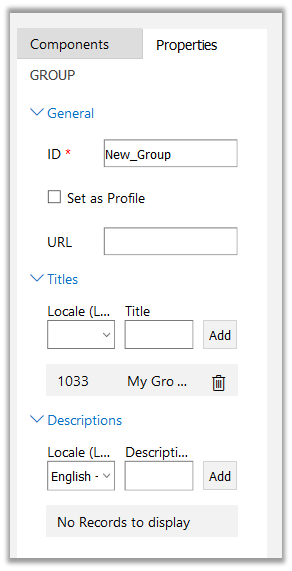
Update properties of Area, Group and Subarea and add new Sub Areas.
Area Properties.
For Group
For SubArea
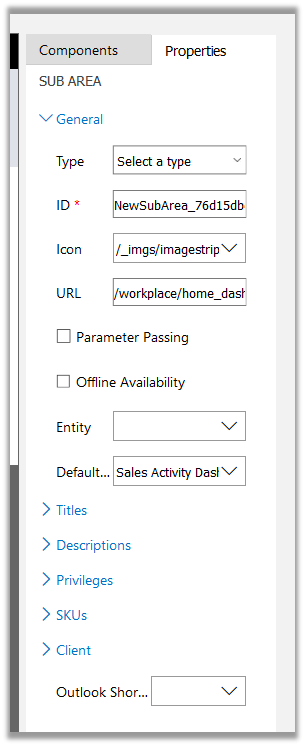
Different Types of Sub Area can be defined.

This is how the app looks inside Site Map Designer
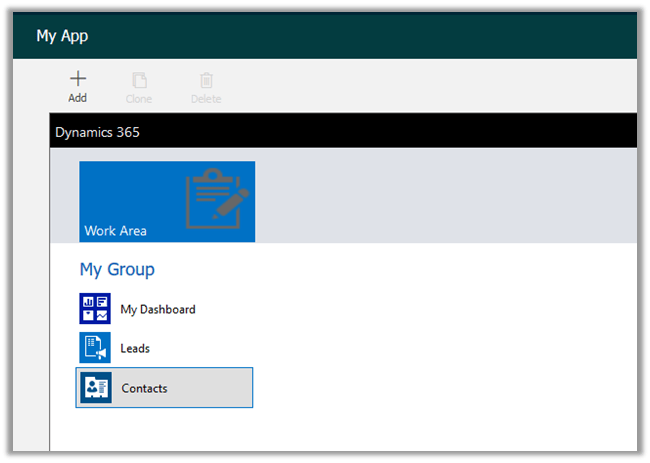
Save and close to go back to App Designer
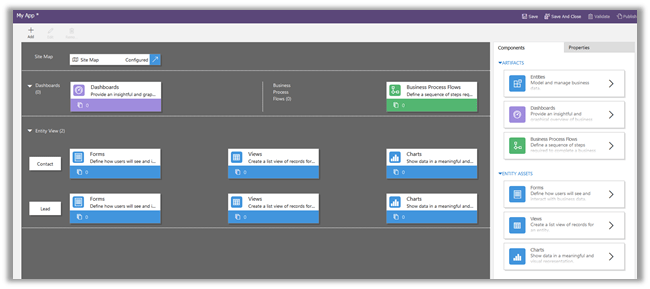
It has added Dashboard along with Contact and Lead Entity View.
Now let us add Form and Views to Contact and Lead Entity View using Entity assets.
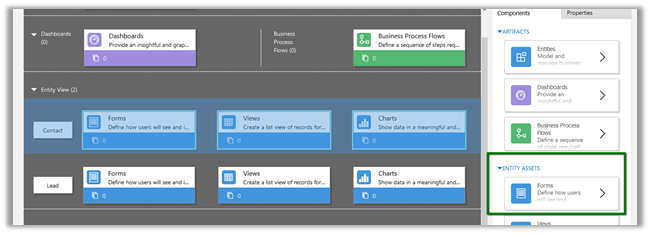
Select Contact in Entity View and select Forms in Entity Assets
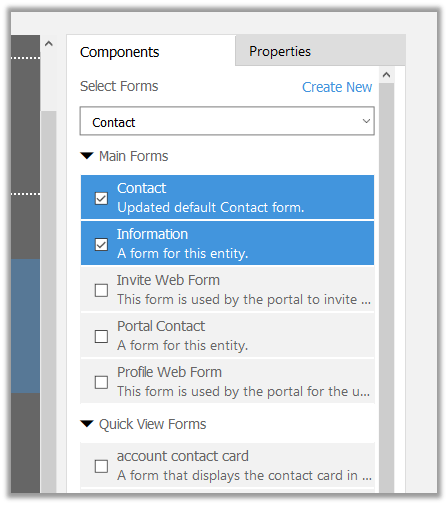
Similarly, for Views
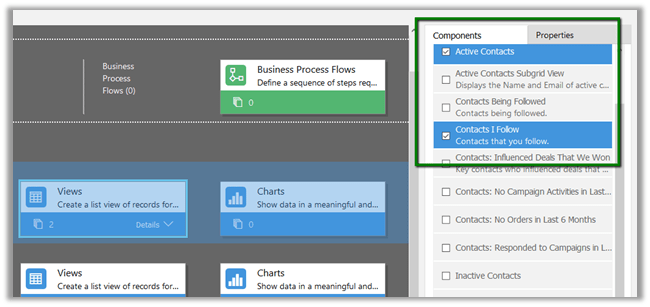
Repeat the same steps for Lead entity.
Click on Validate
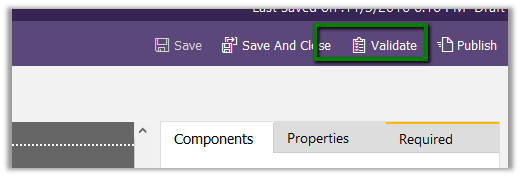
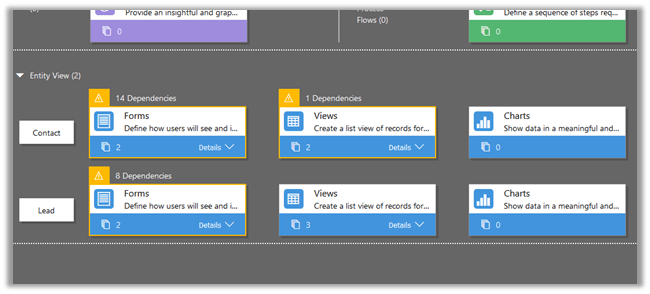
It will show up all the dependencies
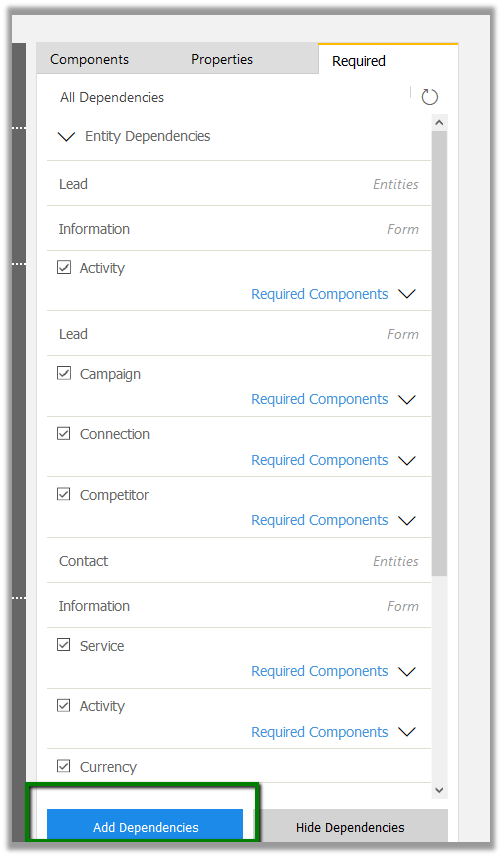
Required tab will list all the dependencies. For time being let us add all the dependencies
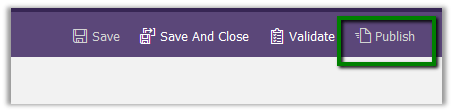
Publish the app.
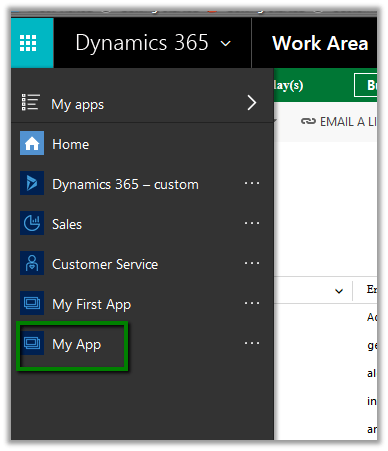
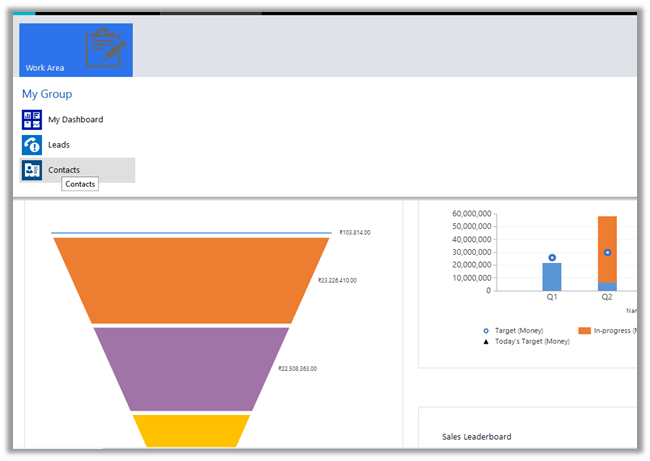
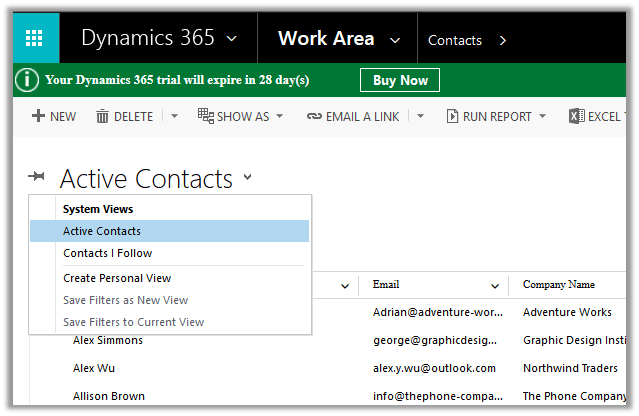
The apps would appear now in Dynamics 365 menu
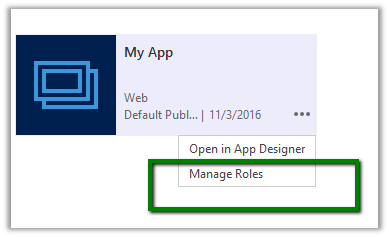
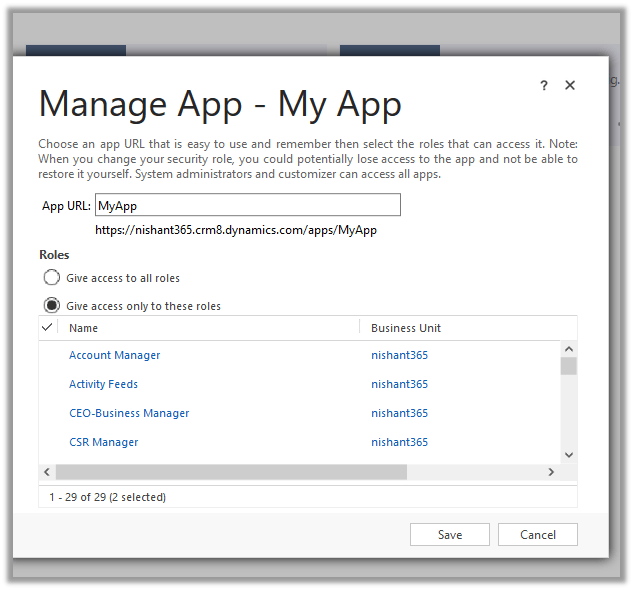
We can specify specific roles which could access the apps.
Hope this helps ..
Discover more from Nishant Rana's Weblog
Subscribe to get the latest posts sent to your email.
Share It -


 Nishant Rana's Weblog
Nice article.
Can apps be packaged and published to the AppSource for others to try and buy?
LikeLike
I just started a Dynamics 365 for Sales trial. However, I do not see the option to select “Yes” for “App Modules & App Designer Preview” in the “System Settings” dialog box (the second screen shot in your blog). Is there some special setting in my trial that first needs or is there some permissions or access level setting that my account needs to be enabled to see this? As a result, I am unable to see Application-My Apps, and hence unable to see the [+ CREATE APPS] button to open the App Designer. Do you know what I could be doing wrong?
LikeLike
I have the same issue too.
LikeLike
I was supplied with this link https:///applandingpage.aspx that would directly open My Apps where you can see the [+ CREATE APP] button, and subsequently discovered that you can launch the App Designer wizard (maybe more logically) from Settings->Solutions->->Components->Apps->New.
LikeLike
Sorry, the system stripped some of my test. Here is my response again:
I was supplied with this link https://{TrialDomain}/applandingpage.aspx that would directly open My Apps where you can see the [+ CREATE APP] button, and subsequently discovered that you can launch the App Designer wizard directly (and maybe more logically) from Settings->Solutions->{Any Solution}->Components->Apps->New.
LikeLike
Does anyone know if the Dynamics Mobile app respects the Apps?
Example:
Security Role A can access only App A
Security Role B can access only App B
Will this be reflected in the mobile app?
LikeLike
Please go through this link
https://www.microsoft.com/en-us/dynamics/crm-customer-center/manage-access-to-apps-with-security-roles.aspx
LikeLike
We created a custom App using App Designer under Settings. We then moved our solution down to our other environments. In the other environments they point to the correct environment if accessed through the My Apps but through any other navigation method it only points to production.
Can any one help me on this issue Thank You 🙂
LikeLike
Hi Nishant,
We want to export this app from solution version 8.0 to solution version 9.0, but we can not export this app.
Please suggest us.
LikeLike
How to use this app into mobile?
LikeLike