
Let us quickly create a PowerApp that allows a user to create Contact record inside CRM (using Microsoft Flow).
- Login to PowerApps with Office 365 Account
https://web.powerapps.com/home
- Click on New app

- Let us use PowerApps studio for Windows here (much easier to use then PowerApps for web)
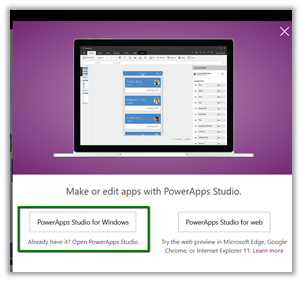
- Select a Blank App (Phone Layout)

- Insert Text Box, Text Box Input and Button controls and apply Theme
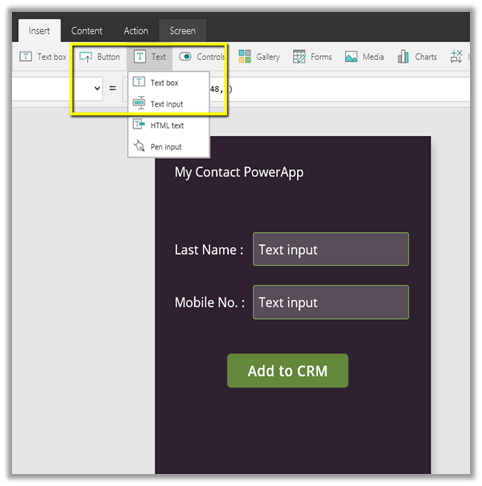
- Select Add to CRM button and select Flow in Action menu to connect with the flow.

- Create a new Flow

- Search for PowerApps
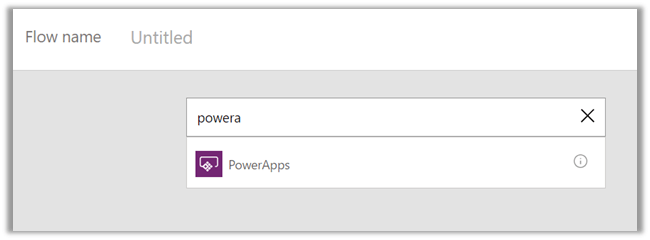
- Select Add an action

- Select “Create new a record” Action and select Contacts in Entity Name.
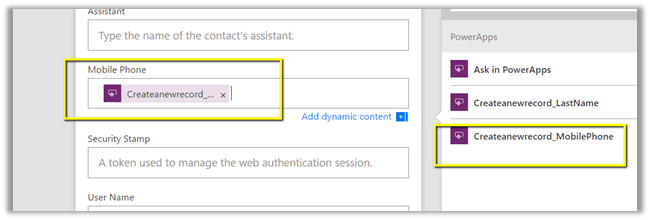
- For Last Name field, click on “Ask in PowerApps” which will add a new field to be mapped inside PowerApps
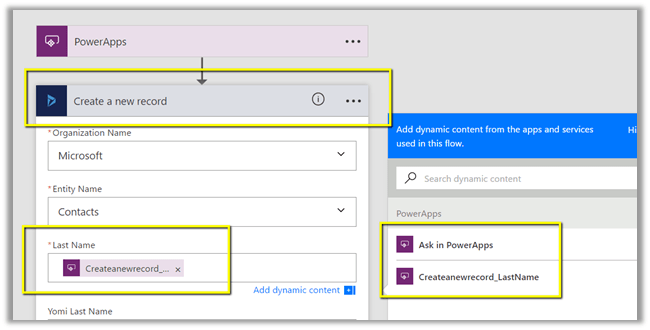
- Do same for mobile phone field
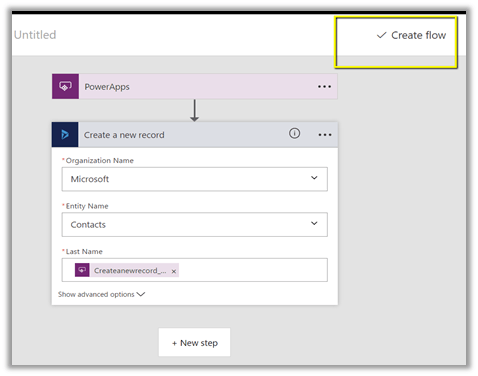
- Click on Create flow to create the flow
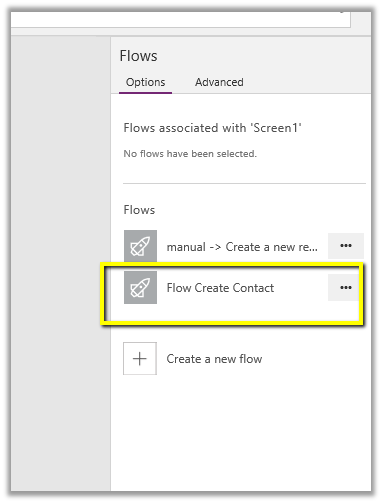
- Now back in PowerApps, select the newly created flow.
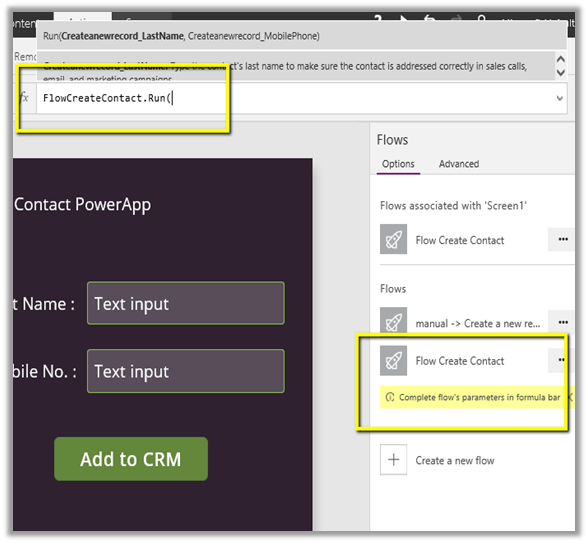
- Specify formula to map the fields
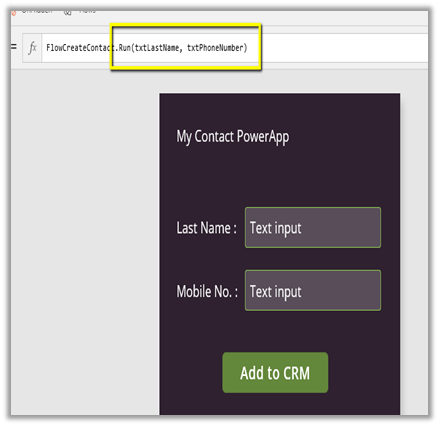
- Run the application

- Specify the values for Last Name and mobile number and click on Add to CRM button.

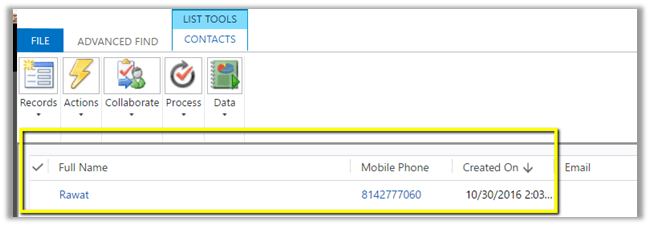
- This creates the contact record in CRM using the Flow defined.

- We can save the app in cloud and the share it with the other users inside the org.
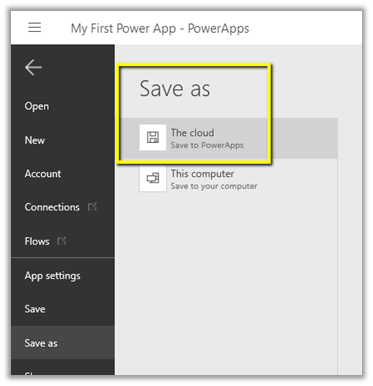
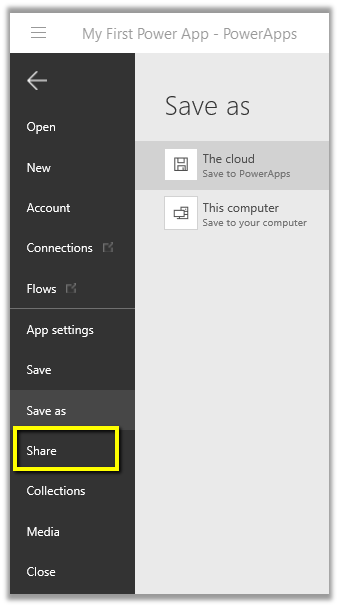
- Click on Share (Enter name or email addresses of the users with whom we’d like to share the app)

- App being published
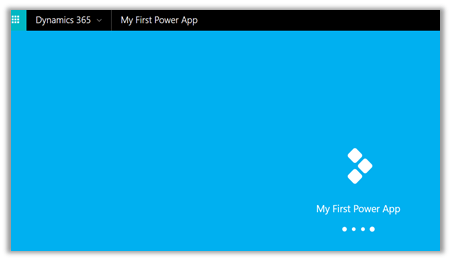
- Once Published, it would be available to the other users.

Hope it helps..
Discover more from Nishant Rana's Weblog
Subscribe to get the latest posts sent to your email.
Share It -


 Nishant Rana's Weblog