“Solution manifest import: FAILURE: Solution patch with version already exists. Updating patch is not supported.” – Power Platform / Dynamics 365


While importing a patch (unmanaged) solution we got the below error –

“Solution ‘abc_Configuration’ failed to import: Solution manifest import: FAILURE: Solution patch with version 1.6.1.1 already exists. Updating patch is not supported.”

A screenshot of a computer

Description automatically generated

This is because Dataverse does not allow updating an existing patch solution with the same version number. Dataverse treats patches as immutable once imported. So if a patch already exists in the target environment, we cannot re-import a patch with the same version. Unlike full solutions, patches cannot be updated or overwritten—they must be uniquely versioned.

To fix this we can increase the Patch Version in our source environment. Here we incremented the patch version (from 1.6.1.1 → 1.6.1.2). Exported the patch again and imported it into the target environment.

Dataverse considers each patch version as unique, so increasing the version allows re-import.

Below we can see the new version of the patch imported replacing the old one.

A screenshot of a computer

Description automatically generated

Hope it helps..

Advertisements

Manage solution dependencies easily through the refreshed look – Dataverse


In Dataverse, solution dependencies are a vital aspect of managing and deploying applications. Dependencies ensure that required components are present for a solution to work seamlessly across environments. However, with complex solutions, understanding and managing these dependencies can become overwhelming.

The updated dependencies page is designed to simplify dependency management by offering a more intuitive, action-driven experience.

Select a particular component in the solution, right-click>> Advanced >> Show dependencies.

We can see 3 different tabs.

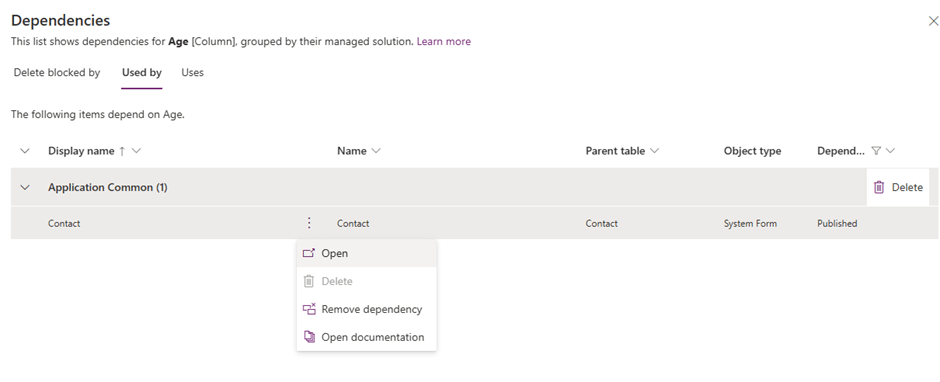
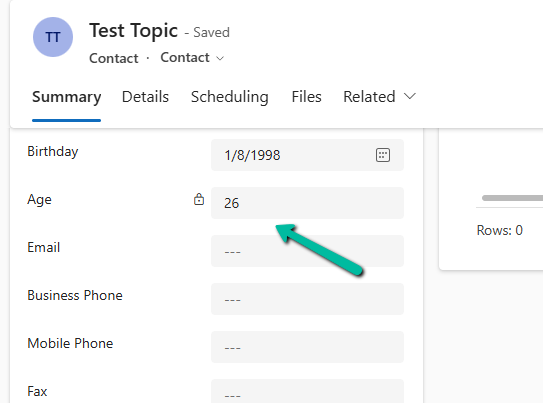
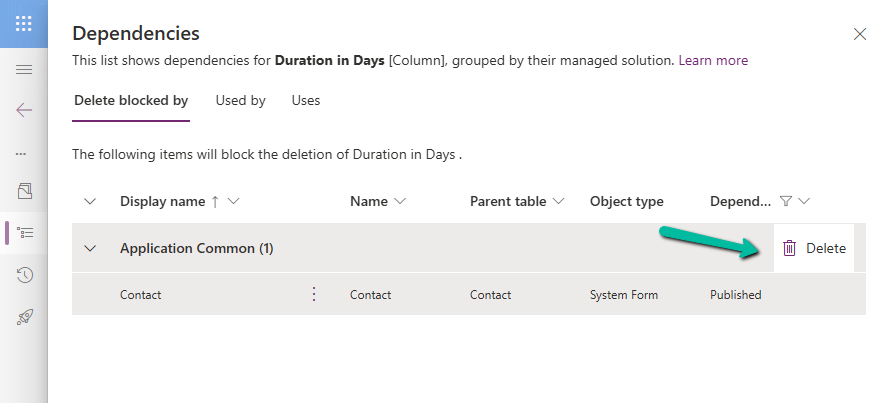
Delete Blocked By (tab): Displays any dependencies preventing deletion of a component. Below we can see that for the Age column, it shows Contact’s System Form as the dependency.

A screenshot of a computer

Description automatically generated

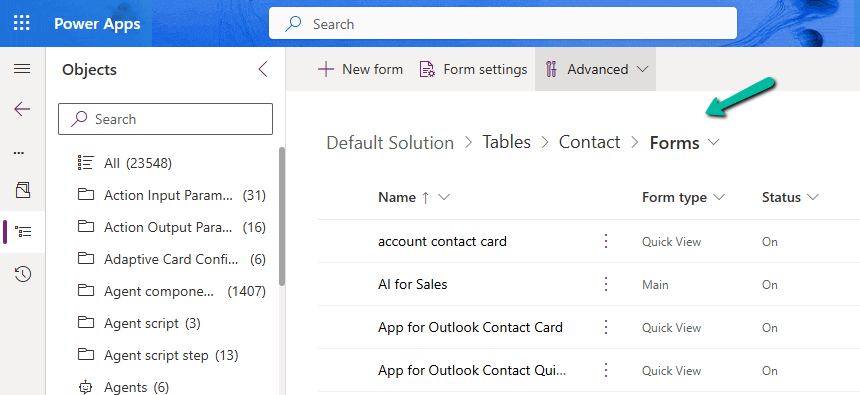
Clicking on the Open option takes us to the component page, where we can see all the forms for the contact table.

A screenshot of a computer

Description automatically generated

Used By (tab): Lists other components dependent on the selected component.

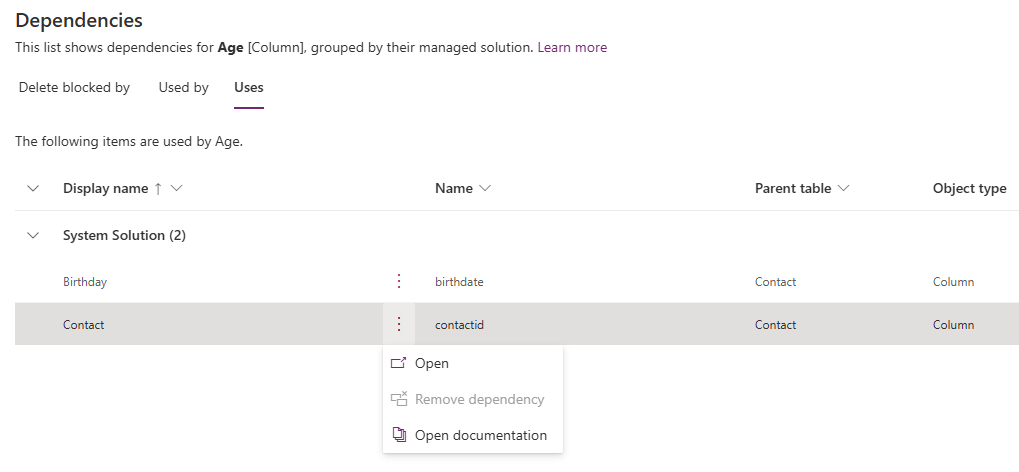
Uses (tab): Shows dependencies that the selected component relies upon.

A screenshot of a computer

Description automatically generated

On clicking Open, it opens the Columns page for that table.

A screenshot of a computer

Description automatically generated

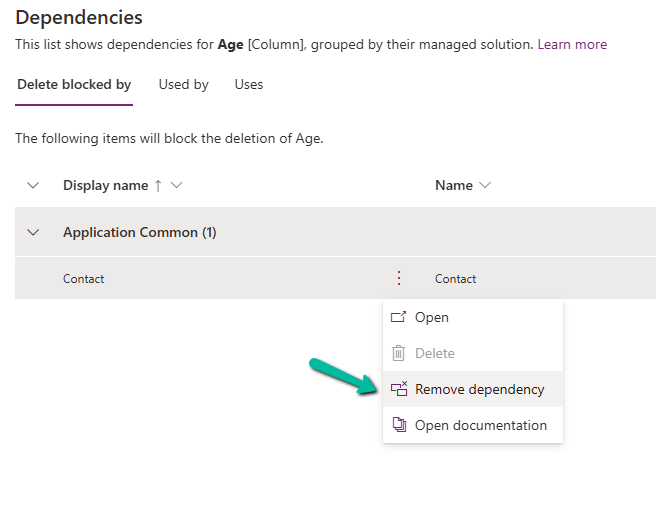
The different actions that we can take are Open and inspect the object, Delete the object, Remove dependency, and open the relevant documentation.

Below we have selected the option Remove dependency. As we saw the dependency here refers to the Contact System form in which we have the age field used.

A screenshot of a computer

Description automatically generated
A screenshot of a computer

Description automatically generated

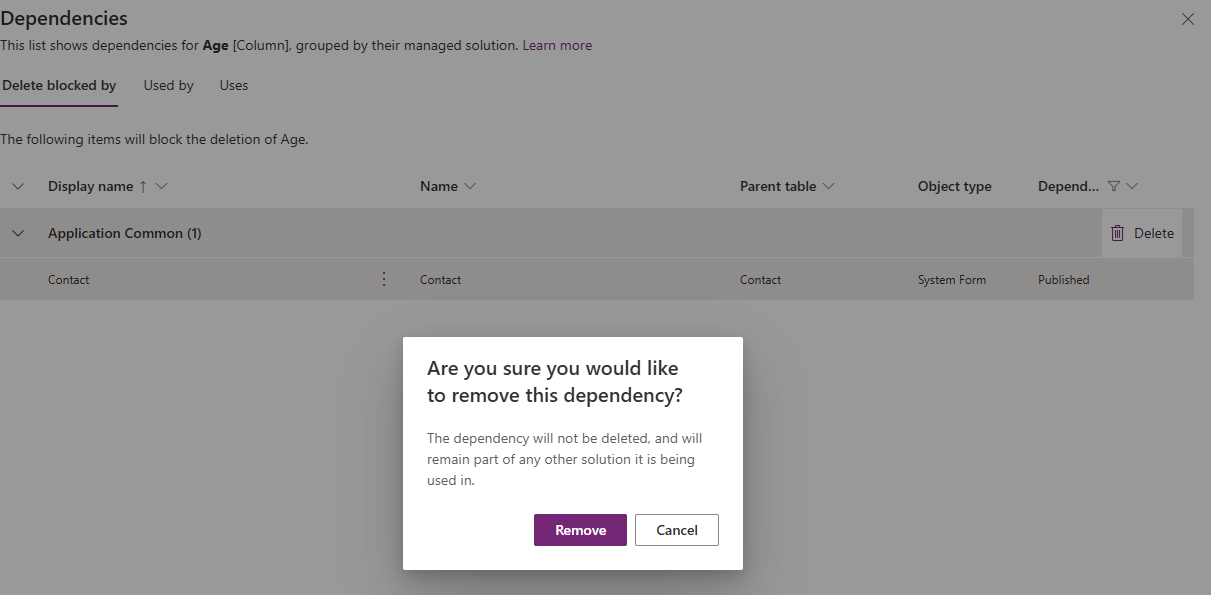
Select Remove.

A screenshot of a computer

Description automatically generated

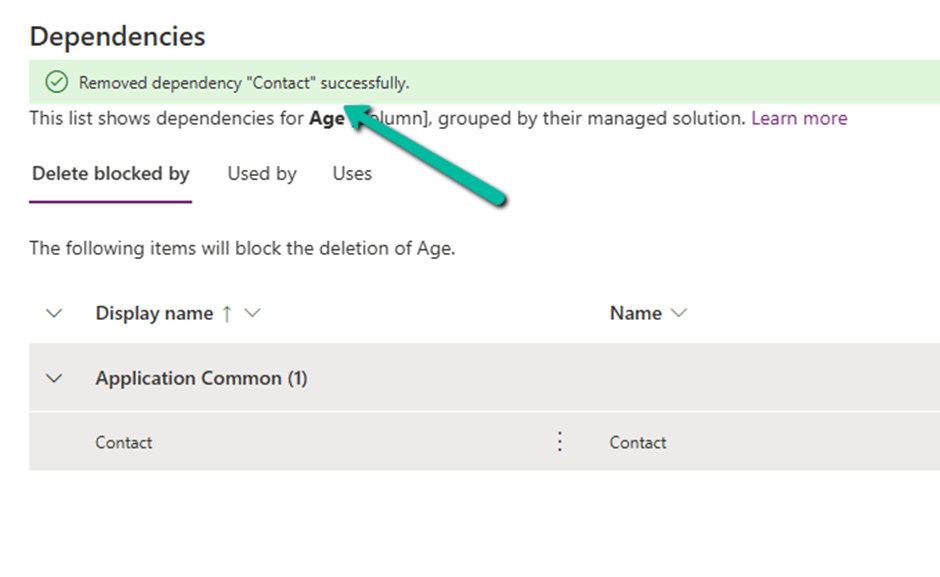
We get the success message after the successful removal of the dependency.

i.e. we can see the field removed from the blocking Contact’s System form.

Now if we want we can easily delete that particular field with no object blocking the delete.

Lastly, the Delete option for the solution allows the delete (uninstall) the solution that has dependencies on the solution component.

Get all the details here.

Hope it helps..

Advertisements