How to – Use Xrm.Internal.openDialog as an alternate to showModalDialog in CRM


New version of Chrome doesn’t showModalDialog method.

g

As an alternate we can use Xrm.Internal.openDialog method
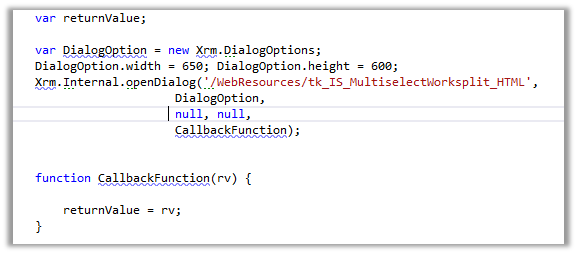
  • And in the HTML Web Resource page

We need to refer ClientGlobalContext.js.aspx

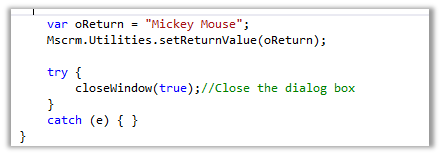
To return value to the parent window and close the current window
Helpful links

https://debajitcrm.wordpress.com/2014/04/29/exploring-the-xrm-internal-namespace-in-crm-2013/

https://dynamicsofdynamicscrm.wordpress.com/2014/04/28/call-crm-2013-modal-window-for-webresources/

https://mscrmmindfire.wordpress.com/2014/04/23/open-dialog-box-like-crm-2013/

MOST IMP – It is unsupported

Hope it helps!!

Advertisements

Step by Step – Configure CRM Plugin and Azure Service Bus in CRM 2015.


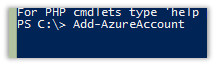
Run Microsoft Azure PowerShell

  • Add-AzureAccount


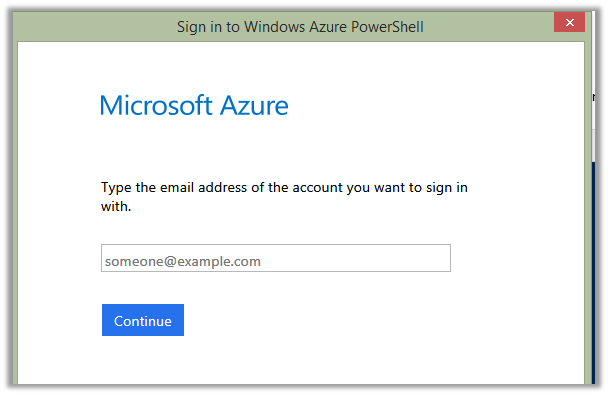
Sign in using your Azure Account.

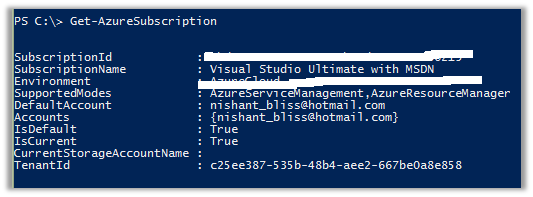
  • Get-AzureSubscription

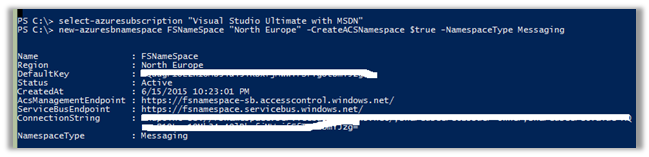
  • Select-Azuresubscription <name of the subscription you need>
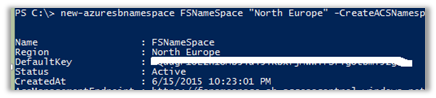
  • New-Azuresbnamespace <name for the service bus> “North Europe” -CreateACSNamespace $true -NamespaceType Messaging


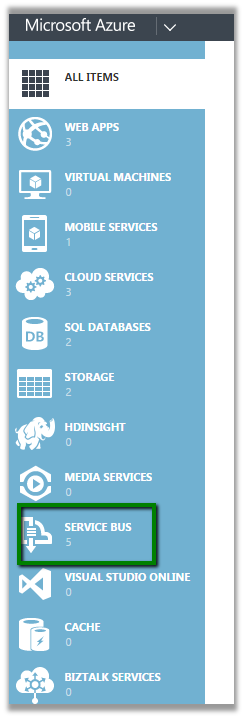
Open Azure Management Portal

https://manage.windowsazure.com/

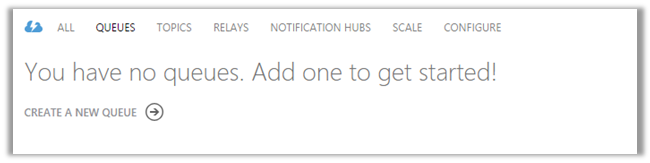
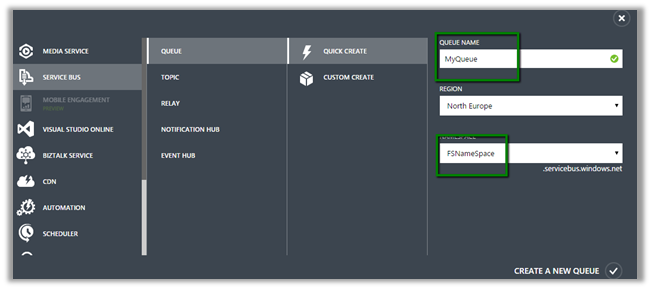
Click on the Service Bus à Queues and Create a Queue using Quick Create


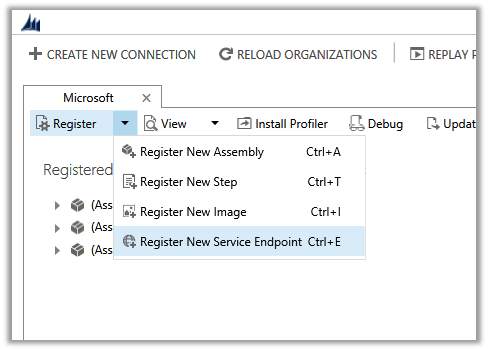
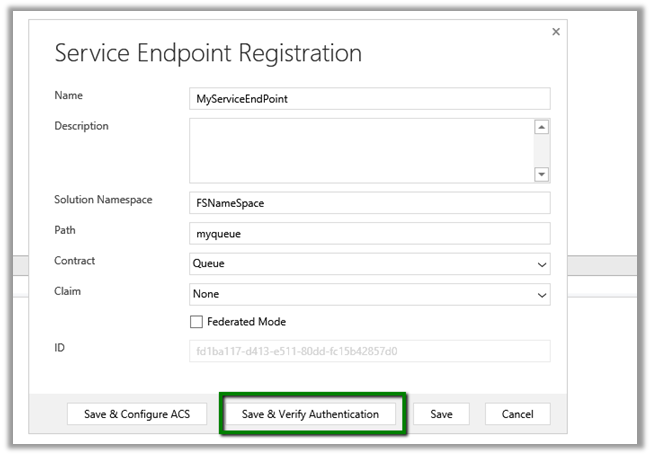
Now open Plugin Registration Tool.

Solution Namespace – Name Space we gave to our Service Bus.

Path – Name of the Queue.

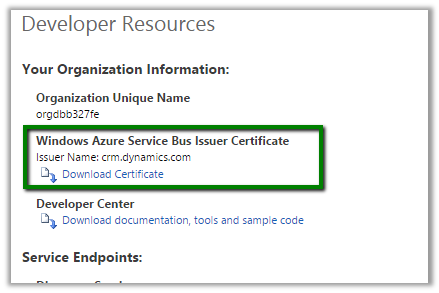
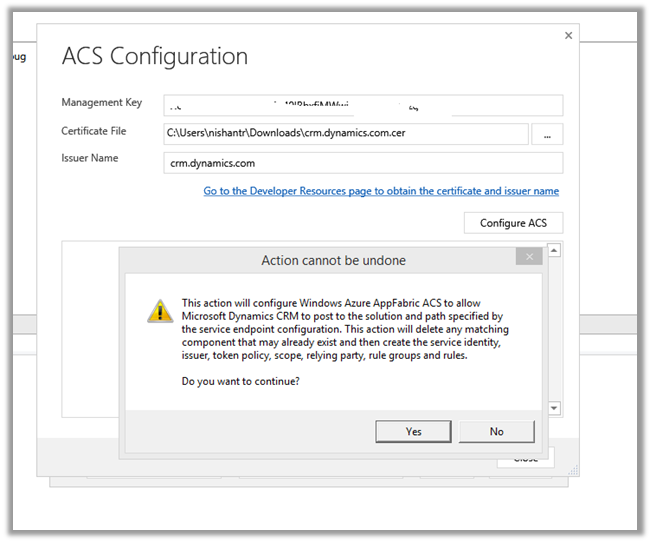
Cick Save & Configure ACS

Management Key è Default Key


Click Save.

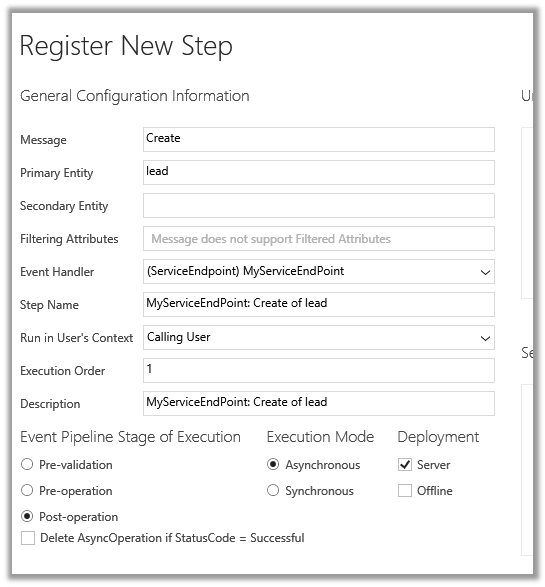
Now register a new Step. (Post Lead Create Asynchronous)


Create a new Lead record in CRM.

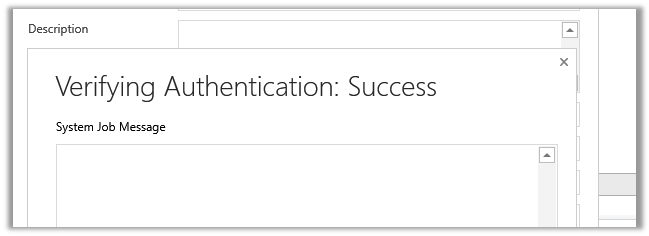
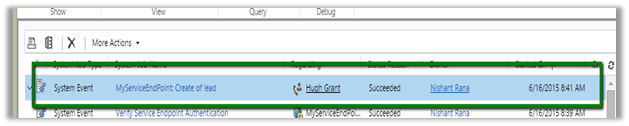
Check the System Job.

Hope it helps..

Missing Posts tab in Social Pane in CRM 2013.


Hi,

Recently we added Social Pane to one of our custom entity form in CRM 2013. It was only showing Notes and Activities tab. Posts tab was missing.

To get the Posts tab we need to activate Post for that custom entity, which can be done through Post Configurations page.

However the Post Configuration area was missing in our CRM’s site map navigation.

To add it back, we need to follow the steps mentioned this post

http://www.crmcodex.com/2013/11/mscrm-2013-missing-posts-tab-on-the-new-activity-feeds/

i.e. to add the following SubArea

<SubArea Id=”nav_administration” ResourceId=”Homepage_Administration” DescriptionResourceId=”Administration_SubArea_Description” Icon=”/_imgs/ico_18_administration.gif” Url=”/tools/Admin/admin.aspx” AvailableOffline=”false” />

<SubArea Id=”nav_social” ResourceId=”Social_SubArea_Title” DescriptionResourceId=”Social_SubArea_Description” Icon=”/_imgs/area/16_social.png” Url=”/tools/social/social_area.aspx” AvailableOffline=”false” />

<SubArea Id=”msdyn_postconfig” ResourceId=”Activity_Feed_Configuration” Entity=”msdyn_postconfig” />


Add Email and Post Configuration to SiteMap

https://technet.microsoft.com/en-us/library/dn486920%28v=crm.6%29.aspx

Hope it helps..


Nested Quick Create form in CRM 2015


Nested Quick Create form in CRM 2015

In CRM 2013,

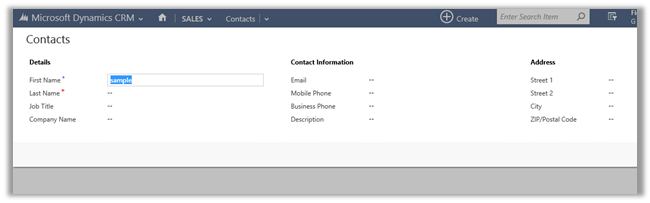
If we click on Create button for Quick Create a record

Say for e.g. Contact record

And want to create a new Account record to be associated to it

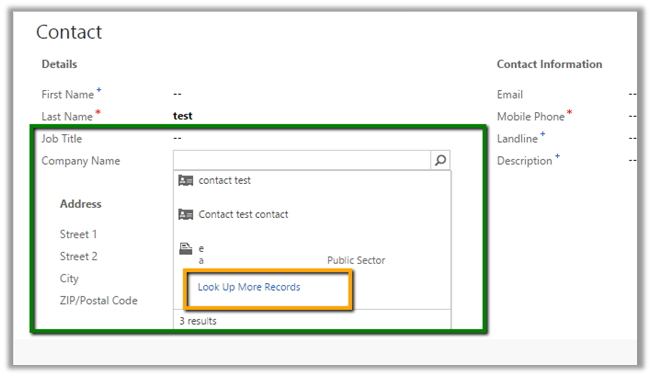
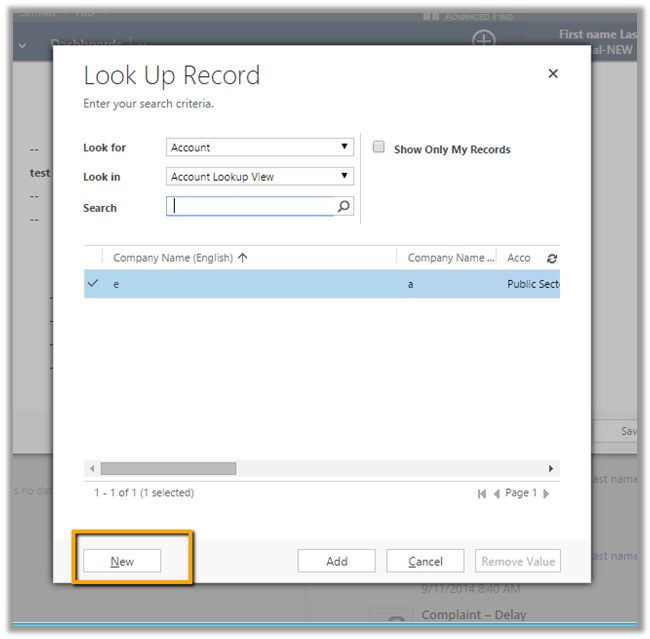
We need to click on “Look Up More Records” and then “New”

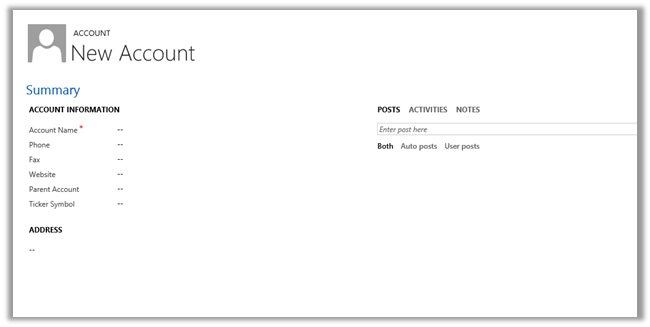
This opens up the default Contact form


However in CRM 2015,

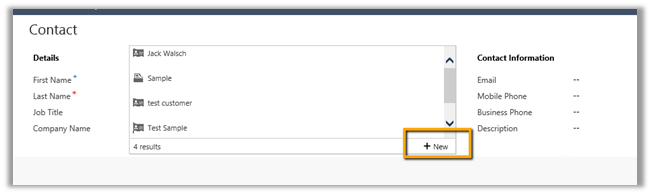
We have a New Button

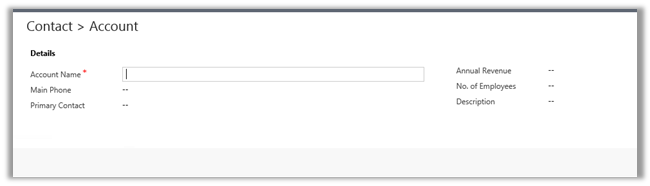
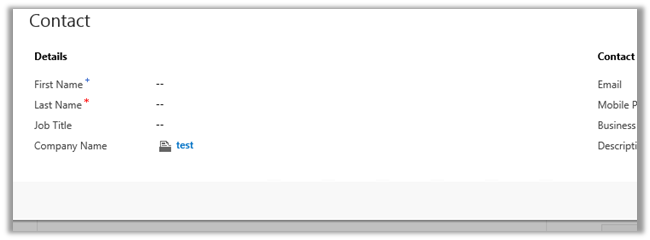
It will open the Quick Create Form for the account record instead of the default form as in the case of CRM 2013.

On creating and saving the account record, it will close the Account record and populate the lookup in Contact record

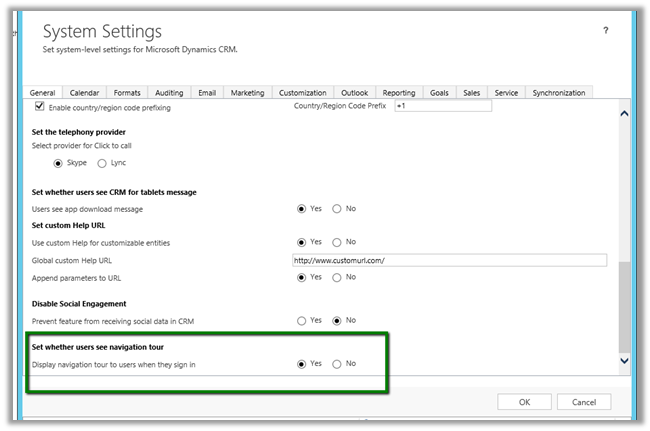
Hiding Navigation Tour in CRM 2015


Navigation Tour dialog box opens up when user sign in to CRM.

If we want to disable this,

Go to Administration à System Setting à General Tab

Search Enhancements in CRM 2015

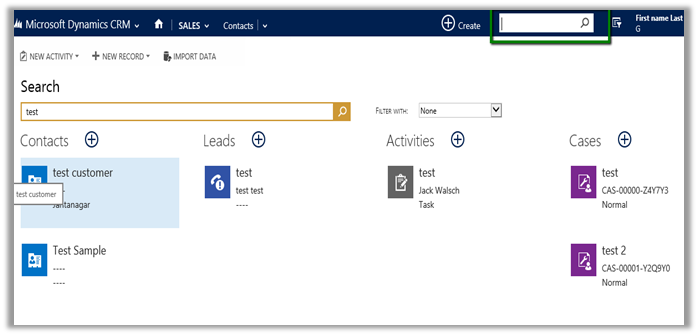
Multi Entity Search

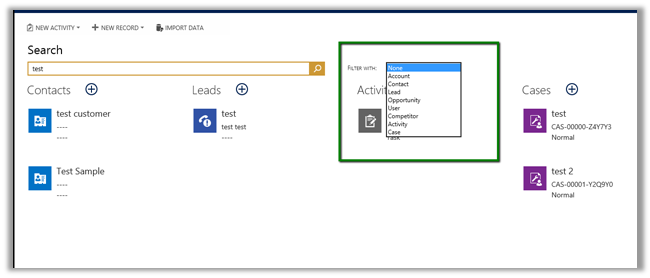
CRM 2015 have added option for multi entity

With Maximum 10 entities at a time (can also be used for filtering the result)

Clicking on “+” in the result opens the quick create form for that record

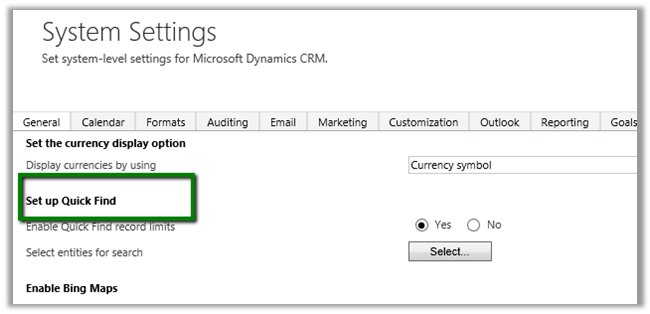
To set up Quick Find search, Go to à Adminsitration à System Settings

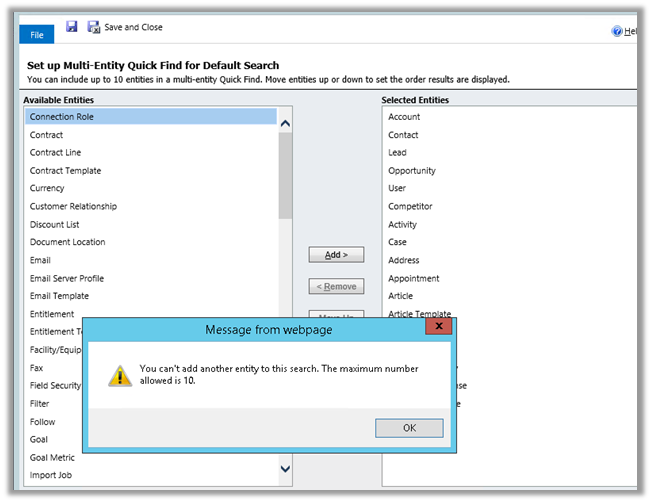
Click on Select to select the entity and specify the order for them.

Maximum of 10 entities can be added for search. (Supports custom entities)

The Search is based on Quick Find View of the respective entity. i.e. based on Find Columns defined in it.

The result displays first 4 column of the Quick Find View.