Power BI with Dynamics 365 CE – Refreshing the Dataset


In the previous post, we used Dynamics 365 Dashboard and Power BI Tile to show Power BI Dashboard and report inside Dynamics 365.

https://nishantrana.me/2018/08/20/power-bi-with-dynamics-365-ce-showing-power-bi-dashboard-tile-inside-dynamics-365-ce/

Now as a next step, we want to make sure that the users are looking at the latest data possible inside the Dashboard\Reports.

In case of Online Services like Dynamics 365 (Online), we have the option to manually Refresh the data.

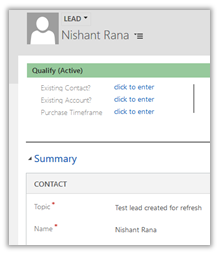
To see it in action, let us create a lead record in Dynamics 365.

This is how our Dashboard looks like for now à

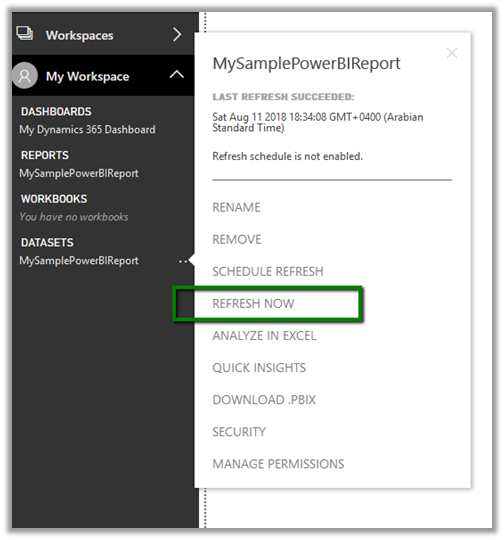
Now back in Power BI Service right, click on ellipsis for the Dataset and select Refresh Now.

We can see the newly created lead in our Power BI Report inside Power BI Service and Dynamics 365 CE.

The other option we have is to Schedule the refresh.

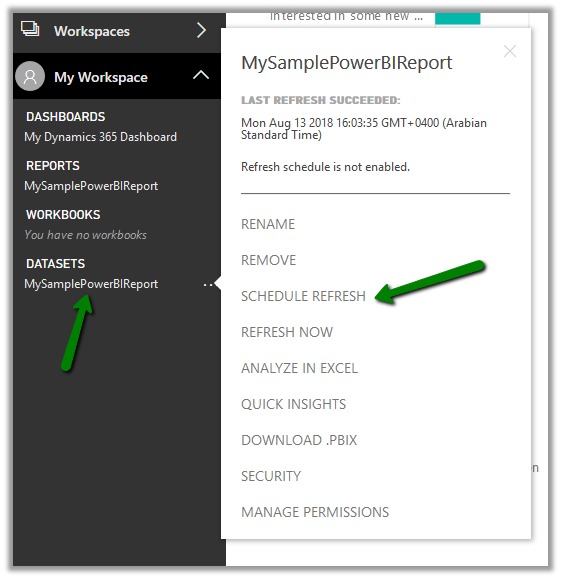
Navigate to the Dataset and select Schedule Refresh

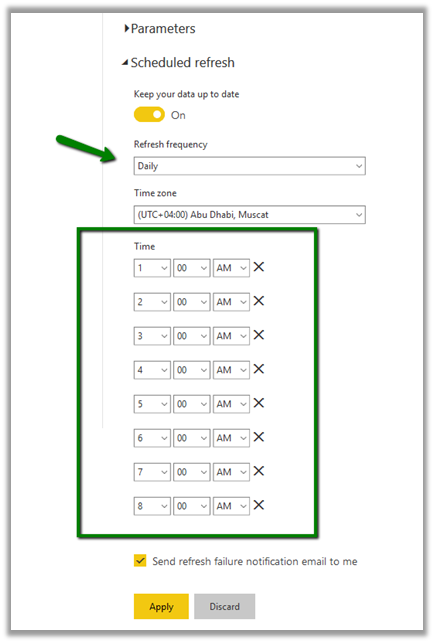
We can select the Refresh Frequency as Daily or Weekly.

And we can set it to refresh up to 8 times per day as shown below.

With Power BI Pro License, we can complete the scheduled refresh 8 times a day whereas the Power BI Premium allows the refresh up to 48 times per day.

https://powerbi.microsoft.com/en-us/power-bi-premium/

Some helpful links

https://docs.microsoft.com/en-us/power-bi/refresh-scheduled-refresh

https://www.powerobjects.com/2018/01/11/power-bi-data-refresh-performance/

https://crmtipoftheday.com/category/power-bi/

Hope it helps..

Power BI with Dynamics 365 CE – Publishing Power BI Report to the web


In the previous post, we learned how to create a simple Power BI Report using Power BI Desktop

https://nishantrana.me/2018/08/20/power-bi-with-dynamics-365-ce-creating-report/

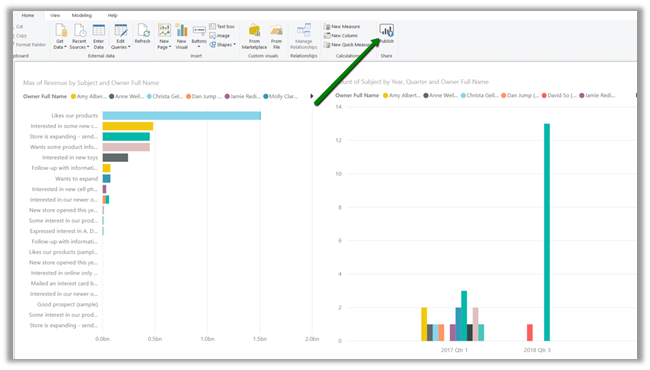
Now let us publish the report to Power BI Service from within the Power BI Desktop.

To do so, select the Publish button

Publish window will ask us to save the report file (if not saved) before we could publish it.

Here we are publishing it to the default “My Workspace” app workspace within Power BI Service.

Publishing the report from Power BI Desktop publishes both the report and dataset associated to it in the Power BI Service. We can think of DataSet as the Database.

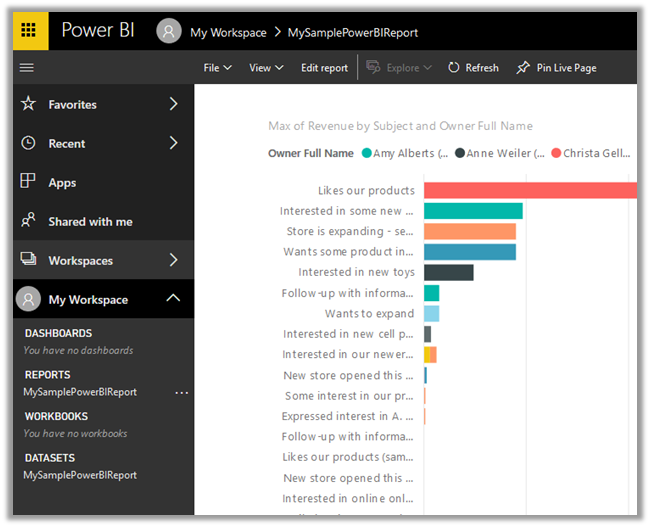
After successful publish we can see the Report and Dataset being added inside the Power BI Service (https://app.powerbi.com)

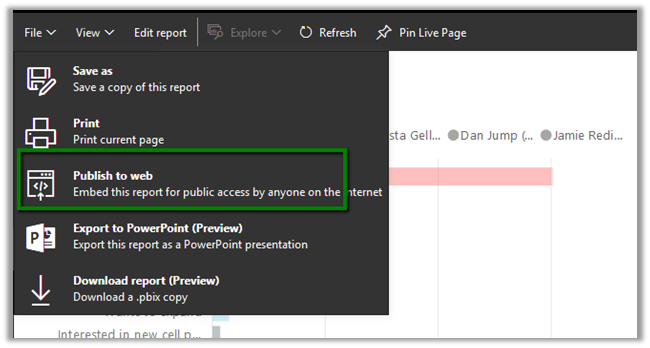
From with Power BI Service, we have the option of Publishing the report on Web so that it could be accessed by anyone having that URL.

To do so,

Select File
à
Publish to Web to publish it.

The Embed dialog box pops up as shown below with all the information.

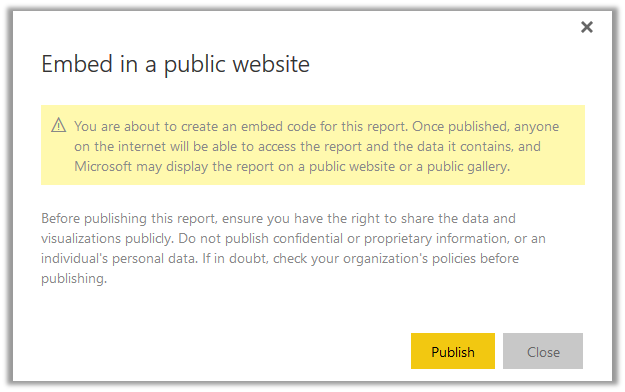
Clicking on Create Embed Code will open the confirmation dialog box, that shows the potential risk associated with sharing the information over the internet.

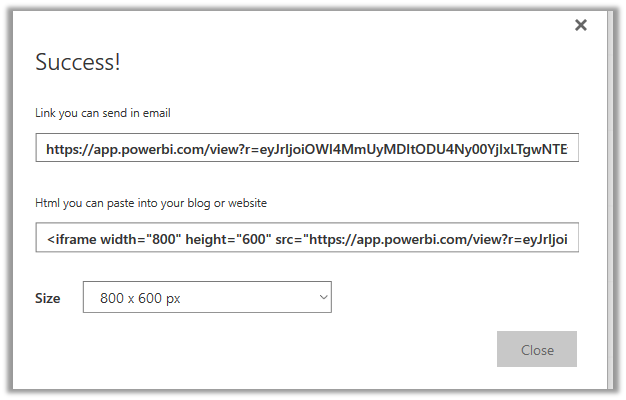
Here, clicking on Publish generates the link for the report and also the HTML code which can be used for embedding it within an IFrame.

Within Dynamics 365 CE, we can use this public URL to show it inside the IFrame component of the Dashboard.

The report within Dynamics 365 CE’s Dashboard.

Next, we will see how to create Dashboard from the reports created and how to share them with other users and how to use the Power BI Dashboard and Power BI Tiles feature of Dynamics 365.
Hope it helps.

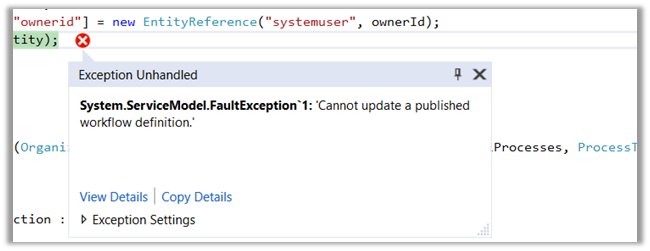
“Cannot update a published workflow definition” exception in Dynamics 365


We would get this exception if we try updating an Activated Workflow using Update Request.

So basically, if we need to update the activated\published workflow i.e. Activate or Deactivate it or change the Owner of the workflow, we would need to use the SetState and Assign Request. If we try doing it using the UpdateRequest we will the above error message.

Perform specialized operations using Update

Also, we noticed that if we try changing the state from Deactivated to Activated through Update Request, it will not change the State to Activated and it will not throw an exception as well.

However, if we use Update to Change the Owner for the deactivated workflow, it works fine.

Hope it helps..

Thirty two “Microsoft’s Very Passionate” professionals thanked with giant “WALL-OF-LOVE” at Microsoft Summit!!


Happy to see my pic there. Thanks to Peter Laker and Microsoft’s Face API .

https://www.linkedin.com/pulse/thirty-two-microsofts-very-passionate-professionals-thanked-laker/

(one more reason to smile often 🙂 )


Managing User’s Field level security profiles and Exporting the user’s Security report to CSV – New features added in User Security Manager – XrmToolBox Plugin


Last week we released the first version of the User Security Manager, you can read about its features here.

https://nishantrana.me/2018/07/16/user-security-manager-my-first-xrmtoolbox-plugin/

With the newer version, we have added the following features to it

Managing User’s Field Level Security

Apart from managing the Teams and the Security Roles for the user, now the tool allows us to manage the field level security profile of the user.

  • We can see all the Field Security Profile assigned to the user in the “Assigned” multi-select box.
  • The “Available” multi-select box lists all the Field Security Profile available in that instance.
  • The “All Assigned Field Level Security (Direct and Team)” list box lists down all the Field Level Security profile user is part of either directly or through the team.

  • Clicking on “>>” button, we can remove the user from the selected Field Security Profile that he is part of.

  • Clicking on the button labelled “<<“, adds a user to the selected Field Security Profile.

  • To remove all the Field Level Security profiles, we can click on “Remove All FSP” button.

User Security Report

User Security Report allows us to generate reports for security roles and field security profile assigned to the user directly or through team for all the system users or the selected system users.

To navigate to User Security Report section, click on ‘User Security Report‘ button.

To generate the report for all the users, click on Generate Report button without applying Report Filter or Selecting User.

The generated report: –

Using the tool, we can generate 3 types of reports –

  • User Role – Security Role directly assigned to the user.
  • User Team – Security Role assigned through the team.
  • User Profile – Field Security Profile assigned either directly or through the team.

To download or export the generated report in CSV, click on Generate Report button. Based on the report type selected, the report will be exported to the corresponding CSV files.

To generate a report for a specific user or set of users :-

  • Select the user(s) in the left panel
  • Check the Checked Users filter in the Report Filter section
  • Click on Generate Report button as shown below.

To exclude the column having blank values in it,

  • Check the “Exclude blank columns” option in Report Filter section
  • Click on Generate Report button.

The generated report: –

CSV Files: –

Please download or update to the latest version of the tool and provide your valuable feedback.

Hope it helps..

User Security Manager – My first XrmToolBox Plugin


Being one of the biggest fan and the most frequent daily user of XrmToolBox, always had this wish to write a plugin for it.

Thanks to Prashant Maurya  (a dear friend and ex-Microsoft Employee) for making this wish come true. (Who played the major role in developing it).

The tool is called – User Security Manager.

The Plugin make it easy for the administrators to manage all the security related aspects of the system users. The tool also gives 360-degree information of the user in correspondence to business unit, security roles and teams.

In our current project we had around 180 users using the system divided into more than 50 business units, which involved frequent update of their business unit, changes in the security roles assigned, update in team assignment and also during testing we had to assign the same BU and roles to the test users in the org, which wasn’t that easy to do from the user interface.

So, the idea was to come up with a tool that will let an administrator to

  • View all the security roles that assigned to the user either directly or through the team that the user is member of.
  • View all the Teams the selected user is part of.
  • With just a single click, remove all the security roles assigned to the user.
  • With just a single click, remove user from all the teams that he is part of.
  • Easily assign and unassign single or multiple security role to the user.
  • Easily add or remove user from a single or multiple team.
  • Change the Business Unit of the user.

User Guide: –

Load all the users

After connecting to the organization, we can click on Load Users to load all the system users of the organization.

List details of the user selected

  • For the selected user, in User Detail Tab’s General section, we can get the general information of the user like First Name, Last Name, Title, Primary Email and Access Mode.
  • Next to the General section, we can see all the security roles assigned to the user either directly or through the teams the user is member of.
  • The Roles tab shows all the Roles assigned to the user and also the roles that are available in the business unit to which user belongs in Assigned and Available section along with their counts.
  • The Teams tab shows all the teams user is member of and also the teams that are available in the organization in Assigned and Available section along with their counts.

Remove all security roles of the user.

To remove all the security roles of the user, click on Remove All Roles button.

Remove user from all teams.

To remove the user from all the teams, click on Remove All Teams button.

Assign Security role to the user.

To assign security role to the user, check the security roles from the available security roles section and click on “<<” button.

To remove security role from the user.

To remove security roles from the user, select the roles from the Assigned section and click on “>>” button.

Assign User to Team(s).

To assign user to team(s), select the teams from the available section and click on “<<” button.

Remove user from Team(s)

To remove user from Team(s), select the team from the Assigned Section and click on “>>” button.

Change the business unit of the user.

To change the business unit of the user, select the Business Unit from the Business Unit drop down in General Section of User Details.

Please install it, use it and share your feedback which would help us to improve it

https://www.xrmtoolbox.com/releases/

Hope it helps..