How to – Use PCF Custom Control Builder (XrmToolBox Plugin) to update existing control in Dynamics 365 / PowerApps


A couple of months back I had written my first PCF Control to display GUID of the record, it was more of a hello world kind of thing.

https://pcf.gallery/guid-control/

Well, the code was using Xrm.Page client API which as we know is deprecated.

So, it was time to update it to use context instead.

More on context

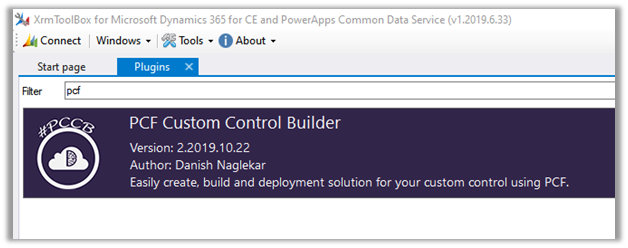
So, thought of using the wonderful PCF Custom Control Builder tool to do that by Danish (which got a new update today – 22- Oct-2019)

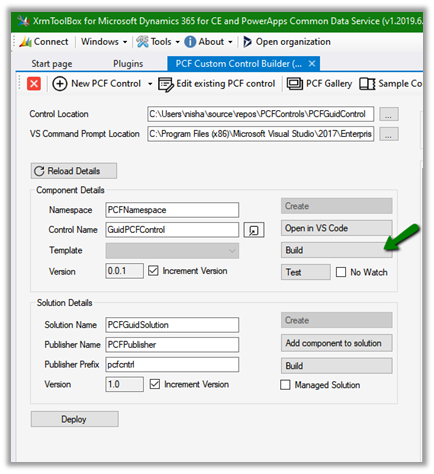
Connect to the organization, select Edit existing PCF Control option

Specify the Control Location and VS Command Prompt Location (VsDevCmd.bat)

And click on Reload Details which will list down the details of the component and the solution as shown above.

Click on Open in VS Code to open the project in Visual Studio Code and start making the required update.

It opens the project in Visual Studio Code.

i.e.

Here let us update the index.ts file to use context to fetch the GUID.

Save the changes. And click on Build

i.e.

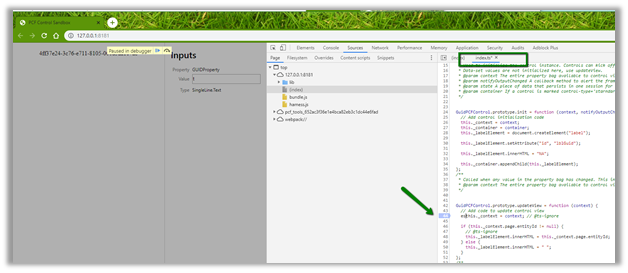
Now click on Test to see it in action or to debug.

We can see it populating the GUID

To debug it à we can use the developer tools (F12) and put the breakpoint in the index.ts file.

Now let us deploy it to our organization

Deployment in action

After successful deployment, we can see the solution added to our organization

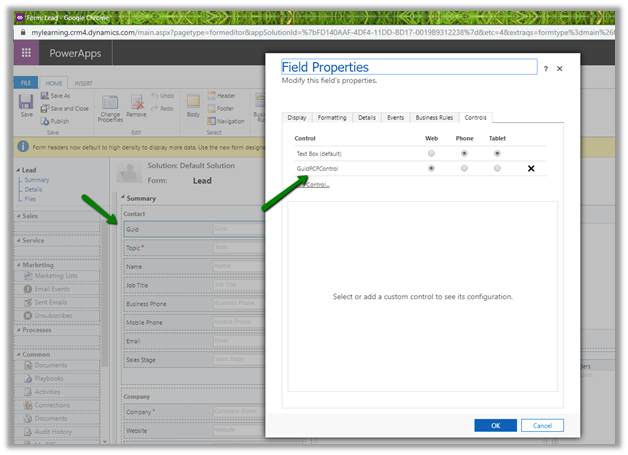
Now let us use it for the single line of the text control.

Publish the changes.

Create the new lead record and we can see the GUID of the record created in the control

Thus, the wonderful PCF Custom Control Builder plugin of XrmToolBox makes it so easy to update the existing PCF Control and also to create new PCF Control.

Hope it helps..

Advertisements

Live Chat using ProProfs Chat in Dynamics 365 CE (CRM)


ProProfs chat is another live chat solution that integrates with both Dynamis 365 CE as well as CRM On Premise. Recently I wrote about PowerChat which is another live chat solution that works on both online and on premise version of Dynamics CRM.

In this post we’d see how quickly we can setup the integration and be up and running and also compare it with PowerChat.

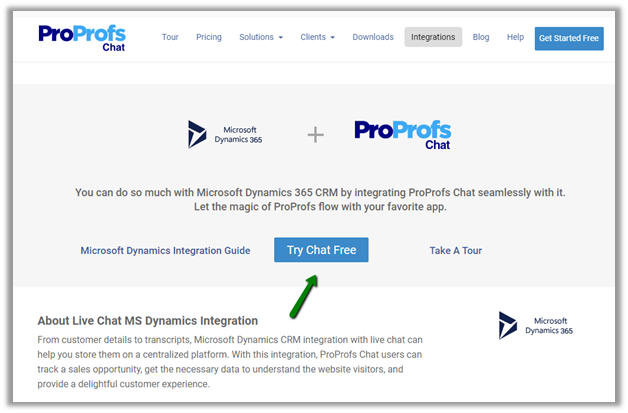
Navigate to https://www.proprofs.com/chat/integrations/microsoft-dynamics/ to get the details and click on Try Chat Free to get started.

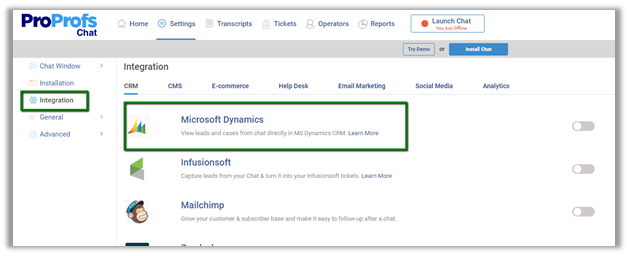
After creating the account, go to Integration option and select Microsoft Dynamics and set the toggle switch on.

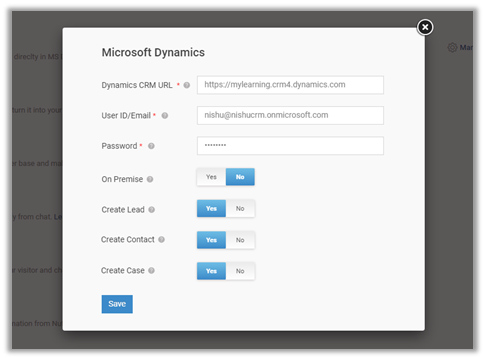
Specify the Dynamics CRM URL, Dynamics CRM Account, on-premise or online and should lead, contact and case should be auto created or not.

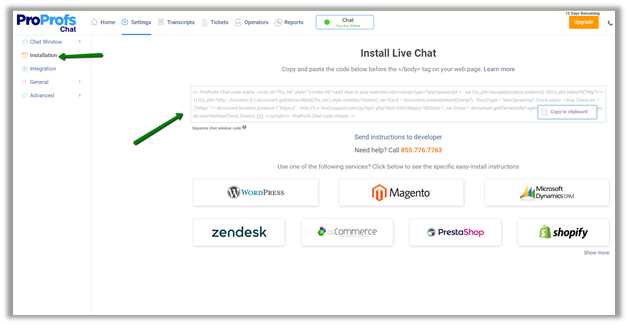
Once enabled, go to Installation option and copy the code and paste it on the website or page.

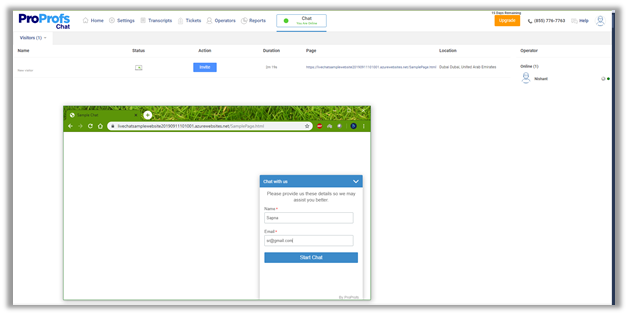
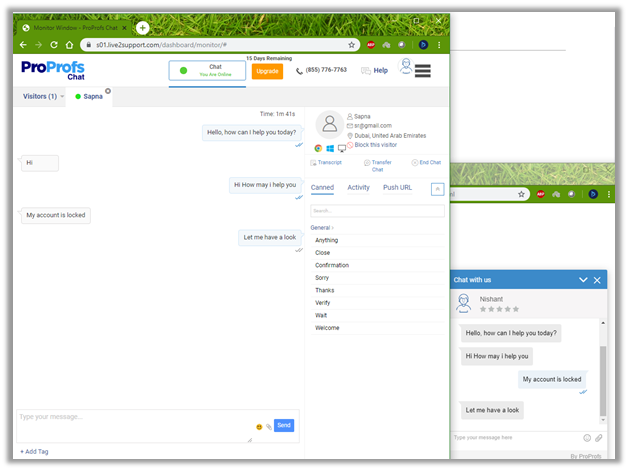
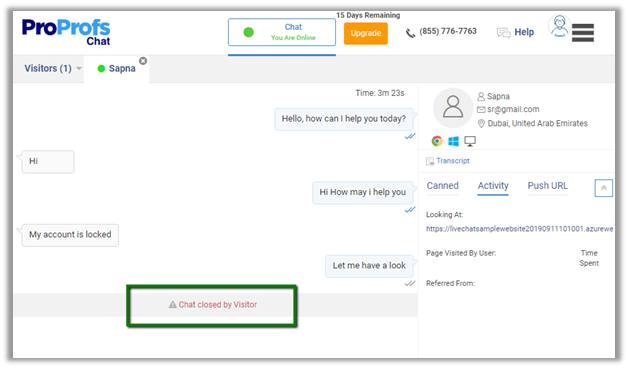
As soon as the visitor starts the chat, the agent will receive the Invite.

The agent can see the details of the visitor like location, device etc.

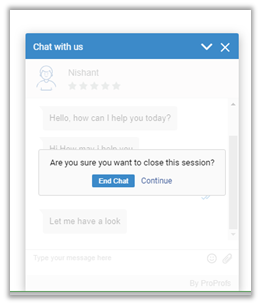
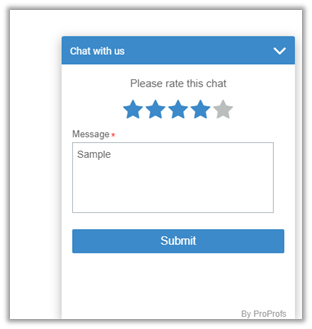
The customer can end the chat and give rating as shown below.

The agent gets the notification that user has ended the chat.

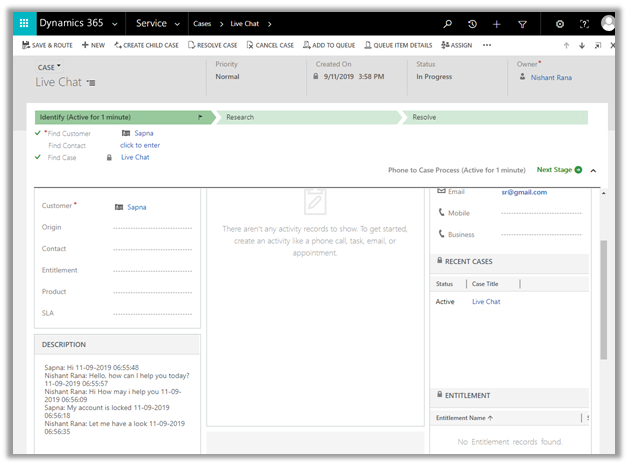
As configured, we can see the case, lead and contact record created in Dynamics 365 CE, with description having the chat transcript.

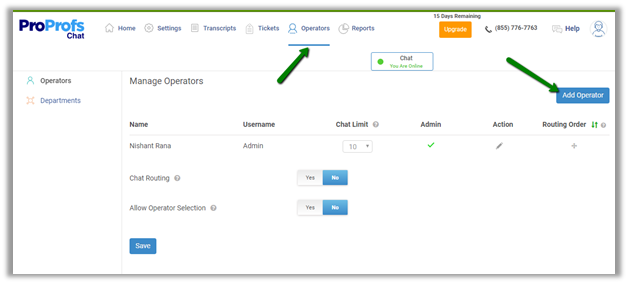
To add agents, we can choose the Add Operator option

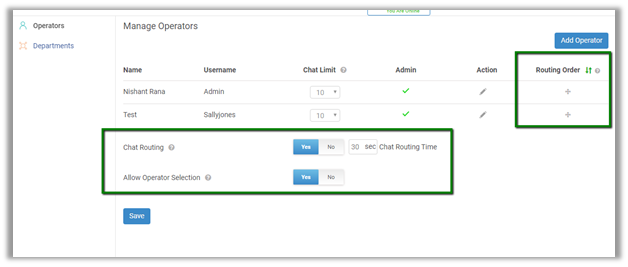
Routing order gives the option of specifying the sequence of operator accepting chats if chat routing is enabled. Similarly, visitor can select the operation they want to interact with as specified by Allow Operator Selection option.

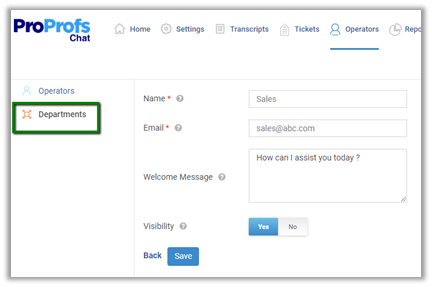
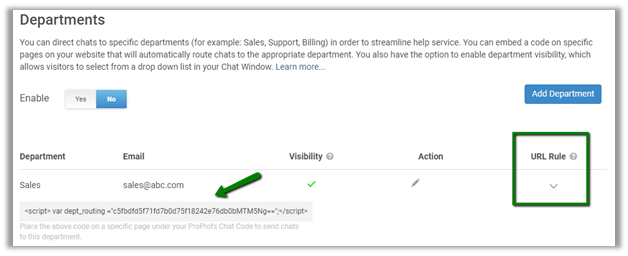
For different business units having different websites/ pages, we would want them to be served by different operators, herein we can use Departments.

Department will have a code which we need to place under the ProfProfs Chat code to send chat to that specific department.

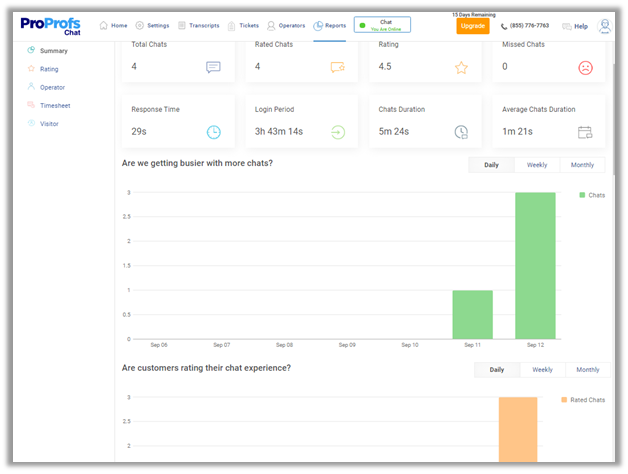
Also, for Admin, there are Reports available Summary, Rating, Operator, Timesheet, Visitor.

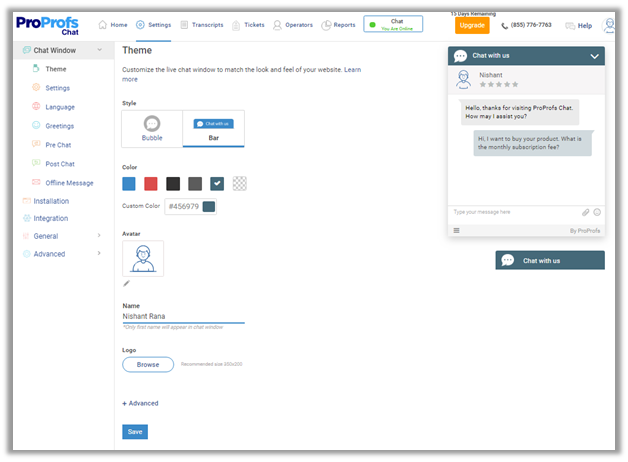
Theme settings à

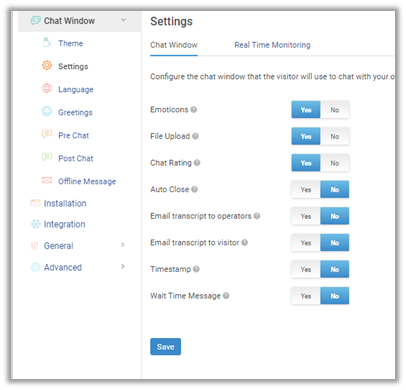
Chat Window Settings à

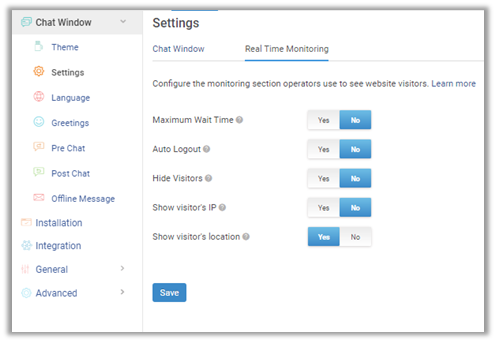
Real Time Monitoringà

Comparing the ProProfs Chat with PowerChat with regards to Dynamics CRM integration à

  • PowerChat provides a managed solution that we import inside our Dynamics CRM, then we register through the configuration page of that solution to get started. In case of ProProfs there is no solution file. We register at their site.
  • PowerChat Users are Dynamics CRM Users and can chat with visitors from within Dynamics # CRM. In ProProfs Chat, the operators are not the crm users and their account needs to be created / added separately.
  • PowerChat allows different Chat Widgets to be created, to be used in different web pages or web sites. Agents can be associated to the Chat Widgets. In ProProfs Chat, there is concept of Departments to achieve the same.
  • PowerChat allows agents the option to create lead/ contact/case records manually during the chat. In ProProfs Chat, the lead /contact/ case records are auto created based on the configuration, we can select which records to be created.
  • PowerChat auto creates PowerChat Activity record for each chat which has all the details of the chat. ProProfs Chat doesn’t create any other records expect lead/contact/case inside Dynamics CRM.
  • They both have the option of configuring the chat windows, fields to be added, snippets to be reused during chat, multi agent support.
  • PowerChats is natively integrated with Dynamics CRM, so the CRM Users do not have to be working on 2 different applications. However, ProProfs brings in with it lot more features like routing chat to another operator, co-browsing, APIs support, Reports, Real Time Visitor monitoring etc.

Check the guide here to see all the features

https://chathelp.proprofs.com/home

Hope it helps..

Enable Live Chat in Microsoft Dynamics 365 CE (CRM) using PowerChat


PowerChat is the live chat solution / addon developed by PowerObjects that supports both Dynamics CRM On-Premise and Online.

Below we will look at how to set it up and what are the features it provides.

To get started

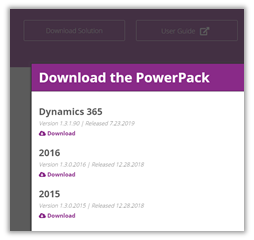
Download the appropriate solution

https://www.powerobjects.com/powerpacks/powerchat/
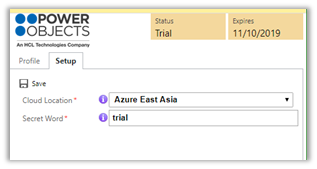
After successful import of the solution, next step is to register the solution. For this, open the solution and click on the configuration page, provide the required details in the Profile and Setup tab.


In Setup tab, provide the Cloud Location nearest to your deployment.
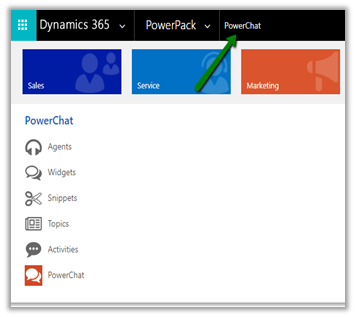
The PowerChat solution adds the following entities in the sitemap.
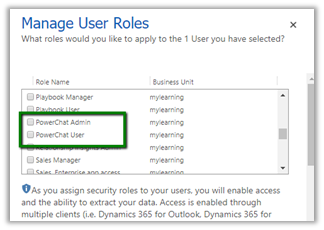
and the following security roles
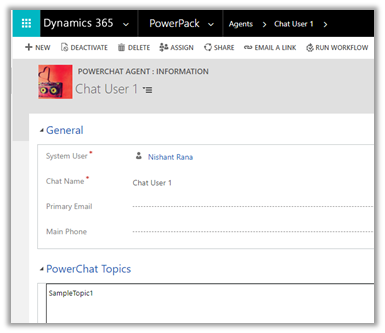
In Agents i.e. agent record we can specify the System User who would be working as agent and topics they are working on.
Topic, Agent and Widgets work hand in hand. We can have multiple topics defined in the system and for each topic we can define the agents who’d be handling that topic along with the widget that will be used for that topic.

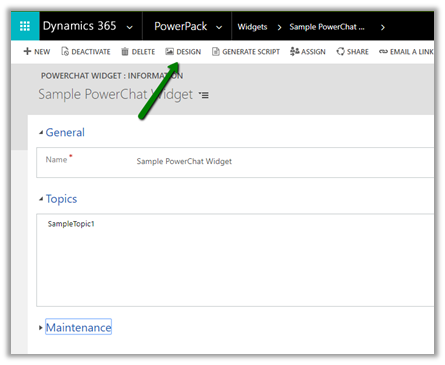
Widgets specifies the Chat Interface that would be deployed in the website. Clicking on Design opens the design interface for the widget.
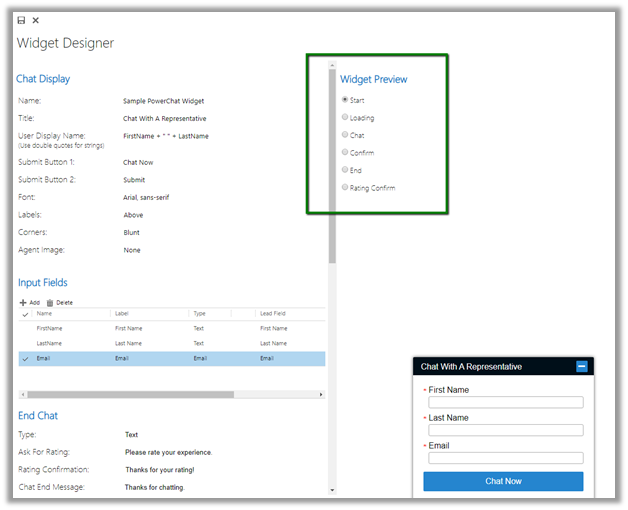
Below are some of the different options that can be configured for the chat widget.
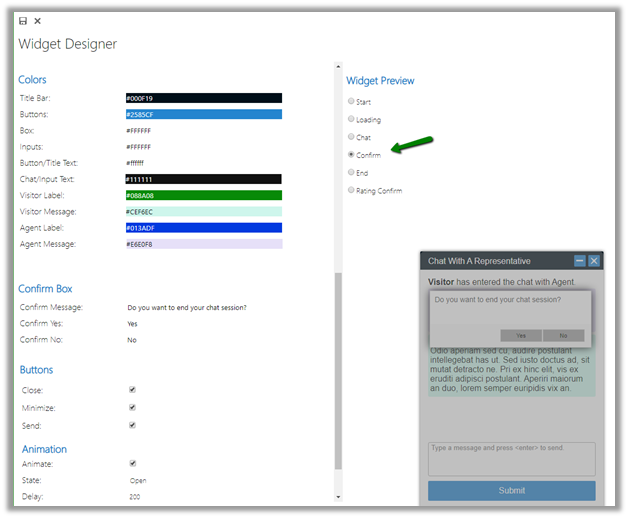
Once we are done with the configuration of the chat widget, we need to click on GENERATE SCRIPT ribbon button to get the script for the widget which we will be embedding to our websites.
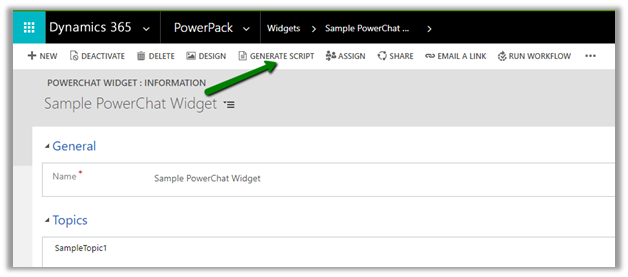
Below is the script generated à

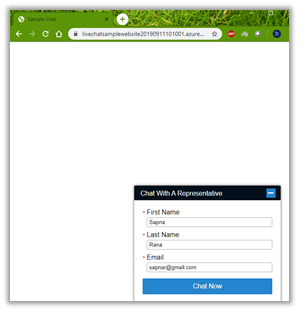
Below is the sample website where we have embedded the above script
Back in CRM, users need to click on Power Chat and start the PowerChat for communication to begin.
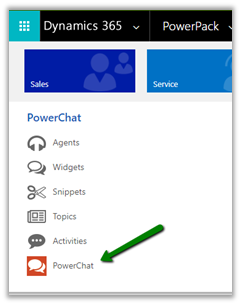
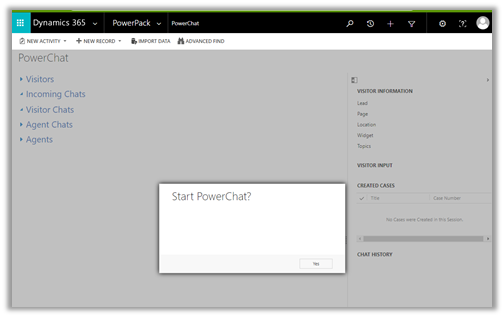
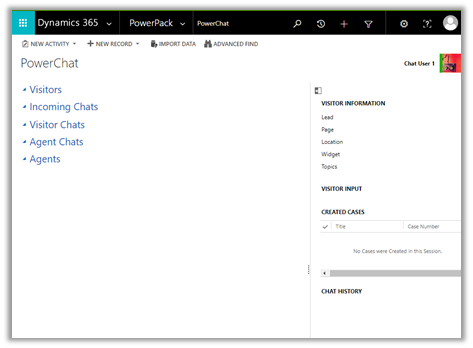
Power Chat interface à
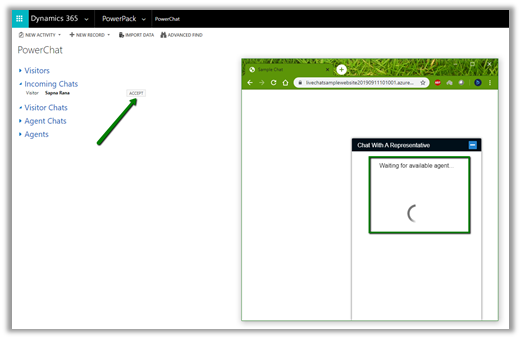
Once the user clicks on Chat Now button on the Chat window, the agent gets the notification to Accept the chat.
Below is how the communication looks like for the agent as well as the customer. The green bubble below is the timer that captures the duration of the chat.
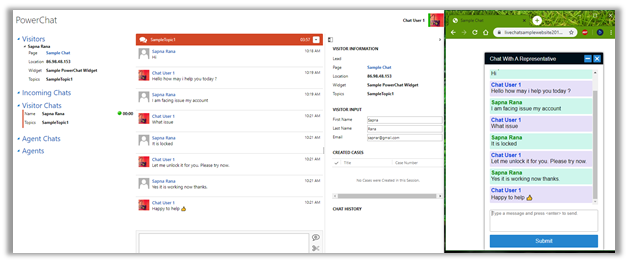
The agent also has the option of creating the lead, contact and case record associated with the chat. Create Lead and Create Contact option creates the lead and contact record in the background using the information auto populated at the Visitor Input section on the right panel.
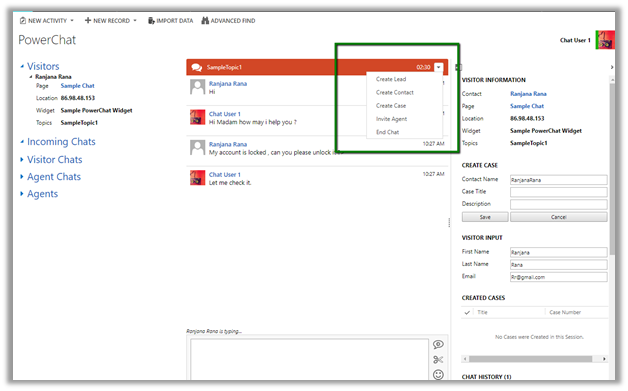
Create Case option allows agent to specify the Case Title and Description along with the Contact Name.

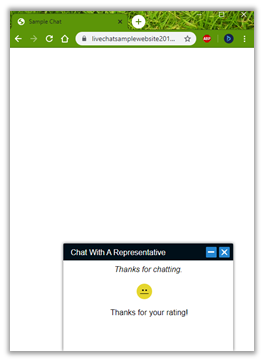
Agents and Customers both have the option to end the chat, the customer also have the option to rate the agent when they close the chat.
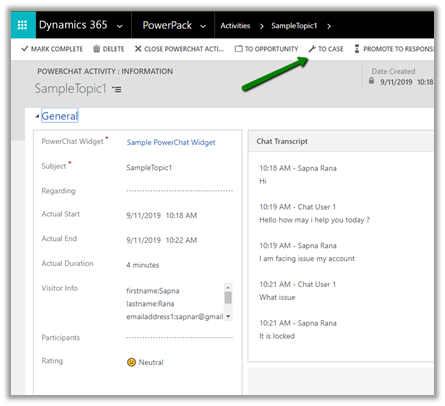
Every interaction creates PowerChat activity record in Dynamics CRM as shown below, which records the chat history, rating, duration etc. information about the chat.
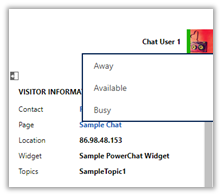
Agent can also set their status, if the agent is in Away or Busy status it will not receive the notification to accept the new chat.
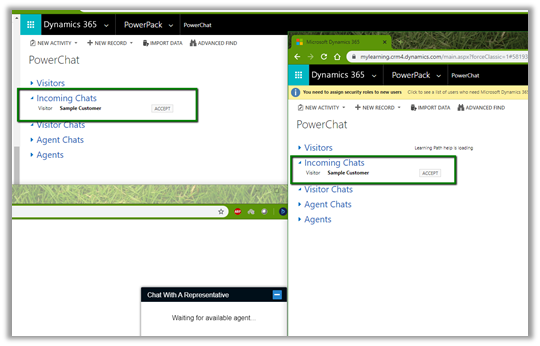
As we discussed earlier if we have multiple agents configures for same topic, they both will get the notification to accept the chat as shown below.
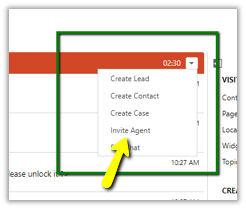
Also, Agent has the option of adding another agent to the chat.
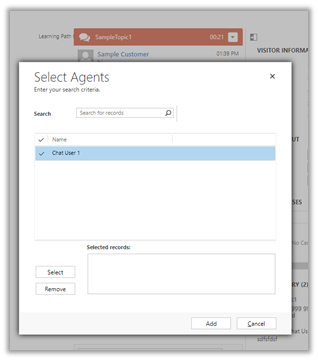
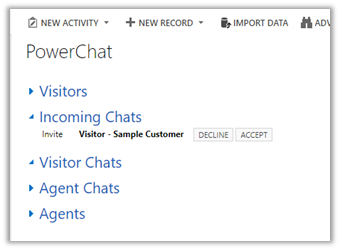
The invited chat agent can either accept or decline the request.
Below is how the communication looks like when we have multiple agents working with the same customer. Both the users are communicating with the Customer at the same time as shown below.

One more feature that agent has while interacting with the customer is to use the snippet, which basically defined predefined content which agents can use.
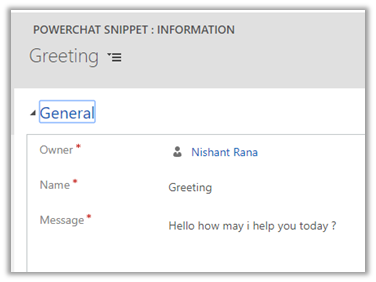
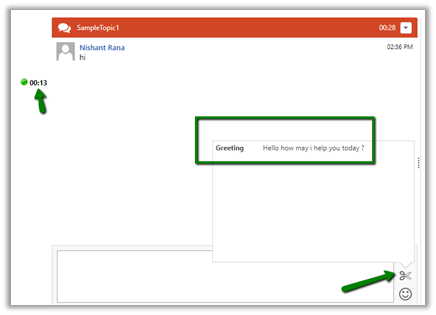
Thus, we saw how easy it is to configure the PowerChat and get started with Live Chat capabilities in no time.

Few months back we had also explored PowerApproval the approval solution for Dynamics CRM as part of PowerPacks add-on. Do check it out.

https://nishantrana.me/2019/01/02/implementing-multi-level-approval-using-powerapproval-in-dynamics-365-ce/

Hope it helps..

Out of preview – New Model-Driven form designer (WYSIWYG) in PowerApps


Finally the new model-driven designer is out of preview and available for general use

https://powerapps.microsoft.com/en-us/blog/announcing-the-general-availability-of-the-new-model-driven-form-designer/

Since I wrote about it last the few changes that we can see are

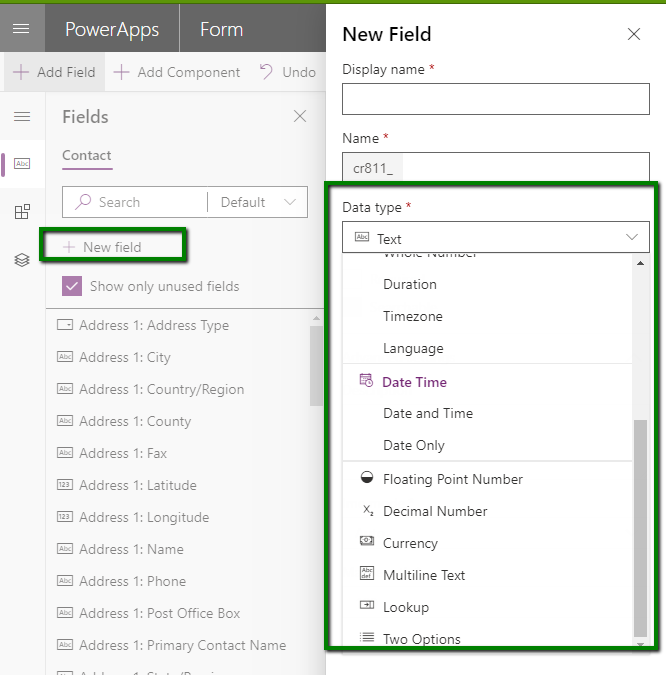
  •  New Field button that allows adding Lookup Fields. However I still don’t see the option of Option Set fields there.

Form

  • Grouping of Components Section

Form

  • Preview for the components

Form

Looking forward to see all the remaining features that are part of our classic Form Designer like addition of Business Rules, Show Dependencies, Enable Security Roles etc. to be part of the new designer.

Below are the previous blog posts that I wrote about the new model driven apps while it was still in preview –

https://nishantrana.me/2019/08/19/subgrid-quickview-linear-gauge-arc-knob-linear-slider-controls-added-in-new-model-driven-form-designer-wysiwyg-in-powerapps/

https://nishantrana.me/2019/08/05/sub-grid-added-to-the-new-model-driven-form-designer-wysisyg-in-powerapps/

https://nishantrana.me/2019/05/27/few-improvements-in-new-model-driven-form-designer-wysisyg-preview-in-powerapps/

https://nishantrana.me/2018/12/24/the-new-model-driven-form-designer-wysisyg-in-powerapps-for-model-driven-apps-dynamics-365-ce-preview/

Hope it helps..

Performance testing Dynamics 365 CE using StresStimulus


Recently we were evaluating StresStimulus, the load testing tool, for our performance testing requirements. The tool is quite user friendly and intuitive and in a matter of few minutes (and few clicks), we were up and running.

Get the tool (trial) here

https://www.stresstimulus.com/download

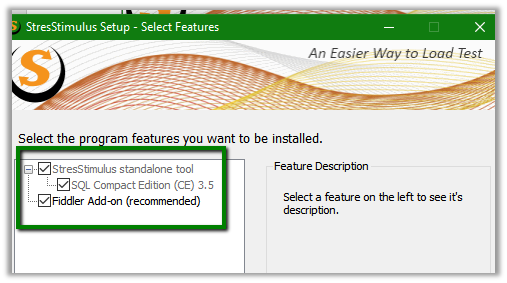
Install it with the Fiddler Add-On (recommended) option checked. It also has stand alone tool along with the fiddler add-on,

Once installed, open the fiddler, go to StresStimulus tab and click on Record Test Case …

This opens us the Test wizard from us, here we have selected Web Browser – Chrome as the recording source for Dynamics CRM.

Specify the Dynamics CRM URL and other options as required and click on Record

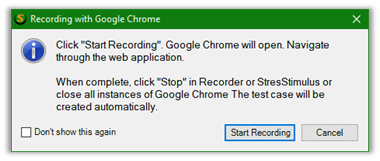
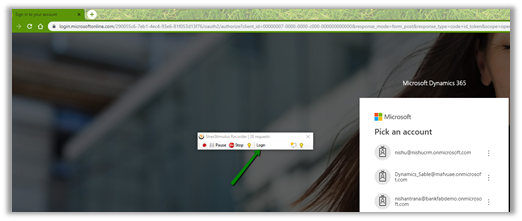
During recording we can specify various transaction, or basically events that we are capturing inside the recording toolbar. Here clicking on Start Recording will open Chrome for us with Dynamics CRM URL specified. We have specified “Login” in the transaction box to capture set of actions specific to login.

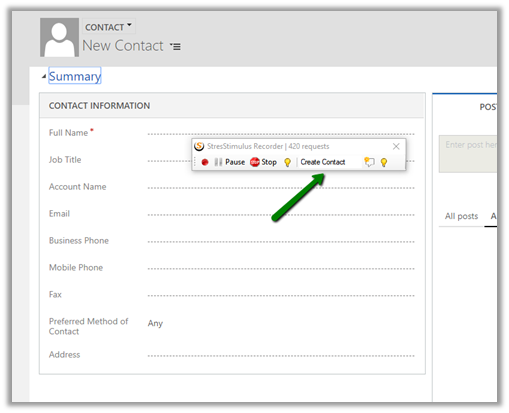
After login, we want to capture creation of Contact Create, we can specify the same in Recorder tool bar and continue creating the contact record in CRM.

Similarly, we can record other events, once done, click on Stop to stop the recording.

Do check out this post à

https://community.dynamics.com/crm/b/crmperformancetesting/posts/performance-testing-dynamics-crm-365-scenarios

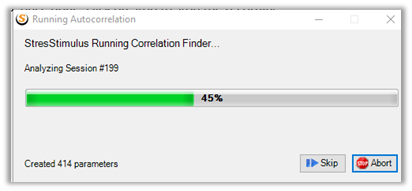
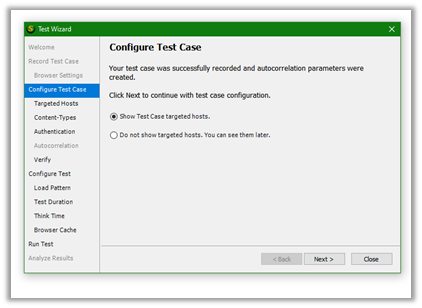
On successful autocorrelation parameters are created we can configure our test case.

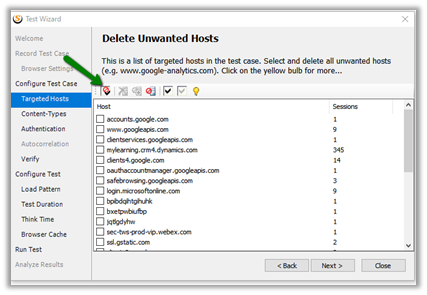
The first button gives us the option of removing the unwanted host by auto checking the hosts.

Click on delete to remove the unwanted hosts auto selected for us.

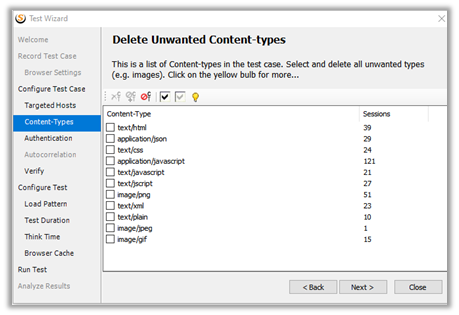
Next we are presented with the option of selecting the content types to include in the test case.

Followed by Server authentication credentials. (in our case we ignored it)

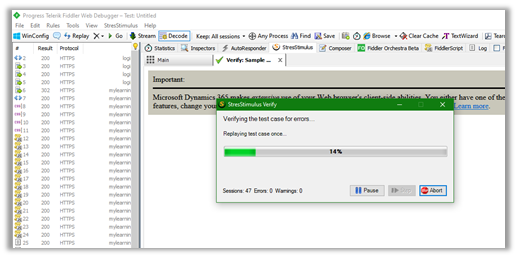
As the last step we can verify the test case, which replays the test case to check for any errors, before we can save it or run it.

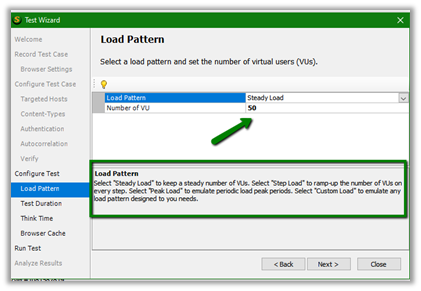
Next after successful verification, we can define Load Pattern and Number of VU (Virtual user)

Here we have specified Steady Load with 50 Users. The other options available are Step Load, Peak Load and Custom Load. We can request trial to receive 7 day license, which allows us to specify 50 VU, else the download version is limited to 3 VU.


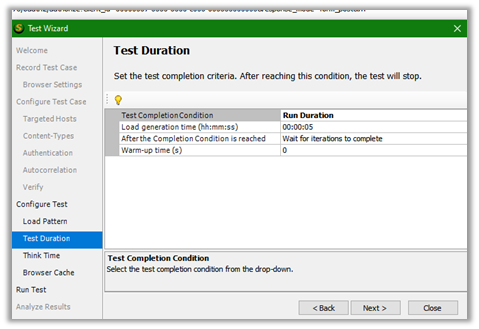
We are leaving the Test Duration values as default

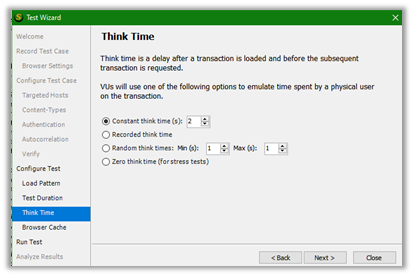
Same for the think time i.e. 2 minutes.

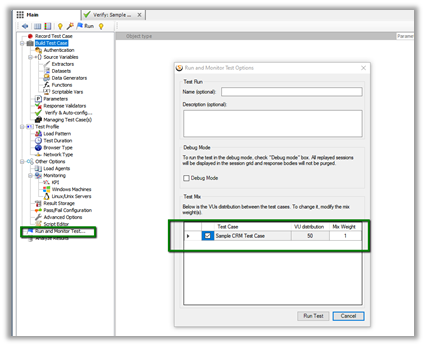
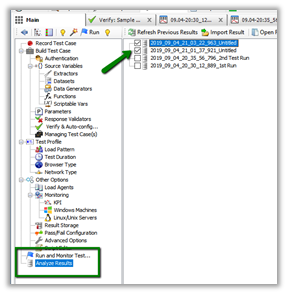
Finally, we can click on Run Test to run our test configured. We can also run the test from Run and Monitor Test Options

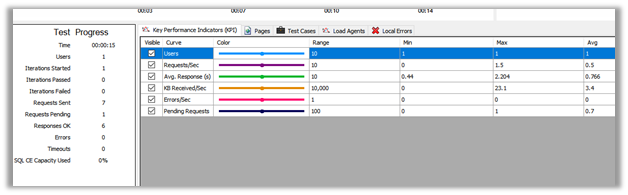
We can see our Test Run in action

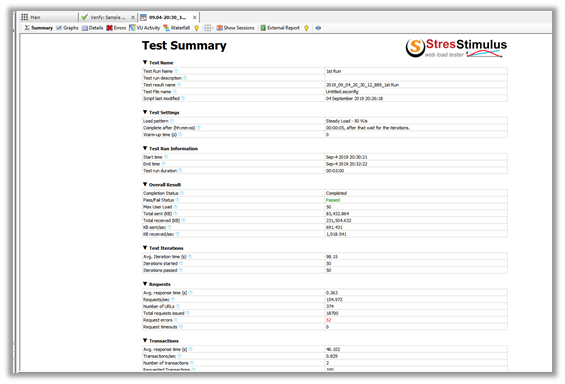
Once the test run completes, we are presented with the Test Summary

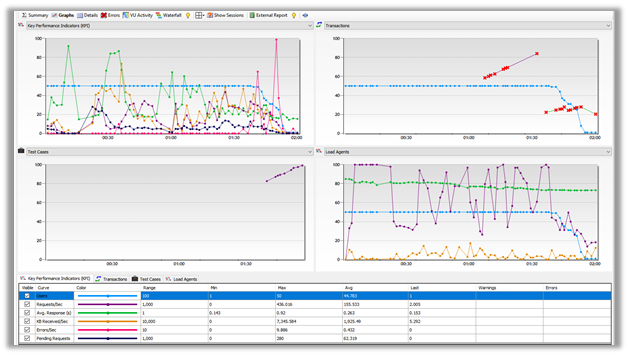
Graphs tab

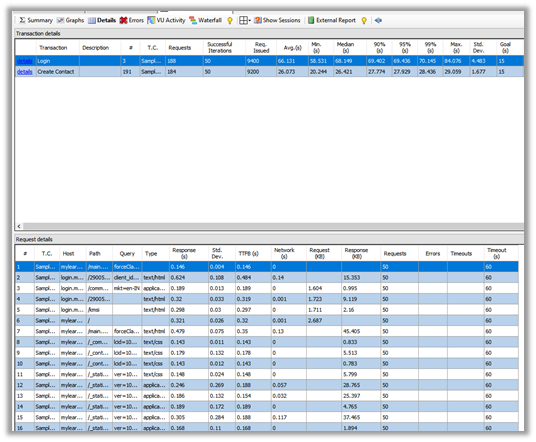
Details Tab

VU Activity Tab

Back in CRM we can see the records created as a part of test run.

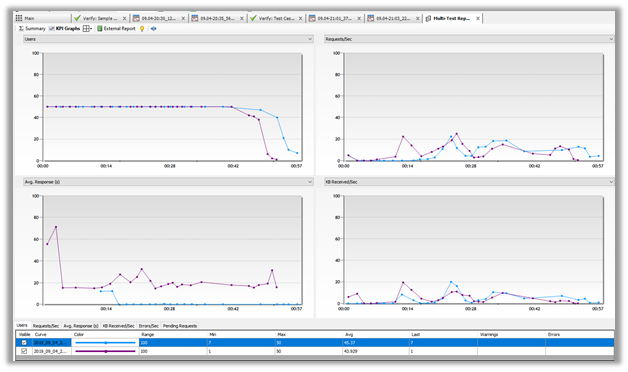
We can also compare results of different test run.

Below is our multi-test report.

Same report in Graph Form.

Get all the details here

https://www.stresstimulus.com/load-testing-tool/dynamics-crm-performance-testing

Hope it helps..


Advertisements

OAuth 2.0 with Dynamics 365 CE Web API


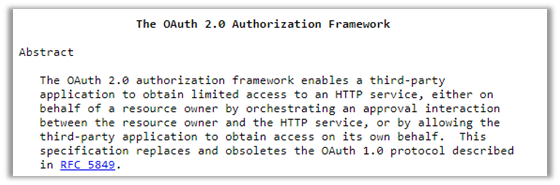
OAuth can be defined as delegation or authorization protocol.

The resource owner who owns the resource is allowing an application to access that resource on their behalf without impersonating the resource owner.

The application first requests for the authorization from the resource owner and receives the token using which it can access the resource.

Here the token specifies the delegated rights that the client application will have.

Below are the main components that are involved in OAuth.

Resource Owner

In most of the cases it is the user who has access and can delegate access to the Web API. In Dynamics CRM context it can be the CRM User.

Protected Resource

Web API of Dynamics 365 CE

Authorization Server

Trusted by protected resource (Dynamics CRM) to issue Access Tokens to Clients, which the client can then use to access protected resource (Web API). Azure Active Directory (Azure AD) in this case. Resource Owner authenticates to the Authorization server, so the credentials are not exposed to the client.

Client

3rd party application that wants to use the Dynamics 365 Web API on behalf of the Resource Owner (CRM User).

There are several different kinds of grant type or flow that exist in OAuth for getting the access token.

  • OAuth 2.0 Authorization Grant Type

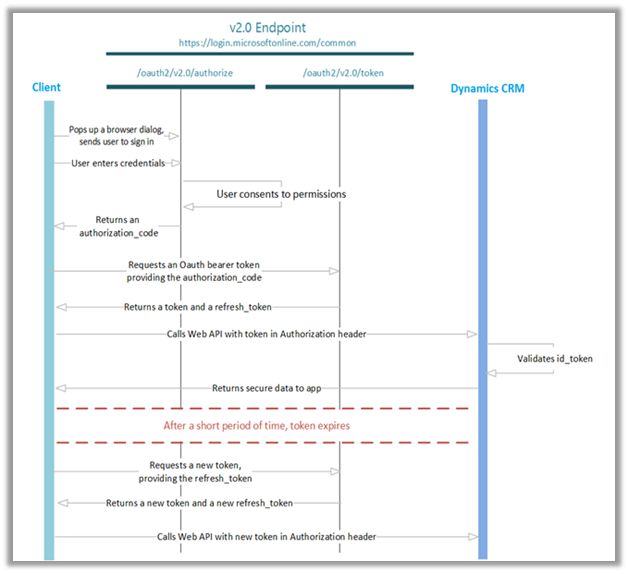
The below image wonderfully explains it in the context of Dynamic 365 Customer Engagement.

  • The resource owner (CRM User) opens the Client Application in the User Agent (Browser)
  • Client Application asks the resource owner to authorize at the authorization server.
  • Resource Owner authenticates and grants authorization to the Client. Authorization server gives authorization code to the Client.
  • Client uses this authorization code along with its own credentials to request access token from authorization server.
  • Client receives the access token that it uses to use the protected resource i.e. Web API.

As the user’s authenticates using his credentials with the authorization server, this information is not accessible to the client application, thus protecting user from sharing the credentials with the Client Application. Along with Access Token, we have Scope in OAuth 2.0 basically set of rights for the protected resource, which provides the mechanism for limiting the access granted to the client application. Also Refresh Token which is to be used when the access token has expired or stopped working. Client asks for the Refresh token from the Authorization Server and then uses this new token to access the protected resource.

Check out the below blog post for further details

https://nishantrana.me/2019/08/25/connect-to-dynamics-365-web-api-using-oauth-2-0-authorization-code-grant-type/

  • Implicit Grant Type

Implicit Grant Type is for the client applications that can’t keep any secrets from the browser, a JavaScript Application running completely inside the browser. So instead of authorization code, in implicit grant, the authorization server returns the access token.

Few limitations of this flow are first it can’t keep the secret as it will be available to the browser, also this flow cannot be used to get the refresh token as the session is limited to the browser context.

  • The client sends the request with request_type as token (instead of code in case of Authorization Grant) to the Authorization Endpoint of the Authorization Server.
  • The resource owner authenticates and authorizes the client.
  • The authorization server generates the token, attaching it to URI fragment of the response.

https://nishantrana.me/2019/08/27/connect-to-dynamics-365-web-api-using-oauth-2-0-implicit-grant-type-through-postman/

https://nishantrana.me/2019/08/28/connect-to-dynamics-365-web-api-using-oauth-2-0-implicit-grant-type-through-single-page-apps/

  • Client Credentials Grant Type

Client Credentials Grant Type is for scenario when we do not have any explicit resource owner (or user) like a back-end system or CRON job running on the server. As there is no user involved to delegate the authorization, client acts as the resource owner.

  1. The client application requests the access token directly from the token endpoint of the Authorization Server with grant_type as client_credentials.
  2. The authorization server issues the access token to the client.

https://nishantrana.me/2019/08/24/connect-to-dynamics-365-web-api-using-oauth-2-0-client-credentials/

  • Resource owner credentials grant type
  1. The client application prompts Resource Owner for username and password.
  2. Client application uses this information to request access token (with grant_type as password) from the Token Endpoint of the Authorization Server.

Here the disadvantages are that the credentials are exposed to the client application, and also the same is passed in plain text to the authorization server. This grant type is only recommended to be used for the legacy applications to bring them into the OAuth world, wherein they can work with access token, scopes etc. One good thing about this flow is that the password is exchanged only first time when requesting the access tokens, instead of every request.

https://nishantrana.me/2019/08/23/connect-to-dynamics-365-web-api-using-oauth-2-0-resource-owner-password-credential-ropc/

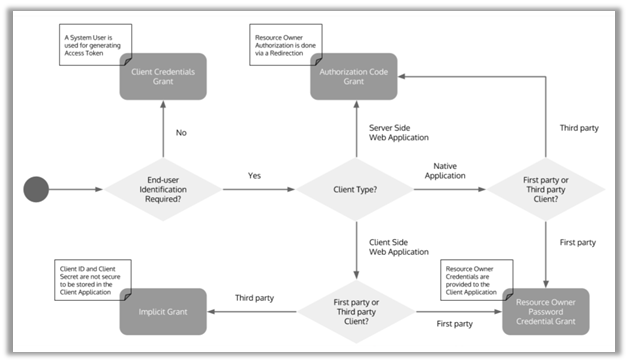
Decision Tree for the choosing the right grant type

Recommend read –

https://auth0.com/docs/api-auth/which-oauth-flow-to-use

https://docs.microsoft.com/en-us/azure/active-directory/develop/authentication-flows-app-scenarios#scenarios-and-supported-authentication-flows

https://debajmecrm.com/?s=oauth

Hope it helps..

Advertisements