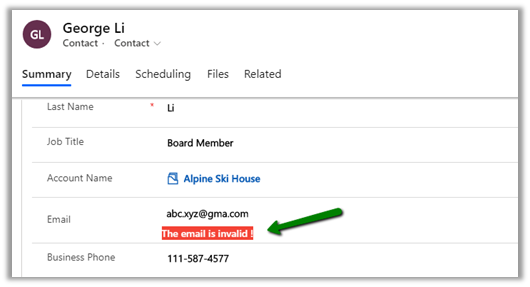
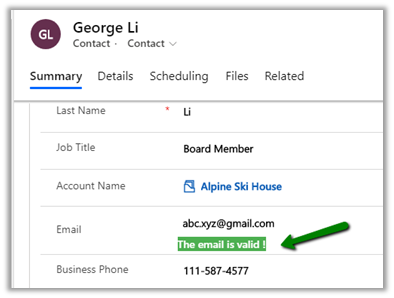
PCF Control for Email Validation using Email Validator API


The control uses the Email Validator API that checks for fake DNS and regex functions to check email for length and accepted characters.

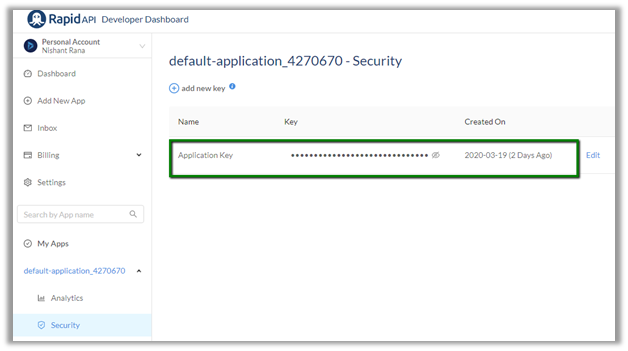
To use the API, Login to RapidAPI and get the API Key.

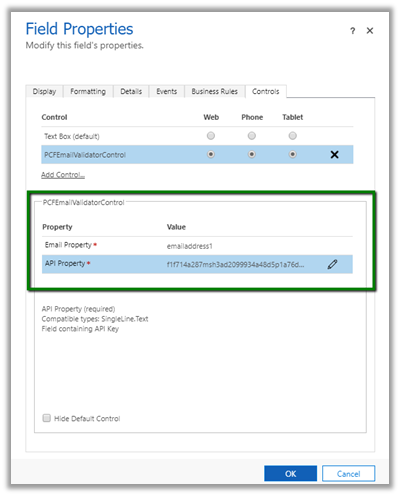
Use this key for the API property required by the PCF Control to call the API.

The control will check pass on the email address and based on the response received i.e. isValid true or false, will display the appropriate message just below the field.

The Email Validator API needs to be updated as at times it will show valid domains as invalid. So will not suggest to use this in the production environment.

This control is more of an example of how we can call the APIs, get the response and show the result.

Get the source code here

https://github.com/nishantranacrm/PCFEmailValidatorControl

Hope it helps..

Filtering Enhancements to Views in Dynamics 365 – 2020 Release Wave 1


Below are some of the enhancements added to the filtering experience for the views in 2020 Release Wave 1.

Previously to sort the records we had to click on either the sort icon or the header to sort the records.

With the 2020 Release Wave 1 clicking on the header or sort or filter symbol with open the below screen with the option of both sort and filter. Also if we see, the options to sort and filter have moved closer to the header text of the column instead of right-aligned in the previous version.

And for filtering also we had to specifically click on the filter icon earlier.

For the text field below filter options will be displayed earlier

For Wave 1 Release 2020, we need to select Filter By

And below are the filter options available for the text fields.

The most helpful here would be the addition of Contains data and Does not contain data filter.

For the Datetime field prior to Wave 1 Release 2020, we had the below very limited filter options available.

Now in Wave 1 Release 2020, we have the following filter options specific to DateTime field added

along with updated Calendar View for selecting the date

Earlier à

Now à

For Optionset fields

Earlier à

Now à

Instead of having all the options selected now it comes as unselected and to apply the filter we need to select the specific value and then click on Apply.

And select Clear Filter to clear the filtering

For Lookups à

Earlier

Now à

  • For Numeric Field we now have the contains
    data and does not contain data filter options added.

These enhancements specific to filtering will definitely add to more productivity for the users.

Check other blog posts on

Release 2020 Wave 1: https://nishantrana.me/2020-release-wave-1/

Release 2019 Wave 2: https://nishantrana.me/2019/12/31/dynamics-365-2019-release-wave-2-blog-posts/

Hope it helps..

SLA Enhancements in Dynamics 365 Customer Service – 2020 Release Wave 1


2020 Release Wave 1 adds the new enhanced experience which includes easy to use interface and Power Automate in the Unified Client Interface for the SLA Administration.

To define SLA, the admin can navigate to Service Management à Service Terms à SLAs.

The new SLA Item window now opens in the modal dialog

It includes the condition builder

Action now use the Power Automate, here clicking on Configure Actions

takes us to the Power Automate

With below flow defined à

Invoked Through ExecuteWorkflow Call Trigger à

The Switch condition step with four different cases defined.

Here nearing Is Nearing Non-Compliance is where we will define our Warning
Actions.

Is Succeeded = Success Actions.

Is Non-compliant would be used to specify Failure Actions.
And lastly, we can define the Default option.

The old SLA Item interface à

Thus, these features bring the unified client interface experience close to the legacy web client.

Check other blog posts on

Release 2020 Wave 1: https://nishantrana.me/2020-release-wave-1/

Release 2019 Wave 2: https://nishantrana.me/2019/12/31/dynamics-365-2019-release-wave-2-blog-posts/

Hope it helps..

Routing Rule, Site, Queue Item enhancements added in Unified Client in Dynamics 365 Customer Service – 2020 Release Wave 1


With 2020 Release Wave 1 we have few features that were existing in the either in Legacy Web Client or in other entities added in Unified Client Interface which includes

  • Case Routing Rules

This option is now added in Service Management à Case Settings now.

Also, it brings the enhanced experience that uses the new UCI interface.

Earlier to create we had to navigate to Advanced Settings  – Service Management – Routing Route Sets to define them

RoutingRule

  • Site Entity support

Earlier to create site records, we need to go to Settings à Business Management

If we try creating the Site record from Advanced Find in 2019 Release wave 2 Plan, we’d encounter below error

However, with the 2020 Release 1 Wave plan, we can now create the Site records through advanced find without the need to going to settings.

  • Record set navigation” is added to the Queue Items for the agents to easily navigate between records.

Previously the user had to open the record from the Queue to see the details close it and then open another record to check the details.

Missing record set navigation option earlier

Check other blog posts on

Release 2020 Wave 1: https://nishantrana.me/2020-release-wave-1/

Release 2019 Wave 2: https://nishantrana.me/2019/12/31/dynamics-365-2019-release-wave-2-blog-posts/

Hope it helps..
Automatic Record Creation and Update rules enhancements in Dynamics 365 Customer Service – 2020 Release wave 1


2020 Release Wave 1 adds the new enhanced experience which includes easy to use interface and Power Automate in the Unified Client Interface for automatic record creation and update rules.

The option of creating the rules is added in Service Management à Case Settings Section

The old interface for creating the rule à

The new interface à It includes two tabs (basic and advanced) and also displays the rule creation as step by step process.

The Specify Conditions for Record Creation and Specify Auto Response settings section moves to the Advanced Tab.

The old interface for creating the associated Rule Item record is now replaced with

the new interface which opens the record as a modal dialog, along with the new conditional builder and option to specify Power Automate for the Action.

Clicking on Save and open Power Automate takes us to the Flow

Suppose we have the following rule created on the Task entity.

And condition added that creates Contact.

The power automate will have the following steps defined à

These were a couple of updates with regards to the automatic case creation and update rule.

Check other blog posts on

Release 2020 Wave 1: https://nishantrana.me/2020-release-wave-1/

Release 2019 Wave 2: https://nishantrana.me/2019/12/31/dynamics-365-2019-release-wave-2-blog-posts/

Hope it helps..

Advertisements

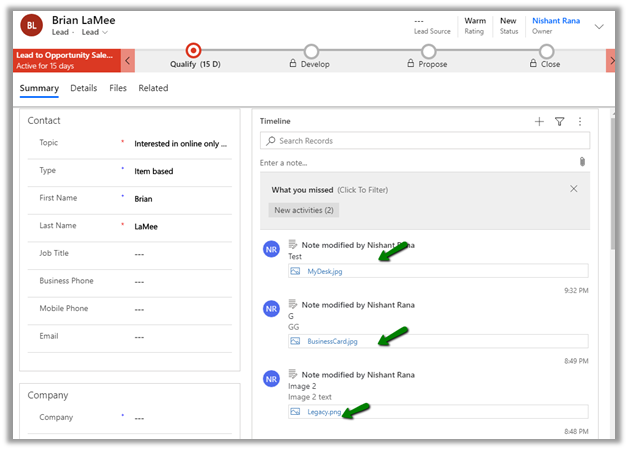
Rich notes and filter enhancements in Dynamics 365 Timeline Control– 2020 Release Wave 1


Below are some of the enhancements added to timeline controls as part of the 2020 Release Wave 1.

  • Ability to create rich text notes

  • Filter the records using Search

  • Check the status of the activities within the timeline.

  • Additional option to filter the records by  “Posts by

Below is the screen shot of the Timeline control in the previous version 2019 Release Wave 2, without rich text capability in notes, no search option, no status indicator and no “Posts By” filter version

Check other blog posts on

Release 2020 Wave 1: https://nishantrana.me/2020-release-wave-1/

Release 2019 Wave 2: https://nishantrana.me/2019/12/31/dynamics-365-2019-release-wave-2-blog-posts/

Hope it helps..