New Admin Trial (subscription-based) experience – Dynamics 365


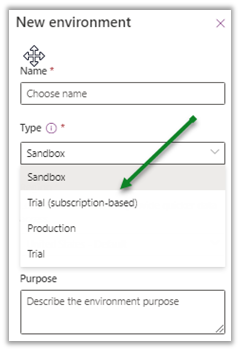
Recently a new Trial (subscription-based) environment option added to the tenants in the Power Platform Admin Center

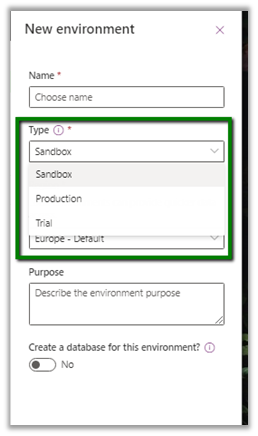
Earlier we were limited to below options –

These new trial types are created and controlled by tenant administrators, as a result of signing up for a trial subscription and can be added to the existing tenant.

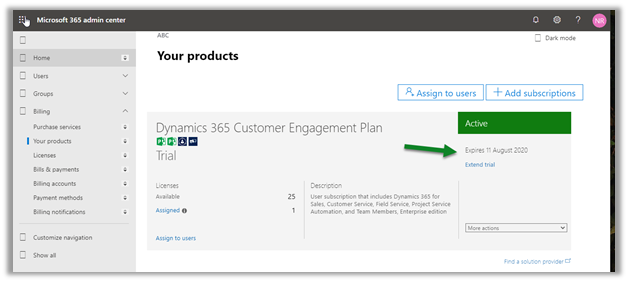
This new environment follows the trial subscription lifecycle (which is typically 30 days) and can be extended from the admin center.

https://admin.microsoft.com/Adminportal/Home#/subscriptions

  • A total of 3 trial environments can be created.
  • Trying to create 4th will give us the below error

Get more details here

https://docs.microsoft.com/en-us/power-platform/admin/trial-environments

Hope it helps..

The new Column comparison in queries in Dynamics 365 / PowerApps


Column Comparison is one of the best features that has been recently added to the product.

Column comparison allows us to compare values of 2 different columns in our query be it Fetch XML, Web API, or through SDK API.

Sharing some of the basic examples that we tried using our favorite  FetchXML Builder

  • If we run the following query “Find all contact which has the first name equal to the last name”

The result –

  • Find all contact where the first name is not equal to last name

The result –

The operators supported are –

Equal LessEqual GreaterEqual
Not Equal LessThan GreaterThan
  • Only 2 columns can be compared.
  • Only compatible attribute types can be compared.
  • E.g. “Find all contact where the first name is equal to address 1 city”

The result

It works as both are string attributes.

  • If we try comparing text field with options set, we will get below error message

  • Two option set can be compared as they represent the same type integer

Both having value 1

  • Comparing date fields

  • We are getting the result

  • For the lookups, comparing created by and owner id

works as expected.

  • For the below record we have the First name and job title as null

And here for below record, we have the same value for First Name and Job title.

On running the below query – find all contact where the first name is equal to the job title.

We get only one result. It ignored the blank (null) record.

Get all the details here

https://docs.microsoft.com/en-us/powerapps/developer/common-data-service/column-comparison

Hope it helps..

Load data from SQL On-Premise to CDS (Common Data Service) using Power Platform dataflows


Let us continue our previous post where we created a connection to the below On-Premise SQL Server Database using an On-premises data gateway.

https://nishantrana.me/2020/07/06/configuring-on-premises-data-gateway-to-connect-tosql-server-on-premise-data-source-power-platform/

Here we will use the Power Platform
dataflows to load contact entity in CDS using that same on-prem table.

Sign in to Power Apps

https://make.powerapps.com/home

Navigate to Data – Dataflows and create a new dataflow

Dataflow can store the entities either in Common Data Service or Azure Data Lake for analytical purposes.

Leave the Analytics entities only checkbox unchecked as we will be saving the entities in the Common Data Service.

Next, let us specify the data source. Here we have selected SQL Server Database as the source.

Specify connection details

On specifying the Server and Database details, it will auto-populate the rest of the connection details if already defined.

Select the table and click on Transform data

Transform Data give us the option of further refining the data to match the destination.

Click on Next and specify the mapping.

We can either load data in a new entity

Or load to an existing entity.

Here we have selected contact entity and clicked on Automap option which has mapped FirstName and LastName fields for us. Manually map the email field. Here we have not mapped the ContactID field for now.

Here for Key fields in Field Mapping, it will list down alternate key, if defined for the entity.

Specify the refresh settings. We have kept is as refresh manually.

With refresh completed, let us check the contact entity.

Go to Data – Entities and Data tab, we can see the records added.

Now let us add one more record in the source database and refresh the dataflow manually.

As we had not specified key while defining the data flow, we have all the records created again including the new one.

Now let us define an alternate key for the contact entity.

And edit the data flow to map the ContactID field of the source database to the newly created alternate key.

Define the mapping for the alternate key field.

Also, let us delete the old records that were synced. After refresh is done, we can see the records created

What about the update?

Let us update the record in source and run the refresh

As expected, the record is updated and no duplicate records are created in CDS.

What about delete?

Now let us delete the record in the source and run the refresh

The records are not deleted in the Common Data Service.

What about updates in CDS?

As this is a one-directional flow to load the data from source to destination, any change in CDS will be overridden and will not be synced back to the source SQL Server database on the next refresh run.

Let us update records in CRM, and run the refresh.

As expected, the record in CDS is updated back with source DB.

What about the history and log of the refresh?

Show refresh history option gives us all the details of the refresh run and the failure and success of the records.

More on the data flow capabilities

https://docs.microsoft.com/en-us/data-integration/dataflows/dataflows-integration-overview#dataflow-capabilities-in-power-platform-services

Also, check out the interesting article below

https://carinaclaesson.com/2020/05/11/alm-for-power-platform-dataflows-the-story-begins/

Hope it helps..

Advertisements

How to – Configuring On-Premises data gateway to connect to SQL Server on-premise data source – Power Platform


Let us take a simple example to understand the steps to be performed for configuring an On-premises data gateway.

We have below database in our on-premise SQL Server which we connect to using On-Premise data gateway.

Below are the steps we need to perform to configure it –

Login to Power Apps and navigate to Data – Gateways

https://make.powerapps.com/

Download the On-Premises Data Gateway

Follow the installation wizard to install the on-premises data gateway

https://docs.microsoft.com/en-us/data-integration/gateway/service-gateway-install#minimum-requirements

Sign in with the Office 365 Organization account

Select Register a new gateway on this computer

Specify the name and the recovery key and click on configure

This completes the setup of the gateway.

Within Power Apps, we can see the gateway record created.

Now let us create a connection to our On-Premise SQL Server Database that uses the gateway configured

Navigate to Data – Connections and click on the new connection.

Select the SQL Server connection type, and specify the connection details of the on-prem database.

Select the gateway configured and click on Save, which will test the connection.

On a successful connection, we can see the connection created with status Connected.

Now as we have the connection established with our On-Premise SQL Server database through the gateway, we can use it for in various cloud services like Power BI, Power Apps, Power Automate, Logic Apps, Dataflow, etc.

Get more details here

https://docs.microsoft.com/en-us/power-bi/connect-data/service-gateway-onprem

Another option to connect to SQL On-Prem database is through Azure Hybrid Connections (this would for Azure App Service)

https://nishantrana.me/2018/02/19/using-azure-hybrid-connections-to-connect-to-sql-on-prem-database-from-azure-webjob/

https://www.slideshare.net/biztalk360/the-hitchhikers-guide-to-hybrid-connectivity-81149063

Hope it helps..

Advertisements

How to – Use Azure AD Conditional Access to block access by country (Dynamics 365)


In the previous post, we covered conditional access based on the device platform, here we’d look into how we can use the network location to block the access.

We can either use IP ranges or Countries / Regions for defining the location.

Login into the Azure Portal

https://portal.azure.com/

Navigate to Azure Active Directory – Security – Named locations to define the location.


Here we are adding a new countries location record.


For the new location, we have selected India and UAE.


Next click on Conditional Access to define a new policy.


For Users and groups, we have selected a user named testuser1.


For Cloud Apps or actions, we have selected Common Data Service.


For Conditions, we have specified Locations condition with the Restricted Locations record that we had created earlier.


For Access Controls, we have selected Block access.


Enable and create the policy.


Before the policy was enabled, test user1 was able to access Dynamics 365.


After enabling the policy if we try accessing Dynamics 365 from either UAE or India location, we’d get the below message.


Same for the Dynamics 365 for Phones app.


Test user 3 to which policy doesn’t apply can still access Dynamics 365.


Hope it helps..
Advertisements

How to – Use Azure AD Conditional Access to block user access by device platform (Dynamics 365)


Recently we were exploring Azure AD Conditional Access, through which we can define and enforce the organization’s policies regarding access to its resources.

Get more details here

https://docs.microsoft.com/en-gb/azure/active-directory/conditional-access/overview

Here we will define a simple conditional access policy through which we are restricting a user’s access to Common Data Service through Android OS, but allowing the same through the other device platforms.

Login to Azure Admin Portal

https://portal.azure.com/

Before we can specify a new policy, we need to disable the Enable Security defaults.

Navigate to Azure Active Directory – Properties and click on Manage Security defaults link

Set “Enable Security defaults” to No

Next, Navigate to Security – Conditional Access

Activate the Azure AD Premium trial required to configure conditional access.

Create a new policy.

  • For Users and Groups, we have specified the user “testuser1“. The other options available are guest, external users, directory roles and groups.

  • For Cloud apps or actions, we have selected Common Data Service

  • For Conditions, we have selected only Android as the Device Platform to which the policy should apply.

For Access Controls – Grant we have selected Block Access.

Enable the policy and save.

Let us login through the browser with the testuser1 in windows

Now let us try the same from the Dynamics 365 mobile app from Android.

And the same experience from browser within the Android.

As expected the users is not able to access Dynamics 365 from Android device, and the same user can access from the browser and Dynamics 365 Tablet app from Windows as shown below.

  • What if we update the device platform and select Windows as well?

As expected, the user is not able to access both the browser as well as the app from the windows.

  • What if we want the user to access it from the browser and only restrict it from a mobile app and desktop client?

Update the policy and specify the below Client Apps condition for that

“Modern authentication clients”

As expected, the user can access through the browser but not the app.

The same experience from within the Android phone.

From browser –

From the Dynamics 365 Mobile App –

Thus we saw how easy it is to get the policy defined and enforced using Azure AD Conditional Access.

Understand the best practices with regards to Conditional Access in Azure Active Directory

https://docs.microsoft.com/en-gb/azure/active-directory/conditional-access/best-practices

Hope it helps..
Advertisements