How to – Use Azure Data Factory V2 to load data into Dynamics 365


Let us take a simple example where we will set up an Azure Data Factory instance and use Copy data activity to move data from the Azure SQL database to Dynamics 365.

Login to Azure Portal.

https://portal.azure.com

Search for Data factories

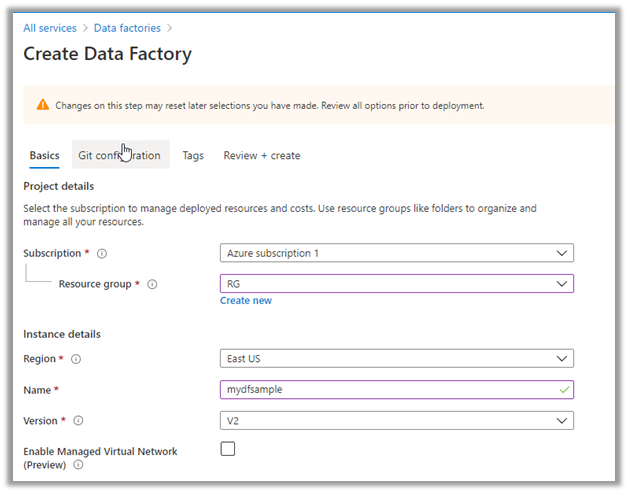
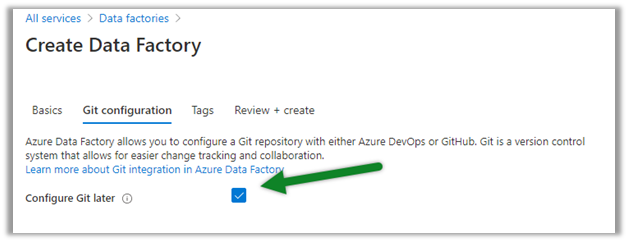
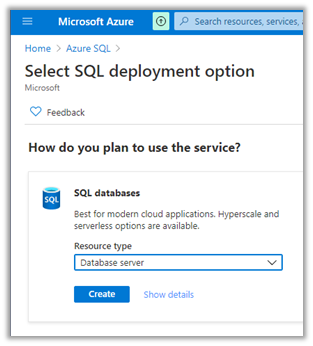
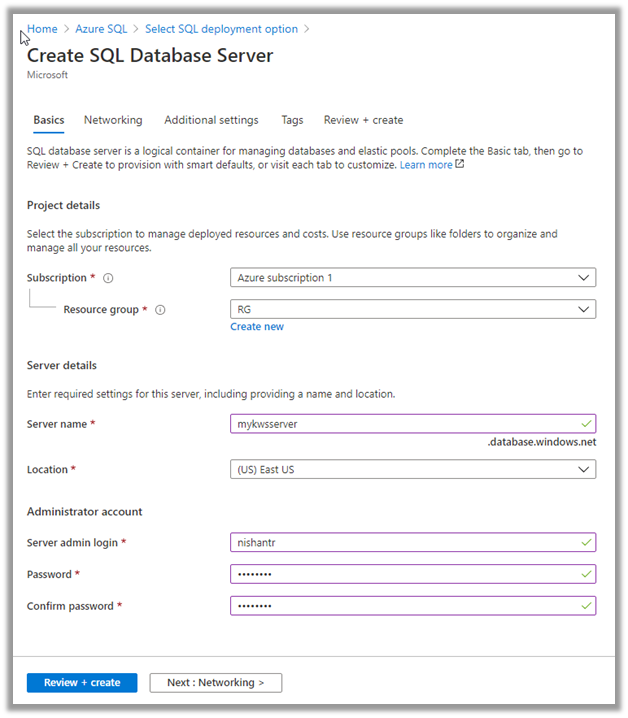
Create a new data factory instance

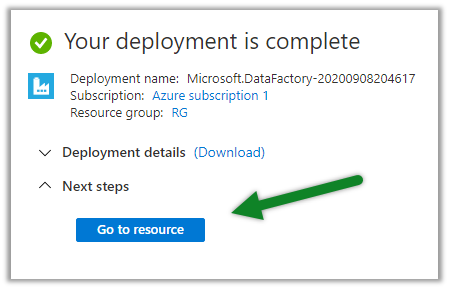
Once the deployment is successful, click on Go to resource

Inside the data factory click on Author & Monitor

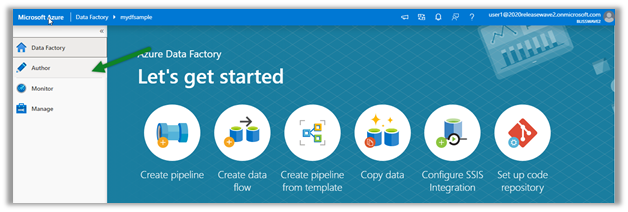
Click on Author in the left navigation

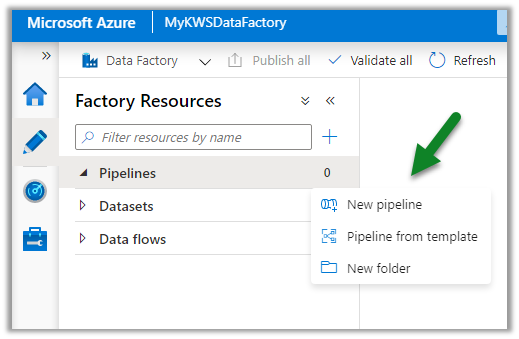
Create a new Pipeline

And drag the Copy data activity to it

Go to the Source tab, and create a new dataset.

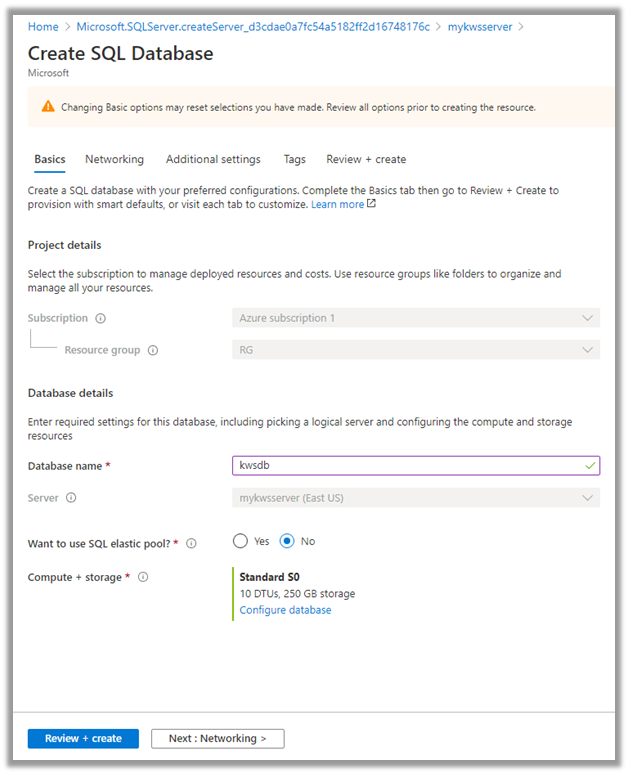
Below is our Azure SQL database with contacts table which will be our source here.


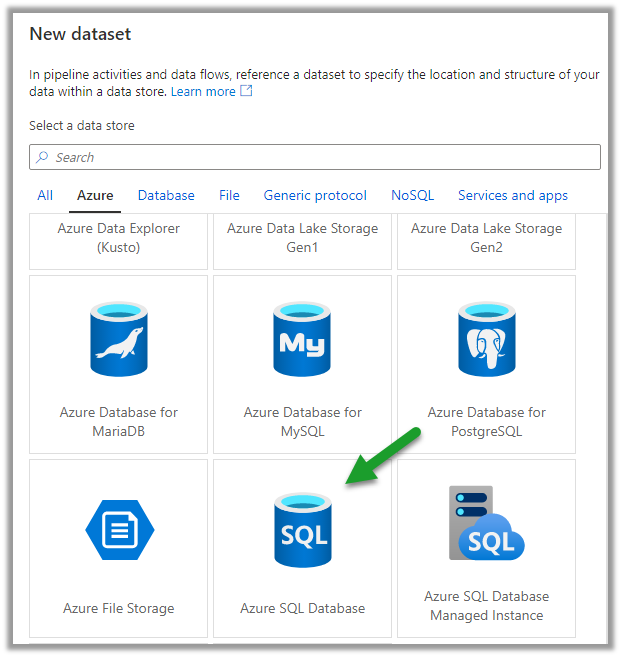
Select Azure SQL Database as the source dataset.


Create a new linked service to specify the connection properties.


Specify the details to connect to the Azure SQL Database.


We have selected the contacts table here.


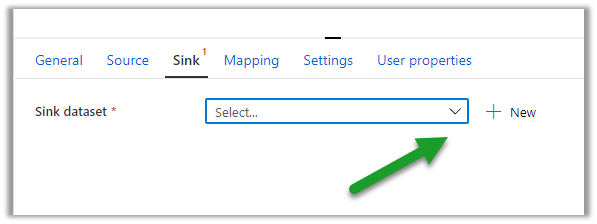
Similarly, let us define a new dataset for Sink which will connect to our Dynamics 365 Instance.


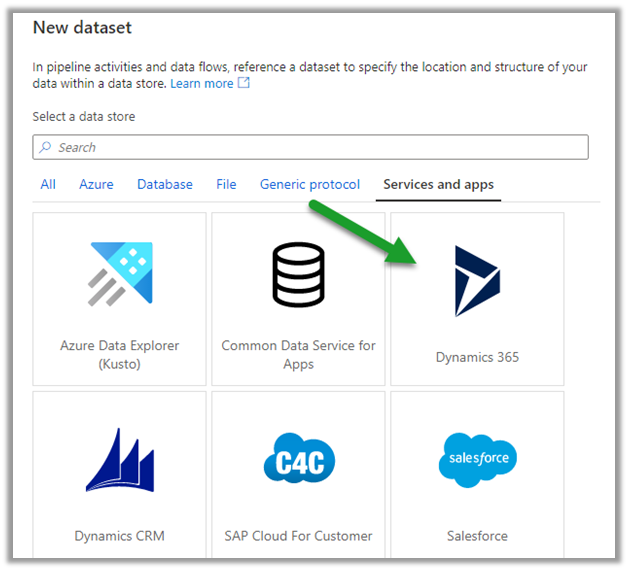
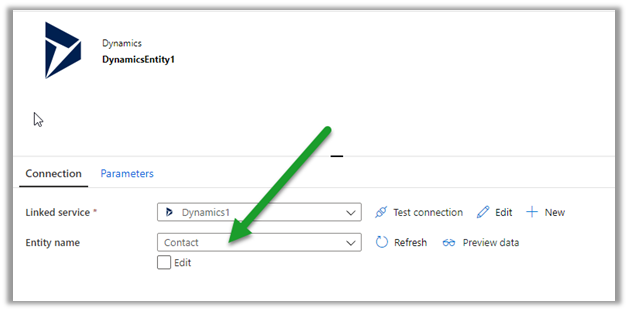
Select the Dynamics data set and specify the linked service.

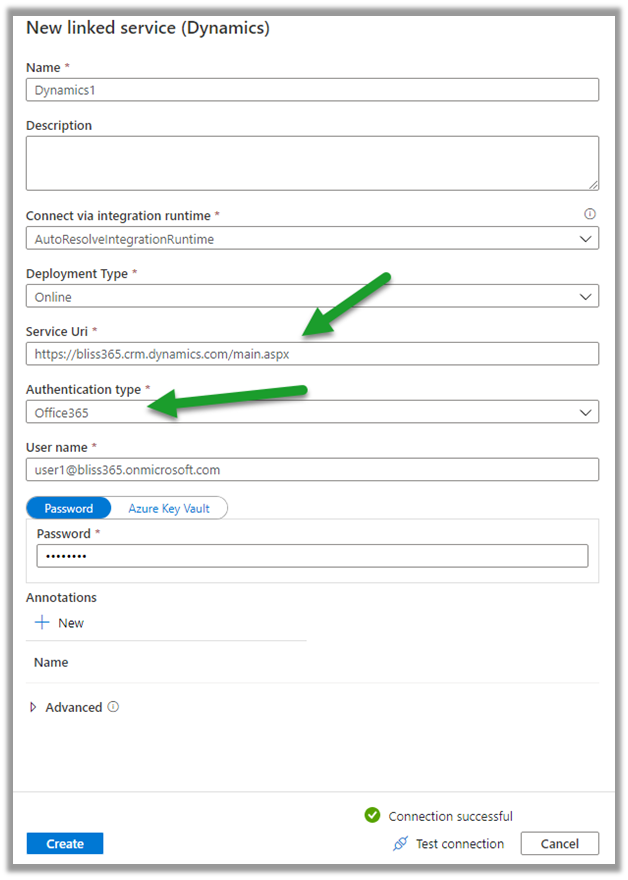
Specify the details of the Dynamics 365 instance to connect to.

We have selected contact entity as the destination.

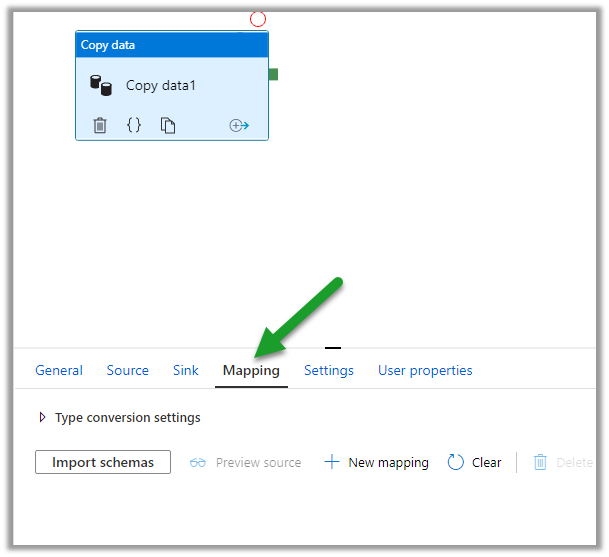
Within the Mapping tab, we can specify the fields to be mapped.

Below is how we have specified the mapping.

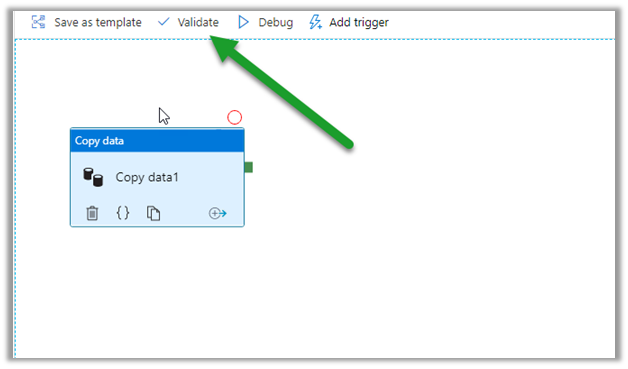
Click on Validate and after successful validation, click on Debug to run the pipeline.

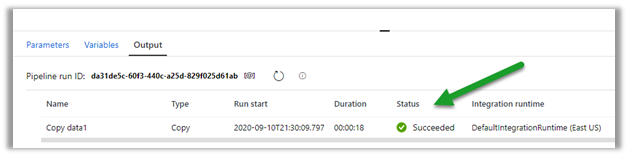
Within the Output window, we can see the status.

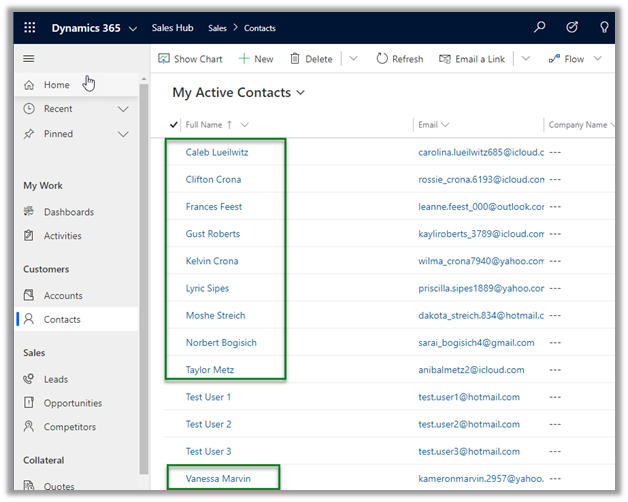
After the successful run, we can see the contact records created inside Dynamics 365.

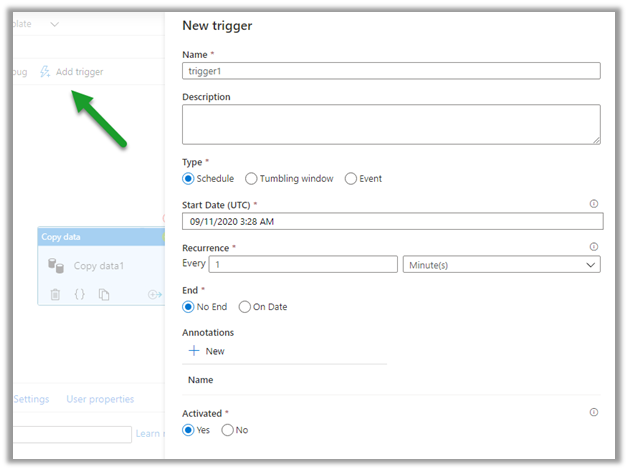
We can specify a trigger for the pipeline as shown below.

Publish All will publish the changes to the data factory.

Hope it helps..

Advertisements

Failed to get response from server error while trying to connect to Dynamics 365 using linked services – Azure Data Factory


Recently, while trying to connect to Dynamics 365 data set through Linked Service

we got the below error

Seems like a product issue, so the workaround is

Opening Azure Data Factory in a new incognito or in-private mode.

Or

Cancel and do not select the certificate, while testing the connection.

Ignoring the certificate fixed the issue for us.

Hope it helps..
Use Power BI to analyze the CDS data in Azure Data Lake Storage Gen2


In the previous post, we saw how to export CDS data to Azure Data Lake Storage Gen2.

Here we’d see how to write Power BI reports using that data.

Open the Power BI Desktop, and click on Get data

Select Azure > Azure Data Lake Gen 2 and click on connect.

To get the container URL,

Log in to the Azure portal and navigate to the container and click on Properties and copy the URL.

Replace the blob part in the copied URL with dfs

Below is the format of the URL.

https://accountname.dfs.core.windows.net/containername/

replace the account name and the container name.

In case you get the below error

Refer –

https://nishantrana.me/2020/09/08/error-we-dont-support-the-option-hierarchicalnavigation-parameter-name-hierarchicalnavigation-when-trying-to-load-table-in-power-bi-desktop-using-azure-data-lake-storage-gen-2-cdm-fo/

Select the CDM Folder View (beta)

Expand the CDM folder and select the entity.

In case if you get the below error

Refer

https://nishantrana.me/2020/09/08/error-we-dont-support-the-option-hierarchicalnavigation-parameter-name-hierarchicalnavigation-when-trying-to-load-table-in-power-bi-desktop-using-azure-data-lake-storage-gen-2-cdm-fo/

Once connected we can then create our Power BI report as shown below.

Check the below posts for creating a Power BI report with Dynamics 365 data as the source

https://nishantrana.me/2018/11/24/power-bi-and-microsoft-dynamics-365/

Posts on Azure Data Lake

Hope it helps..
Advertisements

Error – We don’t support the option ‘HierarchicalNavigation’. Parameter name: HierarchicalNavigation when trying to load table in Power BI Desktop using Azure Data Lake Storage Gen 2 CDM Folder view (beta)


While trying to connect to a table within Azure Data Lake Storage Gen2 through CDS Folder View

we got the below error

Users have reported this issue with the August 2020 Update of Power BI Desktop.

As suggested in the forums, downgrading to June 2020 Update fixed the issue for us.

Check out Export CDS data to Azure Data Lake Storage Gen2

Posts on Azure Data Lake

Hope it helps..
Advertisements

Fixe – Error – Access to the resource is forbidden while trying to connect to Azure Data Lake Storage Gen2 using Power BI Desktop


While trying to connect to Azure Data Lake Storage Gen2 through Power BI Desktop we got the below error

Came as surprise cause the user was had the owner role assigned to the container

It turned out we need to assign the Storage Blob Data Reader role to the user.

After assigning the role we were able to connect successfully.

Posts on Azure Data Lake

Hope it helps..
Advertisements

How to – Use Azure Synapse Link – Export data from Common Data Service to Azure Data Lake Storage Gen2


Azure Data lake store gen 2 can be described as a large repository of data, structured or unstructured built on top of Azure Blob storage, that is secure (encryption – data at rest), manageable, scalable, cost-effective, easy to integrate with.
Also check out – setup Azure Synapse with Dataverse – https://nishantrana.me/2021/06/16/how-to-setup-azure-synapse-link-microsoft-dataverse/

  • Export to Data Lake allows for continuous replication of CDS entities to Data Lake Storage Gen2, which involves initial write followed by incremental writes, which can be consumed by Power BI, Azure Data Factory, Azure Data Bricks, and Azure Machine Learning.
  • Replication of standard and custom entities having change tracking enabled and create, update, and delete operations.
  • Any changes in data and metadata are pushed automatically without the need of setting any refresh intervals.

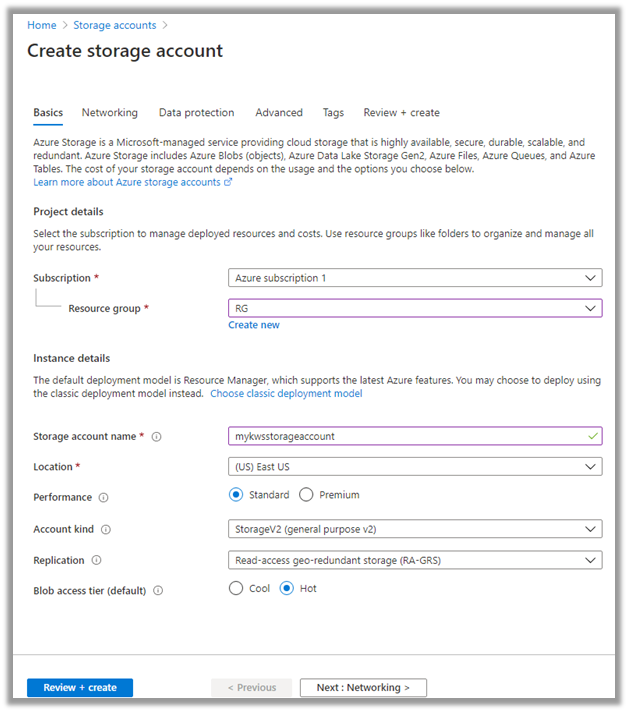
Let us first create a general-purpose V2 storage account to access all of the Azure storage services like blobs, files, etc.

The storage account must be in the same Azure AD tenant.

Login to Azure Portal (with admin account)

https://portal.azure.com/

Search for Storage Accounts.

Here we have used a trial to create the storage account.

Leave the Account kind, Replication, and Blog Access as the default values while creating the storage account.

Before selecting Review + Create, navigate to the Advanced tab and enable the Hierarchical Namespace.

After validation is done and is successful, click on Create to create the storage account.


With the storage account created successfully, navigate to PowerApps select the option Export to data lake.

Select New link to data lake

Specify the storage account created earlier.

Select the entities to be exported to the data lake. Enable change tracking for the entities, as only these entities will be exported.

Clicking on save will link the CDS environment with Azure data lake storage.

It will create the file system in the Azure storage account having a folder for each entity selected.

and will start the initial sync.

we can use the Manage entities option for adding or removing the linked entities.

Inside Azure Portal, we can navigate to the storage account and select the Storage Explorer.

Expand commondataservice-environmentName-org-Id
container to view the details.

The CSV file will contain the data

Here Model.json is the metadata file in the CDM folder

that describes the data in the folders, metadata, and location.

More details-

https://www.bluegranite.com/blog/10-things-to-know-about-azure-data-lake-storage-gen2

Posts on Azure Data Lake

Hope it helps.

Advertisements