Caching Issue in The Portal Connector (TPC)


We had products configured from CRM to E Commerce settings in TPC. However, what we observed that any update that we are making to prices in the product is not reflecting to the end user using the Portal.

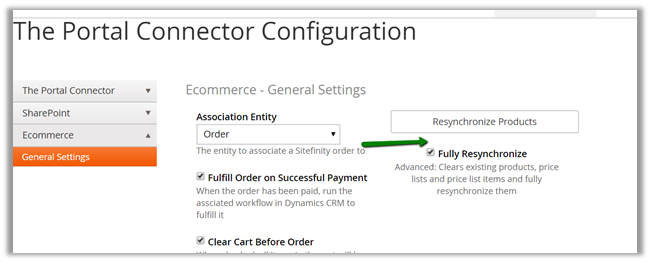
We cleared the cache, deleted the product form TPC did full synchronization etc. but still we were getting the same price for the products in the Product List.

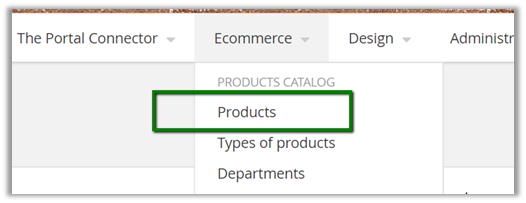
In Product List

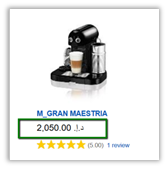
The price for the product (the same was the value in CRM)

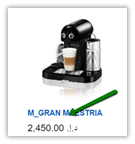
However, for the end user in the portal the value was showing up the old value.

Eventually we ended up cloning up i.e. creating a new Product with exact same details and doing full synchronization inside TPC.

This worked.

Hope it helps..

Change Order Name and Payment Name Prefix in The Portal Connector (TPC)


To update the prefix, go to Administration – Settings

Then to Advanced

Then to Ecommerce settings

Scroll down to the bottom

Hope it helps..

Query CRM from The Portal Connector (TPC) through Saved Queries


Within The Portal Connector we can make use of Saved Queries to define Fetch XML Query.

Once defined we get a REST based URL which can be used from our client side script.

Login to the Portal and go to Saved Queries

Click on Create a Saved Query

Click on Build and create a Fetch XML Query

The fetch xml builder

We can see the parameter added to the query string.

To consume it we can make use of JavaScript widget

Click on Edit and define the JavaScript inside it to call the function

The JavaScript code.


setTimeout(function(){

// get the logged in user's email i.e. contact in CRM

var userEmail=tpc.identity.userEmail;

var resp = $.ajax({
url: "http://abc.crmportalconnector.com/SavedQueryService/Execute/loyaltypointsavedquery/" + userEmail,
async: false,
dataType: "JSON",
}).responseJSON;
if(resp != null && resp.data != null)
{
var lp = resp.data[0].Attributes.new_loyaltypoint;
document.getElementById("lp").innerHTML = lp;
}
}, 1500);

Hope it helps..

Using tpc.identity to get the logged in user details in JavaScript in The Portal Connector (TPC)


Recently while working in TPC, we had a requirement to get the details of the logged in user (which is basically a contact record in CRM).

To do so we can make use tpc.identity object in Client Side.

For e.g. contactId

Hope it helps..

Configuring CRM Form inside The Portal Connector for Dynamics CRM / Dynamics 365


The Portal Connector makes it easy to quickly setup a portal that interacts with CRM.

Here let us look at a simple example of setting up Lead form in Insert Mode, which creates lead record in CRM.

Open the Dashboard

Go to CRM Entities and click on Create a CRM Entity.

Here we are creating Lead entity.

Once our lead is setup, we’d create the form.

Go to Contents – Forms.

Click on Create a form.

Inside form, first go to Layout and select TPC Form Layout.

Then go to Content tab, and add Form Configuration

Click on Edit inside Form Configuration and specify the Lead entity we just created.

Drag and add two text fields, one we will configure against first name and other with last name.

Do the same for Last Name text box and publish the form.

Next we need to create a Page wherein we’d display this form. Go to Pages and click on Create a page.

We have created a page named Lead.

Drag TPC Form Manager in the page content.

Configure it and specify our newly created My Lead form.

Select Insert Only check box.

Publish the page and test it. Specify the values and click on Submit.

We’d get the following message.

The lead record created in CRM.

Hope it helps..

Fixed – Workflow must be in Published State error while converting Case to Work Order in CRM


Recently, while trying to convert a case to work order we got the below error.

The immediate thought was to check all the workflow associated to work order and case and see if they all are published, which in fact they were.

Then as suggested here

http://ms-crm-2011-beta.blogspot.ae/2016/11/workflow-must-be-in-published-state.html

we deactivated and activated one of our SLA written against the Work Order entity and it fixed the issue.

Hope it helps..