With this new feature (preview) now we can specify the columns to be downloaded on mobile devices for offline use.
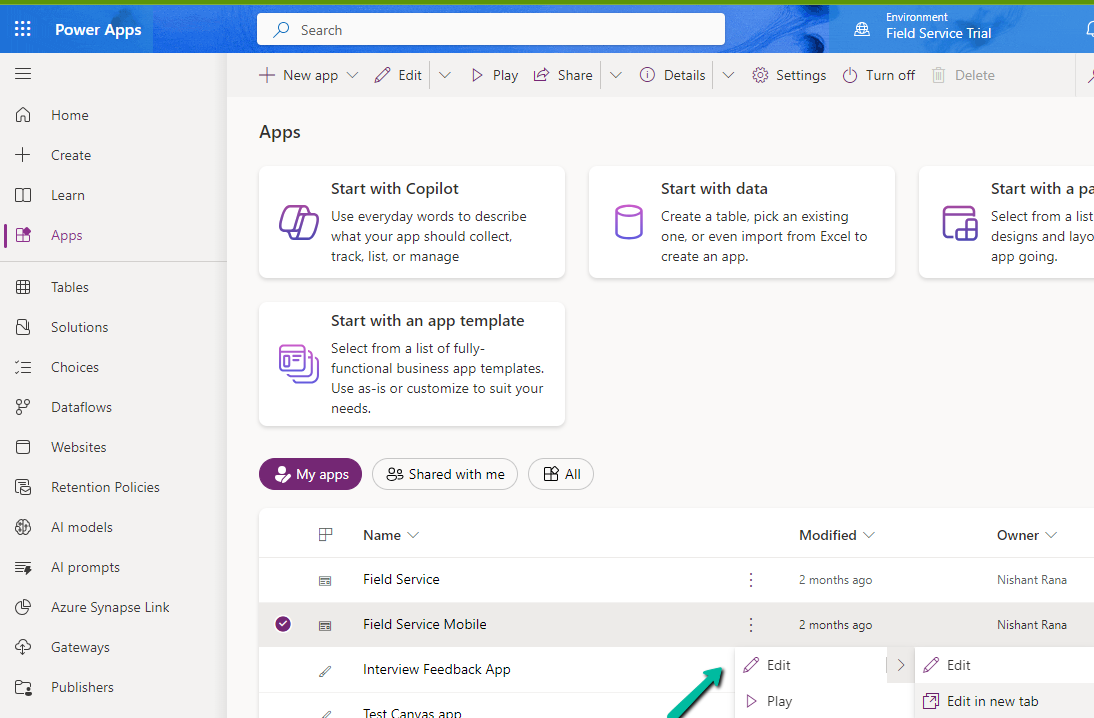
Select edit for the Model-driven app.
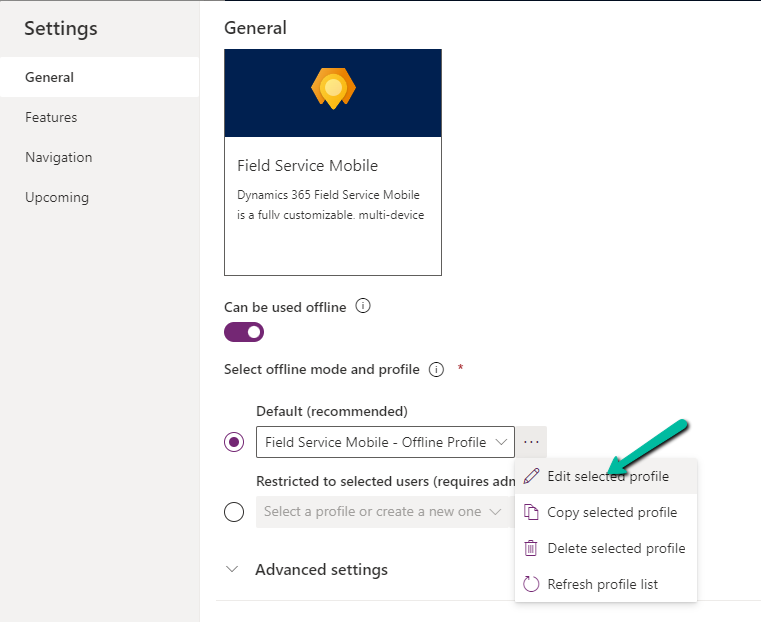
Select Settings and select an existing offline profile or create a new profile.
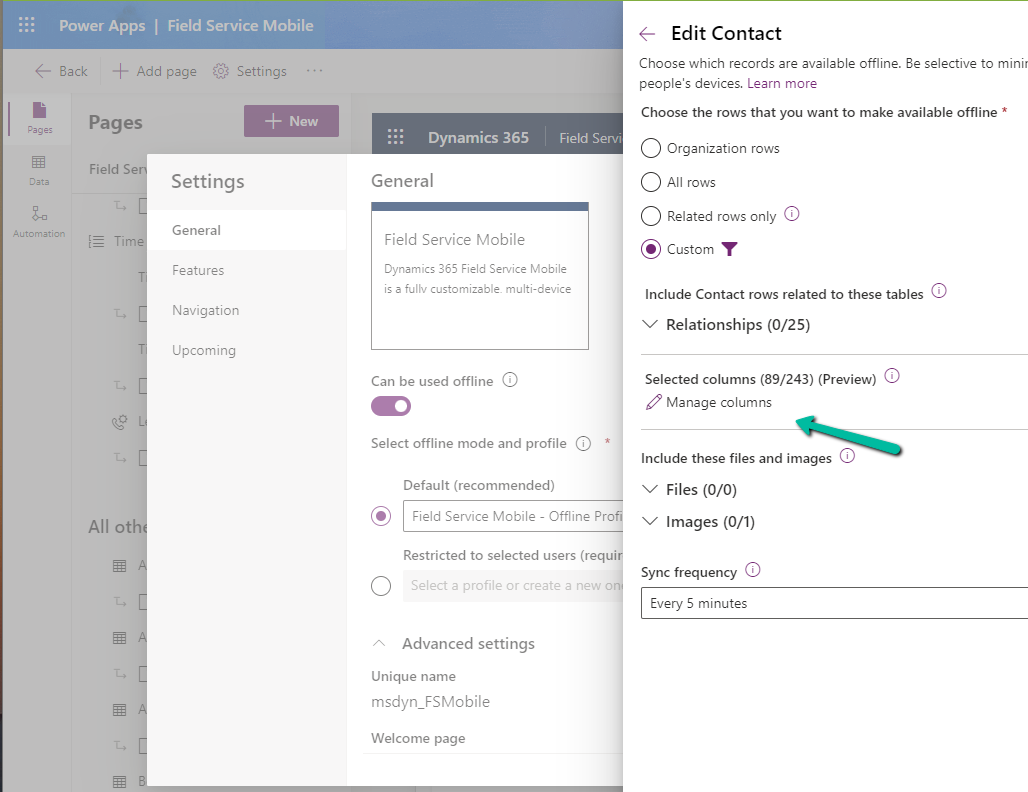
Select a new table or an existing table for the profile, we can see the Manage Columns option for it.
We can see key columns already selected as part of Required Columns.
We can select columns from the other columns section for our offline profile. The fewer the columns the faster the app will download the data for offline usage.
One point to note is that we get this option only from the Maker Portal not from the Power Platform Admin Center.
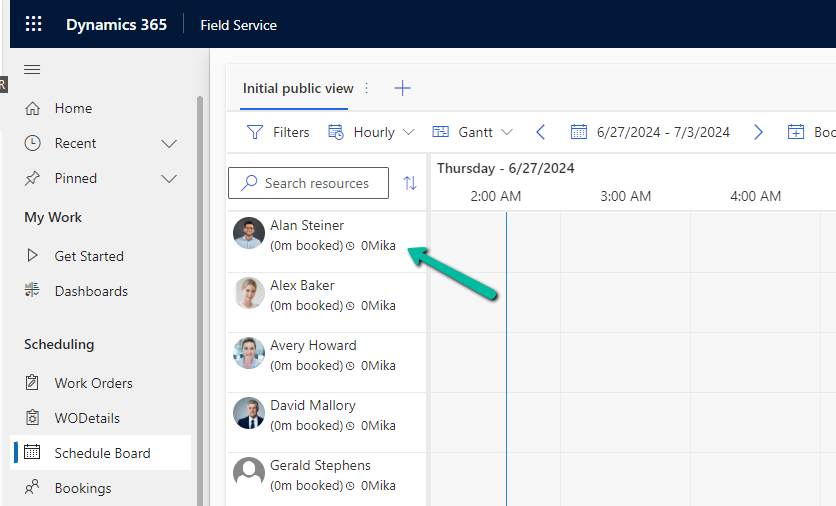
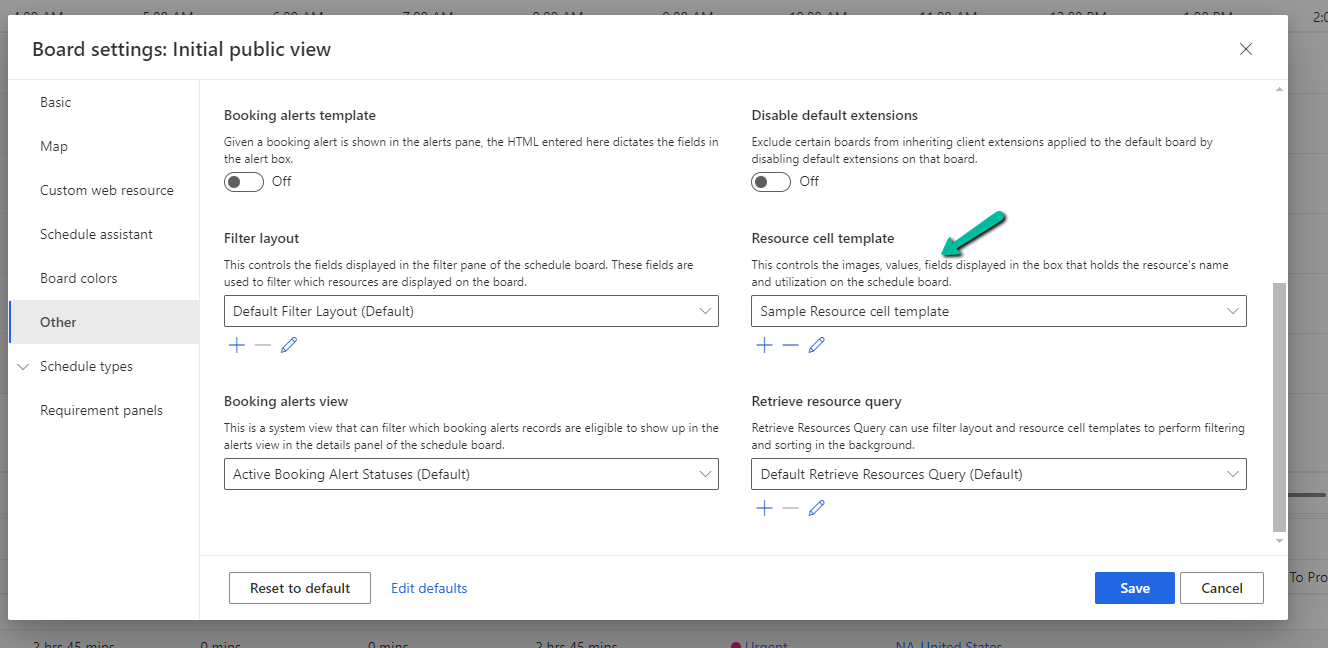
Below we can see the resource cell template (or view) applied that defines the images, values, and fields displayed for the resource in the Schedule Board.
Now suppose we want to show the Account (custom field) value also, that would make it easy for the Dispatcher to schedule them from within the Schedule board.
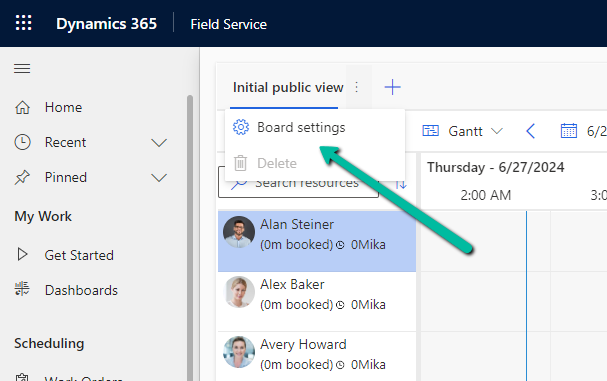
For this, we need to select Board Settings for the Schedule Board.
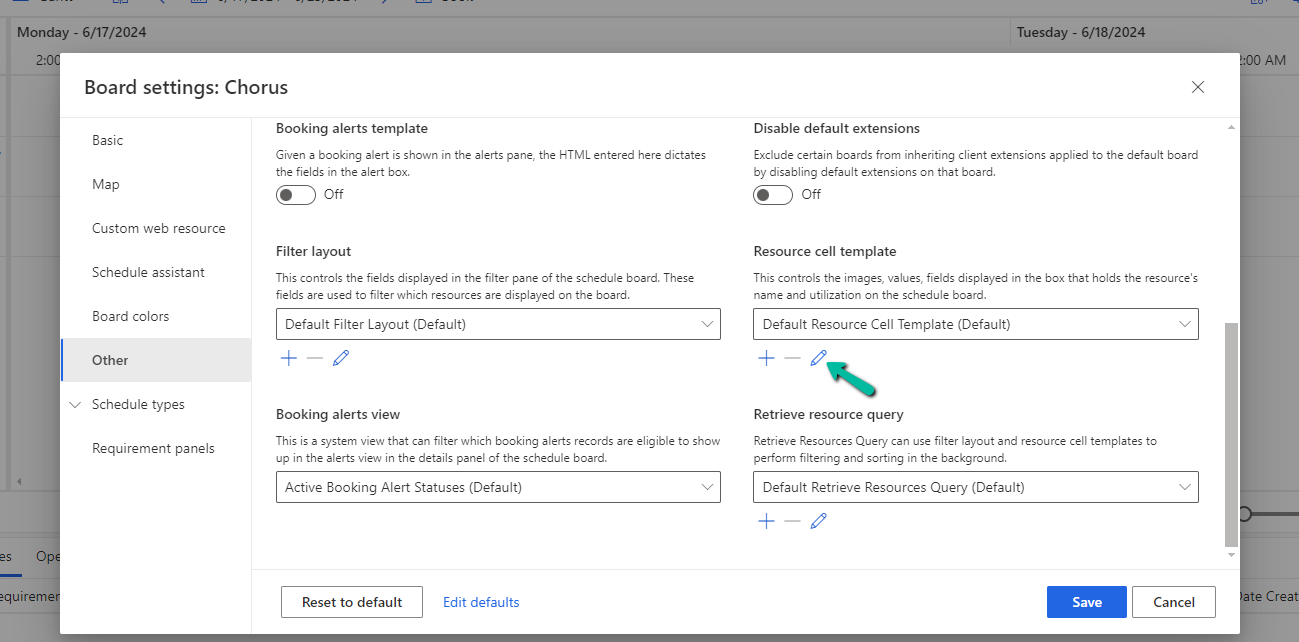
Navigate to the Other section within the Board Settings.
We’d first start by adding/defining a new Resource Cell Template and a new Retrieve resource query template.
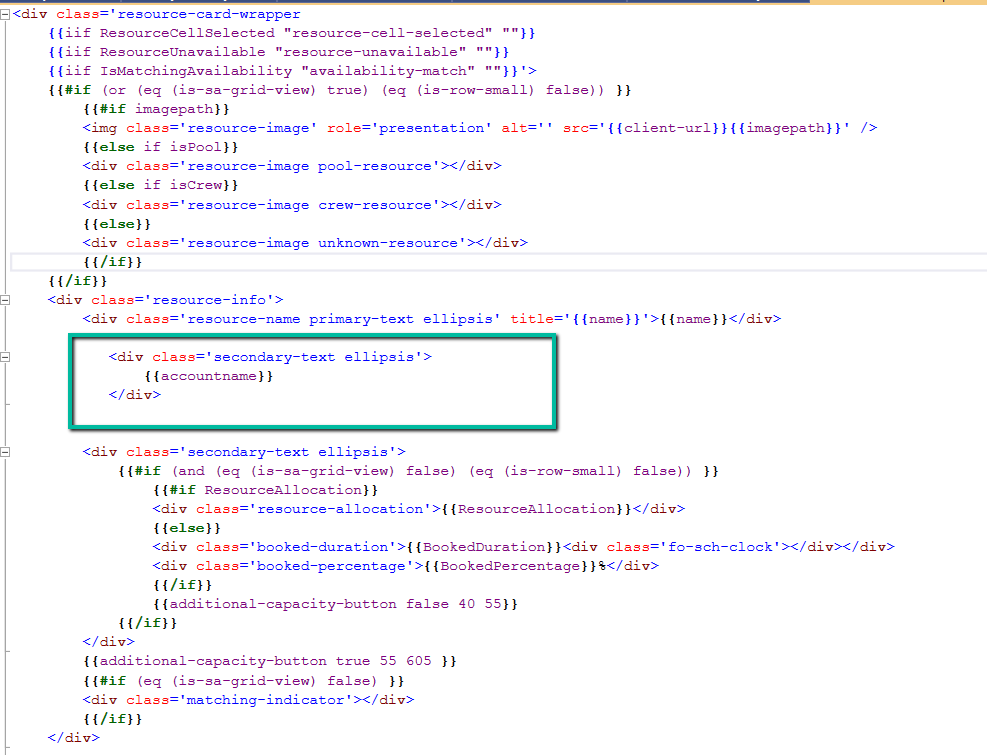
We have added below Div tag below to show the account name.
Save this new template
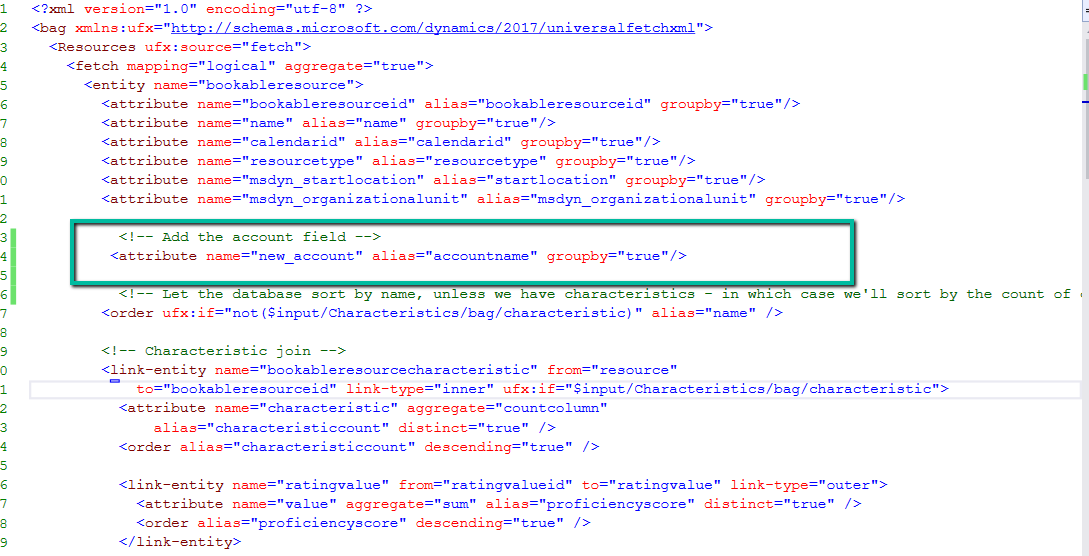
Next, add the below attribute tag for the account field in the Fetch XML for it to retrieve the value of the account, here name property holds the schema name of the field.
Select Save as new to add the new template.
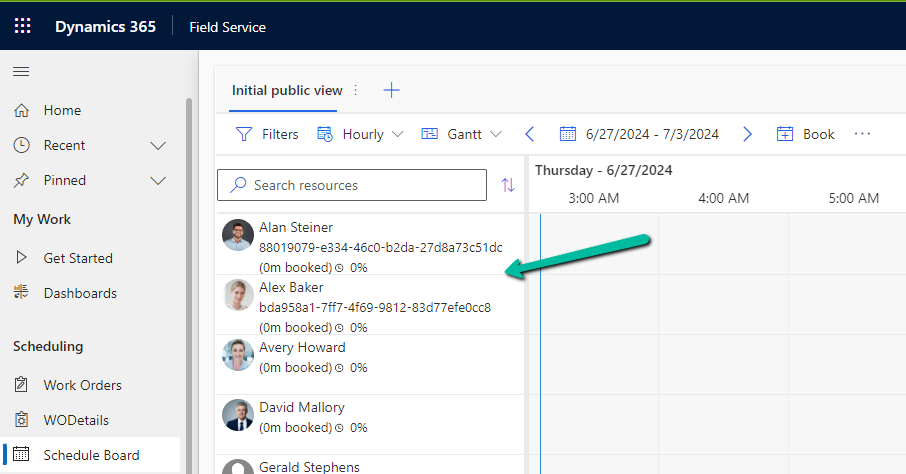
On refreshing the Schedule Board we can see the Account value added to the view, however, it shows the Guid of the account record.
To get the label /name, edit the Resource Cell Template and add the below UFX Bag (UFX directives for querying the data) to fetch the name of the account.
Update the Sample Resource Query, Save the changes, and refresh the schedule board.
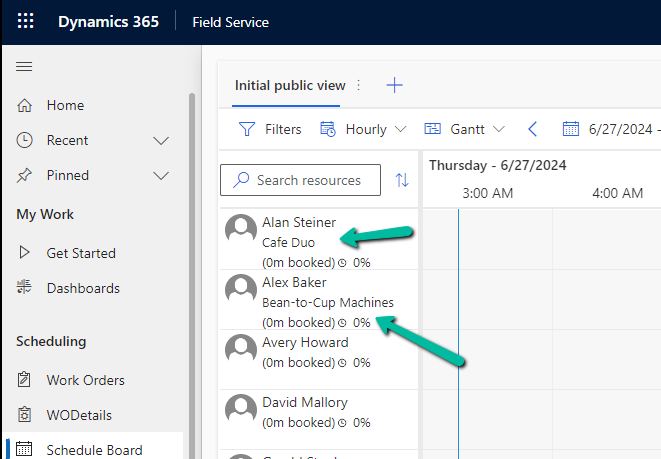
We can see the Guid replaced by the Account name there.
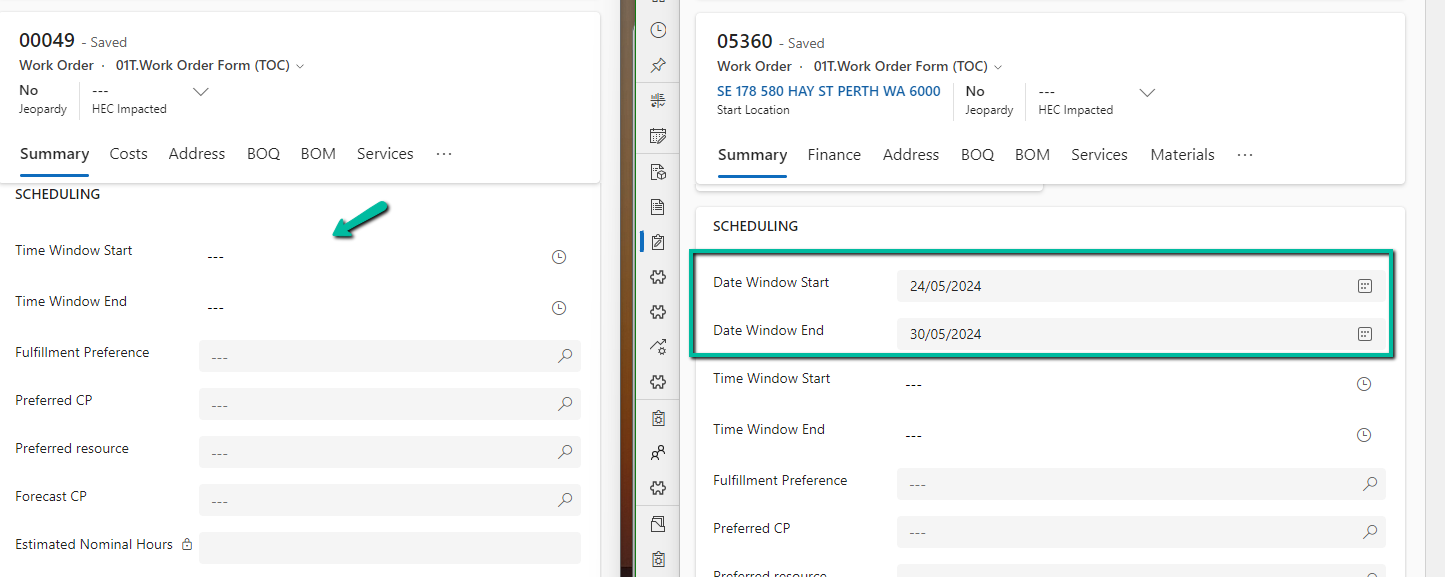
Recently we found that in one of the environments, the Date Window Start / End Dates was not showing up on the Work Order Forms, unlike the other environments.
Check the forms below
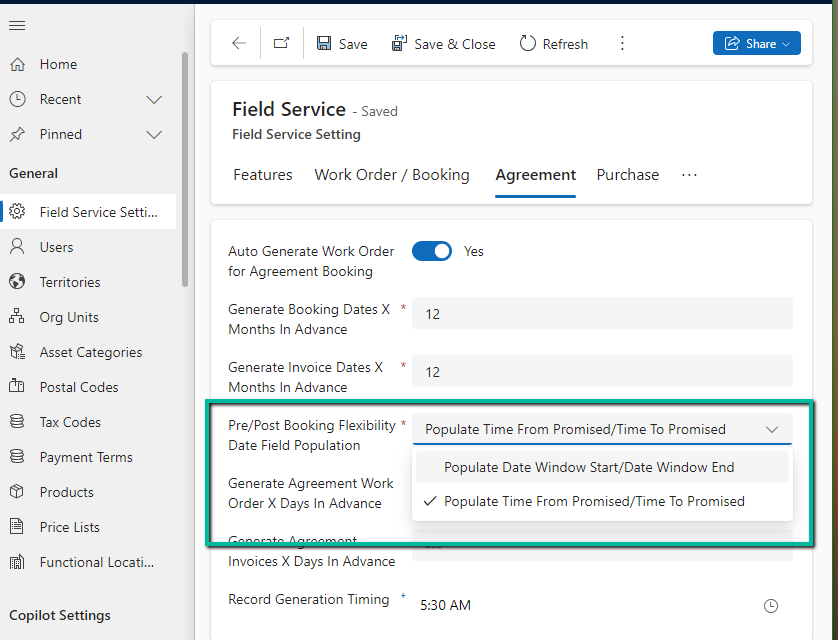
Well, the show and hide of the Date Window Start / End Date is controlled from Field Service Settings >> Fields Service >> Agreement
Setting Pre/Post Booking Flexibility Date Field Population to Populate Date Window Start / Date Window End will unhide the fields on the form.
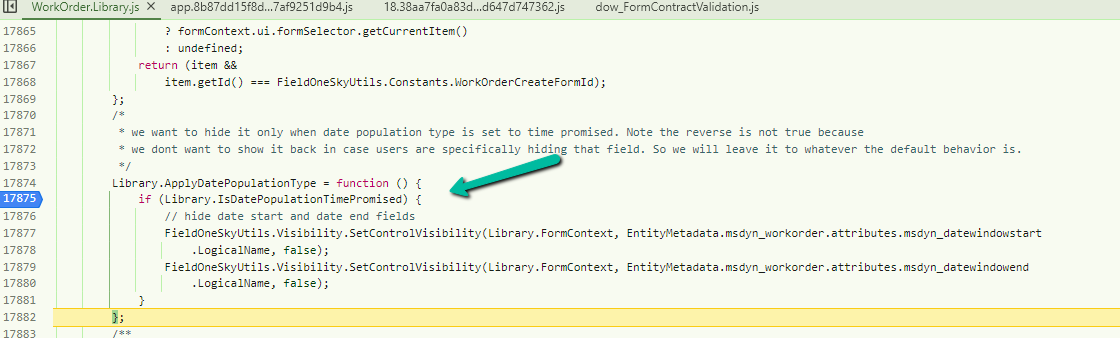
Below is the corresponding out-of-the-box script that shows/hides the fields.
Also worth noting is that these fields are deprecated, as Microsoft recommends using Time From Promised and Time To Promised fields instead to define the date window in which a job is performed.
When setting up an agreement, you can control how work order scheduling works with pre-booking and post-booking flexibility. These fields define a window of time for scheduling each work order.
There are two options for how this window is used:
Date Window Start/End: The agreement populates these fields with the scheduling window. This makes the “Date Window Start/End” section visible on the work order itself.
Time From/To Promised: The agreement doesn’t directly affect these fields, but the scheduling window is considered during the scheduling process. “Date Window Start/End” will be hidden in this case.
This setting essentially determines where the scheduling window information is stored and displayed for work orders generated from this agreement.
While trying to set the Start Location / End location to the Resource Address for Bookable Resource, we might get the below error
Exception Message: The latitude or longitude for the User record associated with this resource is invalid. Please provide a valid latitude and longitude and then set the start and end location for this resource again.
Here as the error message specifies we need to specify the latitude and longitude value for the corresponding resource type record associated with the Bookable Resource.
In the case of Contact, we can use the Geo Code option, and specify the address to populate the Latitude and Longitude details.
In the case of a User record we do not see the Geo Code option so there we can manually specify the values for it.
Now we will be able to update the Start / End Location as Resource Address in our Bookable Resource record, without getting any error.
We can track the different locations Field Service technicians have traveled or where they are at a given time inside Dynamics 365 Field Service. Field Service Technicians can enable location sharing from the app, and based on the Geolocation Settings configured, we can see the technician’s location in the schedule board and also list location history through the Geolocation Tracking record.
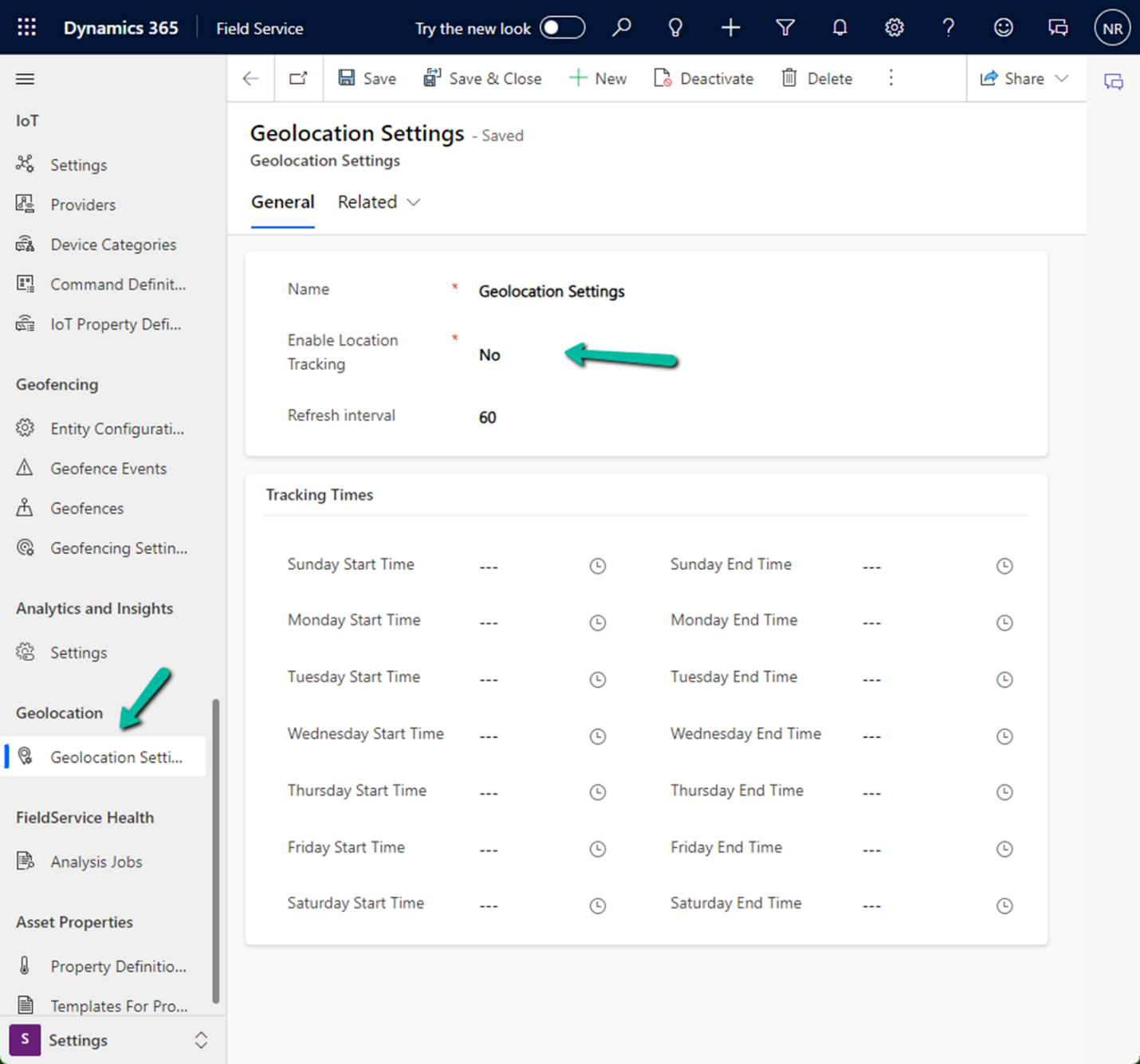
Navigate to Settings >> Geolocation >> Geolocation Settings.
By default, the Geolocation Settings will have Enable Location Tracking as No and Refresh Interval as 60 seconds.
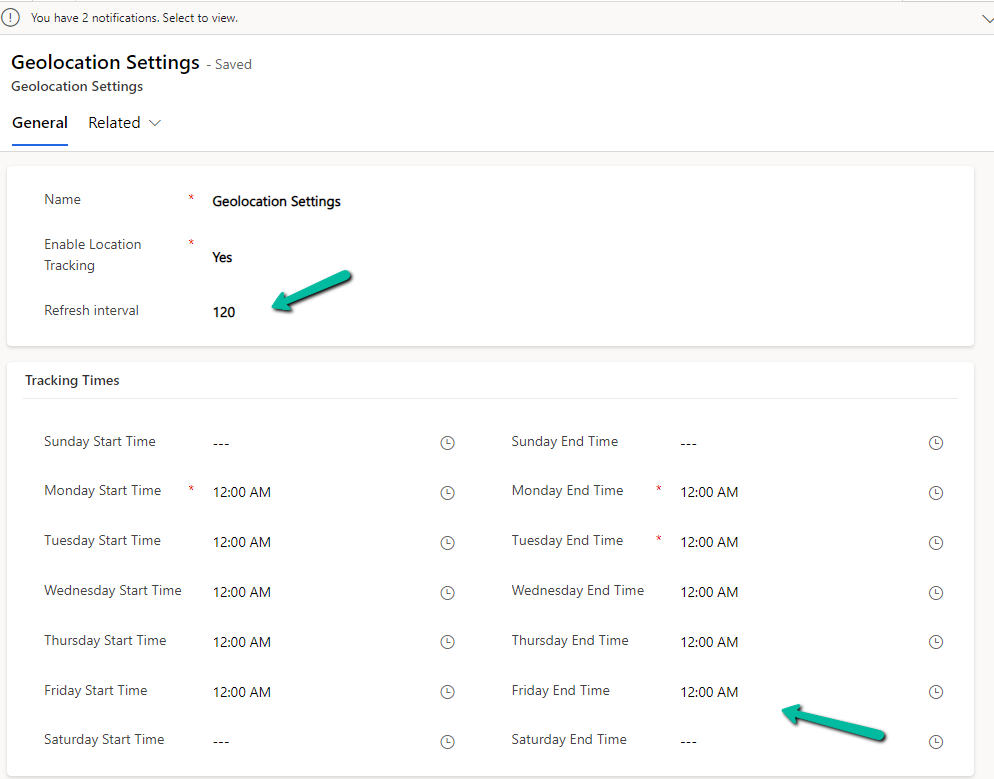
Below we have updated the Geolocation Settings, updated the Refresh Interval to 120, and specified Tracking times for Monday to Friday, 24 hours.
Refresh Interval specifies how frequently the system will check the user’s location, not the frequency for the creation of “Geolocation Tracking” records.
Geolocation Tracking records are created on Sign In, when a user moves more than 200 meters, and when the user comes to a still position after moving.
In the Field Service App, the technician has the location enabled in the settings.
Back in the Schedule Board, we can see the current location of the Field Service technician. (If we are specifying the Start / End location as the Resource Address for the Bookable resource, we will have to specify the latitude and longitude for the associated resource record)
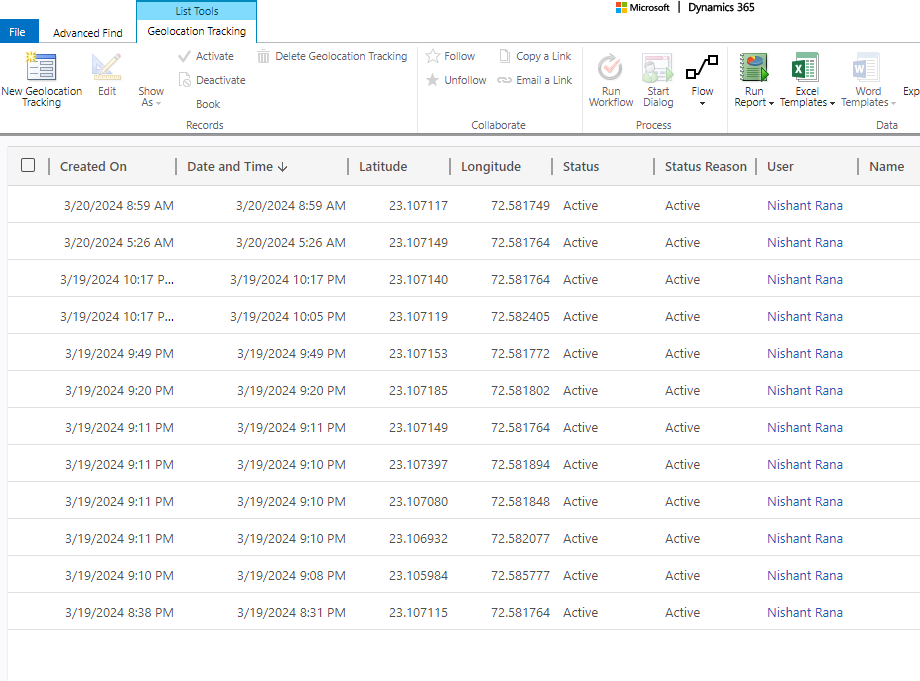
Below we can see the corresponding Geolocation Tracking records created.
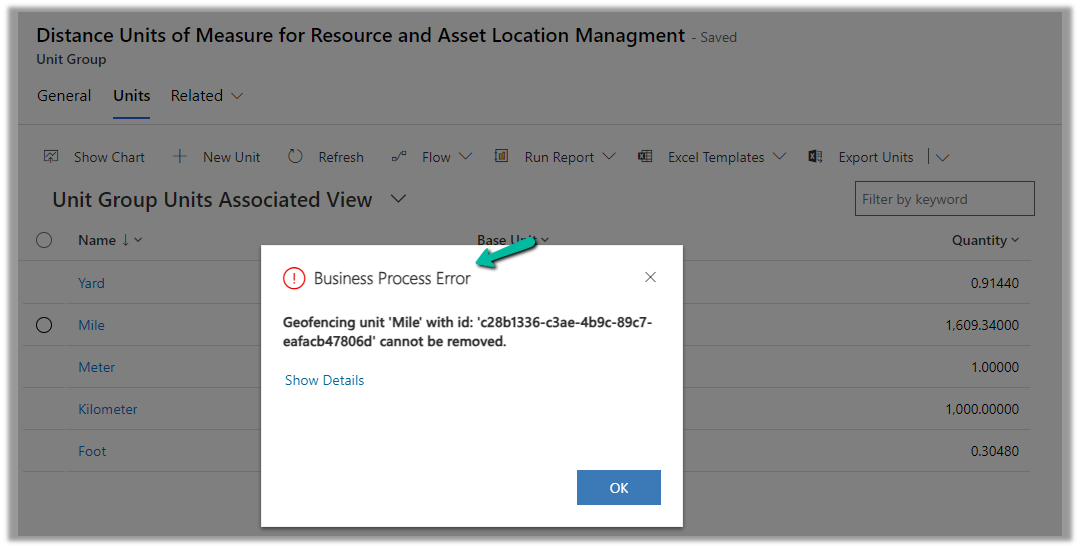
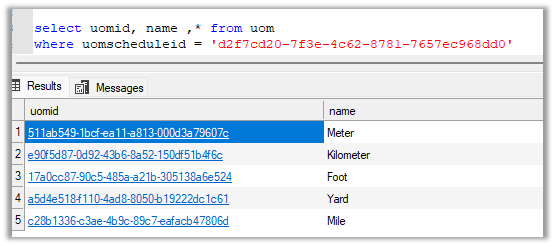
While trying to delete the Unit records related to the “Distance Units of Measure for Resource and Asset Location Management” unit group, we will get the below error
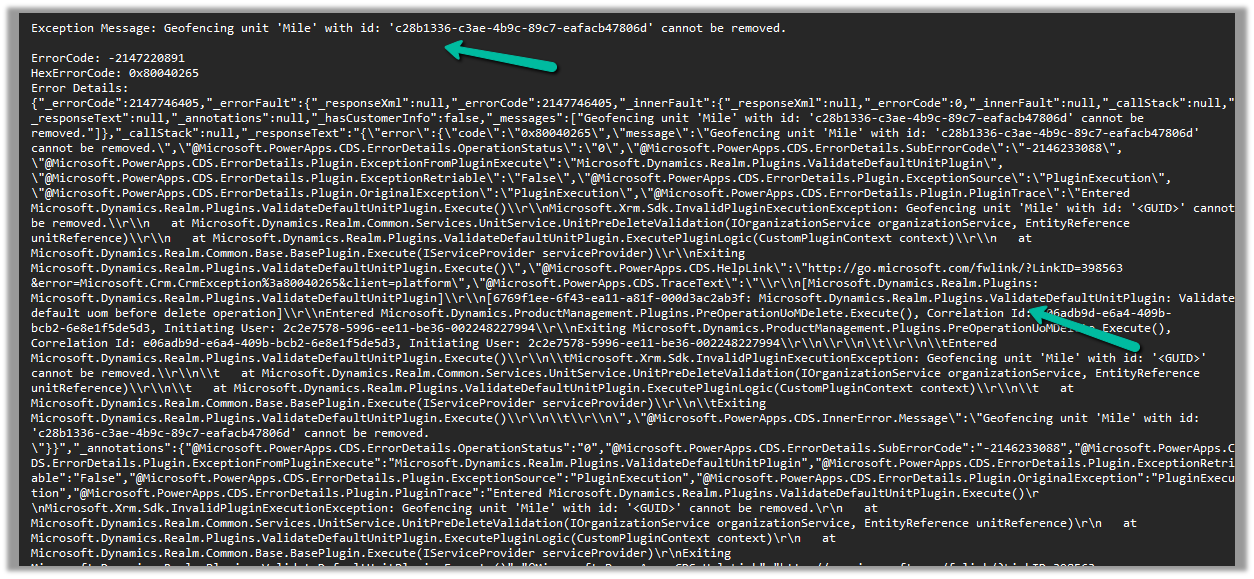
Geofencing unit ‘Mile’ with id: ‘<GUID>’ cannot be removed
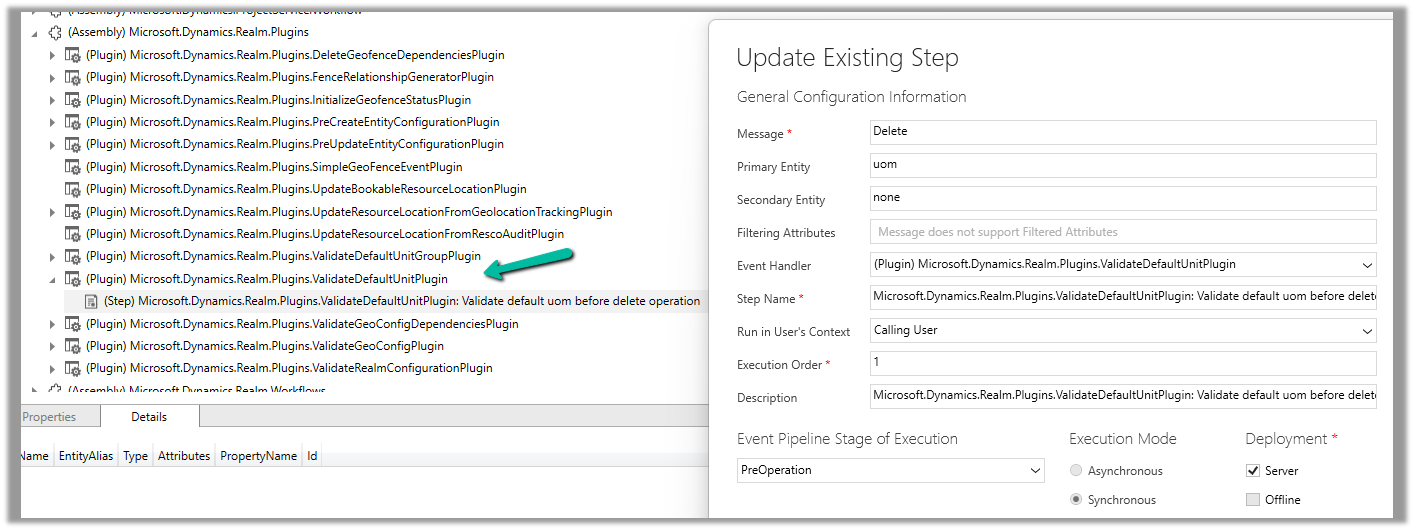
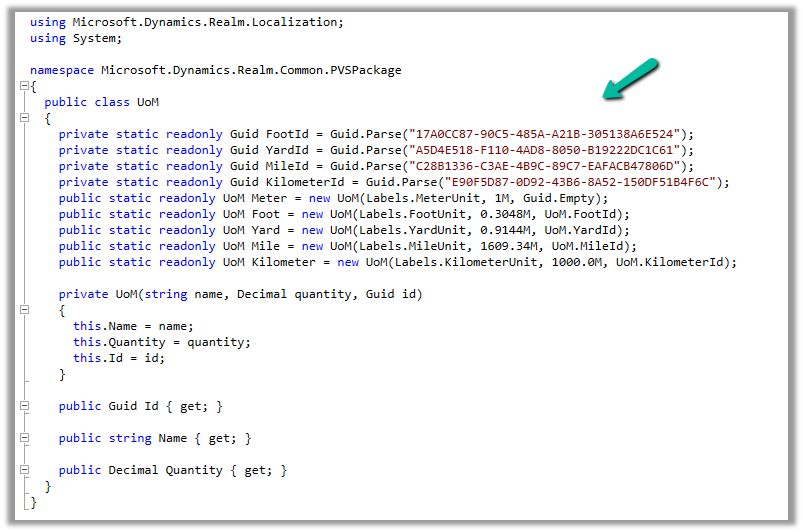
Below is the out of the box plugin that restricts the deletion of the unit


















 Nishant Rana's Weblog