Recently, we ran into an interesting issue while working with a Dynamics 365 / Dataverse environment. Even though the user was assigned the System Administrator security role, the environment did not appear in either the Power Platform Admin Center or the Maker Portal. The surprising part was that nothing was actually wrong with the permissions. The environment eventually appeared automatically after about 4 to 6 hours, which suggests there was a synchronization delay. Another interesting aspect was that, out of 3 environments assigned to the user, only 1 had this problem.
The problem
After receiving System Administrator access, we expected the environment to appear immediately in:
• Power Platform Admin Center (PPAC) • Power Apps Maker Portal
However, the environment simply wasn’t listed, even though we could access the Dynamics 365 application directly using its URL.
Open the Maker experience from Advanced Settings
If you already have the Dynamics 365 / CRM URL for the environment, you can continue working without waiting for the synchronization.
Navigate to:
Advanced Settings → Settings → Customize the System
Then select the Try New Experience option.
Selecting Try New Experience opens the modern Maker experience for that environment even when it isn’t listed in the environment selector.
Open the environment directly in PPAC or Maker Portal using the Environment ID
We can also open the environment directly in Power Platform Admin Center or Maket Portal by using the Environment ID.
The Environment ID can also be found in the environment details page. We can use the Environment ID and the corresponding Maker and PPAC URL to open the particular environment.
This time, instead of just explaining the root cause again, we put together a quick reference table for converting an Advanced Find date range into the correct SQL4CDS UTC boundary, for any user time zone.
The Scenario
Advanced Find query on Work Orders, filtered on Created On:
On or After 01/01/2026
On or Before 05/01/2026
The user running this is in Auckland, New Zealand. (User’s Time Zone is Auckland)
We were running SQL4CDS in UTC mode. A query that simply matches the literal date strings against createdon will not reliably reproduce the Advanced Find count, because Advanced Find evaluates the date range in the user’s local time zone, while createdon is stored in UTC. The two only line up once the date range is converted to explicit UTC boundaries.
The Reliable Formula
StartBoundaryUTC = StartDate 00:00:00 (user’s local time) → converted to UTC
EndBoundaryUTC = (EndDate + 1 day) 00:00:00 (user’s local time) → converted to UTC
WHERE createdon >= StartBoundaryUTC AND createdon < EndBoundaryUTC
Two points worth calling out:
The upper boundary always uses End Date + 1 day, with a strict <, not <=. This avoids any ambiguity around milliseconds and reliably captures the entire end date.
For time zones ahead of UTC (New Zealand, India), convert by subtracting the offset. For time zones behind UTC (Hawaii, US), convert by adding the offset.
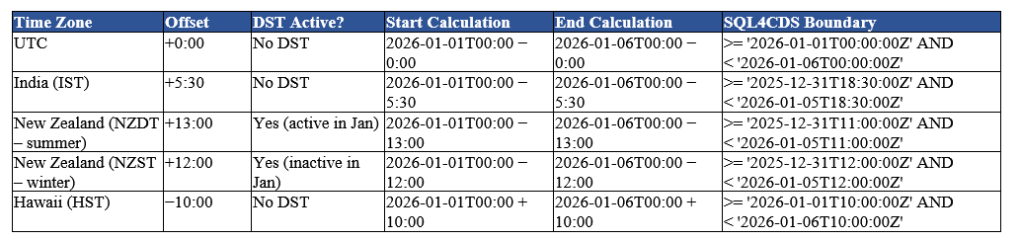
Quick Reference Table
Boundary used below: 1/01/2026 to 5/01/2026 (end boundary = 6/01/2026 local, converted to UTC).
Time Zone
Offset
DST Active?
Start Calculation
End Calculation
SQL4CDS Boundary
UTC
+0:00
No DST
2026-01-01T00:00 − 0:00
2026-01-06T00:00 − 0:00
>= ‘2026-01-01T00:00:00Z’ AND < ‘2026-01-06T00:00:00Z’
India (IST)
+5:30
No DST
2026-01-01T00:00 − 5:30
2026-01-06T00:00 − 5:30
>= ‘2025-12-31T18:30:00Z’ AND < ‘2026-01-05T18:30:00Z’
New Zealand (NZDT – summer)
+13:00
Yes (active in Jan)
2026-01-01T00:00 − 13:00
2026-01-06T00:00 − 13:00
>= ‘2025-12-31T11:00:00Z’ AND < ‘2026-01-05T11:00:00Z’
New Zealand (NZST – winter)
+12:00
Yes (inactive in Jan)
2026-01-01T00:00 − 12:00
2026-01-06T00:00 − 12:00
>= ‘2025-12-31T12:00:00Z’ AND < ‘2026-01-05T12:00:00Z’
Hawaii (HST)
−10:00
No DST
2026-01-01T00:00 + 10:00
2026-01-06T00:00 + 10:00
>= ‘2026-01-01T10:00:00Z’ AND < ‘2026-01-06T10:00:00Z’
Since January falls in NZ summer, the Auckland user’s boundary above uses NZDT (+13:00):
SELECT count(1)
FROM msdyn_workorder
WHERE createdon >= '2025-12-31T11:00:00Z'
AND createdon < '2026-01-05T11:00:00Z'
This reproduces the Advanced Find count for the same range.
NZ DST Transition Windows
New Zealand does not stay on a single offset year-round, so the correct value depends on the date range being queried, not the date the query is run.
Period
Offset
Late Sep – early Apr (NZDT)
UTC+13
Early Apr – late Sep (NZST)
UTC+12
Confirm the exact transition dates for the specific year, as they shift slightly.
Rules of Thumb
Rule
Reason
End boundary = End Date + 1 day, use < not <=
Captures the full end date without truncating time
Time zones ahead of UTC: subtract the offset
UTC = Local − Offset
Time zones behind UTC: add the offset
UTC = Local + Offset
Check DST for the query dates, not today’s date
The same time zone can have two different offsets depending on the time of year
Key Takeaway
When running SQL4CDS in UTC mode, the reliable and repeatable approach is to convert the Advanced Find date range into explicit UTC boundaries using the local-time offset (accounting for DST where applicable), and query using >= / < against those boundaries.
Reference
For more background on how SQL4CDS interprets date and time values in UTC vs Local mode, see Mark Carrington’s article: Date/Time handling in SQL 4 CDS
While optimising the performance of a Dataverse plugin, we noticed a QueryExpression using ColumnSet(true). The business logic only required a few attributes, so replacing ColumnSet(true) with a minimal ColumnSet looked like an easy performance improvement. The query also used Distinct = true, which we left unchanged because it had always been there and everything was working correctly.
The Original Query
query.ColumnSet = new ColumnSet(true);
query.Distinct = true;
We changed the query to retrieve only the attributes required by the business logic:
query.ColumnSet = new ColumnSet(
    "msdyn_systemstatus",
    "msdyn_datewindowstart",
    "custom_cancelledreason");
query.Distinct = true;
The optimisation looked perfectly valid. The query returned the expected records, but part of the plugin logic suddenly stopped working.
The Unexpected Bug
The plugin compared Work Orders using Entity.Id to determine whether a record already existed in a collection. During debugging, we discovered that every retrieved entity had Guid.Empty as its Id, causing the comparison logic to fail and duplicate records to be added.
Finding the Root Cause
To isolate the problem, we reproduced the behaviour with a simple Lead query.
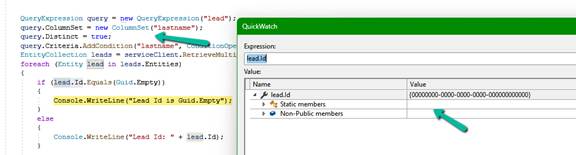
QueryExpression query = new QueryExpression("lead");
query.ColumnSet = new ColumnSet("lastname");
query.Distinct = true;
Once again, the record was returned successfully, but Entity.Id was Guid.Empty.
While reading the Microsoft documentation for QueryExpression.Distinct, we found the following remark:
“When the Distinct property is true, the results returned don’t include primary key values for each record because they represent an aggregation of all the distinct values.”
The Fix
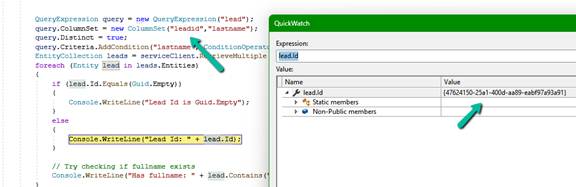
Including the primary key in the ColumnSet resolved the issue.
query.ColumnSet = new ColumnSet("leadid", "lastname");
query.Distinct = true;
After this change, both Entity.Id and the leadid attribute were populated correctly.
One More Observation
While investigating the issue, we realised something else. The original query used ColumnSet(true) together with Distinct = true. Since ColumnSet(true) retrieves every readable attribute, including the primary key, every record is already unique because the primary key itself is unique. In that particular QueryExpression there were no LinkEntity joins or other scenarios that could naturally produce duplicate rows. That meant Distinct = true was not really providing any value. In fact, once we reviewed the query, removing Distinct = true was a cleaner solution than simply adding the primary key back into the ColumnSet. This serves as a useful reminder that performance optimisation is not just about reducing the columns retrieved. It is also a good opportunity to question whether every part of the original query is still necessary.
Lessons Learned
• Replacing ColumnSet(true) with a minimal ColumnSet is a good optimisation. • If a query uses Distinct = true and the code relies on Entity.Id, include the primary key in the ColumnSet. • Review whether Distinct = true is actually required. In many QueryExpression scenarios, especially those without joins, it may be redundant. • Small performance improvements can sometimes expose subtle behaviours that are easy to overlook.
While working with Dynamics 365 Customer Insights – Journeys Real-time Marketing Forms, we wanted to explore a simple way of reducing bot submissions.
A common technique used on websites is a honeypot. The idea is straightforward:
Add a field that genuine users never see.
Hide it using JavaScript.
If the field contains a value when the form is submitted, assume it was completed by a bot and cancel the submission.
In this post, we’ll implement this using the supported Client-side Extensibility events provided by Dynamics 365.
Step 1: Add an Unbound Field
Add a new Short Text field to the form.
The field can be Unbound, as it is only used for validation and does not need to be stored in Dataverse.
We used hp_check for the field name as this avoids browser autofill heuristics that may populate well-known fields such as Middle Name, Email, or Phone.
Step 2: Hide the Field
The field should remain in the HTML so that automated bots can still discover it, but it should not be visible to genuine users.
In our implementation, the field is hidden using CSS, which avoids any brief flicker that could occur if it were hidden only after the form loads.
Using the supported d365mkt-afterformload and d365mkt-formsubmit events, configure the field and validate it before submission.
<script>
let honeypotField = null;

document.addEventListener("d365mkt-afterformload", function () {

    honeypotField = document.querySelector('[name="hp_check"]');

    if (!honeypotField) {
        return;
    }

    honeypotField.setAttribute("autocomplete", "off");
    honeypotField.setAttribute("tabindex", "-1");
    honeypotField.setAttribute("aria-hidden", "true");
});

document.addEventListener("d365mkt-formsubmit", function (event) {

    if (honeypotField && honeypotField.value.trim() !== "") {
        event.preventDefault();
    }

});
</script>
The d365mkt-formsubmit event is cancelable, so calling event.preventDefault() prevents the form from being submitted.
Testing
To test the implementation, we opened the browser Developer Tools and executed the following in the Console:
document.querySelector('[name="hp_check"]').value = "I am a bot";
When we clicked Submit, the d365mkt-formsubmit event was triggered and event.preventDefault() successfully cancelled the submission.
Things to consider
While implementing this, there were a few considerations that helped improve the solution:
Use a neutral field name such as hp_check instead of generic field name to reduce the chance of browser autofill populating the field.
Hide the field using CSS instead of JavaScript to avoid a brief flash of the field while the page is loading.
Keep the field unbound, as it is only used for validation.
A client-side honeypot helps reduce spam submissions, but it should be considered one layer of protection. For higher security requirements, additional server-side validation can also be implemented. For e.g. if it is bound field on lead than a plugin on pre create operation or if it is unbound we can have plugin against Form Submission table.
Conclusion
A honeypot is a simple but effective technique for reducing automated submissions to Dynamics 365 Customer Insights – Journeys Real-time Marketing Forms.
By using the supported Client-side Extensibility events, the implementation remains lightweight, requires no Dataverse customizations, and can be easily reused across multiple for
While working on a Dynamics 365 Field Service cleanup, we needed to delete a large number of Work Order records.
Before doing so, we wanted to understand exactly what would happen to the related records.
Not every relationship is configured for Cascade Delete. Many use RemoveLink, which doesn’t delete the child records. Instead, Dataverse updates the lookup field to null by removing the relationship.
This behavior is easy to overlook, but it can have unintended consequences. In our case, several integrations were listening for updates on child tables. Deleting a Work Order could therefore generate a large number of update events on related records, potentially triggering unnecessary integration processing.
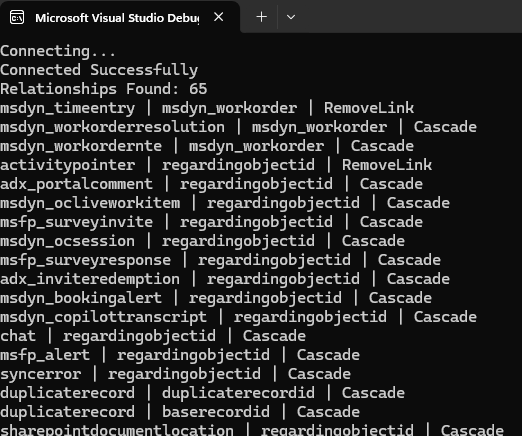
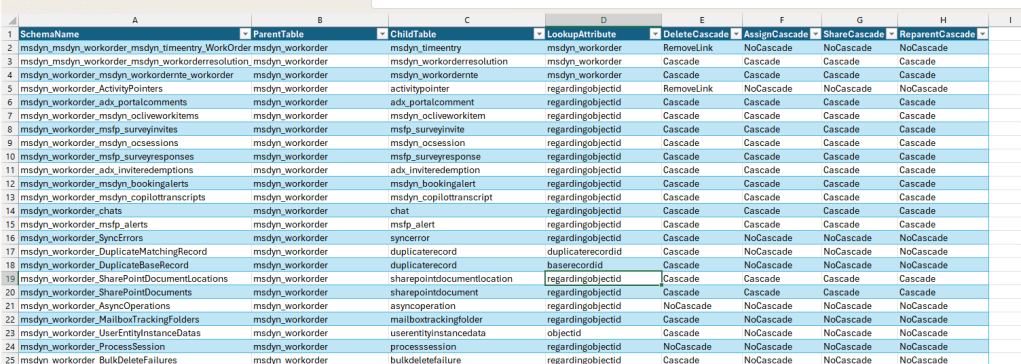
To identify every table referencing msdyn_workorder along with its delete behavior, I wrote a small console application that retrieves the relationship metadata and exports it to a CSV file.
The application uses the RetrieveEntityRequest message to retrieve all one-to-many relationships for a Dataverse table along with their cascade settings.
static void Main(string[] args)
{
    Console.WriteLine("Connecting...");

    string connectionString =
        ConfigurationManager.AppSettings["ConnectionString"];

    var service = new ServiceClient(connectionString);

    if (!service.IsReady)
    {
        Console.WriteLine("Connection Failed");
        Console.WriteLine(service.LastError);
        Console.ReadLine();
        return;
    }

    Console.WriteLine("Connected Successfully");

    var request = new RetrieveEntityRequest
    {
        LogicalName = "msdyn_workorder",
        EntityFilters = EntityFilters.Relationships
    };

    var response =
        (RetrieveEntityResponse)service.Execute(request);

    var relationships = new List<RelationshipInfo>();

    foreach (var relationship in response.EntityMetadata.OneToManyRelationships)
    {
        relationships.Add(new RelationshipInfo
        {
            SchemaName = relationship.SchemaName,
            ParentTable = relationship.ReferencedEntity,
            ChildTable = relationship.ReferencingEntity,
            LookupAttribute = relationship.ReferencingAttribute,
            DeleteCascade = relationship.CascadeConfiguration.Delete.ToString(),
            AssignCascade = relationship.CascadeConfiguration.Assign.ToString(),
            ShareCascade = relationship.CascadeConfiguration.Share.ToString(),
            ReparentCascade = relationship.CascadeConfiguration.Reparent.ToString()
        });
    }

    Console.WriteLine($"Relationships Found: {relationships.Count}");

    foreach (var relationship in relationships)
    {
        Console.WriteLine(
            $"{relationship.ChildTable} | " +
            $"{relationship.LookupAttribute} | " +
            $"{relationship.DeleteCascade}");
    }

    using (var writer = new StreamWriter("WorkOrderRelationships.csv"))
    using (var csv = new CsvWriter(writer, CultureInfo.InvariantCulture))
    {
        csv.WriteRecords(relationships);
    }

    Console.WriteLine("CSV exported successfully.");
}
RelationshipInfo Class
public class RelationshipInfo
{
    public string SchemaName { get; set; }
    public string ParentTable { get; set; }
    public string ChildTable { get; set; }
    public string LookupAttribute { get; set; }
    public string DeleteCascade { get; set; }
    public string AssignCascade { get; set; }
    public string ShareCascade { get; set; }
    public string ReparentCascade { get; set; }
}
The output :
Why is this useful?
This utility can be useful when we need to:
Review cascade behavior before performing bulk deletes.
Understand which child tables will be deleted, updated, or left unchanged.
Identify RemoveLink relationships that generate automatic update events on child records.
Validate plugin and integration behavior before data cleanup activities.
Export relationship metadata for documentation or analysis.
The code works for any Dataverse table. Simply replace:
LogicalName = “msdyn_workorder”
with the logical name of the table you want to analyze.
In our case, this quick analysis helped us identify child tables that would receive automatic updates due to RemoveLink relationships, allowing us to ensure those updates did not unnecessarily trigger downstream integrations during the cleanup process.
While validating some Dynamics 365 Field Service data recently, we came across an interesting scenario where SQL4CDS and Advanced Find returned different record counts even though the date filters appeared to be identical.
At first glance it was surprising to see different record counts being returned despite using what appeared to be the same date range. After investigating further, we found that the difference was related to time zone handling and the behavior of User Local date fields.
In this post, we’ll walk through the issue, explain why it happens, and show how to get matching results between Advanced Find and SQL4CDS.
The Scenario
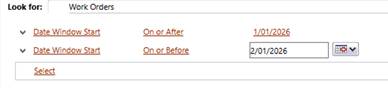
We had a user in Auckland, New Zealand running the following Advanced Find query against Work Orders.
Date Window Start
On or After 01/01/2026
On or Before 02/01/2026
Advanced Find returned:
5,755 records
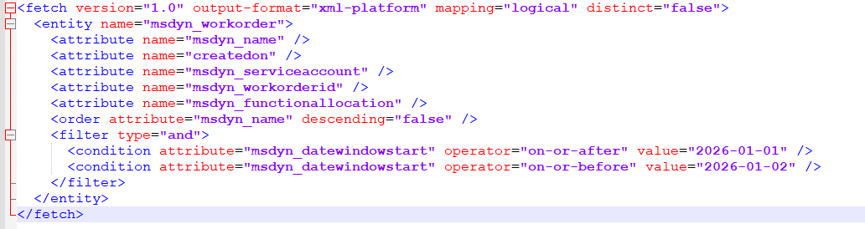
The generated FetchXML looked like this:
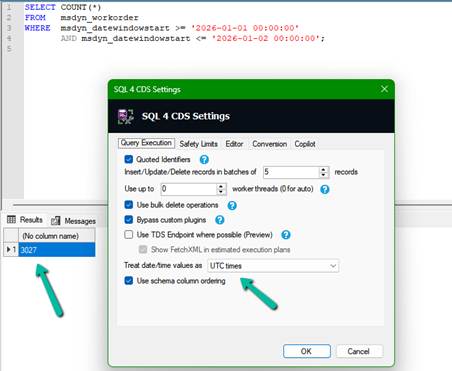
To validate the result, we ran the following query in SQL4CDS:
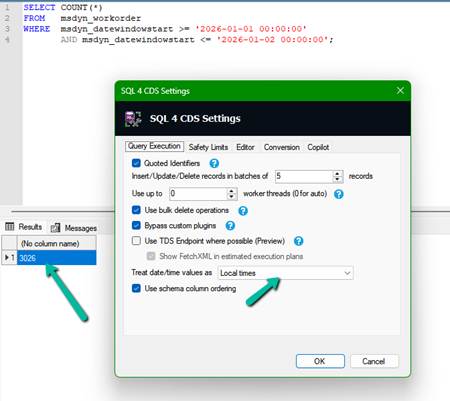
SELECT COUNT(*) FROM msdyn_workorder WHERE msdyn_datewindowstart >= ‘2026-01-01 00:00:00’ AND msdyn_datewindowstart <= ‘2026-01-02 00:00:00’;
The results were unexpected.
Query Method
Time Zone Used
Result
Advanced Find (Auckland User)
Auckland (NZDT)
5,755
SQL4CDS
UTC Mode
3,027
SQL4CDS
Local Mode (India)
3,026
At this point, it was clear that Advanced Find and SQL4CDS were evaluating different date boundaries, even though the filters appeared very similar. The next step was to understand why.
Understanding the Date Window Start Field
The key detail was the configuration of the Date Window Start field.
The Date Window Start field is configured as a Date Only field with User Local behavior.
Although users only see a date value, Dataverse stores an underlying UTC datetime value and performs time zone conversion based on the user’s personal settings.
To better understand what was happening, we queried some of the underlying values directly.
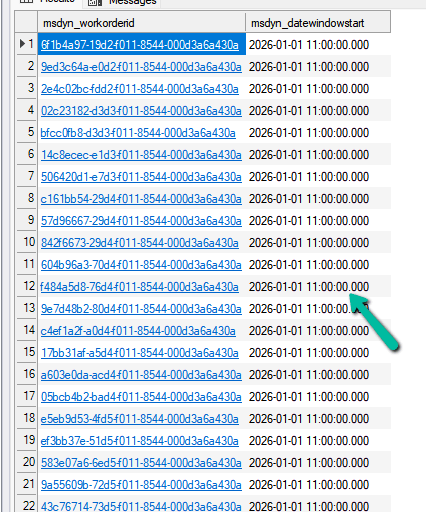
SELECT msdyn_workorderid, msdyn_datewindowstart FROM msdyn_workorder WHERE msdyn_datewindowstart >= ‘2026-01-01 00:00:00’ AND msdyn_datewindowstart <= ‘2026-01-02 00:00:00’;
When running SQL4CDS in UTC mode, many records had values such as:
2026-01-01 11:00:00
This initially looked unusual because users only see a date value in the application.
However, the explanation becomes clear when we consider the Auckland user’s time zone.
In January, Auckland operates on New Zealand Daylight Time (NZDT), which is UTC+13.
For a User Local Date Only field, Dataverse converts the user’s local date into UTC before storing it.
Date Seen by Auckland User
Stored UTC Value
01-Jan-2026
31-Dec-2025 11:00 UTC
02-Jan-2026
01-Jan-2026 11:00 UTC
03-Jan-2026
02-Jan-2026 11:00 UTC
This explains why so many records appear with a value of 11:00 UTC when viewed in SQL4CDS running in UTC mode.
Why Advanced Find Returned More Records
When the Auckland user enters:
01/01/2026 to 02/01/2026
Advanced Find interprets those dates using the user’s personal time zone.
The actual UTC boundaries become:
>= 2025-12-31 11:00:00 UTC < 2026-01-02 11:00:00 UTC
This represents two complete calendar days for the Auckland user.
Our original SQL4CDS query was searching a different range entirely:
>= 2026-01-01 00:00:00 UTC <= 2026-01-02 00:00:00 UTC
Although the dates appear similar, the actual UTC boundaries are very different.
Finding the Correct SQL4CDS Query in UTC Mode
To reproduce the Advanced Find results, we converted the Auckland user’s date range into UTC and updated the SQL4CDS query accordingly.
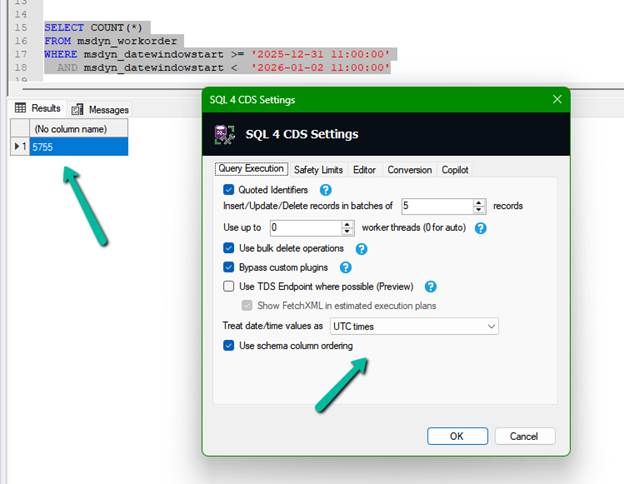
SELECT COUNT(*) FROM msdyn_workorder WHERE msdyn_datewindowstart >= ‘2025-12-31 11:00:00’ AND msdyn_datewindowstart < ‘2026-01-02 11:00:00’;
This returned:
5,755 records
which matched Advanced Find exactly.
What If SQL4CDS Is Running in Local Mode?
The example above used SQL4CDS running in UTC mode. However, SQL4CDS can also be configured to use Local Time mode.
In our scenario, SQL4CDS was running on a machine configured for India Standard Time (IST), which is UTC+5:30.
To match the Advanced Find results in Local Mode, we need to convert the Auckland UTC boundaries into the local time zone used by SQL4CDS.
Earlier we determined that the Auckland user’s date range:
01-Jan-2026 to 02-Jan-2026
corresponds to the following UTC boundaries:
31-Dec-2025 11:00 UTC to 02-Jan-2026 11:00 UTC
When SQL4CDS is running in Local Mode on an India machine, those UTC values need to be converted to IST.
UTC Boundary
IST Boundary
31-Dec-2025 11:00 UTC
31-Dec-2025 16:30 IST
02-Jan-2026 11:00 UTC
02-Jan-2026 16:30 IST
The equivalent SQL4CDS query becomes:
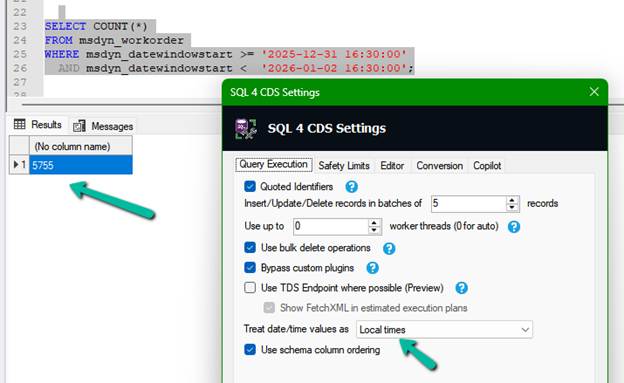
SELECT COUNT(*) FROM msdyn_workorder WHERE msdyn_datewindowstart >= ‘2025-12-31 16:30:00’ AND msdyn_datewindowstart < ‘2026-01-02 16:30:00’;
This query also returned:
5,755 records
matching Advanced Find exactly.
The results can now be summarized as follows:
Validation Method
Query Boundary
Result
Advanced Find (Auckland User)
User Time Zone
5,755
SQL4CDS UTC Mode
31-Dec-2025 11:00 UTC → 02-Jan-2026 11:00 UTC
5,755
SQL4CDS Local Mode (India)
31-Dec-2025 16:30 IST → 02-Jan-2026 16:30 IST
5,755
References
For a deeper understanding of how SQL4CDS handles date and time values, I highly recommend Mark Carrington’s article:
This article explains how SQL4CDS interprets date and time values in both UTC and Local Time modes and was a useful reference while investigating this scenario.
Key Takeaways
The investigation highlighted that there may be three different time zones involved when validating results:
The Dataverse user’s personal time zone used by Advanced Find.
The SQL4CDS Local Time setting.
UTC when SQL4CDS is configured to use UTC mode.
Even when the same date values are entered, the actual UTC range being queried may be different.
For the most reliable comparison:
Identify the time zone of the user who ran Advanced Find.
Convert the date boundaries to UTC.
Run SQL4CDS in UTC mode.
Use explicit UTC values in your query.
We also recommend using an exclusive upper boundary:
WHERE Field >= StartBoundaryUTC AND Field < EndBoundaryUTC
instead of:
WHERE Field <= EndOfDay
This avoids potential issues with milliseconds and provides more predictable results.
SQL4CDS can match Advanced Find in either UTC Mode or Local Mode. The important requirement is that the date boundaries represent the same moment in time. We generally prefer UTC Mode because the query behaves consistently regardless of the machine or user executing it.