Check out my interview at MSDynamicsWorld.com

Thanks MSDynamicsWorld.com and Linda Rosencrance.

Check out my interview at MSDynamicsWorld.com
Thanks MSDynamicsWorld.com and Linda Rosencrance.

Update – 25 June 2018 – Took nearly 20 days to get both the instances up.
Update – 12 June 2018 – Support Engineer has been not been able to resolve either of the support ticket which were raised last Thursday 7th June. One instance is not opening and the other instance is not restored with the backup we had requested. They are unable to find the backup till now.
Recently we tried copying our DEV to one of the TEST instances. The idea was we were upgrading the click dimensions solution in our DEV so we wanted to make sure everything works fine after the upgrade and in case it didn’t we could then again copy it back from the TEST.
We had faced back and restore issues (instance failed) in the past so decided to go the Copy instance way this time.
However, we got the Instance Failed error on the TEST instance to which we were copying DEV to.
Interestingly the Edit, Reset, Delete etc option were still available and we could open the TEST instance (the original, as the copy of DEV had failed) without any issues.

Then we thought of giving a try again and started copy from DEV to TEST again. This time again it failed. And with no option of Edit, Reset, delete etc. and the Instance was also not opening.
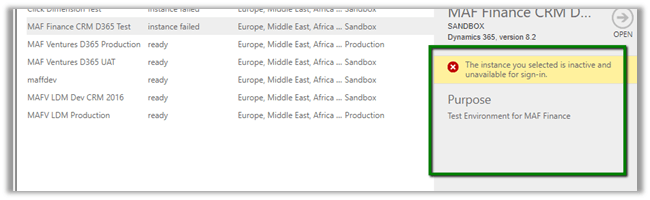
The error à
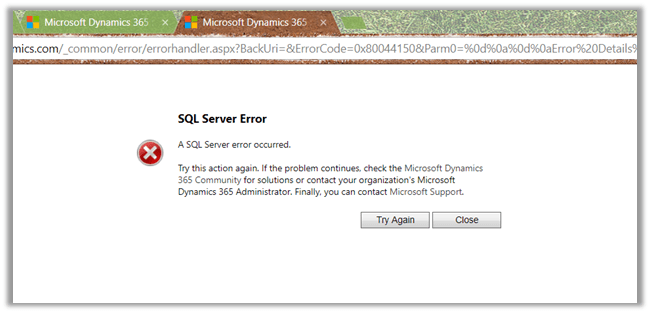

Along with that we also tried Restoring the Backup in one of the other TEST instances, that also expectedly failed.
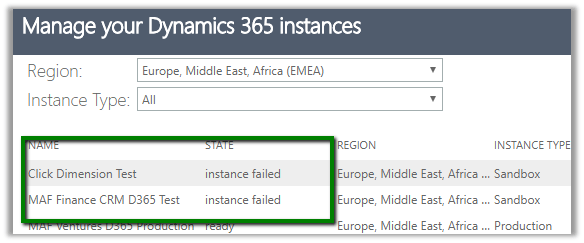
So basically, we ended up with 2 unusable instances.
A few weeks back also we faced the same with our Dev environment and the only way out was to raise the support ticket with Microsoft. That time it took 5 days for DEV to be restored. Imagine the development activity that came to halt.
Last year also we had faced this issue in Production and had to work with the support team for 16 – 20 hours continuously to get it restored.
So, if we have some critical activity planned like Production Deployment and we are counting on Back and Restore or Copy an instance to rescue us in case anything goes wrong after production deployment, we need to plan for this Instance Failure as well while restoring or copying.
Basically, be ready to raise a support ticket with the highest severity to restore things back, which could take hours or in worst case days and do all the production deployment over the weekend or have enough downtime allocated.
Hope it helps..

While running one of our package we got the below error in few of the records
“CRM service call returned an error: CRM service call returned an error: The server is busy and the request was not completed. Try again later. (Error Code: -2147180543, Detail Message: The server is busy and the request was not completed. Try again later.)”
“CRM service call returned an error: CRM service call returned an error: The request channel timed out while waiting for a reply after 00:01:59.7991956. Increase the timeout value passed to the call to Request or increase the SendTimeout value on the Binding. The time allotted to this operation may have been a portion of a longer timeout. (Error Type / Reason: Timeout)”
One way to get around this error is to increase the Timeout (secs) in the Service Timeout Setting of CRM Connection Manager.
We updated it to 600 seconds and the number of records that failed got drastically reduced.
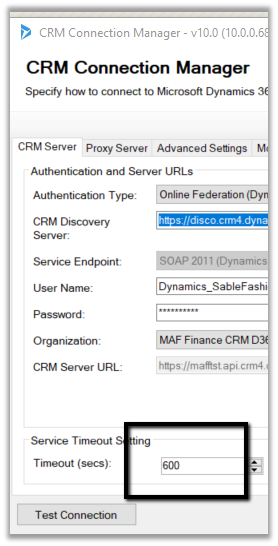
Also make sure that following option is checked
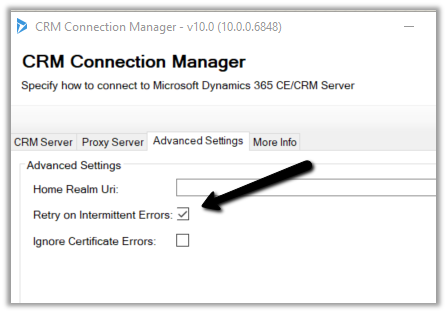
Hope it helps..

Recently while working in data migration project, we had a requirement to insert a record in CRM from SQL Database and assign it to the team insert.
For e.g.
We had a Transaction Record that had a Brand lookup in it i.e. n – 1 relationship.
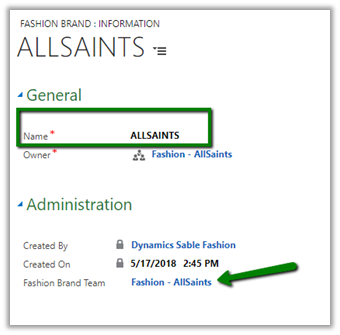
And the Brand record had a lookup of Team in it again n – 1. So basically, while inserting the transaction record we wanted to assign the record to the team of the corresponding brand in it.
So, for this, we had to set the owner id and owner id type field while inserting the record.
And for owner id i.e. team GUID we had to do a lookup on the Brand entity.
To achieve so, we did the following step
Added 2 Data flow task in the Control Flow, one for Caching the Brand entity’s detail and other for using the fetching data from SQL DB, Lookup Transformation task and inserting the data into CRM.
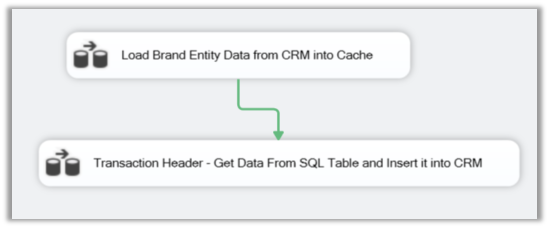
For the first data flow task,
We added the Dynamics CRM Source and fetched the Brand Name and Team Lookup’ GUID field.
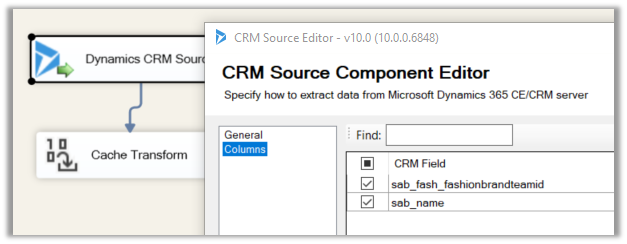
name field which will be used for mapping and teamid field whose value we need from it.
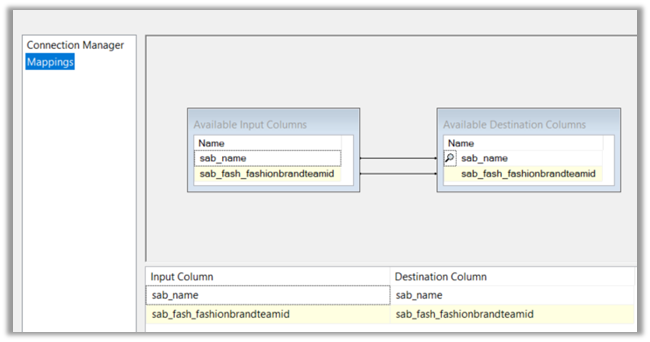
Then we added a Cache Transform task with following details,
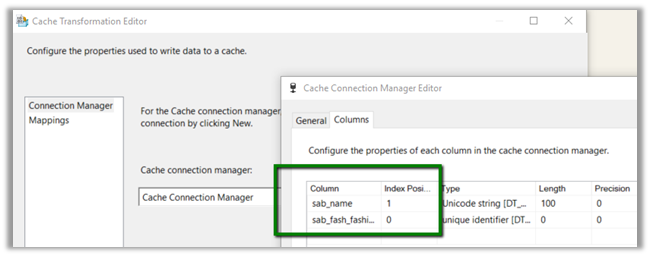
Now for our second data task flow,
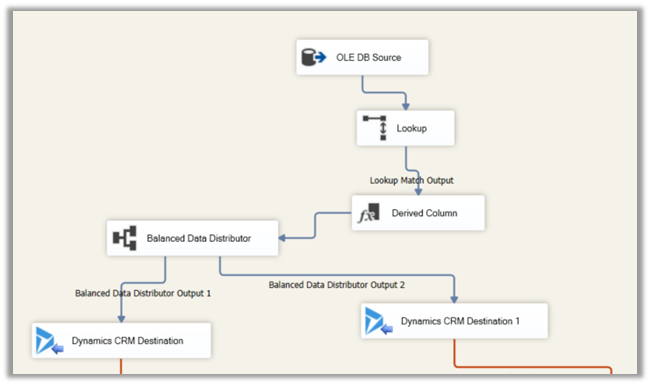
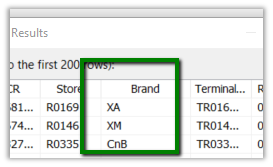
First, we added the OLE DB Source to fetch data from the source SQL View, having Brand (string) column in it.
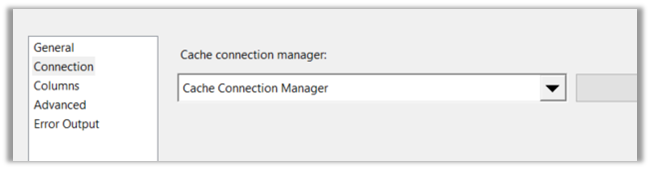
Then we added the Lookup Transformation task with following properties,
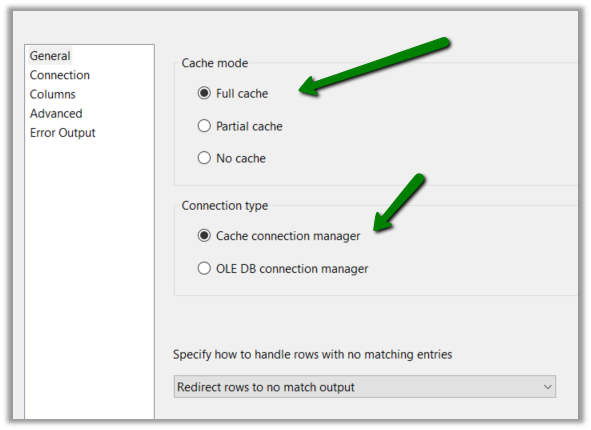
Setting Connection to Cache Connection Manager defined earlier.
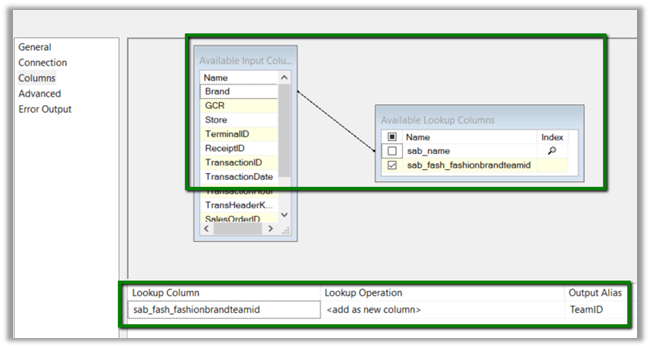
Now the most important part, the columns properties. Here we defined the mapping between the Brand field of the SQL View and name field of the Brand Entity of CRM and selected the teamid field as the lookup column whose value we would like to fetch as shown below.
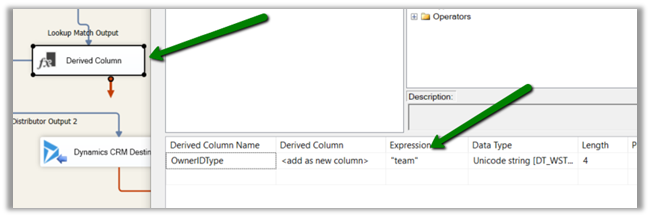
Then we added Derived Column task to add one more column for specifying ownerid type field to be used in CRM Destination Component while mapping. We defined the field type as string and hardcoded the value as “team”.
And as the final step mapped the above fields to the corresponding ownerid and owneridtype field in CRM Destination Component for Create operation.
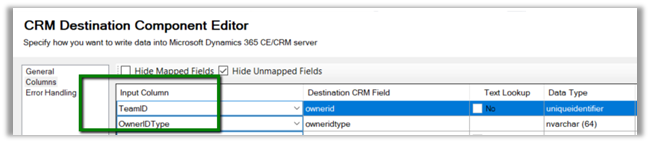
For ownerid, we selected the below option as we were setting the GUID of the team.
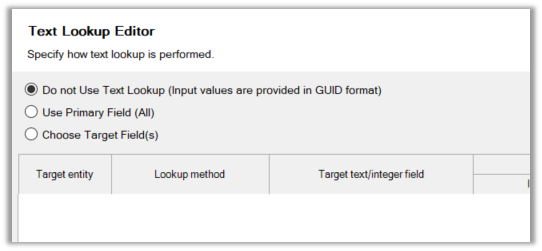
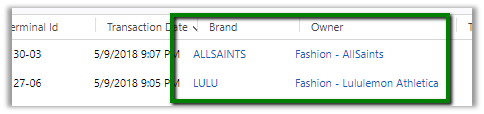
On running the package, we can see the transaction records getting created and properly assigned to the corresponding team of the brand.
The transaction record with Team set as Owner.
Brand record with Team lookup in it.
Hope it helps..

We got this error while trying to import managed solution to our TEST environment.
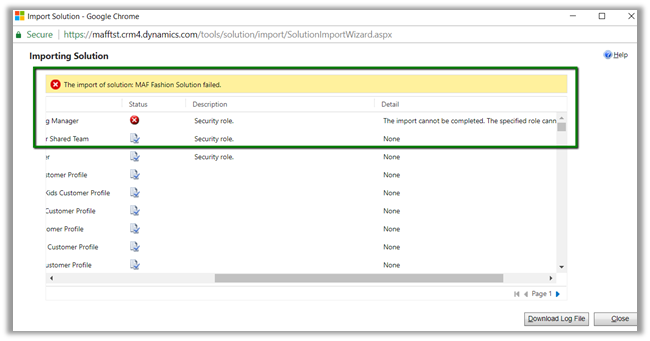
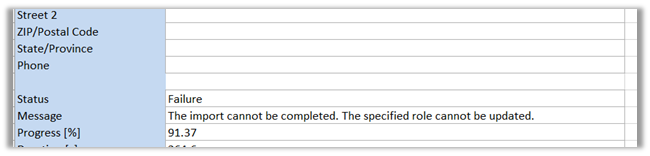
The detail of the error message clearly tells the reason for the error.

The error was because that we had a similar a role with same name in our TEST environment, and in DEV we had renamed that existing role and had created a new role with similar name.
So, while trying to import the solution, CRM was getting confused as it was able to find the role with same name but different id.
To fix this either rename the Role in DEV and export and import it back or rename the role in TEST to and them import the same solution.
Hope it helps..

While trying to install a managed solution we were getting the below error
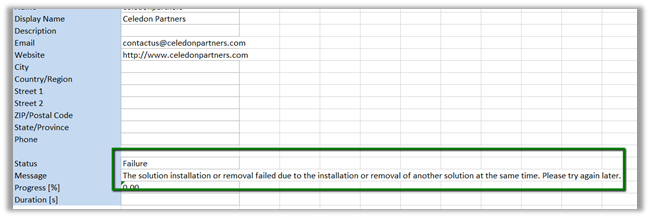
As the error message suggests, at the same time we had the solution upgrade (Apply Solution Upgrade) going on in the same environment.
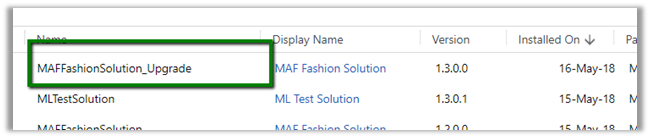
Installing the solution worked after the solution upgrade successfully completed.
At times we might face SQL Timeout issue while trying to upgrade solution if it contains large number of components in it.
Hope it helps..

 Nishant Rana's Weblog