How to – Use Lookup Transformation and Cache Transformation in SSIS for Dynamics 365 (using Kingswaysoft)


Recently while working in data migration project, we had a requirement to insert a record in CRM from SQL Database and assign it to the team insert.

For e.g.

We had a Transaction Record that had a Brand lookup in it i.e. n – 1 relationship.

And the Brand record had a lookup of Team in it again n – 1. So basically, while inserting the transaction record we wanted to assign the record to the team of the corresponding brand in it.

So, for this, we had to set the owner id and owner id type field while inserting the record.

And for owner id i.e. team GUID we had to do a lookup on the Brand entity.

To achieve so, we did the following step

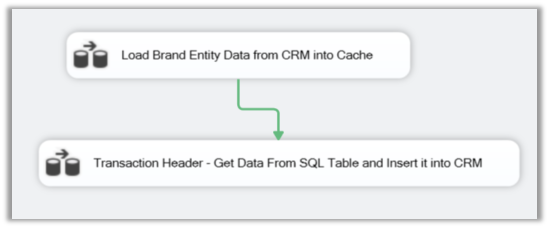
Added 2 Data flow task in the Control Flow, one for Caching the Brand entity’s detail and other for using the fetching data from SQL DB, Lookup Transformation task and inserting the data into CRM.
For the first data flow task,

We added the Dynamics CRM Source and fetched the Brand Name and Team Lookup’ GUID field.
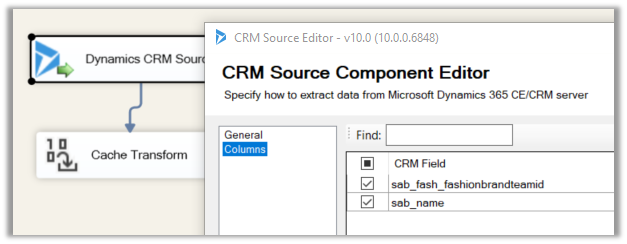
name field which will be used for mapping and teamid field whose value we need from it.

Then we added a Cache Transform task with following details,
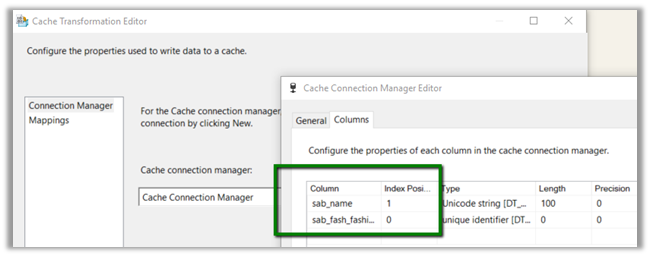
Now for our second data task flow,
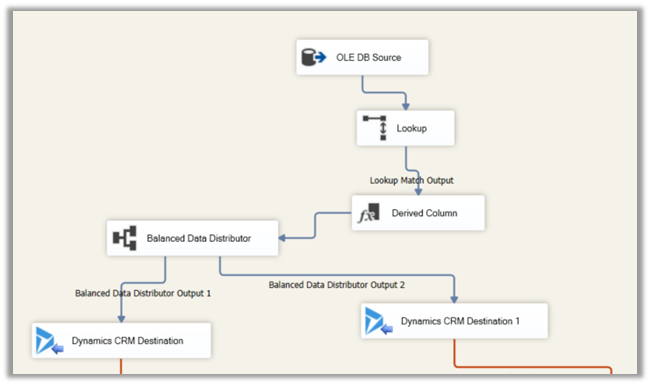
First, we added the OLE DB Source to fetch data from the source SQL View, having Brand (string) column in it.
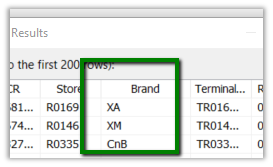
Then we added the Lookup Transformation task with following properties,
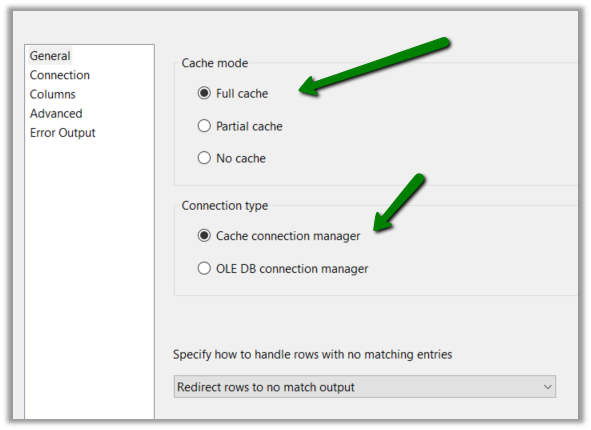
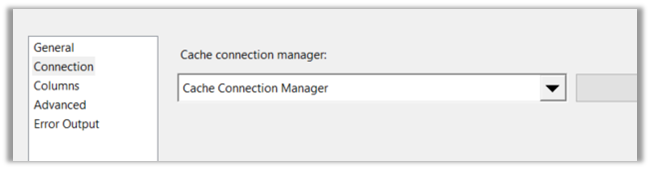
Setting Connection to Cache Connection Manager defined earlier.
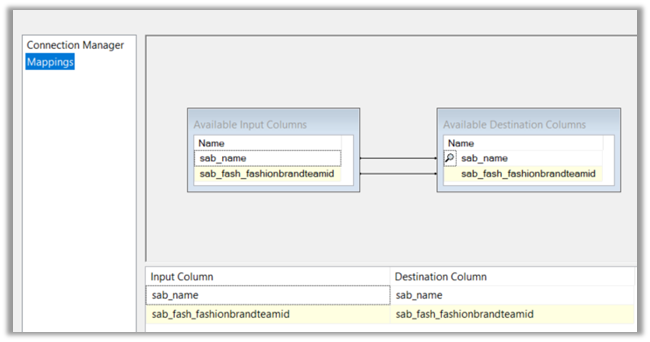
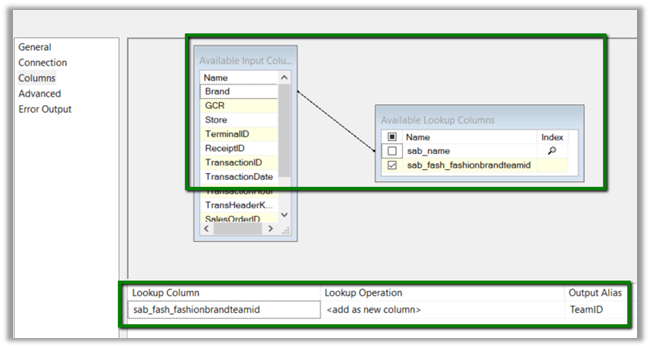
Now the most important part, the columns properties. Here we defined the mapping between the Brand field of the SQL View and name field of the Brand Entity of CRM and selected the teamid field as the lookup column whose value we would like to fetch as shown below.
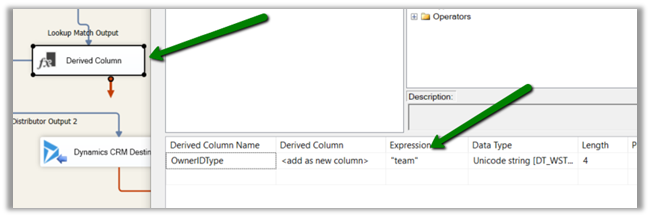
Then we added Derived Column task to add one more column for specifying ownerid type field to be used in CRM Destination Component while mapping. We defined the field type as string and hardcoded the value as “team”.
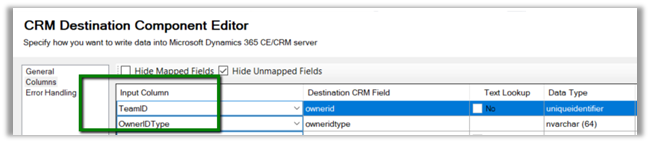
And as the final step mapped the above fields to the corresponding ownerid and owneridtype field in CRM Destination Component for Create operation.
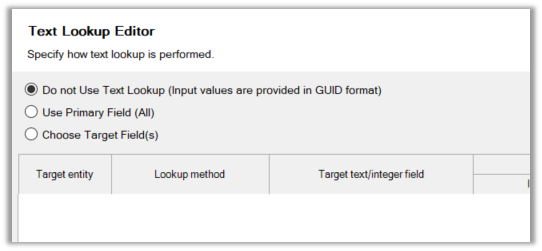
For ownerid, we selected the below option as we were setting the GUID of the team.
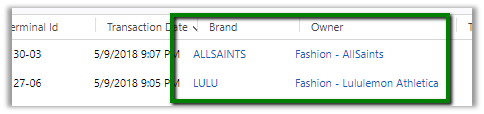
On running the package, we can see the transaction records getting created and properly assigned to the corresponding team of the brand.

The transaction record with Team set as Owner.
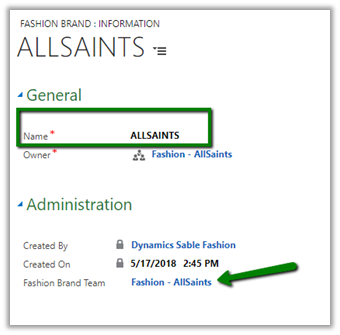
Brand record with Team lookup in it.
Hope it helps..

Advertisements

Operation on clone solution failed error during solution import in Dynamics 365


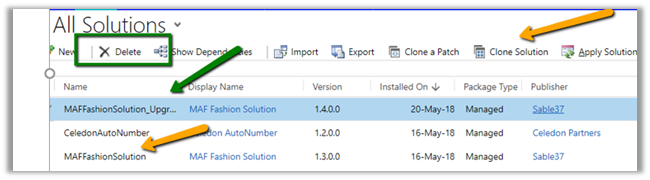
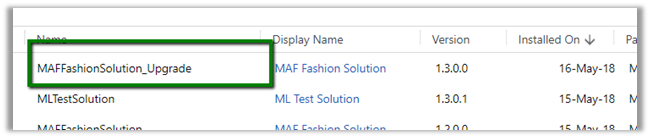
We’d get this error if we are trying to import a solution whose upgrade solution is already there in the target system.

So, either we need to Clone the Solution to remove the upgraded solution or we need to delete the Upgrade Solution. Deleting the Upgrade solution will only delete the solution it will not delete the components as it will already be there in the main solution whose upgrade has been imported.


Hope it helps..

The Common Data Service(CDS) and Prospect to Cash integration between Dynamics 365 For Sales and Dynamics 365 For Finance & Operations


Sandeep Chaudhury's avatar Dynamics 365, Power Platform & Dataverse

Dynamics 365 as a platform has so much to offer for your organization. Be it, best in class Talent management, Sales & Marketing, Customer Service management, Field Service, Project Service automation(PSA), Retail, Finance & Operations management, Microsoft Dynamics 365 offers purpose built apps for each of these areas for organizations of any size, ranging from 5 – 10 employees to large enterprise organizations with 10,000 + users.

All D365 Apps

Any Tier 1 cloud ERP in the market today will probably provide you pretty much the major functionalities, that you would expect for your organization. However, what sets Microsoft Dynamics 365 apart from the crowd, is the platform itself. Along with purpose built, best-of-breed apps and functionality for all areas of your businesses, you also get the tools, services, technology and the best of Microsoft cloud. A few to name are,

  • Common data Services for integrating business apps seamlessly.
  • Microsoft PowerApps to build mobile apps and…

View original post 1,220 more words

The import of the solution failed – The specified role cannot be updated error in Dynamics 365


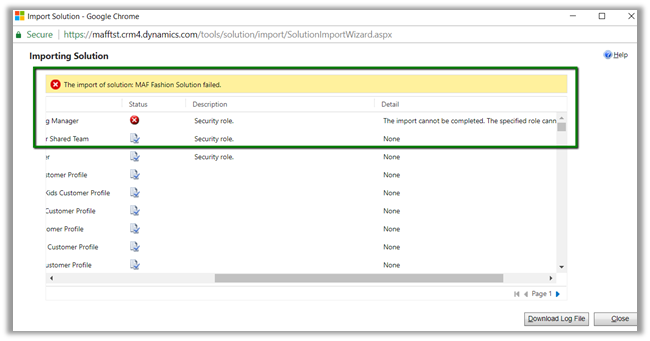
We got this error while trying to import managed solution to our TEST environment.

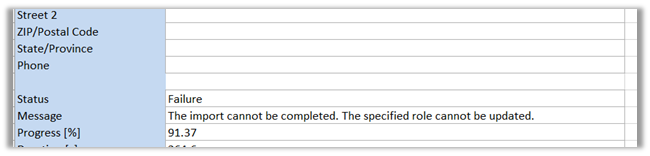
The detail of the error message clearly tells the reason for the error.

The error was because that we had a similar a role with same name in our TEST environment, and in DEV we had renamed that existing role and had created a new role with similar name.

So, while trying to import the solution, CRM was getting confused as it was able to find the role with same name but different id.

To fix this either rename the Role in DEV and export and import it back or rename the role in TEST to and them import the same solution.

Hope it helps..

Virtual Entities for tracking recently used items


Awesome post on usage of Virtual Entities

Natraj Yegnaraman's avatarDreaming in CRM & Power Platform

Virtual entities is a powerful feature that can be used not only to bring data from external sources, but also from inside Dynamics CRM/Dynamics 365 Customer Engagement.

Jason Lattimer already has a post (https://jlattimer.blogspot.com.au/2017/12/creating-custom-virtual-entity-data.html) that goes through how to setup the custom datasource/data provider. So, go and read that first as it has all the screenshots and I would be duplicating the content, if I go through the steps again.

Gotcha 1:

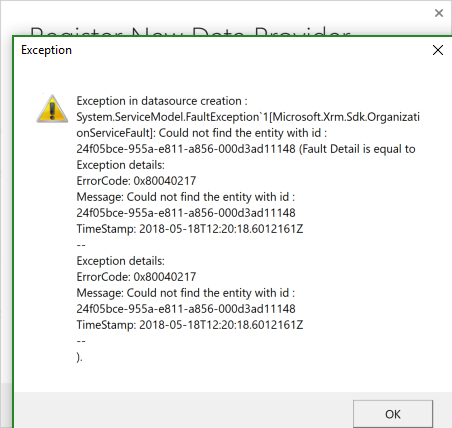
There is a exception when you create the datasource.

Datasource Creation Error

You can simply ignore this and refresh the Plugin Registration tool.

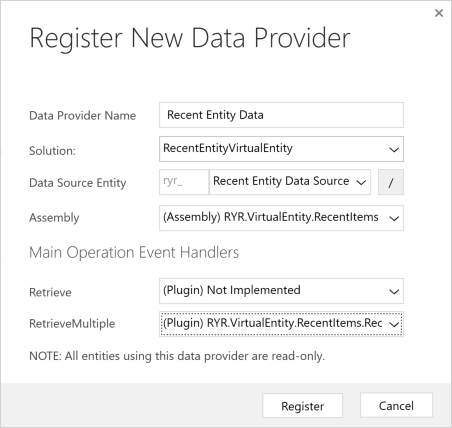
Gotcha 2: If you don’t want the user the open up an individual record, you don’t have to implement Retrieve message. It is optional. Since, I just want a collated entity, I did not register any plugin for the Retrieve.

Data ProviderGotcha 3: You have to open up the newly created Data Provider entity, and…

View original post 187 more words

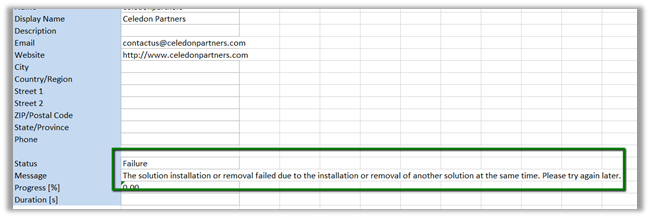
The solution installation or removal failed due to the installation or removal of another solution at the same time error in Dynamics 365


While trying to install a managed solution we were getting the below error

As the error message suggests, at the same time we had the solution upgrade (Apply Solution Upgrade) going on in the same environment.

Installing the solution worked after the solution upgrade successfully completed.

At times we might face SQL Timeout issue while trying to upgrade solution if it contains large number of components in it.

https://nishantrana.me/2016/12/06/sql-timeout-issue-while-trying-to-apply-solution-upgrade-in-dynamics-365/

Hope it helps..

Nishant Rana's Weblog

Everything related to Microsoft .NET Technology

Skip to content ↓