SLA Enhancements in Dynamics 365 Customer Service – 2020 Release Wave 1


2020 Release Wave 1 adds the new enhanced experience which includes easy to use interface and Power Automate in the Unified Client Interface for the SLA Administration.

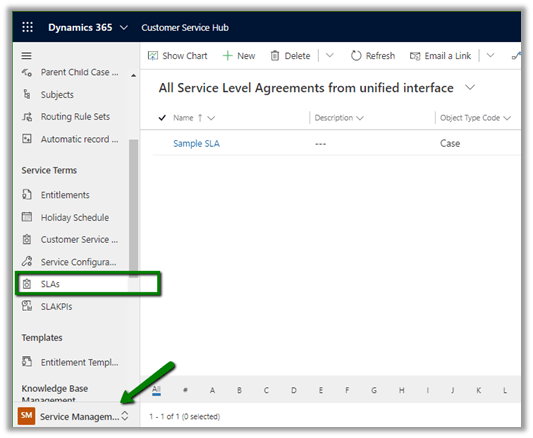
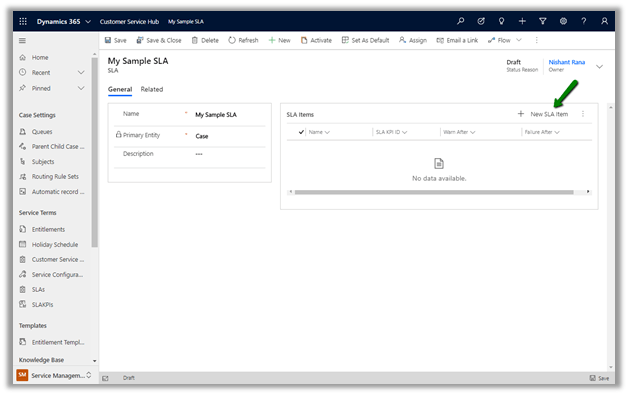
To define SLA, the admin can navigate to Service Management à Service Terms à SLAs.

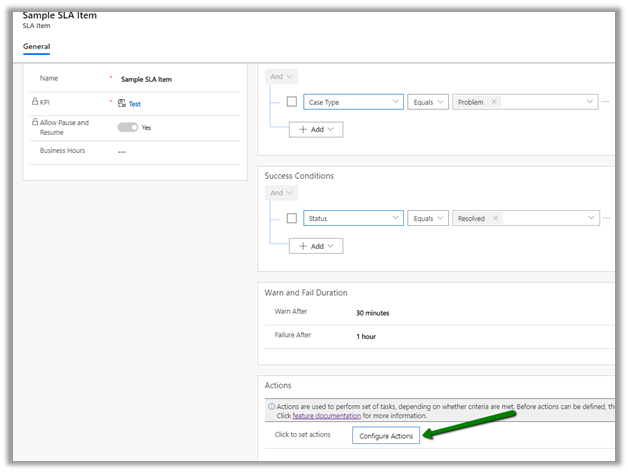
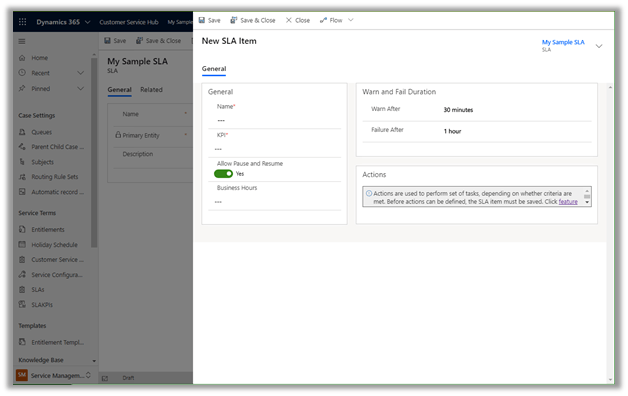
The new SLA Item window now opens in the modal dialog

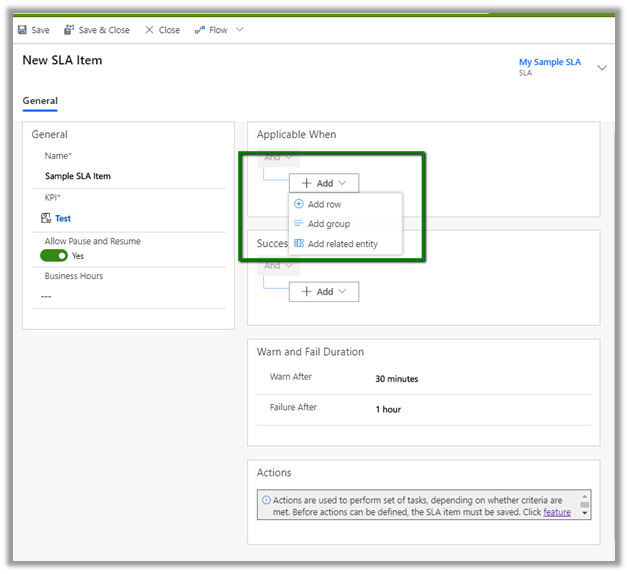
It includes the condition builder

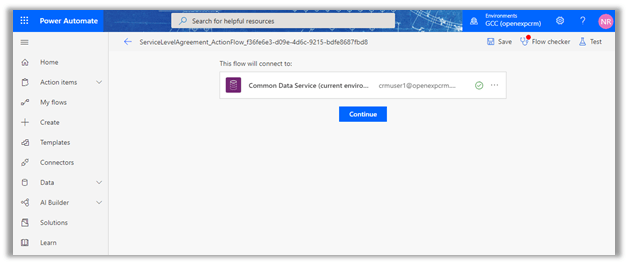
Action now use the Power Automate, here clicking on Configure Actions

takes us to the Power Automate

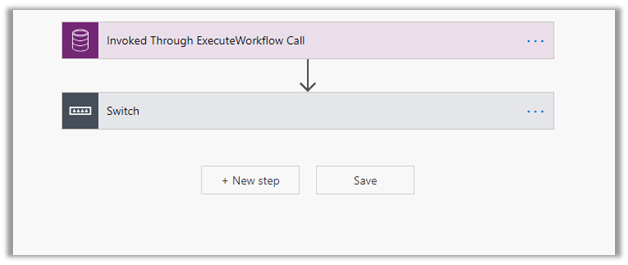
With below flow defined à

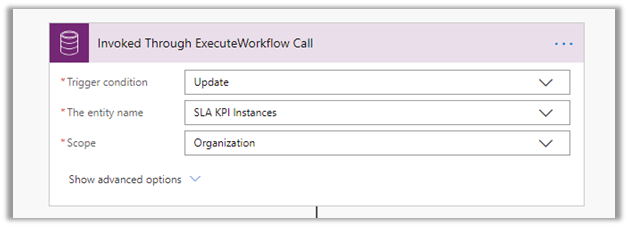
Invoked Through ExecuteWorkflow Call Trigger à

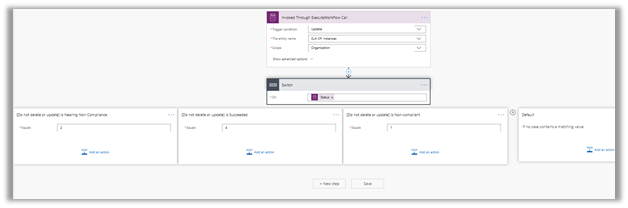
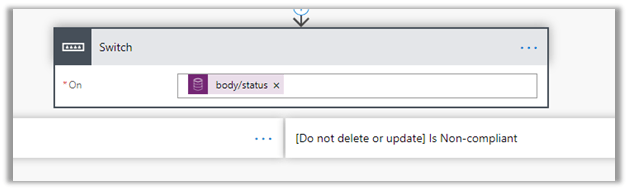
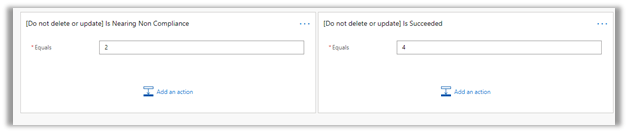
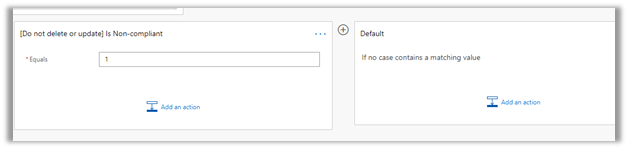
The Switch condition step with four different cases defined.

Here nearing Is Nearing Non-Compliance is where we will define our Warning
Actions.

Is Succeeded = Success Actions.

Is Non-compliant would be used to specify Failure Actions.
And lastly, we can define the Default option.

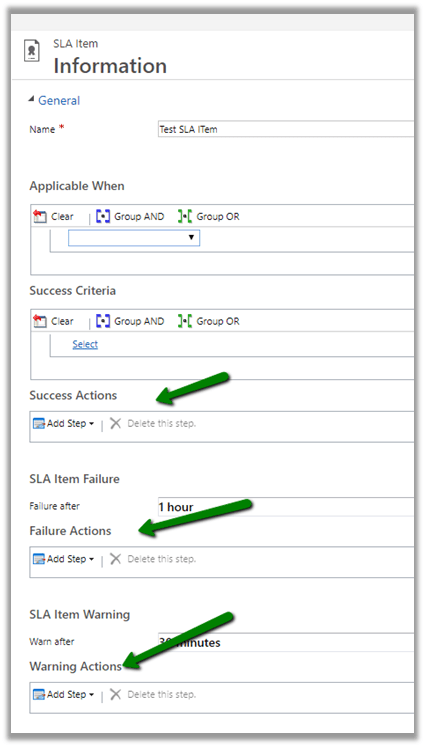
The old SLA Item interface à

Thus, these features bring the unified client interface experience close to the legacy web client.

Check other blog posts on

Release 2020 Wave 1: https://nishantrana.me/2020-release-wave-1/

Release 2019 Wave 2: https://nishantrana.me/2019/12/31/dynamics-365-2019-release-wave-2-blog-posts/

Hope it helps..

Routing Rule, Site, Queue Item enhancements added in Unified Client in Dynamics 365 Customer Service – 2020 Release Wave 1


With 2020 Release Wave 1 we have few features that were existing in the either in Legacy Web Client or in other entities added in Unified Client Interface which includes

  • Case Routing Rules

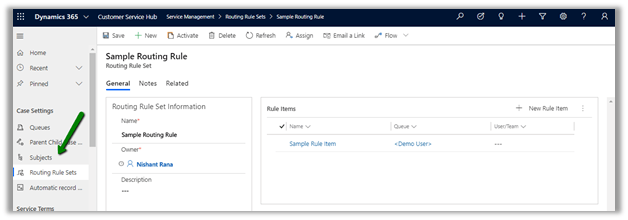
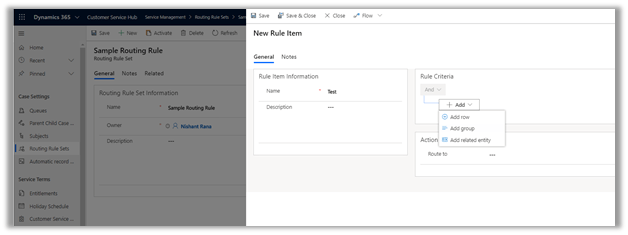
This option is now added in Service Management à Case Settings now.

Also, it brings the enhanced experience that uses the new UCI interface.

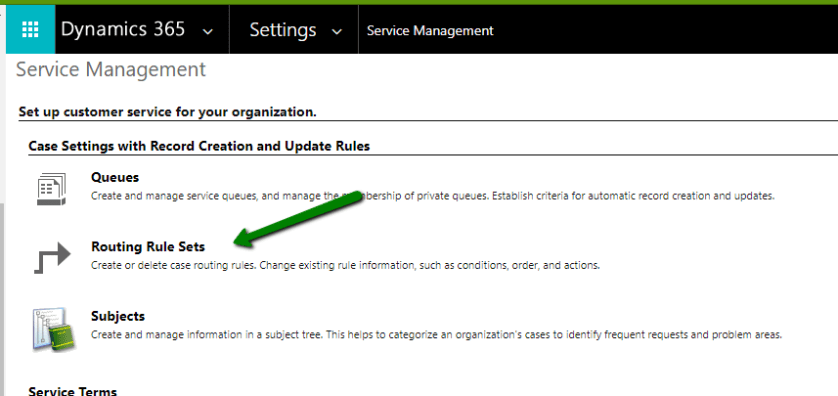
Earlier to create we had to navigate to Advanced Settings  – Service Management – Routing Route Sets to define them

RoutingRule

  • Site Entity support

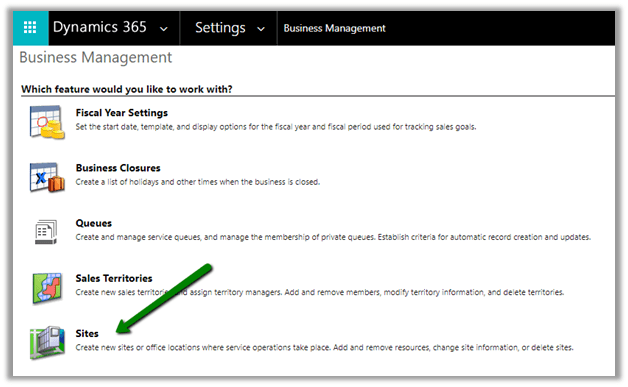
Earlier to create site records, we need to go to Settings à Business Management

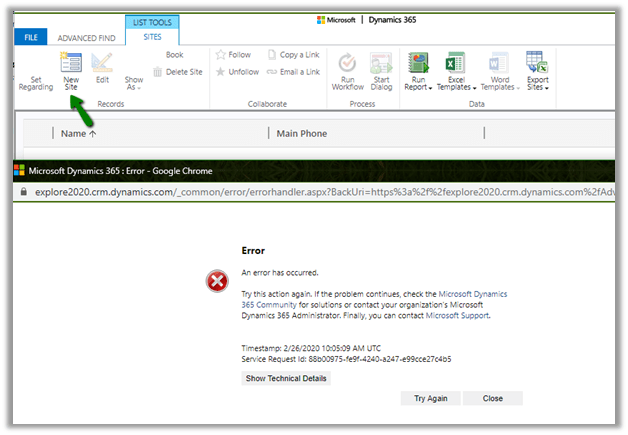
If we try creating the Site record from Advanced Find in 2019 Release wave 2 Plan, we’d encounter below error

However, with the 2020 Release 1 Wave plan, we can now create the Site records through advanced find without the need to going to settings.

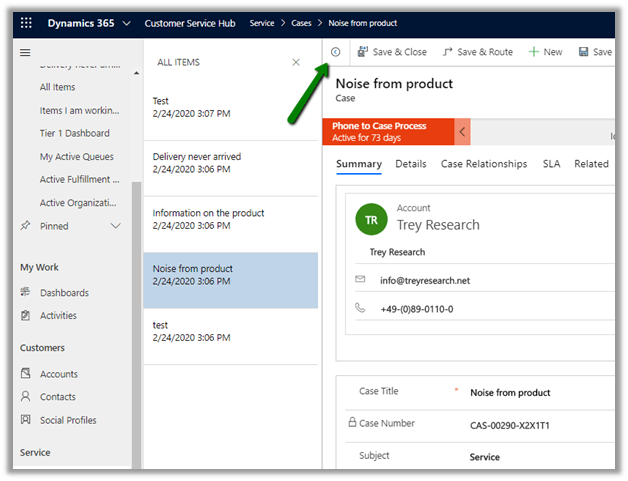
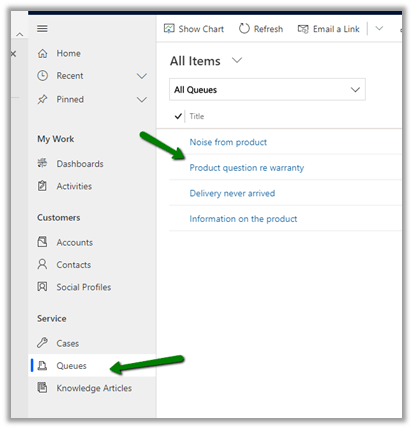
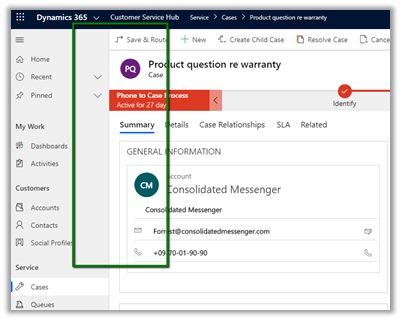
  • Record set navigation” is added to the Queue Items for the agents to easily navigate between records.

Previously the user had to open the record from the Queue to see the details close it and then open another record to check the details.

Missing record set navigation option earlier

Check other blog posts on

Release 2020 Wave 1: https://nishantrana.me/2020-release-wave-1/

Release 2019 Wave 2: https://nishantrana.me/2019/12/31/dynamics-365-2019-release-wave-2-blog-posts/

Hope it helps..
Automatic Record Creation and Update rules enhancements in Dynamics 365 Customer Service – 2020 Release wave 1


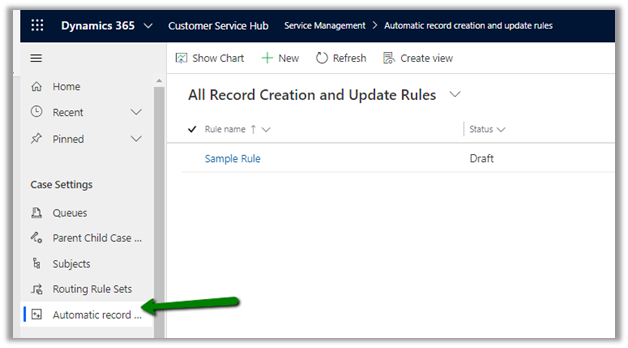
2020 Release Wave 1 adds the new enhanced experience which includes easy to use interface and Power Automate in the Unified Client Interface for automatic record creation and update rules.

The option of creating the rules is added in Service Management à Case Settings Section

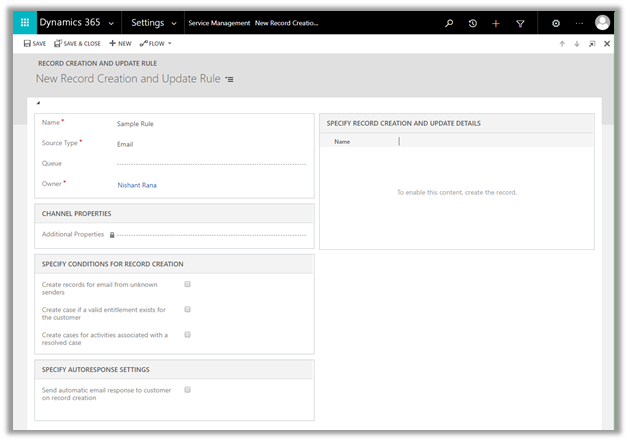
The old interface for creating the rule à

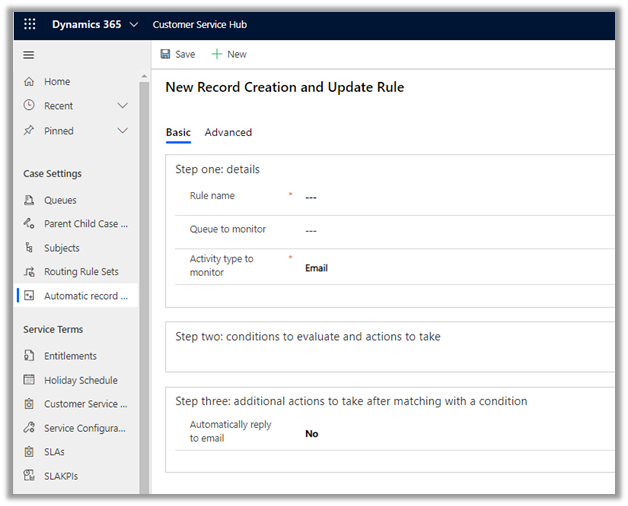
The new interface à It includes two tabs (basic and advanced) and also displays the rule creation as step by step process.

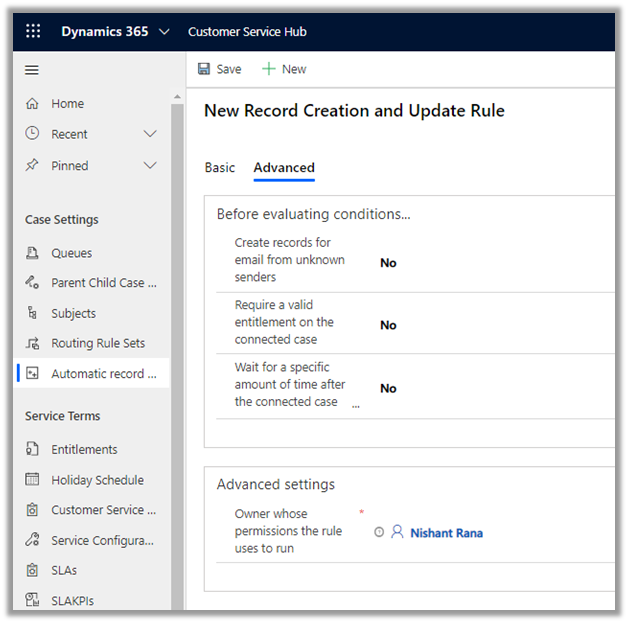
The Specify Conditions for Record Creation and Specify Auto Response settings section moves to the Advanced Tab.

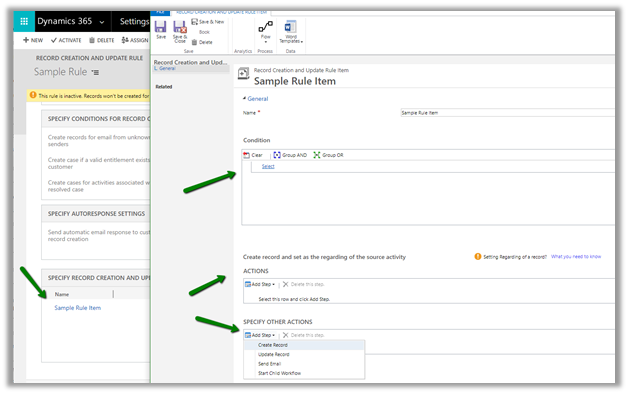
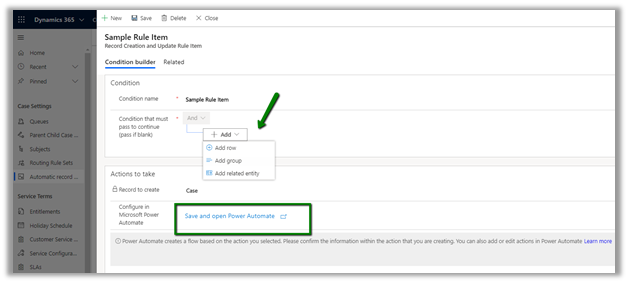
The old interface for creating the associated Rule Item record is now replaced with

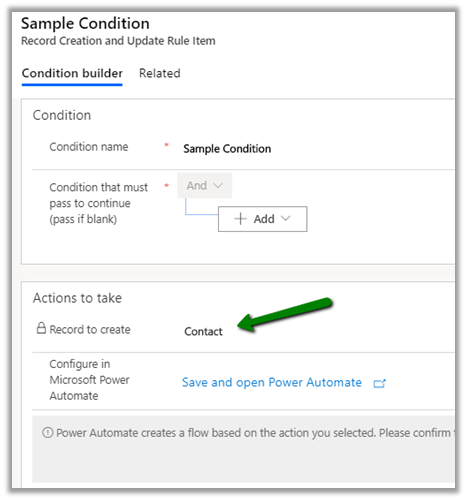
the new interface which opens the record as a modal dialog, along with the new conditional builder and option to specify Power Automate for the Action.

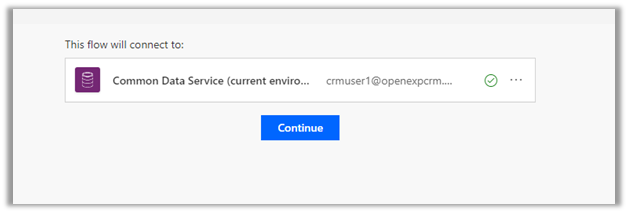
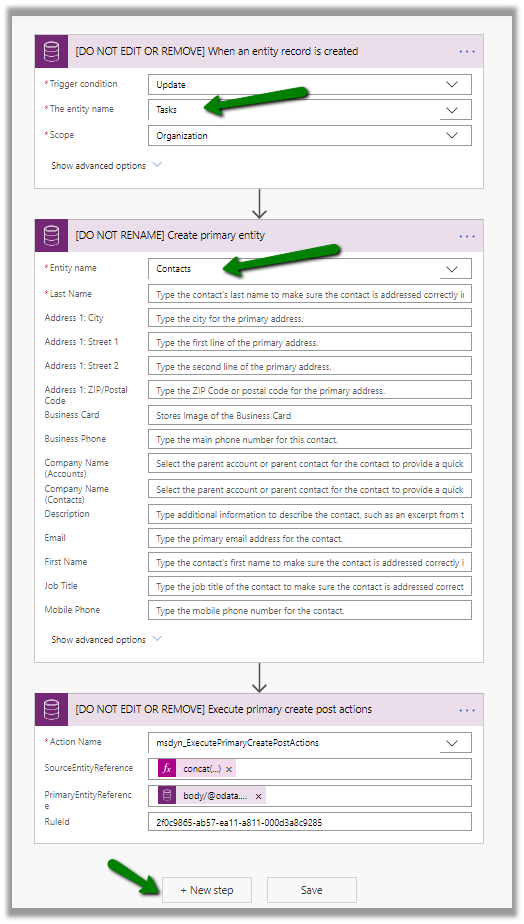
Clicking on Save and open Power Automate takes us to the Flow

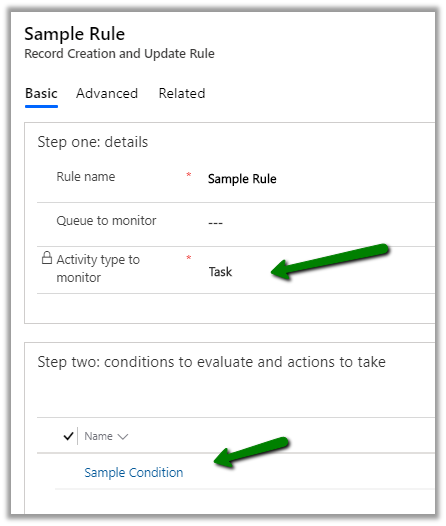
Suppose we have the following rule created on the Task entity.

And condition added that creates Contact.

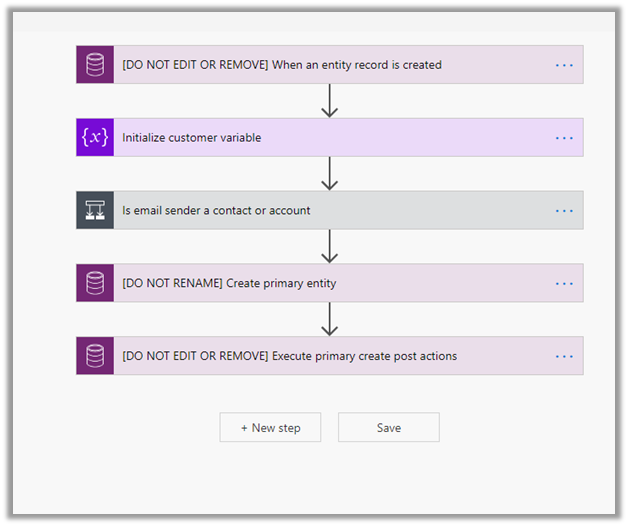
The power automate will have the following steps defined à

These were a couple of updates with regards to the automatic case creation and update rule.

Check other blog posts on

Release 2020 Wave 1: https://nishantrana.me/2020-release-wave-1/

Release 2019 Wave 2: https://nishantrana.me/2019/12/31/dynamics-365-2019-release-wave-2-blog-posts/

Hope it helps..
Advertisements

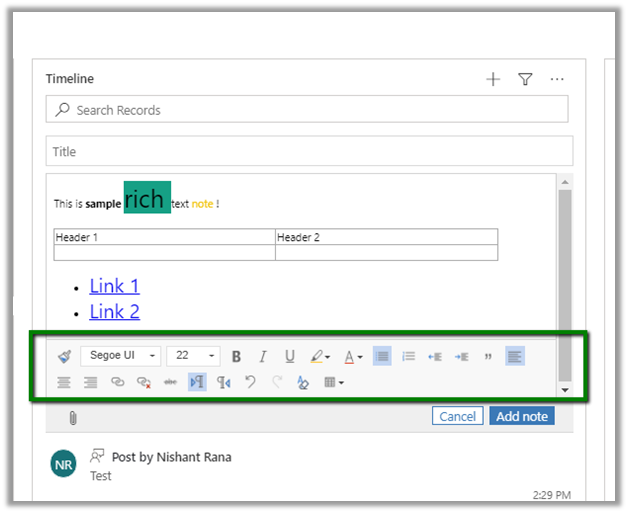
Rich notes and filter enhancements in Dynamics 365 Timeline Control– 2020 Release Wave 1


Below are some of the enhancements added to timeline controls as part of the 2020 Release Wave 1.

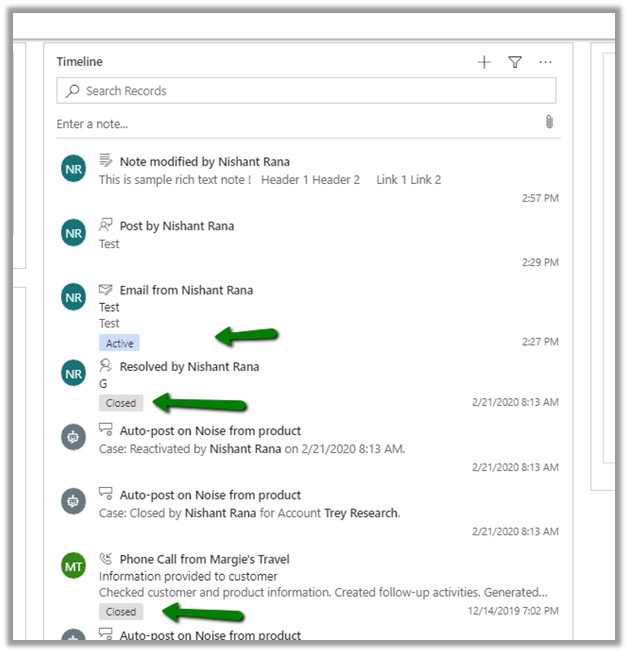
  • Ability to create rich text notes

  • Filter the records using Search

  • Check the status of the activities within the timeline.

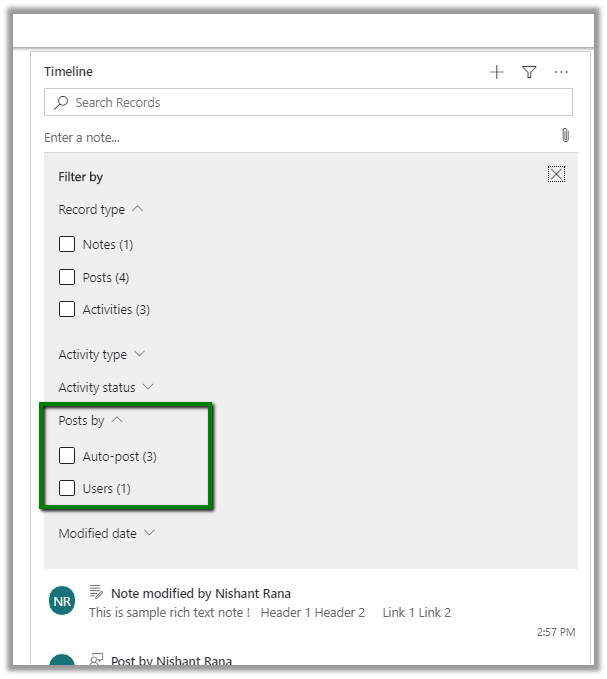
  • Additional option to filter the records by  “Posts by

Below is the screen shot of the Timeline control in the previous version 2019 Release Wave 2, without rich text capability in notes, no search option, no status indicator and no “Posts By” filter version

Check other blog posts on

Release 2020 Wave 1: https://nishantrana.me/2020-release-wave-1/

Release 2019 Wave 2: https://nishantrana.me/2019/12/31/dynamics-365-2019-release-wave-2-blog-posts/

Hope it helps..
Enhanced email experience for agents in Dynamics 365 Customer Service – 2020 Release Wave 1


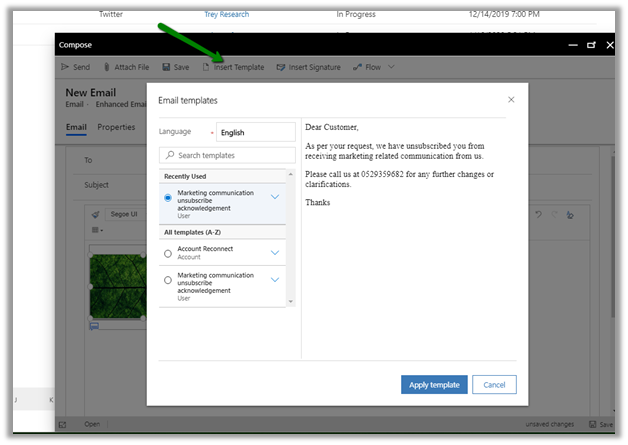
To enable the new email capabilities in Dynamics 365 Customer Service,

Navigate to Settings
àAdministration à System Settings à Email Tab and check the Enhanced email for Timeline option

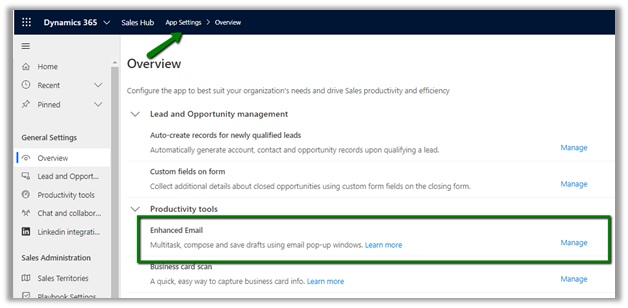
We can also enable it from within the Sales Hub app,

App Settings à Overview

The new features include à

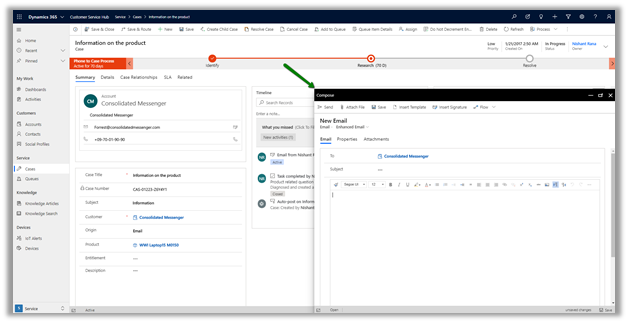
  • Composing Email in a pop-up and non-blocking window within the context of the current record.

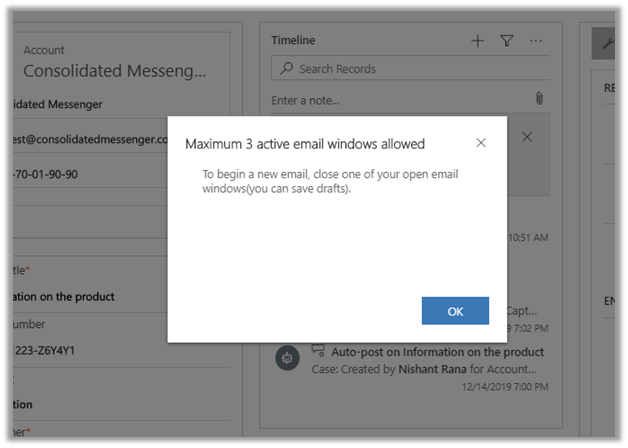
  • Working on multiple active draft email concurrently

  • Maximum – 3 active email windows are allowed

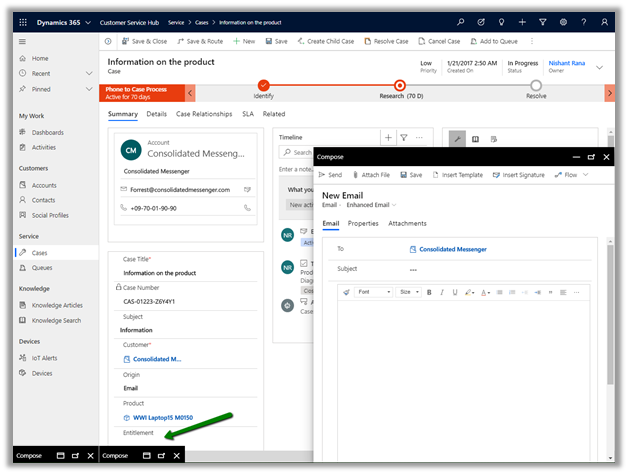
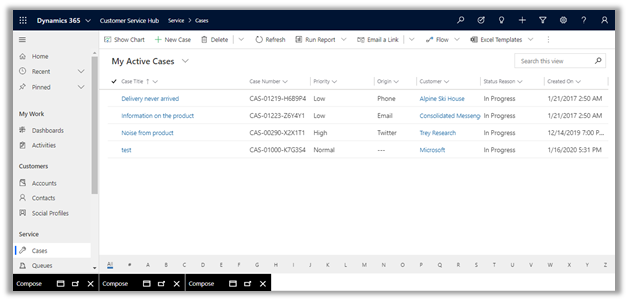
  • Ability to move across different records while still drafting the email.

Here we have navigated to My Active Cases view with the draft email still available in the bottom to work on.

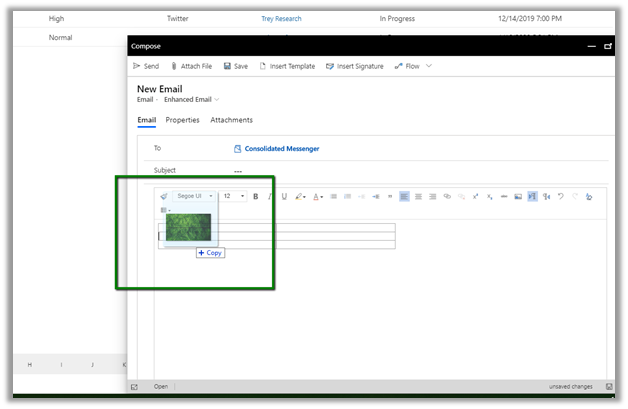
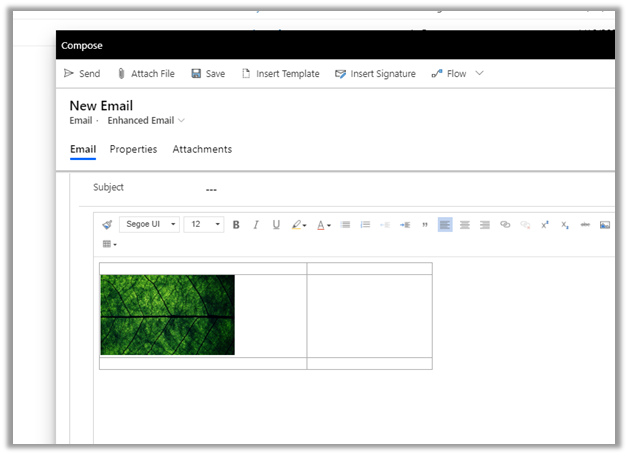
  • Rich edit experience which includes Drag and Drop / Copy and Paste of the images

These features are all geared toward making the agent more productive and efficient.

Check other blog posts on

Release 2020 Wave 1: https://nishantrana.me/2020-release-wave-1/

Release 2019 Wave 2: https://nishantrana.me/2019/12/31/dynamics-365-2019-release-wave-2-blog-posts/

Hope it helps..
Customize Case Resolution Dialog Box – 2020 Release Wave 1


With the 2020 release wave 1, we can now customize the case resolution dialog box

In fact, we can select between the standard dialog, customized dialog box or quick create dialog experience for the users.

The default out of the box Resolve Case Dialog Box ->


Let us select the style as Customizable Dialog.


Now to add or remove fields to the dialog box, we need to customize the Main form of Case Resolution entity.


We can change the ordering of the fields, add or remove the existing fields on that entity. (We cannot create and add new fields to the form).


Updated Resolve Case Dialog Box.


Now let us specify Quick Create Dialog as the default style.

It opens the Quick Create form for us


Let us customize the Quick Create form


After saving and publishing the changes


We can see the changes reflected.


We can also specify business rules now


This allows us to capture additional information which could help us in reporting and analysis, and also it was one of the most requested features in the product for long.

Check other blog posts on

Release 2020 Wave 1: https://nishantrana.me/2020-release-wave-1/

Release 2019 Wave 2: https://nishantrana.me/2019/12/31/dynamics-365-2019-release-wave-2-blog-posts/

Hope it helps..