Kanban View for Opportunity in Dynamics 365 Sales – 2020 Release Wave 1 Plan


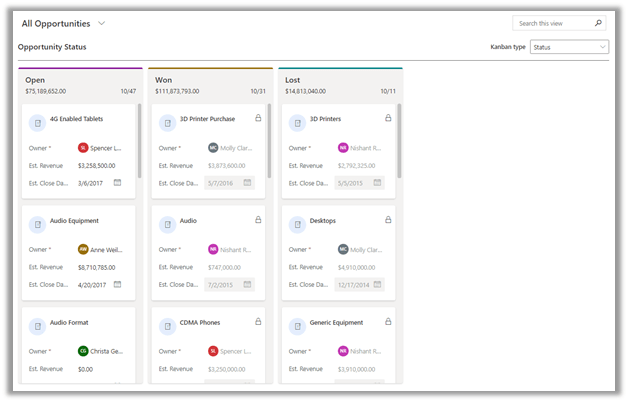
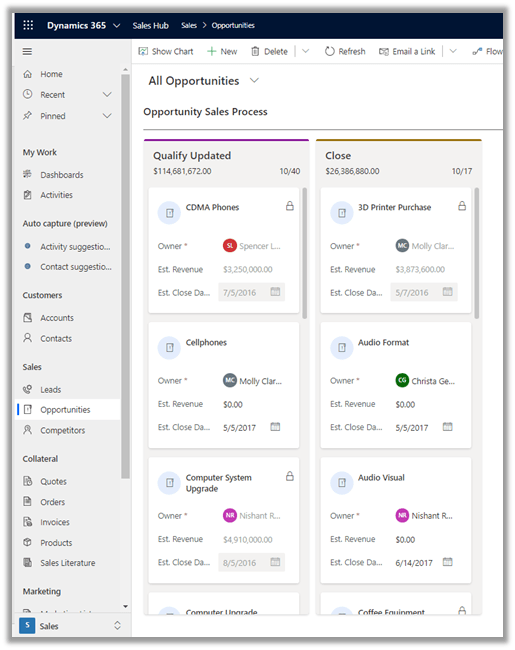
With the 2020 Release Wave 1 Plan, now Kanban View can be added to Opportunity.

To configure it, open the Opportunity entity for Customization, go to Controls tab and Add Kanban control to it and publish the changes.
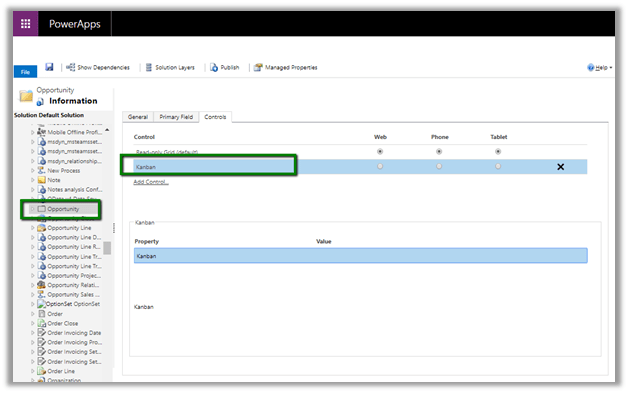
This adds the Kanban view to the Opportunity’s view.
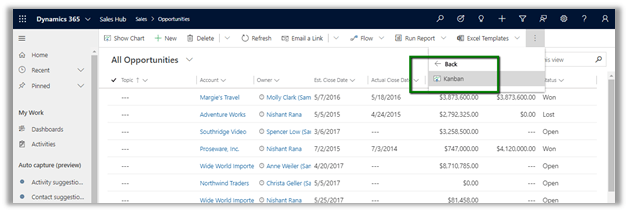
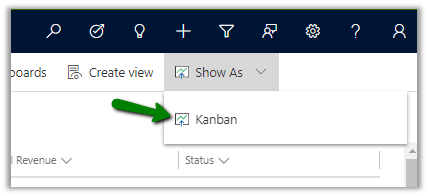
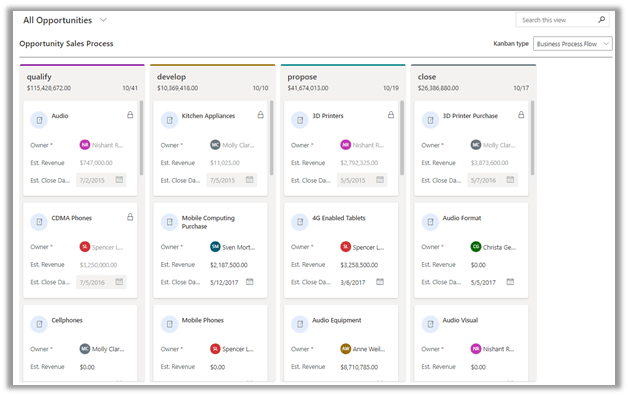
There are 2 different Kanban views available

  • Based on the BPF Sales stage (stages of the Opportunity sales process BPF)
  • Based on Status (Open, Won, Lost)


Let us look at different actions that we can perform within the Kanban view.

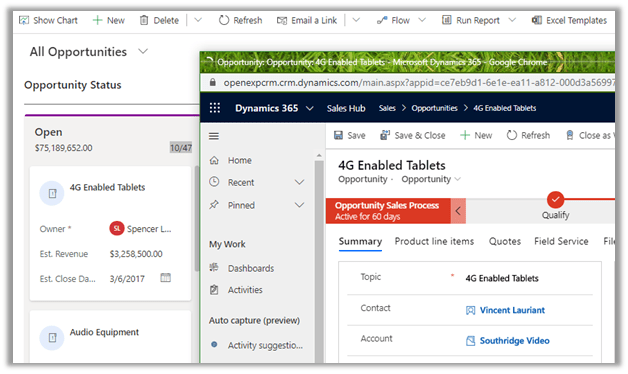
  • Clicking on Title opens the record in new window
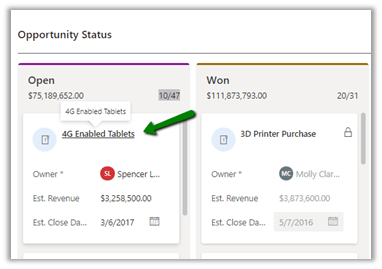


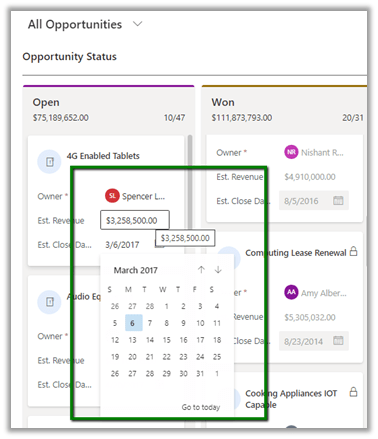
  • Fields are editable


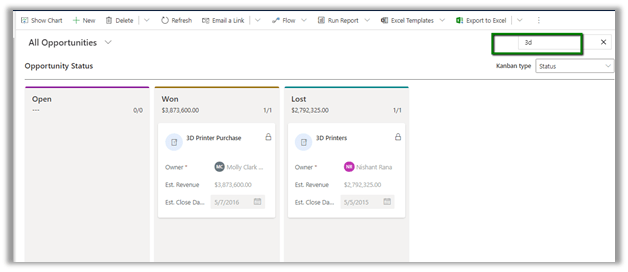
  • Use Search to filter the result in the view

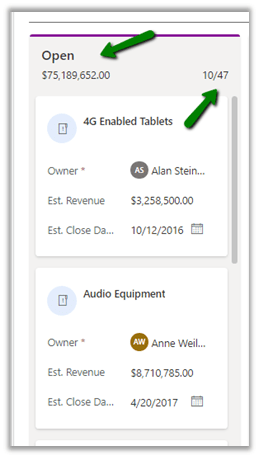
  • Each lane shows the total of estimated revenue and total records in the lane

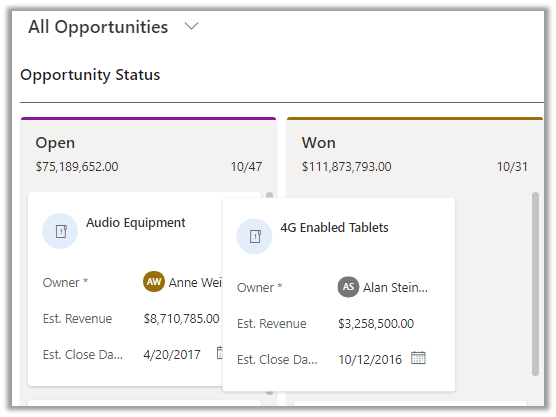
  • Supports drag and drop

Here we are dragging the 4G Enabled Tablets record to Won Status lane.

It opens the close opportunity dialog box.
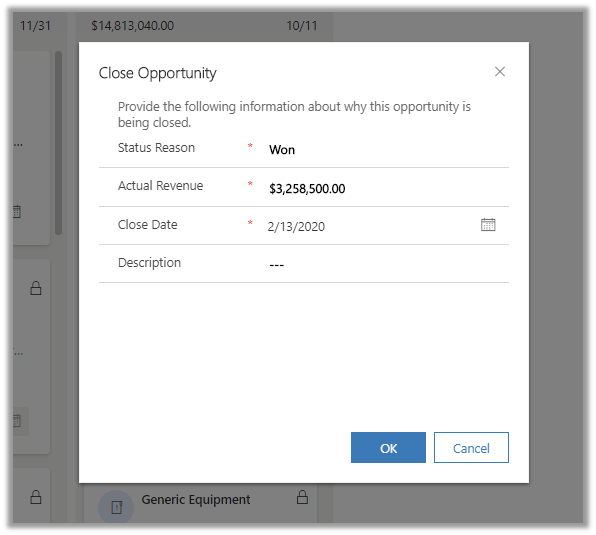
We can update the values and add a description if needed. Clicking on OK moves the record to the Won status lane.
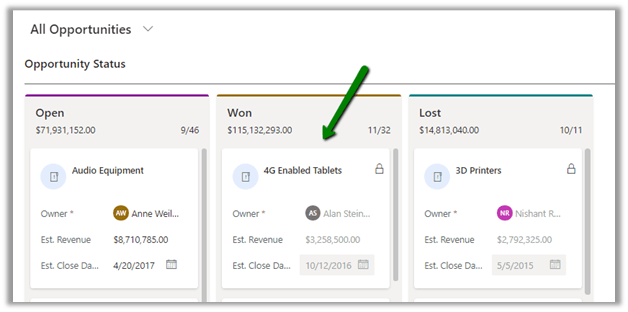
Similarly dragging the record from Lost and Won to Open Lane, reopens the record.

In the case of the Business Process Flow view, moving the card to another stage lane will open the record itself.

Here moving record titled Audio from qualify to develop lane
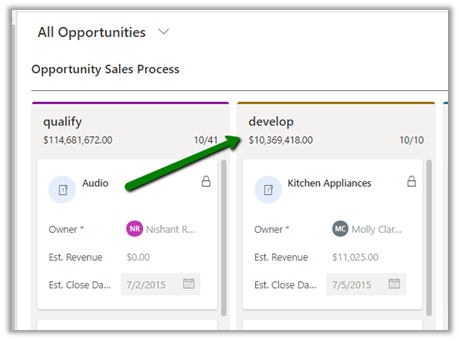
Opens the BPF in the record itself.
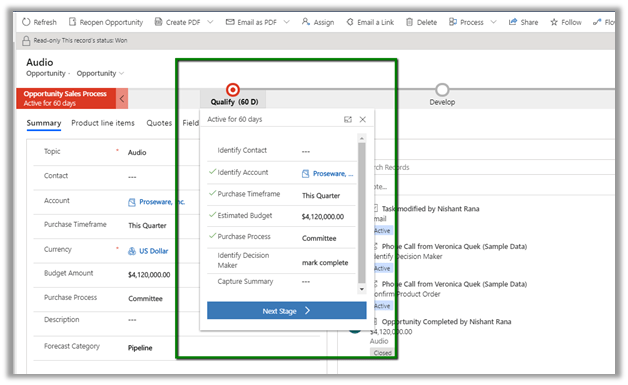
Currently, the Kanban view is only available for Opportunity Sales Process flow.

Updating the Display Name of the stage, adding/removing a stage all is reflected back in the Kanban View.
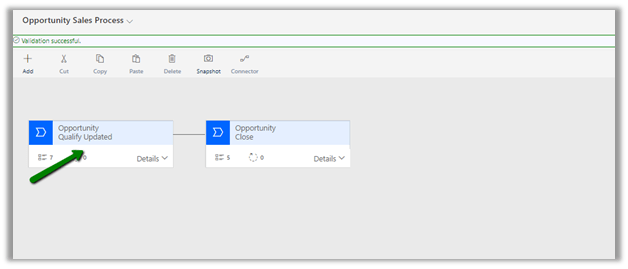
The Kanban View for the updated process reflects the changes made
With coming releases, expecting this feature added to other business process flow.

Check other blog posts on

Release 2020 Wave 1: https://nishantrana.me/2020-release-wave-1/

Release 2019 Wave 2: https://nishantrana.me/2019/12/31/dynamics-365-2019-release-wave-2-blog-posts/

Hope it helps..

Save and Email PDF options added to Dynamics 365 Sales – 2020 Release Wave 1 Plan


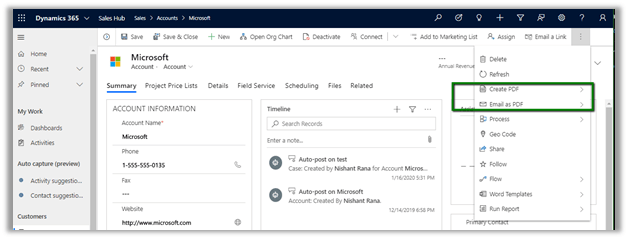
The PDF generation capability has been added to Dynamics 365 Sales for the following entities: Lead, Contact, Account, Opportunity, Quote, Order and Invoice.

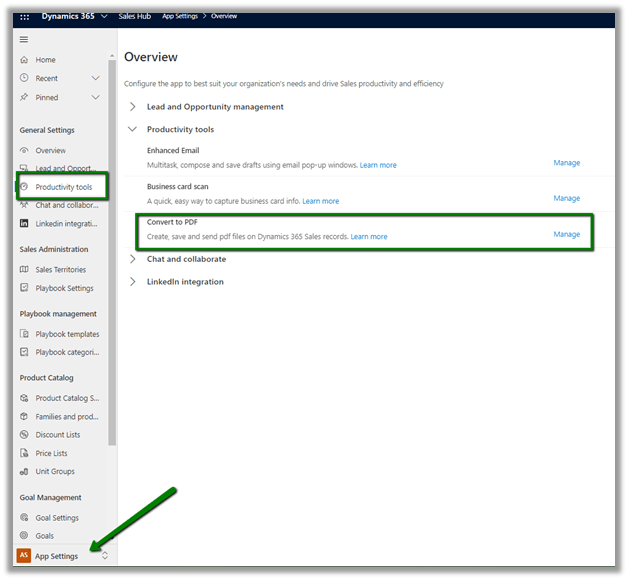
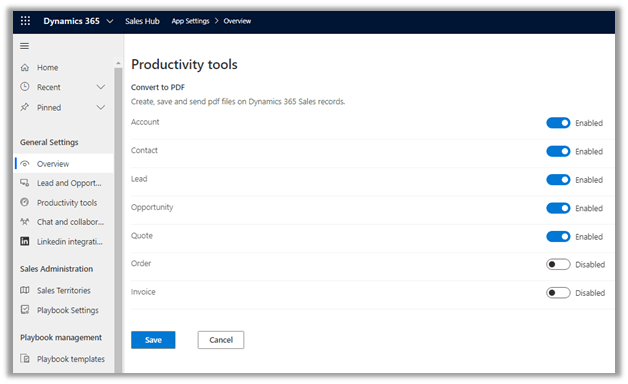
As an Admin, we can configure it here.

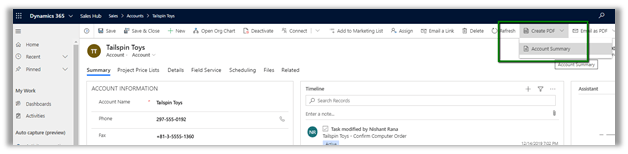
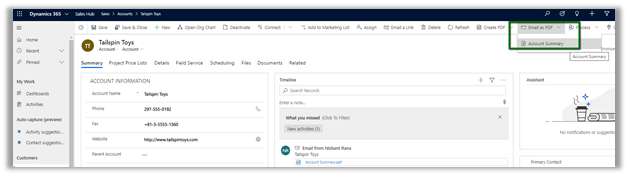
Enabling it adds the Create PDF and Email as PDF commands.

Create PDF and Email as PDF options will let the user select the templates available for that entity.

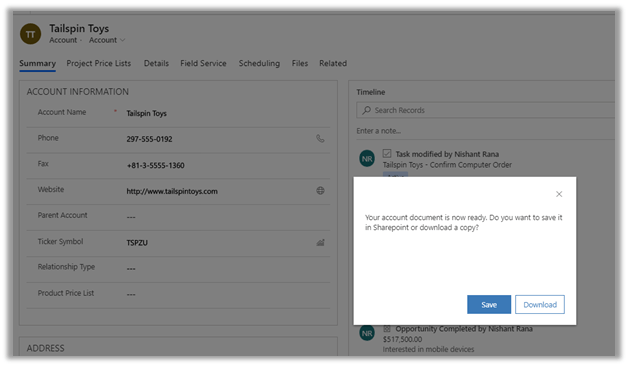
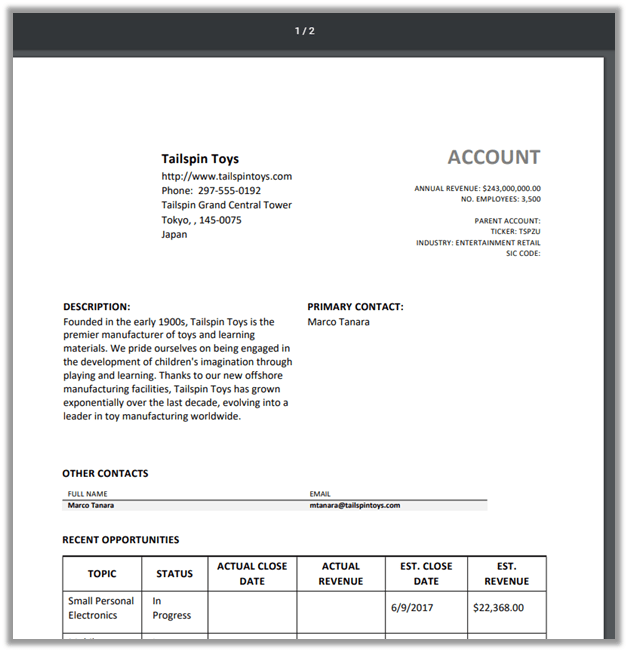
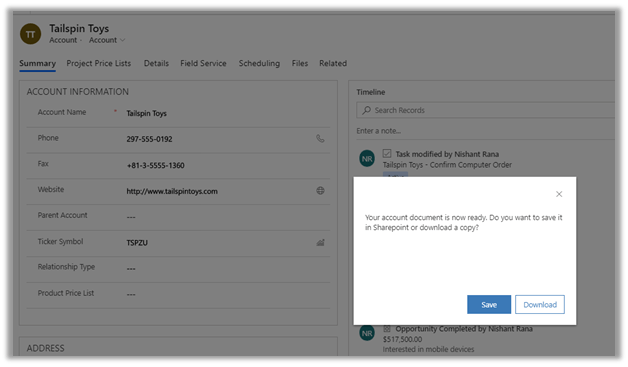
The generated pdf document through Create PDF option, can either be saved in SharePoint or in the local drive.

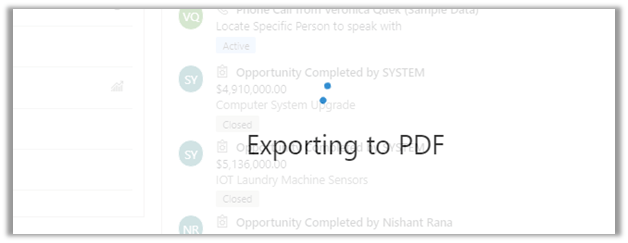
Clicking on Download starts the Export to PDF process and saves a copy of the pdf.

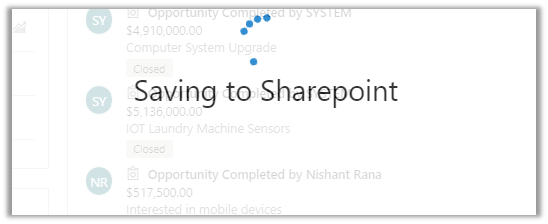
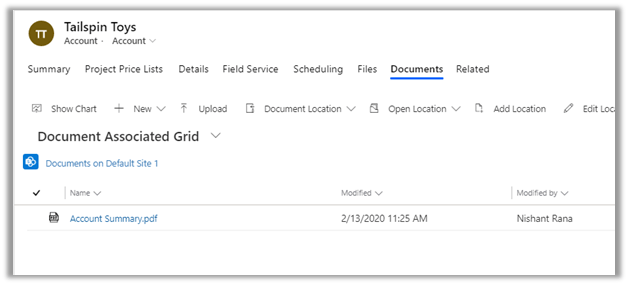
Clicking on Save saves it in the SharePoint Document Location configured

Email as PDF option can be used to email the PDF directly to the customer.

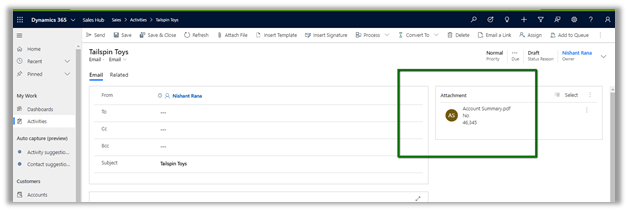
It basically opens the Email record with PDF added as an attachment.

The mapping for the email opened –

Check other blog posts on

Release 2020 Wave 1: https://nishantrana.me/2020-release-wave-1/

Release 2019 Wave 2: https://nishantrana.me/2019/12/31/dynamics-365-2019-release-wave-2-blog-posts/

Hope it helps..
Sales Team Member app module in 2020 Release Wave 1 Plan


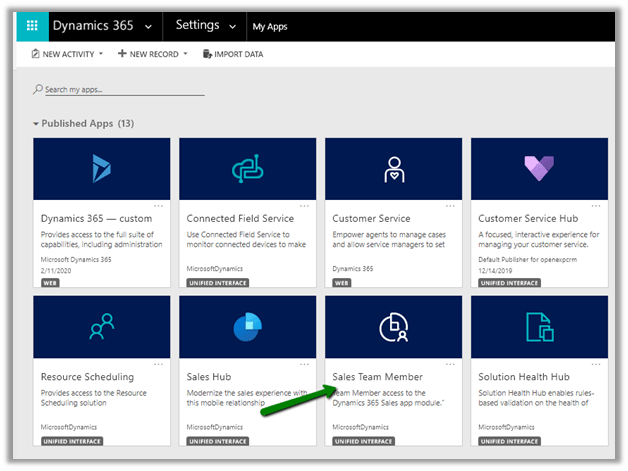
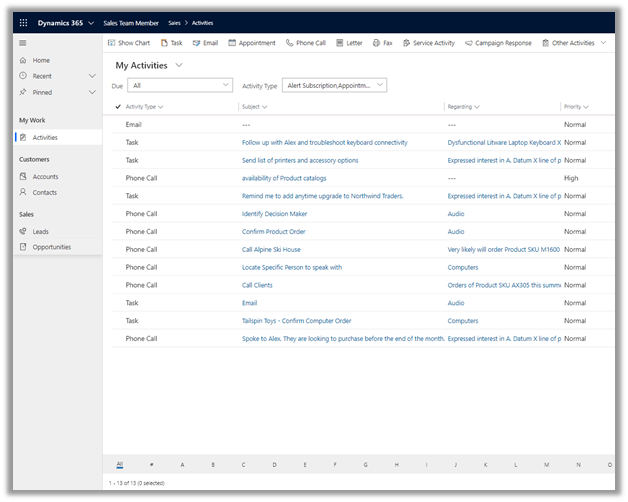
A new Sales Team Member App has been made available in the 2020 Release Wave 1 plan that is specifically designed for users having Team Member License.

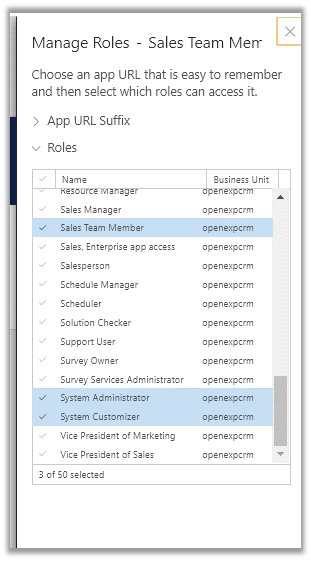
Below are the roles assigned to the app.

Below are the entities available for the users within the Sales Team Member app

Team member licensing is targeted towards the lightweight users that need limited access across the Dynamics 365 Apps.

Below are some of the rights/actions that Team member License User can perform –

  • Read all Dynamics 365 application data and Custom Entity Data.
  • Can Access Customer Engagement applications from Web App, Mobile, Tablet and Outlook.
  • Mobile Offline capabilities are not available for Team Member Licenses.
  • Create, Update and Delete
    à Activities, Announcements, Contacts, Custom Entities (15 max), Notes associated with them, Personal Views, Saved Views, Email Templates, Word Templates.
  • Create and modify up to 15 Custom Entities (per application) in addition to the OOB entities.
  • Export data to excel.
  • Access user reports, charts and dashboards.
  • Through Portal and API – create, read, update and delete Cases.
  • Post and follow activity feeds.
  • Perform mail merge.
  • Start a dialog.
  • Associate a marketing list with contact or account.
  • Use a queue item.
  • Use relationships and connections between records.
  • Use the search and advanced find.

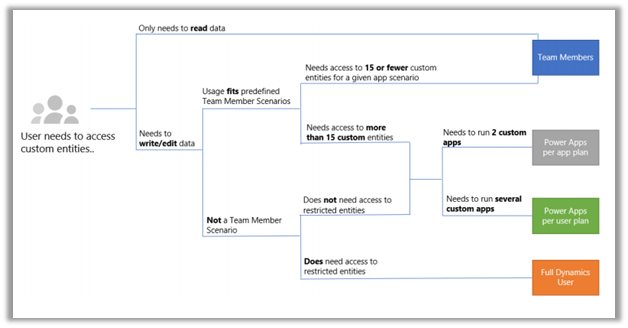
The below diagram from the Licensing guide explains how team members’ license fits with the need to access custom entities.

Licensing is one the most complex part about the product, so it always recommended to go through the licensing guide and clear any doubts from Microsoft before deciding.

Download the Dynamics 365 Licensing Guide

https://go.microsoft.com/fwlink/p/?LinkId=866544

Also, check

https://docs.microsoft.com/en-us/dynamics365/get-started/team-members-license

https://docs.microsoft.com/en-in/dynamics365/sales-enterprise/sales-team-member

Check other blog posts on

Release 2020 Wave 1: https://nishantrana.me/2020-release-wave-1/

Release 2019 Wave 2: https://nishantrana.me/2019/12/31/dynamics-365-2019-release-wave-2-blog-posts/

Hope it helps..
Fixed – Microsoft.Crm.CrmException: Property ‘x’ isn’t declared on the control manifest in Microsoft Dynamics 365


We got this error while trying to save the form which uses the PCF Control.

This was because the name of the property was changed

And the updated solution was imported, while the control on the form was still referring to the old property name.

Fix is straightforward, remove the field using that control with old property name from the form and save the change.

Hope it helps..

Advertisements

PCF Control to show Twitter Likes Timeline


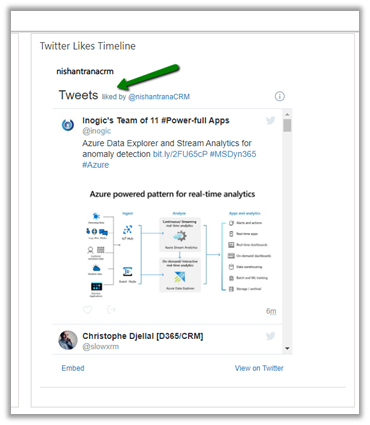
In the same line as Profile Timeline PCF Control, we can use the same concept to create a control that shows likes timeline that displays the recently like tweets of a specific public Twitter Account.

More on this

https://developer.twitter.com/en/docs/twitter-for-websites/timelines/guides/likes-timeline

Here we have specified the public twitter account nishantranacrm in this case, it will show all the tweets that are liked by that profile.

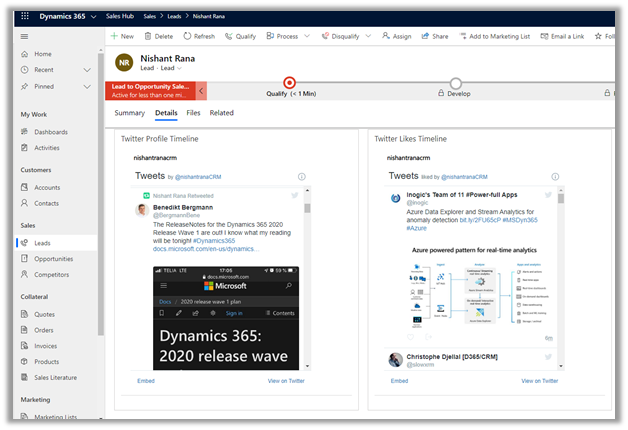
We can have both the Profile Timelines and Like Timelines control for the profile that we are interested in for a lead, contact or account record.

Get it here

https://github.com/nishantranacrm/PCFTwitterLikesControl

Hope it helps..

PCF Control to show the Twitter profile timelines


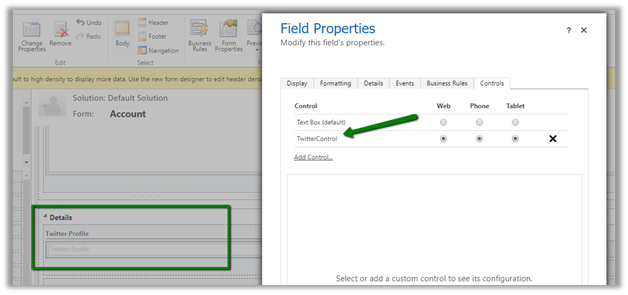
Created a simple PCF Control to show the twitter timelines for the profile. It basically uses embedded tweets.

Get the control here

https://github.com/nishantranacrm/TwitterPCFControl

Simply enter the twitter profile in the text field and it will render the latest tweets of that profile.

Inside an account form à

For the contact record à

Embedded timelines make it extremely easy to embed the Tweets on a web page.

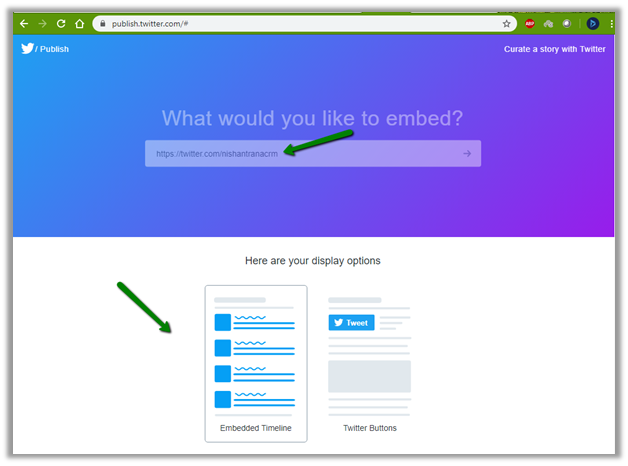
We can navigate to publish.twitter.com to generate the code.

Here I have searched from my profile, which then next gives us the display options to select.

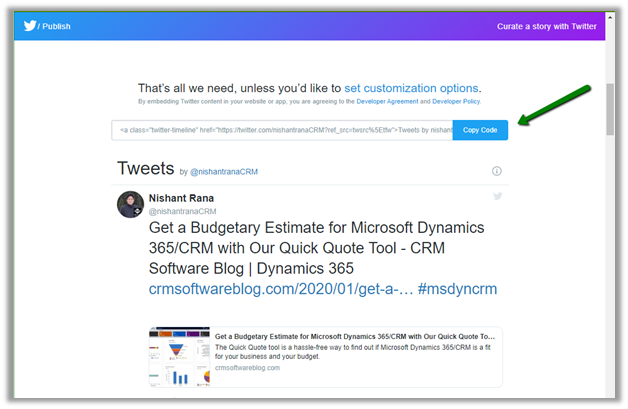
Here we selected the Embedded Timeline display option, which generated the code for us.

The code that we are using inside our PCF Control.

Read more about it here

https://developer.twitter.com/en/docs/twitter-for-websites/timelines/overview

Hope it helps..